HP desktop, laptop, or other devices not working? Outdated drivers can cause annoying audio bugs, display glitches, and slow Wi-Fi on your HP computer. Keeping your drivers updated ensures optimal performance, system stability, and better security. How to get driver update for HP quickly and easily?
This step-by-step guide walks you through quick and efficient methods to update your HP drivers and keep your PC running like new.
How to Tell If You Need an HP Driver Update?
How do you know if you need a driver update on HP computers? Before getting into the detailed guide for HP driver updates, please identify the signs that indicate you need to update your drivers right away:
Your Wi-Fi suddenly disconnects or hardware stops working properly.
Audio/sound breaks up, video stutters, screen resolution looks distorted.
System randomly restarts, or sudden lag during regular tasks or gameplay.
New Windows updates installation breaks compatibility with older drivers.
If your HP computer has encountered these issues or errors, please keep reading and follow the detailed guide to complete proper and fast HP driver updates.
How to Get Driver Update for HP Windows 11 Manually
Keeping your HP laptop or desktop updated on Windows 11 ensures your graphics, Wi-Fi, audio, and hardware run smoothly without glitches. Here are three simple methods to manually download and install the latest HP drivers on Windows 11.
Method 1. Download Drivers from HP’s Official Website
The official HP support site is the most reliable place to find the latest drivers specifically built for your device model. If you know exactly your operating system model number, you can try this:
Step 1. Visit HP Support Site
Open your web browser and navigate to the official HP Driver Downloads page (support.hp.com).
Step 2. Select Your Device & Enter Product Info
Choose HP desktop or HP notebook driver update, then enter your product serial number or model name into the search bar.
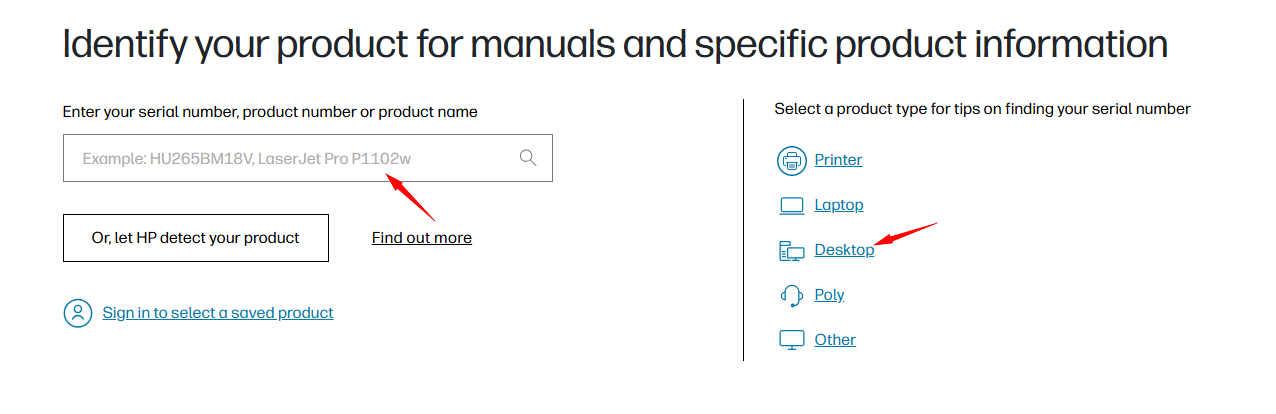
Let HP detect your product if you don’t know, and ensure the OS is set to Windows 11.

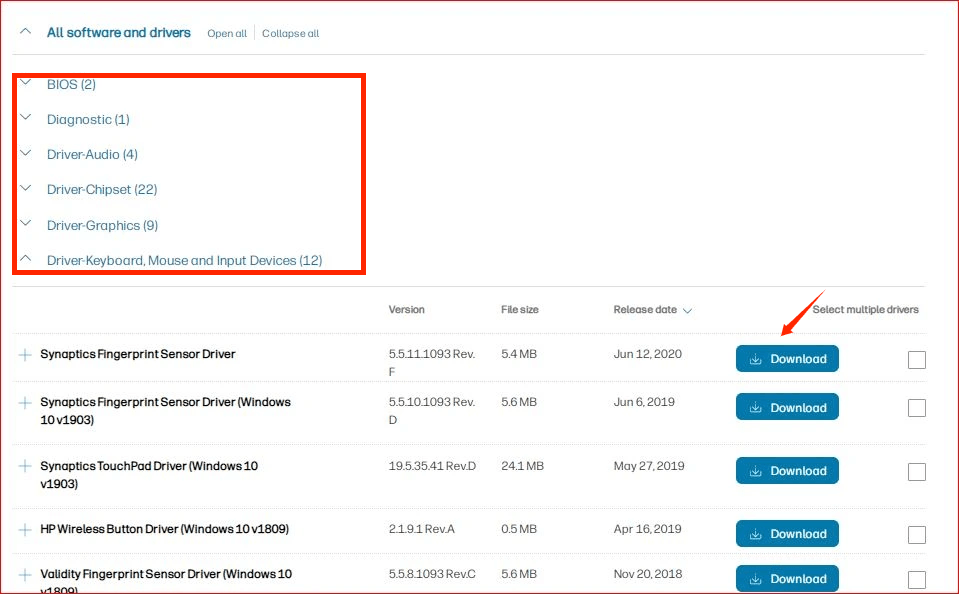
Step 3. Download & Install the Latest Drivers
Expand the category you need (such as Graphics, Network, or Audio).
Click Download next to the desired driver.
Step 4. Restart Your HP Computer
Once downloaded & installed, restart your PC when prompted.
Method 2. Update HP Drivers via Device Manager
Besides the above, Windows 11 includes a built-in Device Manager tool that allows you to keep drivers updated and avoid facing any driver-related issues manually. Now, follow this guide to update your audio, video, or network drivers on HP.
Step 1. Right-click the Start Menu icon on your taskbar (or press Win + X) and select Device Manager.
Step 2. Expand the category containing the component you want to update, such as Graphics, Audio Device, etc. Right-click and select “Update driver”.
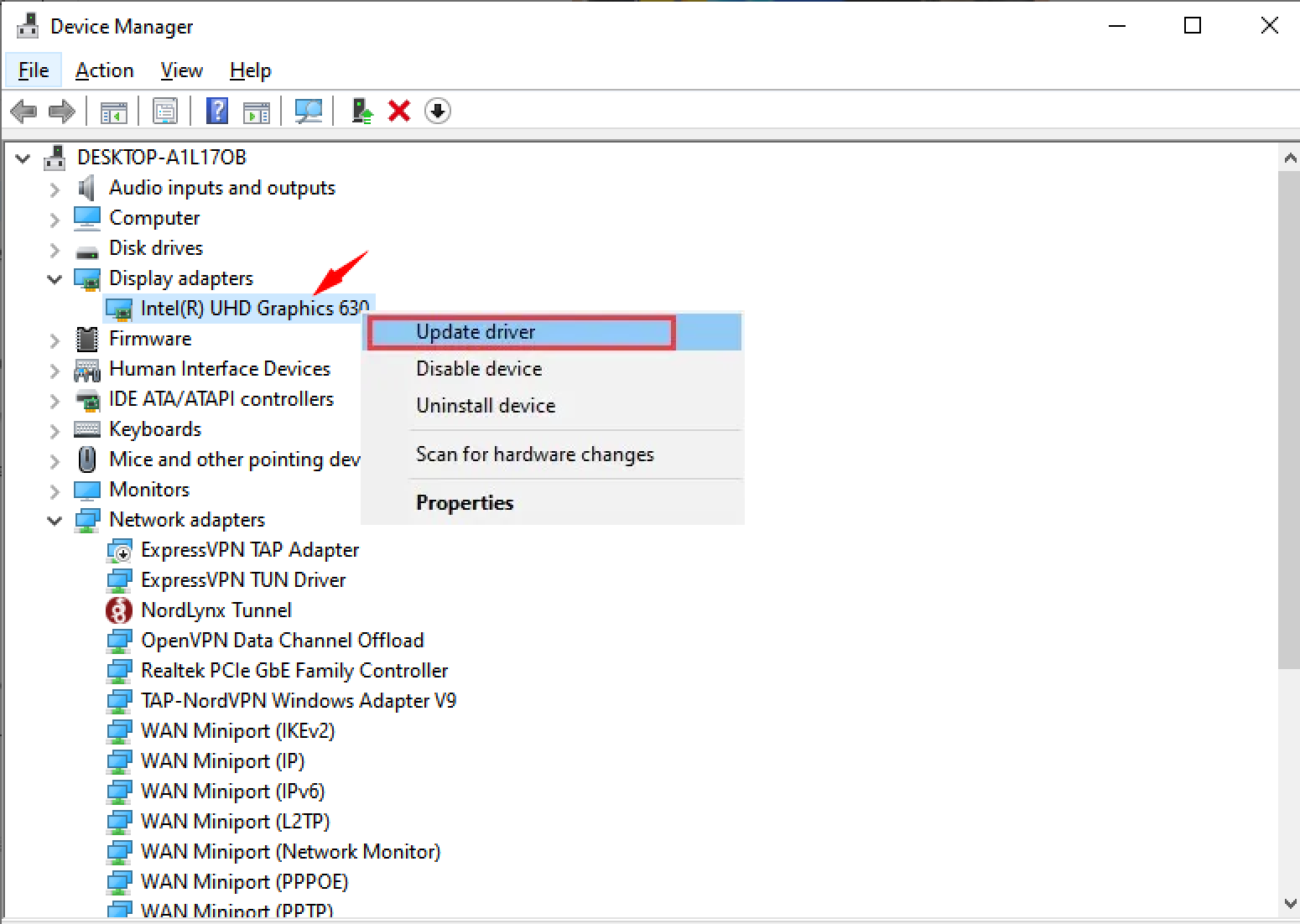
Step 3. Click “Search automatically for drivers”. Windows will scan your HP PC and Microsoft's repository for available updates.
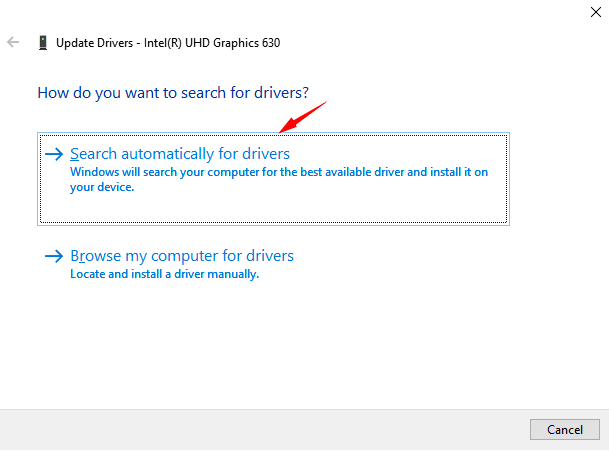
Step 4. After Windows 11 automatically downloads and installs the new version, click Close and restart your computer if required.
Method 3. HP Driver Update Using Windows Update
Is there a built-in HP driver updater for Windows 11/10? Fortunately, you can rely on Windows Update, which is a useful Windows troubleshooting tool for common driver and system update issues. Manually check the driver status and install the newest version on Windows 11 now.
Step 1. Click the Start Menu (or press Win + I) to open Settings.
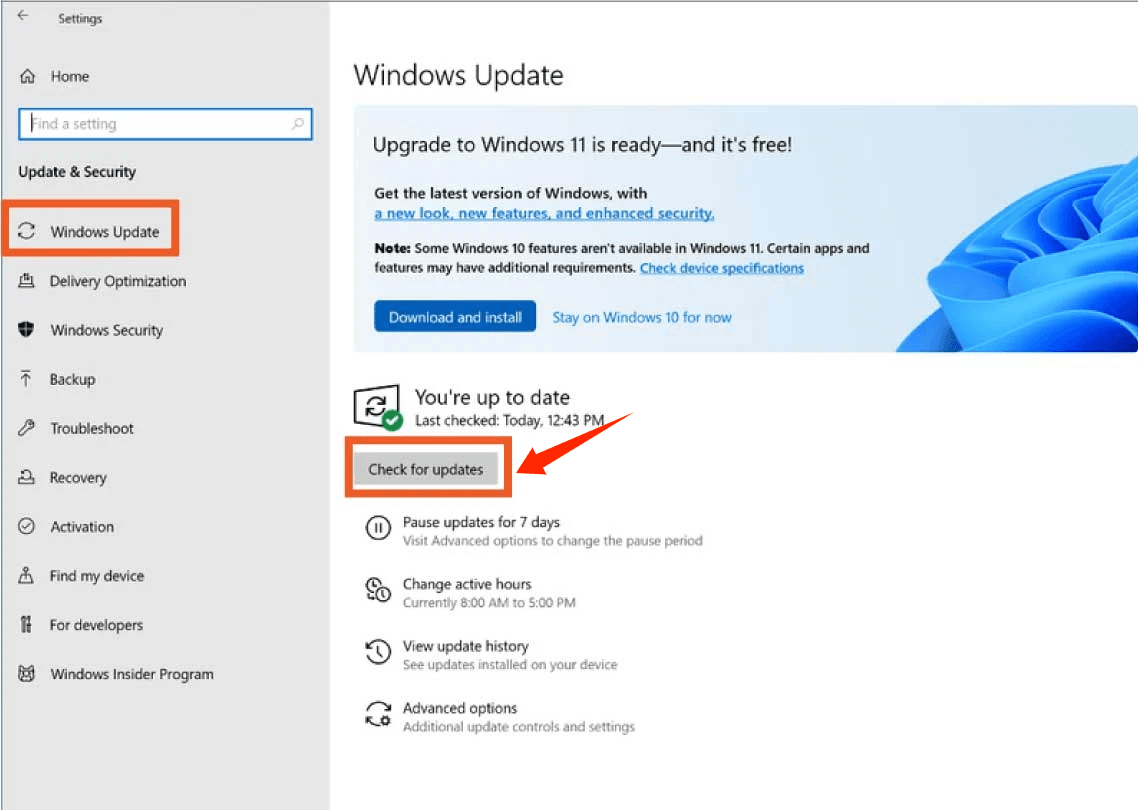
Step 2. Click on Windows Update > Check for updates to download general system and driver patches.
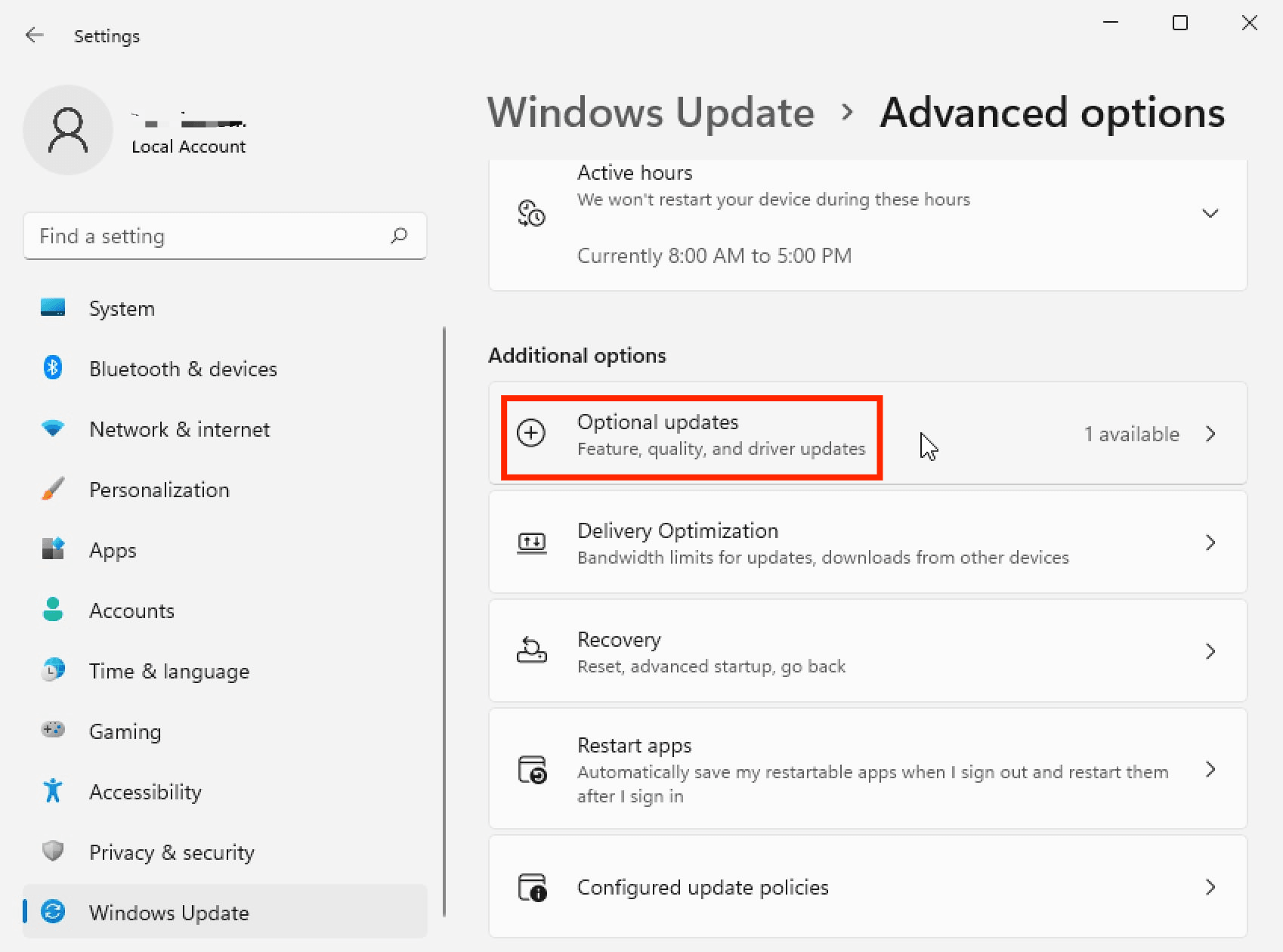
Step 3. Scroll down and click on Advanced options > Optional updates. Click Driver updates to expand the list.
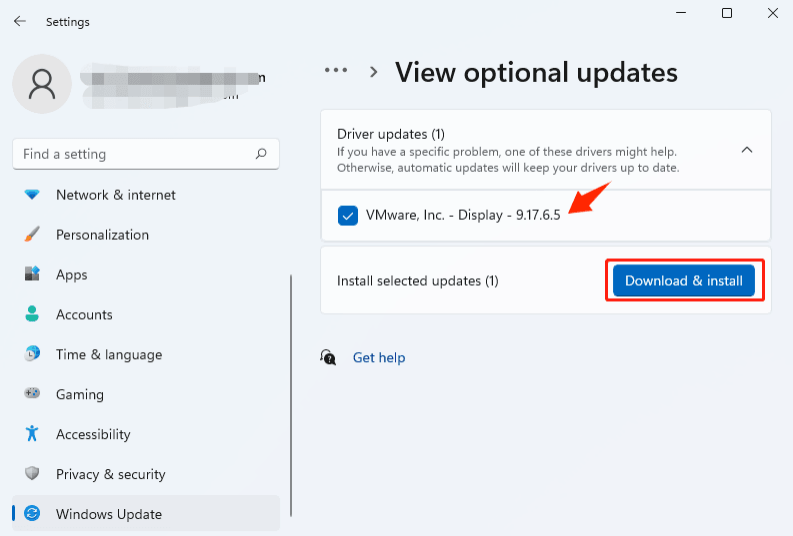
Step 4. Check the boxes next to any HP hardware drivers listed (e.g., HP Display, Realtek Audio, or Intel chipset drivers).
Step 5. Click Download & Install, and reboot your computer to finish the driver updates.
How to Update Driver for HP Windows 11 Automatically (Easiest Way)
If you’re tired of the above time-consuming methods to manually update drivers for HP PC, Driver Booster is a perfect driver updater for automatic HP Wi-Fi, HP audio, and HP graphics driver updates, etc., on Windows PC in seconds, with no requirements for technical knowledge or complex configurations.
With 12,000 K+ drivers database, it supports full scans of your operating system and detects all outdated drivers on your HP computer. It’s extremely easy and fast to update HP drivers effortlessly.
Driver Booster Free
- Automatically scan and update drivers.
- Update game ready drivers for peak gaming performance.
- Identify and fix various common of hardware issues.
- Boost 30% of system performance for fast & smooth running.

Steps on how to update drivers on HP laptop with Driver Booster:
Step 1. Free download and install Driver Booster on your HP computer.
Step 2. Launch the software and click on “SCAN” to detect your outdated drivers.
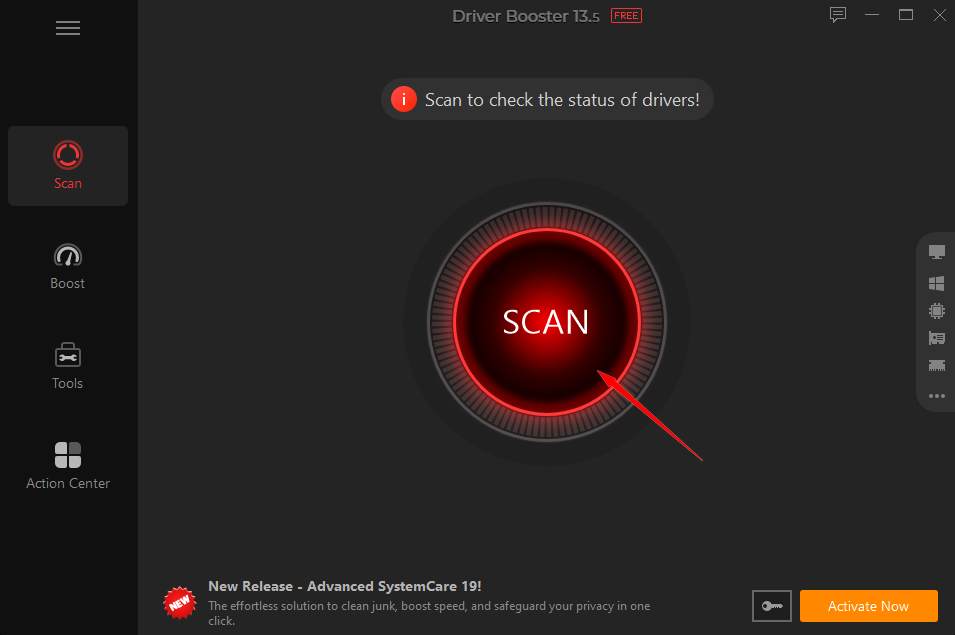
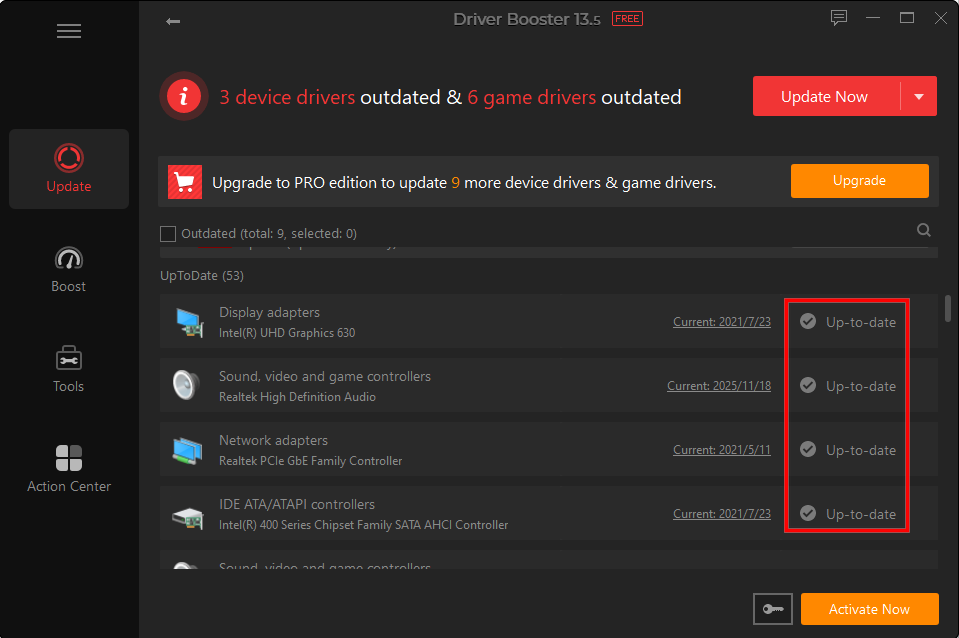
Step 3. After scanning, your outdated drivers, like Display adapters and Network adapters, will be up-to-date automatically.
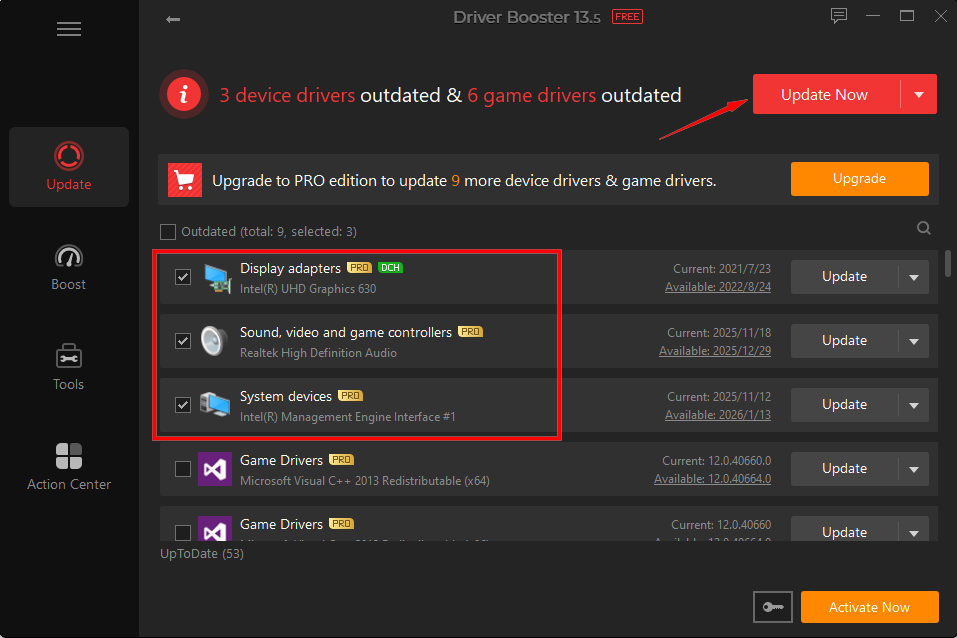
Step 4. For more advanced driver updates, you can check all the specific drivers and click on “Update Now” to update more device drivers and game drivers.
Why Do You Choose Driver Booster?
Full Scan & Instant HP Drivers Update: IObit Driver Booster performs a quick and deep system scan for safe driver updates. It’s a powerful tool to fix video & audio driver not working Windows 11 hassle-free.
Auto Driver Update for HP PC & Laptop: This amazing driver updater allows automatic driver updates for HP desktop, laptop, and other devices with 1-click.
Offline Driver Updater Anytime, Anywhere: You’re able to update outdated drivers offline without network connections at any place using this driver booster.
Multiple Useful Tools to Fix HP Issues: It’s the best driver updater that provides not only the latest driver downloads, but also “Fix No Sound”, “Fix Device Error”, “Fix Incompatible Drivers” and so on.
Game Boost for Smoother Gaming Experience: Lag on Valorant? It supports a basic game boost to stop unnecessary programs for a faster and better gaming experience.
Troubleshooting Common HP Driver Update Issues
What if you failed to update HP drivers or experience unknown errors after updates on Windows? Check the following 2 troubleshooting tips for common failures.
1. HP Support Assistant Gets Stuck or Fails to Install Updates
Fix: Clear App Cache & Restart: Close the HP Support Assistant app completely, open Windows Task Manager, end any remaining "HP" background tasks, clear Windows update cache, and reopen the app
2. Black Screen or Audio/Wi-Fi Failure After a Driver Update
Fix: Open Device Manager and right-click the affected device (e.g., Graphics or Network adapter), select Properties > the Driver tab > click Roll Back Driver. If it does not work, use Windows System Restore.
FAQs About Driver Update for HP
Here are some frequently asked questions about HP driver updates. Learn more about it if you need:
1. Why Should You Update HP Drivers?
Updating HP drivers fixes audio bugs, screen glitches, and Wi-Fi drops. It ensures system stability, boosts hardware performance, and maintains security compatibility with Windows updates.
2. How Do I Update the Drivers on My HP Laptop?
You can update HP laptop drivers automatically via HP Support Assistant (also an HP software update for printer) or Driver Booster, download from official websites, or use Device Manager or Windows Update.
3. How Often Should I Get Driver Update for HP?
Check for updates every 3 to 6 months for routine maintenance, or immediately whenever you experience issues, which the same as Dell & Lenovo driver update.
Final Thoughts
How to get driver update for HP PCs and laptops? This step-by-step guide has provided you 4 practical and easy methods for manual and automatic driver updates on HP devices. Free download Driver Booster to enjoy instant, automatic HP audio, video, graphic drivers updates and better PC performance with 1 click!
Driver Booster Free
- Automatically scan and update drivers.
- Update game ready drivers for peak gaming performance.
- Identify and fix various common of hardware issues.
- Boost 30% of system performance for fast & smooth running.