


Annie
Annie Cooper is a 7-year PC software and IT writer focused on security, workflow, and efficiency. Following EEAT principles, she delivers accurate, experience-backed advice to help users work smarter and stay safer.
Expert in
PC Health Solution

All-in-one PC health solution: clean, optimize and secure

Comprehensive PC cleaning, optimization and protection

Keep drivers always up-to-date

More stable performance with less system crashes

Protect millions of computers against malware

Top computer security with full-round protection

Protect against viruses & boost PC performance
Automatically scan and update drivers.
Update game ready drivers for peak gaming performance.
Identify and fix various common of hardware issues.
Boost 30% of system performance for fast & smooth running.

Fix sound issues fast on Windows 10/11: Open Device Manager and update your audio driver or install the latest Realtek driver from the official site. Follow these quick steps to stop crackling, restore clear sound, and improve your PC audio experience.

Annie


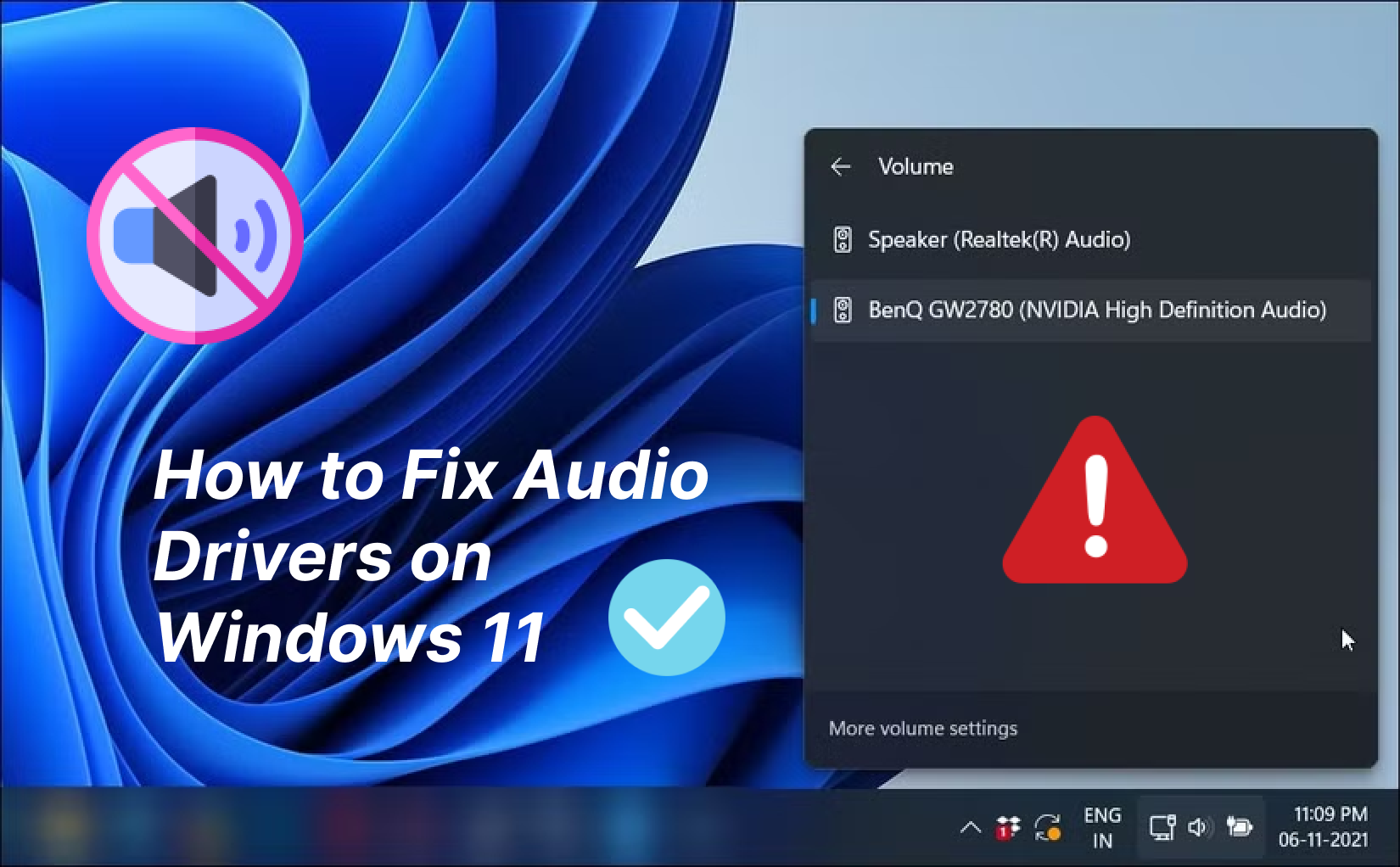
It’s a Tuesday night, you’ve finally settled in to watch a movie or play a game, and suddenly the sound crackles, warps, or disappears altogether. Is there anything wrong with my hardware? No worries. Usually, your hardware isn’t broken, but the communication line between Windows 11 and your speakers, the audio driver, has just failed to keep up. That’s what we mean: the audio driver has expired and needs to be updated.
This guide shows you how to update audio drivers so you can fix sound issues, avoid breaking anything else, and get back to clear, reliable audio with simple, practical steps.
Before you update or reinstall an audio driver, let’s check the right signals your computer sends.
Silent: Volume is 100%, but there is 0% sound.
Glitchy: Sound has distortion, noise, repetition, or imbalanced volume.
Desynced: The sound doesn't match the mouth movements in a video.
Error pop-ups: "Audio Service not running" or "Driver Error" messages.
Grayed-out: Volume sliders are disabled or cannot be clicked.
If you encounter these issues, your first step should be visiting the Device Manager to check for yellow warning icons or downloading the latest driver directly from your motherboard's or laptop manufacturer’s official website. Also, you can use driver update tools like Driver Booster to reinstall your audio driver conveniently.
For most users, Windows provides the basic built-in tools to handle updates without needing to scour the internet.
Before you go hunting for files on the internet, letting Windows do the heavy lifting is the safest way. Microsoft has improved how it delivers drivers. It now acts as a massive repository for verified hardware drivers.
Step 1. Press the Windows key + I to open Settings.
Step 2. Navigate to Windows Update in the left sidebar.
Step 3. Click “Check for update”.
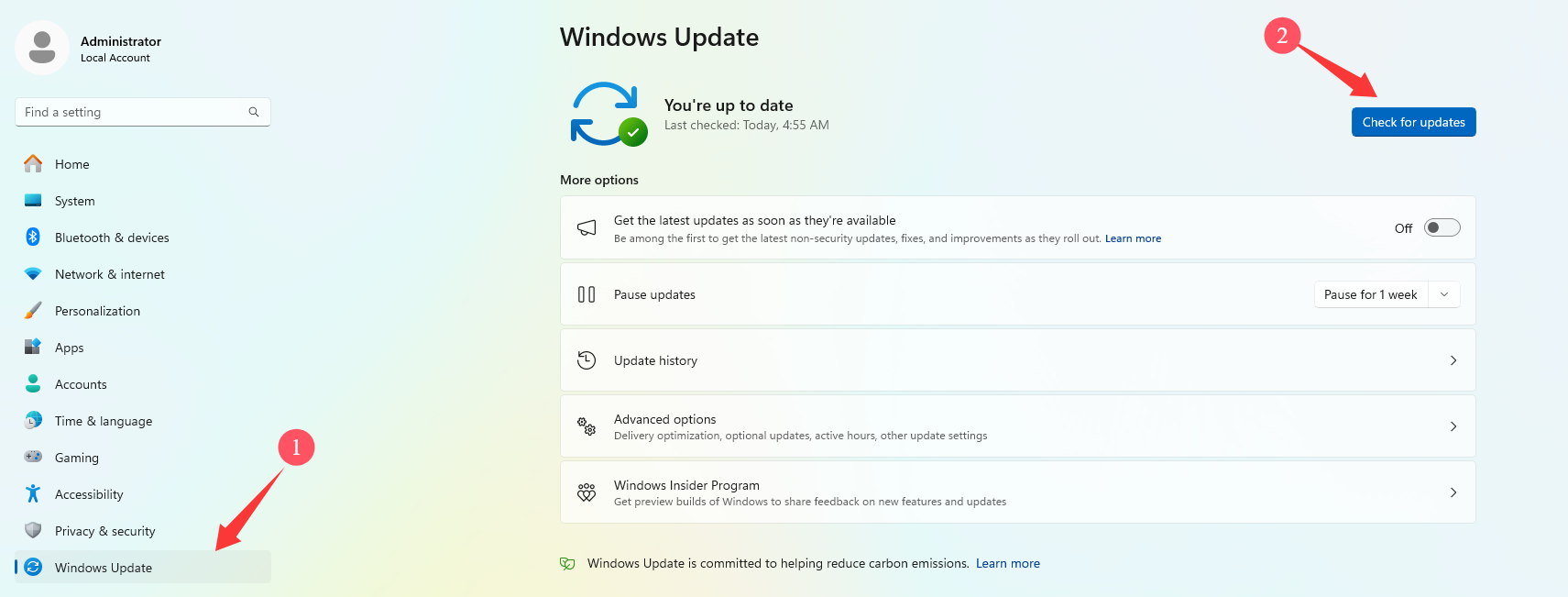
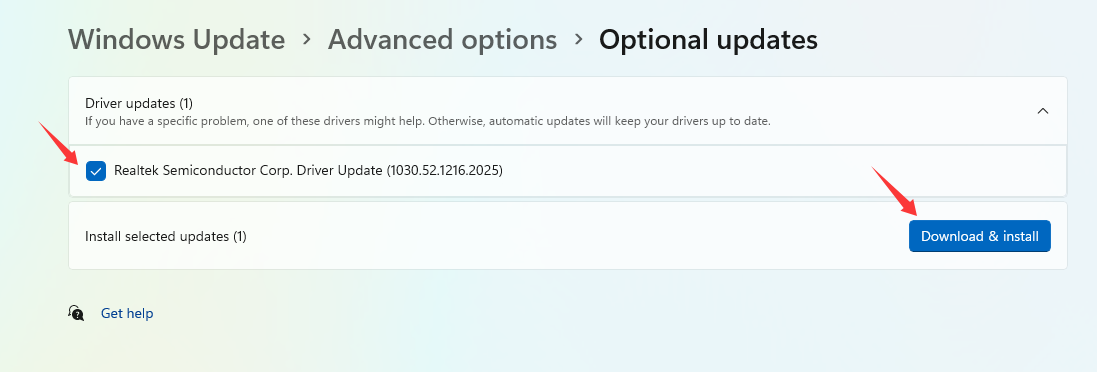
Step 4. If necessary, click on "Advanced options," then select "Optional updates".
Step 5. Expand the driver updates section. If you see an audio-related driver (e.g., Realtek, Intel SST, or High Definition Audio), check the box and click Download & install.
If Windows Update says you are "Up to date" but the sound is still broken, you need to force the system to look specifically at the audio hardware.
Step 1. Right-click the Start button and select Device Manager.
Step 2. Locate the section titled Sound, video, and game controllers > Expand it.
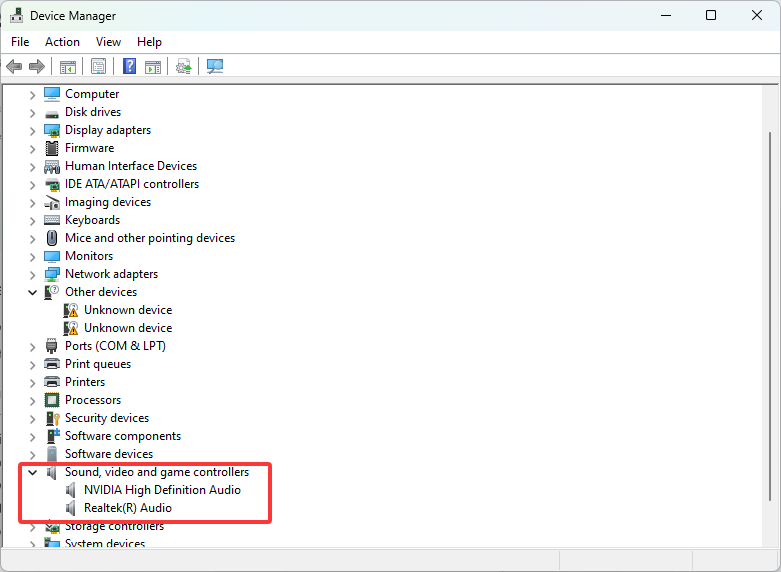
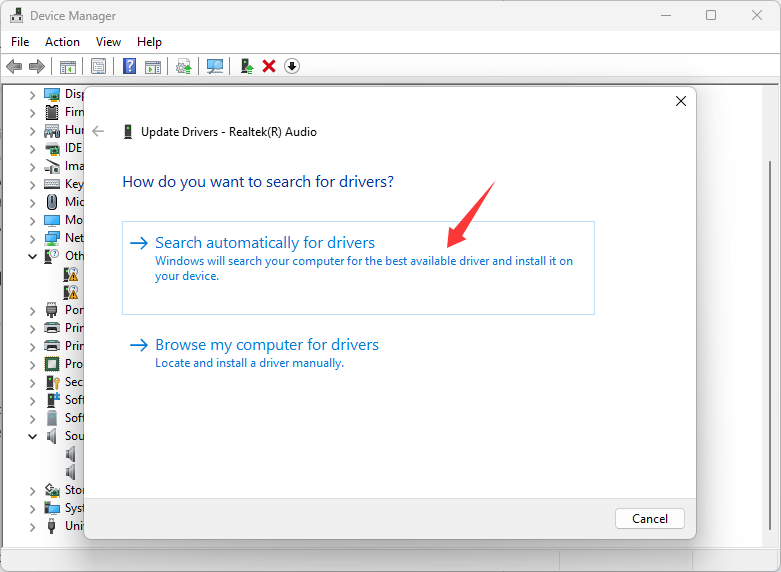
Step 3. Right-click your primary audio device (usually "Realtek(R) Audio" or "High Definition Audio Device") > Select Update driver.
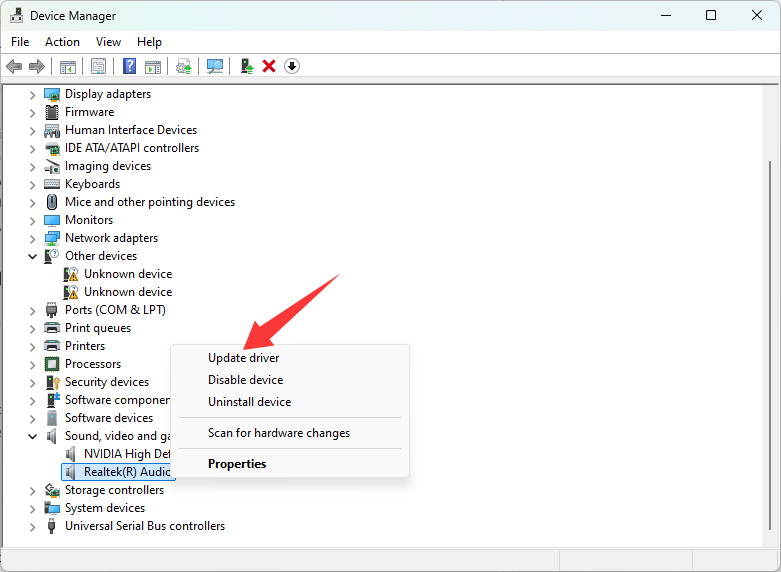
Step 4. Choose Search automatically for drivers. Windows will scan its internal database and the web for a newer version.
Also Read: 3 Free and Manual Ways for How to Update Video Drivers for Display Problems >>
Take Realtek, for example. Realtek is the "standard" of the PC world. If you look at the back of your computer and see green, pink, and blue audio jacks, you almost certainly have Realtek hardware integrated into your motherboard.
Because Realtek hardware is so common, it is also the most likely to experience "generic driver" issues. Windows might install a basic driver that provides sound but lacks the "Realtek Audio Console" features.
Before downloading anything, you need to know who made your computer.
If you have a laptop, go to their official support site.
If you have a custom-built desktop, you need to know your motherboard's brand.
Step 1. Go to the Device Manager and note the exact name. It usually says "Realtek High Definition Audio.
Step 2. Go to the Source and visit the support site of your PC manufacturer (e.g., support.dell.com, support.hp.com, or the motherboard site like ASUS or MSI).
Step 3. Download the .exe installer specifically for Windows 11.
Step 4. Realtek drivers often require you to run the installer once to uninstall the old driver, followed by a restart, and then run it again to install the new one. Do not skip the restarts.
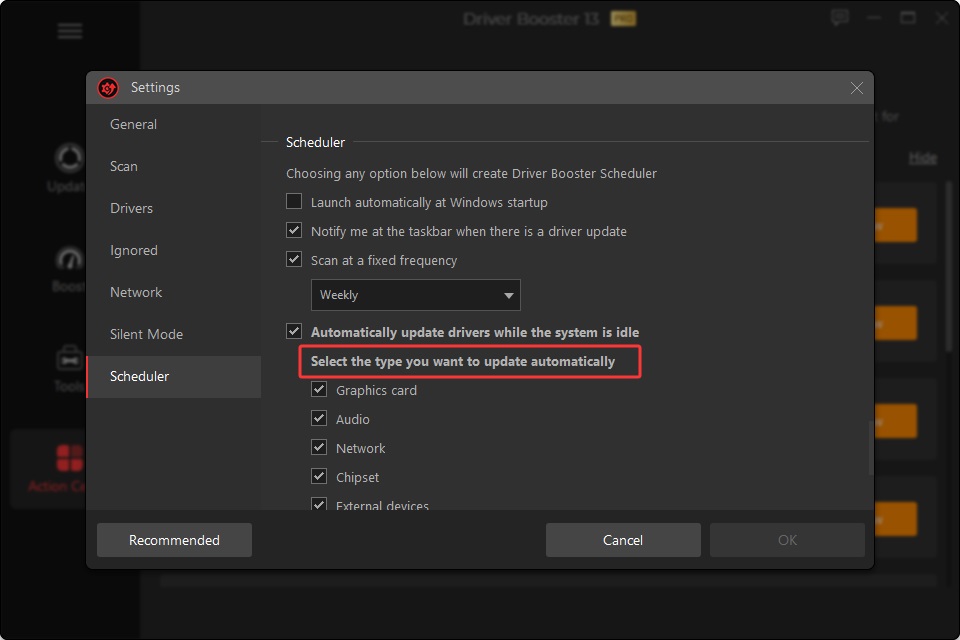
Most users ask, "How do you update audio drivers automatically?" hoping there is a "set it and forget it" button. Thankfully, Driver Booster has specialized in this.
IObit Driver Booster is a reliable and established easy driver updater dedicated to updating computer drivers for over 20 years. The database supports driver manufacturer certifications from over 1,200 major brands. Whether you're using the standard Realtek audio driver for the vast majority of onboard sound, the NVIDIA or AMD for TVs and live streaming, or the RME for low-latency audio in gaming, it always has what you need.

Step 1. Directly download it to your Windows 11/10 devices, install, and run it right away.
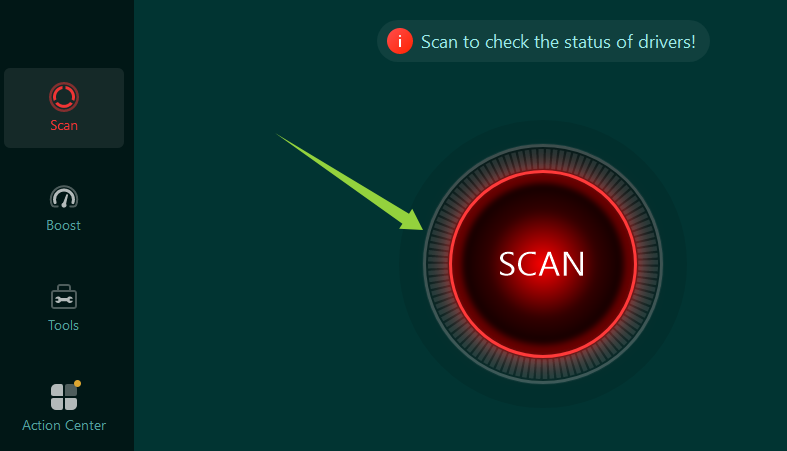
Step 2. On the simple interface, you can click the Scan button and let it auto-detect what and how many drivers need to be updated.
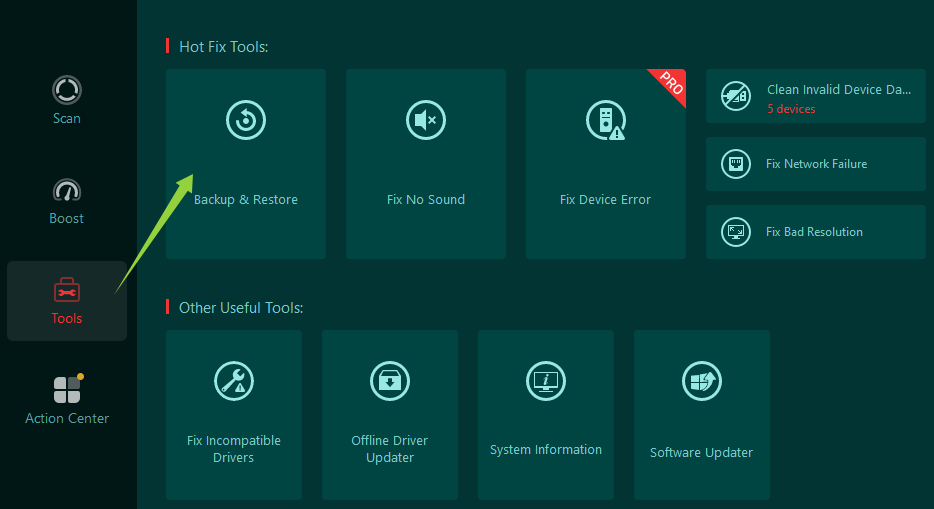
Tip: Before updating, there is a safety pin in the Tools > Hot Fix Tools > Backup & Restotre. If a system failure occurs after updating the driver, this function can trace the driver back to the version before the update.
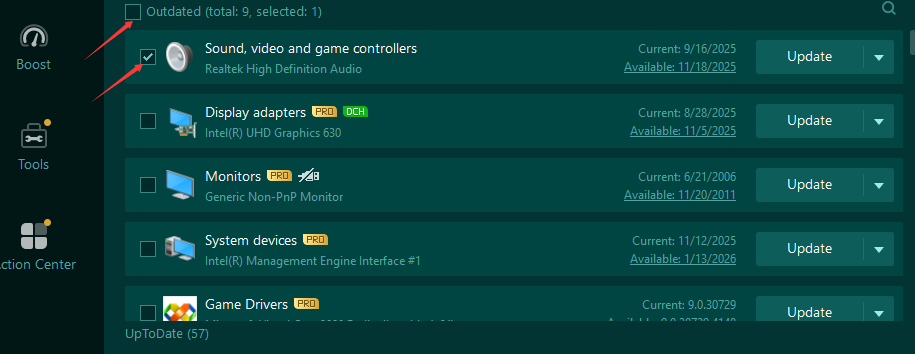
Step 3. In the scan results, you can select all or the specific audio driver to update. The whole process is completely free, and no login or registration is required.
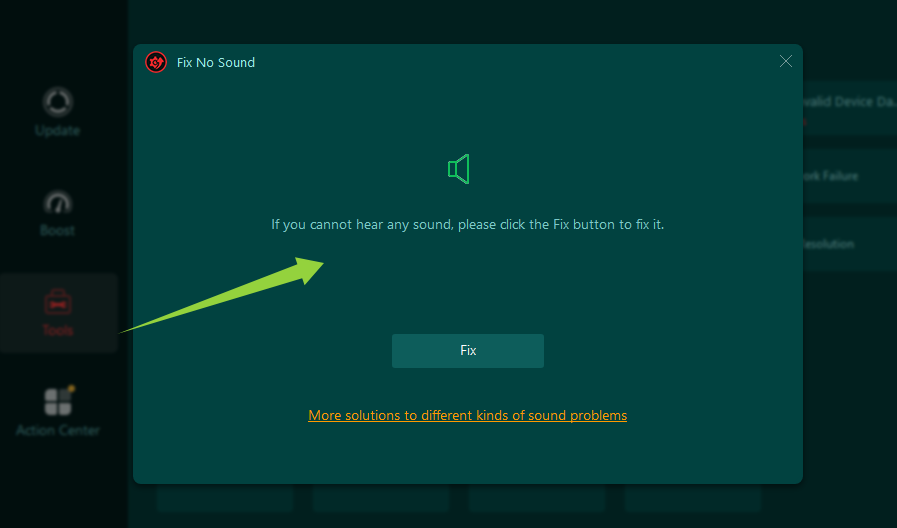
Tip: Still in Hot Fix Tools > Fix No Sound. This feature may solve the audio problem on your PC as well.
Step 4. After updating, play a song, a video, or game to check if the audio driver works well now.
You May Be Interested In:
It sets specific scenarios for the driver's lack of settings. If you don't know what causes your sound, picture, network, or other faults, just open Tools and click on the corresponding fault scenario, like “Bad Resolution," “Network Failure," etc., and Driver Booster will automatically fix it for you. This is really time-saving and convenient for computer novices.
Also Read: Why Won’t My GeForce Driver Update? Complete Fix Guide [Tested] >>
Technology is rarely perfect. If you’ve updated and things are still silent or worse, the sound is now distorted.
Way 1. Roll Back Drivers
If the new driver is buggy, you can retreat.
In Device Manager, right-click your audio device > Properties.
Go to the Driver tab and click Roll Back Driver. This restores the previous, stable version.
Way 2. Uninstall and Reinstall
Sometimes the driver registration is just "stuck."
In Device Manager, right-click the audio device and select Uninstall device.
Check the box that says Attempt to remove the driver for this device.
Restart your computer. Windows will realize the hardware is "missing" upon reboot and automatically attempt to install a fresh, clean copy of the driver.
Way 3. The Physical "Duh" Check
Before you give up, check the basics:
Default Device: Right-click the volume icon > Sound settings. Ensure the correct output (e.g., "Speakers" vs. "Headphones") is selected as the default.
Cables: Unplug and replug your 3.5mm jack or USB cable. Dust in a port can cause the "crackling" sound that people often mistake for a driver issue.
Conclusion
How to update audio drivers? Keeping audio drivers updated is an easy way to keep Windows 11 stable. Windows Update works for most people, but Device Manager and manufacturer sites give you more control. Check optional updates monthly to prevent most sound problems—then turn up the volume and enjoy your restored audio.

Keep drivers always up-to-date.
Free Download