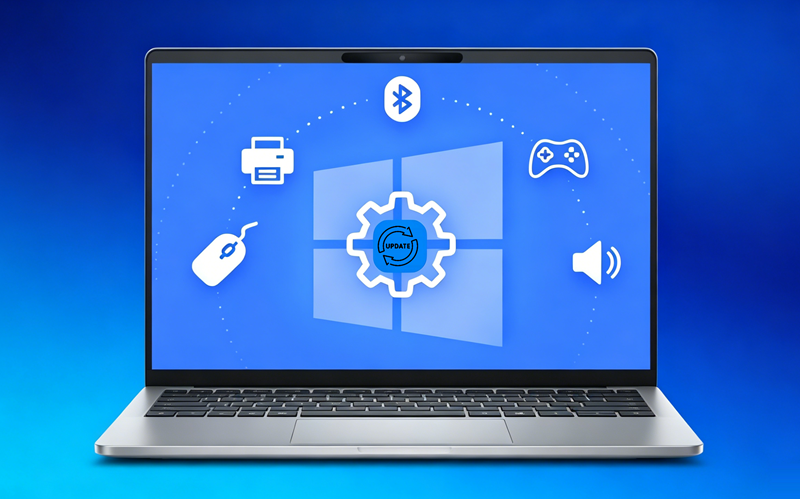
Keeping your drivers up to date is essential for ensuring your PC runs smoothly. For Intel users, the go-to solution is the Intel Driver & Support Assistant. This free, Windows-native utility makes it easy to keep Intel graphics, Wi-Fi, and chipset drivers current with minimal effort. In this guide, we’ll walk you through everything you need to know about this driver updater Intel tool, and how to update Intel drivers step by step.
What Is an Intel Driver Updater?
Intel Driver Updater, also known as Intel Driver & Support Assistant (Intel DSA), is Intel’s official option for detecting and updating drivers on Intel-based systems. It scans your PC, compares installed drivers with the latest versions available from Intel, and installs verified, compatible updates.
With automatic detection and a streamlined update process, you don’t have to worry about missing updates or spending time updating drivers manually. It offers a straightforward and reliable way to keep Intel drivers up to date directly from the source.
Why You Should Keep Your Intel Drivers Updated
Now that you know what the Intel Driver Updater is, let’s explore why keeping those drivers current is important for your PC’s health and performance.
Fix crashes, glitches, and driver-related bugs
Improve performance for faster computing and smoother gaming
Resolve issues with Intel graphics, Wi-Fi, Bluetooth, and audio
Patch vulnerabilities to protect your system from threats
Enable new Intel features and technology improvements
Ensure compatibility with the latest Windows updates and software
How to Update Intel Drivers Using Intel DSA? [Step-by-Step]
Updating Intel drivers with Intel Driver & Support Assistant is quick and straightforward. Before you begin, here are a few important precautions to keep in mind:
Create a restore point. (Search “Create a restore point” from the Start menu, click Create, and give it a name)
Close running programs and save your work.
Check OEM drivers and plug in your laptop.
Ensure a stable internet connection.
Restart after installation.
Now, follow these steps to update Intel Drivers:
Step 1. Download Intel Driver & Support Assistant from the official website and follow the on-screen instructions to install it.
Step 2. Once installed, the tool will automatically open in your browser and start scanning your system.
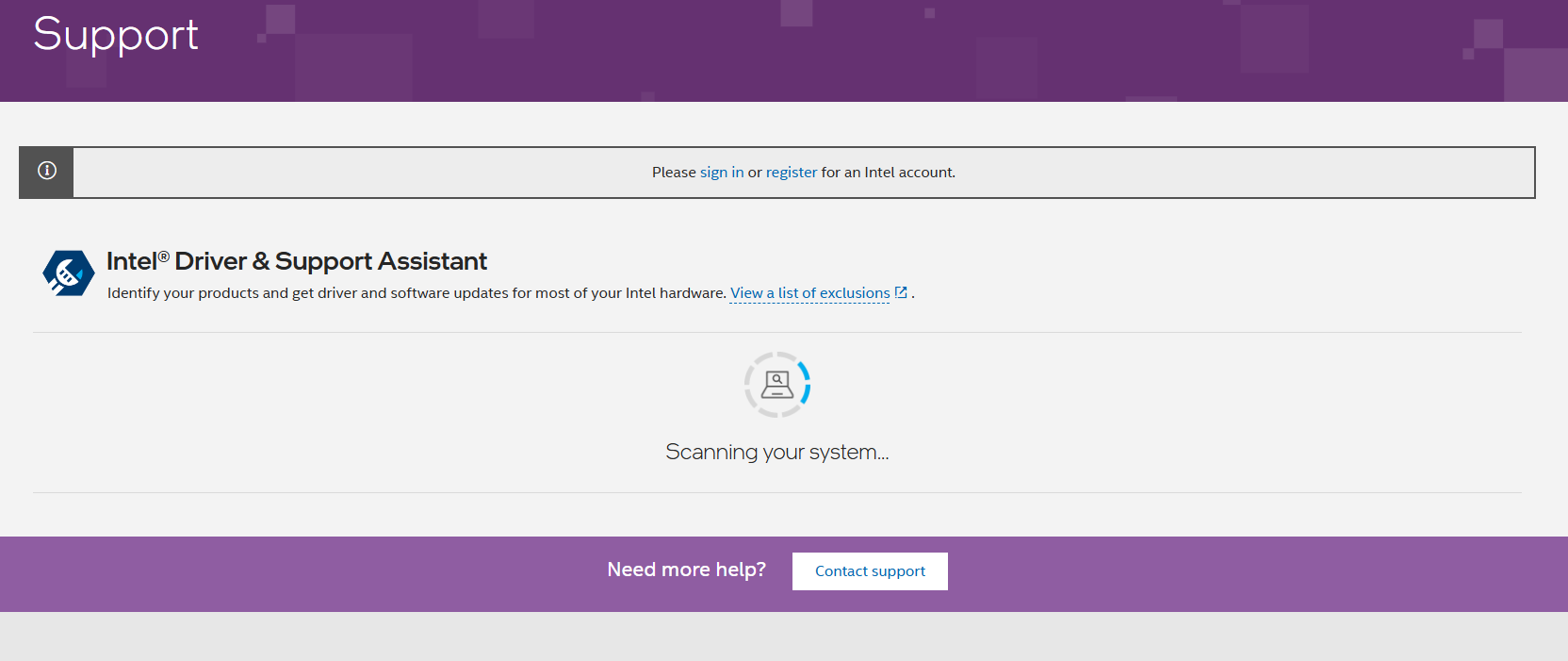
Step 3. Once the scan finishes, a list of available driver updates will appear.
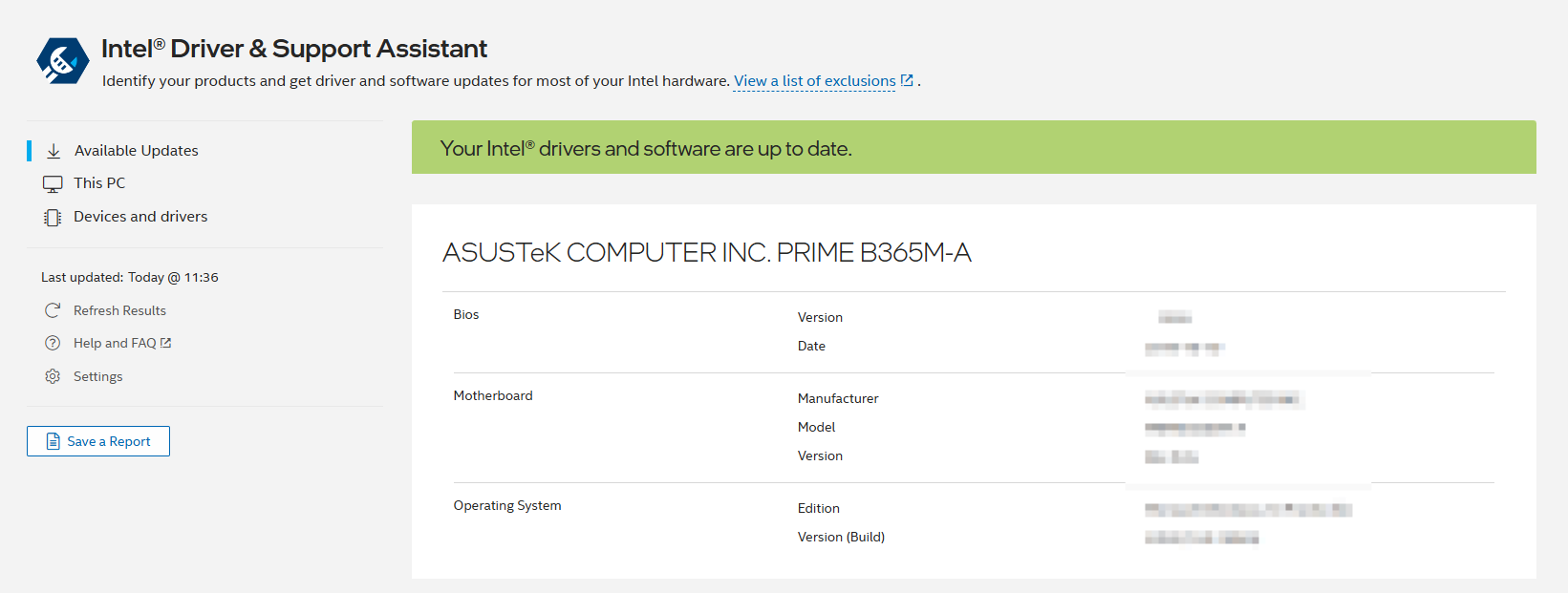
Step 4. For each driver you want to update, click Download and then follow the on-screen prompts to complete the installation.
Alternative Methods to Update Intel Drivers Windows 10/11
There are several other ways to update Intel drivers on Windows 10 or 11, each with its own advantages and limitations.
1. Windows Update
This is the easiest built-in option. Go to Settings (Windows+I) > Windows Update and check for updates. Windows will automatically install stable, compatible Intel drivers, though they may be the very latest versions, especially for gaming graphics.
2. Device Manager
This built-in tool enables you to search for and install drivers for specific hardware manually. It offers more control than Windows Update, but it can be time-consuming if you have multiple drivers to update.
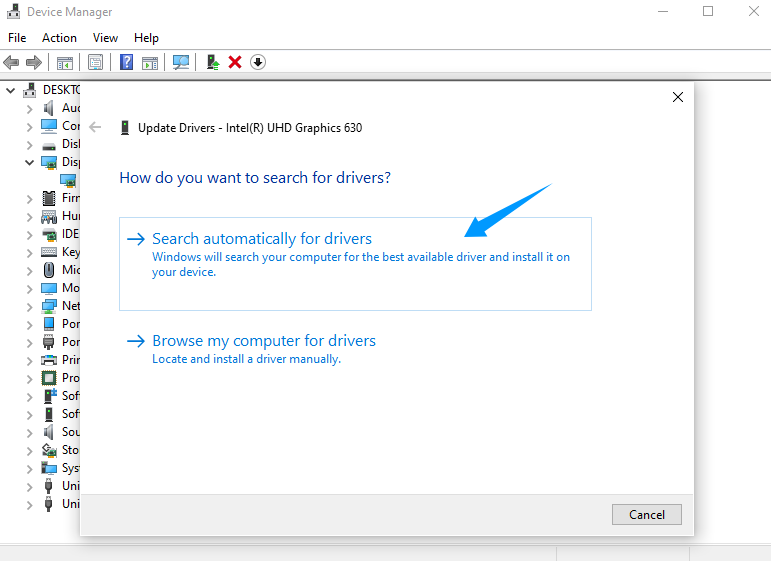
Right-click the Start button and select Device Manager. Expand the relevant category, right-click your Intel device (e.g., graphics or network), and choose Update driver. Next, click Search automatically for drivers to let Windows locate and install the most suitable driver.
3. Manual Download from the Intel Website
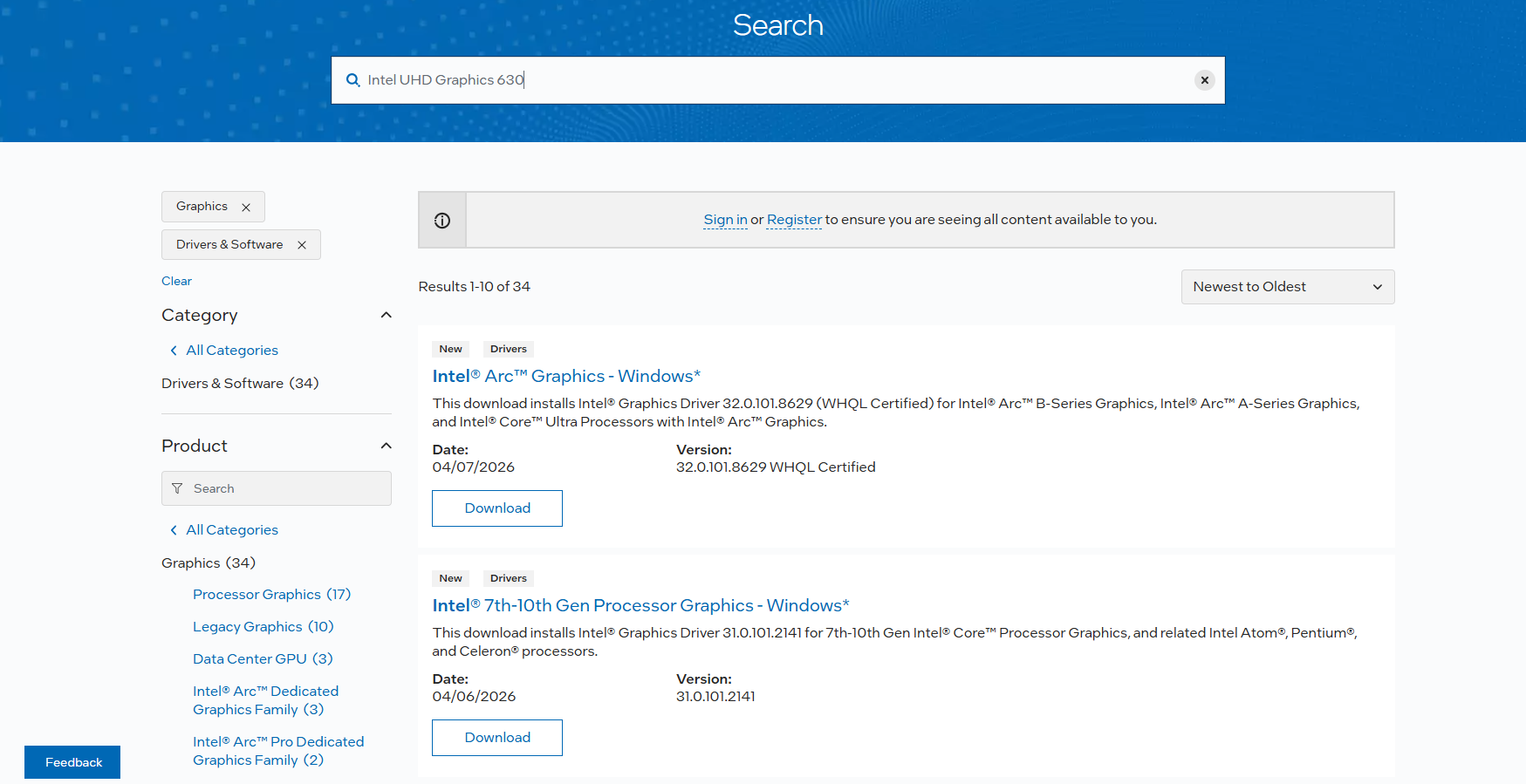
Head to Intel's support site and search for your exact hardware model. This method takes more work, but it ensures you get the latest updates directly from the manufacturer. That said, it requires knowing your specific hardware and locating the right download, which can be difficult for beginners.
If you're ready, go to the Intel Download Center, search for your product model (e.g., "Intel Wi-Fi 6 AX200" or "Intel UHD Graphics 630"), download the appropriate installer for your Windows version, and run it.
4. Safe Third-Party Driver Updater
While Intel Driver & Support Assistant is the safest and most reliable tool for updating Intel hardware, it doesn’t detect or update drivers from other manufacturers. That’s where third-party tools like IObit Driver Booster come into play.
Driver Booster is an all-in-one Windows utility that scans your system for outdated, missing, or faulty drivers across multiple brands, including Intel, NVIDIA, and Realtek. It supports one-click updates, batch installations, and creates a restore point before each update for added safety. With its large driver database (over 18 million drivers) and user-friendly interface, this free driver updater provides a convenient way to manage drivers for devices beyond Intel components.
Driver Booster Free
- Automatically scan and update drivers.
- Update game ready drivers for peak gaming performance.
- Identify and fix various common of hardware issues.
- Boost 30% of system performance for fast & smooth running.

More key features of this powerful Driver updater Intel and non-Intel:
Multi-Brand Driver Support: Driver Booster updates drivers across major hardware brands (Intel, NVIDIA, AMD, Realtek, etc.), offering broader coverage than Intel DSA.
Extensive Driver Database: It maintains a large, regularly updated database (over 18 million drivers), with drivers passed through Microsoft WHQL certification and IObit internal testing.
One-Click & Batch Updates: Automatically scans, downloads, and installs all outdated drivers with a single click. Batch updates save a lot of time compared to manual methods.
Backup and Restore: Driver Booster provides driver backups and system restore points for added safety, along with a user-friendly interface for beginners.
Built-in Troubleshooting Tools: This driver updater also includes tools to detect and fix common driver-related issues, such as no sound, network problems, and display resolution errors.
Follow the guide below to update all the drivers on your PC.
Step 1. Click the Free Download button above and install the program on your PC.
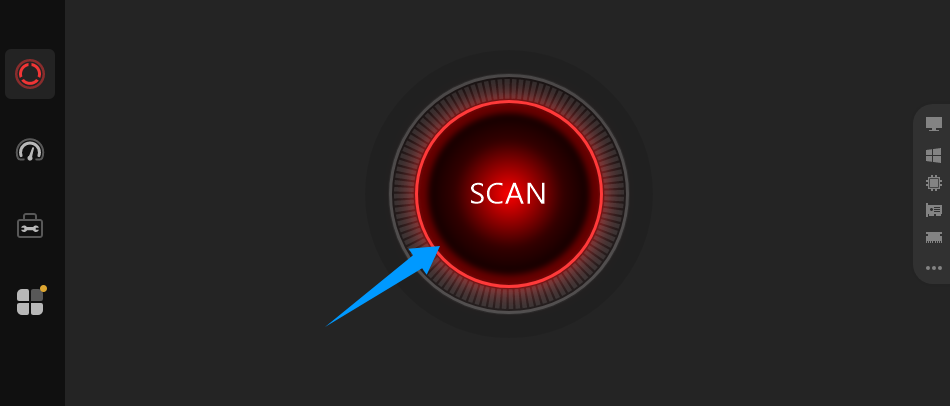
Step 2. Click the Scan button.
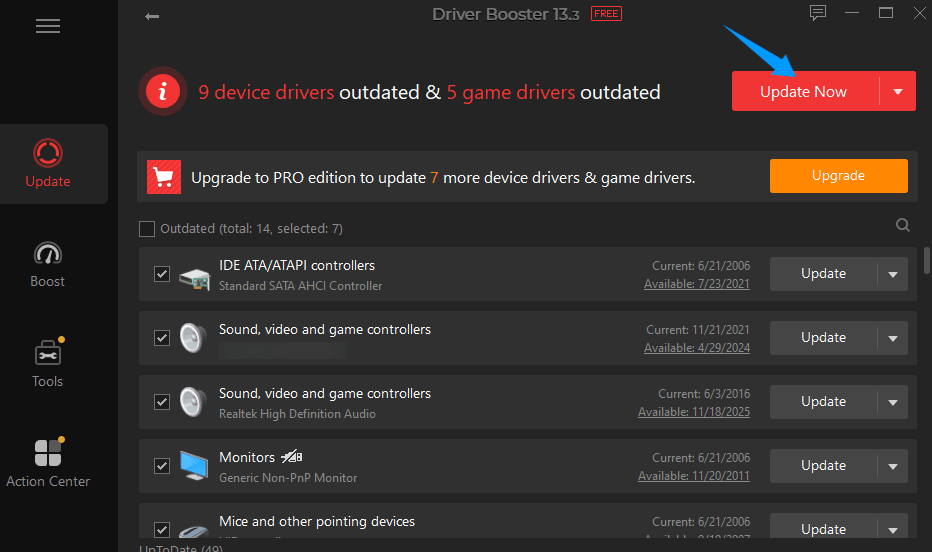
Step 3. When the scan is done, check the list and click Update Now to install the driver updates.
Frequently Asked Questions About Driver Updater Intel
1. Is the Intel Driver Updater free?
Yes, the Intel Driver & Support Assistant is free, with no paid versions, subscriptions, or hidden fees.
2. Does Intel DSA update non-Intel drivers (e.g., NVIDIA, AMD, Realtek)?
Unfortunately, no. Intel DSA only updates Intel-branded hardware and won’t detect or update drivers from other manufacturers like NVIDIA, AMD, Realtek, or printers. For those, you need to use Windows Update or a third-party utility like Driver Booster.
3. Do I need to uninstall old drivers before updating?
No. You don't need to manually uninstall anything; Intel DSA automatically replaces outdated drivers with the newest versions.
4. What should I do if Intel DSA fails to install a driver?
Try these quick fixes:
Restart your PC and run Intel DSA again.
Run Windows Update to install any pending system updates.
Temporarily disable the antivirus or firewall.
Use your PC manufacturer’s (OEM) driver if available.
Uninstall Intel DSA, reboot, then reinstall the latest version from Intel’s website.
Conclusion
The Driver Updater Intel tool is a simple and reliable solution for keeping drivers up to date. Featuring a user-friendly interface and automatic detection, it removes the guesswork from driver management while ensuring compatibility and stability. Plus, third-party tools like Driver Booster can be a helpful addition by updating non-Intel components and offering batch updates with one-click convenience. Give it a try and enjoy a smoother PC experience.
Driver Booster Free
- Automatically scan and update drivers.
- Update game ready drivers for peak gaming performance.
- Identify and fix various common of hardware issues.
- Boost 30% of system performance for fast & smooth running.