A dependable file manager is essential for keeping your computer organized and responsive. Scattered files across different storage drives cause daily frustration and wasted work hours on Windows. Misplaced documents, duplicate photos, and chaotic downloads make finding project assets difficult. Rather than scrolling through deeply nested folders, you can navigate your system smoothly and efficiently. This guide explores leading file manager options for Windows in 2026 and explains how to secure your private documents.
What is a File Manager?
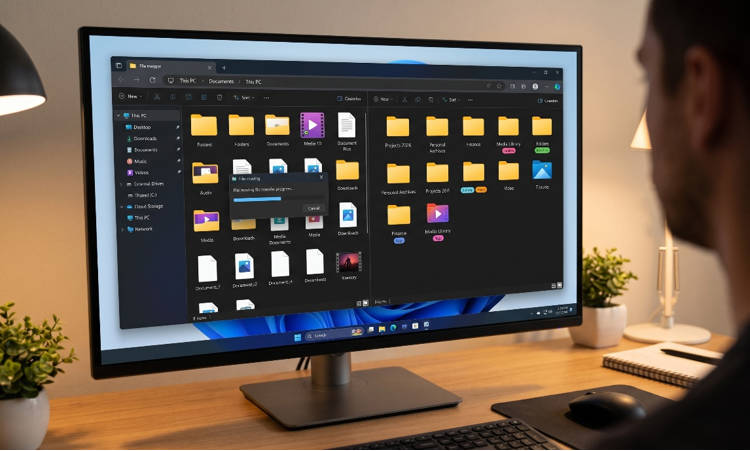
A file manager serves as your primary desktop utility for browsing, creating, moving, and organizing your files and folders. Instead of typing rigid commands in PowerShell or Command Prompt, users manage files through an intuitive visual interface displaying storage drives and folders clearly.
A modern file manager program handles routine operations while delivering advanced system controls:
Directory Navigation: Browse nested folders, internal hard disks, flash drives, and connected cloud storage.
File Manipulation: Copy, move, rename, delete, compress, and extract archives without data corruption.
Search and Indexing: Locate specific files rapidly using metadata filters like file format, date, and size.
File Previews: Inspect photos, PDFs, and text documents directly without opening external viewer software.
Every computer user depends on these functions for daily computing tasks. Choosing a specialized file manager Windows free solution gives you tabbed browsing and custom layouts. Furthermore, selecting a capable file manager Windows 11 and Windows 10 tool ensures complete visual consistency and smooth operation with modern system updates.
Why Need a Good File Manager?
Default folder browsing tools often fall short when handling extensive media libraries, code repositories, or complex office projects. Upgrading to the best file manager delivers clear workflow advantages that boost daily productivity:
Save time finding and organizing files: Instant search filters and bookmarks retrieve misplaced documents in seconds, eliminating manual searches through deep directory paths.
Boost multitasking with dual panels: Side-by-side folder panels simplify drag-and-drop transfers between directories without opening multiple desktop windows.
Automate routine file maintenance: Multi-file renaming tools and custom rules rename and arrange hundreds of files simultaneously using smart presets.
Monitor storage drive health: Built-in disk analyzers identify bloated folders and redundant duplicates, helping you clean cluttered drives before storage runs low.
Testing a file manager download free package lets you evaluate these productivity gains before committing to any paid upgrade.
Best File Managers for Windows 2026
Selecting the right software depends on your workflow complexity, hardware setup, and interface preferences. Here are the top four desktop solutions for Windows users in 2026.
#1 Windows Built-in File Manager
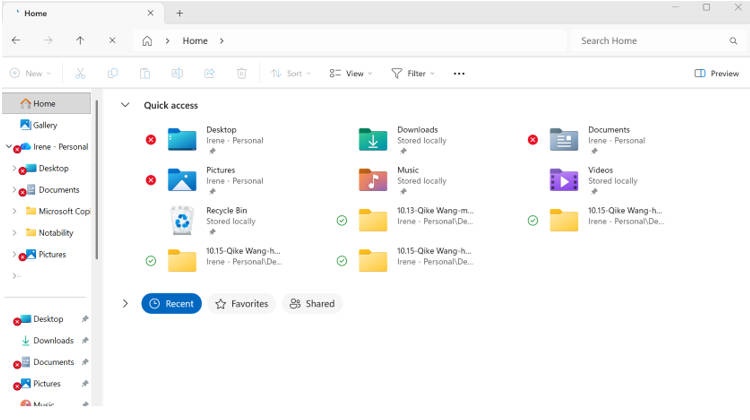
Windows File Explorer serves as the native file manager included within Windows. Recent updates introduced a refreshed interface featuring folder tabs, an updated context menu, and direct OneDrive cloud integration.
Key Features:
Native folder tabs that let you keep several directories open in a single window.
Direct synchronization with Microsoft OneDrive for automatic cloud file backups.
Quick Access favorites panel for pinning frequently visited directories.
Integrated Windows Search bar supporting keyword and extension filters.
Pros
Pre-installed on every Windows PC with zero configuration required.
Full compatibility with Windows security policies and user permissions.
Cons
Lacks native dual-pane split views for direct side-by-side file transfers.
Limited advanced batch renaming tools and deep metadata search filters.
Best For: Everyday computer users wanting straightforward navigation without extra tools.
Pricing: Free (bundled with Windows).
#2 Files App
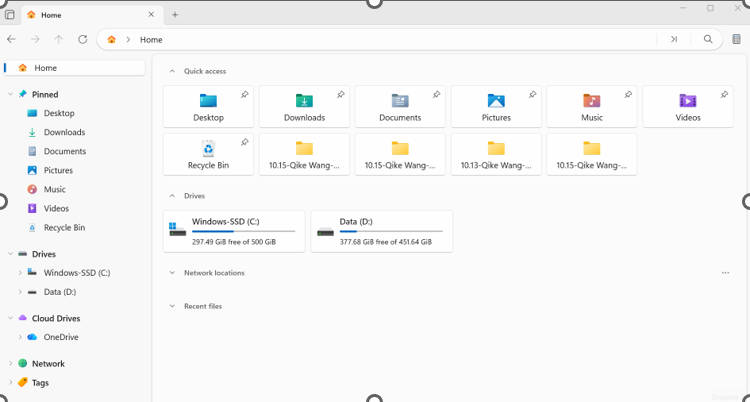
Files App is an open-source utility designed to match modern Windows aesthetics. It upgrades standard browsing with Fluent Design transparency, modular sidebars, and customizable theme palettes.
Key Features:
Modern tabbed navigation interface with smooth animations and layout scaling.
Dual-pane layout allowing simultaneous folder browsing and easy drag-and-drop transfers.
Cloud drive integration supporting Google Drive, Dropbox, and Microsoft OneDrive.
Color-coded item tagging to categorize project files across directories.
Pros
Clean interface that integrates seamlessly with modern Windows themes.
Intuitive dual-pane functionality that simplifies large-scale organization.
Cons
Higher system memory usage compared to default Windows File Explorer on older PCs.
Occasional rendering pauses when reading folders containing thousands of files.
Best For: Creatives, designers, and students seeking a modern desktop interface.
Pricing: Free open-source package via GitHub; optional paid store edition ($8.99).
#3 OneCommander
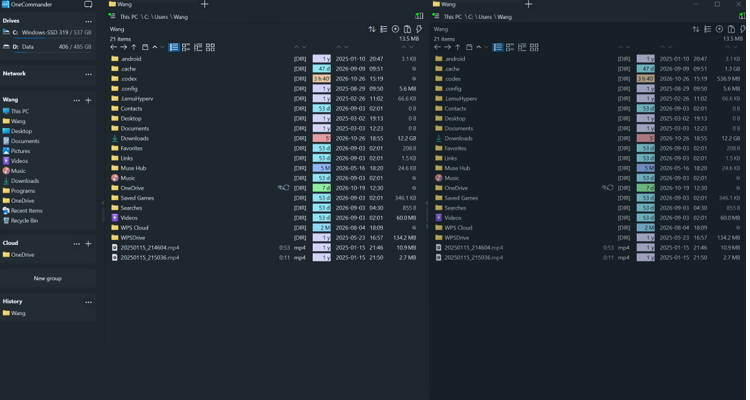
OneCommander is a high-performance desktop utility engineered for power users and technical professionals. It provides Miller Columns alongside traditional dual panes, delivering outstanding directory visibility.
Key Features:
Miller Columns view displaying cascading directory branches for rapid navigation.
Dual-pane browsing with customizable horizontal and vertical window splits.
Built-in Quick Look preview window supporting documents, photos, and video media.
Color-coded file metadata tags for tracking project status and document importance.
Pros
Fast navigation across deeply nested folder structures and large directories.
Extensive hotkey configuration options and adaptable workspace layouts.
Cons
Steeper learning curve for users unfamiliar with column-style folder navigation.
Dense interface settings can feel intimidating to casual desktop users.
Best For: Developers, administrators, and video editors managing massive directory hierarchies.
Pricing: Free for personal use; commercial Pro license starts at $24.99.
#4 Directory Opus
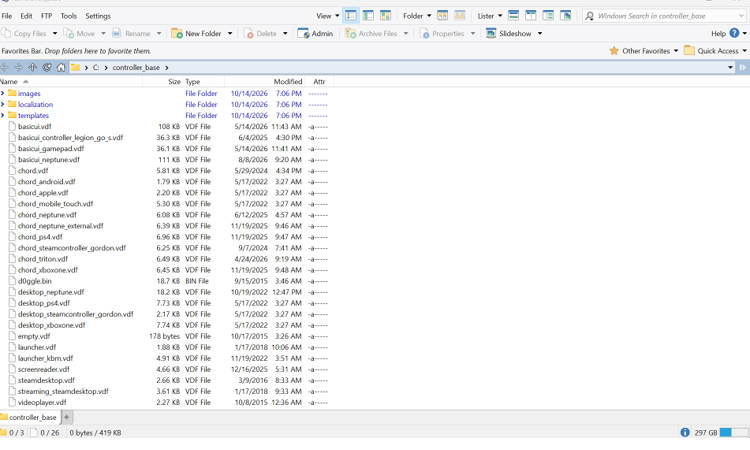
Directory Opus represents a comprehensive desktop solution for advanced file control. Backed by decades of continuous development, it delivers unmatched operating speed, deep custom scripting, and total interface flexibility.
Key Features:
True dual-pane file management with independent folder trees and toolbars.
Integrated FTP and SFTP clients for managing remote server files securely.
Advanced batch renaming engine supporting regular expressions and custom macros.
Comprehensive metadata editor for inspecting photo EXIF data and document properties.
Pros
Extremely fast and stable, even when moving hundreds of gigabytes at once.
Complete control over interface layout, custom buttons, and keyboard commands.
Cons
Premium purchase price compared to simpler free utilities.
Extensive configuration menus require dedicated time to explore and configure.
Best For: Enterprise power users and specialists requiring industrial-grade desktop operations.
Pricing: Light edition costs roughly $40 AUD; Pro edition costs roughly $66 AUD (30-day evaluation trial available).
How to Password Protect Important Files after Organizing?
Organizing documents into clean directories brings daily order, but data security requires an extra layer of defense. Sensitive tax papers, personal financial records, and confidential contracts need protection from unauthorized access. A dedicated file protector prevents unauthorized users and suspicious programs from accessing or deleting your private records.
To protect sensitive folders effectively, we recommend Advanced SystemCare. In addition to system optimization, it includes Safe Folder, a dedicated PRO security feature designed to shield confidential folders behind strong password protection.
Advanced SystemCare Free
- Clean: 420 billion traces removed & 85 EB junk files cleaned
- Protect: 80 million unauthorized access blocked & 20 million bugs fixed
- Speed Up: 6 million hours of startup time saved & Turbo boost
- Optimize: Auto clean and auto care your PC with AI mode

Steps to Password Protect Files with Safe Folder
Step 1: Downlaod, install Advanced SystemCare and activate the PRO edition to unlock privacy tools.
Step 2: Open the main interface, click the Protect tab, and locate the Safe Folder module.
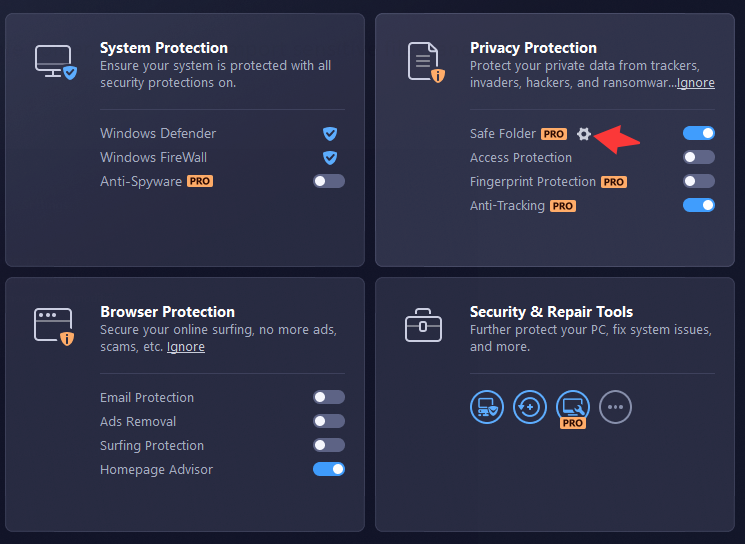
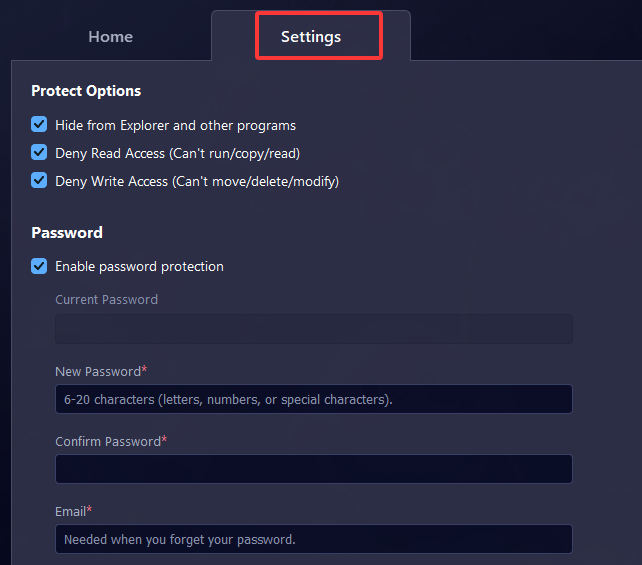
Step 3: Toggle on Safe Folder, click the setting icon. Then import sensitive files, and set a custom password under the Settings tab.
Additional Features to Protect and Optimize Your PC
Beyond locking sensitive folders, Advanced SystemCare functions as the best PC cleaner and maintenance suite for Windows systems:
Anti-Spyware and Anti-Tracking: Real-time privacy shields block suspicious spyware threats, erase browser tracking cookies automatically, and hide your digital fingerprint.
Real-Time Tuneup: Instantly release unnecessary programs and services in the background according to the mode you choose.
Performance Monitor: An intelligent performance monitor optimizes system RAM and processor allocation to keep active work software running smoothly.
AI and Manual Junk Cleaning: The scan and fix feature allows you to clean junk files, delete invalid registry entries, and reclaim valuable storage space with one click.
Final Thought
A reliable desktop file manager transforms a cluttered PC into an organized, high-efficiency workstation. Whether you prefer the simplicity of native tools or the deep versatility of advanced utilities, organized folders save hours of frustration every week. Once your files are structured, maintaining data security and system performance completes your digital setup. Download Advanced SystemCare today to password protect confidential folders and keep your Windows system running at its best.
Advanced SystemCare Free
- Clean: 420 billion traces removed & 85 EB junk files cleaned
- Protect: 80 million unauthorized access blocked & 20 million bugs fixed
- Speed Up: 6 million hours of startup time saved & Turbo boost
- Optimize: Auto clean and auto care your PC with AI mode