Dropbox is useful for syncing files across devices, but you may eventually want to remove it to stop syncing, free storage, or troubleshoot the desktop app. If you're wondering how to remove Dropbox from computer, you should first decide whether you want to keep your local and cloud files. This guide covers safe removal on Windows and Mac, complete cleanup with IObit Uninstaller, cache deletion, and permanent file removal.
What Happens When You Remove Dropbox From a Computer?
Before removing Dropbox, it is important to separate three different actions: uninstalling the desktop application, deleting locally stored files, and deleting files from your Dropbox account. They do not have the same result. Understanding the difference can help you remove unwanted Dropbox components without accidentally losing important documents.
Uninstalling the desktop application: This removes the Dropbox program and stops automatic syncing on that computer. It does not automatically delete files stored in your Dropbox cloud account.
Deleting locally stored files: This removes files stored on your computer and can free up disk space. However, deleting files from an actively synced Dropbox folder may also sync that deletion to your Dropbox account and other connected devices.
Deleting files from your Dropbox account: This removes files from cloud storage and can affect connected devices. This option should only be used when you actually want to delete the files rather than simply uninstall Dropbox.
How to Keep Your Files Before Removing Dropbox
Before stopping Dropbox sync or uninstalling the app, make sure your important files are fully saved on your PC. This is especially important for online-only files, which may not have complete local copies. Taking this precaution helps prevent accidental file loss. Now, follow the steps below to learn how to remove Dropbox from computer without deleting files.
Step 1. Open your Dropbox folder and identify the files you want to keep.
Step 2. Right-click an important online-only file or folder and select Make available offline. Wait until Dropbox finishes downloading it. A green check icon indicates that the content is available locally.
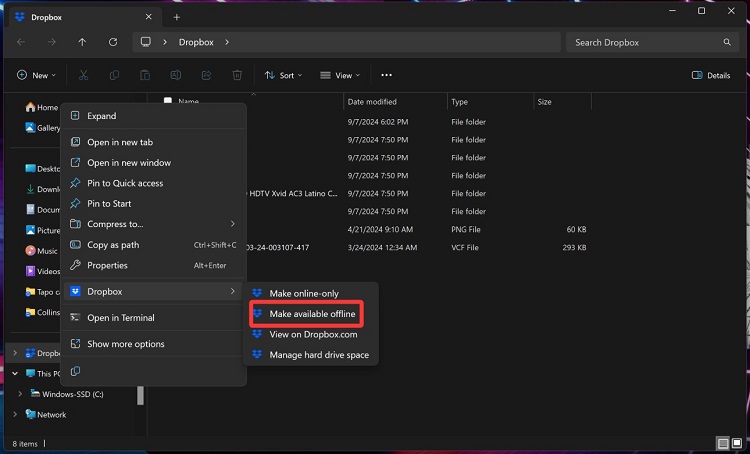
Step 3. Copy important files to a normal folder outside the Dropbox folder, such as Documents, or save another copy to an external drive.
Step 4. Open several copied files to confirm they work before uninstalling Dropbox.
Method 1. How to Uninstall Dropbox on Windows 11/10
If you simply want to stop using Dropbox on a Windows computer, uninstalling it through Settings is the easiest option. This method removes the desktop application and stops Dropbox syncing on that PC. It is suitable when Dropbox is working normally, and you do not need to clean up additional application leftovers.
Here are the steps on how to remove Dropbox from computer.
Step 1. Click the Dropbox icon in the system tray, open the account/profile menu, and quit Dropbox.
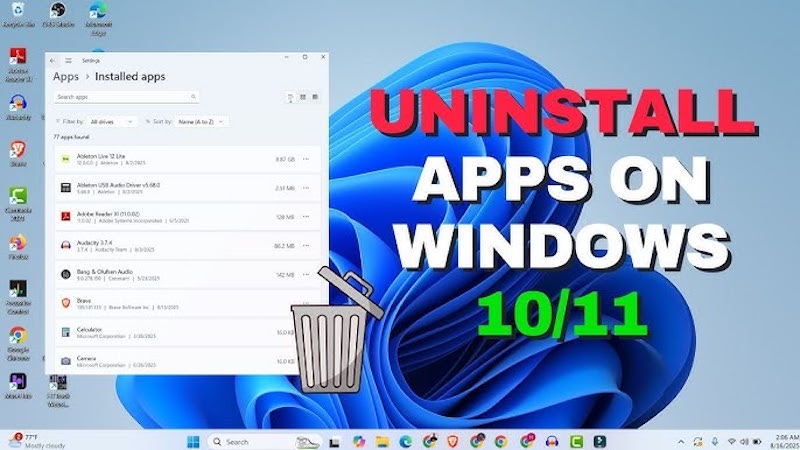
Step 2. Press Windows + I to open Settings, then go to Apps > Installed apps on Windows 11 or Apps > Apps & features on Windows 10.
Step 3. Locate Dropbox. On Windows 11, click the three-dot menu beside it and select Uninstall. On Windows 10, click the app to expand its available options and select Uninstall.
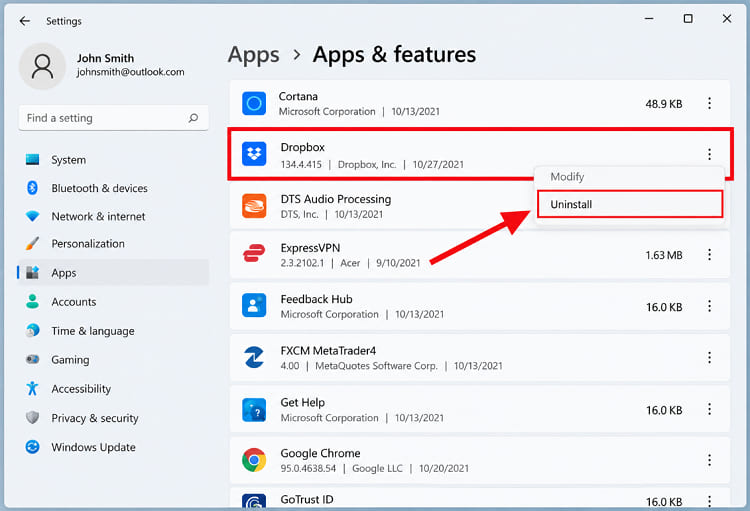
Step 4. Select Uninstall, confirm the action, and follow the instructions to finish.
This is the standard method on how to uninstall Dropbox when the application can be removed normally. If Dropbox will not uninstall or you want to check for application remnants afterward, use the next method.
Method 2. How to Completely Remove Dropbox with IObit Uninstaller
A normal Windows uninstall may not always provide the level of cleanup you want, particularly after a failed or incomplete Dropbox removal. IObit Uninstaller offers another option by combining software removal with a subsequent scan for application-related leftovers, reducing the need to manually search different Windows locations.
Follow these steps to learn how to remove Dropbox from computer with IObit Uninstaller.
IObit Uninstaller Free
- Complete forced uninstallation for stubborn programs.
- Uninstall a batch of programs at once.
- Scan and remove leftover files, folders, and registry entries.
- Support the management of Universal Windows Platform apps.
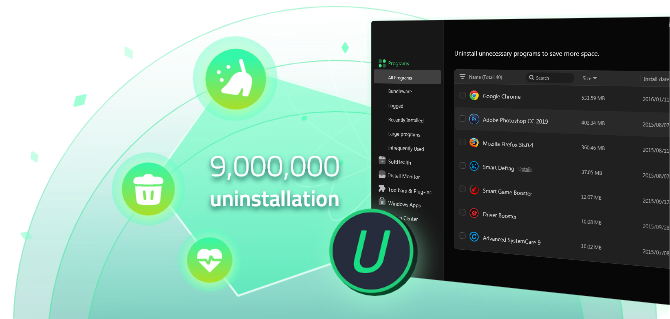
Step 1. Download, install, and launch IObit Uninstaller on your Windows computer.
Step 2. Open Programs and locate Dropbox. Click the trash bin icon next to it to proceed. Or you can click Uninstall to start the removal.
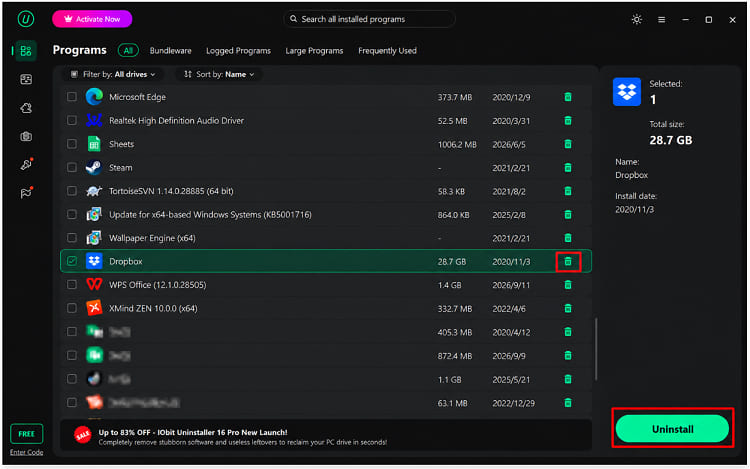
Step 4. Check the box next to “Automatically remove residual files” to further delete residual files, and then click Uninstall to confirm your deletion.
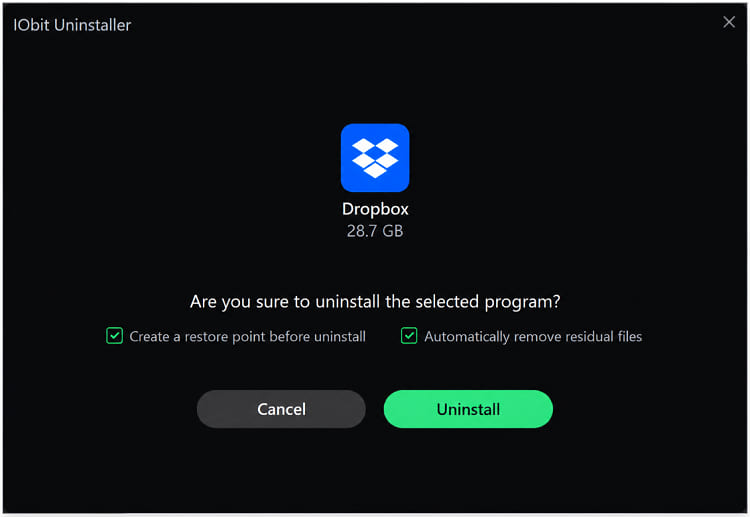
Step 4. After the uninstall, scan for remaining Dropbox-related program traces and review them before cleanup.
More useful features for Dropbox removal include:
Lets you initiate Dropbox removal directly from the program list, creating a more straightforward workflow for users who want an alternative to Windows Settings or Control Panel.
After the main uninstall finishes, it can continue checking for associated files, folders, and registry items, helping you identify traces that the regular Dropbox uninstaller may overlook.
Provides additional removal options when Dropbox is corrupted, gets stuck during uninstallation, or cannot be deleted normally, offering a practical solution for users wondering how to force uninstall a program from Windows.
Lets you select Dropbox together with multiple unwanted applications for removal, which is convenient during a larger software cleanup or when researching how to delete Microsoft Edge and other unnecessary programs.
Displays installed programs in an easy-to-navigate interface, so you can quickly locate Dropbox, check its basic information, and start the uninstall without digging through multiple Windows menus.
Tracks changes made during supported software installations, helping identify associated components for more thorough removal later and making IObit Uninstaller a practical choice when looking for the best uninstaller for Windows.
For users researching how to uninstall Dropbox more thoroughly, IObit Uninstaller can simplify application cleanup. However, review detected items carefully and avoid treating your personal Dropbox documents as unwanted program leftovers.
Method 3. How to Delete Dropbox Cache and Free Up Space
Dropbox can accumulate cached data as files are synced, updated, or removed. Over time, these temporary files may occupy unnecessary disk space, especially if you frequently work with large Dropbox folders. If your goal is to clean up Dropbox without uninstalling it, you can manually clear its cache or use Advanced SystemCare for a more convenient PC cleanup.
Manually Clear the Dropbox Cache
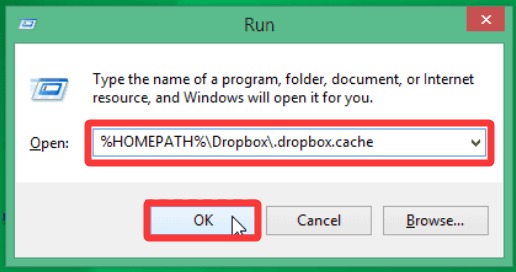
Step 1. Press the Windows and R keys to open the Run window.
Step 2. Enter %HOMEPATH%\Dropbox\.dropbox.cache into the blank field and click OK.
Step 3. Browse the .dropbox.cache folder and right-click the folder you wish to delete, then select Delete from the available options.
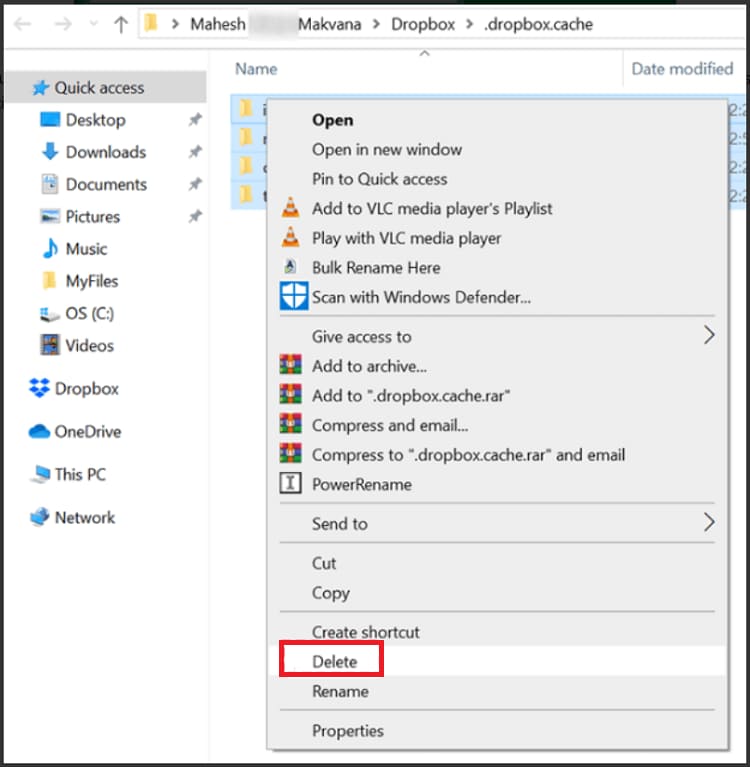
Note: Avoid deleting regular files from your Dropbox folder unless you understand how doing so may affect synced copies.
Free More Disk Space With Advanced SystemCare
Step 1. Download and launch Advanced SystemCare on your Windows computer.
Advanced SystemCare Free
- Clean: 420 billion traces removed & 85 EB junk files cleaned
- Protect: 80 million unauthorized access blocked & 20 million bugs fixed
- Speed Up: 6 million hours of startup time saved & Turbo boost
- Optimize: Auto clean and auto care your PC with AI mode
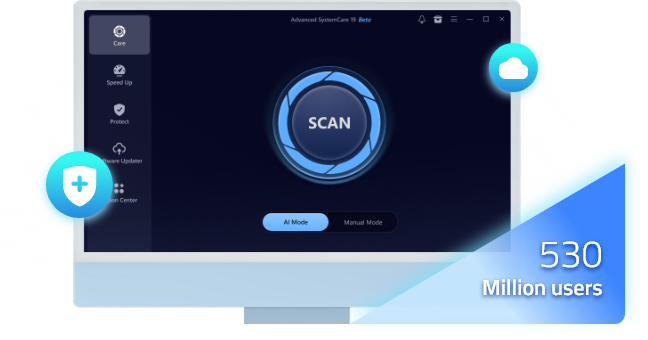
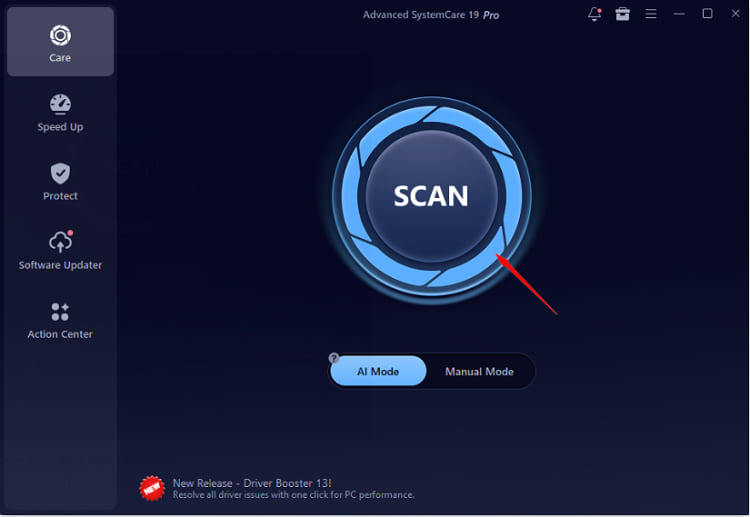
Step 2. Click Scan in AI Mode to let Advanced SystemCare analyze areas that may contain junk files and other data taking up unnecessary disk space.
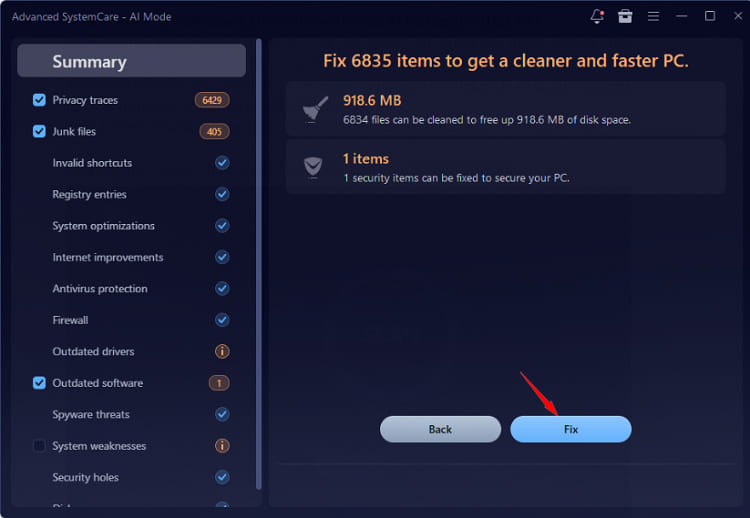
Step 3. After scanning finishes, review the results and click Fix to remove junk files.
Method 4. How to Delete Dropbox Files Permanently
If you're researching how to remove Dropbox from computer permanently, back up anything important first because permanent deletion may make the data unrecoverable. Then, follow these steps to remove Dropbox files permanently.
Step 1. Sign in to your Dropbox account and find the file or folder you want to remove.
Step 2. Select the item and choose Delete.
Step 3. Open the area containing deleted files and locate the item.
Step 4. If permanent deletion is available for your account and the selected content, choose the permanent deletion option and confirm it.
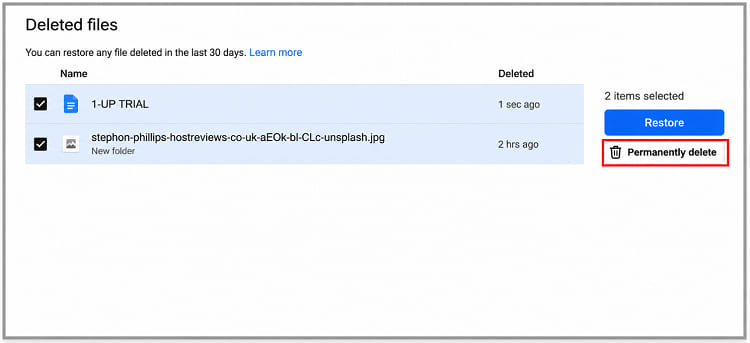
When learning how to delete Dropbox files permanently, remember that Dropbox may retain deleted content for a period depending on the account and applicable retention rules. Permanent deletion can be irreversible, so keep another copy of anything you might need later.
Bonus Tip: How to Delete Dropbox on Mac
The removal process is slightly different on macOS because applications are managed through Finder rather than Windows Settings. Whether you search for how to delete Dropbox Mac or how to delete Dropbox in Mac, protect any files you want to retain before removing the application or deleting its local folder.
Step 1. Click the Dropbox icon in the Mac menu bar and quit the application.
Step 2. Open Finder and select Applications.
Step 3. Find the Dropbox application and move it to Trash.
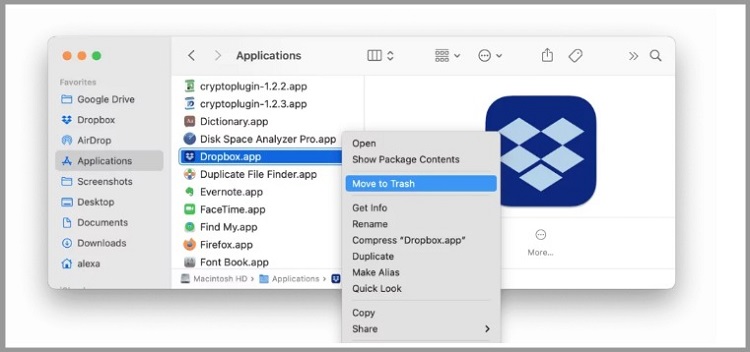
Step 4. Empty the Trash when you are sure you no longer need the Dropbox desktop application.
Conclusion
Dropbox can be removed through Windows Settings or Finder on Mac, while IObit Uninstaller offers Windows users an additional way to uninstall the program and scan for application leftovers. You can also clear Dropbox cache separately when your goal is simply to reclaim temporary storage.
Most importantly, download or copy important files before deleting local Dropbox folders. By separating software removal, cache cleanup, and cloud-file deletion, you can safely handle how to remove Dropbox from computer while keeping the data you still need.
IObit Uninstaller Free
- Complete forced uninstallation for stubborn programs.
- Uninstall a batch of programs at once.
- Scan and remove leftover files, folders, and registry entries.
- Support the management of Universal Windows Platform apps.