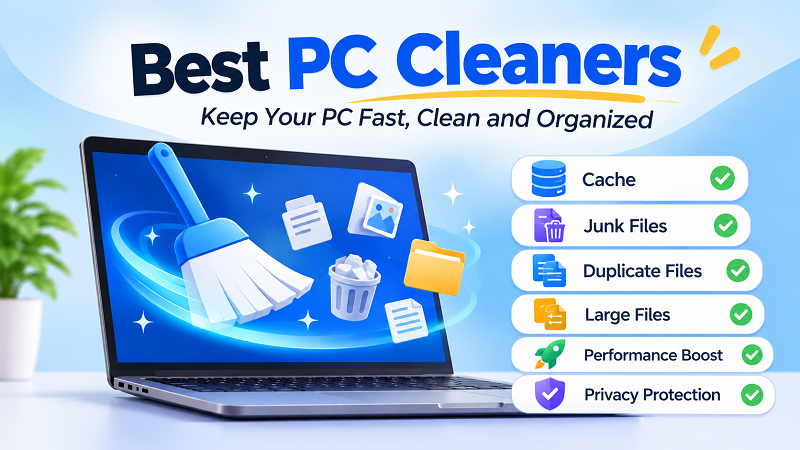
Is your computer running out of storage space or becoming slower over time? A reliable disk cleanup program can help remove temporary files, system junk, browser caches, and other unnecessary data. Whether you use Windows 11 or Windows 10, choosing the right cleanup utility can simplify PC maintenance and recover valuable storage. This guide introduces 5 popular disk cleaners for PC, compares their features, and explains how to clean your computer efficiently.
What Is a Disk Cleanup Program and Why Use One?
A disk cleanup program is a utility designed to identify and remove unnecessary files - like temporary installation data, outdated caches, Recycle Bin contents, and other disposable system files - from your computer. Its primary purpose is to recover storage space and help maintain an organized system.
Key benefits include:
Recover Storage Space: Delete unnecessary files occupying valuable SSD or HDD capacity.
Clean Browser Data: Remove selected browser caches and browsing traces.
Simplify PC Maintenance: Automate routine cleanup tasks instead of manually locating files.
Improve Storage Management: Identify large or unnecessary files for review.
5 Best Disk Cleanup Programs for Windows 11/10
Choosing the right disk cleaner program depends on your storage needs, preferred features, and budget. Some utilities specialize in removing temporary files, while others provide comprehensive system maintenance, browser cleanup, and automated scanning. Below are five options worth considering for everyday Windows storage management.
1. Advanced SystemCare – Best for Comprehensive Disk Cleanup
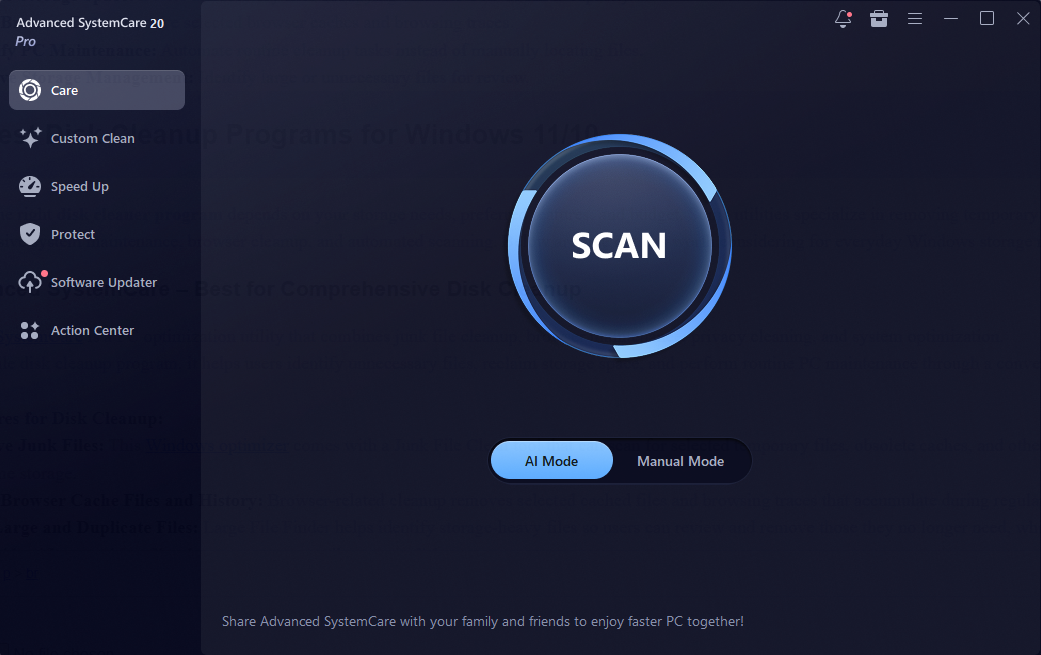
Advanced SystemCare is a PC optimization utility that combines junk file cleanup, browser maintenance, privacy cleaning, and system optimization. As a versatile disk cleanup program, it helps users identify unnecessary files, reclaim storage space, and perform routine PC maintenance through a convenient interface.
Key Features for Disk Cleanup:
Remove Junk Files: This Windows optimizer comes with a Junk File Clean tool that can scan for selected temporary files, obsolete caches, and other disposable data that consume storage.
Clean Browser Cache Files and History: Browser-related cleanup removes selected cached files and browsing traces that accumulate during regular internet use.
Find Large and Duplicate Files: Large File Finder helps identify storage-heavy files so users can review and remove those they no longer need, while Duplicate File Finder identifies matching files that may unnecessarily occupy disk space.
Automate Regular Disk and PC Maintenance: Simplify recurring cleanup tasks and reduce the need for manual scans.
Identify Disk Problems: Disk Doctor checks for hard disk health, certain hard drive errors and routine file cleanup.
Pros
Comprehensive junk file and browser cleanup.
Convenient scanning and maintenance interface.
Additional large-file and duplicate-file management tools.
Cons
Some advanced features require the Pro edition.
Certain optimization tools extend beyond basic disk cleanup.
Advanced SystemCare Free
- Clean: 420 billion traces removed & 85 EB junk files cleaned
- Protect: 80 million unauthorized access blocked & 20 million bugs fixed
- Speed Up: 6 million hours of startup time saved & Turbo boost
- Optimize: Auto clean and auto care your PC with AI mode
2. CCleaner – Best for Temporary File Cleaning
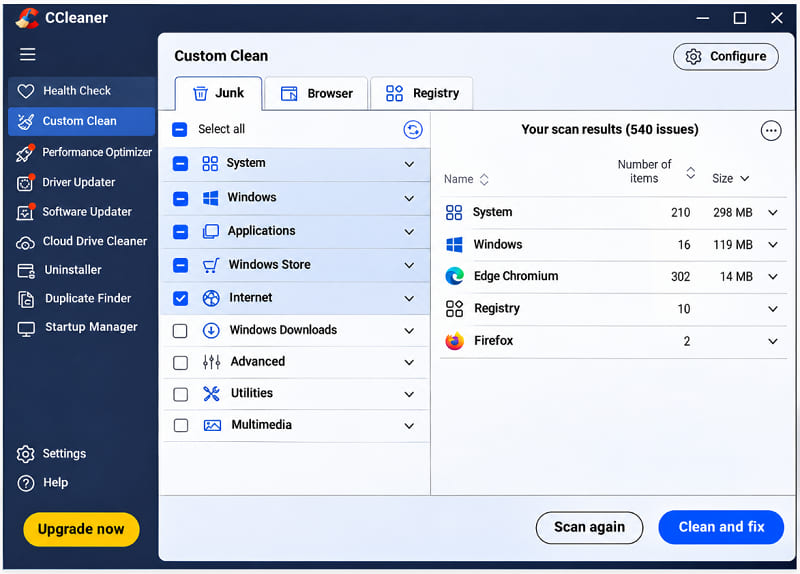
CCleaner is a widely recognized disk cleaner program for removing temporary files, browser caches, and unnecessary application data. Its straightforward interface makes it suitable for users who want a dedicated program to clean up disk space without navigating complicated Windows settings.
Key Features:
Custom Clean scans selected Windows and application junk files.
Browser cleanup removes selected caches and temporary internet files.
Scheduled cleaning is available in supported paid editions.
Pros
Easy-to-understand cleaning interface.
Supports cleanup across numerous applications.
Some automation features require payment.
Cons
Users should review selected cleaning categories carefully.
3. BleachBit – Best Free Open-Source Disk Cleaner
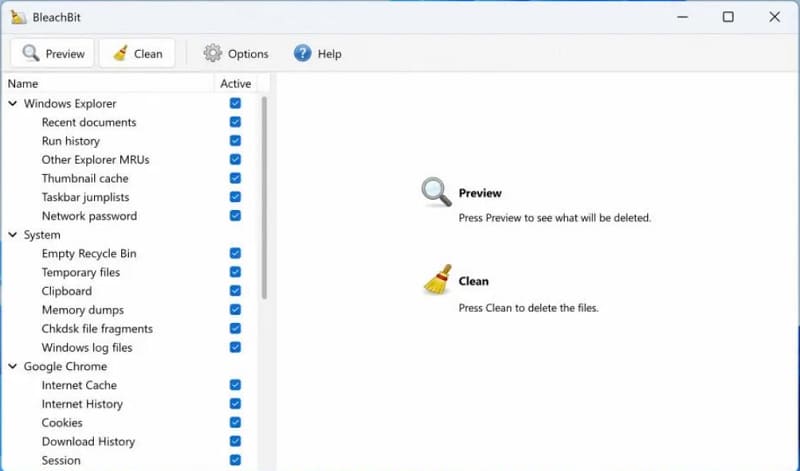
BleachBit is an open-source, free disk cleanup program designed to remove unnecessary files and selected privacy-related data. It is particularly suitable for users who prefer a lightweight cleanup utility without subscription requirements.
Key Features:
Cleans temporary files, browser caches, and application junk.
Provides a preview before performing selected cleanup operations.
Supports advanced file-cleaning options.
Pros
Free and open-source.
Cons
Interface may feel technical to beginners.
Advanced cleaning options require caution.
4. Wise Disk Cleaner – Best for Scheduled Disk Cleanup
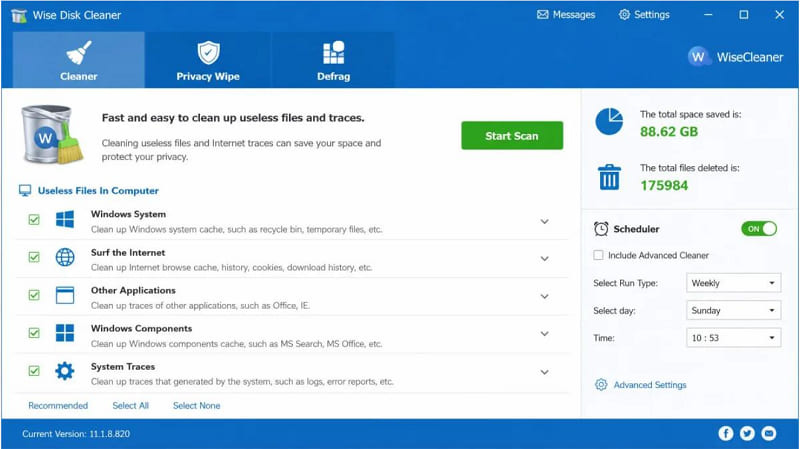
Wise Disk Cleaner is a lightweight program to clean up disk space by identifying temporary files, browser caches, and other unnecessary data. Its scheduling features make it useful for users who want to maintain available storage without repeatedly initiating manual scans.
Key Features:
Common Cleaner removes selected temporary and junk files.
Advanced Cleaner searches for additional unnecessary files.
Scheduled cleanup supports recurring maintenance.
Pros
Simple interface suitable for beginners.
Free cleaning and scheduling features.
Cons
Fewer broader maintenance capabilities than some suites.
Aggressive cleanup selections require review.
5. Windows Disk Cleanup – Best Built-In Cleaning Tool
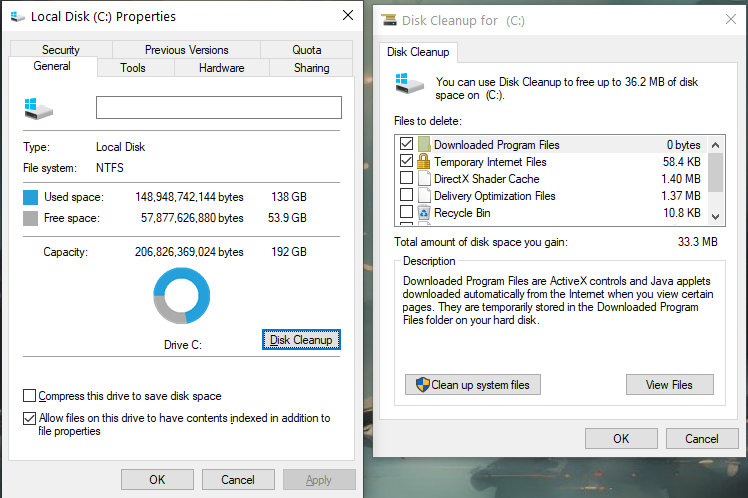
The built-in Windows Disk Cleanup program provides a convenient way to remove temporary Windows files without installing additional software. Although Microsoft increasingly emphasizes Storage Sense and Cleanup recommendations, Disk Cleanup remains useful on supported Windows versions.
Key Features:
Removes selected temporary system files and Recycle Bin contents.
Offers system-file cleanup for certain Windows update leftovers.
Works alongside Windows Storage settings.
Pros
Included with Windows at no additional cost.
No third-party installation required.
Cons
Limited browser and application-specific cleaning.
Fewer automation and file-analysis features.
Quick Comparison of the Best Disk Cleaning Tools
When comparing cleanup utilities, consider whether you need basic temporary-file removal, scheduled cleaning, or advanced storage analysis. The best clean up program for PC depends on the features you actually use rather than the number of optimization tools included.
Software |
Best for |
Free option |
Advanced SystemCare |
Comprehensive PC cleanup |
Yes |
CCleaner |
Temporary files and browser caches |
Yes |
BleachBit |
Open-source cleaning |
Yes |
Wise Disk Cleaner |
Scheduled maintenance |
Yes |
Windows Disk Cleanup |
Built-in system cleanup |
Included |
How to Use Advanced SystemCare to Clean Up Disk Space
If you want a disk cleanup program that combines junk removal with additional storage-management tools, Advanced SystemCare provides a practical option. Its Care module can scan selected categories of unnecessary files, making it easier to review cleanup results before deleting data from your Windows computer.
Step 1. Download and install Advanced SystemCare from its official website.
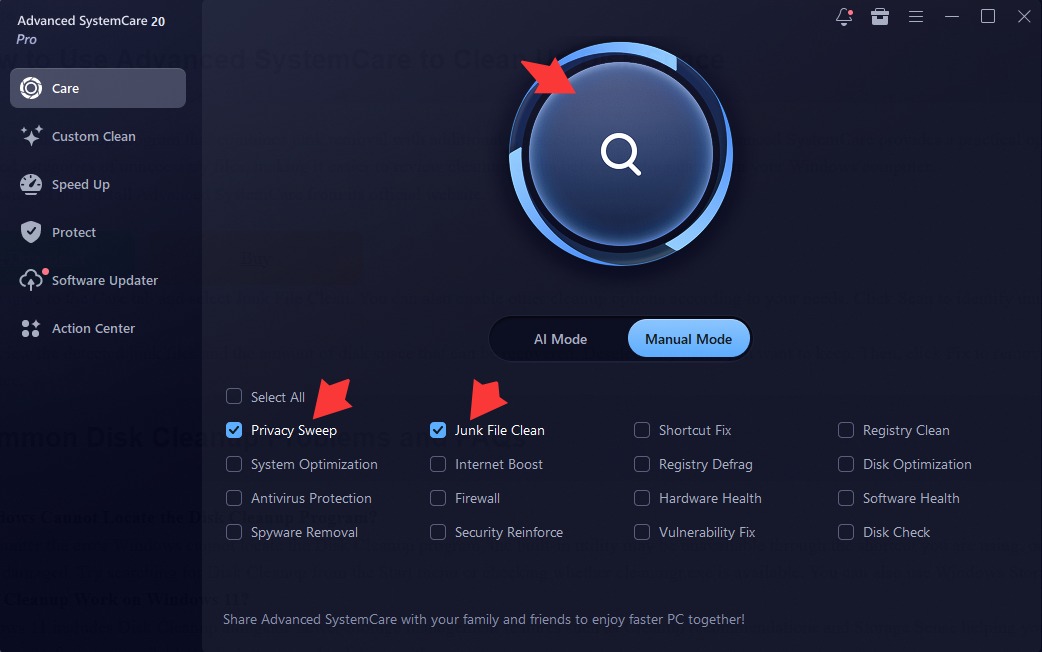
Step 2. Navigate to the Care tab and select Junk File Clean. You can also enable other cleanup options according to your needs. Click Scan to identify unnecessary files.
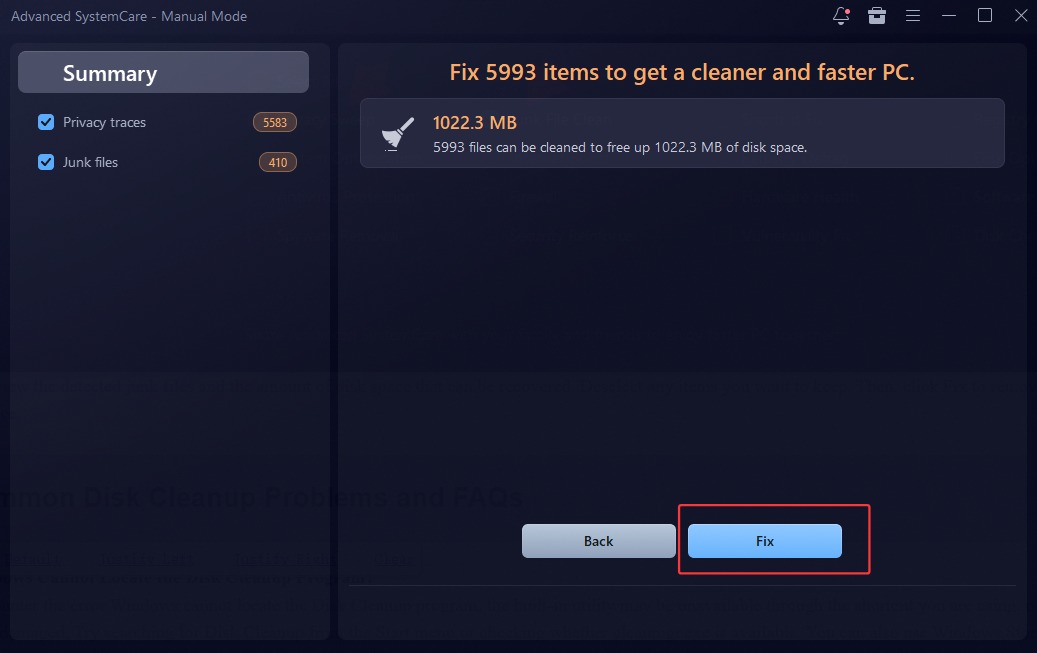
Step 3. Review the detected junk files and the amount of disk space that can be recovered. Deselect any items you want to keep. Then, click Fix to remove the selected files and free up disk space.
Common Disk Cleanup Problems and FAQs
Why Windows Cannot Locate the Disk Cleanup Program?
If you encounter the error Windows cannot locate the Disk Cleanup program, the built-in utility may be unavailable through the shortcut you are using, or its executable may be missing or damaged. Try searching for Disk Cleanup from the Start menu or checking whether cleanmgr.exe is available. You can also use Windows Storage settings as an alternative.
Does Disk Cleanup Work on Windows 11?
Yes. Windows 11 includes Disk Cleanup alongside newer Storage management features such as Cleanup recommendations and Storage Sense helping you free up disk. Alternatively, free PC cleaner software is available to declutter your hard drive with no cost.
Is It Safe to Delete Every File Found During a Scan?
No. Review cleanup categories before deletion. Downloads, personal documents, saved browser data, and system rollback files may contain information you still need.
Conclusion
A reliable disk cleanup program recovers storage space and simplifies routine Windows maintenance. Windows Disk Cleanup is suitable for basic cleaning, while third-party utilities offer additional features. For users who want comprehensive junk removal, browser cleanup, and storage analysis in one application, this best PC optimizer - Advanced SystemCare is an option worth considering.
Advanced SystemCare Free
- Clean: 420 billion traces removed & 85 EB junk files cleaned
- Protect: 80 million unauthorized access blocked & 20 million bugs fixed
- Speed Up: 6 million hours of startup time saved & Turbo boost
- Optimize: Auto clean and auto care your PC with AI mode