Your Windows computer used to start in seconds, but now the boot process drags on, apps seem to take forever to open, and copying large files isn't as quick as it once was. If your system still runs on a traditional hard disk drive (HDD), file fragmentation could be one of the reasons behind the slowdown.
As files are edited, moved, and deleted over time, pieces of the same file can end up scattered across the drive. Anyone can defrag PC storage safely by following a few easy steps. This guide explains what disk defragmentation does, when it helps, and several reliable ways on how to defrag computer on Windows.
What Does It Mean to Defrag a PC?
When people talk about how to defrag PC maintenance, they mean reorganizing file fragments so related data is stored in a more orderly way on a mechanical hard drive. During everyday use, files are constantly created, edited, and deleted, which causes pieces of the same file to become scattered across the disk. This makes the drive work harder to locate everything, which can increase loading times. In most cases, defragmentation computer maintenance is worthwhile if you're using an HDD and your system has become noticeably slower.
Should I Defrag My PC?
When you have a traditional HDD, it's a good idea to defrag PC storage from time to time because reorganizing fragmented data can improve file access and overall responsiveness. SSDs, however, don't gain the same benefit. Instead of performing defragmentation computer tasks, Windows automatically applies TRIM optimization to SSDs and maintains performance without manually rearranging file blocks. Knowing which drive you have will let you choose the right method in the next section.
Method 1. Defrag Your PC Using Windows Optimize Drives
For most Windows users, the built-in Defragment and Optimize Drives utility is the easiest place to start. The built-in Windows optimizer provides a straightforward way to defrag PC storage without changing advanced settings. The tool checks the condition of your drives, determines whether optimization is needed, and safely performs the process on supported HDDs.
Here's how to defrag computer drives with the Windows utility:
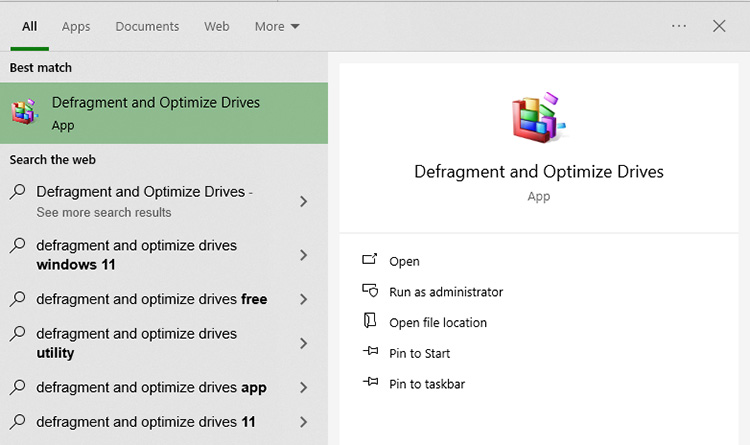
Step 1. Press the Windows key, type Defragment and Optimize Drives, and press the Enter key to open the matching result.
 Step 2. Select the HDD you want to optimize and click Analyze to check the current fragmentation level.
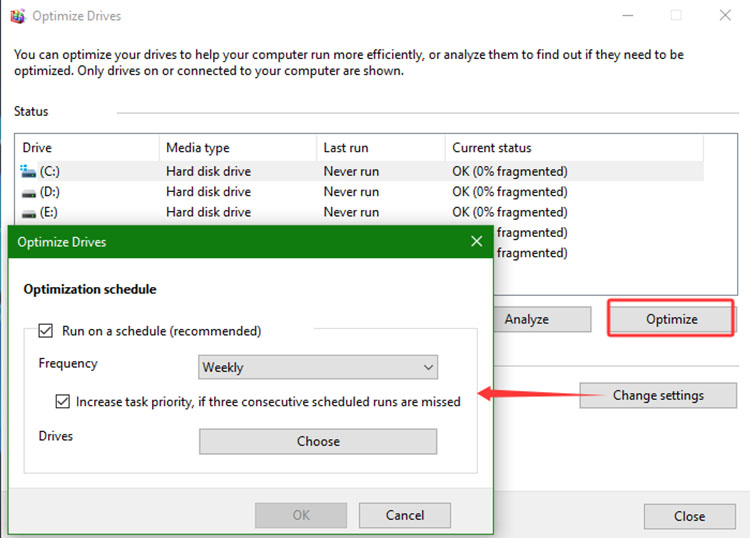
Step 3. Choose Optimize and let Windows complete the process. The required time depends on the drive's size, speed, and fragmentation level.
Step 4. Once the optimization finishes, close the utility. For ongoing maintenance, you can also select Change settings to review or adjust the automatic optimization schedule.
Method 2. Defrag PC Automatically with IObit Advanced SystemCare
For a more hands-off approach, IObit Advanced SystemCare offers a straightforward way to defrag Windows 11/10 and keep a Windows PC running smoothly. The tool combines multiple maintenance tools into a single application, including hard disk cleaner, startup management, junk file removal, registry maintenance, driver updates, privacy protection, and other performance utilities.
Advanced SystemCare Free
- Clean: 420 billion traces removed & 85 EB junk files cleaned
- Protect: 80 million unauthorized access blocked & 20 million bugs fixed
- Speed Up: 6 million hours of startup time saved & Turbo boost
- Optimize: Auto clean and auto care your PC with AI mode

Why choose Advanced SystemCare?
The built-in Disk Optimization feature analyzes mechanical hard drives and rearranges fragmented files to improve data access efficiency. Optimizing your drive on a regular basis to minimize disk fragmentation and supports smoother day-to-day performance.
Temporary files, browser caches, installation leftovers, and other unnecessary data gradually occupy valuable disk space. IObit Advanced SystemCare locates these files and removes them in bulk safely and quickly to recover storage and reduce clutter.
Many applications automatically launch with Windows, increasing startup time and consuming system resources. The startup manager lets you review, disable, and delay these programs to achieve a faster boot.
Over time, invalid or outdated registry entries can accumulate after software installations and removals. IObit Advanced SystemCare scans for obsolete items and optimizes registry data to maintain system efficiency.
Instead of remembering to perform maintenance manually, you can create a schedule for automatic scans, PC health check and optimization with the AutoCare feature.
How to defrag computer with IObit Advanced SystemCare
Step 1. Download and install IObit Advanced SystemCare, then launch the program to defrag PC.
Step 2. Click “Care” in the left panel, then switch to Manual Mode in the main interface to adjust and customize the maintenance tasks instead of relying on automatic suggestions.
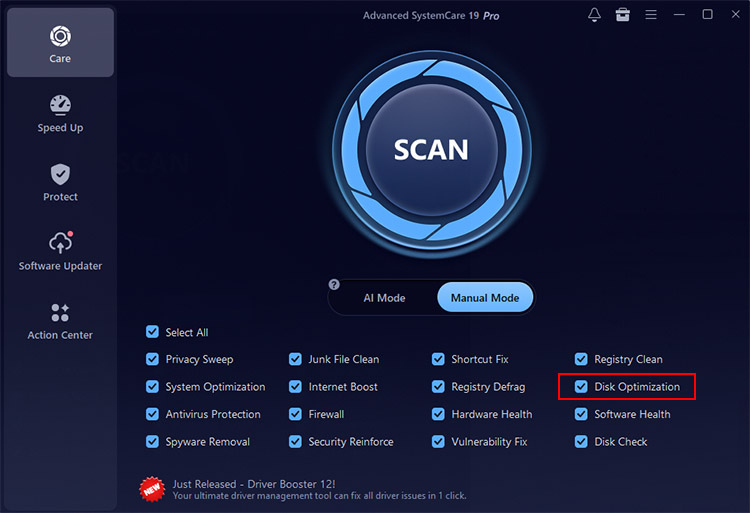
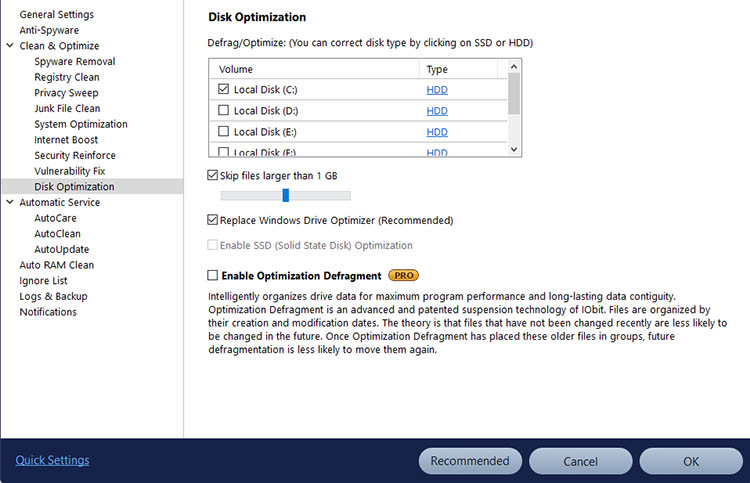
Step 3. Enable Disk Optimization. You can click the settings icon to adjust Disk Optimization settings, like disk type, “Enable SSD”, etc.
Step 4. Click the Scan button to let the software examine your computer and identify areas that can be optimized.
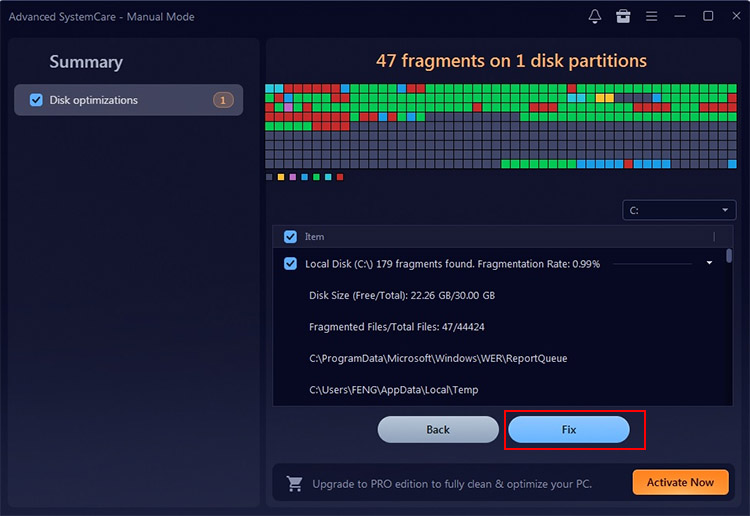
Step 5. After the scan is complete, select Fix to apply the recommended changes. The program will defrag PC hard drives, clean unnecessary files, and perform the other maintenance tasks you selected in one process.
Method 3. Defrag Your PC Using Command Prompt
How do you defrag a computer? Windows also includes a command-line utility to defrag PC storage without opening the graphical interface. This approach is often preferred by experienced users, IT administrators, or anyone managing multiple systems. The built-in defrag command supports analyzing drives, running optimization, and displaying progress directly in the Command Prompt.
Here's how to defrag PC storage from the command line. You can use Command Prompt to troubleshoot the 100 disk usage Windows 11 problem with built-in tools designed to repair disk errors and improve storage performance.
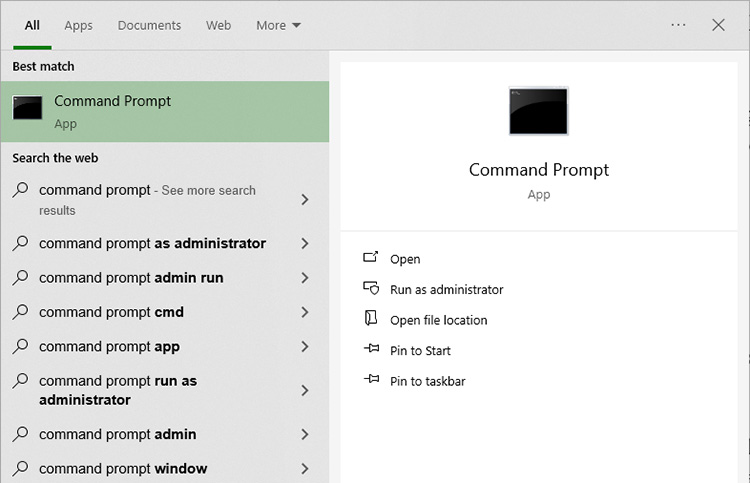
Step 1. Type Command Prompt into the Windows search box, then select Run as administrator.
Step 2. Type defrag C: in Command Prompt to start optimizing the C: drive. Replace C: with another drive letter when needed.
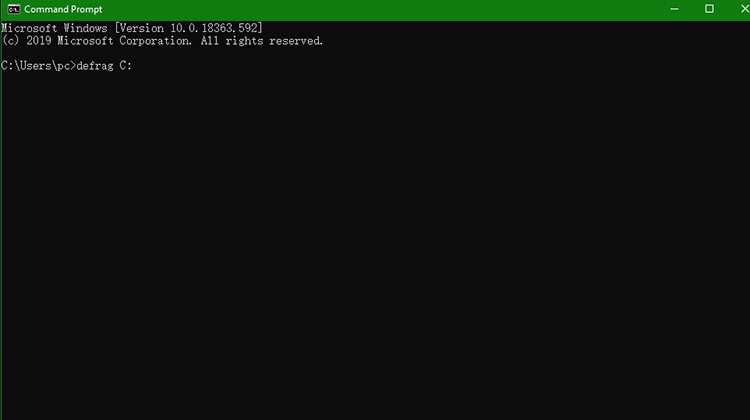 Step 3. Press Enter to start the process. The system begins by checking the drive and then runs optimization automatically.
Step 4. Wait until the operation reaches 100%, then review the summary displayed in the Command Prompt before closing the window.
Read More: Best RAM Optimizer Windows 11 to Enhance System Performance.
Tips to Keep Your PC Running Fast After Defragmentation
Many people search for “how do I defrag my computer” expecting an instant speed boost. While defrag PC maintenance can improve HDD performance, it works best as part of a broader maintenance routine.
Keep at least 15–20% of your hard drive free. Extra free space gives Windows more room to organize files efficiently and helps prevent excessive fragmentation over time.
Remove programs you no longer use. Uninstalling outdated software frees valuable storage, reduces unnecessary background activity, and makes the system easier to manage.
Review startup applications regularly. Disabling apps that launch automatically with Windows can shorten boot time and leave more resources available for everyday tasks.
Install Windows updates and hardware drivers when available. Performance improvements, stability fixes, and security patches often arrive through official updates.
FAQs about Defragmentation Computer
How often should I defrag my PC?
For most HDD users, running disk optimization about once a month is sufficient. Windows can also handle this automatically on a schedule.
Does defragging delete files?
No. Defragmentation reorganizes existing data on the drive without removing your personal files or installed applications.
Can I defrag an external hard drive?
Yes. External HDDs can be optimized just like internal mechanical drives, provided they use a supported Windows file system.
How do I know if my PC has an HDD or SSD?
Open Optimize Drives in Windows to view the drive type. This works when you want to defrag a computer Windows 10/11, making it easy to identify the correct optimization method.
Conclusion
Keeping a hard drive organized remains an effective way to maintain smooth performance on computers equipped with an HDD. Now, you should know several simple methods to defrag PC storage, from Windows' built-in tools to the Command Prompt and a more automated solution.
For anyone who want disk optimization together with junk file cleanup, startup management, registry maintenance, and scheduled system care, IObit Advanced SystemCare provides a convenient all-in-one solution that simplifies routine PC maintenance and helps keep Windows performing at its best.
Advanced SystemCare Free
- Clean: 420 billion traces removed & 85 EB junk files cleaned
- Protect: 80 million unauthorized access blocked & 20 million bugs fixed
- Speed Up: 6 million hours of startup time saved & Turbo boost
- Optimize: Auto clean and auto care your PC with AI mode