Nothing can be more annoying than CS2 FPS drops mid-match, especially when it refuses to disappear even after your active self-rescue. It just lingers for rounds, ruining your matches and gaming experience.
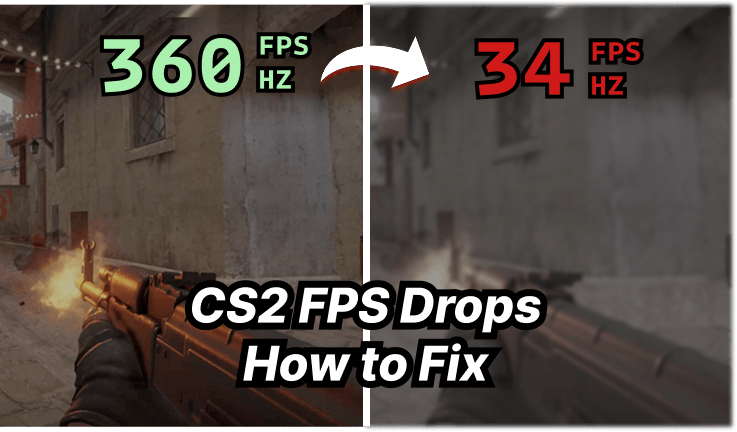
It seems to be a super common bug for all players for years since Counter Strike 2 was released, but still no official fixes. Well, are there any possible fixes? Yes. This post gathers several worth-trying solutions to fix FPS drops in CS2.
Symptoms for CS2 FPS Drops
Right before the fixes, identify your issue first. Many CS2 players have voluntarily collected the common signs and symptoms of FPS drops in CS2. It commonly shows the following signs:
Good FPS at the start, usually 300+ FPS.
CS2 FPS drops mid-game from 300/400+ to 50 or lower.
Obvious lags, stuttering, etc.
Then, what triggered FPS drops CS2? What are the real reasons behind the issues? Many CS2 players report that they meet this when shooting, with other apps active, etc. Check if you meet FPS drops CS2 during these situations:
Reasons for FPS Drops in CS2
What about the true reasons behind these signs?
CPU bottleneck: This game is CPU-heavy. Its physics, AI, and game logic can consume CPU and cause frame drops during intense fights.
Driver issues: corrupted, outdated, or poorly optimized drivers can cause unstable FPS performance, especially the graphics drivers.
Background processes: active background apps consume your CPU, RAM, and other resources, like launchers, overlays, Discord, etc.
Thermal throttling: Hardware lowers clock speeds to protect your builds when they get too hot, which reduces FPS.
High memory usage: Panorama UI memory leaks when using HUD elements, inventory screens, scoreboards, and other in-game interfaces.
These are also helpful when finding fixes for Roblox laggy issues.
How to Fix CS2 FPS Drop?
Have you ever located your issue? Solutions will be generally related to the causes and symptoms. Check out all the possible fixes and see if your fps drops in CS2 could be settled.
1. Disconnect and Reconnect to Fix CS2 FPS Drops Mid Game
This is a temporary fix, feasible, but you may have to repeat this every day, or worse, every match. It helps reload the game assets, reload the map, and to reduce temporary stutters.
Just leave the current match and rejoin the server. If possible, try restarting the whole game and PC as well to clear the cached game resources and temp files.
2. Update or Reinstall Graphics Drivers
Though a restart helps fix CS2 FPS drops temporarily, the issue won’t vanish on its own. If you want buttery-smooth gameplay, a better step is to locate the real trigger point. A corrupted, outdated, and missing driver, especially the GPU driver, could be one of the culprits; it overloads your CPU, causes GPU throttling, and sometimes leads to errors in visual effects.
Luckily, you can hire a powerful helper, Driver Booster, to help you update drivers, bring bug fixes, new features, and solve your FPS drop issues.
Driver Booster Free
- Automatically scan and update drivers.
- Update game ready drivers for peak gaming performance.
- Identify and fix various common of hardware issues.
- Boost 30% of system performance for fast & smooth running.

It gathers 120M+ drivers, including graphics cards, motherboards, sound devices, etc., from 2500+ manufacturers, all certified by WHQL and IObit Test, ensuring efficiency and security at the same time.
It collects the latest drivers, offering Game Ready drivers, game components, like Microsoft Visual C++, .NET Framework, etc., for players.
Plus, Driver Booster comes with the Game Boost feature, releasing RAM and system resources, realizing a CS2 fps boost in 1 click.
How to fix FPS Drop CS2 via updating drivers?
Step 1. Download and install Driver Booster on your PC. This app is compatible with Windows 11/10/8.1/8/7/Vista/XP.
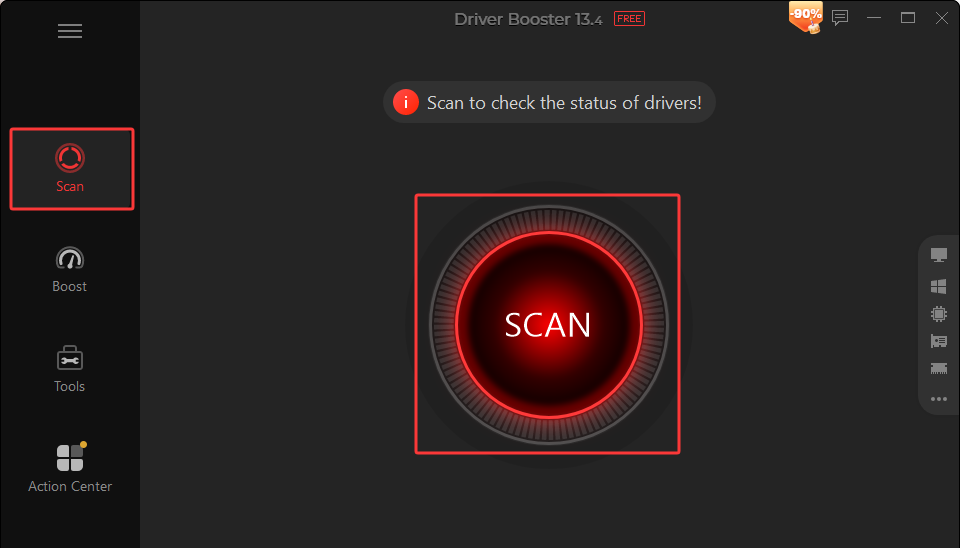
Step 2. On the main interface, click SCAN to check the status of the drivers.
Step 3. In a few seconds to minutes, it will list all the available drivers, choose the game drivers, and click Update to get them up-to-date. Or, click Update Now to update all drivers in 1 go. Moreover, you can update keyboard drivers, sound device drivers, etc., to acquire a better gaming experience.
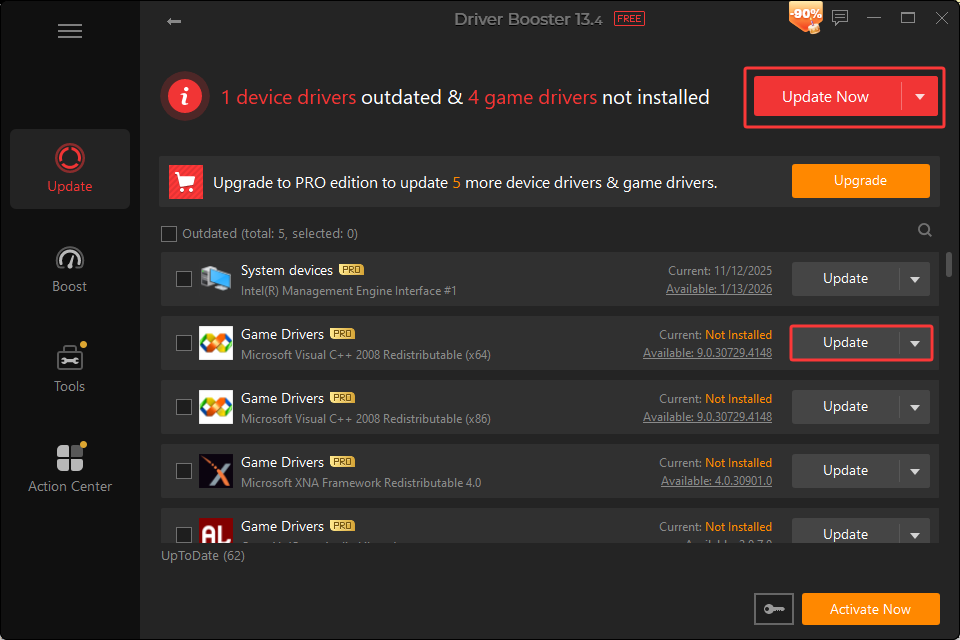
This is how to update drivers efficiently.
How to get more FPS in CS2? To build an ideal environment for your CS2 gaming, you can also use the Game Boost feature. Simply go to the Boost panel > choose Basic Boost or Super Boost based on your needs.
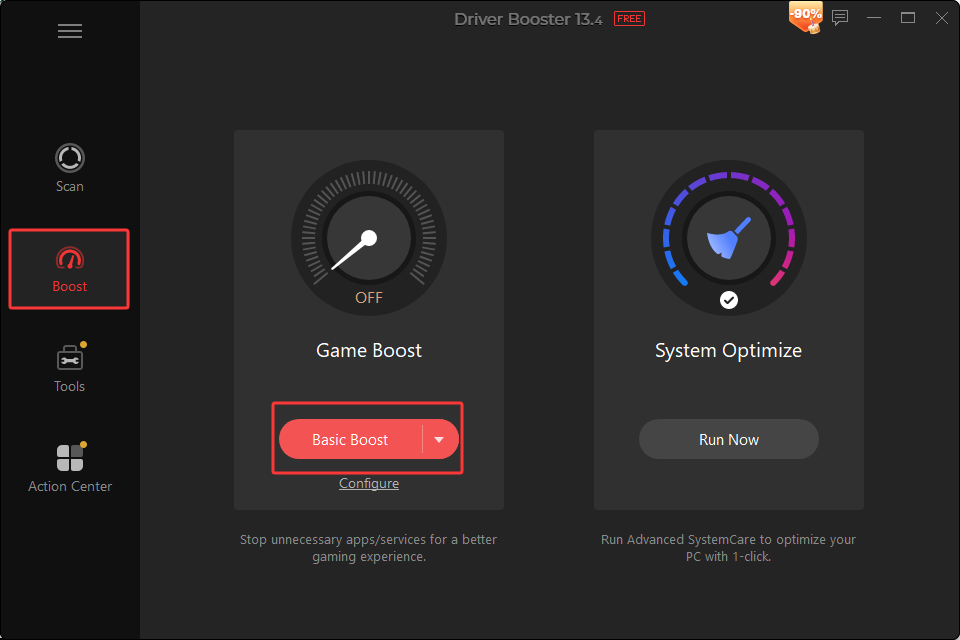
*Super Boost utilizes Smart Game Booster, a professional, exclusive game boosting tool. You need to download the tool to use Super Boost.
Also Read: Why Won’t My GeForce Driver Update? Complete Fix Guide [Tested] >>
3. Optimize Windows & CS2 In-Game Settings
Improper Windows and game settings can lead to high RAM usage and CPU bottleneck as well. Try the following tweaks to fix CS2 fps drops when shooting, summoning UI, etc.
In Windows Settings:
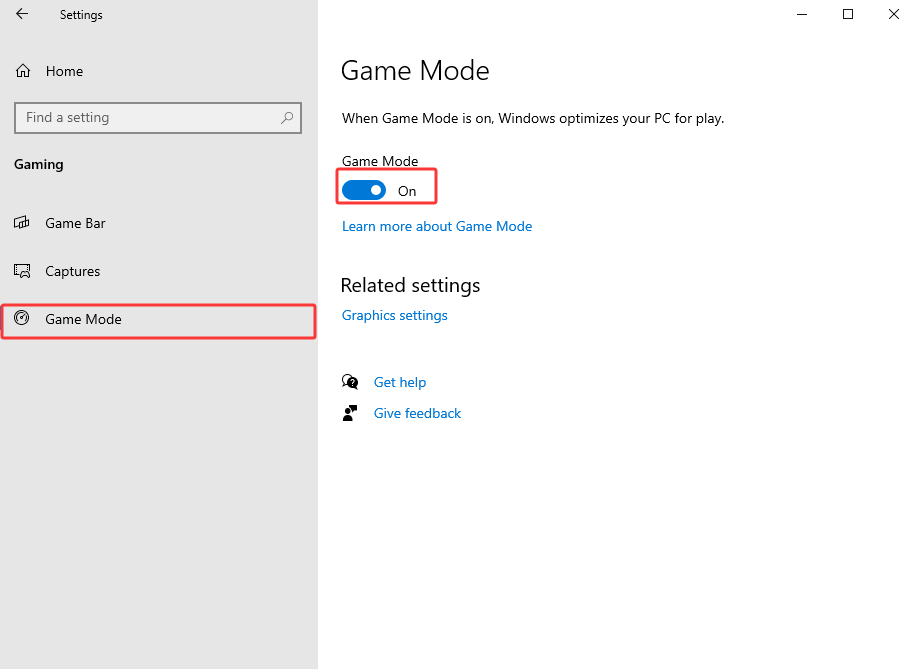
Activate Windows Game Mode to prioritize game processes.
Enable High Performance power mode, especially for laptop users.
Game Settings:
Lower game settings to lower GPU/CPU workload, e.g., disable anti-aliasing, disable VSync, set Shadow Quality/particles/shadows to low or medium,
Disable unnecessary overlays for games, Discord, graphics, etc.
Lower resolutions.
4. Manage Background App
Apps running in the background can sneakily eat your CPU and RAM resources. Close unnecessary apps, like Chrome (especially with too many active tabs), Discord, launchers, OBS, etc.
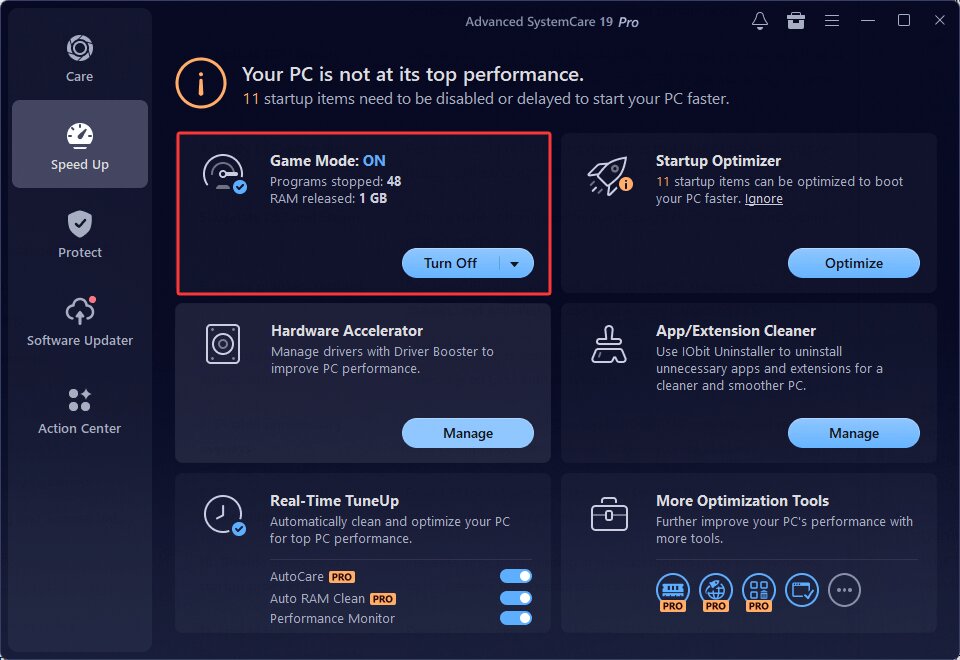
To smartly manage the active processes and set a smoother environment for your CS2 gaming, you might as well utilize the professional PC optimizer, Advanced SystemCare, which offers a Turbo Boost feature, terminating unnecessary system and non-Windows services, freeing up RAM and system resources for CS2.
Advanced SystemCare Free
- Clean: 420 billion traces removed & 85 EB junk files cleaned
- Protect: 80 million unauthorized access blocked & 20 million bugs fixed
- Speed Up: 6 million hours of startup time saved & Turbo boost
- Optimize: Auto clean and auto care your PC with AI mode

5. Cooling for FPS Drops in CS2
Temperature matters as well. Hardware components reduce clock speed to prevent damage from overheating. Check the fixes below to help maintain and stabilize ideal hardware speed.
Use software to supervise CPU/GPU temperatures.
Clean the fans physically.
Disable overclocks.
Prop up the laptop's back feet.
If necessary, upgrade your cooling system and airflow devices.
6. Verify Game Files Integrity
It is also necessary to verify the game file integrity, in case the corrupted game files are the culprit that causes stutters. If you see the “… was unable to verify your game session” error or notice, then this solution might be the correct one for you.
Check the steps below to verify game file integrity on Steam.
Step 1. Launch Steam > LIBRARY.
Step 2. Find Counter-Strike 2 > Properties.
Step 3. Go to Installed Files > click Verify integrity of game files.
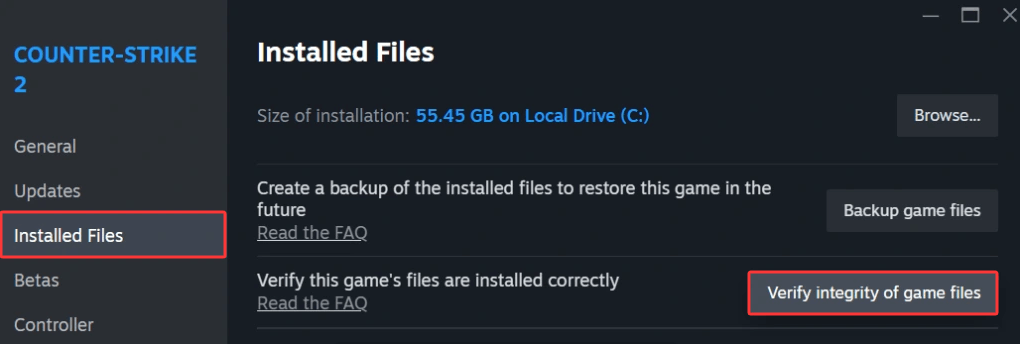
This compares your game files to Valve’s official server files and will re-download the missing/corrupted files, if any.
Final Thoughts
These are the possible fixes for CS2 FPS drops, including simple reconnecting, driver updates, in-game tweaks, thermal throttling management, etc. Updating drivers is not 100% feasible, but worth a try.
Simply utilize a professional app, Driver Booster, to update drivers for your device and boost gaming in 1 click. If needed, try using Advanced SystemCare and more exclusive PC RAM optimization features and tools to maintain your device.