Did you ever run into any keyboard issues? For instance, the shift key might not be responding properly, the RGB lighting might be malfunctioning, etc. Sometimes, the poor contact is the case, while at times, it is the missing/outdated/corrupted driver that caused the issue. Whether you need to troubleshoot, upgrade a function, or just update the driver for better performance, don’t worry! This blog will introduce how to update keyboard drivers in several ways.
Why Do You Need to Update Keyboard Drivers
Prior to the solutions, for a better understanding, let’s figure out the reasons why you need to update keyboard drivers.
Address issues: outdated drivers can cause unresponsive, laggy, and mismatched keys.
Promote compatibility: ensure the keyboard can work properly while the OS updates.
New features: manufacturers may release drivers with new features, e.g., the RGB light control features.
Improve stability: providers offer constant support updates for drivers to fix common bugs and improve performance.
Navigation: Methods to Update Keyboard Driver Windows 11/10
Now that we are clear about what updating keyboard drivers can bring us, it is time to move on to the methods. Basically, users can take two means to update keyboard drivers Windows 11/10: automatically & manually. Access the detailed guide below.
Automatically: Update Keyboard Drivers with Driver Booster
With proper driver updater tools, users can update any driver automatically and efficiently without manual work.
Manually:
Update Keyboard Driver via Device Manager
Update Keyboard Driver Windows 11/10 by Windows Update
Update Keyboard Driver from Manufacturers
#1 How to Update Keyboard Drivers & Other Drivers Automatically
Windows does come with features to help users update any drivers manually with a relatively easy-to-use user interface, and manufacturers provide updates as well, yet it is still a challenge for users to locate the proper or exact driver they want from manufacturers; plus, improper actions can lead to further issues. So, “How do I update my keyboard driver automatically?” will be a concern and wish for users. This is where the powerful Driver Booster comes to help.
This driver updater features a massive database, which can cover your needs in drivers for keyboards, adapters, and more devices, automatically updating drivers to the latest or considering stability first.
Driver Booster Free
- Automatically scan and update drivers.
- Update game ready drivers for peak gaming performance.
- Identify and fix various common of hardware issues.
- Boost 30% of system performance for fast & smooth running.

Hands-Free Keyboard Driver Updates
Set an automatic updating schedule, scanning daily/weekly/monthly, and updating keyboard drivers while the system is idle; all require no manual work.
Massive Driver Database Covers Your Needs
18M+ driver database from 2500+ manufacturers, covering drivers for not only the keyboard, but also the motherboard, graphics card, sound card, printers, video drivers, etc. Whatever you need, you can find the proper updates here.
Update Keyboard Drives with Security Ensured
It only displays and updates WHQL-authorized drivers and automatically creates a system restore point before installing drivers, ensuring stability and security.
Beyond Driver Updating Comes More
Apart from updating drivers, it also helps boost your game performance by managing unnecessary background apps and releasing RAM. Plus, it aids in troubleshooting issues caused by missing/corrupted/outdated drivers, e.g., no sound issue, device errors, incompatible drivers, etc.
How to Update Keyboard Drivers Hands-Free?
Step 1. Download and install Driver Booster on your device. This compatible software supports OS from Windows XP to Windows 10/11, including Windows 11 ARM64 devices.
Step 2. Launch the app > go to Settings in the upper-left corner > scroll down and find Scheduler > tick Automatically update drivers while the system is idle. Next, select the type you want, e.g., keyboard, graphics card, etc.
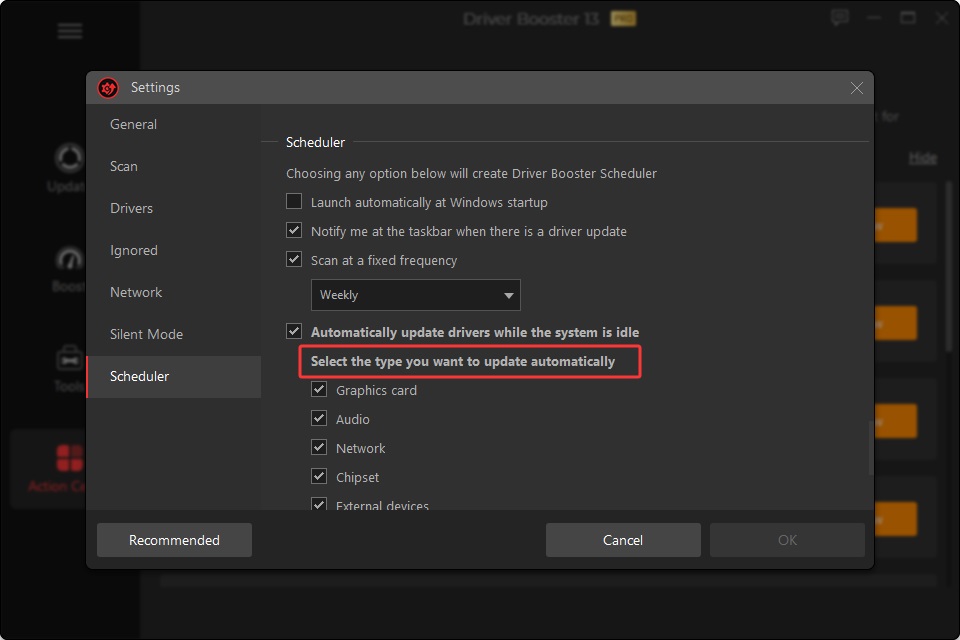
Then, Driver Booster will download and install when your system is not working intensively.
Meanwhile, you are also able to start a scan manually.
Manual Scan:
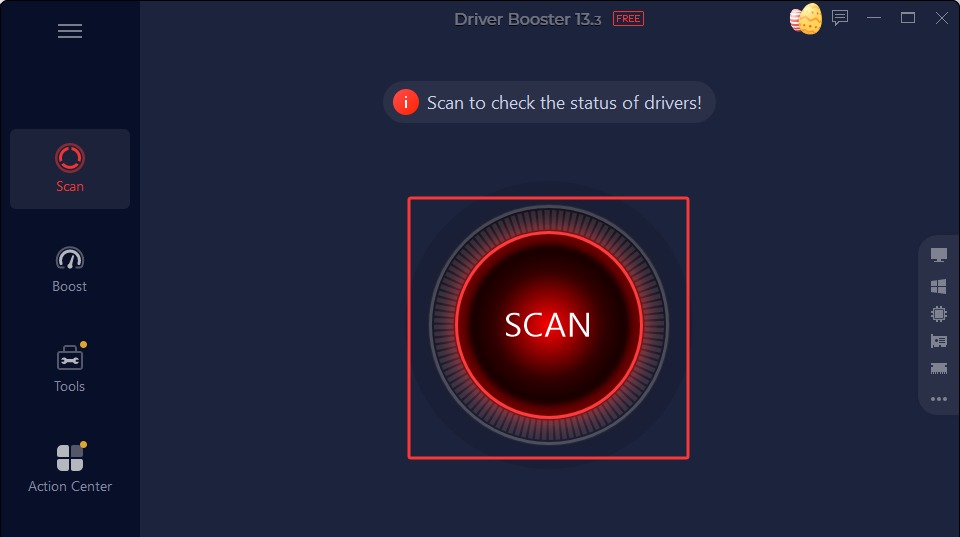
Step 1. Start the app > on the Scan panel, click Scan to start scanning for outdated drivers.
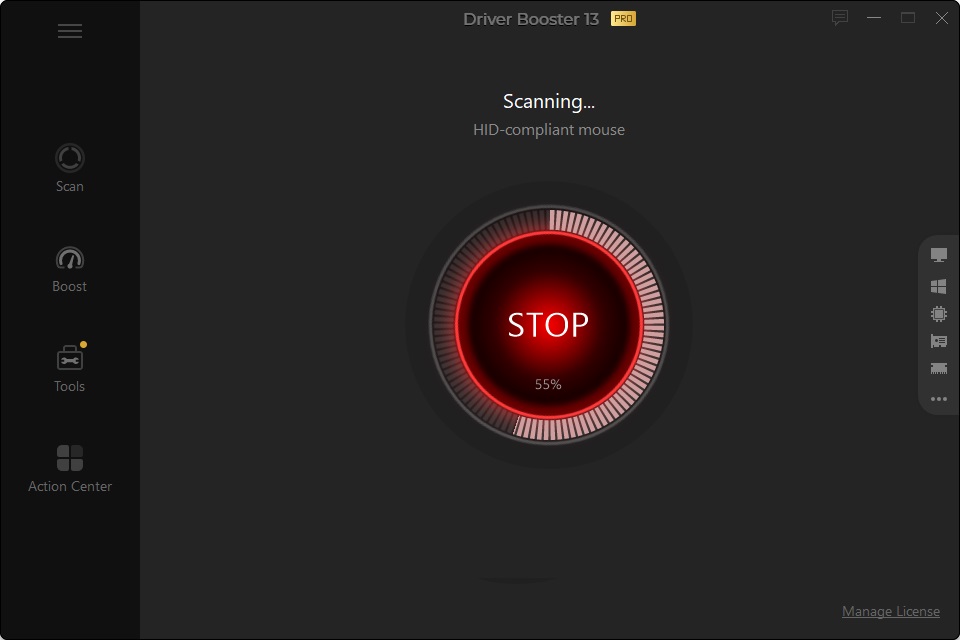
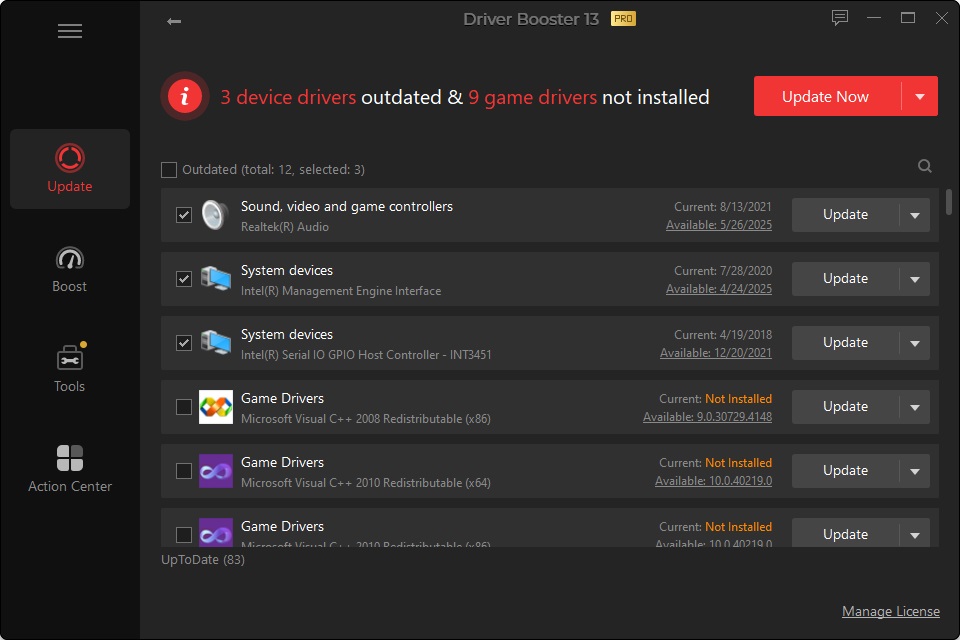
Step 2. It detects outdated drivers, and those are recommended to be installed. Select any driver you need, click Update Now to update them all in one go.
#2 How to Update Keyboard Driver via Device Manager
As aforementioned, Windows provides a driver updating feature in Device Manager. This tool helps manage installed devices, including disk drivers, display adapters, firmware, etc. With this feature, users can update drivers one by one.
Step 1. Right-click on the Start menu > Device Manager. Or, you might as well type “device manager” in the Windows search box to access it.
Step 2. Find Keyboards in the list > right-click on the current keyboard driver > Update driver.
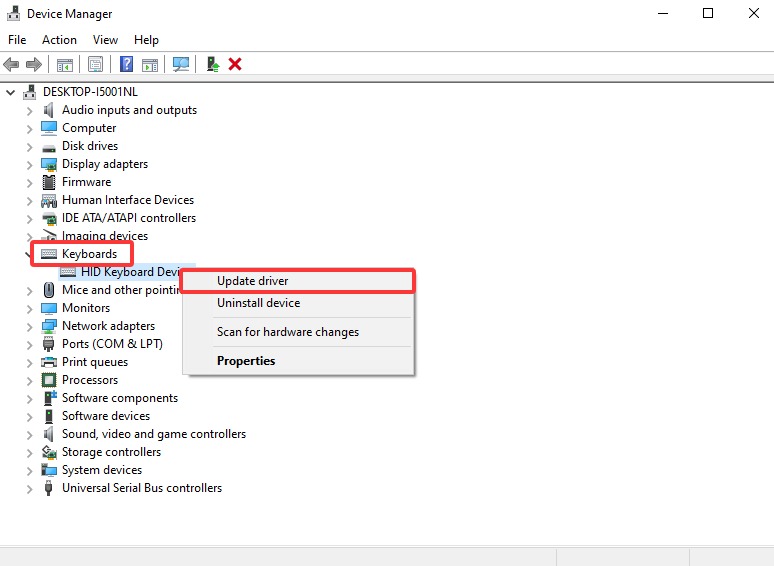
You may notice that it also allows you to uninstall a driver, which can help fix driver issues. E.g., you can uninstall and reinstall Realtek Audio Driver by uninstalling it first and restarting the PC. It will be automatically reinstalled.
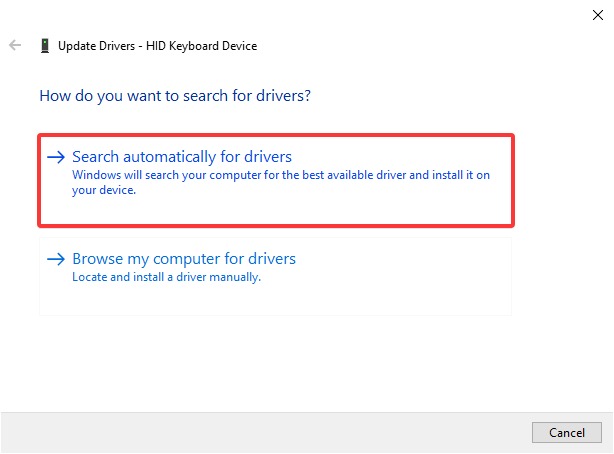
Step 3. On the pop-up window:
If you have prepared the driver on the local places or on your portable devices, choose Browse my computer for drivers > click Browse > navigate to the driver.
If not, choose Search automatically for drivers > let it install the latest driver automatically.
#3 How to Update Keyboard Driver via Windows Updates
Windows updates include standard, functional driver updates for most hardware devices, e.g., driver updates for printers, video cards, network adapters, etc. Therefore, if you need an update to fix keyboard issues or keep it functional, you might also update keyboard drivers via Windows Update.
The process of updating keyboard drivers in Windows Updates presents a subtle difference between Windows 11 and Windows 10. Check the detailed steps on how to update keyboard drivers below.
Update Keyboard Driver Windows 11
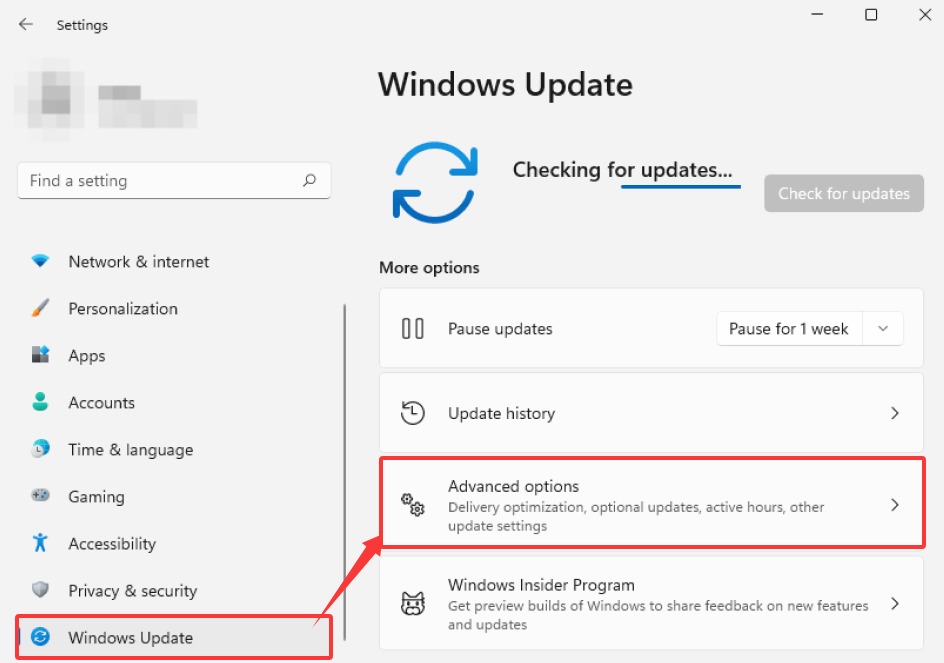
Step 1. Use the shortcut Win+I or access Windows Update via Windows Settings in the Windows menu. Find Windows Update in the left toolbar > Advanced options.
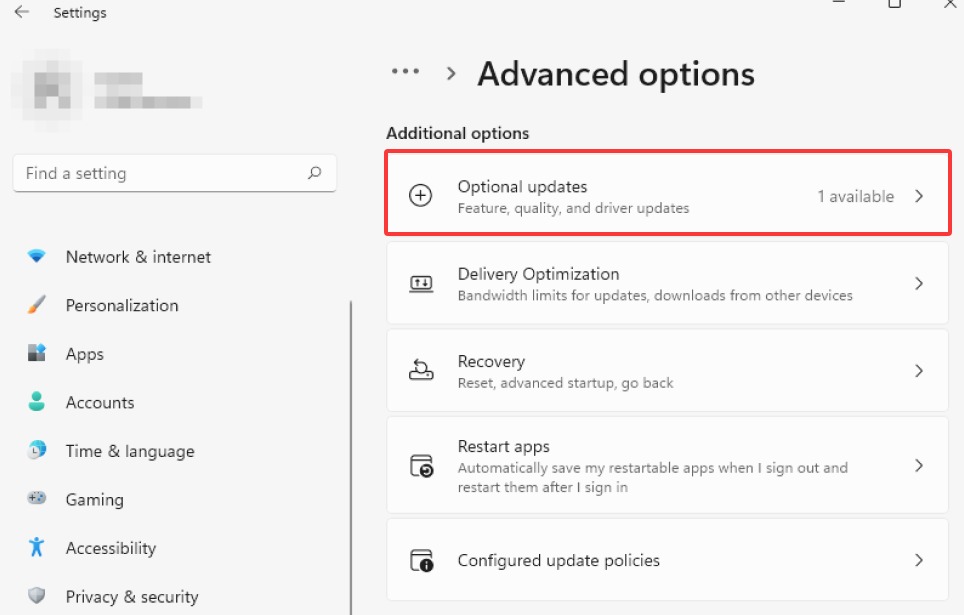
Step 2. Click Optional updates.
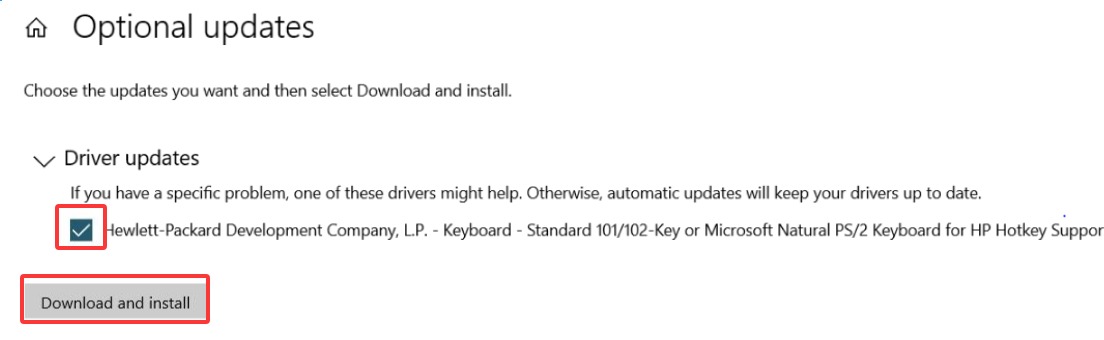
Step 3. Toggle the keyboard update you need > Download and install.
Update Keyboard Driver on Windows 10
Step 1. Go to Windows Settings > Update & Security.
Step 2. On the Windows Update page, click View optional updates.
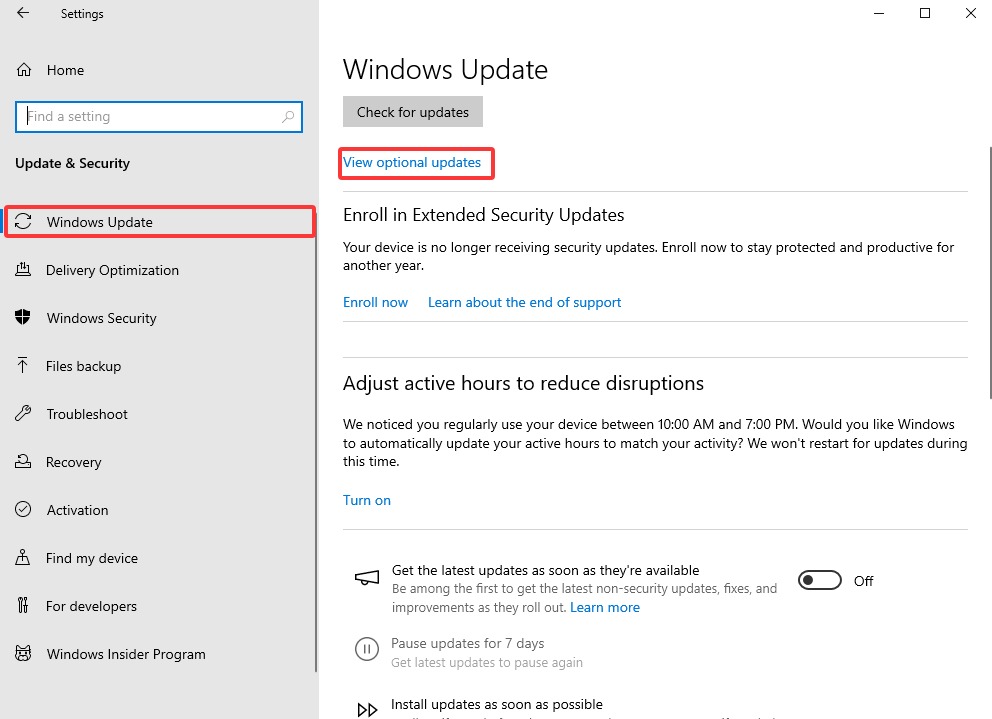
Step 3. It shares the same process as in Windows 11 from here: choose the target keyboard driver, download, and install.
This is “how does Windows 10 update keyboard drivers”. Since it also covers updates for network adapters, if you need to update WiFi drivers, you might also try a Windows update.
#4 How to Update Keyboard Driver from Manufacturers
Though Windows updates generally bring decent and up-to-date driver updates, they don’t provide updates for specialized features, e.g., keyboard RGB lighting. Therefore, there can also be chances that you need to download and install keyboard drivers from the manufacturers’ websites.
For example, you may head over to the website of your keyboard’s product provider, find the support page/feature, and check if they offer active development drivers for your keyboard series. Let’s take HP as an example:
Step 1. Turn your keyboard over and locate the serial number/product model on the information label.
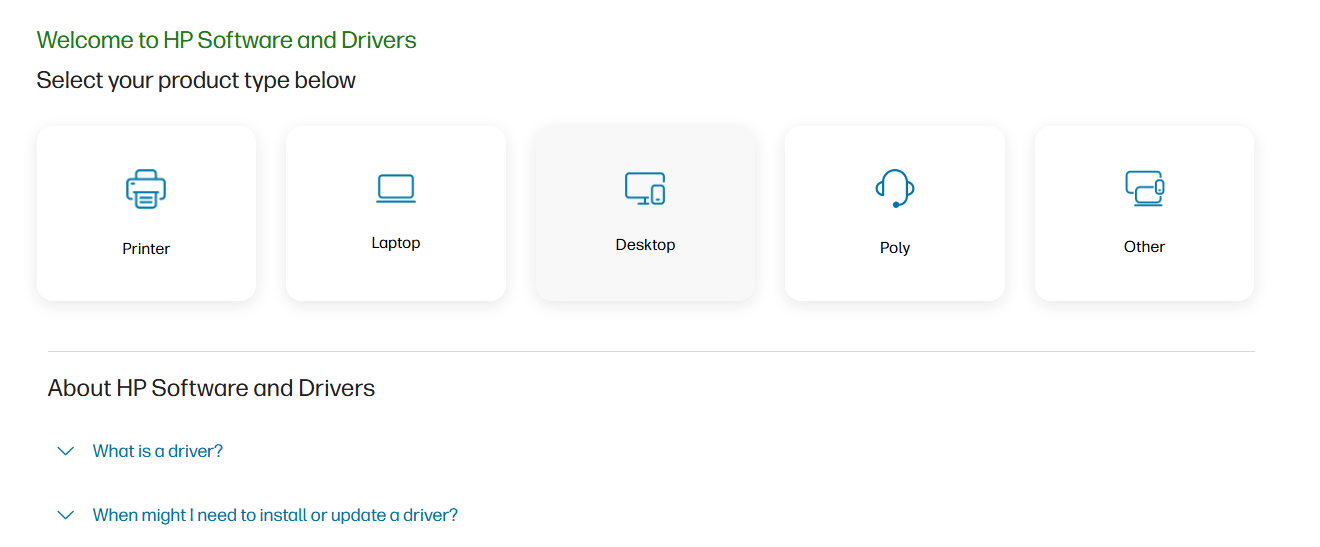
Step 2. Go to HP’s support site > choose Laptop or Desktop according to your situation > input the model to identify the driver you need.
Site: https://support.hp.com/bg-en/drivers
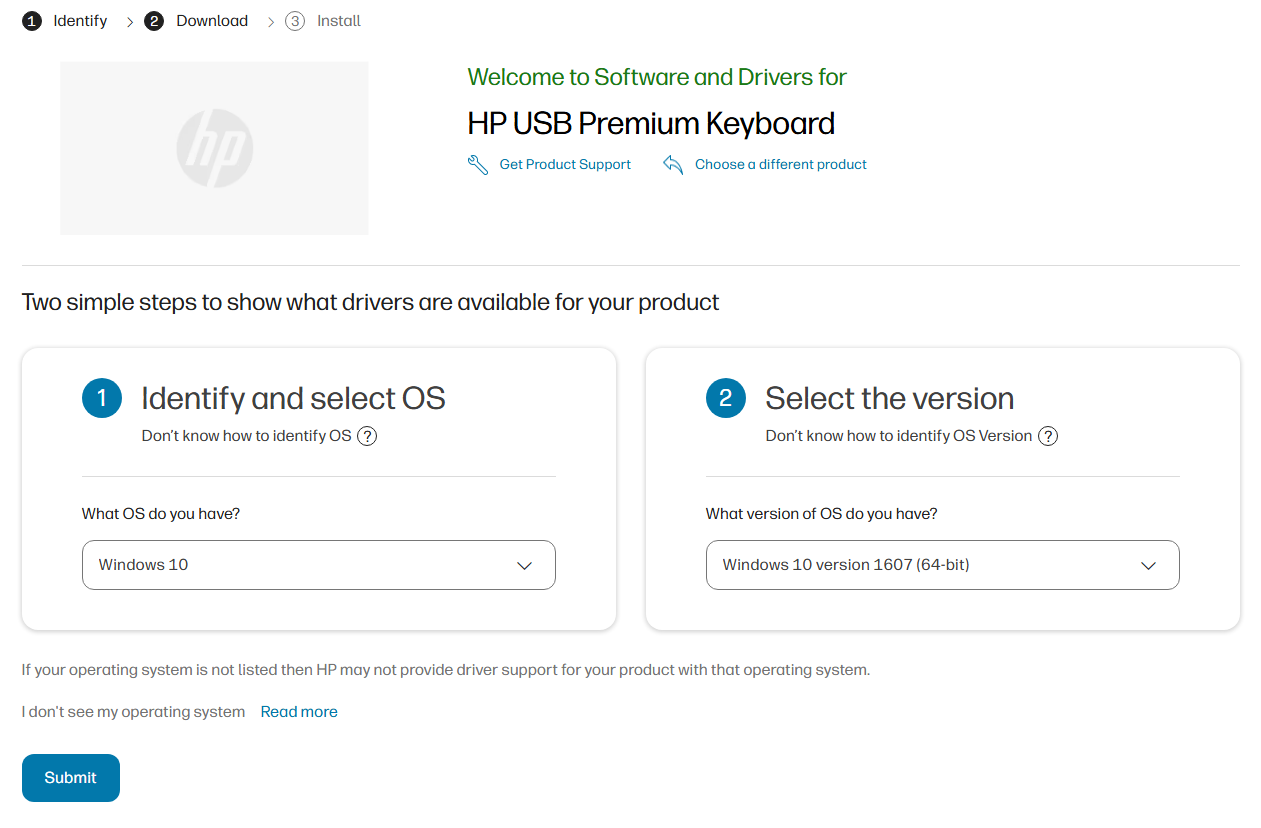
Step 3. Follow the guide, choose the OS version, and submit. Download and install the keyboard driver you need.
FAQs about Keyboard Driver Troubleshooting
Related information below might also offer some help if you have extra questions.
How Do I Check If My Keyboard Drivers Are Up to Date?
There are no direct notices to literally tell you that “Your driver is up-to-date.” But you might follow the updating processes above, e.g., go to Device Manager and try updating the driver. If it says “The best drivers for your device are already installed”, and you see signals like, no issues, smooth performance, etc., then your keyboard drivers are possibly the latest and need no updates.
How Do I Reinstall the Keyboard Drivers?
If the keyboard ran into problems, reinstalling it can also be a feasible fix. Directly head over to Device Manager via Windows Settings/Windows search box > expand Keyboards > right-click the driver > choose Uninstall device. Then restart your PC, and it will help reinstall the driver automatically.
Keyboard Not Working After Windows Update?
There could be several possible reasons: driver conflicts, Windows update bugs, etc. Try the following fixes:
Replug to check if the keyboard is correctly connected.
Restart the PC.
Update the keyboard driver.
Roll back the Windows update (if you have created a restore point). Driver Booster will create a restore point before updating drivers, in case you need to roll back.
Driver Booster Free
- Automatically scan and update drivers.
- Update game ready drivers for peak gaming performance.
- Identify and fix various common of hardware issues.
- Boost 30% of system performance for fast & smooth running.
Final Thoughts
Now, you have learned quite comprehensive information about how to update keyboard drivers. With proper tools and methods, you can securely and efficiently update drivers for the keyboard and more devices either via the automatic tool Driver Booster or manual means. Download the easy-to-use tool and manage your drivers for the best performance now!