Imagine you are a core FPS fan, enthusiastic about military simulation games, itching to play Battlefield 6 after work, but BF6 doesn’t launch as usual, and a pop-up window says “Please update your driver”. Annoying, yes, but don’t stop there! It asks for a driver update, so let’s just update drivers for Battlefield 6.
This article gathers detailed instructions on how to update drivers for Battlefield 6. Simply read on and get your error fixed.
Battlefield 6: Please Update Your Driver Error
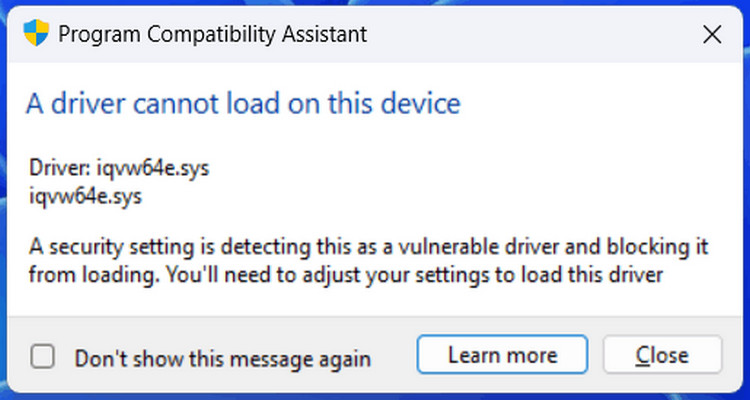
Before the specific steps to update drivers for BF6, let’s figure out what error you are encountering and why it happens. The error content may vary according to the graphics driver brand you are using and its specific version. For instance, if you installed an NVIDIA GeForce 566.36 driver, then the error can be:
Please update your NVIDIA GeForce driver
Detected NVIDIA GeForce driver version 566.36. The required driver version is 576.88 or later …
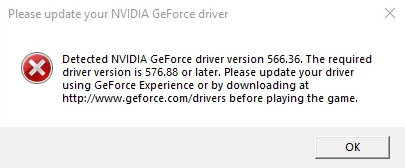
Before actually keeping the driver up to date as required, the BF6 anti-cheat application will block you from launching the game, in case game crashes, bad performance, or glitches may happen.
This is because BF6 relies on the latest rendering features and optimizations for the map textures, Ray Tracing, Mesh Shaders, etc. Updating the graphics drivers can help improve performance and stability, reducing possible issues.
How to Update Drivers for Battlefield 6 in 1 Click
As aforementioned, keeping drivers up to date helps boost performance and fix potential bugs. Then, how to update drivers for Battlefield 6? This can be a little tricky for users who are not familiar with driver updates: they have to check what driver they are using, and go find the target driver from the manufacturer, and may also have to deal with potential issues caused by misoperation during updating.
How to update drivers for your game efficiently without any hassle? Well, you might as well look into a professional and easy-to-use driver updater, Driver Booster. It scans and updates device drivers, helping fix issues caused by outdated, missing, faulty, and corrupted drivers.
Driver Booster Free
- Automatically scan and update drivers.
- Update game ready drivers for peak gaming performance.
- Identify and fix various common of hardware issues.
- Boost 30% of system performance for fast & smooth running.

• Auto & efficient: Scan for target updatable graphics drivers automatically without manually checking and searching; no matter what brand you are using, NVIDIA, AMD, or Intel.
• Easy and quick: Scan and update all required/optional drivers for Battlefield 6, Battlefield 2042, and any versions in 1 click.
• Massive and reliable: Driver Booster comes with a 12M+ driver database, covering game-ready graphics drivers, as well as drivers for audio devices/keyboards/printers, etc., all authorized with WHQL and IObit Test.
• Flexible: It comes with customizable options for scan priority, including Latest First for gamers and Stability First.
Check how this efficient driver updater for Windows can help you update drivers for Battlefield 6 and other games.
Step 1. Download and install Driver Booster on your device via this button. Supported OS: Windows 11/10/8.1/8/7/Vista/XP.
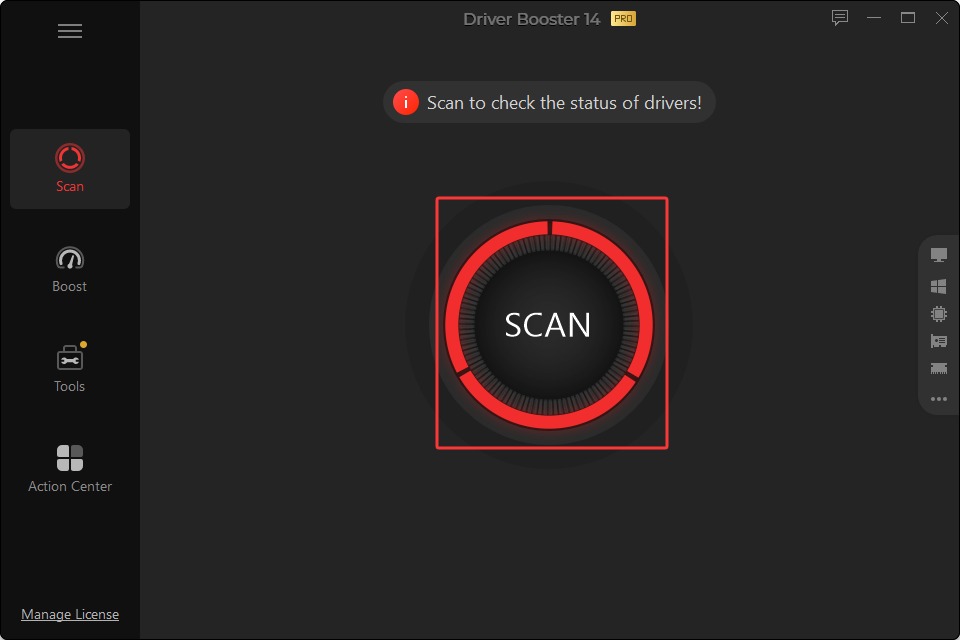
Step 2. Launch the driver updater > click Scan to search for the latest graphics card drivers and other devices.
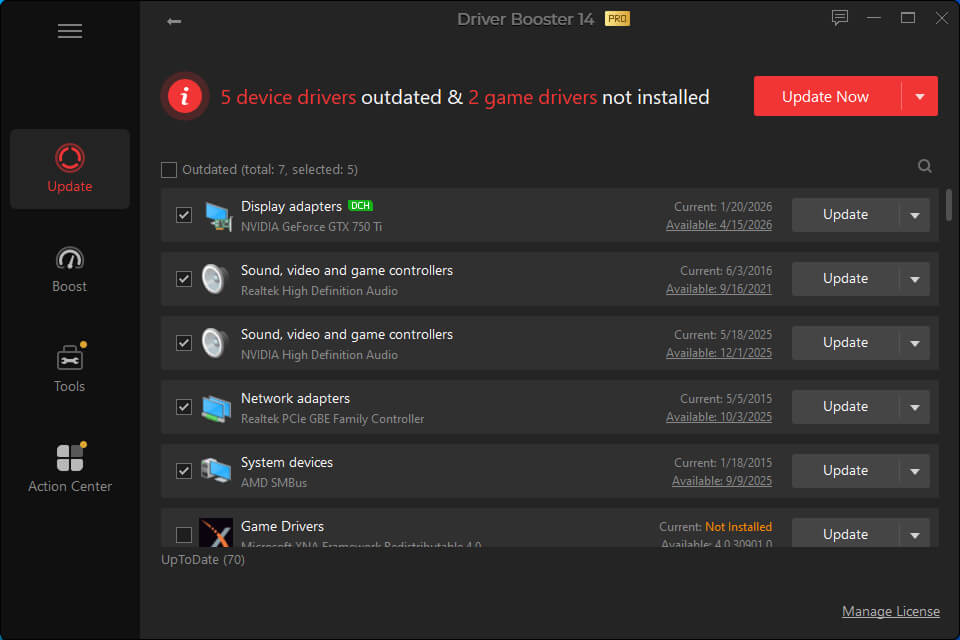
Step 3. Let Driver Booster finish scanning and list the updatable drivers; find the latest GPU driver, e.g., NVIDIA GeForce GTX driver. You might click Available info to check the details like the specific version, date, publisher, etc. Then, click Update, or click Update Now for all available driver updates.
Step 4. Let it install the driver updates for you. This is how to update drivers efficiently with a professional driver scanner and updater. When finished, restart your computer, relaunch Battlefield 6, and see if it can start normally or not.
How to Update Drivers for Battlefield 6 Manually
For users who prefer manual methods, they can also turn to the graphics card manufacturers, who constantly release game-ready drivers, feature additions, and security patches.
Also, as previously noted, users who cannot launch Battlefield may receive a different error message, asking for driver updates for NVIDIA, AMD, and Intel graphics cards. In this part, users may check the corresponding tutorial to get matching driver updates.
Before You Update Drivers for BF6 from Manufacturers
If you don’t know what GPU you are using, follow the 2 methods below to see your brand.
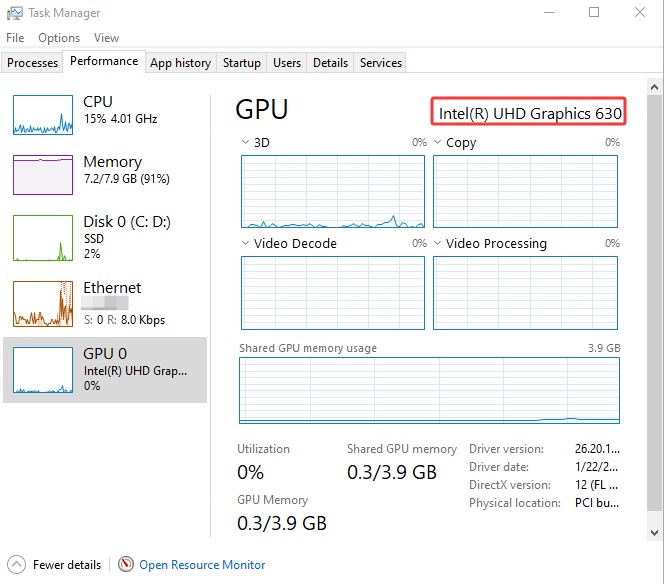
>> 1. Right-click on the taskbar > Task Manager > Performance > GPU > check the GPU information there.
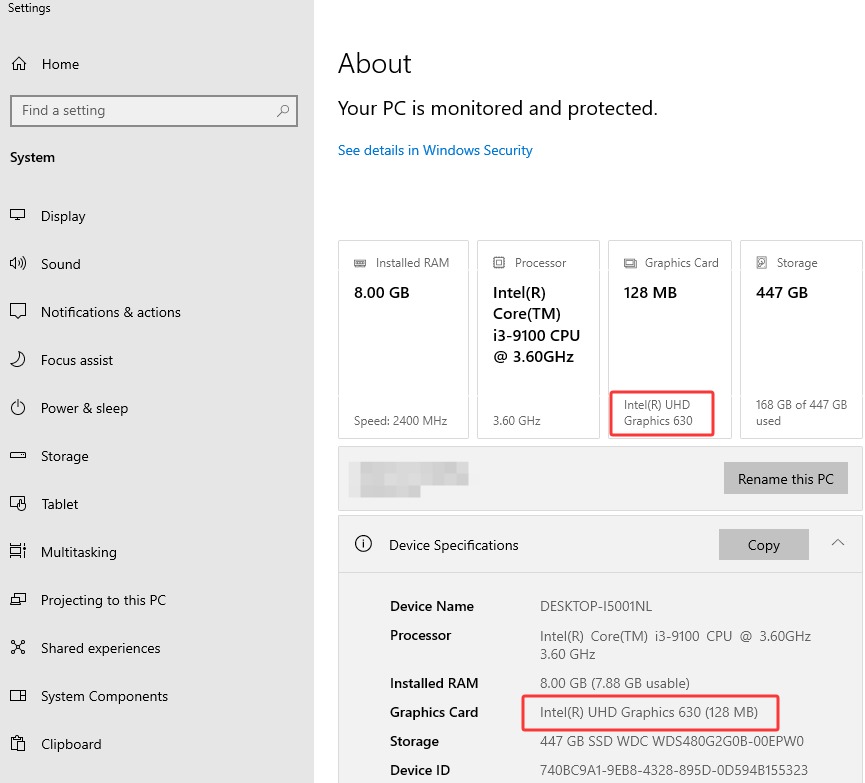
>> 2. Right-click on the Windows Start menu > System > find the Graphics Card info there in the system information.
1. Update Nvidia Drivers for Battlefield 6 from NVIDIA
Now, knowing you are using a graphics card from NVIDIA, check how to update NVIDIA drivers for Battlefield 6 via the following steps.
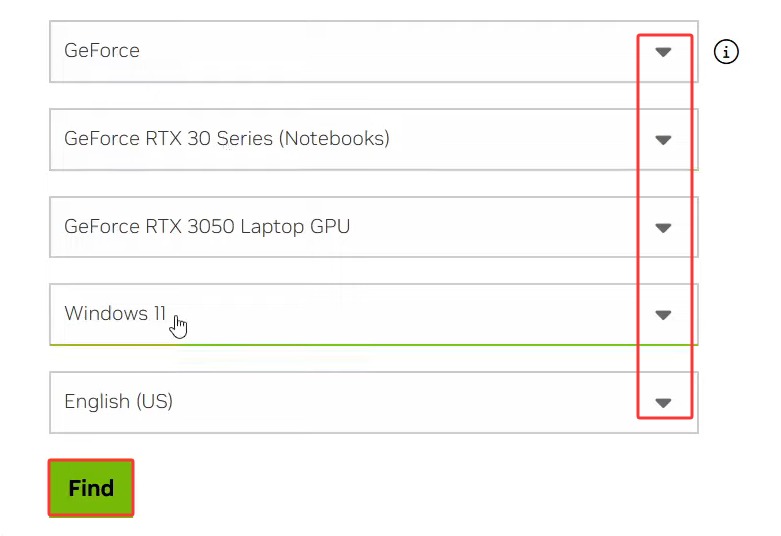
Step 1. Acquire the driver update from the NVIDIA site. Select the current GPU you are using, the product category, product series, product, the OS, and then click Find.
NVIDIA’s driver site: https://www.nvidia.com/en-us/drivers/
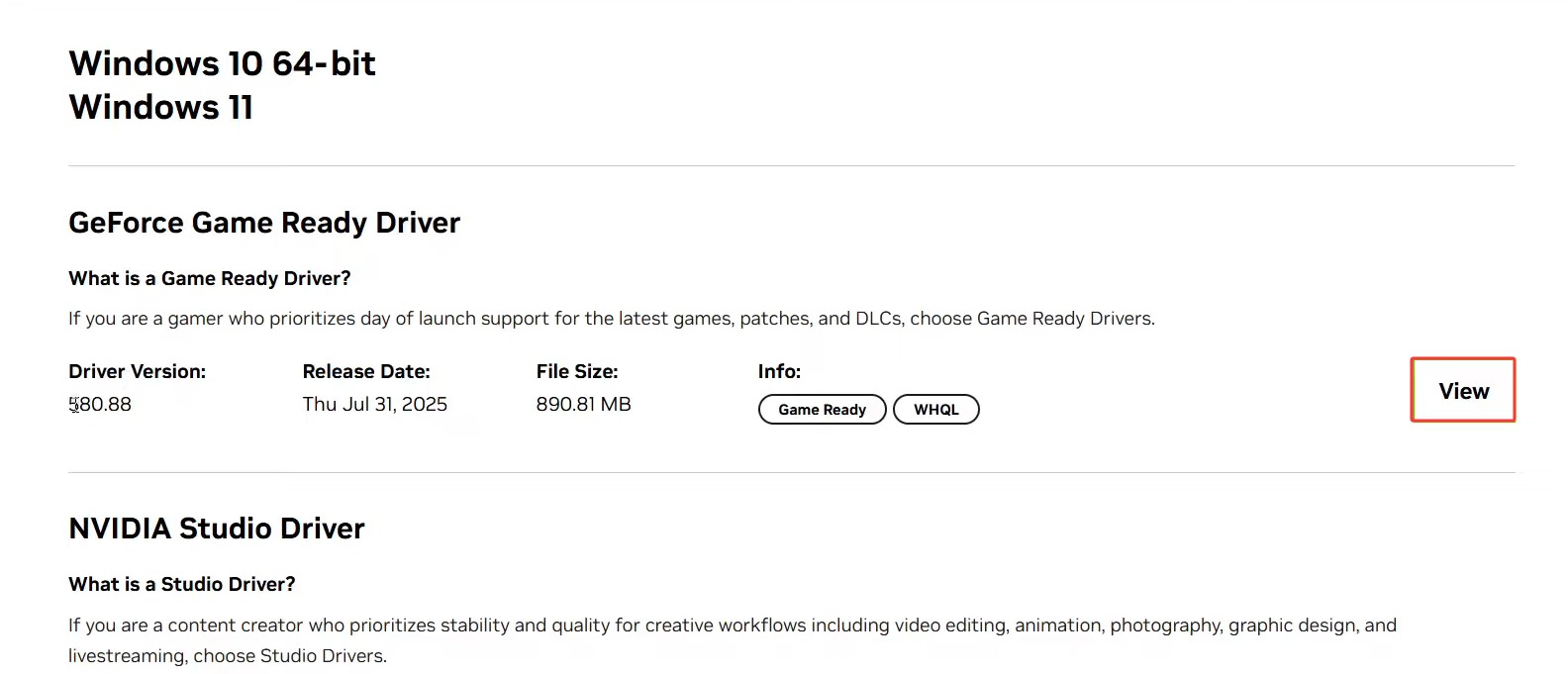
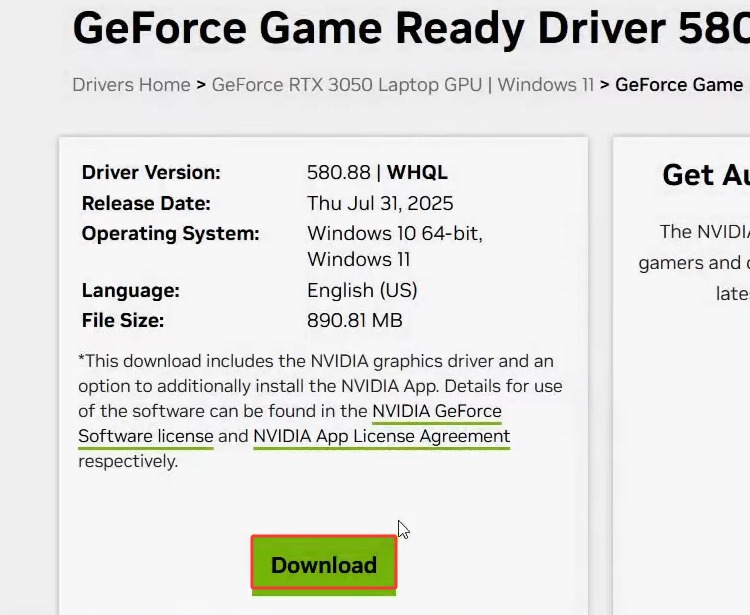
Step 2. Locate the exact version you need, for example, 580.88, and click View.
Step 3. Then, click Download to get NVIDIA drivers for Battlefield 6. Make sure you download the correct version for your OS.
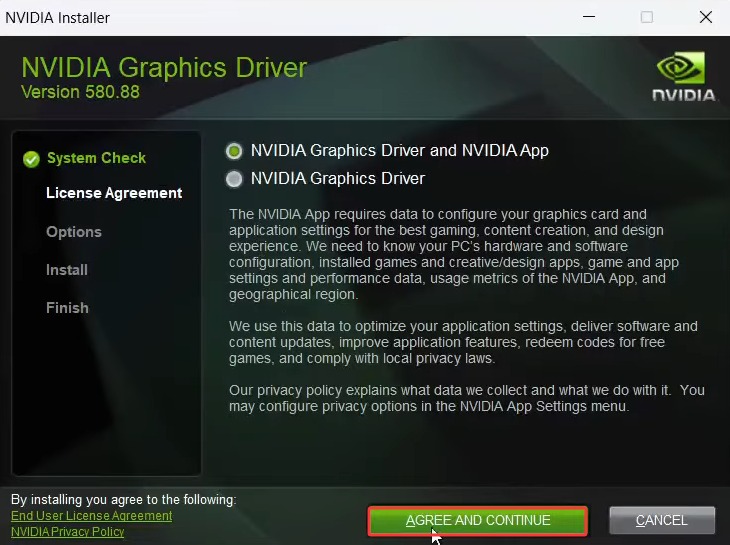
Step 4. Follow the on-screen instructions to install the driver. Make sure to toggle “Perform a clean installation”. Then, wait for the latest driver to install.
When finished, restart your PC and start Battlefield 6, and it can then work perfectly as usual. If updating failed, check why GeForce driver won’t update.
2. Update Drivers for Battlefield 6 from AMD
For AMD users, follow the steps here to get the up-to-date AMD drivers from its official site.
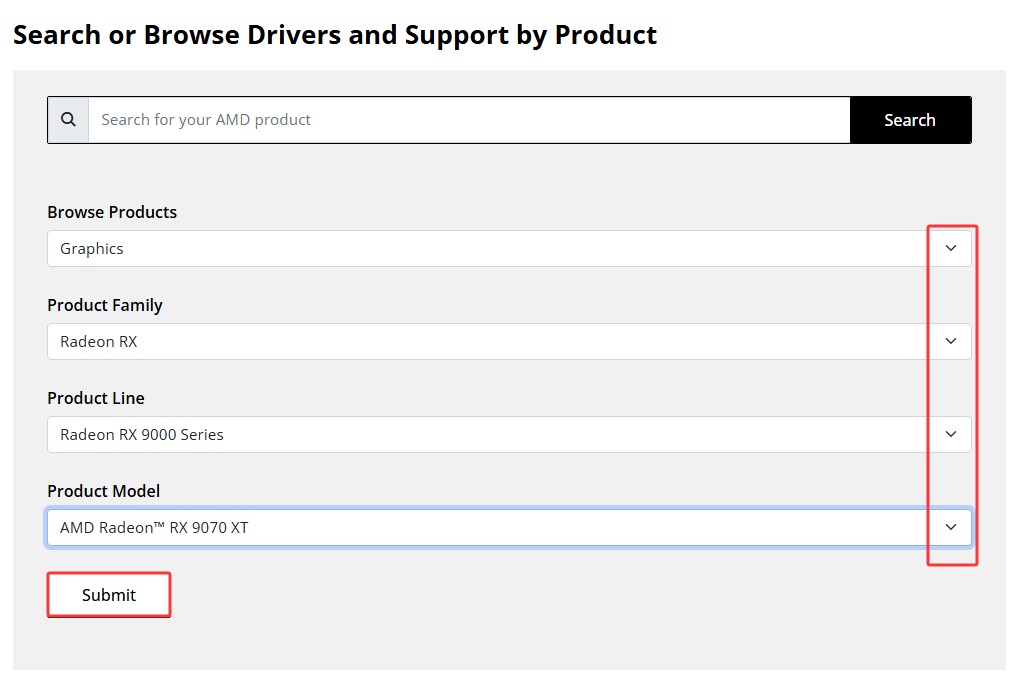
Step 1. Navigate to the AMD official driver support site. Choose the product name, family, line, and model. Then, click Submit.
AMD site: https://www.amd.com/en/support/download/drivers.html
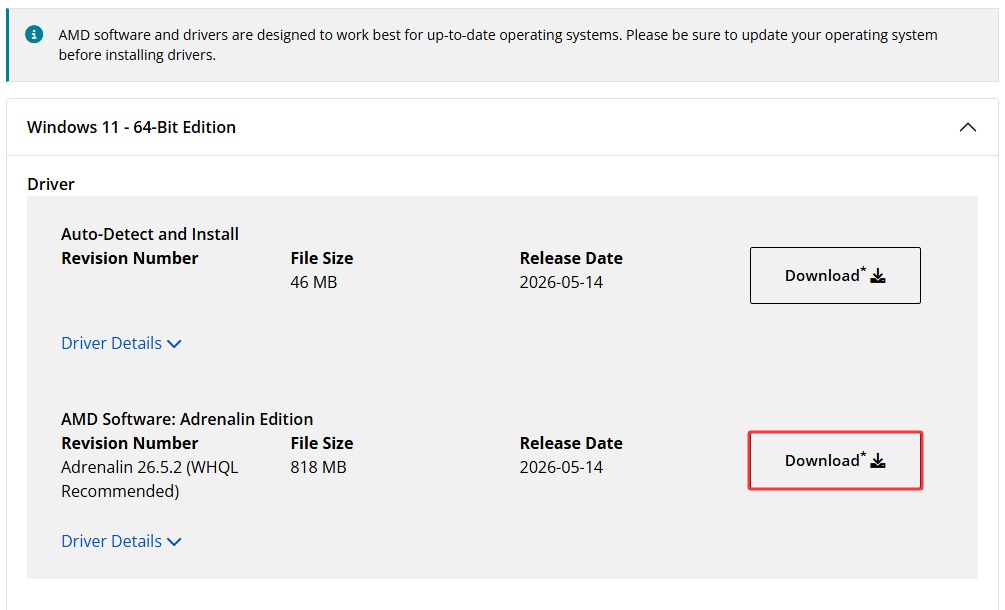
Step 2. Find the latest AMD GPU driver version, e.g., AMD Adrenalin 26.5.2, and click Download.
Step 3. Then, follow the instructions and get it clean-installed. Don’t forget to restart your PC and check if Battlefield can run correctly now.
3. Download and Update Drivers for Battlefield 6 from Intel
If you are using Intel graphics card drivers, it will be easy to update Windows drivers within Windows.
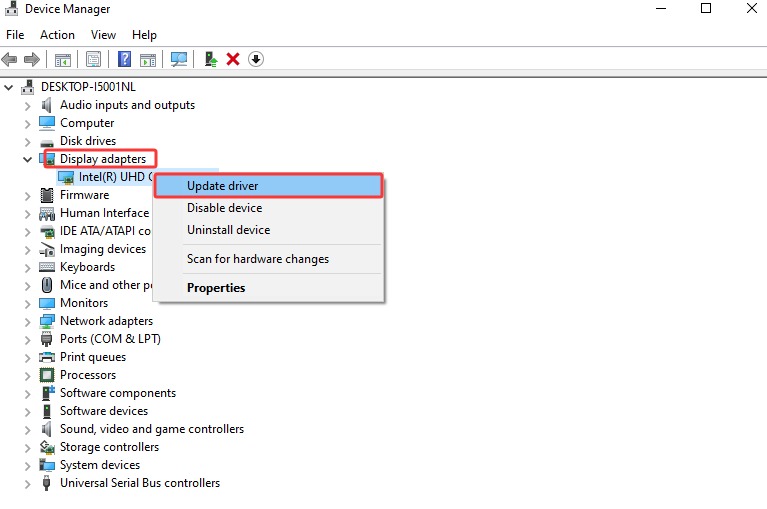
Step 1. Right-click on the Start Menu > choose Device Manager.
Step 2. Locate Display adapters > right-click on it > Update driver.
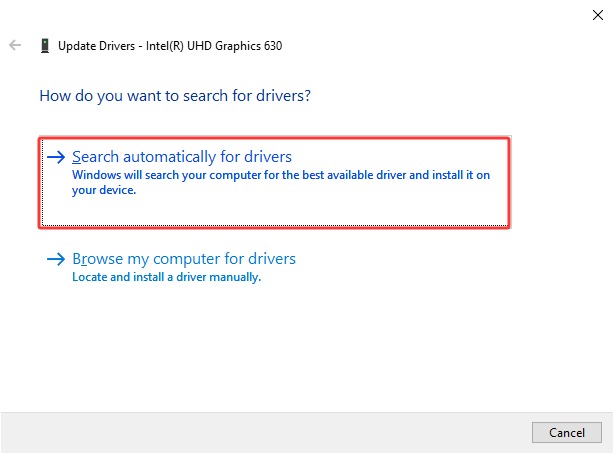
Step 3. Choose Search automatically for drivers > install manually.
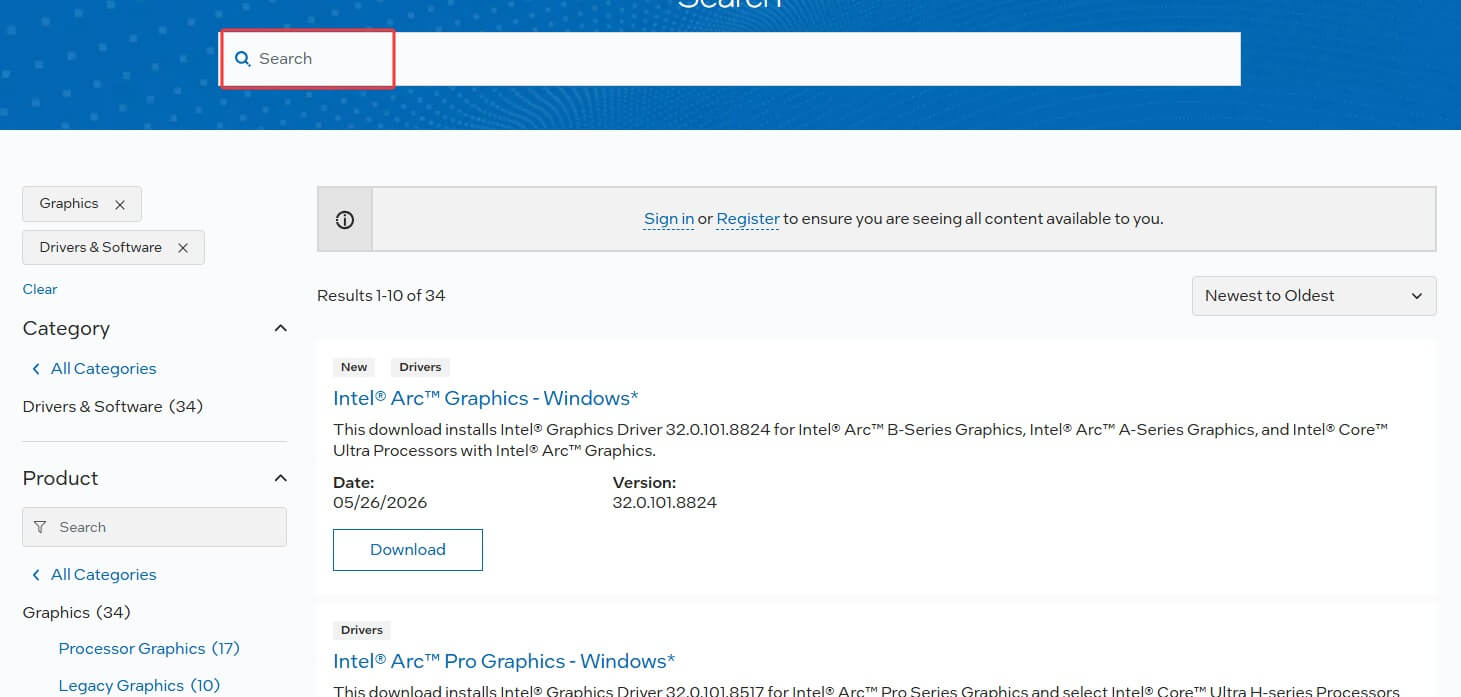
Or, you can also access the drivers manually from Intel.
Intel site: https://www.intel.com/content/www/us/en/download-center/home.html
Updated Driver for BF6, but the Game Still Not Launching
What to do if Battlefield 6 still refuses to launch even if you have already updated the GPU drivers to the latest version? The cause might be various: the anti-cheat, corrupted game files, or the game isn’t reading the correct graphics card. Try the following fixes:
Launch EA > find Battlefield 6 from the library > Settings > Repair. This can help check the integrity of the game files and perform a fix. *If you download BF6 from Steam, Steam > Battlefield 6 > Properties > Installed Files > Verify integrity of game files.
Clear the EA app cache.
Uninstall and reinstall the Battlefield 6 game.
Try reinstalling the anti-cheat app.
The Bottom Line
With proper methods and tools, all users can easily update drivers for Battlefield 6 without any hassle. You can download and install updates from manufacturers or use the Windows built-in driver updater feature manually, one by one. To scan and update all available drivers easily at once, you might as well choose Driver Booster as your powerful driver updater for Windows.
Driver Booster Free
- Automatically scan and update drivers.
- Update game ready drivers for peak gaming performance.
- Identify and fix various common of hardware issues.
- Boost 30% of system performance for fast & smooth running.