- Support Center
- Multiple Languages
- Language
- Help Us Translate
Expert in
PC Health Solution

All-in-one PC health solution: clean, optimize and secure

Comprehensive PC cleaning, optimization and protection

Keep drivers always up-to-date

More stable performance with less system crashes

Protect millions of computers against malware

Top computer security with full-round protection

Protect against viruses & boost PC performance
Automatically scan and update drivers.
Update game ready drivers for peak gaming performance.
Identify and fix various common of hardware issues.
Boost 30% of system performance for fast & smooth running.

Struggling with “why won't my GeForce driver update”? Learn why you can’t update NVIDIA driver and discover fixes for GeForce driver installation errors.



Fix 1: Reinstall the driver using GeForce Experience with a clean installation.
Fix 2: Temporarily disable antivirus software and close background programs.
Fix 3: Download and install the latest driver from the official NVIDIA website.
Fix 4: Use DDU to completely remove all existing NVIDIA driver files before reinstalling from scratch.
Fix 5: Update Windows system and verify hardware compatibility.
The "why won't my GeForce driver update" error can be incredibly frustrating. Most of these problems stem from background interference (such as antivirus software, corrupted installers, or outdated GeForce Experience), Windows update conflicts, or insufficient disk space. Don't worry, almost all of these issues can be resolved in a few simple steps without reinstalling Windows.
A GeForce Game Ready Driver is NVIDIA’s specialized software that optimizes your GPU for the latest games, adds performance enhanceents, and patches security vulnerabilities. It communicates directly with your graphics card to ensure smooth frame rates and visual fidelity.
Before jumping into fixes, here are some typical problems users encounter:
NVIDIA driver installation failed
GeForce driver not installing
Driver update stuck at 0% or 100%
NVIDIA installer cannot continue
Driver incompatible with this version of Windows
Identifying your exact issue helps you choose the right fix faster.
Before trying advanced fixes, go through these quick checks:
Make sure you have at least 2 - 3 GB of free disk space
Restart your computer
Run the installer as Administrator
Ensure your internet connection is stable
These simple steps often resolve minor update failures. Follow up to try the 5 fixes for further dealing with “can't update NVIDIA driver”.
If the update fails inside GeForce Experience, try a clean reinstall:
1. Open GeForce Experience.
2. Go to the Drivers tab.
3. Click the three dots next to the driver.
4. Select Reinstall driver.
5. Check Perform a clean installation.
This removes old configurations and replaces corrupted files.
Security tools and system utilities can block driver installation.
1. Temporarily disable Windows Defender real-time protection.
2. Exit third-party antivirus software.
3. Close apps like MSI Afterburner, iCUE, or Razer Synapse.
4. Try installing again.
This is one of the most common causes of installation failure.
If GeForce Experience fails, manual installation is often more reliable.
1. Visit NVIDIA Driver Download (official site).
2. Enter your GPU model (e.g., RTX 3060) and Windows version.
3. Download the Game Ready Driver (.exe file).
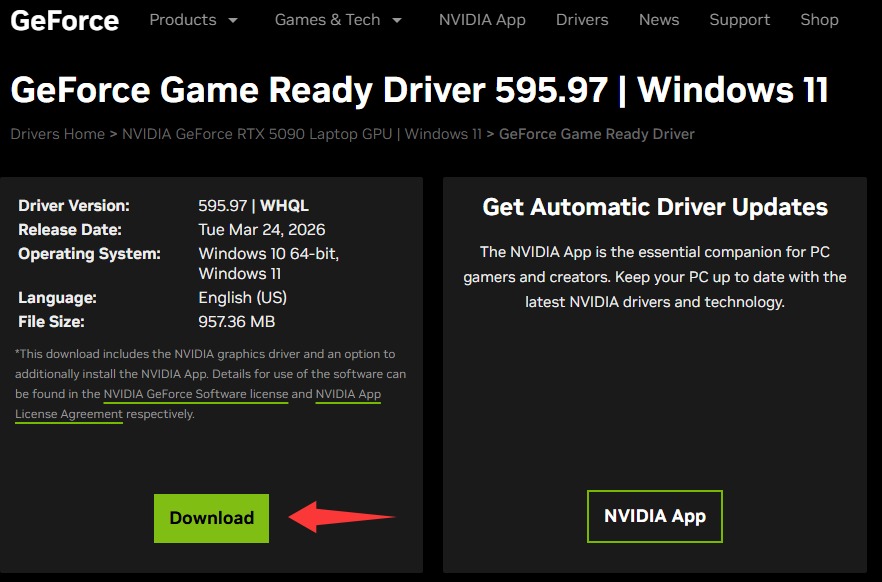
4. (Optional) Disconnect the internet to avoid Windows Update interference.
5. Run the installer > choose Custom (Advanced) → check Perform a clean installation.
6. Restart after completion.
This method bypasses app-related bugs entirely
If the problem persists, old driver remnants may be causing conflicts.
1. Download DDU from Wagnardsoft (free).
2. Boot Windows into Safe Mode.
3. Run DDU > Select GPU > NVIDIA > click Clean and restart.
4. After reboot, Windows will use basic display drivers. Now install the fresh driver manually.
This is the most effective fix for stubborn “driver not installing” issues
Outdated system components can block driver installation.
1. Update Windows to the latest version.
2. Ensure your GPU supports the selected driver.
3. Avoid installing drivers meant for different architectures (DCH vs Standard).
Not always - but skipping several major versions can lead to game crashes, stuttering, or missing features like DLSS and Reflex. The answer depends on your usage:
Gamers: Yes, updates often include performance boosts and bug fixes for new titles.
General users: Not always essential unless you’re experiencing issues.
Professionals (3D, video editing): Recommended for stability and compatibility.
Most why won't my GeForce driver update failures come down to conflicts, corrupted files, or outdated system components. By following the fixes above—from simple restarts to a full DDU cleanup—you can resolve nearly all issues without reinstalling Windows.
If you need to update other computer drivers (such as audio, network, or chipset drivers), utilities like IObit Driver Booster can still help keep drivers updated and minimize driver conflicts.
 People Also Ask
Yes. You can try 3 ways on how to uninstall the Realtek audio driver and reinstall it to solve the problem that PC sound is not working generally.
Internet not working? Learn the top reasons and proven troubleshooting steps to fix no internet connection issues and get back online quickly.
How to install device drivers? Easy guide for both PC and desktop users to check for driver updates and download new drivers for free.