Roblox is one of the world's most popular gaming platforms, but there are times when you may want to remove it from your PC. Whether Roblox is taking up storage space, causing performance issues, or you're troubleshooting game errors, learning how to uninstall Roblox properly can help keep your computer running smoothly.
While uninstalling Roblox seems straightforward, many users discover that leftover files, cache data, and registry entries remain on their systems afterward. That's why this guide covers several methods for how to uninstall Roblox, including the most effective way to fully uninstall Roblox and remove every trace from your computer.
Why Uninstall Roblox?
There are many reasons users search for how to uninstall Roblox. Some want to free up disk space, while others need to fix installation errors or prepare for a clean reinstallation. In some cases, Roblox may stop working correctly after updates, making a complete removal the best troubleshooting step.
Common reasons to uninstall Roblox include:
Roblox crashes or freezes frequently.
You no longer play Roblox.
Roblox installation files are corrupted.
You want to perform a clean reinstall.
Roblox is taking up unnecessary storage space.
You need to troubleshoot performance issues.
Method 1: How to Uninstall Roblox from Windows Settings
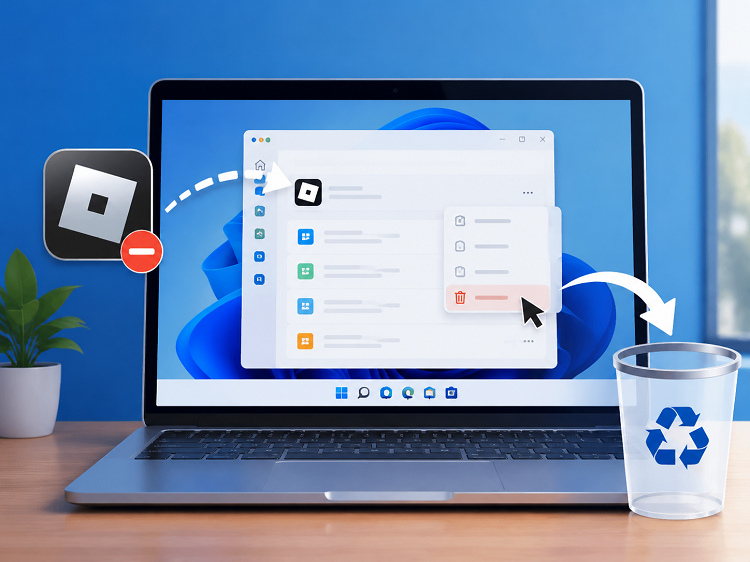
The Windows Settings app is the simplest built-in method for removing Roblox. For most users searching how to uninstall Roblox Windows 11 or Windows 10, this should be the first option to try. Like many programs installed on Windows, Roblox can be removed directly from the Apps section. If you've previously needed to uninstall Windows Apps, the steps below will look very similar.
Step 1: Open the Settings App
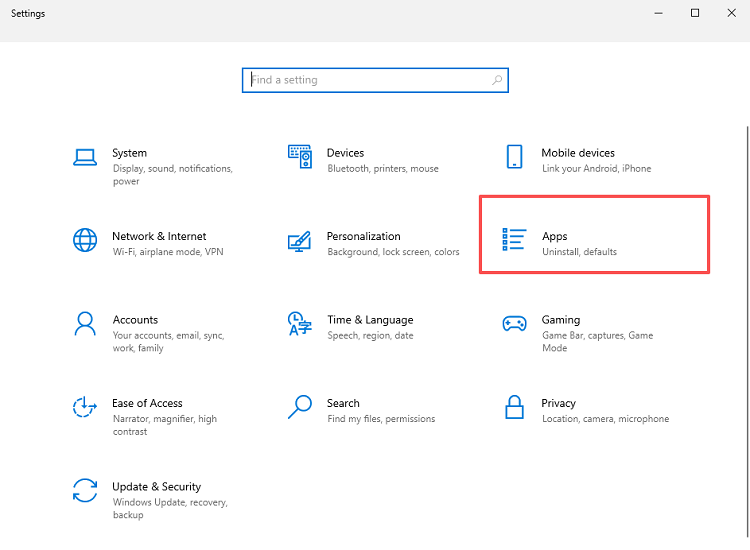
Simply press Windows + I on your keyboard to open the Settings menu directly. This will take you to the main Windows configuration panel where you can manage all system settings.
Step 2: Navigate to Apps & Features
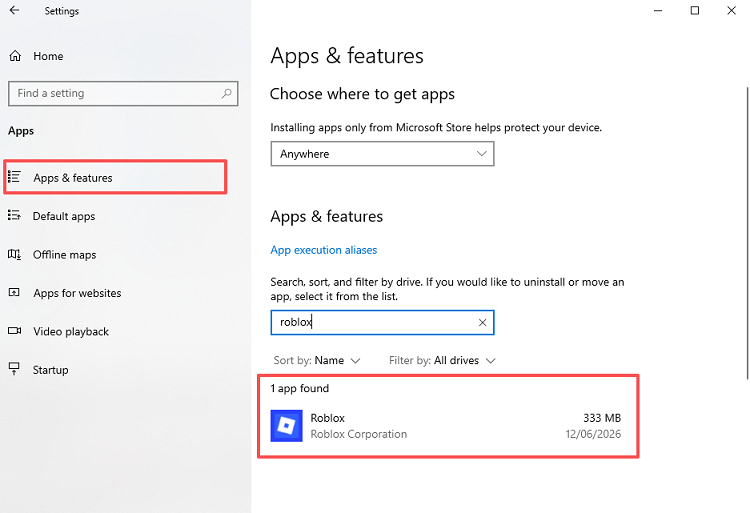
In the Settings window, click Apps, then select Apps & Features from the left-hand menu. Windows will display a list of all installed applications, allowing you to find and manage each program individually.
Step 3: Locate Roblox
Use the search box labeled Search this list to type in Roblox and wait for the application to appear in the results. If both Roblox Player and Roblox Studio are installed, you will need to remove them separately to ensure a complete uninstall.
Step 4: Start the Uninstall Process
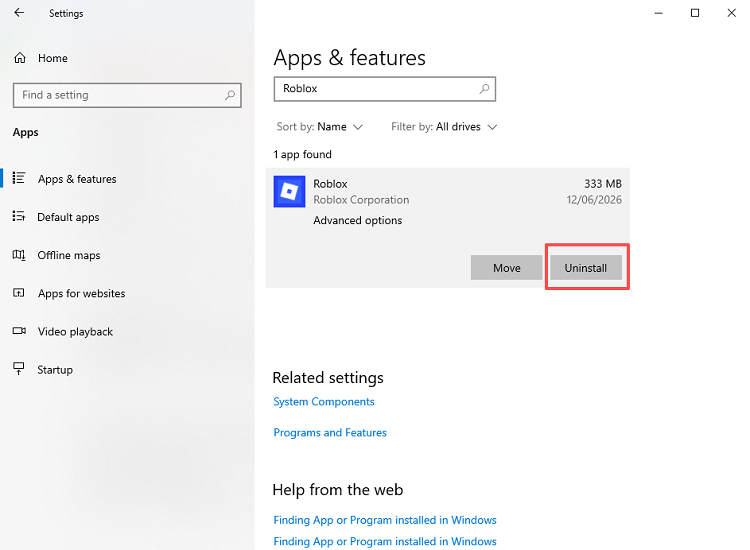
Click on Roblox in the results list and select Uninstall. When a confirmation window pops up, click Uninstall again to launch Roblox’s built-in uninstall program.
Step 5: Complete the Roblox Removal Wizard
Windows will open Roblox’s native uninstall wizard, and you should follow all on-screen instructions until the process finishes. Avoid closing the window early to prevent incomplete removal.
Step 6: Restart Your Computer
After the uninstall is complete, restart your PC to finalize the removal and ensure any remaining Roblox processes are terminated.
Method 2: How to Uninstall Roblox from the Start Menu
The Start Menu provides a quick way to uninstall Roblox on Windows 10 and Windows 11. Since many gaming platforms integrate directly into Windows app listings, users often manage multiple game clients from the same interface. For instance, removing a game launcher such as how to uninstall Epic Games launcher follows a similar workflow through system-level app management.
Step 1: Open the Start Menu and Search Roblox
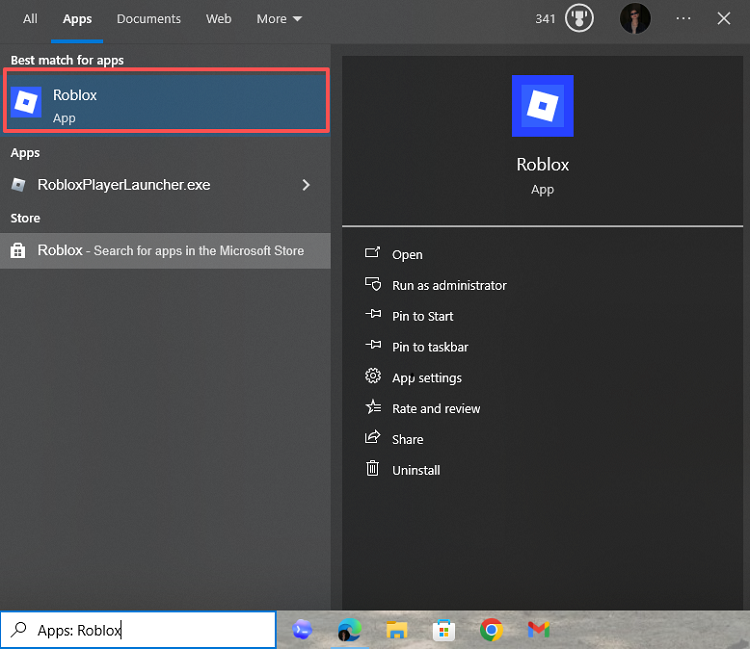
Click the Start button or press the Windows key, then type Roblox in the search bar to locate the app.
 Step 2: Start the Uninstall Process
Right-click the Roblox app in the search results and select Uninstall. Windows will automatically redirect you to the Apps settings page.
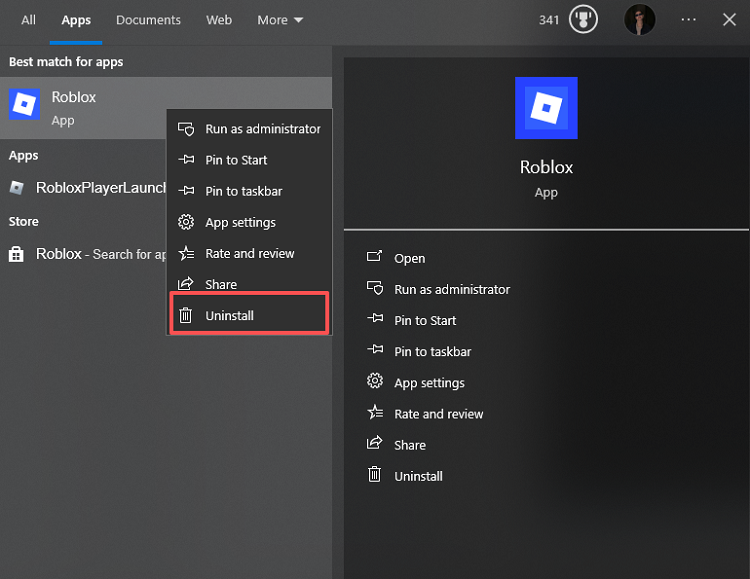 Step 3: Confirm and Finish Removal
Click Uninstall again to confirm. Wait for Windows to complete the removal process. Once finished, Roblox will be successfully removed from your PC.
Method 3: How to Fully Uninstall Roblox with IObit Uninstaller
Standard uninstall tools remove the main Roblox application, but they often leave behind hidden files and registry entries. This is a common issue when dealing with large applications or gaming platforms, especially when users are performing deeper system cleanup tasks such as removing security software like remove McAfee Windows 11 or uninstalling game libraries like uninstall Steam games.
If your goal is how to fully uninstall Roblox, using a dedicated uninstall tool is usually the fastest and most effective approach. IObit Uninstaller automates both the uninstall process and the leftover cleanup process.
IObit Uninstaller Free
- Complete forced uninstallation for stubborn programs.
- Uninstall a batch of programs at once.
- Scan and remove leftover files, folders, and registry entries.
- Support the management of Universal Windows Platform apps.

Why Use IObit Uninstaller?
Removes Roblox completely.
Deletes leftover files automatically.
Cleans related registry entries.
Supports force uninstall functionality.
Saves time compared to manual cleanup.
Detailed Steps to Uninstall Roblox Using IObit Uninstaller
Step 1: Download and Install IObit Uninstaller
Download IObit Uninstaller from the official website. Run the installer and follow the setup wizard to complete installation.
Step 2: Launch the Program
Open IObit Uninstaller from your desktop shortcut or Start menu. The software will automatically scan installed applications on your PC.
Step 3: Locate Roblox
Click Windows Apps in the left-hand navigation panel. Use the search bar to search for Roblox. Select Roblox from the results list.
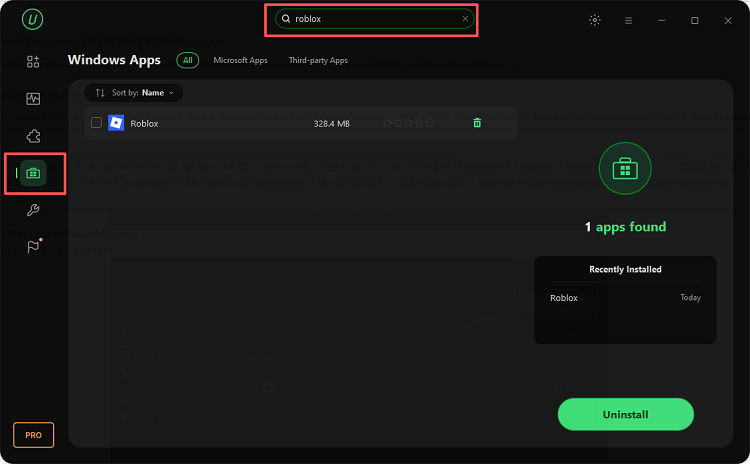
Step 4: Start the Uninstall Process
Click the green Uninstall button.
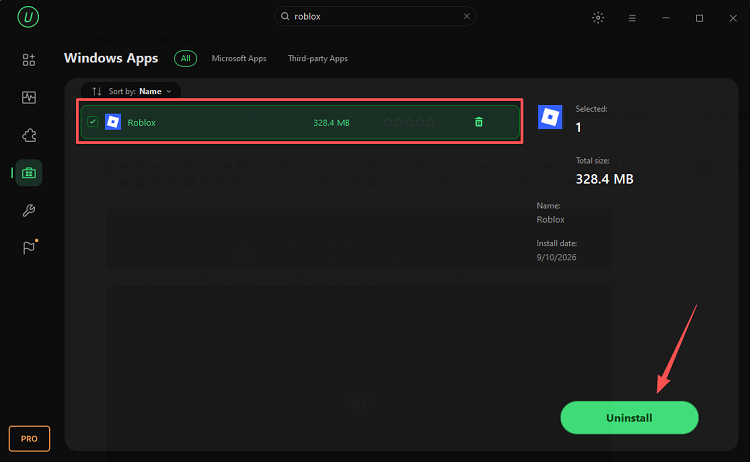
Before proceeding, enable the option: Automatically remove residual files. This ensures leftover Roblox files will be detected and removed.
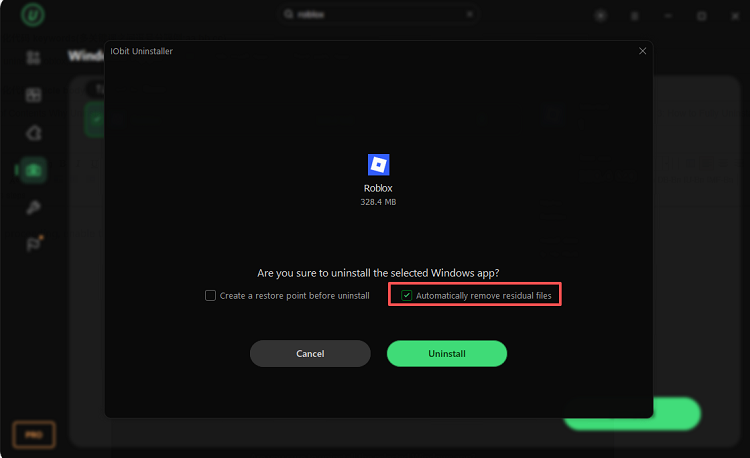
Step 5: Remove Roblox and Delete Leftover Files
IObit Uninstaller will first launch Roblox's native uninstall process. Wait for the standard removal to complete. Once Roblox has been removed, IObit Uninstaller automatically performs a deep scan to delete leftover files.
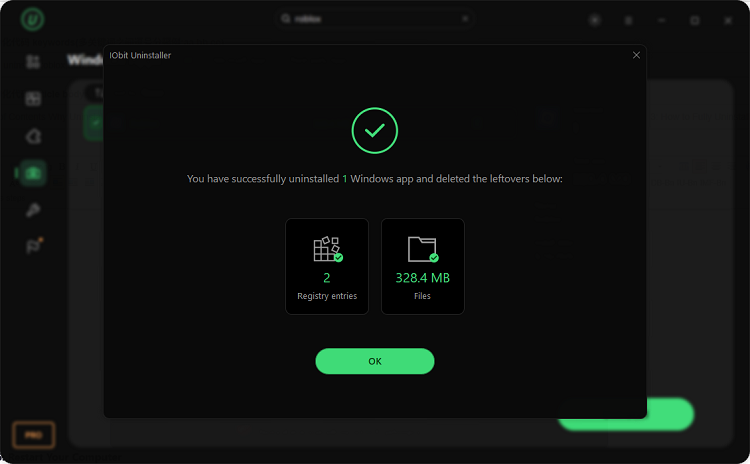
Step 6: Restart Your Computer
Restart Windows to complete the cleanup process.
Method 4: How to Completely Uninstall Roblox Windows 10 by Removing Leftover Files Manually
Even after uninstalling Roblox through Windows tools, some files may still remain in hidden system folders. This is especially common when users frequently manage software installations and browser components, such as removing browser-level customizations like remove chrome extensions to keep their system clean and organized.
If you're specifically looking for how to completely uninstall Roblox Windows 10, manually removing leftover files is an important final step.
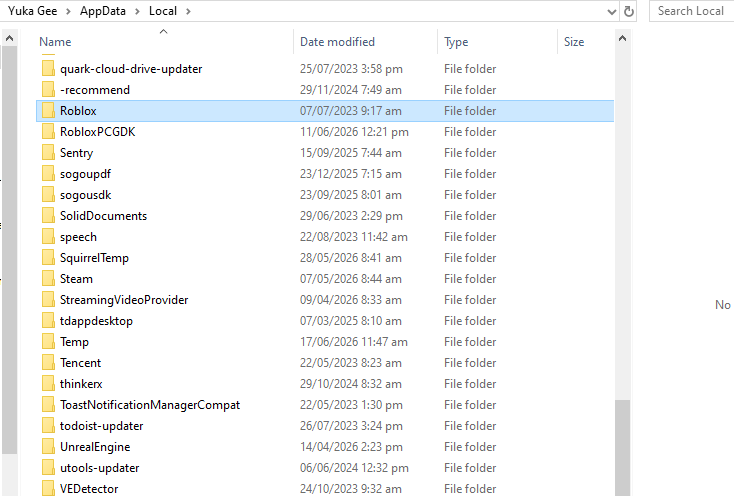
Step 1: Open the Roblox AppData Folder
Press Windows + R. Type: %localappdata% and click OK. Locate the Roblox folder. Delete the entire folder.
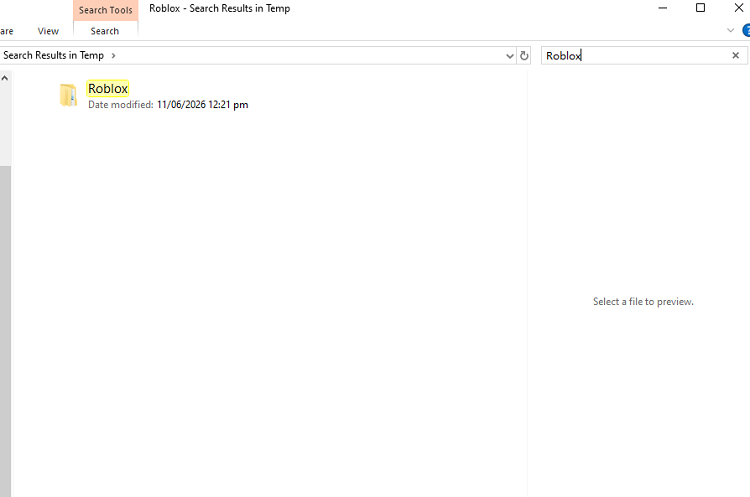
Step 2: Remove Roblox Temporary Files
Press Windows + R again. Type: %temp% and press Enter. Search for Roblox-related files and folders. Delete any remaining Roblox items.
Step 3: Clear Additional Cache Locations
Open File Explorer and navigate to: C:\Users\YourUsername\AppData\LocalLow. Check for Roblox-related folders and remove them if present.
Step 4: Empty the Recycle Bin
Right-click the Recycle Bin icon on your desktop. Select Empty Recycle Bin.
This permanently deletes all Roblox files removed in previous steps.
Step 5: Restart Windows
Restart your computer to finalize all file deletions and ensure no Roblox processes remain active.
Conclusion
Now you know several effective methods for how to uninstall Roblox, from using Windows Settings and Control Panel to performing a manual cleanup of leftover files. While these built-in methods work for basic removal, they often leave behind residual data that can clutter your system.
If your goal is how to fully uninstall Roblox, using a dedicated tool like IObit Uninstaller ensures complete removal. It is especially useful in broader system cleanup scenarios where users are also managing other applications or troubleshooting system components, such as uninstalling system-integrated software like how to uninstall Microsoft Edge.