Microsoft PC Manager, previously referred to as Windows Master in certain regions, is Microsoft’s lightweight solution for everyday Windows maintenance. This Microsoft software cleanup tool brings together features inspired by Storage Sense, Task Manager, and Windows Security in one place. It offers a simple way to handle basic cleanup tasks, but its optimization depth remains limited compared with dedicated third-party PC maintenance software.
Microsoft Software Cleanup Tool Core Features/Pros & Cons
Microsoft PC Manager is a lightweight Windows utility that simplifies everyday system maintenance. Formerly known as Windows Master in some regions, this Microsoft software cleanup tool combines several built-in Windows functions into a single interface. It can manage storage, monitor system health, improve startup speed, and handle basic security tasks. However, its cleanup capabilities remain more focused on convenience than deep system optimization. Here are the Core Features:
PC Boost: The PC Boost feature quickly clears temporary files and releases unnecessary background resources to provide a smoother system experience during daily use.
Storage Management: It lets users identify and remove unwanted files, review storage usage, and access Windows cleanup options without manually navigating through multiple settings.
Health Check: Health Check scans common system issues, including junk files, startup items, and security settings, then suggests simple improvements.
Startup Apps Management: The tool allows users to review applications that launch with Windows and disable unnecessary startup programs to reduce boot time.
Security Management: By connecting with Windows Security features, the Microsoft cleanup tool has quick access to virus protection status, updates, and basic device safety checks.
App Management: Users can close unnecessary background processes, control which programs run when Windows starts, and remove unwanted applications through the “Deep Uninstall” option.
Pros
1. Beginner-friendly interface.
2. Reliable compatibility with Windows systems.
3. Multiple Windows maintenance tools in one place.
4. Basic cleanup and optimization without extra downloads.
Cons
1. Limited cleanup depth compared with advanced PC optimizers.
2. No advanced registry cleaning or deep privacy tools.
3. Fewer customization options for experienced users.
How to Use Microsoft Software Cleanup Tool?
The Microsoft PC manager Windows 11 tool handles common Windows maintenance tasks. Here’s how to clean up PC with the Windows 10 cleanup tool on PC.
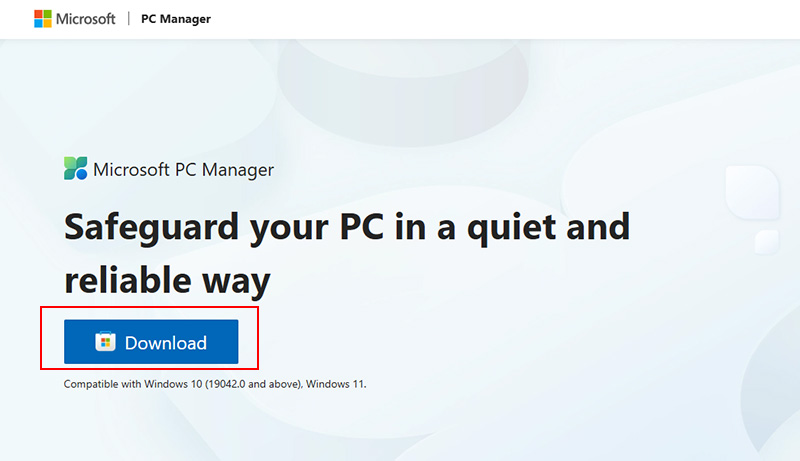
Step 1. Download Microsoft PC Manager from the official Microsoft Store, install the application, and launch it. Complete the initial setup according to your preferences before entering the main dashboard.
Step 2. From the homepage, select the Boost or Health Check option to scan for temporary files, unnecessary items, and potential performance issues. Follow the recommended actions to complete basic cleanup.
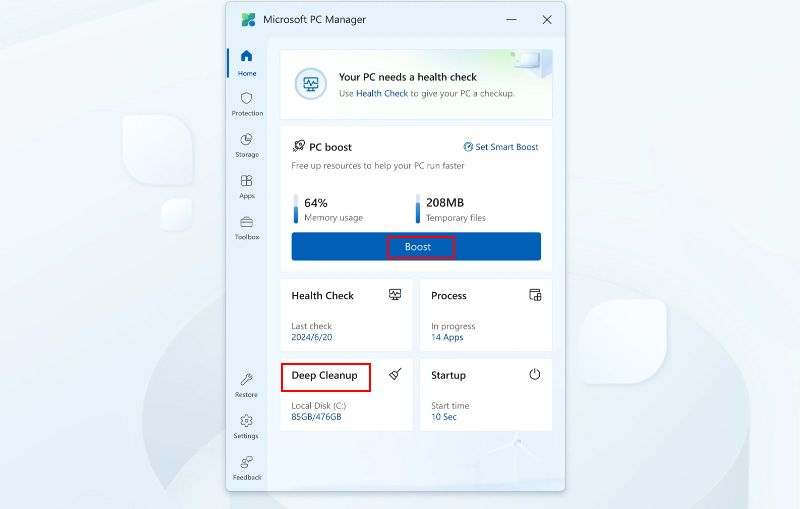
Step 3. Choose Deep Cleanup on the main menu. After the scan finishes, review detected items such as temporary files, browser cache, and Windows update leftovers, then select the files you want to remove.
What Do Users Think of This Microsoft Software Cleanup Tool?
For most Windows beginners searching for how to clean junk file in PC, Microsoft PC Manager works as a safe and easy Windows 11 cleanup tool for routine maintenance. Users who want advanced cleaning depth, detailed customization, or aggressive optimization may still need a more specialized solution.
Reddit users say:
It's good providing built-in functions in one place; "you can do all within OS already." It doesn't reinvent the wheel, but non-technical users will appreciate it; the ones that know how to do that stuff within Windows will say it's a "gimmick".
Microsoft Community hub users say:
PC Manager's features, such as disk cleanup, startup app management, and performance monitoring, are all essential for maintaining a healthy and efficient PC. Its user-friendly interface makes it accessible to users of all skill levels.
Microsoft Store comments:
I use this on a few different PCs around my home, and I love the Toolbox bar and the way it can be hidden on the side of the screen. However, it just randomly crashes and goes away without warning. I've tried fixing it a few different ways, but it behaves this way on all my PCs so either.
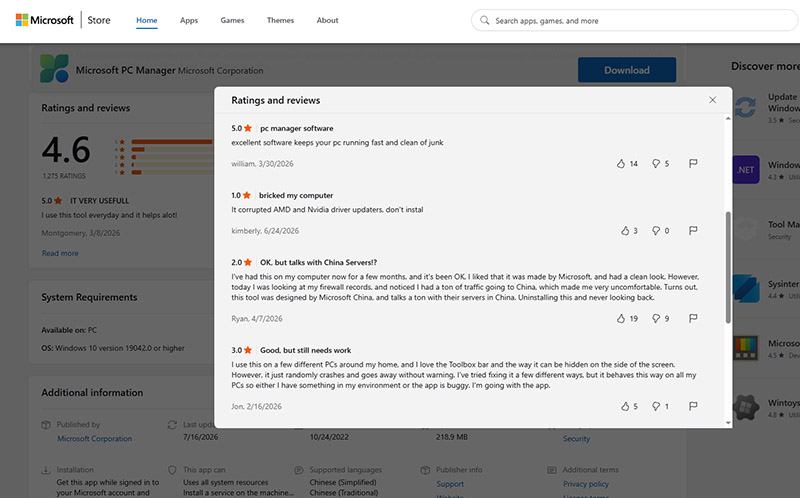
Quick Verdict on User Impressions of Microsoft PC Manager
The Windows 10 cleanup tool works well for basic system care but may feel limited for users who need deeper control.
What Users Like:
1. Official Microsoft software: Strong trust and better compatibility with Windows systems.
2. Simple one-click cleanup: Quick scans and easy maintenance without complicated settings.
3. Lightweight and fast: Minimal impact on system resources during everyday use.
4. Useful storage management: Convenient access to temporary file removal and storage checks.
5. Free to use: No subscription or paid upgrade required for basic features.
Common Complaints:
1. Limited cleaning capabilities: Finds and removes fewer unnecessary files compared with some professional cleanup tools.
2. No registry cleaner: Lacks deeper system maintenance options for advanced users.
3. Basic optimization features: Does not include broader tools such as internet speed optimization or detailed performance tuning.
4. Some users want more control over automatic cleaning schedules and personalized settings.
5. Redundant for some users: Since many functions overlap with existing Windows tools like Storage Sense, Task Manager, and Windows Security, experienced users may not find many unique features.
A Functional and Free Alternative to Microsoft Software Cleanup Tool
For more than basic Windows maintenance, IObit Advanced SystemCare is a more feature-rich alternative to Microsoft PC Manager. While Microsoft PC Manager prioritizes essential system care, Advanced SystemCare contains a broader set of optimization and cleanup tools designed to remove more unnecessary data, improve system responsiveness, and fine-tune overall PC performance. It can serve as a more comprehensive Windows 11 cleanup tool for deeper maintenance options.
Advanced SystemCare PC Cleaning Features
Advanced SystemCare includes multiple cleaning and optimization functions to keep Windows PC running smoothly:
1. Junk File Cleanup – Removes temporary files, cache data, other unnecessary items to free up storage space and fix Windows 11 100 disk usage error.
2. Registry Cleaner – Scans for outdated or invalid registry entries to maintain smoother system performance.
3. Privacy Sweep – Clears browsing history, tracking records, and other privacy-related traces from your PC.
4. Duplicate File Finder – Detects duplicate files and removes repeated copies to reclaim valuable disk space.
5. Disk Optimization – Analyzes disk usage and improves storage efficiency for better overall system responsiveness.
6. System Optimization – Provides performance-enhancing features, including startup management, memory optimization, system tuning, and registry optimization, etc.
7. RAM Cleaner – Releases unused memory resources to reduce slowdowns during multitasking and heavy workloads.
8. Deep Clean – Performs a thorough system scan to find hidden junk files and unnecessary leftovers.
How to Use IObit Advanced SystemCare to Clean Up Windows?
Follow steps below to scan and clean Windows 11 for free with IObit Advanced SystemCare.
Step 1. Download this software. Launch the software to access the main interface.
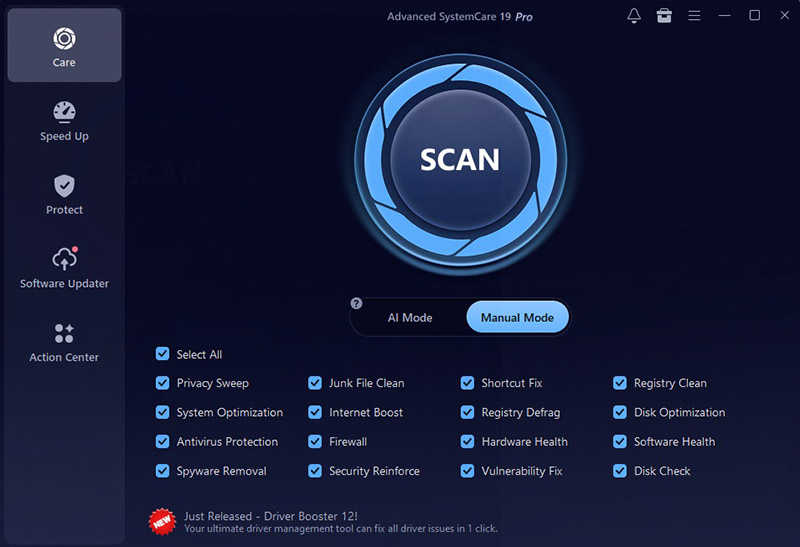
Step 2. Open the Care tab and click the large “SCAN” button in the center to check your PC for junk files, privacy issues, and performance-related problems.
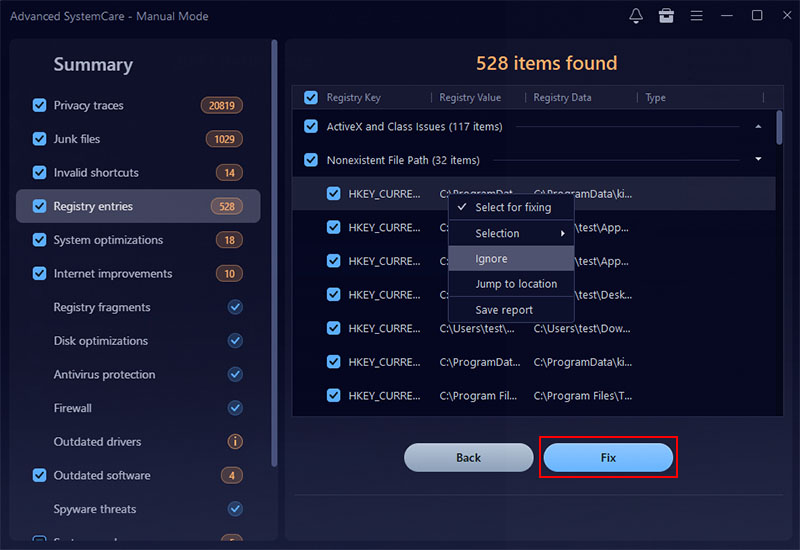
Step 3. Once the scan is complete, check the results and click "Fix" to remove unnecessary files and apply the recommended performance improvements.
Microsoft Software Cleanup Tool FAQs
Is Microsoft PC Manager Really Effective?
Yes. Microsoft PC Manager is effective for anyone who needs basic system care without installing complicated software. It can remove common junk files, manage startup apps, and show quick access to Windows maintenance options. However, its impact may feel limited on heavily cluttered systems because it does not perform an aggressive deep clean.
What Makes It Different from Windows Built-in Tools?
The main advantage of Microsoft PC Manager is convenience. Instead of opening separate Windows features such as Storage Sense, Task Manager, and Windows Security, users can access similar functions from one dashboard. This makes it a good Windows cleanup tool for beginners who prefer a simpler workflow.
What It Doesn't Do
Microsoft PC Manager does not have advanced features such as registry cleaning, detailed privacy protection, extensive system tuning, or internet optimization tools.
Who Should Avoid Microsoft PC Manager?
Experienced users looking for deep customization or professional-level optimization may find this Microsoft software cleanup tool too basic. Those who want advanced cleaning controls, automated maintenance schedules, or more powerful performance adjustments may need a specialized third-party solution.
Conclusion
Microsoft PC Manager is a convenient choice for basic Windows maintenance, but its cleanup and optimization features remain limited. For deeper system care, Microsoft software cleanup tool alternatives like IObit Advanced SystemCare combine junk file removal, registry cleaning, privacy protection, and system optimization to keep PCs running smoothly and safely.
Advanced SystemCare Free
- Clean: 420 billion traces removed & 85 EB junk files cleaned
- Protect: 80 million unauthorized access blocked & 20 million bugs fixed
- Speed Up: 6 million hours of startup time saved & Turbo boost
- Optimize: Auto clean and auto care your PC with AI mode