If your computer has suddenly started experiencing lag, system crashes, or other performance issues, there is a high chance that outdated or faulty motherboard drivers are involved. After all, motherboard drivers play a key role in connecting and coordinating all major hardware components in your PC.
At this point, updating motherboard drivers becomes necessary. How to update drivers motherboard? This guide has prepared 3 practical methods that help you complete the entire process safely and more efficiently.
What are Motherboard Drivers & Why Need You Update?
Before learning how to update drivers motherboard, it is important to first understand what motherboard drivers are and why updating them matters.
Motherboard drivers are computer programs that allow the operating system to communicate with the hardware components inside your PC. Simply put, they help your computer understand how to use all connected hardware properly and make those components work together smoothly.
Common Types of Motherboard Drivers
Chipset Drivers: These are the core drivers that support motherboard communication with essential hardware such as the CPU and memory.
USB Driver: Responsible for allowing the computer to recognize and connect external devices like keyboards, mice, and portable hard drives.
LAN/Wi-Fi Driver: Controls wired and wireless network connections and has a major impact on network stability and speed.
Storage Driver: Manages storage devices such as SSDs and HDDs.
Audio Driver: Controls sound output devices, including speakers, headphones, and microphones.
VGA/APU Driver: Handles graphics and display output on the computer.
All of these components are essential for a computer to function properly. By keeping up with updating motherboard drivers, users can enjoy several important benefits:
Benefits of Updating Motherboard Drivers
Improve System Stability: Fix existing system errors, crashes, and hardware-related issues more quickly.
Enhance Hardware Compatibility: Ensure better compatibility with new hardware devices and operating system updates.
Increase Security: Patch security vulnerabilities and reduce potential system risks.
How to Update Drivers Motherboard Automatically (One Click)
If you have the concerns mentioned earlier—such as worrying about missing important steps or not wanting to manually check each motherboard driver one by one for available updates—then using an intelligent all-in-one tool is often the most convenient solution.
IObit Driver Booster is exactly the kind of software designed to handle almost everything related to how to update drivers on motherboard with just a few clicks. Once you start a scan, it can automatically detect outdated or damaged drivers on your device and recommend the most compatible new versions. It can also help resolve some common Windows system issues at the same time.
Driver Booster Free
- Automatically scan and update drivers.
- Update game ready drivers for peak gaming performance.
- Identify and fix various common of hardware issues.
- Boost 30% of system performance for fast & smooth running.

Here is how to update your motherboard drivers using IObit Driver Booster.
Step 1. Download and install IObit Driver Booster on your computer.
Step 2. After launching the program, click Scan from the left-side menu. Then click the large red Scan button shown on the screen.
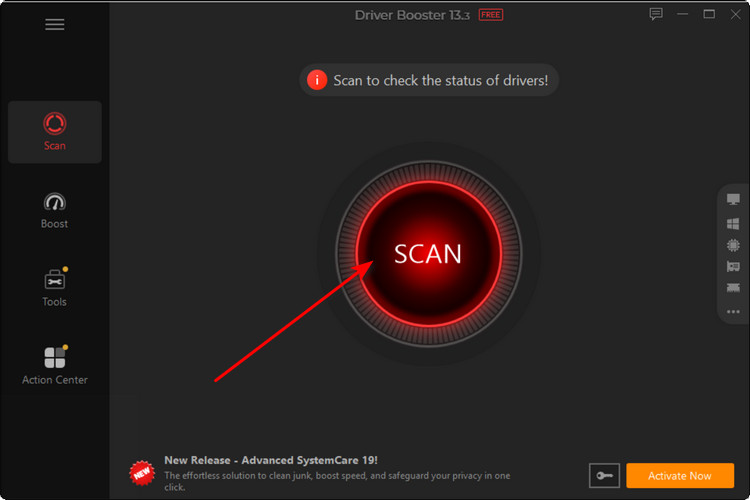
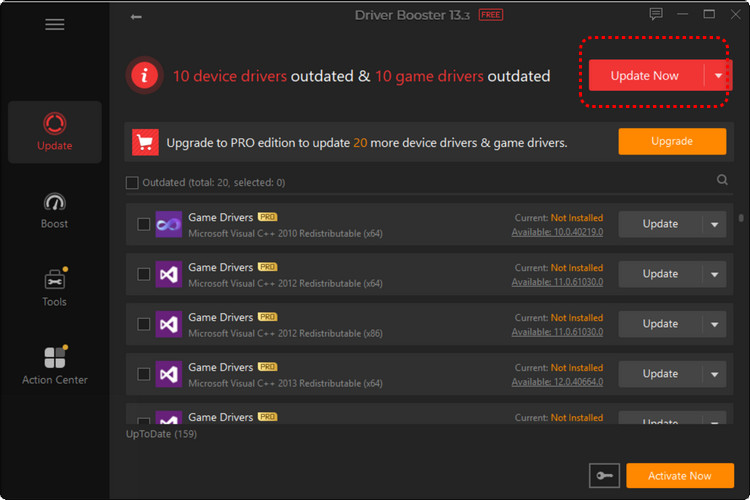
Step 3. IObit Driver Booster will automatically detect outdated drivers and display available updates. Select the drivers you want to update, then click Update Now.
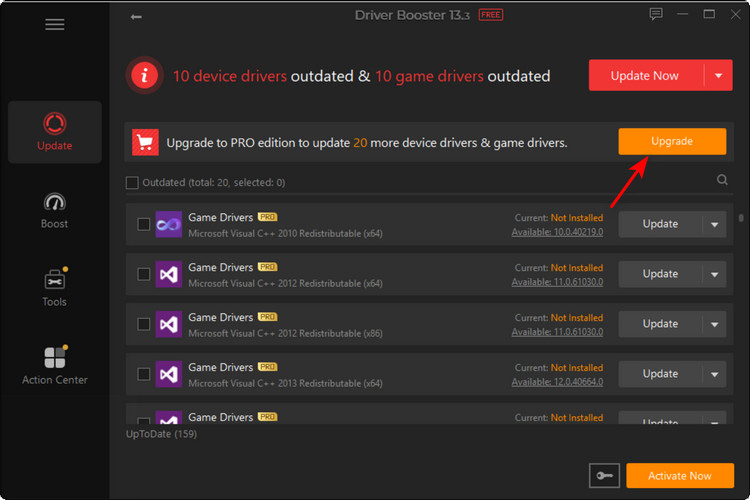
Step 4. If you want to further optimize your computer with the latest drivers and enhanced gaming performance, you can click the yellow Upgrade button to unlock more advanced features and services.
Why is It the Top-Picked Motherboard Driver Updater?
Complete a full device scan in just seconds with a single click. No more spending time checking drivers one by one. All available updates are clearly listed.
Asking you to pay before you even begin? Not with IObit. Both the scanning process and one-click driver updates are completely free to use.
The motherboard update drivers scan powered by this driver updater is deep, comprehensive, and highly accurate. Even long-forgotten drivers can be matched with the most suitable and up-to-date versions.
Using an expanded driver database and intelligent detection technology, the software can identify more outdated device and game drivers than standard update tools.
From graphics and video driver updates to system optimization and resource release tools, everything works together to ensure your device is fully prepared for smoother gameplay and better overall performance.
IObit Driver Booster also includes multiple professional repair tools that can help fix common system issues such as no sound, network connection failures, blue screen errors, and more.
Manually Update the Motherboard Drivers via Device Manager
Besides using a one-click tool, you can also update the motherboard drivers manually on your local device. One of the most common methods is through Device Manager.
Here is how to update motherboard drivers Windows 11 via Device Manager.
Step 1. Open the quick access menu by pressing Windows + X, then click Device Manager to continue.
Step 2. Browse through the hardware sections and open the one related to the component you need to update.
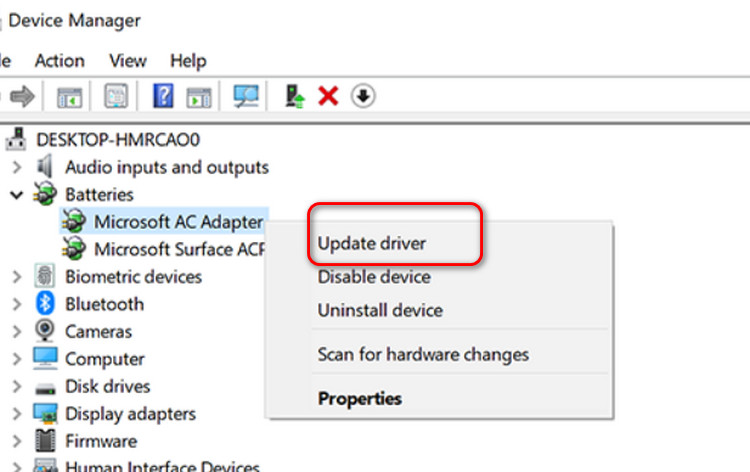
Step 3. Find the target hardware, right-click on it, and select Update driver from the available options.
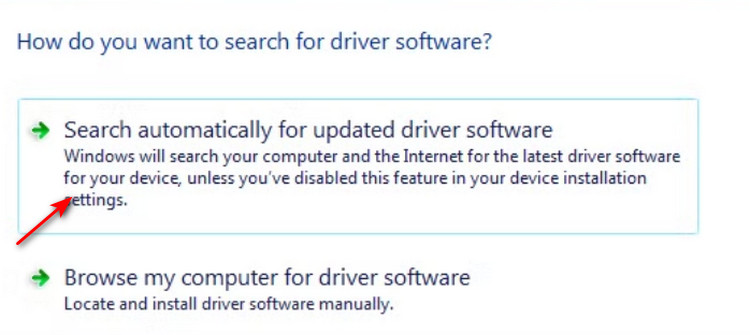
Step 4. Choose Search automatically for updated driver software. Windows will scan your system and online database for a newer version and install it when available.
How to Update Drivers Motherboard Using Windows Update
Of course, Windows also includes built-in system and driver update options in Settings. If you’d like to try this method to update the motherboard drivers, please follow the steps in the section below.
Here is how to update driver motherboard using Windows Update.
Step 1. Click the Windows icon on the taskbar and open Settings from the Start menu.
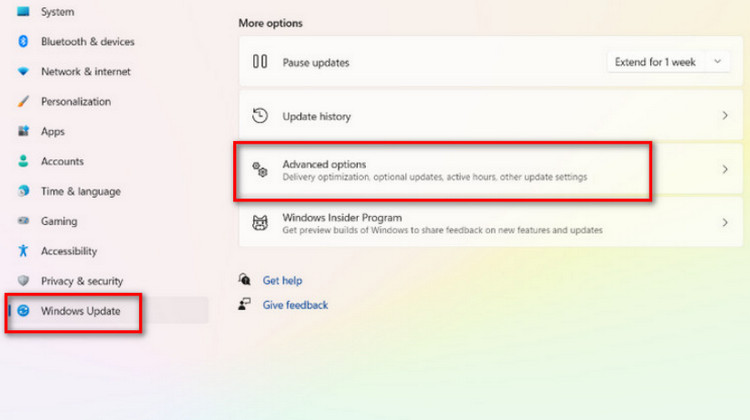
Step 2. Navigate to Windows Update from the left sidebar, then choose Advanced options to access more update settings.
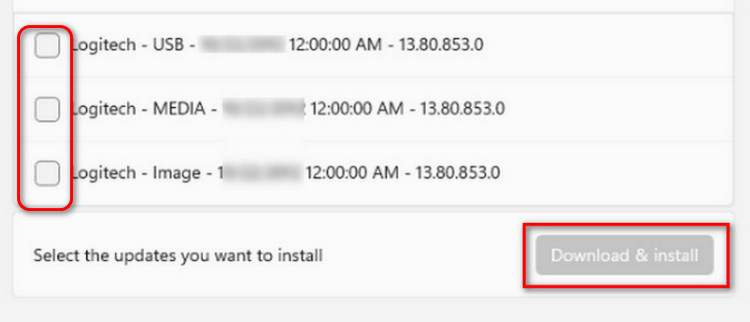
Step 3. Scroll down until you see the Additional options section and open Optional updates. If any driver updates are listed, select them and click Download & install.
Troubleshooting Common Motherboard Driver Update Issues
Error 1. Device Not Found or The installation Failed
The Cause:
This issue is usually caused by driver version mismatches, corrupted download files, or the device being disabled by the system.
The Fix:
Step 1. Right-click the Start menu and open Device Manager, then check whether the target device appears as Unknown device or shows a yellow exclamation mark.
Step 2. If the device is abnormal, right-click it and select Uninstall device, then check the option to remove the driver software.
Step 3. Restart the computer and reinstall the official or latest driver version, then try updating again.
Error 2. Audio or Network Failure After Installation
The Cause:
This problem is usually caused by incomplete driver installation or version conflicts, which prevent proper loading of the sound card or network adapter drivers.
The Fix:
Step 1. Open Device Manager and check whether Sound, video and game controllers or Network adapters are working properly.
Step 2. If any issue is found, right-click the device and choose Roll Back Driver or update the driver to a newer version.
Step 3. Restart the system and run Network Troubleshooter or the audio troubleshooting tool in Windows Settings.
Error 3. Setup Files Won’t Open or missing .dll
The Cause:
This usually happens due to incomplete installation packages, missing system runtime components, or corrupted files from unreliable download sources.
The Fix:
Step 1. Delete the current installation package and re-download the latest driver from the official website.
Step 2. Install or repair system runtime libraries such as Microsoft Visual C++ Redistributable.
Step 3. Run the installer as administrator and try installing the driver again.
FAQs About How to Update Drivers Motherboard
How Do I Know If I Need to Update My Drivers?
If the computer becomes unstable, experiences blue screens, lagging, or if certain hardware such as the sound card, network adapter, or USB devices stop working properly; if Windows Update shows optional driver updates, or newly installed software and games have compatibility issues, then it is generally a sign that the drivers need to be updated.
How to Update Motherboard Drivers on Windows 10?
This is quite similar to how to fix audio drivers on Windows 11. The most direct method is through Device Manager, simply open Device Manager, find the corresponding hardware, then right-click it, select update driver, and choose automatic driver search to complete the process.
Should I Identify My Motherboard Before Updating?
It is best to confirm the motherboard model before updating motherboard drivers, because different brands and models require completely different drivers. Installing the wrong driver may lead to system instability or even cause hardware to stop functioning properly.
How to Install Motherboard Driver Updates?
The simplest method for how to update Windows drivers is to use an all-in-one tool like IObit Driver Booster. It only requires a one-click scan, after which the software can automatically handle all updates.
The Bottom Line
There are 2 basic ways to handle how to update drivers motherboard: using Windows Update or updating through Device Manager. Each method helps improve system performance and fix hardware issues, but they can require time and careful driver selection.
For a simpler and more convenient option, IObit Driver Booster can automatically scan, detect outdated drivers, and update them in a few clicks. It reduces effort, avoids installation mistakes, and keeps the system running smoothly.
Driver Booster Free
- Automatically scan and update drivers.
- Update game ready drivers for peak gaming performance.
- Identify and fix various common of hardware issues.
- Boost 30% of system performance for fast & smooth running.