You know that feeling when your game suddenly drops to 15 FPS, or your Wi‑Fi disconnects every hour? Outdated MSI drivers are often the hidden villain. When they’re old, things crash, lag, or just feel sluggish.
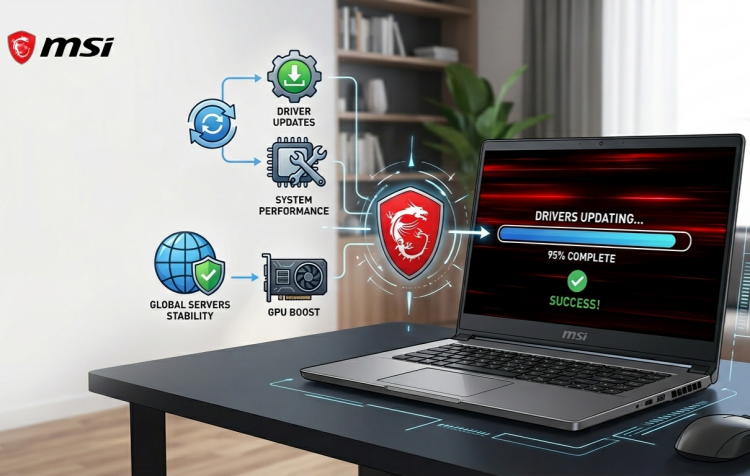
Keeping your MSI drivers up to date is crucial for maintaining system stability, performance, and compatibility with the latest software and games. In this guide, we’ll walk you through everything you need to know about MSI driver update and show you multiple safe and effective ways to update MSI drivers fast. Keep up!
 Disclaimer: This article includes third‑party tools for informational purposes only. Always verify driver versions with the manufacturer’s official website before installation. This website is not responsible for any update issues that cause malfunctions.
Why MSI Driver Updates Matter
Even if your PC seems fine, outdated drivers can silently affect performance, stability, and compatibility with new software or games. MSI motherboard drivers update can:
Fix bugs and glitches
Improve system performance and speed
Enable new features or hardware support
Prevent crashes or system instability
In short, regular driver updates help your MSI PC or laptop reach its full potential.
Method 1: Update MSI Driver Using MSI Center / MSI Dragon Center
MSI Dragon Center or MSI Center is MSI’s official software for managing drivers, BIOS, and hardware monitoring. It comes pre-installed on many MSI laptops and desktops. This is MSI’s own control hub. Use this first. It’s safe, automatic, and made specifically for your MSI hardware.
Easy how-to steps:
Step 1. Open MSI Center (on newer models) or MSI Dragon Center (on slightly older ones).
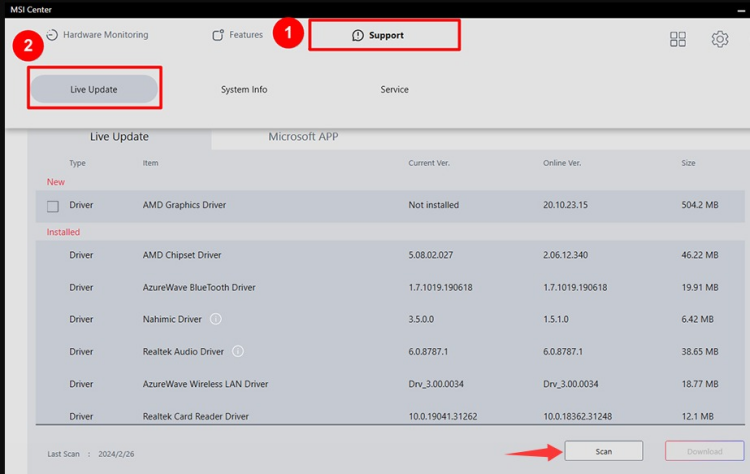
Step 2. Click on Support (usually in the top menu). Select Live Update, then hit Scan. The tool will compare your drivers with MSI’s latest versions.
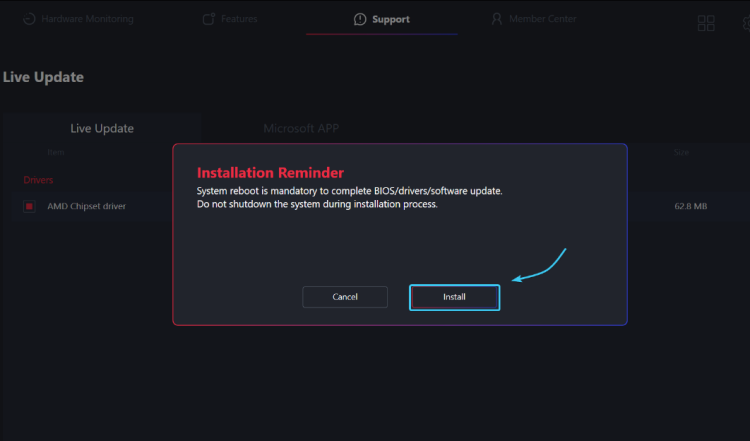
Step 3. Click Install. Your PC may restart a few times – that’s perfectly normal. Do not shutdown the system till the installation completed.
Pro tip: If you just reinstalled Windows, a tool called MSI Driver Utility Installer might pop up automatically. Let it run – it’s the same idea, but only appears once.
Advantages:
Automatic detection of outdated drivers
Beginner-friendly interface
Fast and convenient
Best for most users. No thinking required
Method 2: Manual Route for MSI Driver Update
Some of us like to be in control. Or maybe you need a specific driver version that Live Update doesn’t offer. Manual download is your friend.
Easy how-to steps:
Step 1. Go to MSI official support page > Select your product type (motherboard, graphics card, laptop).
Step 2. On the product page, go to Support > Drivers & Downloads.
Step 3. Select your system from the drop-down menu (e.g., Windows 11 64 bit). Download the drivers you need (usually .zip or .exe files).
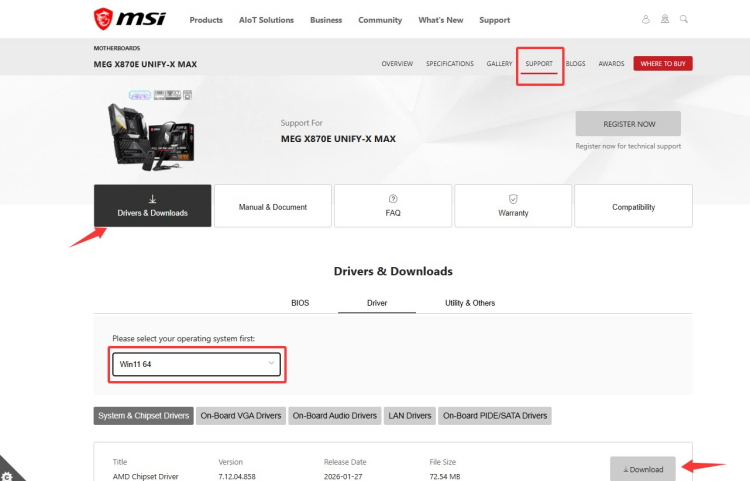
Step 4. Always ensure MSI chipset driver update first. Others depend on it.
Extract the zip file, run Setup.exe, and follow the prompts to install.
Warning: Be 100% sure you’ve chosen the right OS version. Installing the wrong driver can cause blue screens.
Advantages:
Method 3: Let Windows Update Handle MSI Driver Update
Yes, Windows Update does download driver updates – including some for MSI hardware. It’s fully automatic and safe. But there’s a catch: Windows Update usually delivers drivers that are “stable but old.” You might wait months for a performance fix that MSI released yesterday.
How to update Windows drivers:
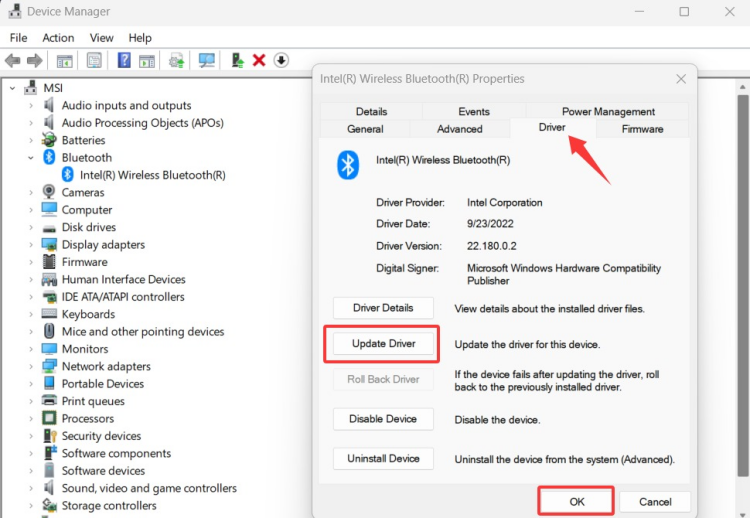
Step 1. Press Win + X > select Device Manager.
Step 2. Expand the relevant category (e.g., Display adapters).
Step 3. Right-click the device > Update driver > Search automatically for drivers.
 Use Windows Update if: You don’t want to think about drivers at all.
Don’t rely on it if: You play the latest games or need maximum stability.
Method 4: Let Windows Update Handle MSI Driver Update
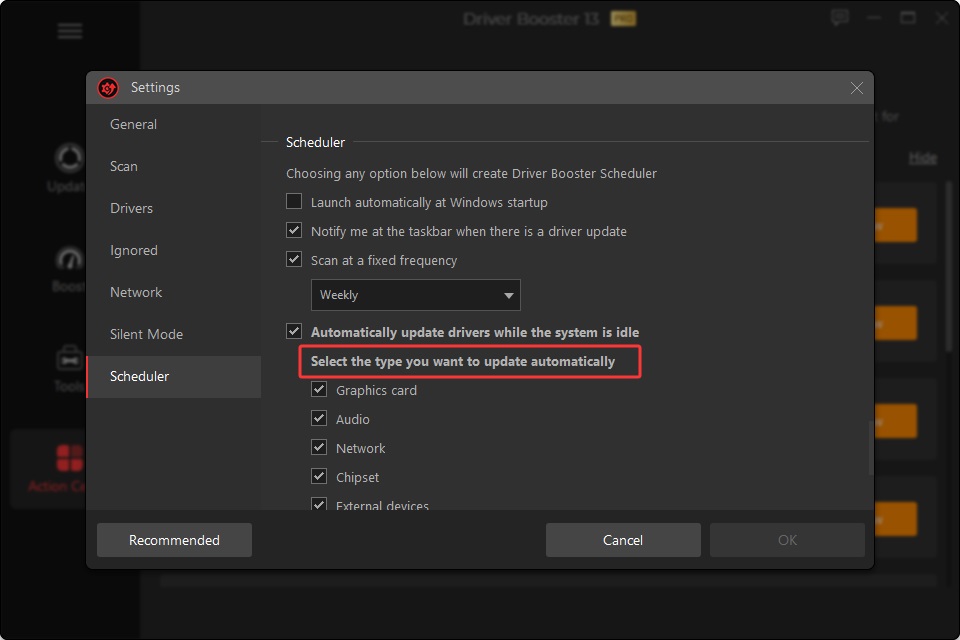
Sometimes manually checking each driver can feel time-consuming. That’s where a utility like Driver Booster can help. It can scan your entire PC for outdated drivers, including MSI hardware.
It simplifies updates by organizing all drivers in one place and letting you update them safely with a single click. Think of it as a time-saving option, especially useful if you manage multiple devices or aren’t sure which drivers need updates.
Driver Booster Free
- Automatically scan and update drivers.
- Update game ready drivers for peak gaming performance.
- Identify and fix various common of hardware issues.
- Boost 30% of system performance for fast & smooth running.

How to update MSI driver with driver updater:
Step 1. Download Driver Booster on your MSI device, install and launch it. It will automatically detect drivers that out of date or missing.
Step 2. When you land in the home page, click scan to let it check MSI drivers that needs to update.
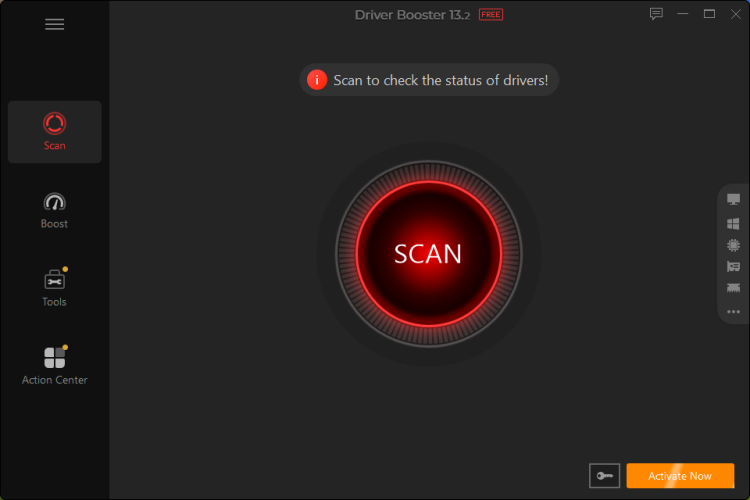
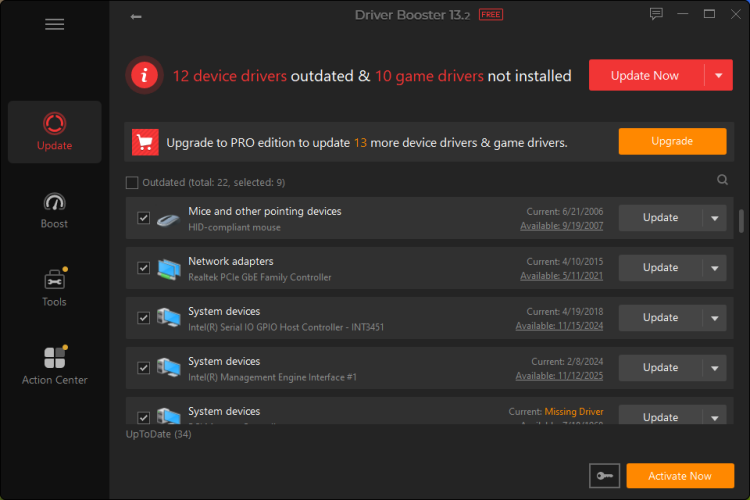
Step 3. Wait for the scan process to complete. It will list the outdated drivers and not installed drivers. Click Update Now.
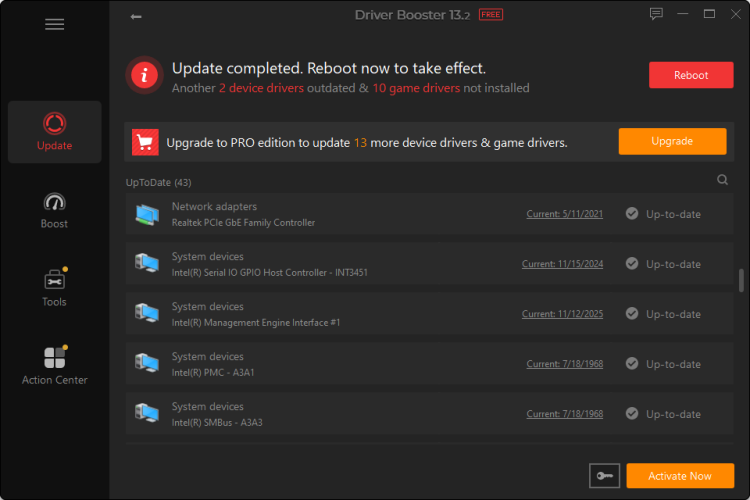
Step 4. When the MSI driver update process is done, you need to reboot your computer.
Why it is a good MSI driver update tool?
Driver Booster can automatically scan your PC for outdated MSI-related drivers, saving you from manually checking each hardware component one by one.
The clean and simple layout makes driver updates easier for less experienced users who may not feel comfortable downloading drivers manually.
You can manage and update multiple MSI drivers in one place, including MSI motherboards, graphics cards, audio devices, and network adapters.
Instead of searching and installing drivers individually, Driver Booster allows you to update multiple drivers simultaneously, which can significantly reduce maintenance time.
Before installing updates, Driver Booster can create restore points automatically, making it easier to roll back changes if a driver causes compatibility issues.
Also Read: How to Update NVIDIA Drivers Automatically 2026 >>
Conclusion
It doesn’t have to be complicated to update MSI drivers. By using the official MSI support page, MSI Center, Windows Device Manager, or even a reliable utility like Driver Booster, you can:
Improve system stability and performance
Prevent crashes and incompatibility
Keep your hardware running at its best
Whether you’re a seasoned gamer or a casual user, staying on top of your MSI drivers ensures your PC always performs at its peak.