Chipset drivers are essential to keep your PC running efficiently. Outdated chipset drivers randomly cause performance issues. Keeping them up to date ensures your motherboard and connected hardware operate as intended. If you've ever asked, how do I update chipset drivers, this guide covers five simple methods for Windows and AMD systems.
Why Should You Keep Chipset Drivers Updated
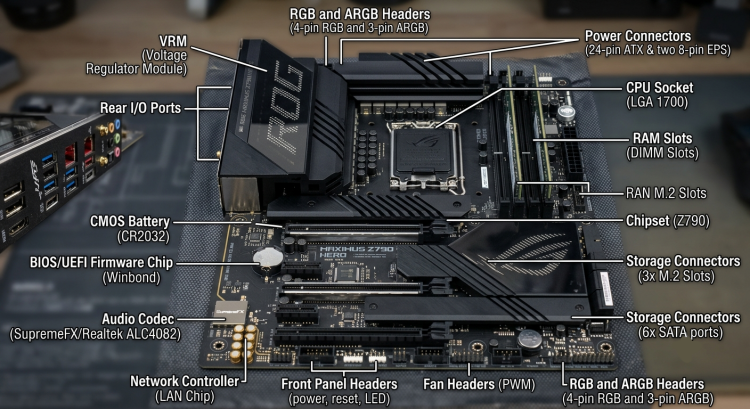
Chipset drivers are responsible for allowing Windows to communicate correctly with your motherboard components. You can get a set of benefits from chipset driver updates.
● Increase overall system stability
● Improve PCIe device compatibility
● Fix USB connection issues
● Resolve random hardware conflicts
● Enhance SSD performance
● Improve gaming performance
It is also highly suggested to update chipset drivers after installing a new GPU or CPU, ensuring that components working perfectly without compatibility issue.
How to update chipset drivers on Windows? Follow the methods that can lead you out.
Method 1. Update Chipset Drivers Automatically with Driver Booster
Driver Booster offers an efficient way to update chipset drivers on your PC. It automatically scans your system and detects outdated or missing chipset drivers available for update. Just in one click, you can update the correct chipest driver safely. It also deploys several useful tools to fix chipset driver errors and back up/restore driver data in case unexpected loss. Besides chipset driver update, its vast database includes certified drivers from thousands of major brands, enabling you to update all hardware drivers, ranging from USB drivers to GPU/CPU drivers and more.
Next, let's learn how to update chipset drivers with the tool.
Step 1. Download Driver Booster from its official site and install it on your Windows computer.
Step 2. Launch Driver Booster and click Scan to detect outdated, broken, or missing drivers on your computer.
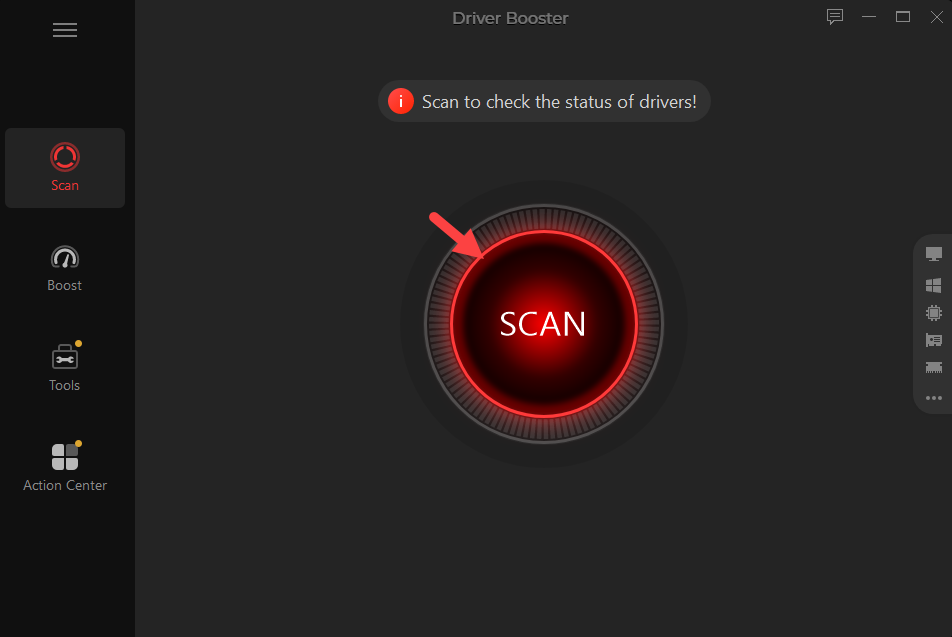
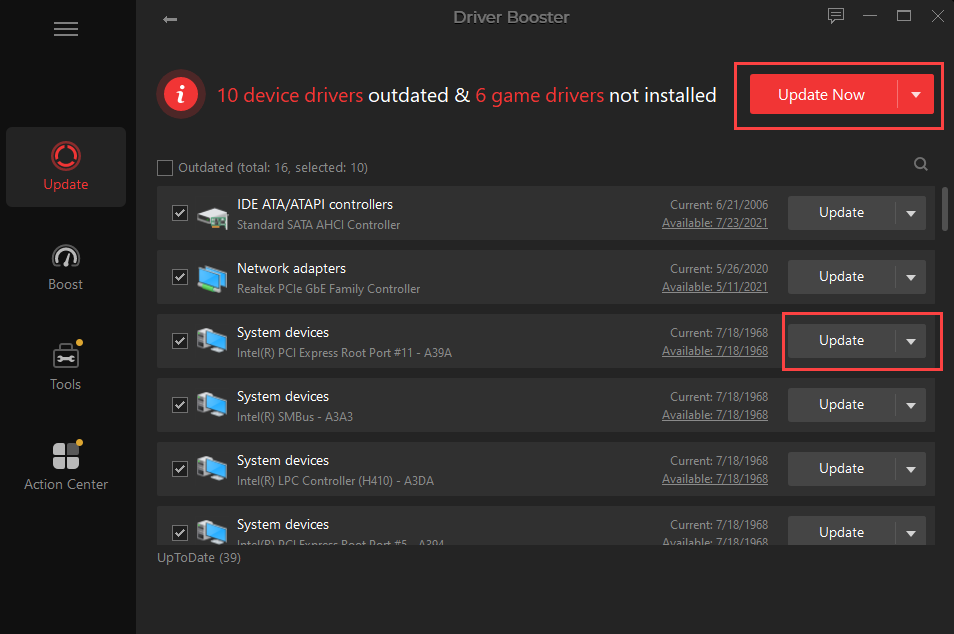
Step 3. Once finished, it will display all outdated drivers. Locate your chipset driver from the scan results and click Update to update it. Or you can click Update Now to update all drivers.
Method 2. Download Drivers from Your Motherboard Manufacturer
It is a reliable choice to download and update the chipest drivers from your motherboard vendor's websites. This ensures you receive drivers designed specifically for your hardware and Windows version. Also, it reduces the risk of installing incompatible or outdated software.
Always verify your motherboard model before downloading to ensure accuracy. An unmatched driver can not improve the performance but lead to random issues.
Step 1. Press Windows + R to open the Run dialog box.
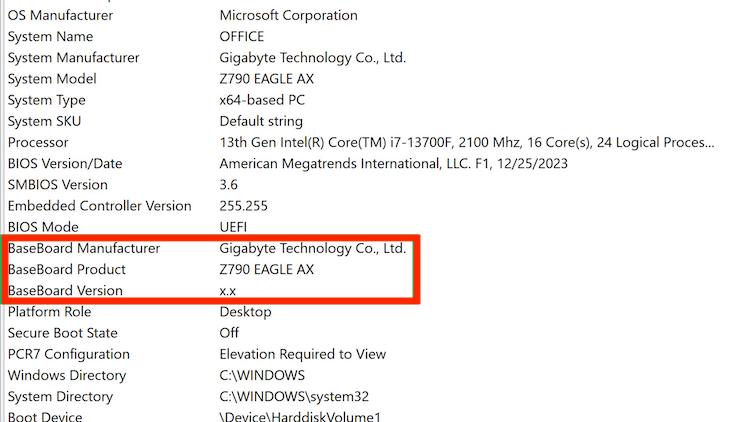
Step 2. Type msinfo32 and press Enter.
Step 3. Find BaseBoard Manufacturer and BaseBoard Product to check your motherboard brand and model.
Step 4. Open your browser and go to the official support page of your motherboard manufacturer, such as ASUS, MSI, Gigabyte, ASRock, or Dell.
Step 5. Search for your motherboard model and open the official product support page.
Step 6. Head to the Driver & Utility, Support, or Downloads section.
Step 7. Locate the Chipset Driver section.
Step 8. Click Download next to the chipset driver to save it.
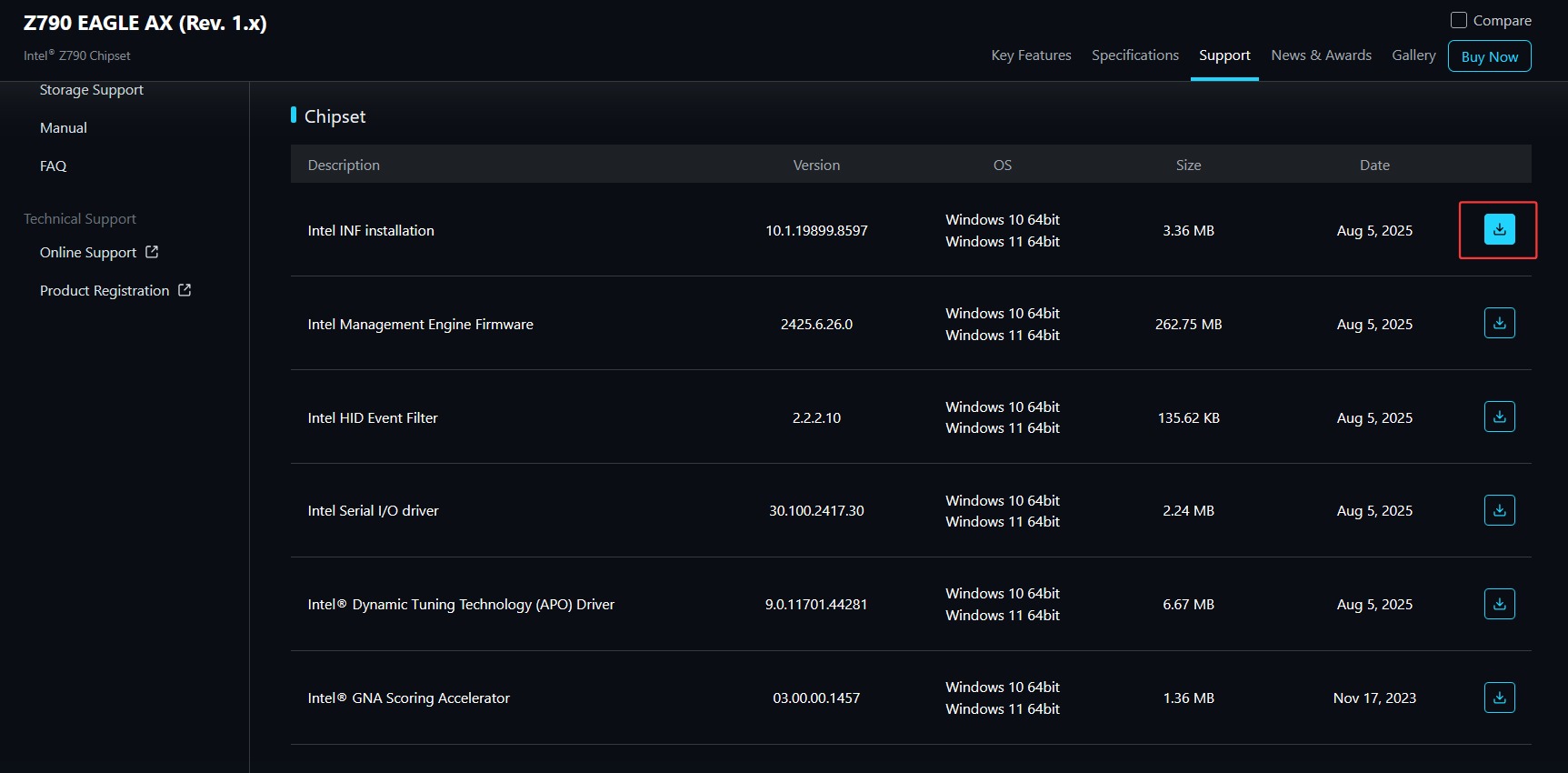
Step 9. Open the downloaded file and follow the on-screen installation instructions to install it.
Method 3. Install the Latest AMD Chipset Drivers
If your PC uses an AMD Ryzen processor, downloading the official AMD chipset package is the recommended method. This package includes optimized drivers that improve communication between the CPU, motherboard, and Windows. It's also the best answer for users searching for how to update chipset drivers AMD.
Step 1. Open your browser and visit the AMD Drivers & Support page.
Step 2. Select Chipsets from the product category.
Step 3. Choose your motherboard chipset series, such as AMD Socket AM5 or AMD Socket AM4.
Step 4. Select your chipset model.
Step 5. Choose your Windows version and click Download.
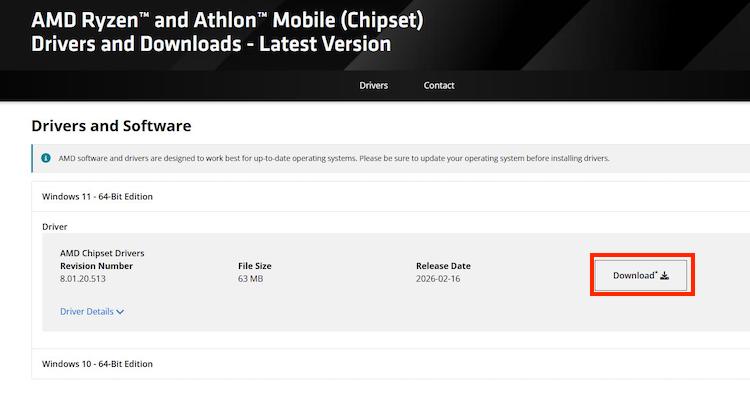
Step 6. Open the downloaded AMD Chipset Software installer and follow the on-screen instructions to the installation process.
Also Read: How to Update AMD Drivers >>
Method 4. Update Chipset Drivers Through Device Manager
Device Manager allows Windows to search for newer drivers automatically by checking Microsoft’s driver database. Although it doesn't always provide the latest chipset package, it can still install stable and compatible versions. This makes it a convenient and built-in option if you want to update chipset drivers quickly without downloading or installing additional third-party software.
Step 1. Press Windows + X and choose Device Manager.
Step 2. Scroll down and expand System devices.
Step 3. Find the chipset-related device. such as:
● Intel Chipset Device Software
● AMD SMBus
● AMD PCI Device
● Intel Management Engine Interface
Step 4. Right-click the chipset device you want to update and select Update driver.
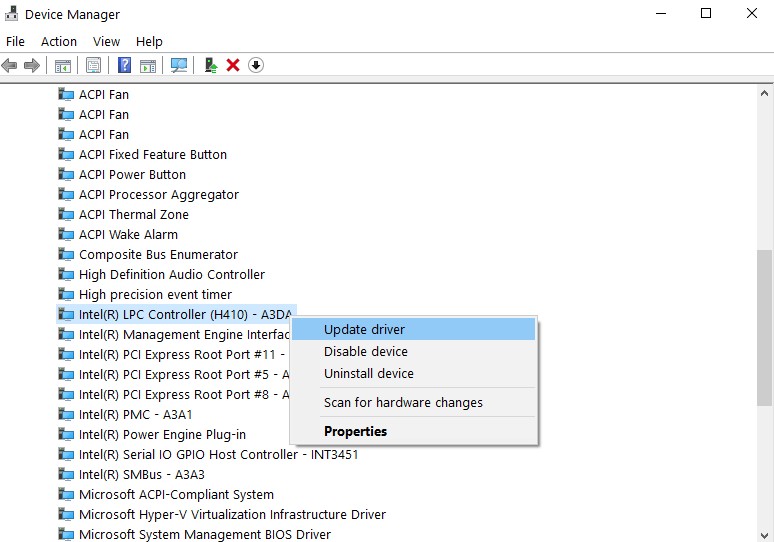
Step 5. Choose Search automatically for drivers. Wait while Windows searches for available updates.
Step 6. If Windows finds a newer driver, just follow the on-screen instructions to install it.
If Windows doesn't find a newer version, consider using Driver Booster or downloading the latest package from your motherboard manufacturer.
Method 5. Check Windows Update
This is another simple way to update chipset drivers if you prefer using built-in Windows tools. Windows Update occasionally distributes certified chipset drivers along with security patches and system improvements.
Although these versions may not always be the newest available, they are thoroughly tested by Microsoft to ensure stability and compatibility with your Windows system. This makes them a reliable option for users who prefer safe, automatic updates without manually searching for drivers or risking potential compatibility issues.
Step 1. Press Windows + I to open Settings.
Step 2. Select Windows Update from the left sidebar.
Step 3. Click Check for updates.
Step 4. Review any available updates displayed on the screen.
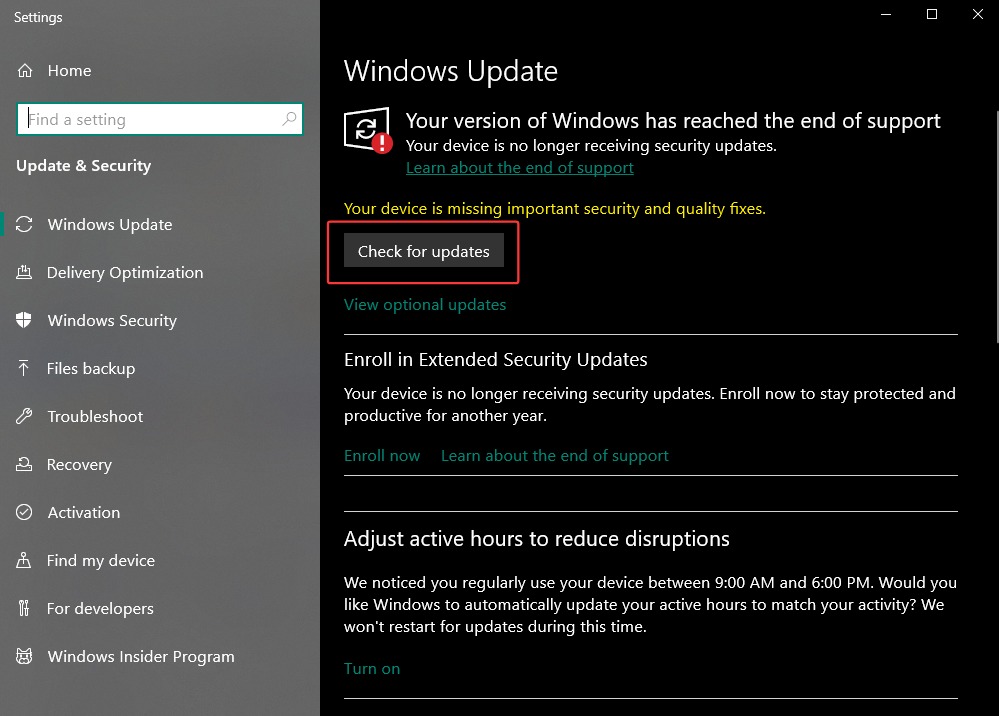
Tips: Chipset drivers are sometimes included under optional updates, so you can head to Advanced options to update them. Here’s how to do it.
● Click Advanced options and then select Optional updates.
● Expand the Driver updates section.
● Look for chipset-related updates, such as Intel or AMD chipset drivers.
● Select the available driver update and click Download & install.
More About Chipset Driver Update
Does AMD Adrenalin Update Chipset Drivers?
No. AMD Software: Adrenalin Edition mainly updates AMD graphics drivers. Chipset drivers are distributed separately through the AMD Chipset Software package, so you'll need to download and install it independently.
How Often Should I Update Chipset Drivers?
Generally, you only need to update chipset drivers when:
● Installing a new CPU or motherboard
● Upgrading Windows
● Experiencing hardware compatibility problems
● AMD or your motherboard manufacturer releases an important update
There's no need to update them every month unless you're troubleshooting a specific issue.
Yes. Although chipset drivers don't increase FPS as much as GPU drivers, they can improve system stability, storage performance, USB responsiveness, and overall hardware communication. This may help reduce stuttering in certain games.
Conclusion
How do I update chipset driver? There are several methods that can help you complete the task easily and quickly. Driver Booster offers the fastest one-click solution to keep your chipset and other hardware drivers up to date. If you are beginners and need an efficient driver update solution without manual operations, the automatic driver updater the perfect choice.
Driver Booster Free
- Automatically scan and update drivers.
- Update game ready drivers for peak gaming performance.
- Identify and fix various common of hardware issues.
- Boost 30% of system performance for fast & smooth running.