Nothing kills productivity faster than Windows shortcut keys not working. You press Ctrl + V to paste or Win + L to lock the PC, yet nothing happens. Whether Win combinations or Ctrl shortcuts fail to trigger, this common issue can happen for many reasons. Don’t worry. This guide covers 7 practical solutions to restore broken shortcut keys and regain your work speed.
What Are Windows Shortcut Keys & How They Work
Shortcut keys are useful keyboard combinations like Ctrl + C, Ctrl + V, and Win + L. They help you finish tasks instantly without clicking menus.
When you press a shortcut key, your keyboard sends signals to Windows. The system recognizes the key and executes the assigned action. This function depends on your keyboard hardware, drivers, and system services.
Once any part of this chain fails, the problem of keyboard shortcuts not working may occur.
Why Are Your Windows Shortcut Keys Not Working
Why are my keyboard shortcuts not working Windows 11/10? Knowing common causes for shortcut keys not working helps you locate the real issue faster.
Hardware faults: Keyboard is damaged, or the USB/Bluetooth connection is loose.
Explorer glitches: Windows Explorer crashes and breaks hotkey response.
Accessibility conflicts: Accidentally turned on Sticky Keys.
Built-in system errors: Hidden keyboard issues can cause shortcut issues.
Old/corrupted drivers: Outdated keyboard drivers stop recognizing hotkeys.
Disabled hotkey rules: Group policy or registry blocks Windows shortcut keys.
HID service failure: A disabled HID service stops keyboard input processing.
How to Fix Windows Shortcut Keys Not Working - 7 Fixes
Now that you know what may cause your Windows shortcut keys not working, it’s time to start troubleshooting. Follow these practical fixes one by one until shortcut keys function normally.
Fix 1. Check Your Keyboard Hardware
Hardware problems are the simplest and most common culprit for shortcut failures. Start with hardware checks to avoid wasting time on unnecessary system tweaks.
Reconnect your USB or Bluetooth keyboard.
Test the keyboard on another port or PC.
Check for stuck keys or physical damage.
No issues found? Move on to more advanced fixes for “shortcuts not working on desktop”.
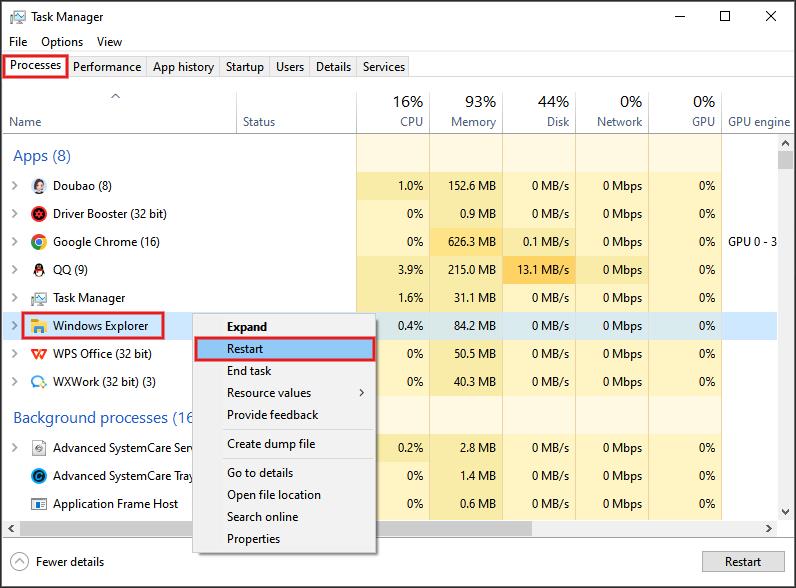
Fix 2. Restart Windows Explorer
Windows Explorer controls your desktop and hotkey responses. It may glitch and block shortcuts. Restarting it can refresh the process quickly.
Step 1. Right-click the Start button and choose Task Manager.
Step 2. In the Processes section, right-click Windows Explorer and choose Restart.
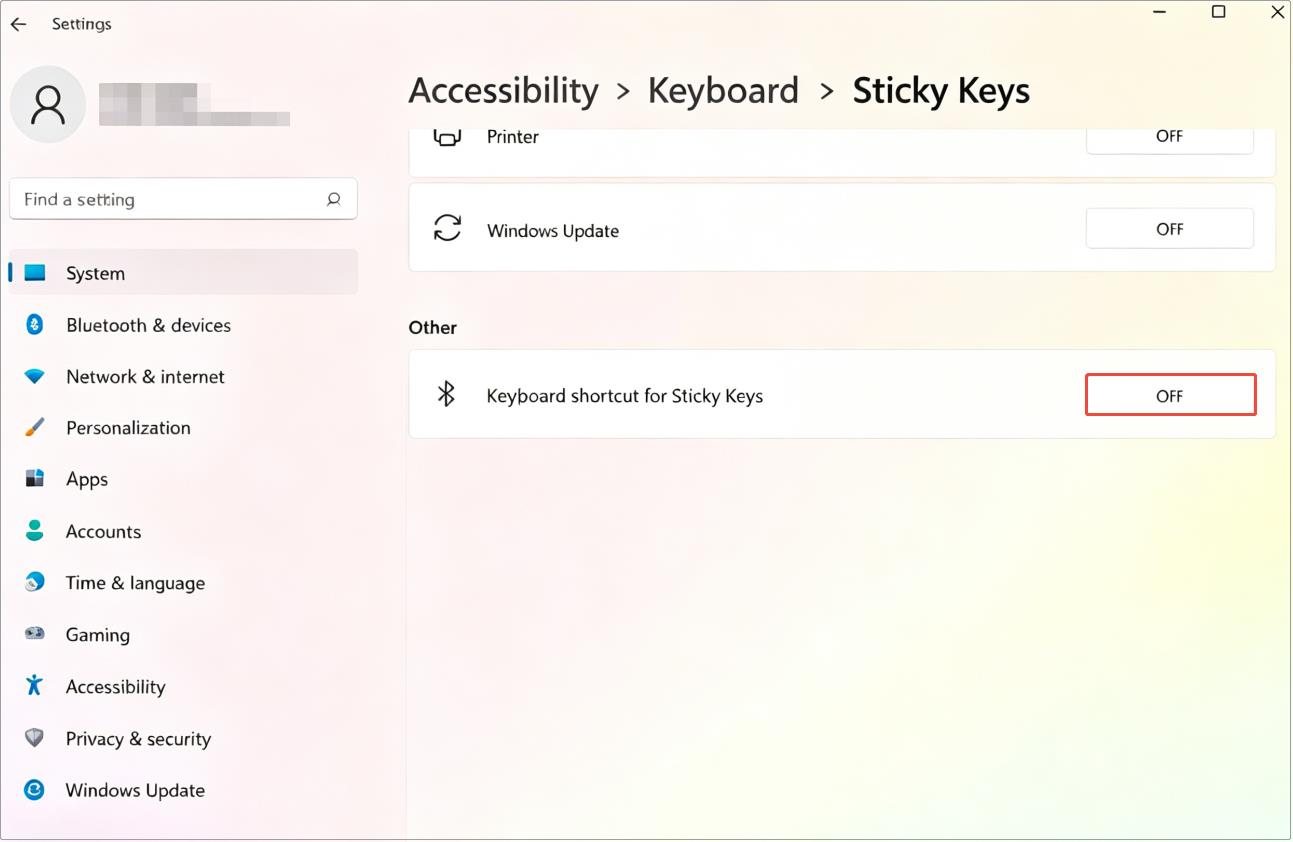
Fix 3. Disable Sticky Keys
Sticky Keys changes how keyboard inputs work. It can interfere with multi-key shortcuts and stop your hotkeys from working normally.
Step 1. Open Settings and switch to the Accessibility tab.
Step 2. Select Keyboard, then toggle the Sticky Keys switch to Off.
Step 3. Click on the Sticky Keys row and toggle the Keyboard shortcut for Sticky Keys switch to Off.
Fix 4. Update Your Keyboard Drivers
The keyboard driver is what connects your keyboard to Windows. Outdated, corrupted, missing, or incompatible keyboard drivers are one of the common reasons for Windows 11 keyboard shortcuts not working.
Manual driver searches are time-consuming. With this driver updater, Driver Booster, you can update the keyboard driver in one click. This tool scans for outdated and missing drivers, auto-detects issues, and installs WHQL-verified drivers. It also supports batch updates for keyboard and other hardware drivers.
Driver Booster Free
- Automatically scan and update drivers.
- Update game ready drivers for peak gaming performance.
- Identify and fix various common of hardware issues.
- Boost 30% of system performance for fast & smooth running.

Besides keyboard drivers, it can also update Game Ready drivers, graphics, network, chipset, USB, Bluetooth, mouse, and audio drivers. The free edition of this software auto-creates a system restore point before driver updates, allowing you to roll back Windows if compatibility issues happen.
More than just an automatic driver updater, it also comes with built-in troubleshooting tools to fix common Windows hardware errors, such as device errors, invalid device data, and incompatible driver issues, etc.
Steps to update the keyboard driver using Driver Booster
Now that you know what Driver Booster can do, scroll down and follow the simple tutorial to get your keyboard shortcuts working again.
Step 1. Click the following button to download Driver Booster in seconds.
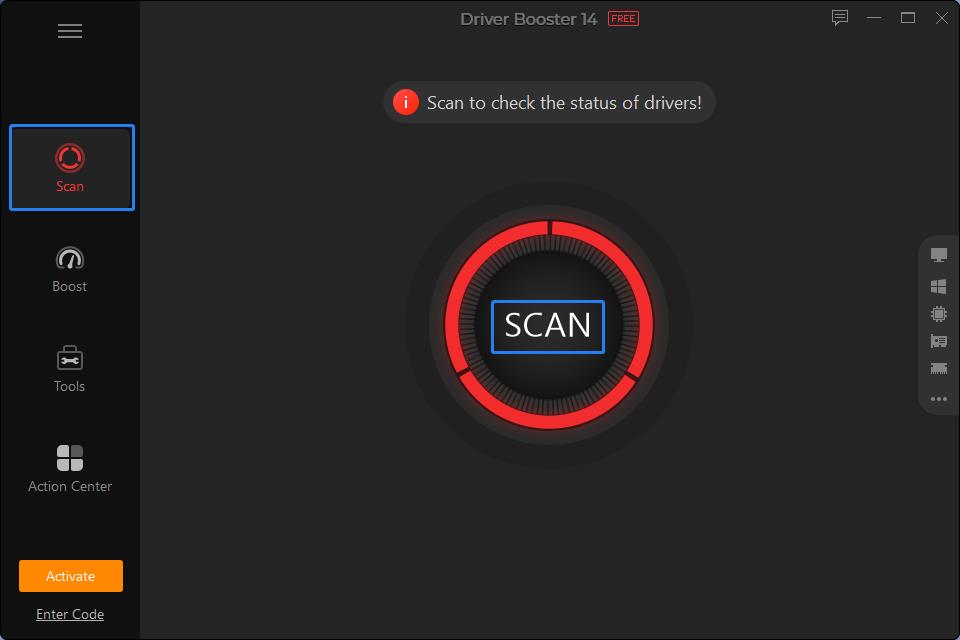
Step 2. Launch this updater, enter the Scan section, and click the SCAN button to detect all outdated or missing drivers.
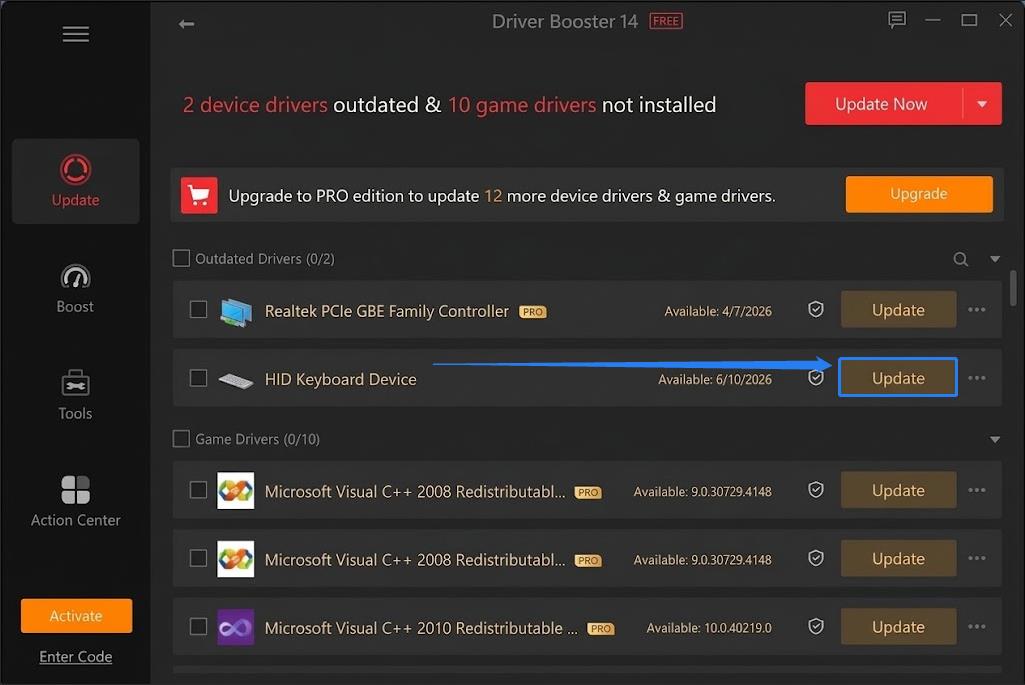
Step 3. When the scan ends, find the HID Keyboard Device driver and click Update to start installing.
Step 4. During the installation process, tick the box for Automatically boot PC.
Step 5. Wait for the whole process to complete and your keyboard shortcuts will work normally once the PC reboots.
After finishing the troubleshooting steps, you can also check out Driver Booster for ongoing maintenance.
Don’t forget to download Driver Booster to your computer for daily and future use.
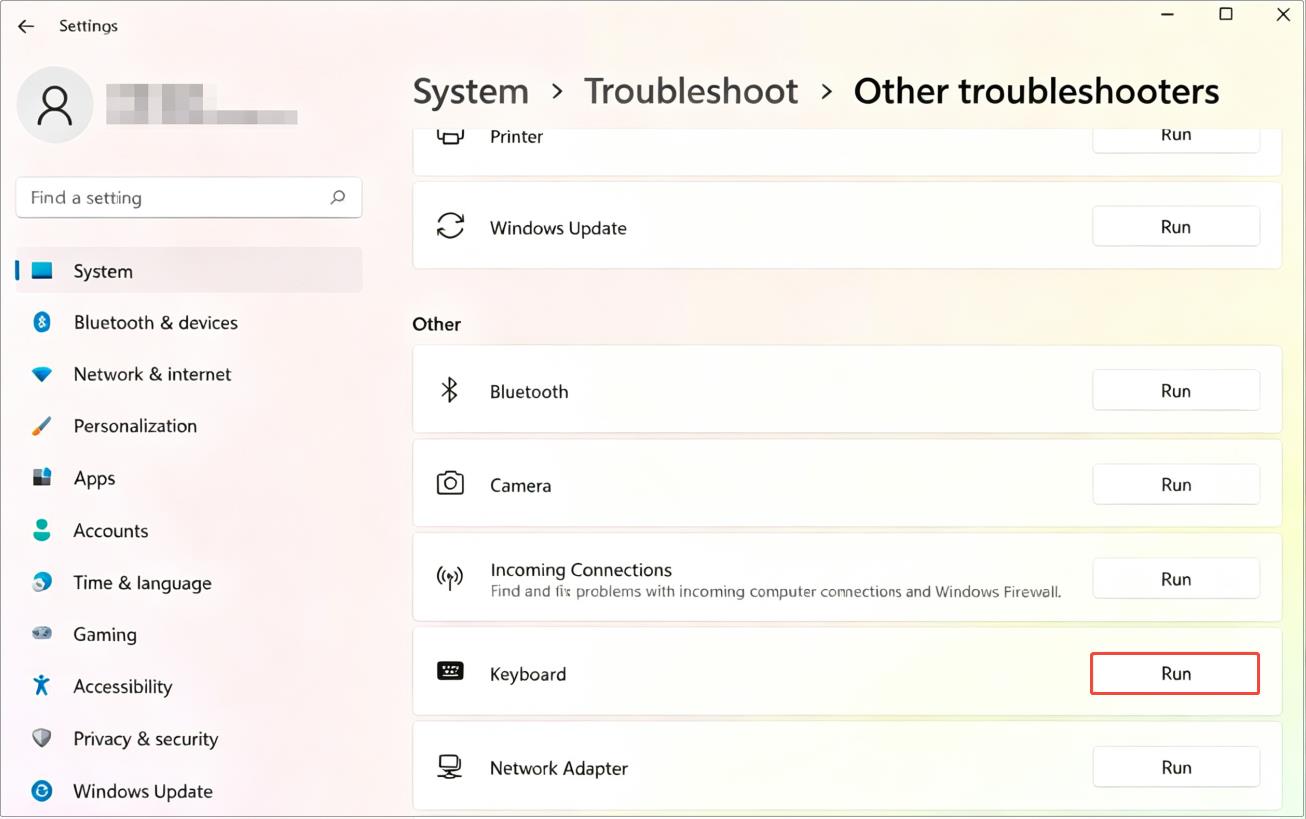
Fix 5. Run the Keyboard Troubleshooter
Windows has a built-in keyboard troubleshooter to detect common keyboard glitches. It can automatically repair many shortcut-related errors, fixing “Windows shortcut keys not working”.
Step 1. Press Win + I to open Settings and go to System.
Step 2. Select Troubleshoot and click Other troubleshooters.
Step 3. Locate Keyboard, click Run, then follow the on-screen prompts to complete the scan and apply fixes.
Fix 6. Enable Windows Keyboard Shortcuts
Windows keyboard shortcuts can be disabled through group policy or registry modifications. This scenario is uncommon, yet hotkeys will stop working entirely if these system settings have been altered.
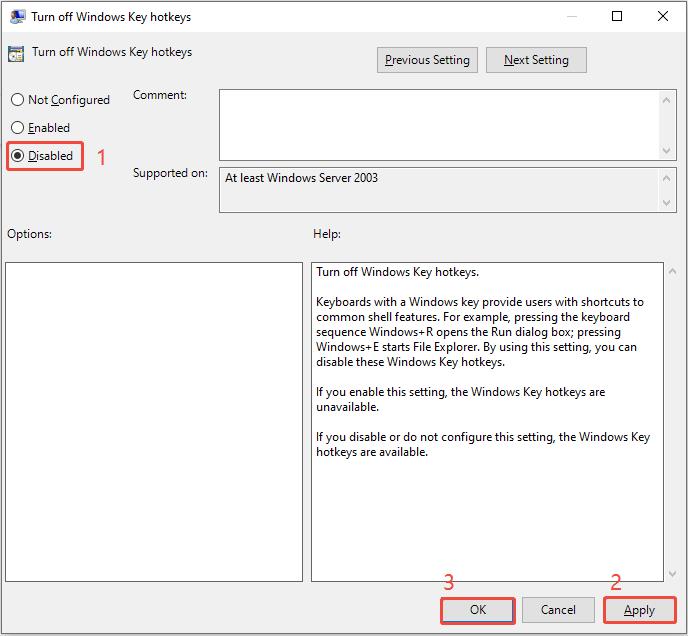
Step 1. Right-click the Start button, choose Run, type gpedit.msc, and click OK.
Step 2. Go to User Configuration > Administrative Templates > Windows Components > File Explorer.
Step 3. Double-click Turn off Windows Key hotkeys, select Disabled, and click Apply > OK.
Fix 7. Restart the HID Service
The HID (Human Interface Device) service manages input devices like your keyboard. When it crashes, your keyboard shortcuts may stop responding. Restarting it can restore normal keyboard functions.
Step 1. Open the Run dialog, type services.msc, and click OK.
Step 2. Find and right-click Human Interface Device Service to choose Restart.
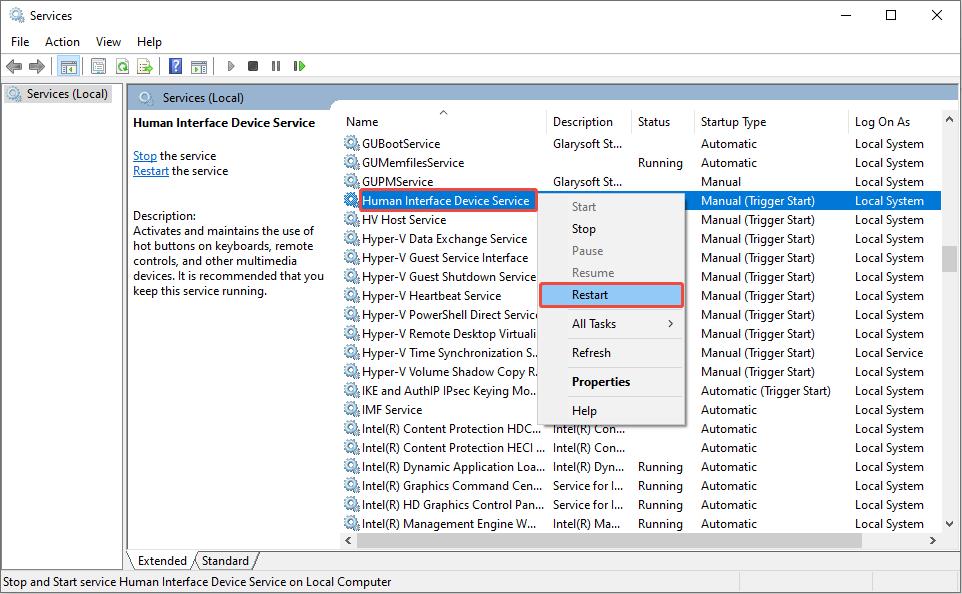
Tips: If the restart option is greyed out, click Stop first, then click Start.
Step 3 (Optional). Double-click the service to set its Startup type to Automatic to launch it automatically on PC startup.
How to Prevent Windows Shortcut Keys from Not Working Again
The problem of desktop shortcuts not working Windows 11 may recur without maintenance. Use these tips to avoid the issue in the future.
Keep keyboard drivers up to date: Use Driver Booster to scan and update your keyboard drivers regularly.
Clear old driver junk: Clean leftover driver junk from unplugged peripherals to reduce system conflicts.
Back up drivers: Create driver backups and system restore points before modifying drivers for quick recovery.
Avoid service edits: Do not make random changes to Windows system services.
Keep Windows up to date: Update Windows to fix bugs causing shortcut failures.
The Bottom Line
The problem of Windows shortcut keys not working can bring many inconveniences. The seven troubleshooting methods covered in this article can help you resolve this issue efficiently. Hope you can get your shortcut keys working again.