



Kevin Hart
Kevin is an experienced editor focused on tech blog writing. Familiar with all kinds of PC software on the market. All the topics he chooses are aimed at bringing more benefits to users.
Expert in
PC Health Solution

All-in-one PC health solution: clean, optimize and secure

Comprehensive PC cleaning, optimization and protection

Keep drivers always up-to-date

More stable performance with less system crashes

Protect millions of computers against malware

Top computer security with full-round protection

Protect against viruses & boost PC performance
Automatically scan and update drivers.
Update game ready drivers for peak gaming performance.
Identify and fix various common of hardware issues.
Boost 30% of system performance for fast & smooth running.

Can only see the screen but hear nothing? Wondering why my computer has no sound? This guide may help you identify the source and find the right solution.

Kevin Hart


While attending an online meeting on your computer, everything suddenly turns into silent faces and moving lips—with no audio at all. After confirming it's not a network issue, you may start wondering: why my computer has no sound?
This issue can interrupt many situations, including gaming, watching videos, and more. The causes can also vary, such as incorrect volume settings, audio output device configuration problems, or faulty audio drivers.
This guide provides reliable information to help you identify the exact cause step by step, along with effective solutions to fix no sound on computer Windows 11 or Windows 10, so you can get back to a world filled with voices and sound again.

Before identifying the exact reason behind why my computer has no sound, this guide does not recommend taking random actions, as doing so may create new problems.
Please refer to the information in this section and start by checking whether your device matches any of the following issues.
Volume Is Muted or Set Too Low
In fact, you may have simply forgotten that you lowered the computer volume or enabled mute mode—for example, when using your computer outdoors and not wanting audio to play through the speakers.
If the cause of no sound on computer Windows 11 or Windows 10 is not related to the speaker volume, you should also check whether the application you are currently using has its own volume turned off.
Audio Device Is Not Properly Connected or the Wrong Output Device Is Selected
If the volume is already at maximum, why is my computer has no sound? Your computer may actually be connected to another audio output device, such as Bluetooth headphones, USB headphones, or external speakers, instead of the built-in speakers.
Tip: If your computer has no sound while using the speakers as the audio output device, try plugging in headphones for testing. If you can hear audio through the headphones, your computer speakers may be damaged.
Drivers Are Outdated or Corrupted
After ruling out the possibilities above, why does my computer has no sound?
It is time to check your computer's audio drivers. Outdated, corrupted, or missing audio drivers can prevent your computer from playing sound properly.
You can follow these steps to troubleshoot audio driver issues:
Step 1. Open the Start menu on your computer, then select Settings > System.
Step 2. Scroll down and choose Troubleshoot > Other troubleshooters.
Step 3. Click Audio. Finally, select Run to start the troubleshooting process.
You will now see a list of audio drivers on your device. If a yellow exclamation mark appears next to any option, it means you need to install or update the driver.
Audio Service Issues
If the audio services running in the background of a Windows computer stop working, fail to start, or encounter conflicts, your computer may suddenly lose sound. In some cases, you may even see Audio services not responding to messages from the system.
Common causes that may stop audio services from working include Windows updates, unexpected power outages, and system errors.
System or Software Conflicts
Failed system updates, conflicts with third-party software, or even abnormal audio enhancement settings may affect sound output. Sometimes, computer audio may suddenly disappear after installing new software.
After understanding the possible causes behind why does my computer has no sound, you should take action immediately to fix the issue so you can restore normal computer functions such as watching videos, listening to music, and attending online meetings.
This section collects the most effective how to fix no sound on PC solutions. Each method comes with detailed step-by-step instructions, making them easy to follow. Simply identify the one that matches your situation and start troubleshooting.
First, let's start with the most basic issue mentioned earlier: the audio may be muted. Follow the steps below to check and adjust your settings.
Step 1. Click the volume icon in the bottom-right corner of the taskbar and make sure the sound is not muted. If it is, unmute it and increase the volume.
Step 2. Right-click the volume icon and select Sound settings. Check the output device and switch it to the correct option.
Step 3. Make sure your speakers or headphones are properly connected. You can also try unplugging and reconnecting them.
Step 4. Open the application you are using and confirm that its individual volume is not muted. Also try increasing the volume level. (Some videos or music files may naturally have very low volume due to source file issues.)
If there is still no sound after completing these basic checks, you will need to continue troubleshooting and try other how to fix no sound on computer methods.
If you suspect that audio service issues are the reason behind why my computer has no sound, you can try restarting the services to fix the problem.
Here is how to fix no audio sound issues in Windows 10 by restarting audio services.
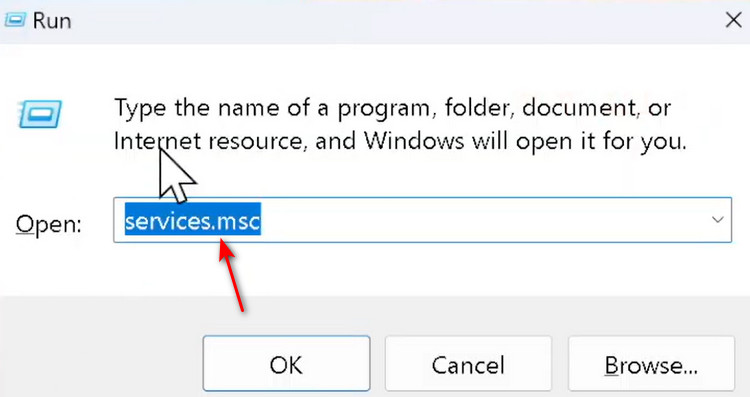
Step 1. Press Win + R on your keyboard, then type services.msc into the text box in the pop-up window.
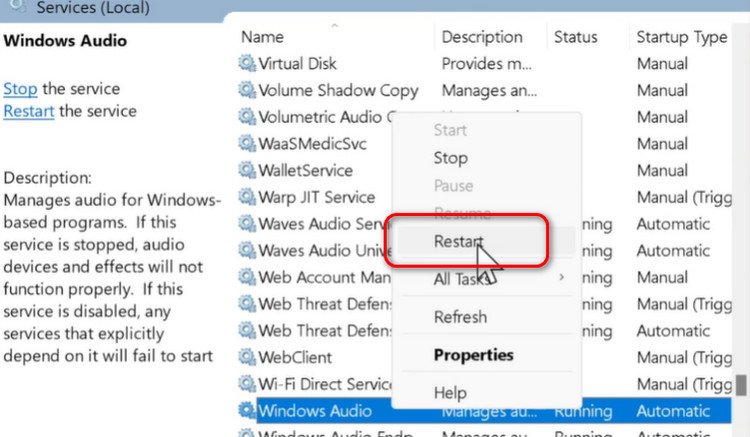
Step 2. Locate the Windows Audio service, right-click it, and select Restart.
Have you checked your audio drivers yet? If your computer is still using an outdated version, there is a high chance it is the reason behind why my computer has no sound.
Manually updating drivers is not difficult. Follow the steps below to learn how to update Windows driver properly.
Step 1. Open Device Manager.
Step 2. Expand Sound, video and game controllers.
Step 3. Right-click your audio device and select the Update driver.
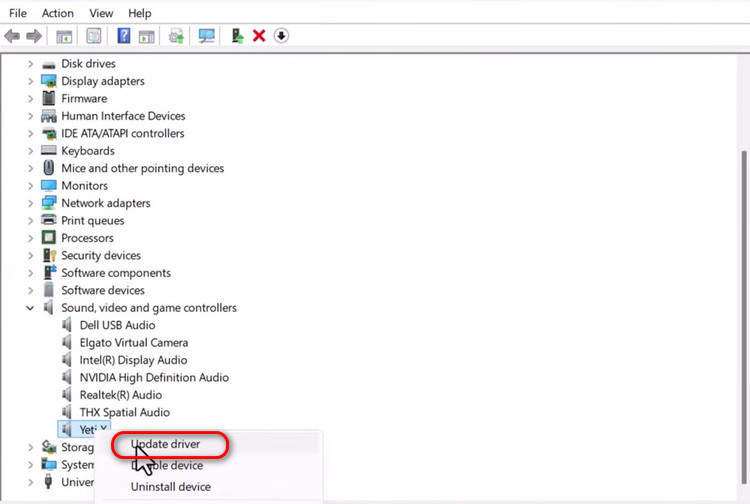
Step 4. Choose Search automatically for drivers and complete the update process.
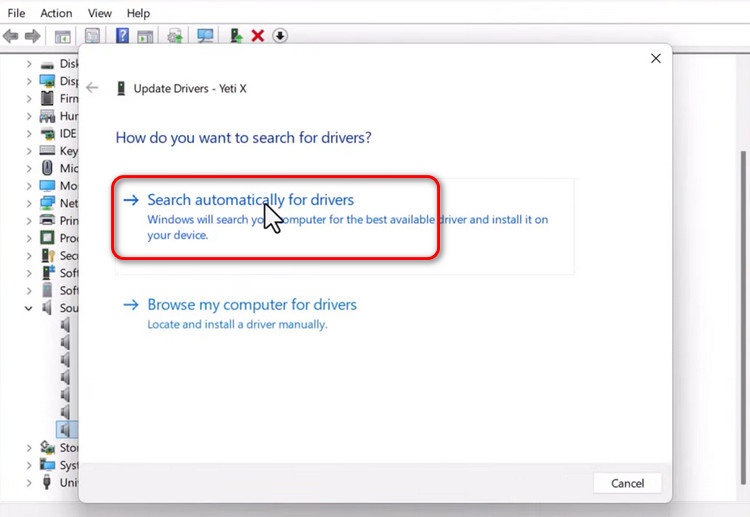
Outdated audio drivers usually only need an update. However, if the driver is corrupted, the problem must first be removed by uninstalling the damaged driver before installing a fresh and working version. Only then can the audio issue be properly resolved.
Here is how to fix audio drivers on Windows 11 by reinstalling audio drivers:
Step 1. Press Win + X and select Device Manager.
Step 2. Expand Sound, video and game controllers.
Step 3. Right-click your audio device and select Uninstall device.
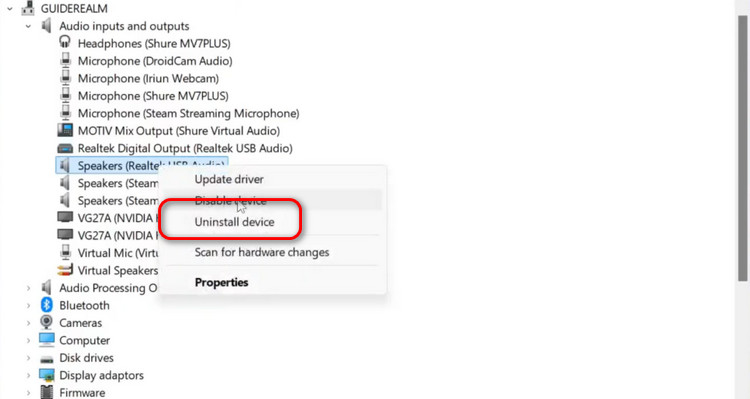
Step 4. Confirm the uninstall process. If available, check the option Delete the driver software for this device.
Step 5. Restart your computer. Windows will automatically detect the audio hardware and reinstall the default audio driver.
Sometimes, your computer may not actually have a sound problem — Windows could simply be sending audio to the wrong output device.
So, if you are wondering why my computer has no sound on YouTube, it is worth checking whether the correct audio output device is selected.
Step 1. You can right-click the volume icon in the bottom-right corner of the taskbar and select Sound settings.
Step 2. From the list of output devices, make sure the speaker, headphones, or monitor audio device you are currently using is selected.
If you’re tired of constantly testing different settings, clicking random buttons, or trying to figure out why your computer suddenly has no sound, using an automatic repair tool can save a lot of time and frustration.
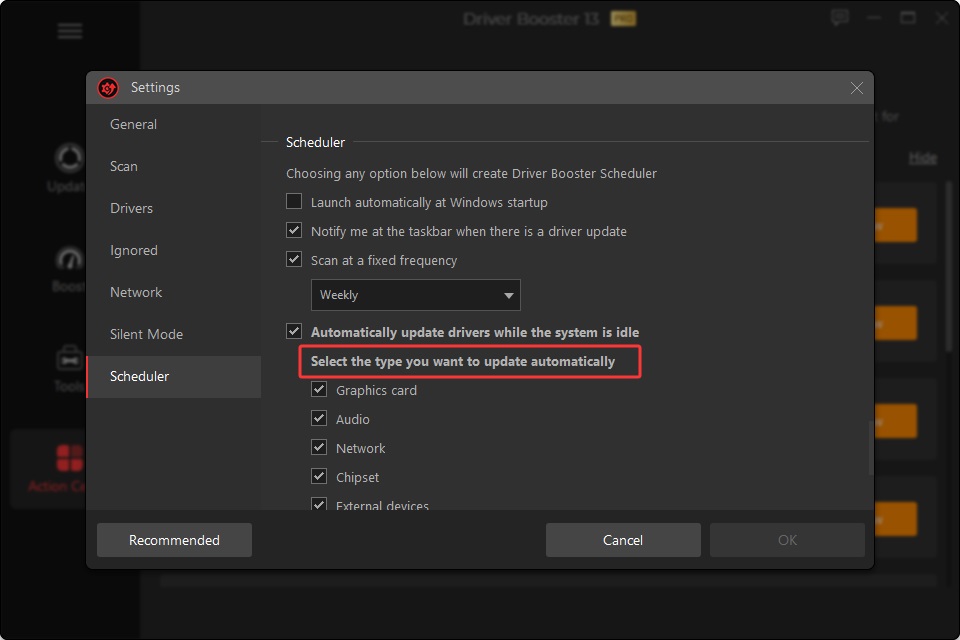
That’s why this guide recommends Driver Booster. It’s a professional driver management tool that can automatically detect and fix driver-related problems, especially issues caused by outdated audio drivers, missing drivers, or system compatibility conflicts.
Instead of manually searching for the correct driver version yourself, Driver Booster can scan your PC in one click, quickly identify problematic drivers, and automatically install stable, compatible updates for your system.
Main Features
Smart Driver Detection: Automatically scans your computer for outdated, corrupted, or missing drivers—including audio drivers—so you don’t have to troubleshoot everything manually.
One-Click Audio Driver Updates: Finds and installs compatible audio drivers automatically, helping avoid installation errors and driver conflicts.
Built-in Sound Repair Tools: Includes practical audio repair features designed to fix common problems like no sound on PC, speaker issues, or audio playback errors.
Better Overall System Stability: While repairing drivers, it also improves hardware compatibility and system performance, helping reduce lag and other device-related problems.
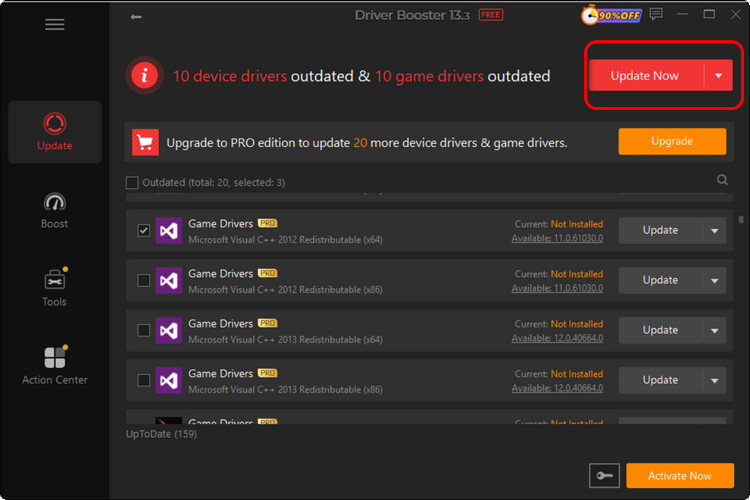
Here is how to fix no sound on PC by updating audio drivers with Driver Booster.
Step 1. Download and install Driver Booster on your computer. Then launch the program to enter the main interface.
Step 2. Click the Scan button. Driver Booster will automatically check your system for outdated, missing, or corrupted drivers.
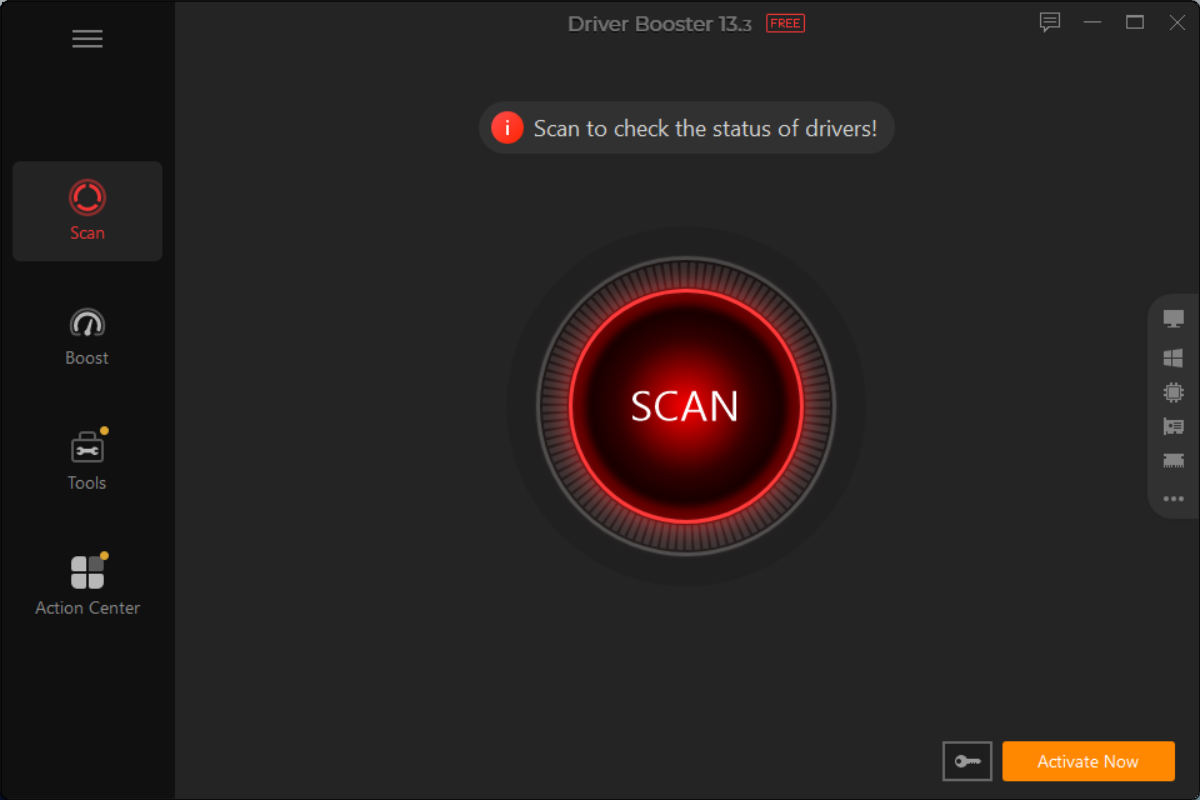
Step 3. After the scan is finished, locate categories like Sound, video, and game controllers in the results list.
Step 4. Click Update Now to automatically download and install the latest compatible audio drivers for your PC.
How do I get my sound back on my computer?
Start by checking whether your computer is muted or connected to the wrong audio device. If that does not help, restart your PC or update the audio driver.
Why do I suddenly have no sound on my computer?
This usually happens because of muted volume settings, audio driver problems, incorrect output devices, or Windows audio service issues.
How do I fix my audio not working?
You can try checking sound settings, reconnecting speakers or headphones, restarting audio services, or reinstalling audio drivers to restore sound.
Computer sound problems can happen unexpectedly and quickly affect everyday activities like watching videos, listening to music, gaming, or joining online meetings. In most cases, issues related to why my computer has no sound are caused by muted settings, incorrect audio output devices, audio service errors, or outdated drivers.
This guide covered several practical ways to fix these problems, including checking sound settings, restarting audio services, updating drivers, and reinstalling damaged audio drivers.
While manual troubleshooting can usually solve the issue, the process may still feel complicated and time-consuming for many users. For anyone looking for a quicker and simpler way to handle how to fix no sound on PC problems, it is recommended to directly use Driver Booster.


Keep drivers always up-to-date.
Free Download