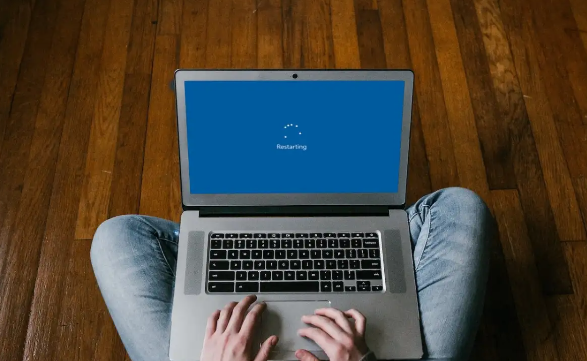
After prolonged use, some users find that their computer stuck on restarting. This can occur after installing a Windows update, following an unexpected shutdown, or during a normal system restart.
The problem manifests itself in different ways: very long restart times under Windows 11, a frozen screen for hours, or the system completely stuck on "Restarting" under Windows 11 or Windows 10. In all these cases, access to the Windows environment becomes impossible, as the restart process fails to complete.
In this article, we analyze the most common causes of a computer stuck in restarting, then detail 9 proven technical solutions to a PC stuck on restarting and restore your system's functionality.
Why is My Computer Stuck on Restarting?
A stuck restart process is usually related to a software or hardware malfunction, or an abnormal interruption of a critical system operation. The most common causes for Windows stuck on restarting screen include:
Improper system shutdown, for example, following a power outage or a forced shutdown during an ongoing operation.
Hardware failures, such as a poorly inserted, unstable, or defective RAM module, or a hard drive/SSD with damaged sectors.
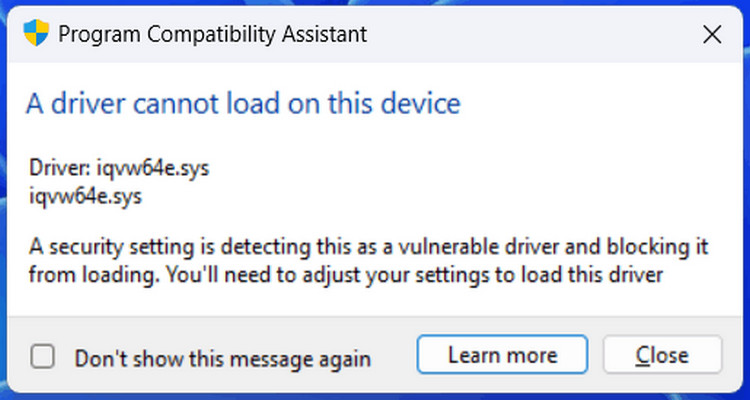
Incorrectly installed, incompatible, or outdated Windows drivers may prevent system services from loading correctly upon restart.
System file corruption, often caused by interrupted updates or disk write errors.
TIPS
Restart time varies depending on the situation, and a prolonged delay does not necessarily mean there is a problem.
In general :
A typical restart (without updates or major changes) takes between 1 and 3 minutes.
If Windows is installing updates, the restart may take from 5 to 30 minutes or more, depending on the size and number of updates.
If the restart takes longer than 30 minutes, there may be a problem affecting the system.
How to Fix a Computer Stuck on Restarting?
A computer stuck on restart screen usually indicates that Windows is unable to complete a critical system operation. The methods below cover the most common causes, from a simple temporary freeze to a more serious software or hardware malfunction. Try them in order, from simplest to most advanced.
1. Force a shutdown and restart
How to fix computer stuck on restarting screen? The first action is to properly interrupt the stuck restart cycle.
Press and hold the power button for 10 to 15 seconds until the computer shuts down completely.
Please wait a few seconds to allow the components to discharge.
Then turn the PC back on and observe if the startup completes normally.
This operation often makes it possible to unblock a process that has temporarily stalled.
2. Identify and neutralize a blocking process via the Task Manager
When Windows gets stuck on "Restarting" or "Shutting down", the most frequent cause is a system or application process that is no longer responding and is preventing the shutdown/restart cycle from completing.
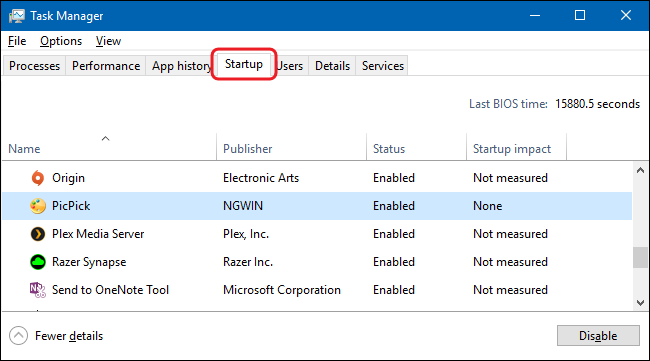
Open Task Manager (Ctrl + Shift + Esc), then go to the Startup tab. Disable any non-essential programs that are listed as Enabled to minimize conflicts when the system restarts.
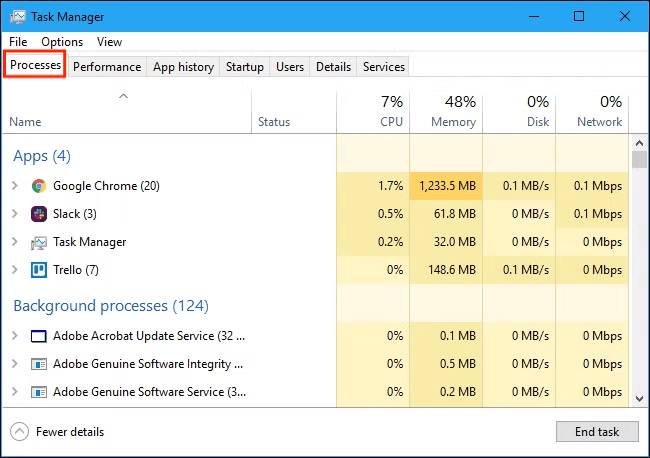
Before shutting down or restarting your computer, open Task Manager and locate the process that is consuming an abnormal amount of resources (CPU, memory, or disk). Right-click on the affected process and select End task.
TIPS:
Caution: Avoid stopping critical Windows processes, especially those whose name begins with Windows or Service, to prevent system instability.
3. Check the hardware components
A computer stuck restarting may be related to a hardware problem preventing Windows from properly loading its services.
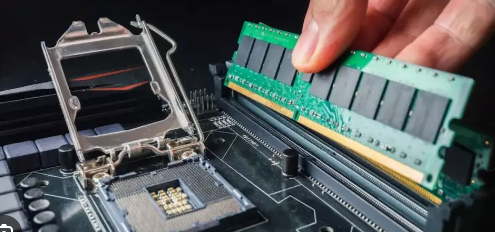
Check the RAM: Turn off the computer, open the case (or the back panel of a laptop) and make sure that the RAM sticks are properly inserted in their slots.
Check the hard drive or SSD: Ensure the drive is properly connected to the motherboard and power supply. A faulty or improperly connected cable can cause a restart failure.
4. Reset the BIOS settings
The BIOS/UEFI can be restored to its default settings to correct any configuration problems. Here's how to fix computer stuck on restarting:
1. Accessing the BIOS/UEFI: Restart the computer and press the appropriate key during startup (usually Delete, F2, F10, or Esc, depending on the manufacturer). An on-screen message often indicates which key to use (e.g., Press F2 to enter BIOS).
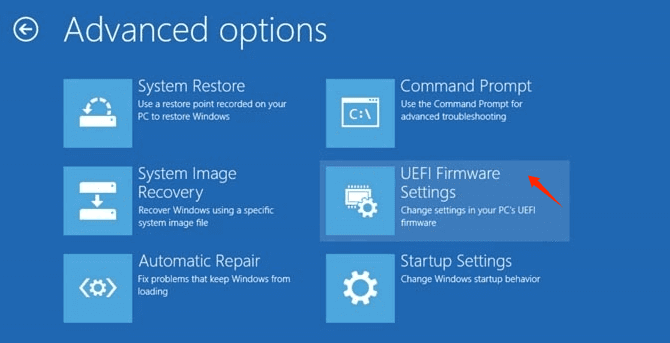
2. Load default settings: Select Troubleshooting > Advanced options > Change UEFI or BIOS firmware settings
3. Click Restart to access the BIOS, confirm when prompted, and save the changes. The PC will restart with the BIOS default settings.
What if I can't access the BIOS?
In some cases, it's impossible to access the BIOS. You can then remove the CMOS battery to reset it. Here's how to fix PC stuck on restarting screen:
1. Shut down and open the PC: Turn off the computer and unplug all power cables. Open the PC case to access the motherboard.
2. Remove the CMOS battery: Locate the CMOS battery, a small round battery similar to those in watches (usually type CR2032).
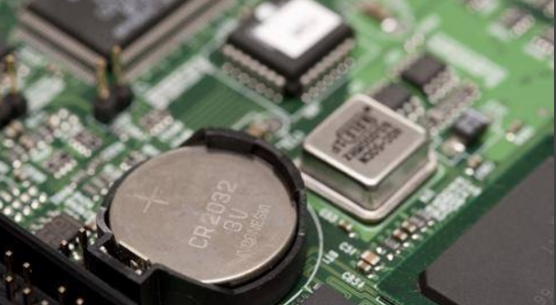
Carefully remove it, using a small screwdriver if necessary. Wait 5 to 10 minutes to allow the CMOS to fully discharge.
3. Reinstall the battery and restart: Replace the battery in its compartment. Close the PC case, reconnect the power cables, and turn on the computer. The BIOS should be reset to its default settings.
5. Start in safe mode
Safe mode loads only essential Windows components. It helps identify whether the problem is caused by a driver or a third-party service.
1. Restart your computer and press F8 (or Shift + F8) repeatedly until the menu appears.
2. Select Troubleshooting > Advanced options > Settings > Restart.
3. Wait until the startup options window appears, then press 4 or F4 to start in safe mode.
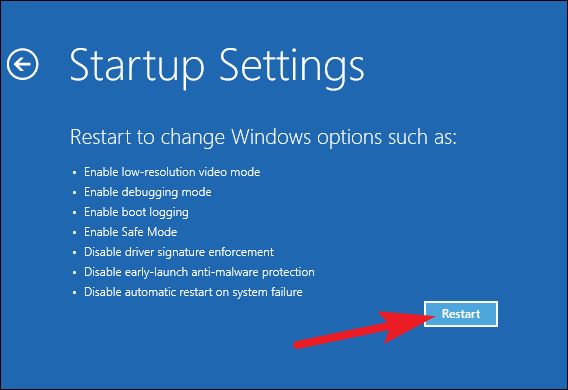
If the system boots correctly in this mode, the problem is probably software-related.
6. Repair the operating system
What to do if computer stuck on restarting? If your computer is stuck on "Restarting," it may be due to corrupted system files. You can use Windows repair tools to fix these errors.
1. Restart your computer and press F8 (or Shift + F8) several times.
2. Once on the Choose an option screen, select Troubleshooting > Advanced options > Command Prompt.
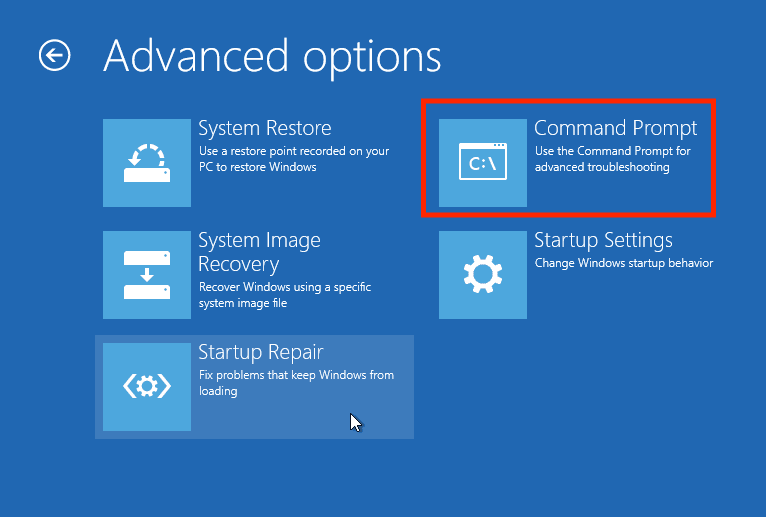
3. Type the command sfc /scannow and press Enter.
7. Return to the previous version
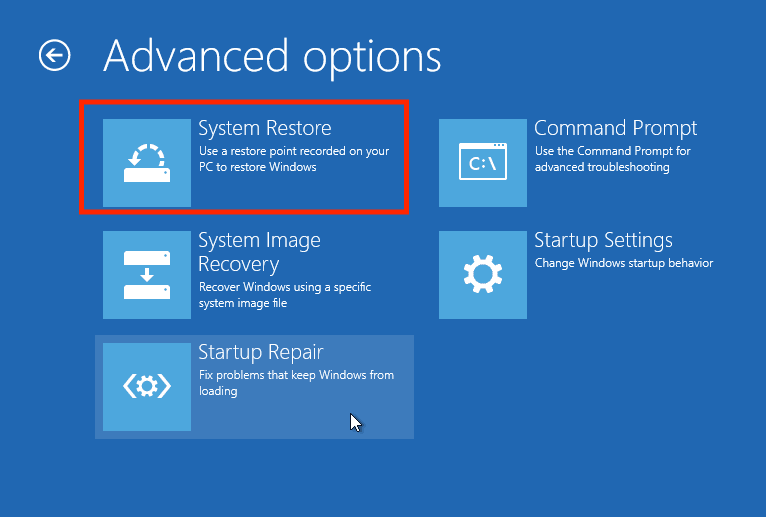
Windows automatically downloads and installs updates, but some may conflict with drivers or software. This can cause your computer to get stuck on a restart screen. If this happens, reverting to the previous version may resolve the Windows stuck on restarting issue.
Go to Advanced Options. Select System Restore. Follow the on-screen instructions to complete the process.
8. Update outdated drivers to fix PC stuck on restarting
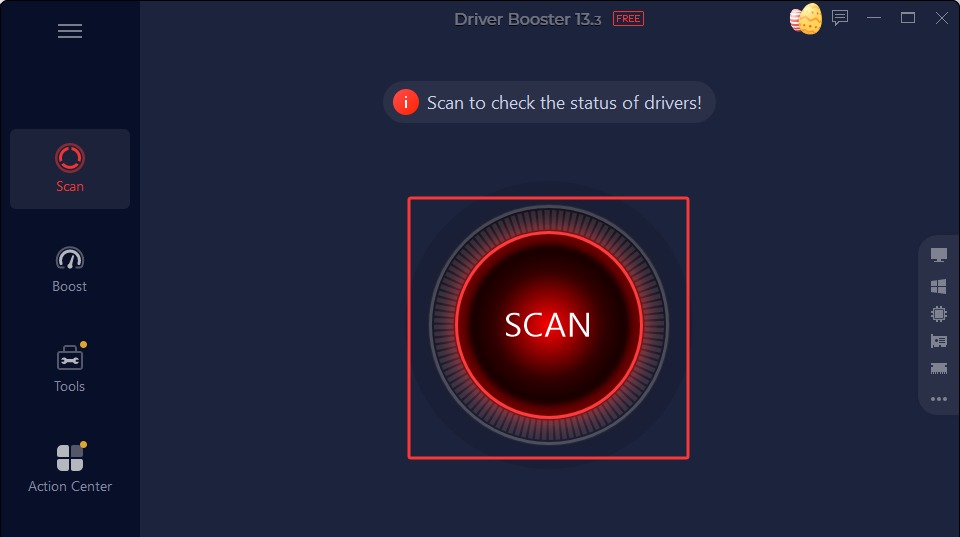
Incompatible or outdated drivers can prevent Windows from properly loading services upon restart. While manually identifying the affected drivers can be complex, a specialized tool like Driver Booster can simplify the process. Check how to fix computer is stuck restarting by updating drive
Driver Booster Free
- Automatically scan and update drivers.
- Update game ready drivers for peak gaming performance.
- Identify and fix various common of hardware issues.
- Boost 30% of system performance for fast & smooth running.

1. Download and install Driver Booster on your Windows PC.
2. Open the software and run a system scan.
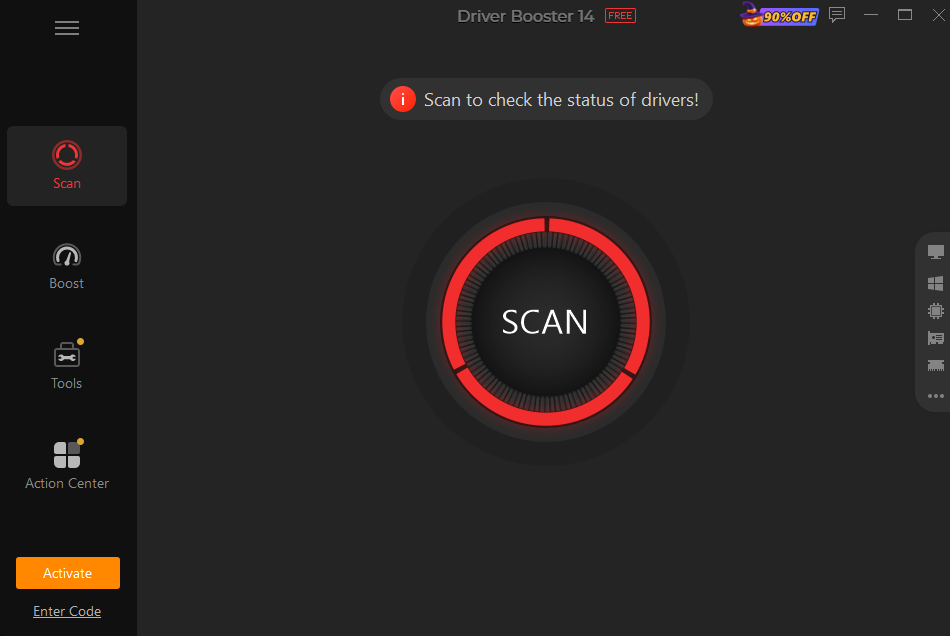
3. Select the drivers to update, then click Update Now.
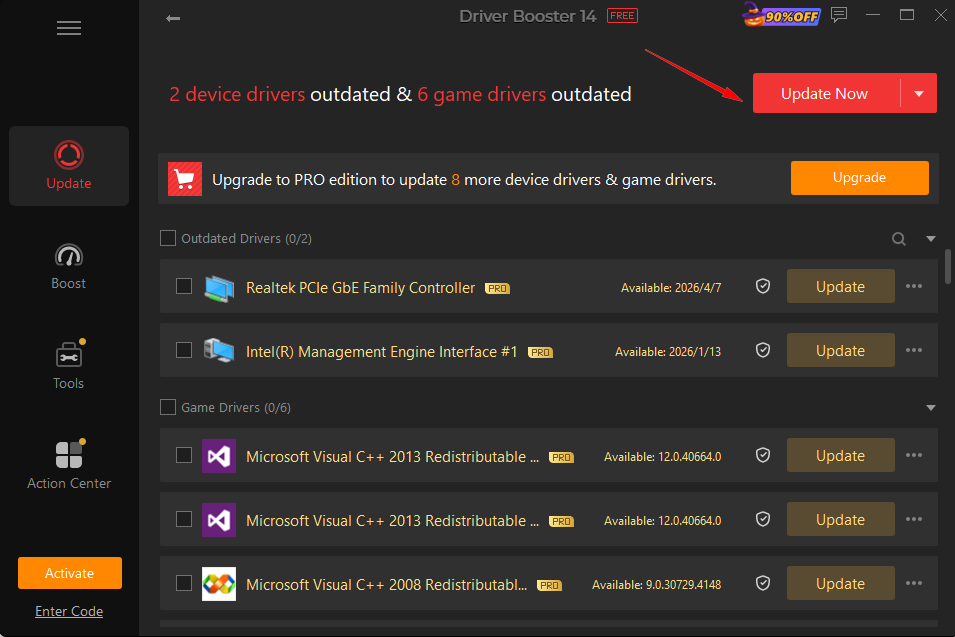
*Driver Booster allows free updates of up to two drivers per day.
You May Like: How to Update Windows Drivers Automatically and Manually >>
9. Reinstall Windows
If none of the previous solutions resolve the problem of Windows stuck restarting, a complete reinstallation of Windows may be necessary.
Before proceeding, make sure to back up all important data, as this operation will reset the system.
Conclusion
A computer stuck on restarting in Windows 11 or Windows 10 usually indicates a restart process blockage related to an update, a driver, or corrupted system files. In most cases, the problem can be resolved by checking the hardware, booting into safe mode, and then repairing the Windows system.
If the restart process is very long or never completes, it is recommended to use Windows recovery options. As a last resort, reinstalling the system can permanently fix computer stuck at restarting screen.
Driver Booster Free
- Automatically scan and update drivers.
- Update game ready drivers for peak gaming performance.
- Identify and fix various common of hardware issues.
- Boost 30% of system performance for fast & smooth running.