A low-resolution display can affect your viewing experience, which makes everything on your screen look unclear. You might find blurry text, stretched images, oversized icons, black borders, and even a screen stuck at 1024×768. In most cases, it can be caused by incorrect Windows settings, graphics-driver problems, scaling, display connections, or external-monitor configurations. So, how to fix low resolution? This guide will introduce 7 effective methods, including Windows settings, driver repairs, hardware checks, and the best driver updater. Just read on!
Why Is My Screen Resolution Suddenly Low?
A sudden drop in screen resolution can happen for several reasons. Before diving into how to fix low resolution, let’s check out the cause behind it for better troubleshooting.
Incorrect Windows Display Settings: Windows may automatically switch to a non-native resolution after updates or hardware changes, which makes images appear blurry.
Missing, Outdated, or Corrupted Graphics Drivers: Graphics drivers allow Windows to communicate with your GPU and monitor. Driver problems can remove available resolution options or reduce display quality.
Incorrect Scaling or Unsupported Display Configuration: Wrong scaling percentages, incompatible resolutions, or incorrect multi-monitor settings can also make text and icons appear too large or unclear.
Cable, Adapter, or Monitor Detection Problems: Damaged cables, faulty ports, or unsupported adapters may prevent Windows from detecting your monitor’s native resolution correctly.
Game or Application-Specific Settings: Some games, remote desktop tools, or older applications use separate resolution settings that can make some programs look blurry.
Method 1. How to Change Screen Resolution Windows Through Settings
How to fix screen resolution? The first step is to check whether Windows is using the recommended resolution. This usually matches your monitor’s native resolution. Here are the steps for adjustment.
How to Change Screen Resolution for Windows 10/11
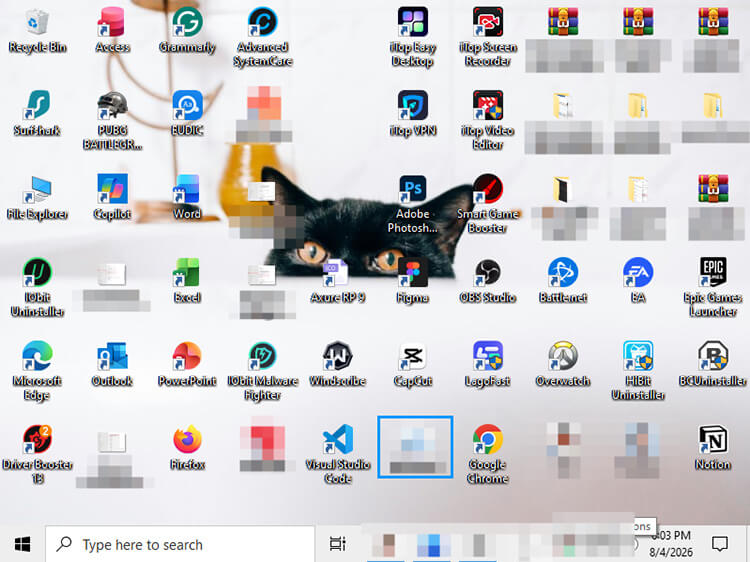
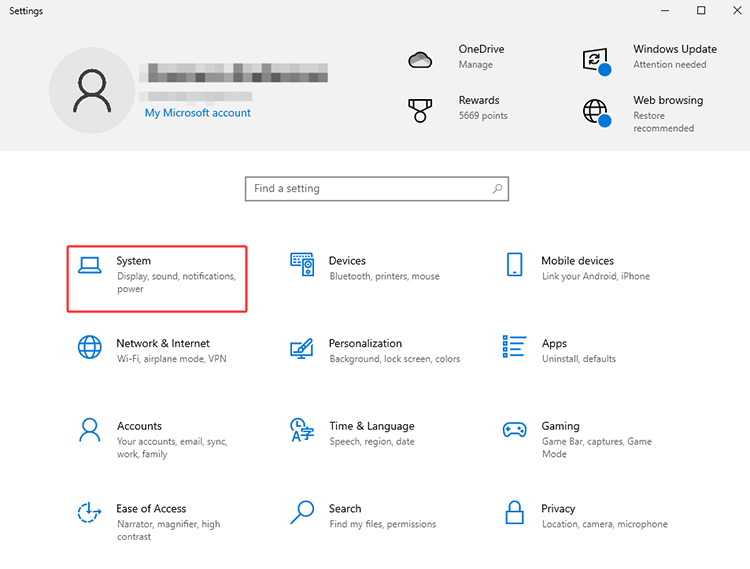
Step 1. Right-click an empty area on your desktop and select Display settings. You can also press Windows + I and go to System.
Step 2. Go to Display on the left. Scroll to the Scale & layout section and open the Display resolution drop-down menu.
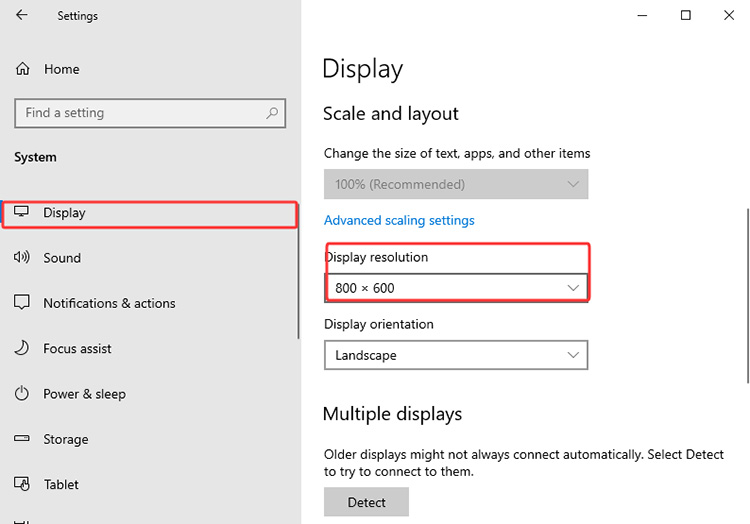
Step 3. Select the option marked (Recommended) and click Keep changes when the confirmation window appears.
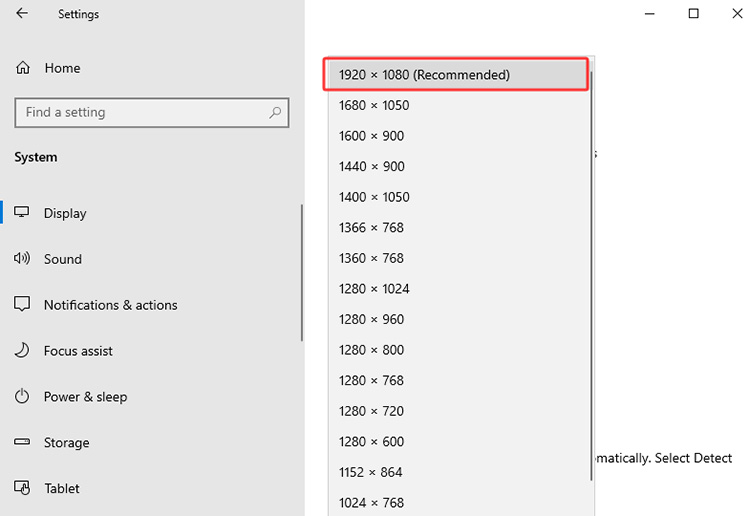
That’s how to change screen resolution for Windows 10/11. If the screen looks sharp but text or icons appear too small, adjust the Scale percentage instead of lowering the resolution. This allows you to enlarge on-screen elements while maintaining clear image quality.
Method 2. How to Fix Low Resolution with IObit Driver Booster
If the Windows display settings can not solve the issue, the graphics driver might be one of the reasons behind the problem. When the driver is outdated or corrupted, it can prevent Windows from detecting the correct resolution options.
In this situation, Driver Booster is a great help. It can scan your system, identify problematic graphics drivers, and help install compatible versions. It also offers a dedicated Fix Bad Resolution tool that can resolve some driver-related display problems.
Driver Booster Free
- Automatically scan and update drivers.
- Update game ready drivers for peak gaming performance.
- Identify and fix various common of hardware issues.
- Boost 30% of system performance for fast & smooth running.

Key Features of Driver Booster for Fixing Low Resolution
Fix Bad Resolution: This built-in tool detects certain driver-related display issues. You can apply the tool and restore proper resolution settings with one click!
Automatic Driver Scan: As an automatic driver updater, it scans and identifies outdated drivers intelligently. After that, it will recommend compatible updates from its huge driver database.
Backup & Restore: The software can even create driver backups before updates, allowing you to restore previous drivers when unexpected compatibility problems occur.
System Information: It provides detailed hardware and driver information, so users can better understand their graphics adapter and current configuration.
How to Fix Bad Resolution with Driver Booster
Step 1. Download Driver Booster from the official website and install it on your Windows PC.
Step 2. Launch the software. Go to the Tools menu on the left and choose the Fix Bad Resolution feature.
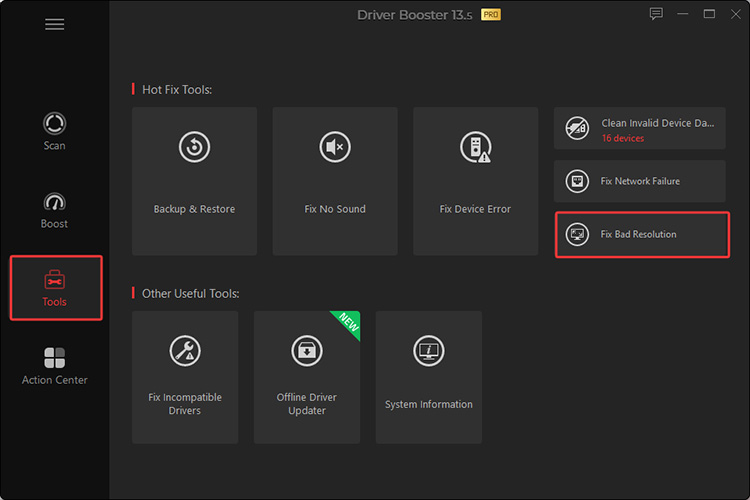
Step 3. Click on the Detect button, and Driver Booster will fix the resolution problem caused by the graphics driver installation instantly.
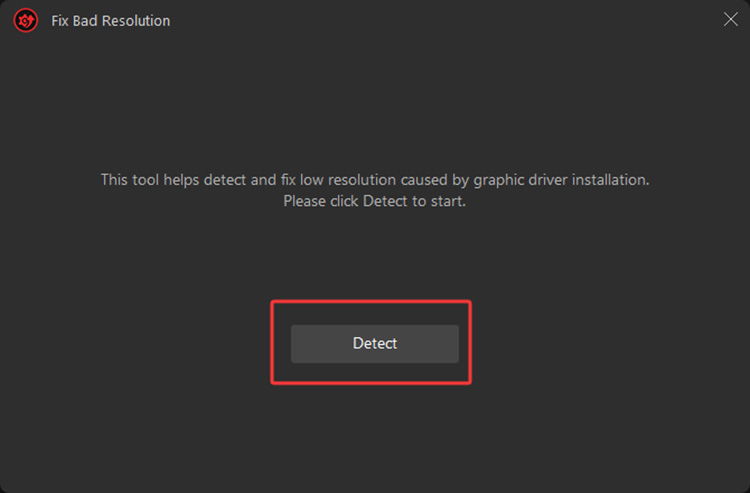
That’s how to fix screen resolution with Driver Booster. As you can see, the entire process takes just a few minutes. With its extensive driver database, Driver Booster supports a wide range of hardware to keep drivers up to date. For example, you can easily handle ASUS, MSI, or Lenovo driver update without manual effort!
Method 3. Update the Graphics Driver Manually
More often than not, you can update the graphics driver to restore missing resolutions and improve monitor detection. So, how to fix low resolution this way? Just install the driver via Windows Update, Device Manager, or the official PC/GPU manufacturer website (NVIDIA, AMD, Intel, or your laptop brand).
How to Update the Display Driver Through Device Manager
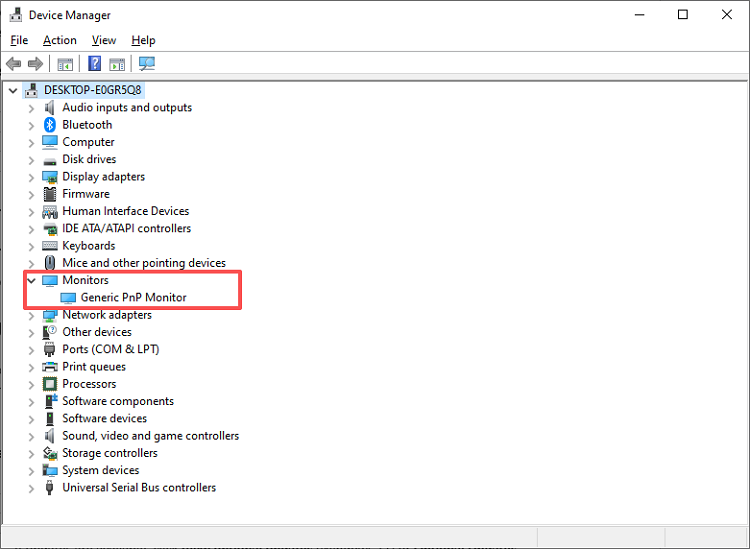
Step 1. Search for Device Manager on your Windows PC. Expand Display adapters, right-click your graphics card, and select Update driver.
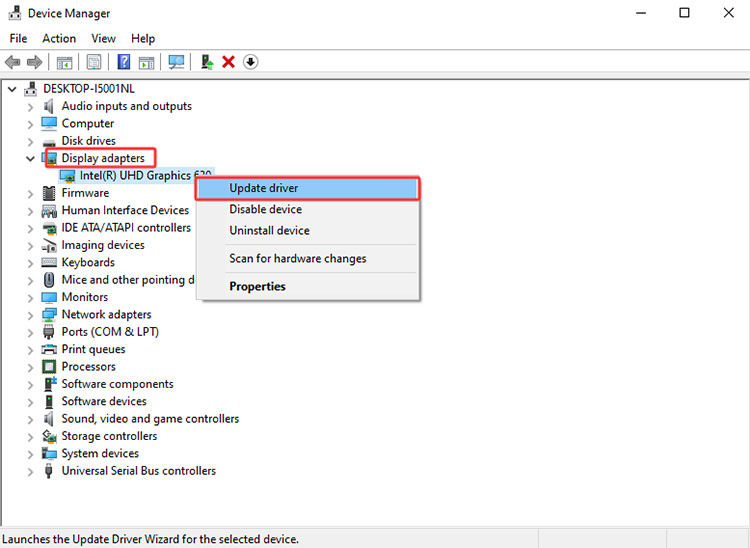
Step 2. Choose Search automatically for drivers and follow the on-screen instructions to complete the update.
Step 3. Restart your PC and check the Display settings to see if the correct resolution is available.
That’s it. Windows Update and the manufacturer’s website are two other official alternatives to locate the drivers you need. In addition, if you find Windows 11 audio driver not working, you can also follow the same steps to update the driver via Device Manager.
Method 4. Reinstall or Roll Back the Graphics Driver
A missing/corrupted graphics driver can prevent Windows from detecting the correct display resolution. In this case, it’s best to reinstall the graphics driver to restore proper functionality. However, if the problem started shortly after a driver update, rolling back to the previous version may be a better solution. Here, we will introduce these two methods altogether.
How to Reinstall or Roll Back the Graphics Driver on Windows 11/10:
Please note that you should choose only one option based on when the resolution problem started.
Option A: Reinstall a Corrupted Graphics Driver
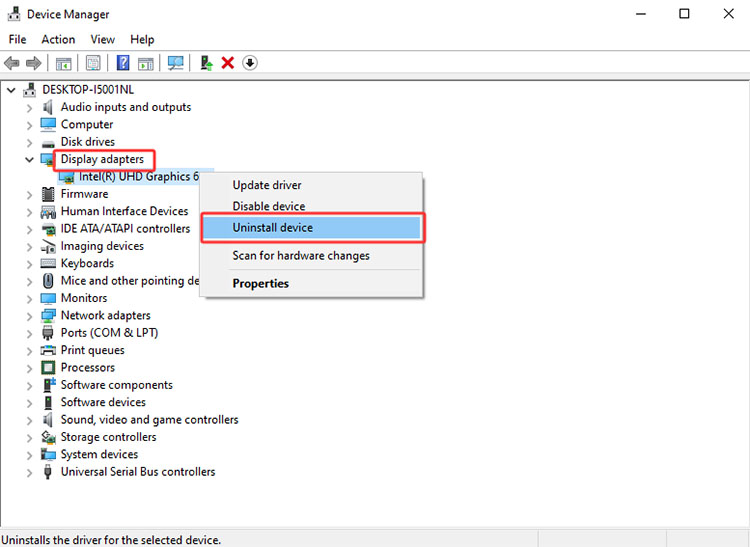
Step 1. Open Device Manager, expand Display adapters, right-click your graphics device, and select Uninstall device.
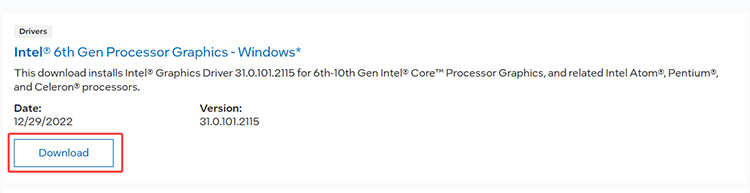
Step 2. Visit your graphics card manufacturer’s official website, search for the latest driver compatible with your device, and download it.
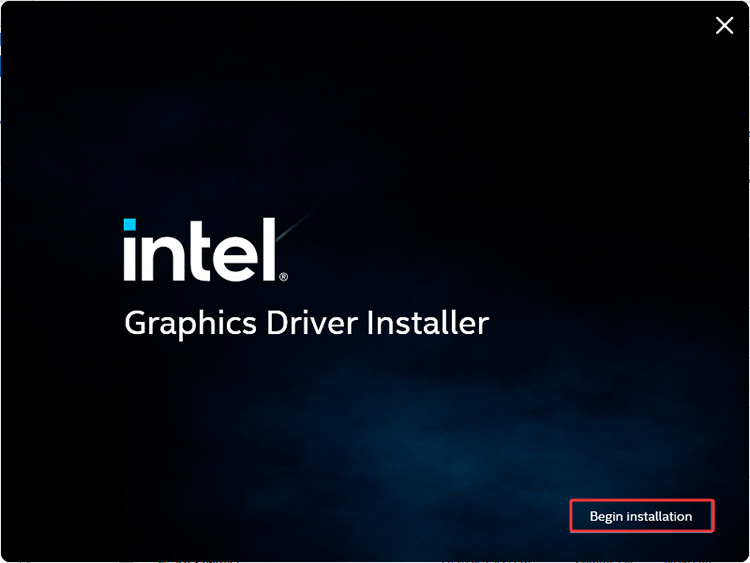
Step 3. Run the installer and follow the on-screen instructions to install the new graphics driver. After installation, restart your PC and check if the issue has been resolved.
Option B: Roll Back a Recent Graphics Driver Update
To fix low resolution caused by recent updates, you can roll it back to see if that helps. Here are the simple steps.
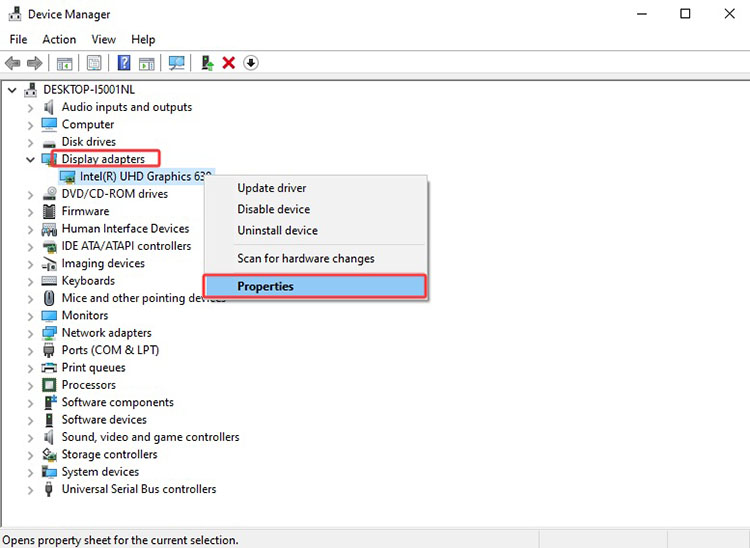
Step 1. Search for Device Manager and open it. Right-click your graphics card and select Properties.
Step 2. Choose the Driver tab on top. In most cases, the Roll Back Driver option is grayed out and not available. You will need to use the Update Driver option instead.
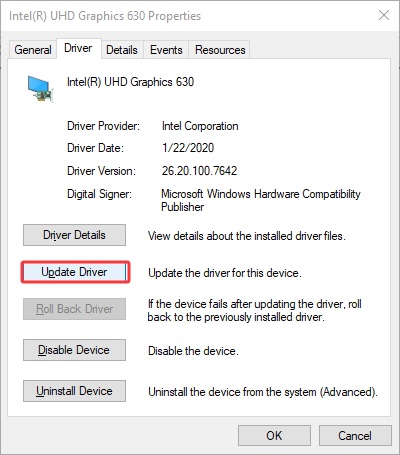
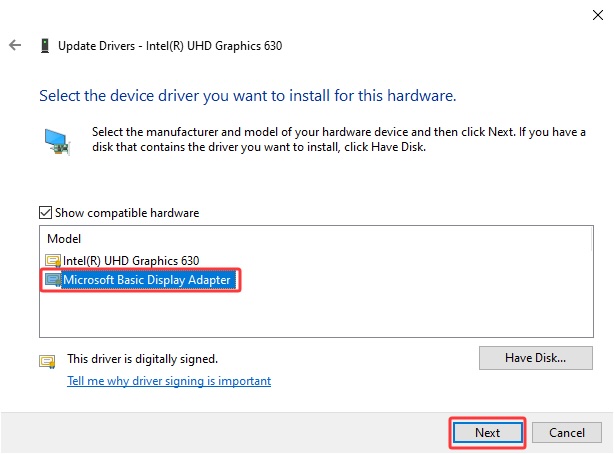
Step 3. Then select Browse my computer for Drivers > Let me pick from a list of available drivers on my computer to find the previous driver available on your PC.
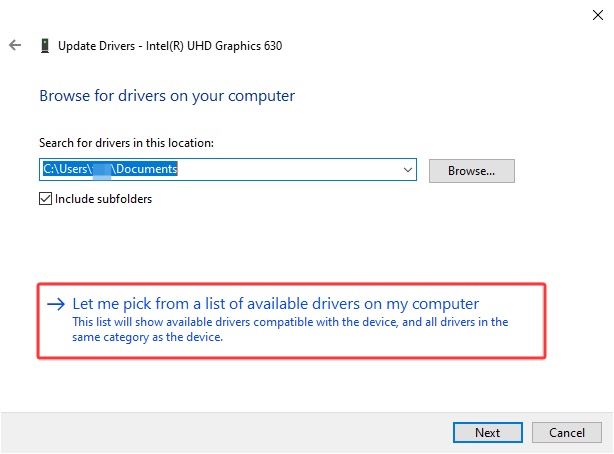
Step 4. Select the driver and wait for Windows to roll back your graphics card to the previous version.
Method 5. Check the Display Cable, Port, and Adapter
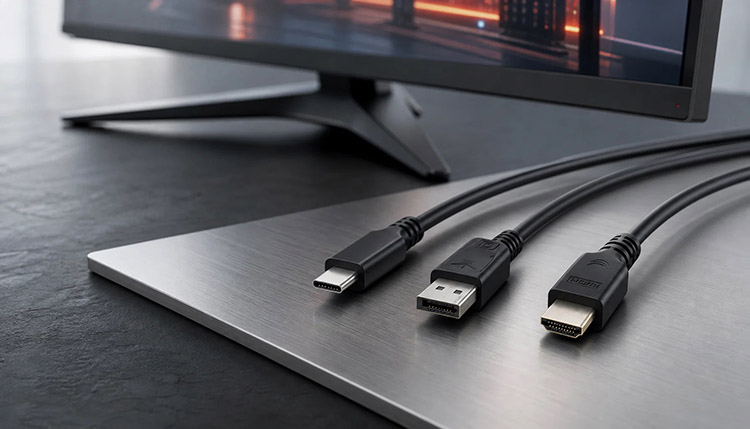
Sometimes, Windows can not detect your monitor’s native resolution due to loose connections, damaged cables, or adapters with limited bandwidth. In this case, you can test another cable/port, remove unnecessary adapters, and connect the monitor to see if it helps.
How to Check the Display Connection:
Step 1. Turn off your PC and monitor, then firmly reconnect both ends of the HDMI, DisplayPort, or USB-C cable.
Step 2. Use another cable or connect the monitor to a different port on your PC or monitor.
Step 3. Remove any adapters, converters, or docking stations, and connect the monitor directly if possible. Turn everything back on and check the Display settings again.
Method 6. How to Fix Low Resolution on Second Monitor
Each monitor has its own resolution, scaling, and refresh rate settings. If you select the wrong display or incorrect per-monitor settings, it might cause low resolution. Meanwhile, duplicate mode can prevent Windows from applying the proper resolution. Let’s see how to fix screen resolution on monitor step by step.
How to Fix Low Resolution on Second Monitor:
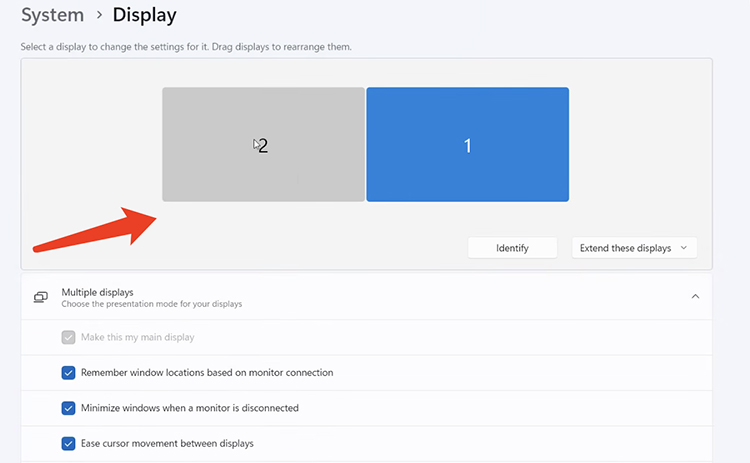
Step 1. Right-click an empty area on your desktop and select Display settings. At the top, click the icon that represents your second monitor.
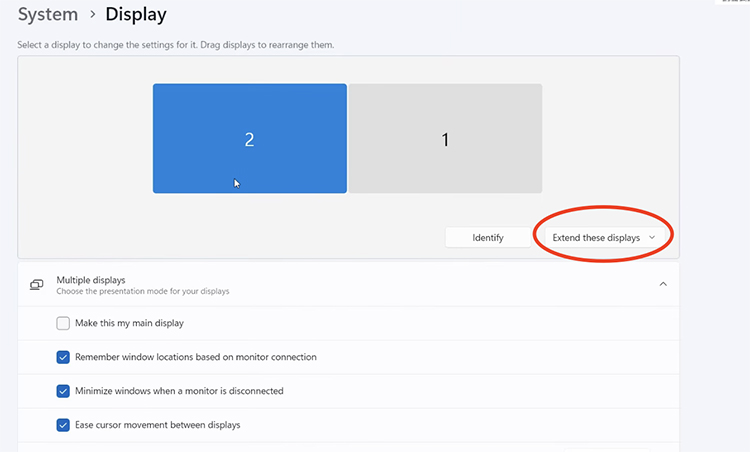
Step 2. Change the multiple-display mode from Duplicate these displays to Extend these displays if you want each monitor to keep its own independent resolution and scaling.
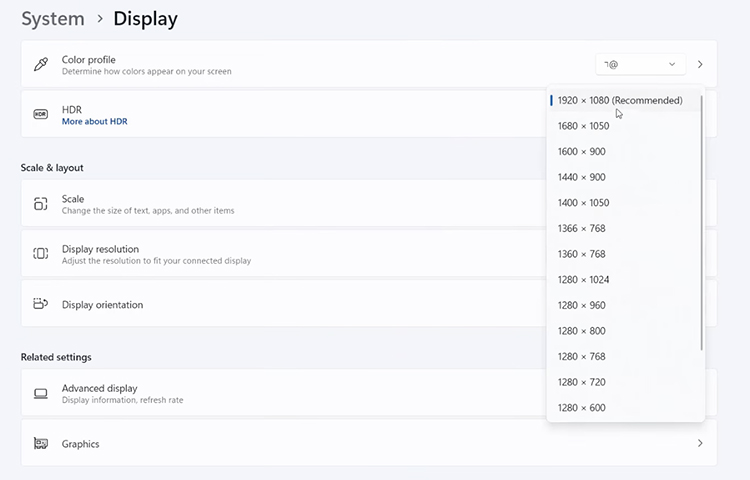
Step 3. Scroll down to the Scale & layout section. Open the Display resolution drop-down menu and choose the option Recommended.
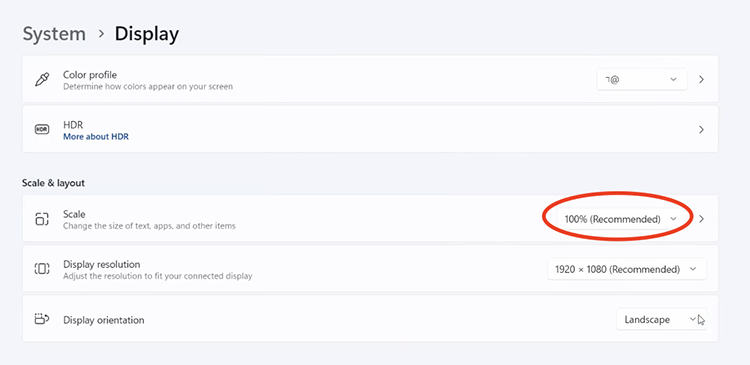
Step 4. Still under Scale & layout, set the Scale percentage to the recommended value, or try a different percentage if the text still looks soft.
Method 7. Fix Low Resolution in a Specific Game or Application
When your Windows desktop looks sharp, but a specific game, application, or remote desktop session appears blurry, the issue is usually related to individual display/scaling settings. Fortunately, there are several targeted fixes you can try.
● Change the Resolution in a Game
Most modern games offer video/display settings. Open the game’s video or graphics options, select your monitor’s native resolution, and test different display modes, for instance, Fullscreen, Borderless Windowed, etc. to find the best result.
Tips: If you notice low resolution along with lag during gameplay, outdated graphics/game drivers may be the cause. Driver Booster can help update drivers automatically and improve performance in terms of speed and visuals. Just check out how to fix Roblox lag to learn more!
● Fix Blurry Desktop Applications
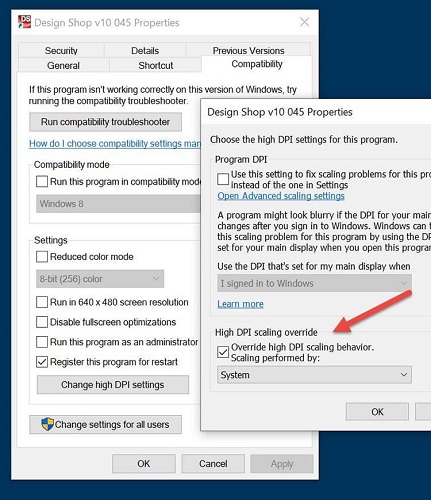
Some older applications may not scale correctly on high-DPI displays. Right-click the application shortcut or executable file, select Properties > Compatibility, and click Change high DPI settings. Tick the box for Override high DPI scaling behavior. Then Windows can maintain a high system resolution and improve the appearance of that specific program.
● Change the Remote Desktop Resolution
Remote Desktop sessions may use a fixed resolution before connection. You can disconnect the current session, open the Remote Desktop client’s display settings, select a higher resolution, and reconnect.
How to Prevent Low-Resolution Problems
Last but not least, there are a few simple practices that can help prevent display resolution issues from happening again. Just check them out.
Keep Graphics Drivers Updated: Regularly update drivers to ensure compatibility with new displays and system updates.
Use Compatible Display Cables: Choose high-quality HDMI or DisplayPort cables that support your monitor’s native resolution and refresh rate.
Avoid Unsupported Custom Resolutions: Stick to recommended display settings, which prevent scaling issues and blurry visuals.
Create Driver Backups Before Updates: Back up current drivers so you can quickly restore a stable version if issues occur.
Check Display Settings After Windows Updates: Resolution and scaling settings might reset automatically after system updates. Verify them after updates.
Final Words
How to fix low resolution? In most cases, you may start by selecting the recommended display settings in Windows. If the issue persists, you can repair/update your graphics drivers, check display cables and ports, and properly configure external monitors or individual applications. If you want to keep your drivers up to date, Driver Booster is the simplest and fastest solution. It can automatically scan and update outdated drivers to maintain optimal display performance. Download Driver Booster and enjoy a better PC experience now!