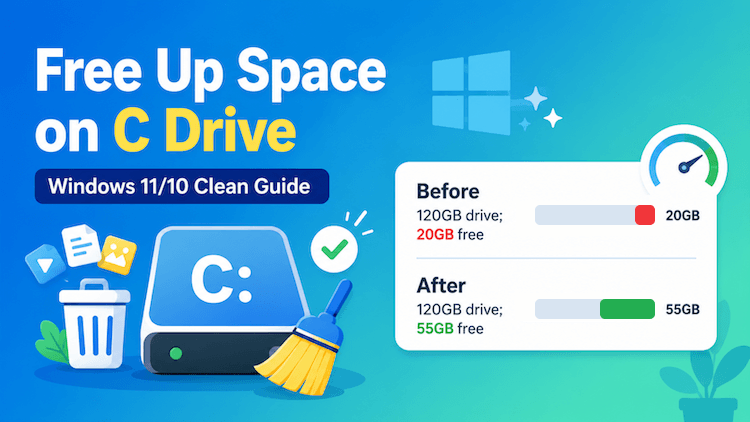
If researching things that upset users most in a survey, then low disk space must be on the ranking list. When needing to install a Windows update or a new app, the drive-full red warning, especially on the C drive, can almost bite your eyes. Well, letting Windows clean up disk is the priority now.
This blog is what you are looking for if you are also annoyed by the full disks. Without further ado, read and check the 7 practical methods and the powerful Windows clean tools you should never miss.
Why a Windows Clean Up Disk Tool Is Necessary
The nerve-stirring red low disk space warning, slower and slower PC speed, and frequent freezing will naturally “force” users to clean up disks, but what are the benefits of doing so? Check the reasons why you need a Windows clean disk tool.
Release storage: Letting Windows clean up disk space wipes off useless junk files accumulated over time, freeing up space for new software/Windows updates.
Improve system performance: Windows disk cleaner makes more room for virtual memory/important caches/temp files and reduces fragmentation, improving disk read/write speed.
Remove clutter: It also helps get rid of unorganized files, unused apps, and forgotten content piled up on your PC, speeding up your PC workflow.
Before Using Windows Disk Cleaners: Check Disk Space on Windows
What is eating up your hard drive space? Check it before using Windows disk cleaners.
Step 1. Press Win+I or navigate to the Windows Settings via the Windows Start menu.
Step 2. Go to Storage > scroll down and find your C: drive.
Step 3. Check how your storage is used and what content consumes your space most.
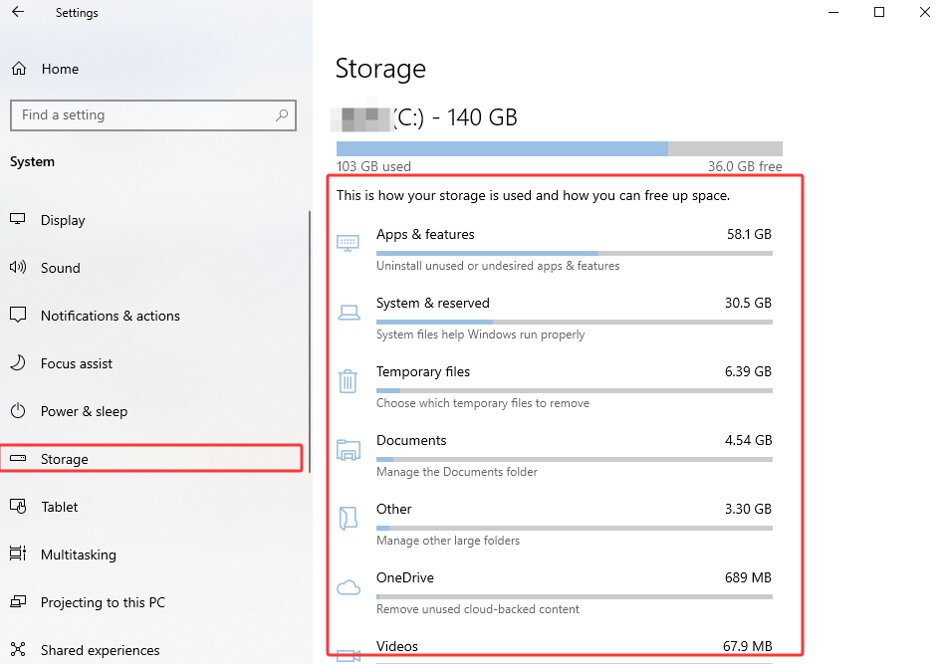
Generally, they can be temp files, caches, accumulated system updates, giant apps, games, and personal files, etc.
How Does Windows Clean Up Disks [Built-in Solutions]
With the culprits clear now, you can target those storage-hungry items and delete them 1 by 1. But if you want a quick Windows clean up disk solution, then you should never miss Advanced SystemCare, which scans your disks thoroughly and removes them, including Recycle Bin, temp files, caches, file fragments, log files, privacy traces, etc., in 1 click, no effort.
Advanced SystemCare Free
- Clean: 420 billion traces removed & 85 EB junk files cleaned
- Protect: 80 million unauthorized access blocked & 20 million bugs fixed
- Speed Up: 6 million hours of startup time saved & Turbo boost
- Optimize: Auto clean and auto care your PC with AI mode

Now check the following Windows clean disk methods to remove unwanted files on Windows PCs.
1. Use Windows Disk Cleanup – Basic Windows Clean Tool
When your system becomes full, you will probably head over to the Recycle Bin, which is wise and helpful, but if it has little effect, then you might as well try the Windows built-in hard drive clean tool, Windows Disk Cleanup.
It erases everyday clutter, temp internet files, thumbnails, and more, but may miss large app caches, duplicate files, personal files, etc.
Step 1. Type “Disk Cleanup” in the Windows search box > click Open to access it.
Step 2. Choose the drive you want to clean > OK.
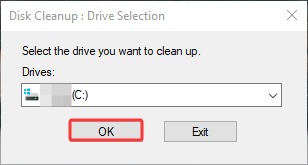
Step 3. Check the clean options you want and click OK to proceed, then follow the instructions to clean them.
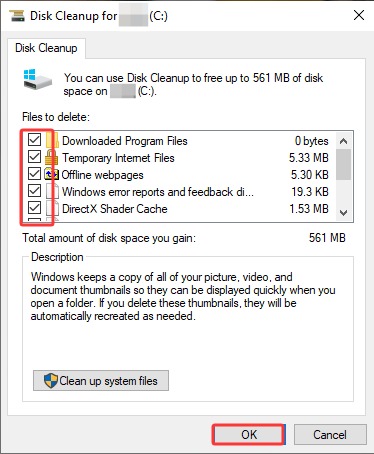
Be careful to identify and choose the items before deleting. You may check the descriptions below for further understanding.
2. Try Storage Sense – Windows Clean Tool for C Drive
If you prefer automatic junk removal over Disk Cleanup, then Storage Sense will be of great help. This feature clears unnecessary files on your system drive, i.e., the C: drive, including temporary files, Recycle Bin, Downloads folder items, cloud content, etc.
This automatic storage management and Windows optimization tool is quite useful when you only need to clean up C drive unwanted items; while for users who want an all-round system clean.
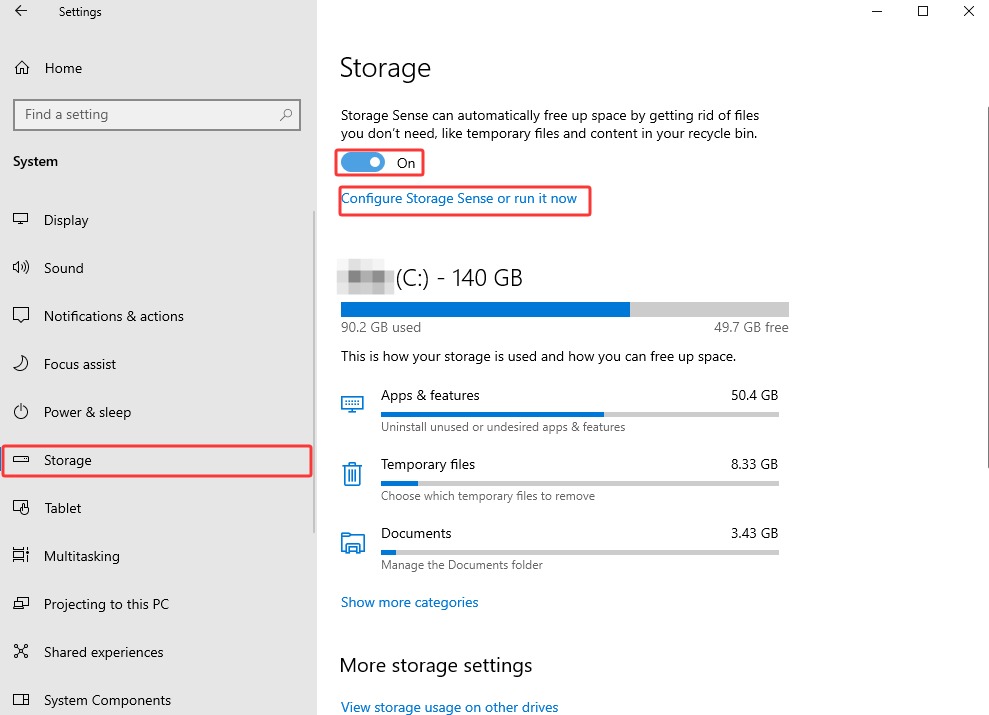
Step 1. Access Storage Sense in the same place where you check what takes up your disk space: Start Menu > Settings > System > Storage. Turn it on, or configure Storage Sense first.
Step 2. In configuration options, you can customize the frequency, items to delete, and cloud content management.
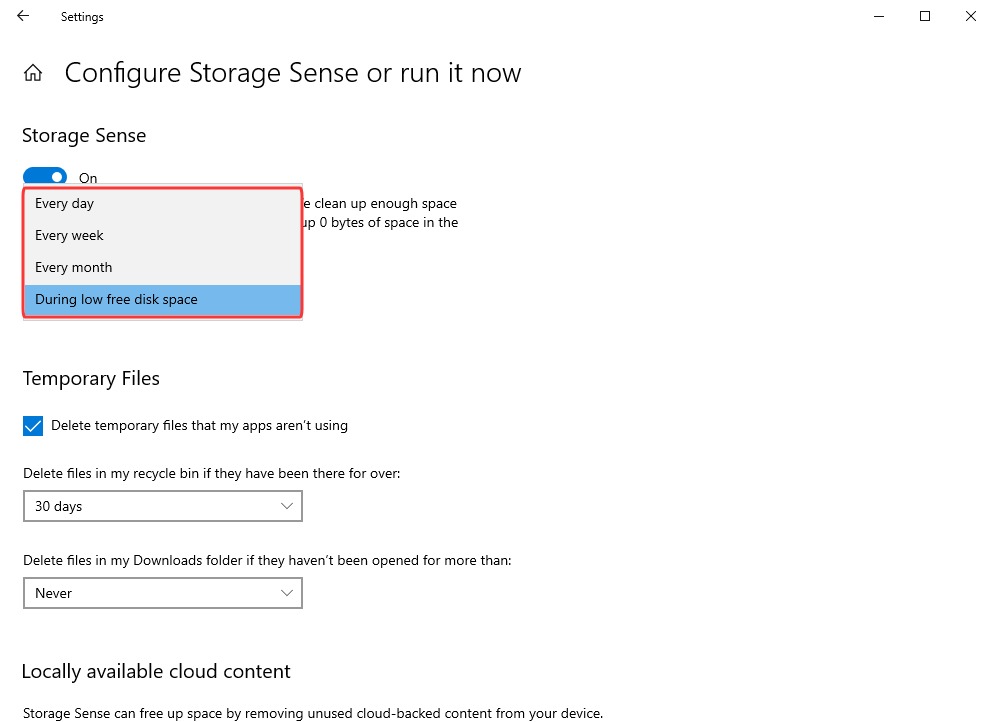
This is how this Windows clean up disk tool helps you manage your storage space.
3. Uninstall Space-Consuming Apps
As you may notice in your storage space usage proportions, large applications are one of the biggest culprits that eat up your disk space. Therefore, considering uninstalling those infrequently used large apps is a wise step.
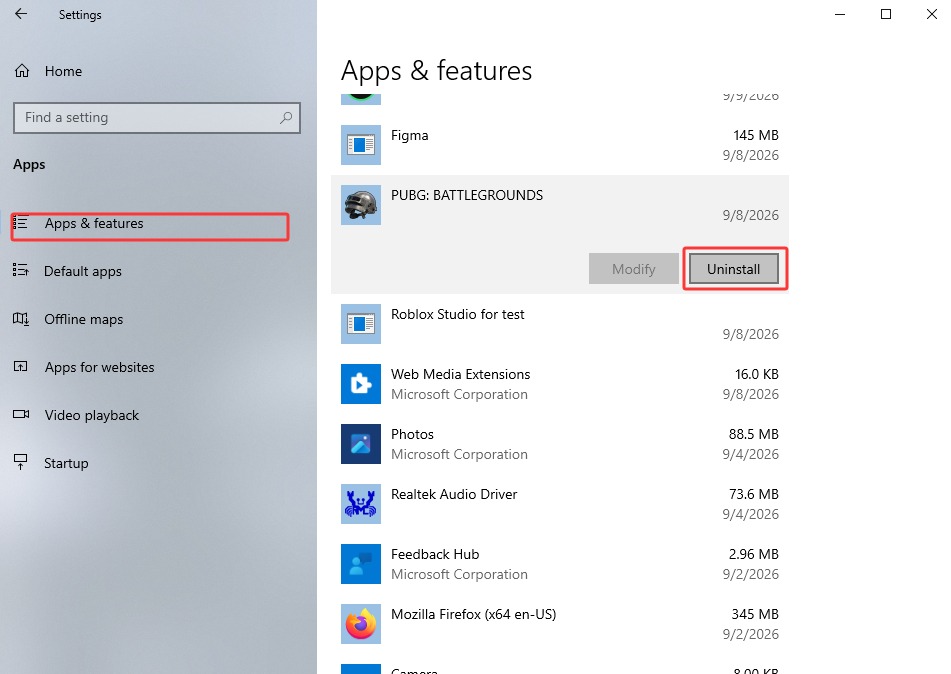
Step 1. Go to Windows Settings > Apps.
Step 2. Under Apps & features, check the installed apps. You may sort them by size and uninstall apps that consume a lot of space.
Step 3. Click Uninstall to remove the unwanted programs 1 by 1.
4. Remove Large Files
Apart from giant apps, there are also large files that devour your hard drive space. So, simply filter the large items using the parameter in File Explorer and delete unused/duplicate items, and free up the disk space.
*Please be cautious when choosing the files; make sure you know what the files are before removing.
Step 1. Press Win+E to open File Explorer.
Step 2. Input “size:>1GB” or “Size:large” to filter the files. If you want to target videos only, add “kind:video” at the front.
Check the filter rules:
Gigantic: >4 GB
Huge: 1-4 GB
Large: 128 MB – 1 GB
Medium: 1 – 128 MB
Small: 16 KB – 1 MB
Tiny: 0 – 16 KB
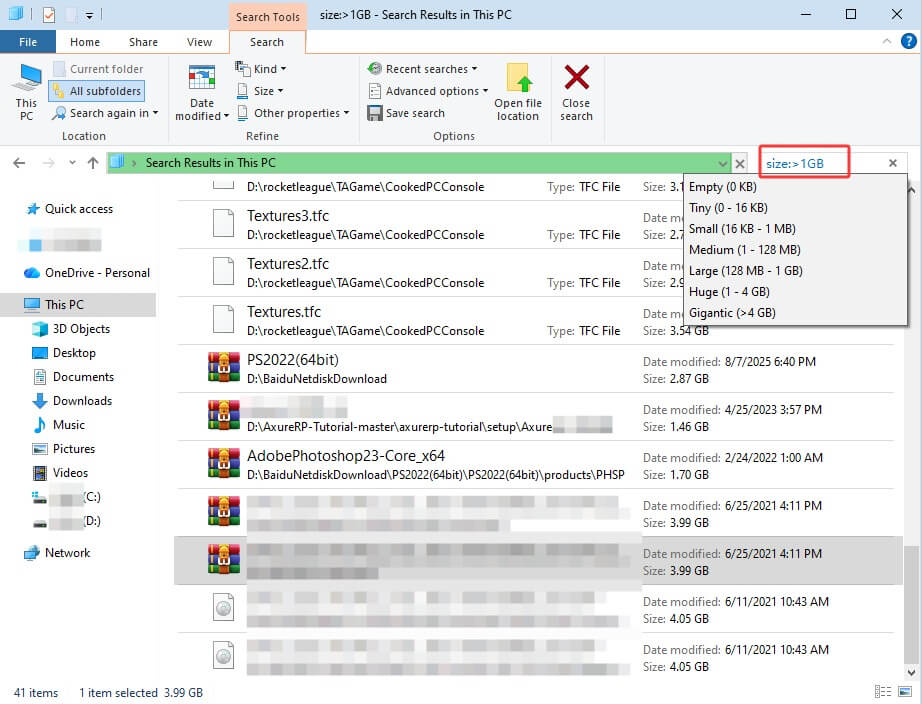
Step 3. Then, select the files you don’t need, and press Delete on your keyboard to remove them. Remember to empty the Recycle Bin.
1-Click Windows Disk Cleaning with All-in-One Windows Clean Tool [Auto Solution]
The above Windows clean up disk tools can help free up storage space, but managing disk clean up tasks across multiple settings and features can be time-consuming. This is where the all-in-one Windows disk clean tool, IObit Advanced SystemCare, comes in and stands out. This powerful PC cleaning tool brings all these features together, making it easier to manage storage space as well as optimize system performance.
Advanced SystemCare Free
- Clean: 420 billion traces removed & 85 EB junk files cleaned
- Protect: 80 million unauthorized access blocked & 20 million bugs fixed
- Speed Up: 6 million hours of startup time saved & Turbo boost
- Optimize: Auto clean and auto care your PC with AI mode
Key features:
• All-Inclusive Windows Cleaning Tool with AI: cleans up disks with AI scan and analysis, thoroughly and smartly wiping off Windows/apps’ temp files, error reports, CHKDSK file fragments, Recycle Bin, and more.
• Auto Windows Disk Clean with Security Care: AutoClean & AutoCare features automatically clean junk files, sweep privacy traces, registries, and scan for spyware, removing unwanted files and threats.
• PC Overall Optimization with Dedicated Boost Mode: boosts PC speed by running app management and RAM optimization for work/game/battery, improving user experience.
• Address Issues with Further Troubleshooting Tools: fixes specific problems with exclusive tools, like Disk Doctor, Internet Boost, Empty Folder Scanner, Duplicate File Finder, Large File Finder, etc.
Try using this 1-stop PC cleaner and optimizer that gathers features together to streamline your Windows disk cleaning workflow.
Step 1. Click the button below to download this app on your device. It supports Windows 11/10/8.1/8/7/Vista/XP.
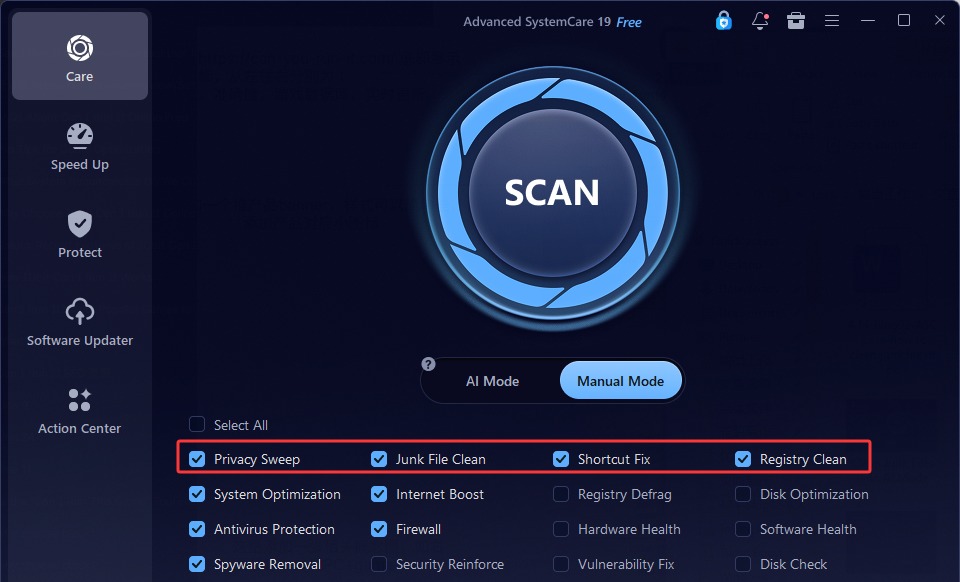
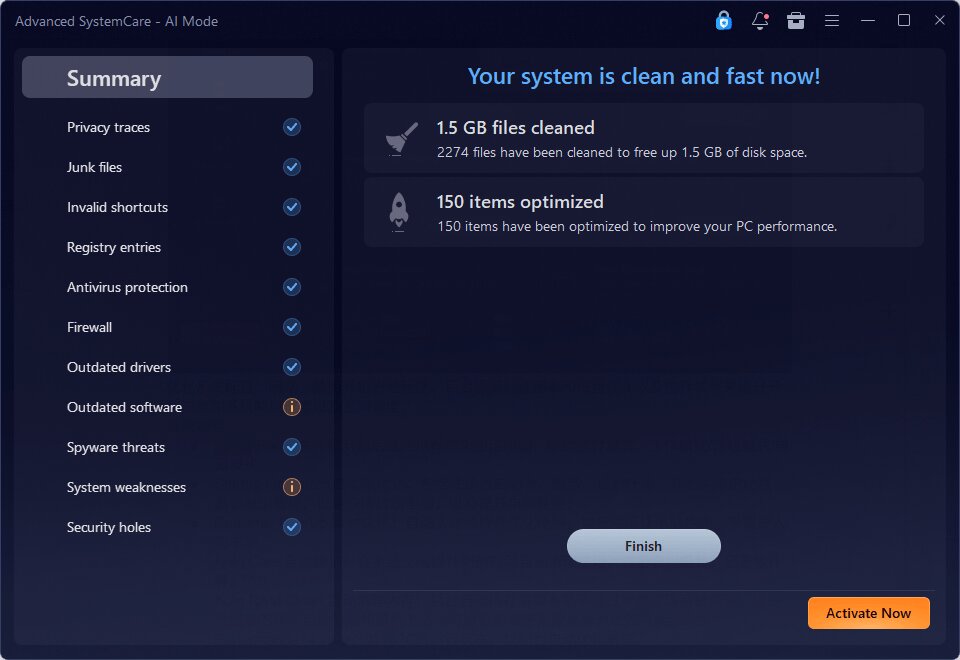
Step 2. Start Advanced SystemCare, use the AI mode directly, or customize your choices in Manual Mode. If so, choose Junk File Clean, and select Privacy Sweep, Shortcut Fix, and Registry Clean as you need. Then, start the scan.
Step 3. When the scan is finished, check the scanned items and click Fix.
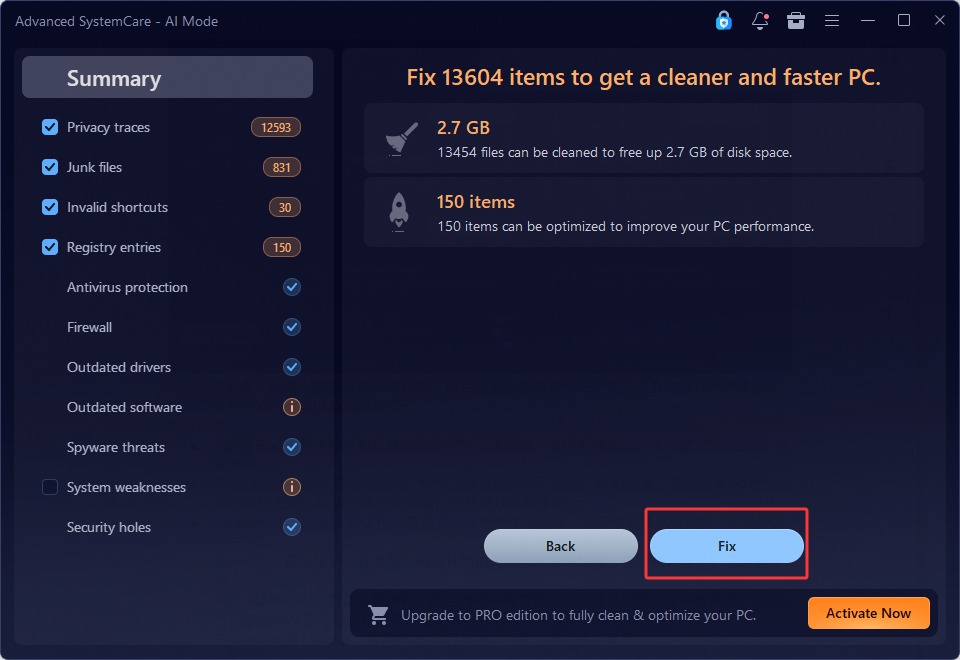
After that, your system will be cleaned and optimized.
More Worth-Trying Tricks to Clean Up Disk Space Windows 10/11
With the aid of the auto Windows disk clean tools, you can easily free up space without much manual work. But if you need further cleanup, there are some more manual methods; check what you can do below.
Remove old Windows updates/installs.
Move personal files to cloud storage.
Compress or archive large files rarely used.
Check for viruses with antivirus, since some viruses can generate hidden/duplicate files, create shadow copies, or corrupt your file system.
Manually delete system restore points. (Generally, Windows will remove them when space runs low.)
• Users who are familiar with command lines can utilize the commands to clean up disk space Windows 10.
Final Thoughts
Are these manual Windows clean up disk solutions helpful? Using the Windows built-in features, you can get rid of unwanted temp files, Recycle Bin content, large items, and also unused apps. But if you want an automatic, easier, and more efficient way, then Advanced SystemCare will be your go-to place, which rounds up system deep scan, cleaning, and optimization features.