Few things are more frustrating than a warning pop-up saying your system drive is completely full. When your storage is packed to capacity, your computer suffers from sluggish performance, sudden application freezes, and frequent system crashes. Finding out how to free up space on C drive is critical to keeping your computer running smoothly. This extensive guide covers everything from instant automated cleanups to comprehensive manual adjustments to help you reclaim your storage space and optimize system speed.
What Is Taking Up Space on Your C Drive
The C drive serves as the primary partition where your Windows operating system resides, meaning it constantly handles core system workflows and user data storage. Over time, various data elements silently accumulate and exhaust your available space.
The most common data culprits filling your local storage include:
Unused apps and games: Large software suites left installed despite never being opened.
Temporary files: Browser caches, log files, downloaded files, and installation remnants.
System restore points: Accumulated shadow copies created during major software updates.
Personal user files: Massive video collections, documents, and high-resolution photo folders.
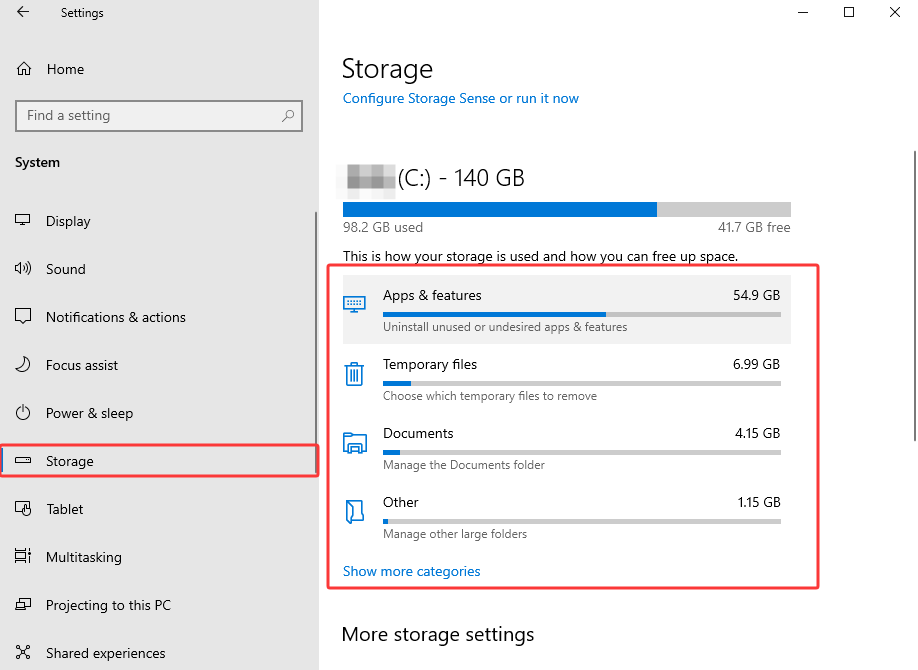
You can easily inspect your drive's allocation metrics via Windows Settings:
1. Open the Windows Settings panel by pressing Win + I.
2. Navigate directly to System and select the Storage option menu.
3. Review the breakdown list to see exactly what categories are hogging your storage space.
Why Freeing Up C Drive Is a Must
Allowing your primary drive to remain clogged poses severe operational risks to your hardware ecosystem. Maintaining an optimal storage buffer is essential due to the following system liabilities:
Slow performance: A nearly full C drive may leave Windows with insufficient space for the paging file, which can contribute to slower performance.
Windows Update issues: The operating system cannot download or apply critical security updates without sufficient temporary deployment room.
Application errors: Heavy design tools and web browsers fail to create background scratch files, leading to unexpected application crashes.
How to Free Up Space on C Drive Efficiently in 1 Go
If you want a thorough solution to free up C drive space without spending hours digging through deep Windows configurations, Advanced SystemCare offers an unparalleled one-click optimization package. This top-tier software completely scans hidden corners of your drive to execute a comprehensive data cleanup that manual tools usually miss.
Advanced SystemCare Free
- Clean: 420 billion traces removed & 85 EB junk files cleaned
- Protect: 80 million unauthorized access blocked & 20 million bugs fixed
- Speed Up: 6 million hours of startup time saved & Turbo boost
- Optimize: Auto clean and auto care your PC with AI mode

Powerful Optimization Features Included:
• Free Up C Drive Space Thoroughly & Efficiently: Features AI Mode and Manual Mode to scour your drive, completely erasing junk file blocks, privacy traces, and broken registry structures.
• Automatically & Regularly Free Up Space on C Drive: The built-in AutoCare feature runs scheduled scans in the background, keeping your primary drive clean and preventing future storage bottlenecks.
• All-Round PC Optimization Apart from C Drive Clean: Packs a robust Startup Optimizer, Turbo Boost, and a dedicated RAM booster for Windows 11 to fix performance stutters caused by a full disk.
With this tool, you can easily clean up your C drive and other disks to free up more space and boost the overall performance, no expertise required.
How to Free Up C Drive Space?
How to free up disk space on C Drive completely? Follow these three steps:
Step 1: Download and install the latest edition of the software suite onto your PC.
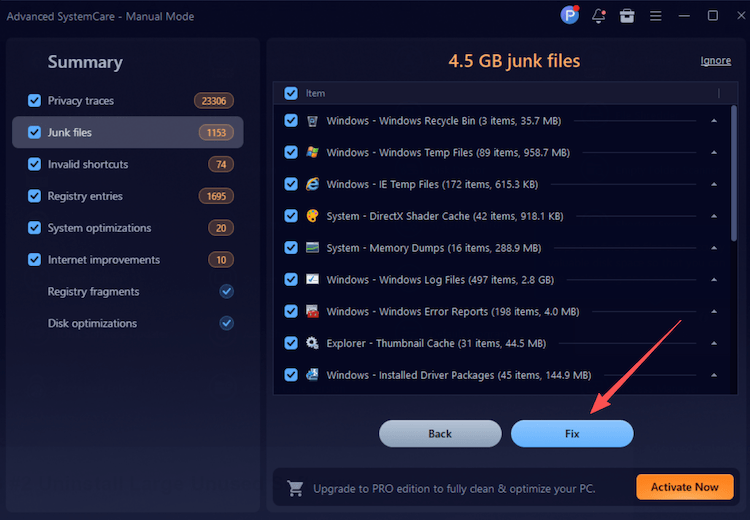
Step 2: Launch the application and click into the Care tab shown on the sidebar. Choose Manual Mode, check the specific item for Junk File Clean along with any other maintenance areas you require, and then hit the large SCAN button.
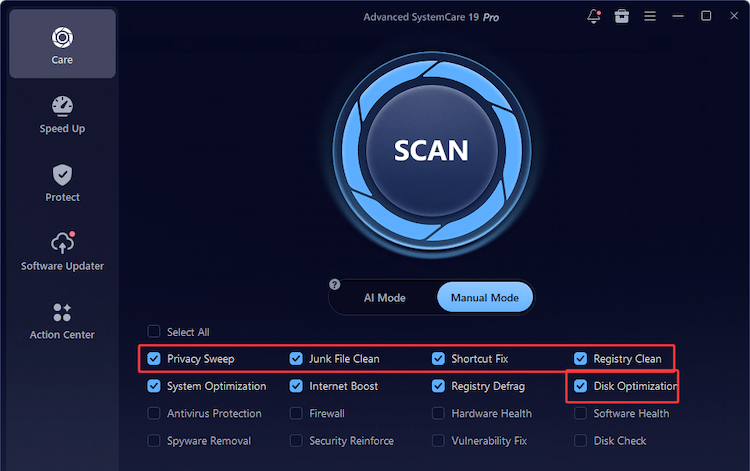
Step 3: Once the scan is complete, review the results and click Fix to remove the selected junk files and reclaim storage space on the C drive.
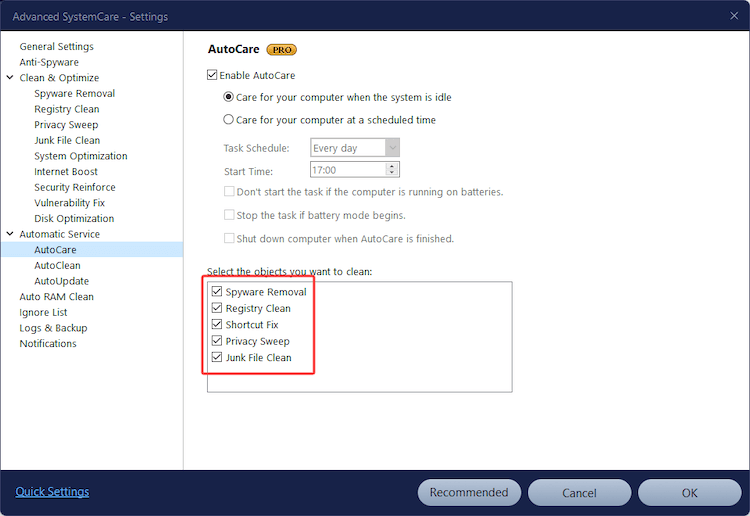
To keep the C drive clean automatically, upgrade to Advanced SystemCare Pro and go to Options > Settings > AutoCare. Enable automatic cleaning and configure your preferred schedule so selected junk files can be removed regularly. Download Advanced SystemCare to run your first scan, then enable AutoCare for ongoing maintenance.
How to Free Up C Drive Space Manually
For users who prefer handling their data directly, Windows offers several built-in utilities to clean your storage. Follow the step-by-step methods below to tidy up your directories manually.
#1 Delete Personal Files
Large personal files stored across your default user libraries often take up massive amounts of storage space.
1. Launch your system File Explorer and review your primary user directories (Videos, Downloads, Music, Documents).
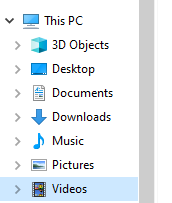
2. Sort your local files by size to identify the largest files, then delete unnecessary items or move them to the Recycle Bin.
3. Right-click the Recycle Bin icon on the desktop and select Empty Recycle Bin.
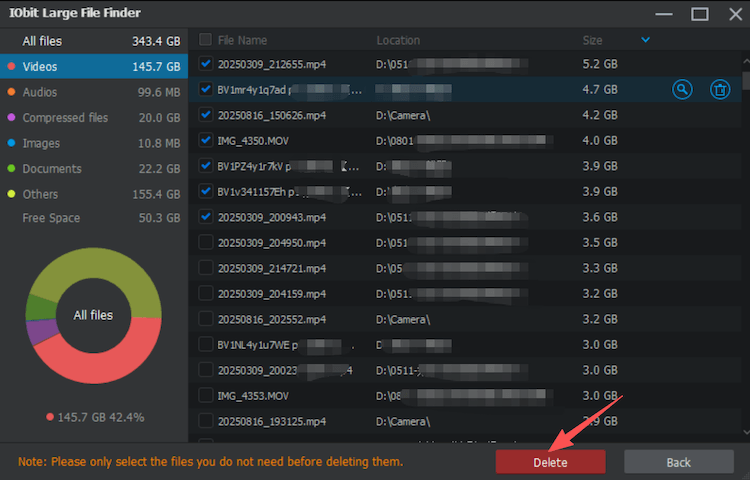
For hidden heavy files, navigate to the Speed Up menu in Advanced SystemCare, click More Optimization Tools, and select Large File Finder to sweep away heavy data blocks with a single click.
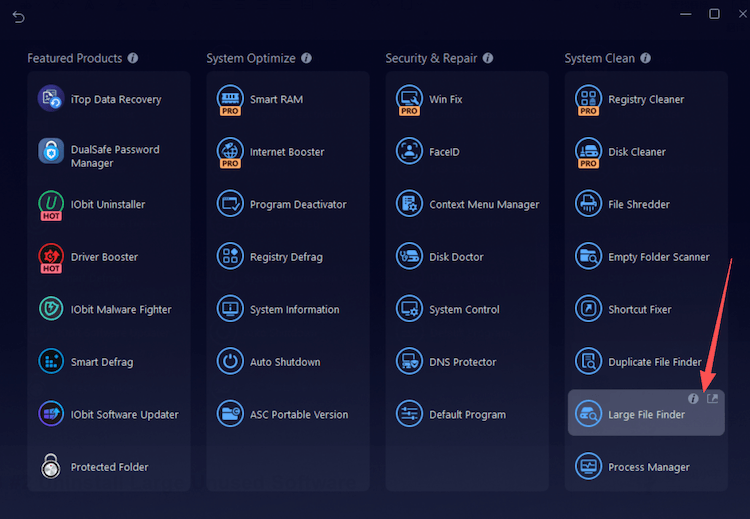
This can help you identify all large files on the C drive and other disks, and delete them in 1 click. *Please make sure you know what the files are before deleting.
#2 Uninstall Large Unused Software
Unneeded programs can take up gigabytes of valuable storage on your main drive.
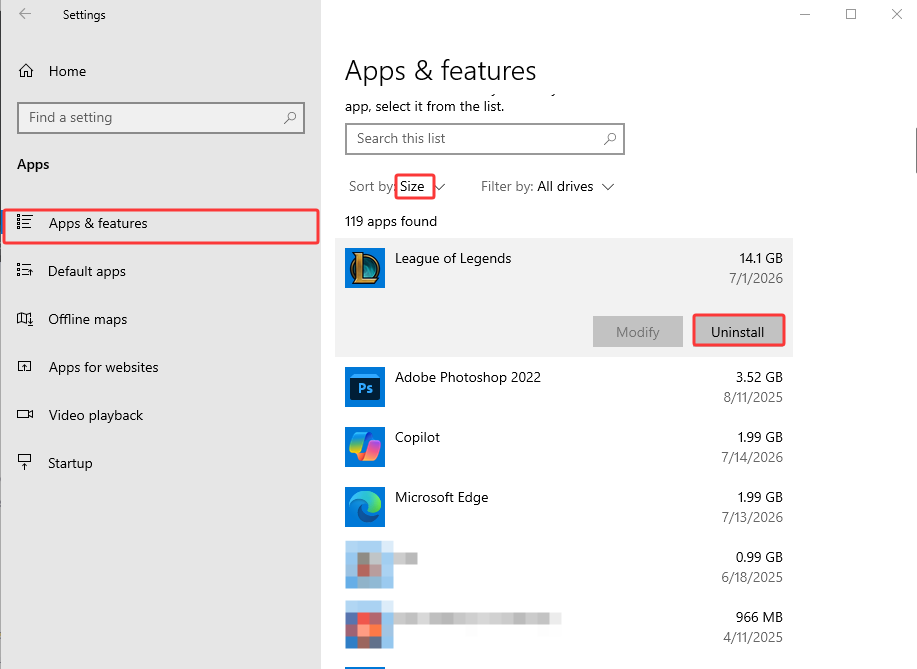
1. Navigate to Windows Settings > Apps > Apps & features.
2. Filter the application list by size to find out what software is consuming your storage space.
3. Select any unnecessary software entry and click Uninstall.
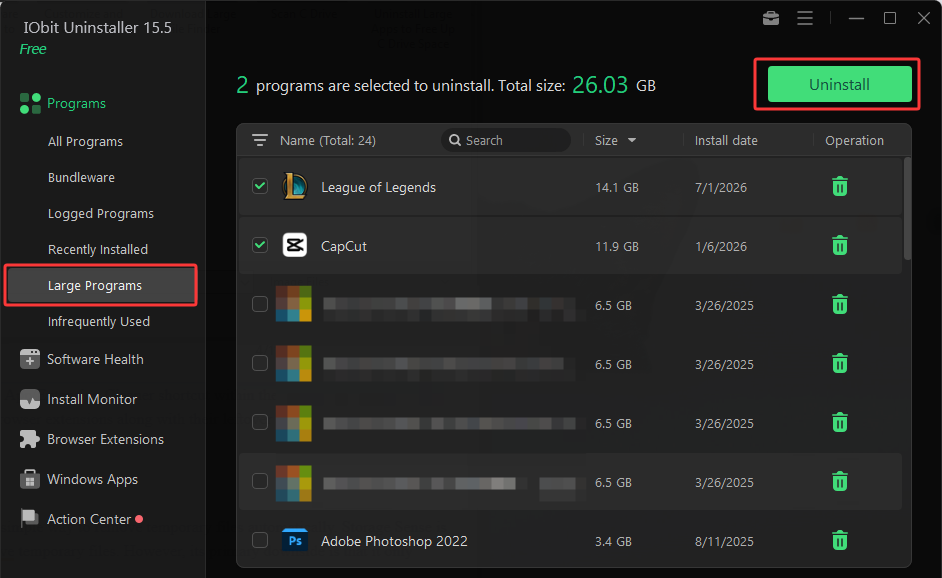
To handle stubborn software, leftover files, and registry entries, turn to IObit Uninstaller, which allows you to remove multiple programs and browser extensions along with their leftover files.
IObit Uninstaller Free
- Complete forced uninstallation for stubborn programs.
- Uninstall a batch of programs at once.
- Scan and remove leftover files, folders, and registry entries.
- Support the management of Universal Windows Platform apps.

#3 Free Up Space C Drive with Storage Sense
For users searching for “free up space C drive,” Storage Sense provides a simple way to remove temporary files automatically. Storage Sense is a built-in maintenance utility designed to automatically monitor and remove temporary files. However, its primary downside is that it only clears basic system items and ignores deeper desktop application clutter.
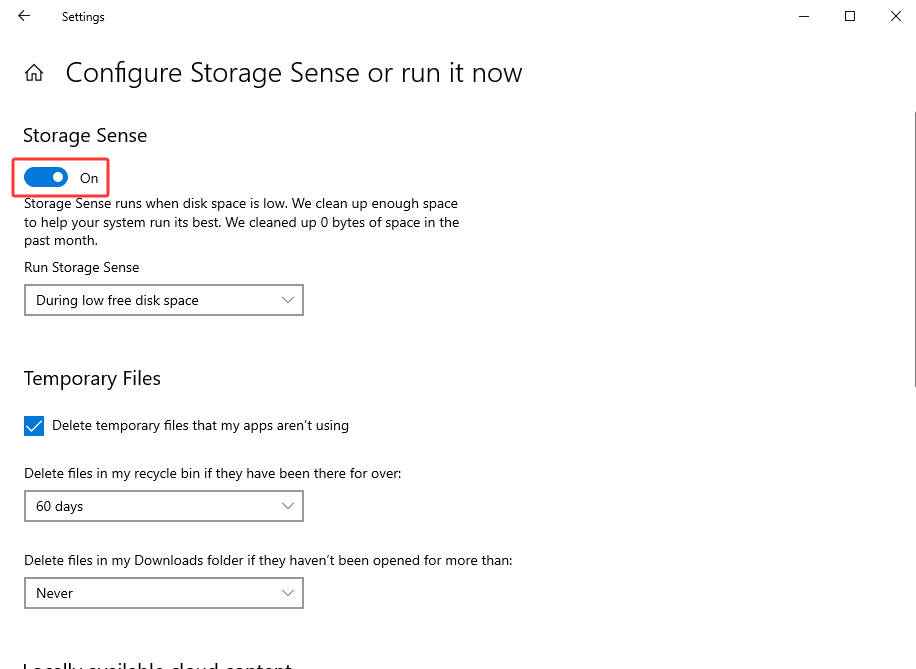
1. Open Settings and choose System > Storage.
2. Locate the Storage Management section and toggle the switch to turn on Storage Sense.
3. Click into the menu configuration properties to set up your preferred cleaning intervals.
#4 Run Disk Cleanup to Free Up C Drive Space
Windows Disk Cleanup is a legacy administrative tool that lets you clear out old installation data. While reliable, it lacks advanced scanning capabilities for modern third-party app caches.
1. Type Disk Cleanup into your Windows taskbar search box and press Enter.
2. Select your drive partition and click OK.
3. Check the target categories you wish to erase, click Clean up system files for a deeper search, and confirm the process.
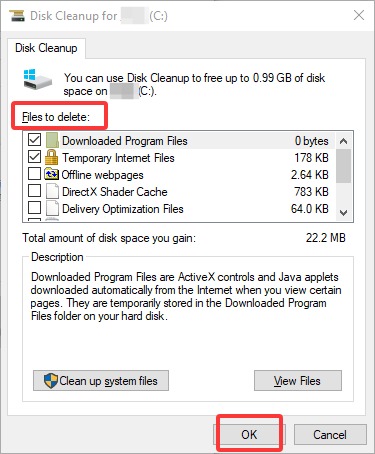
If low storage occurs alongside Windows 11 100 disk usage, Disk Cleanup may help by removing unnecessary files, although it may not address every cause of high disk activity.
#5 Disable Hibernation in Windows
The Windows Hibernation feature reserves a dedicated system file called hiberfil.sys, which can permanently hog gigabytes of storage space equal to your total active RAM capacity. Disabling it reclaims this space immediately, though you will lose the ability to hibernate your machine.
1. Type cmd in your search bar, right-click Command Prompt, and select Run as administrator.
2. Input the exact terminal command: powercfg.exe /hibernate off and press Enter.
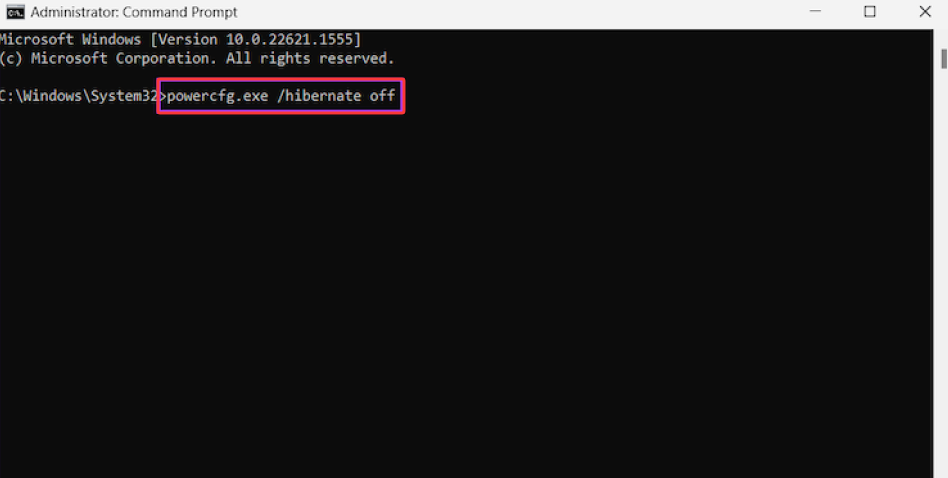
3. After the command runs, Windows removes hiberfil.sys and reclaims the space it was using on the C drive.
#6 Utilize External & Cloud Storage
If you still need the files but do not use them often, move them off the C drive instead of deleting them. Large videos, photos, project files, and archives can be transferred to an external hard drive or USB drive through File Explorer. OneDrive is another option. With Files On-Demand enabled, you can keep less frequently used files online-only and open them from File Explorer when needed. This can help free up space on C drive without losing access to your data. Before deleting the original files, make sure the transfer or cloud sync has finished successfully. Keep in mind that external drives can be lost or damaged, while cloud files may require an internet connection.
Bonus: How to Add More Disk Space to C Drive
If clearing unnecessary files does not provide enough space, you may be able to extend the C: partition by using adjacent unallocated space on the same physical disk. For users wondering how to add more disk space to C drive, Disk Management provides a built-in option, but the unallocated space must be located immediately to the right of the C: partition.
1. Back up important files, right-click the Windows Start button, and select Disk Management.
2. Check whether unallocated space appears directly to the right of the C: partition. Simply shrinking another partition may not work if that partition remains between C: and the unallocated space.
3. Right-click the C: partition, select Extend Volume, and follow the Extend Volume Wizard to complete the process.
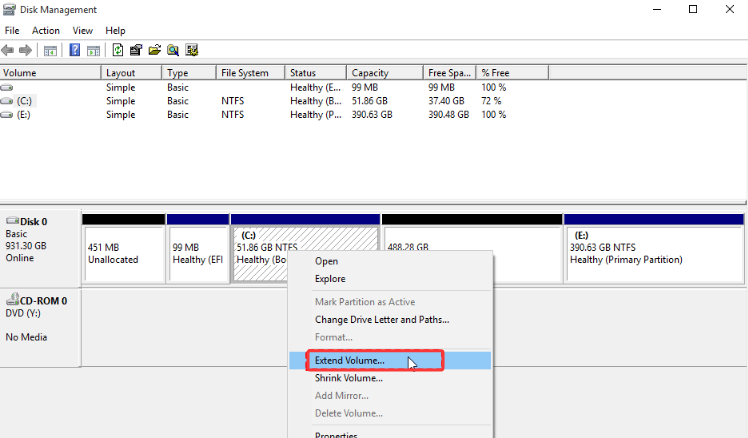
This built-in method shows how to add disk space to C drive safely. If Extend Volume is unavailable, do not delete another partition unless its files have been safely backed up.
Final Thoughts
The methods above address the common “How to free up space on C drive” question through both built-in Windows tools and automated cleanup. Windows tools such as Storage Sense, Disk Cleanup, and File Explorer can help free up disk space, while manual changes offer more control. For faster, centralized cleanup, Advanced SystemCare can scan for junk files and support regular maintenance. Download Advanced SystemCare today to learn how to free up space on C drive and keep your Windows PC responsive.