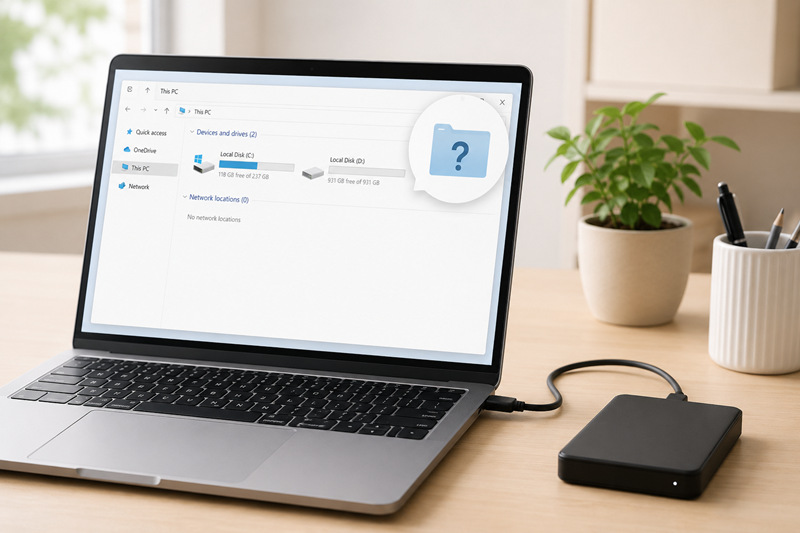
SD cards are among the most versatile storage devices today, widely used in digital cameras, smartphones and game consoles. It is a routine task to connect an SD card to a PC for data backup and management, or space free-up. However, your workflow will be quickly derailed when you find the card unreadable or completely missing from File Explorer.
Well, an outdated or incompatible SD card reader driver is one of the most common causes behind detection failure. In this article, we will walk you through how to update SD card reader driver on Windows and get your SD card accessible again.
What Is SD Card Reader Driver
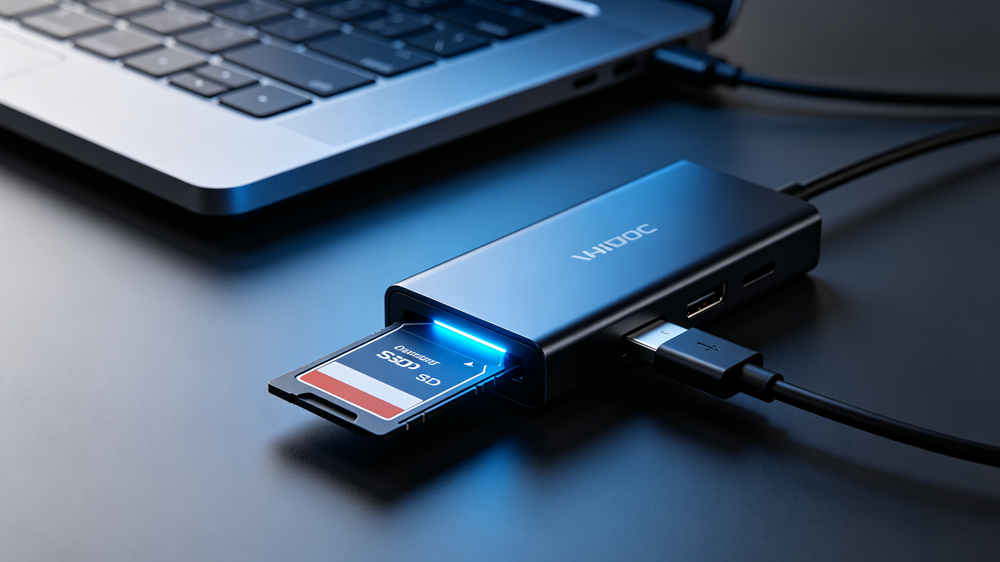
While SD card reader is the hardware device that allows your PC to access data stored on the memory card, SD card reader driver - the specialized software program - lets your operating system communicate with the hardware properly. It acts as a must-have translator for data transfer whether there is a built-in slot reader or an external USB dongle. Without the driver, your PC cannot view, read and write data to an SD card. Outdated or corrupted software can also leads to communication issues.
Why Does SD Card Reader Driver Update Help
The latest stable drivers often include significant improvements, available to prevent hardware errors and unlock full performance capabilities. Perform a SD card reader driver update and you can:
Resolve recognition problems where an SD card is not detected or fail to show up in File Explorer.
Improve stability and address bugs that cause frequent disconnections during file transfer.
Ensure compatibility with newer, high-capacity file formats and avoid system issues following major Windows updates.
Deliver faster read and write speeds with the support of faster interface standards.
It is the right time to update your SD card reader driver when you encounter detection, connection issues or need to achieve better performance.
How to Update SD Card Reader Drivers
There are multiple ways to update your SD card reader driver. While professional driver updater offers a simplified solution for non-technical users, Windows integrates built-in tool for manual updates with no extra installation.
Way 1. Update SD Card Reader Driver with Driver Booster [Perfect for Beginners]
Driver Booster is a reliable tool to keep your drivers always up to date. It has an easy-to-navigate and modern design that helps users quickly update the drives, no guesswork and no learning curve.
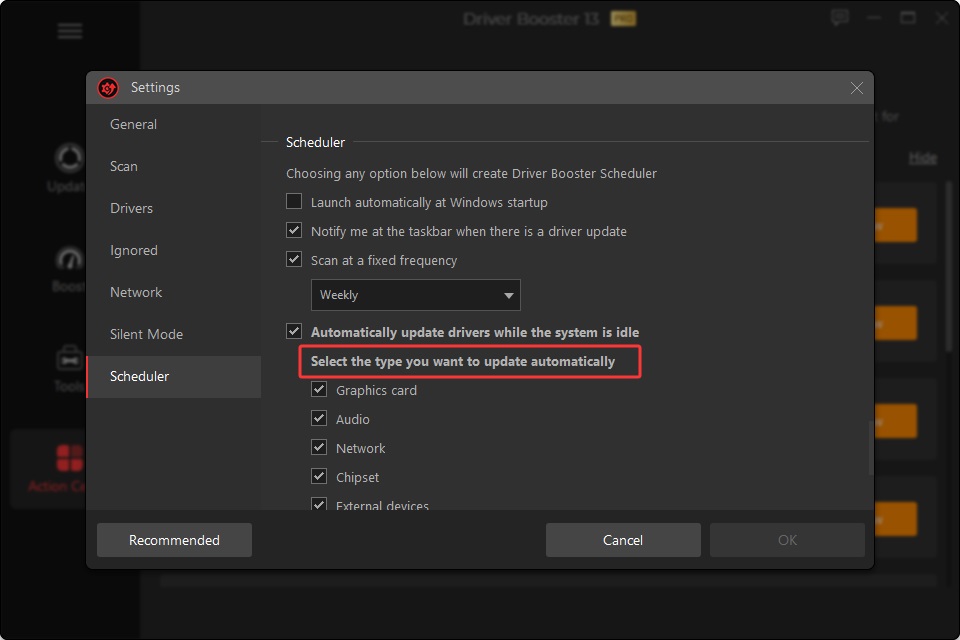
Driver Booster boasts automated updates. Through a quick but deep scan, it can find all outdated drivers in the system and empowers you to update certain or all drivers in a single click. Its huge database includes millions of drivers for almost all hardware devices, from SD card reader, USB to graphic cards, network adapter, etc. It delivers proper and stable drivers which totally match with your hardware model to ensure an accurate update. Each driver is security-verified and manufacturer-certified, making the free driver updater super reliable.
Driver Booster is available for Windows 11/10 and supports ARM64 devices. If you need to update SD card reader card on Windows 11/10, follow the steps.
1. Download and install Driver Booster on your PC.
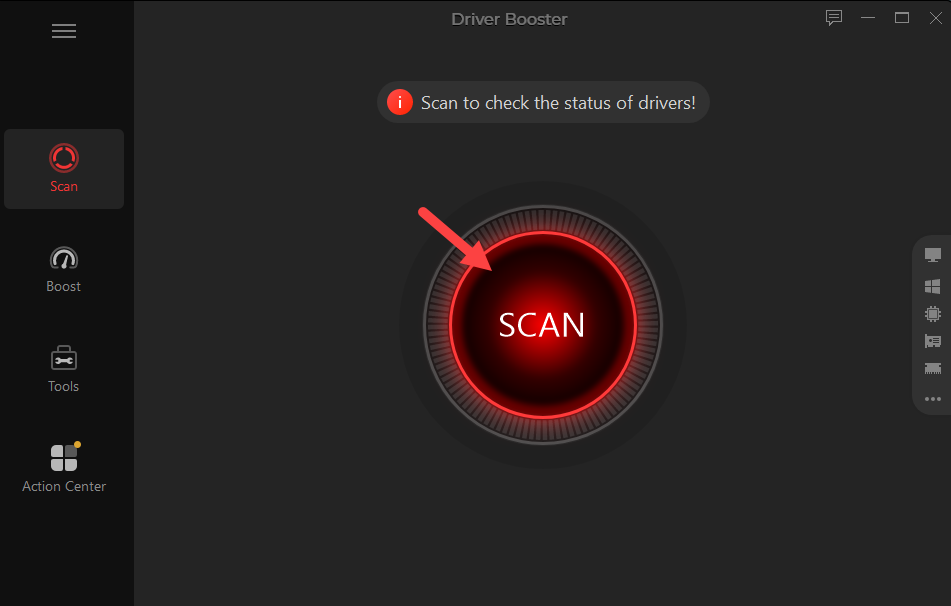
2. Launch it and click SCAN to let it scan and detect outdated drivers.
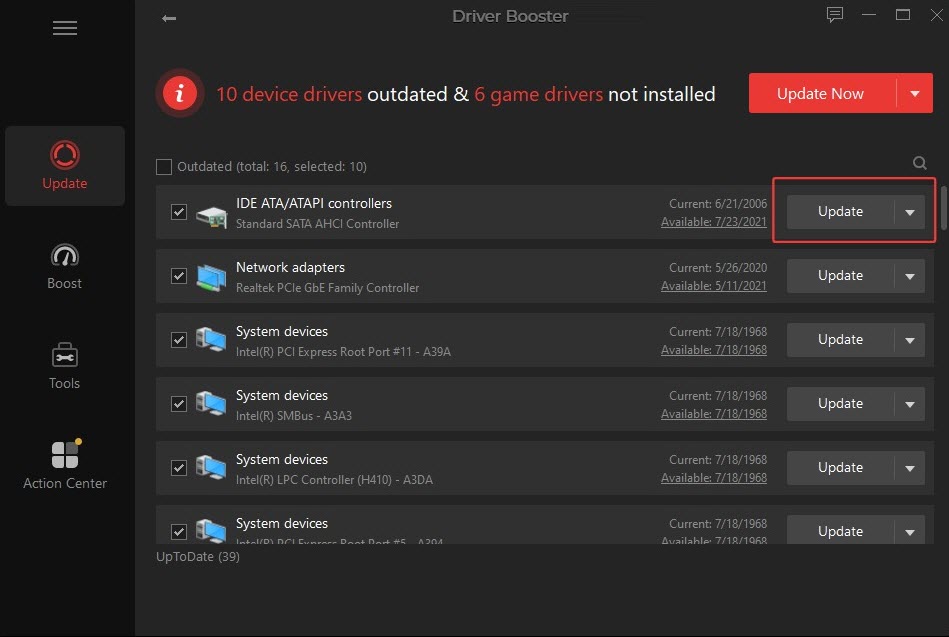
3. Find your SD card reader driver in the list and click Update.
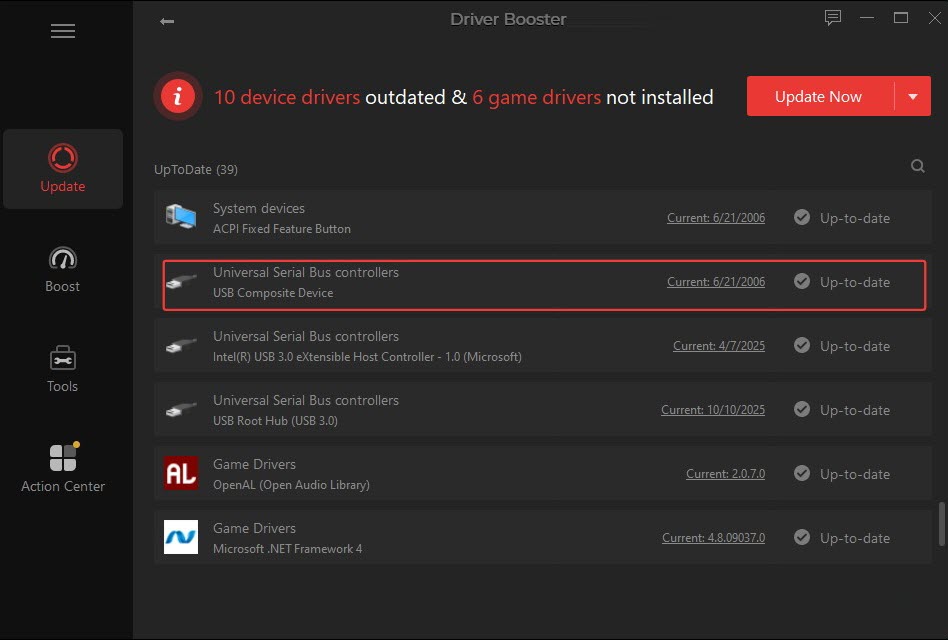
4. After it completes the update, you can find the driver in UpToDate panel.
Way 2. Update SD Card Reader Drivers with Device Manager
Device Manager is the most convenient tool to manage all hardware connected to your PC. When you plug in a SD card reader, it will detect and list the hardware. Then, you can update drivers and fix hardware issues easily.
1. Right-click Start and select Device Manager.
2. Look for your card reader under Memory technology devices, Disk drives or Universal Serial Bus controllers.
3. Right-click the device and choose Update driver.
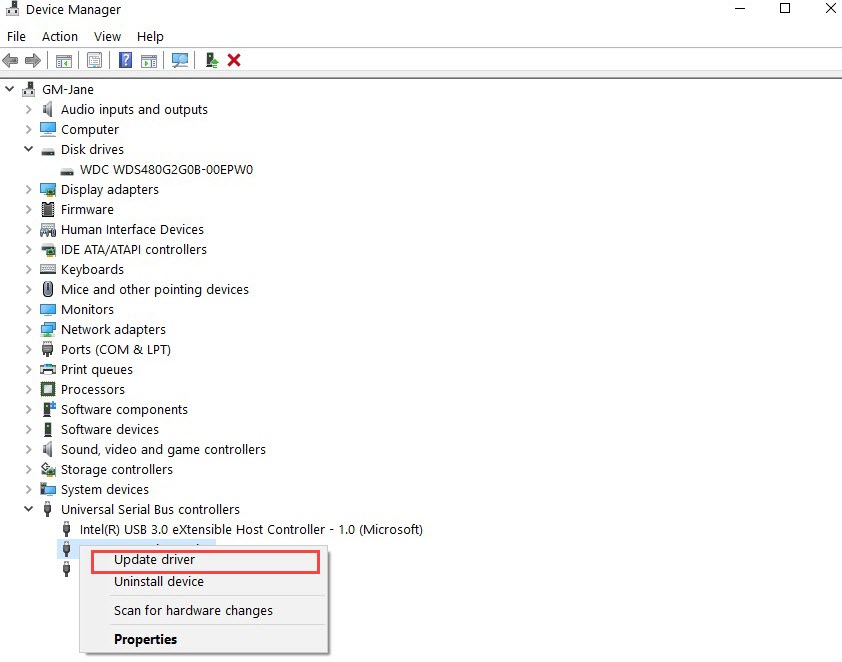
4. Click Search automatically for drivers, letting Windows search and install the latest drives.
Way 3. Download and Install New SD Card Reader Driver from Manufacturer
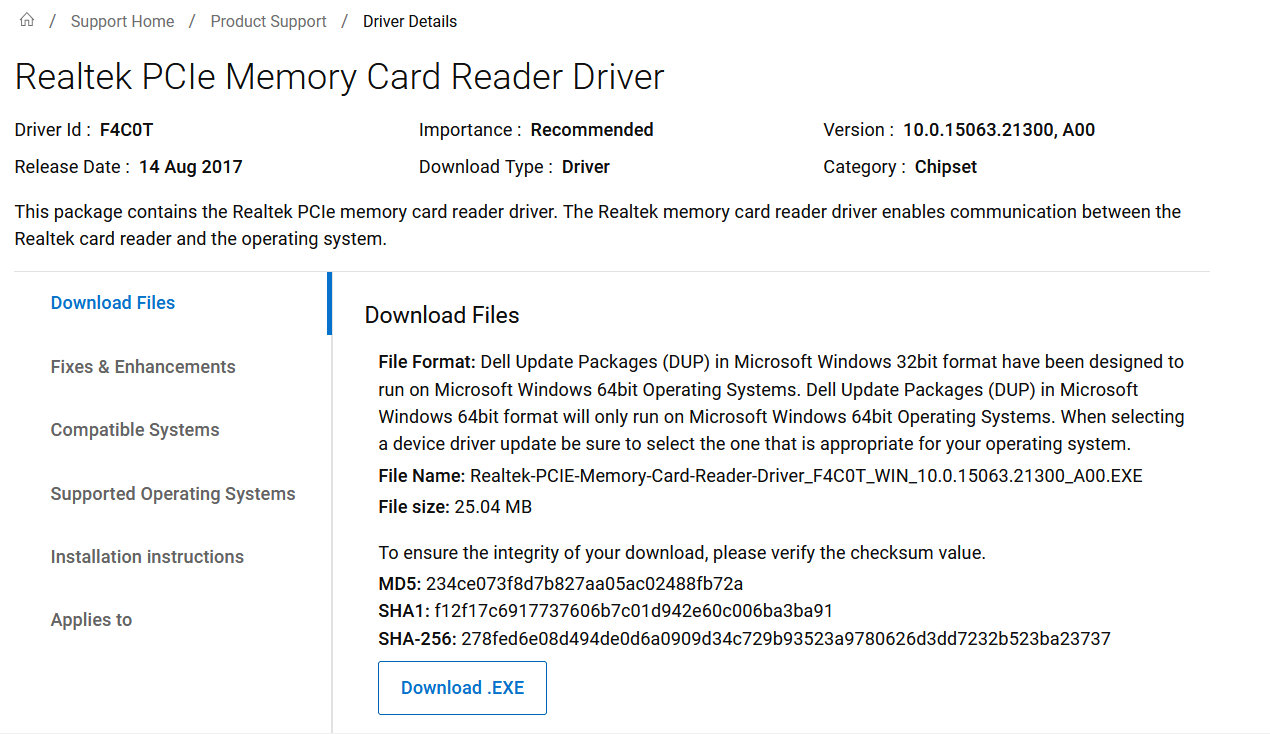
It is the safest choice to download the newest driver from manufacturer. The official website always provides the latest full-featured drivers specially customized for your hardware models and supported Windows versions. It also helps reduce the risk of of installing potentially unsafe driver files form third-party sources.
Next, let’s get how to download and install the correct driver from manufacturer.
1. Verify the SD card reader manufacturer.
Open Device Manager > Expand Memory technology devices or Disk drives/Universal Serial Bus controllers for external readers > look for the vendor name and device model.
2. Locate the official support page.
For built-in slot on laptops, visit the computer brand’s official page, for example: Dell, HP, Lenovo.
For external devices: visit the brand’s support site, for example: Realtek, SanDisk, Anker.
3. Search for the correct driver available for your device and OS.
4. Download the latest driver version and install it following on-screen instructions.
SD Card Reader Driver Update FAQs
How do I know if my SD card reader driver needs an update?
It is worth considering to update your SD card reader driver if some symptoms happen.
The card reader stops detecting cards after a Windows update.
Cards constantly disconnect during file transfer.
The data transfer speeds are drastically slower than before.
Device Manager displays a warning icon or error message for the card reader.
Will SD card reader driver updates delete my files?
Updating the driver only changes how your computer reads the data, but does not format or erase the content stored on your SD card or hard drive. Nevertheless, it is a good idea to back up important file in case unexpected loss.
What happens if I install a wrong SD card reader driver?
Modern driver installation can check the hardware ID before running. If you try to install a driver from a different chipmaker, the setup wizard will stop and display the error message like "Device not detected".
When an incorrect driver is already installed, the SD card probably cannot be detected. If so, open Device Manager > right-click the affected card reader > select Properties > click Roll Back Driver under the Driver tab.
What if my SD card still not show up after the driver update?
If the issue still exists after you update SD card reader driver, it might be hardware related.
Check whether the card and reader are corrupted.
Clean the SD card and the reader slot.
Format the card the memory card.
Final Thoughts
SD card reader update is a possible fix of SD card recognition error. Device Manager in Windows empowers you to quickly perform the task without extra installation; manufacturers let you get access to full features of the latest driver version. Alternative to manual install, Driver Booster, the automatic driver updater, offers a simpler and trusted way to keep SD card reader and other hardware drivers up to date. Pick the way that fits you need and make the system read your SD card smoothly.
Driver Booster Free
- Automatically scan and update drivers.
- Update game ready drivers for peak gaming performance.
- Identify and fix various common of hardware issues.
- Boost 30% of system performance for fast & smooth running.