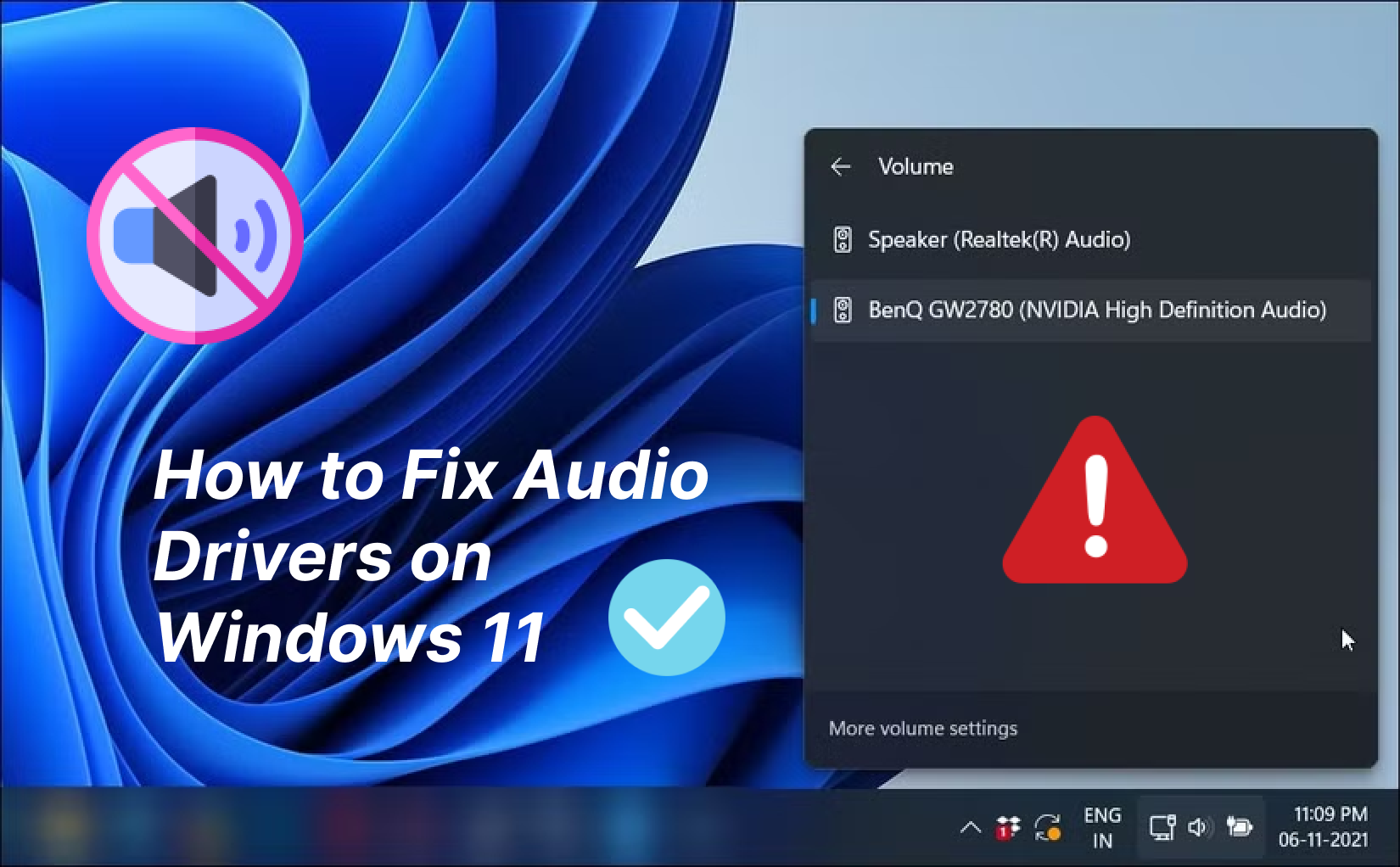
You're working on your computer when suddenly a frustrating pop-up appears: a driver cannot load on this device. In an instant, everything slows down - or worse, stops working properly. You might notice repeated warning messages, missing features, or hardware that simply won't respond.
This error can be caused by several factors, making it difficult to quickly pinpoint the exact issue. But one thing is certain: it can seriously disrupt your workflow and productivity, turning a simple task into a stressful experience.
Don't worry - this guide is here to help. Below, you'll find practical and effective solutions to fix the problem and get your device back to running smoothly in no time.
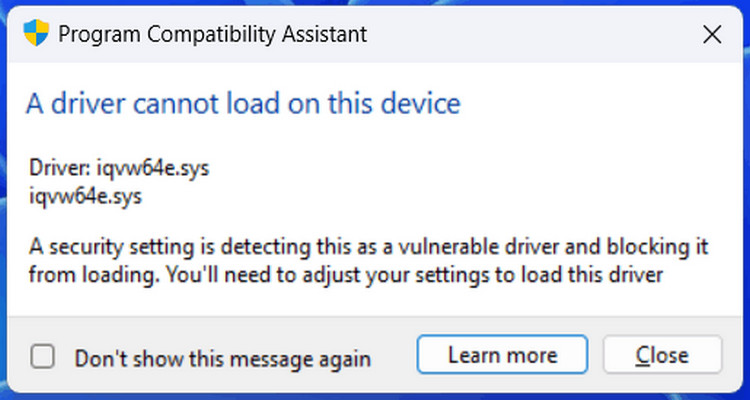
Causes of the Driver Cannot Load on This Device Error
To resolve the issue effectively, identifying its root cause is essential. The a driver cannot load on this device error is often triggered by system conflicts, outdated drivers, or security restrictions.
This section outlines the key factors behind the problem, providing a clear foundation for applying the right solutions.
Outdated driver
This is the most common cause. The drivers currently installed on your computer may be outdated, making them unable to adapt to newer system updates or load properly. As a result, you may encounter the warning a driver cannot load on this device ene.sys.
System security restriction
Windows security features (such as Memory Integrity) may block drivers that are considered risky or fail to meet security standards. This can lead to the error a security setting is preventing this driver from loading.
Driver malfunction (missing or corrupted)
If a driver is missing or its files are corrupted, the system may fail to recognize or access it correctly. In such cases, you may see the warning drivers cannot load on this device.
Driver incompatibility
If the installed driver is not compatible with the current version of the operating system, the device may not function properly. This often happens when the system is updated but the drivers are not.
Unsigned or improperly signed driver
Drivers downloaded from unknown sources or those that are unsigned or improperly signed may have been tampered with and could install malicious software. For security reasons, Windows will block these drivers from loading, resulting in the error a driver cannot load on this device ene.sys.
After understanding the causes of Windows cannot load the drivers required for this device, the next step is to apply the right fixes. Below are 8 effective methods to resolve the issue.
The Simplest Solution to Fix a Driver Cannot Load on This Device - Update the Driver
Based on common cases, using outdated drivers or failing to update drivers alongside the operating system is the most frequent cause of a driver cannot loading on this device.
Since the issue is often caused by outdated drivers, the solution is straightforward: update them.
Let's start with the most traditional method of updating drivers. This approach requires no technical expertise and does not involve installing any additional software.
Through Windows system manual settings
The Windows Update feature in system settings can automatically check for and install driver updates. Follow the steps below to complete the process.
How to Fix a Driver Cannot Load on This Device via Windows Settings
Step 1. Open your desktop, click the Start button in the lower-left corner, and select Settings.
Step 2. In the Settings window, find and click Windows Update. Then, select Advanced options on the right panel.
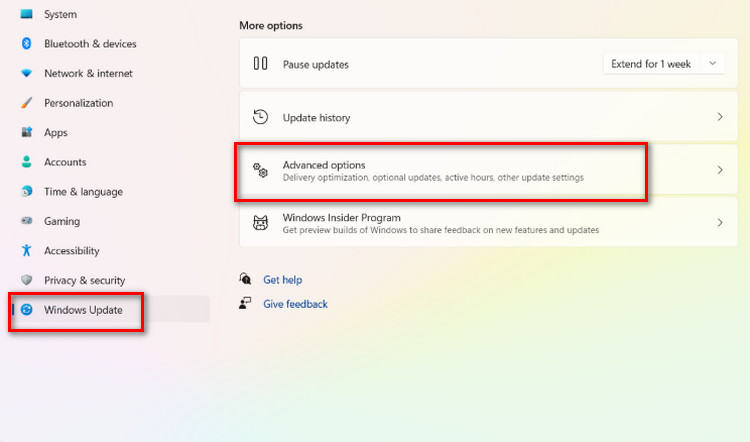
Step 3. In the Advanced Options window, locate the Additional options section and click Optional updates to check if there are any available ene.sys updates. If available, download and install them.
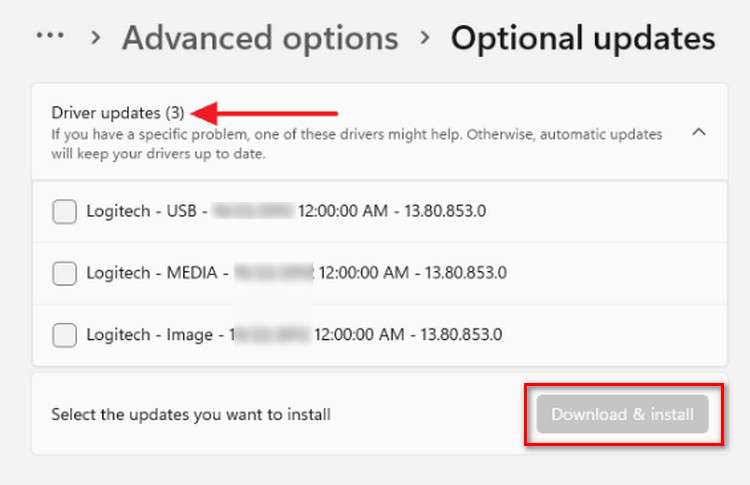
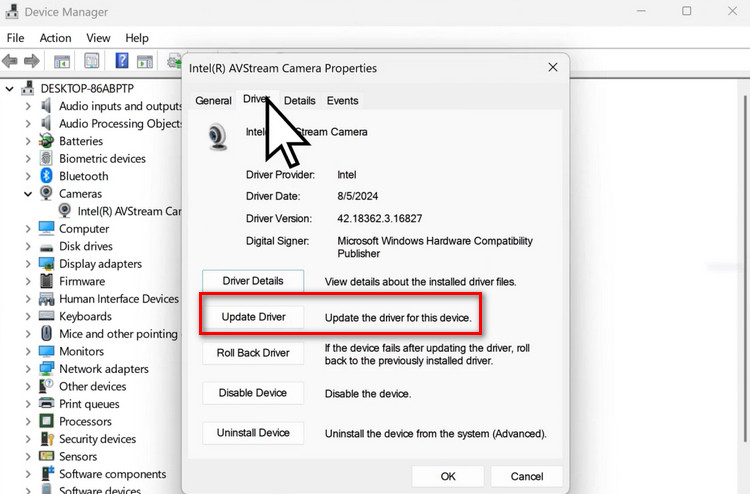
If you want a more targeted approach, Device Manager allows you to update drivers individually.
How to Fix a Driver Cannot Load on This Device via Device Manager
Step 1. Right-click the Start button and select Device Manager.
Step 2. In the Device Manager window, locate the category of the device you want to update (such as Display adapters or Network adapters) and expand it.
Step 3. Right-click the specific device and choose Update driver.
Step 4. Select Search automatically for drivers, and Windows will look for available updates and install them if found.
Repeat the process for other devices if necessary, then restart your computer to apply the changes.
However, both methods have their drawbacks. Automatic updates may miss certain drivers, while manually checking each device can be time-consuming and tedious. If you're looking for a more efficient and hassle-free way to update drivers, keep reading to discover a powerful all-in-one driver update tool.
Driver Booster: One-click Update for All Drivers
Tired of going through long and tedious manual update steps? Then it's time to get straight to the point and try a tool that can handle everything in one click: Driver Booster.
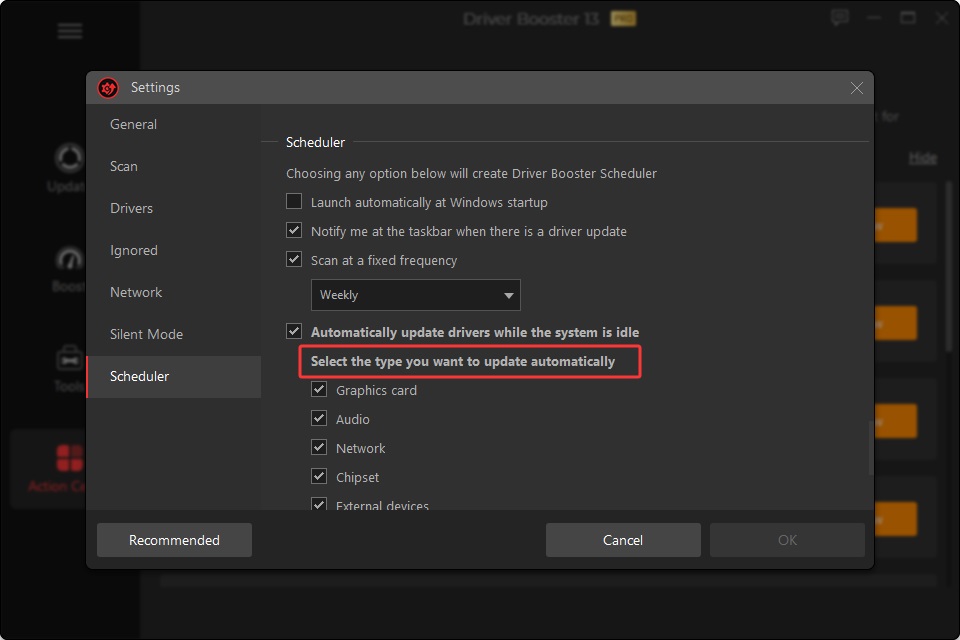
Driver Booster is a driver management tool designed specifically for Windows users. It can automatically scan your system and complete driver updates and repairs in just one click. You don't need to spend time figuring out the exact cause - whether it's outdated, missing, incompatible, or failing drivers, it quickly identifies the issue and provides a safe and reliable solution.
What makes it stand out is its powerful database, which includes drivers from over 1,200 major brands. Each driver is double-checked with Microsoft WHQL certification and IObit security scanning, ensuring maximum safety and reliability.
Driver Booster Free
- Automatically scan and update drivers.
- Update game ready drivers for peak gaming performance.
- Identify and fix various common of hardware issues.
- Boost 30% of system performance for fast & smooth running.

Key Features
One-click scanning and instant driver updates
With just one click, Driver Booster scans your entire system for driver issues and updates them instantly. There's no need to manually check each device or guess which driver needs attention.
Fixes unsigned or improperly signed drivers
For unsigned or improperly signed drivers, Driver Booster automatically finds and installs safe, verified versions, helping you avoid errors like a security setting is preventing this driver from loading.
Quickly fixes common device errors
When encountering issues like Windows cannot load the drivers required for this device, which may cause no sound, network problems, blue screens, or unrecognized USB devices, Driver Booster can quickly detect and fix the related drivers to restore normal functionality.
Restores previous drivers
If a newly updated driver causes instability, you can easily roll back to a previous version, ensuring your system remains stable and reliable at all times.
How to Fix a Driver Cannot Load on This Device via Driver Booster
Step 1. Go to the official website of Driver Booster, find the download button, and complete the download and installation.
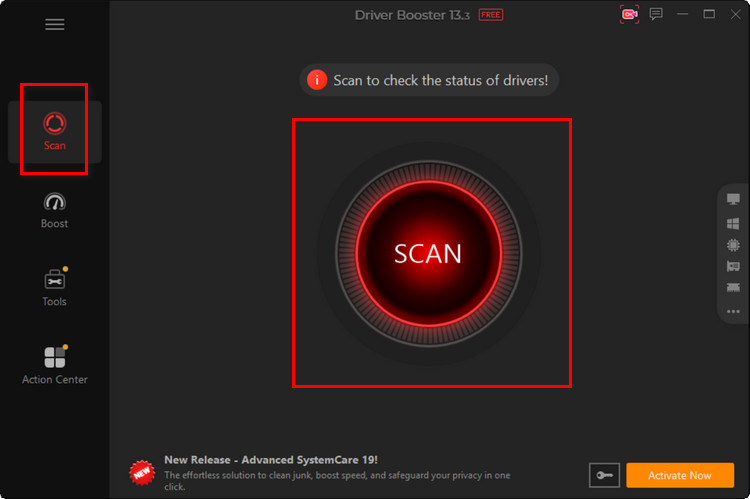
Step 2. After launching the application, click Scan in the upper-left corner of the main interface. Then click the red Update button that appears, and the program will begin scanning for outdated drivers.
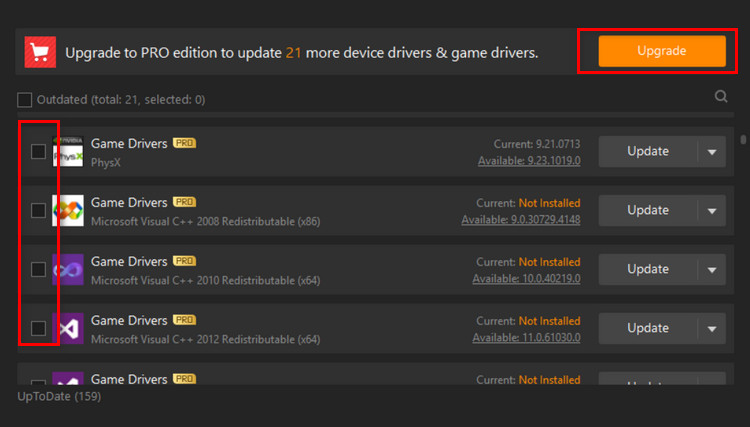
Step 3. Once the results are displayed, select the drivers you want to update and click the Update Now button in the upper-right corner.
 Step 4. Wait for the program to download and install the new drivers. You can also check the option to automatically restart your computer. After the restart, your system will be running with the latest drivers.
More Solutions to Fix a Driver Cannot Load on This Device
Updating drivers doesn't resolve every a driver cannot load on this device issue. For other possible causes, this guide provides the following additional solutions.
Solution 1: Disable Memory Integrity
The Memory Integrity feature in Windows Security can sometimes interfere with driver installation or updates, preventing them from loading properly. It's worth checking whether this feature is enabled on your device. If so, try turning it off.
Here is how to do:
Step 1. Open the Windows Security app from the Start menu.
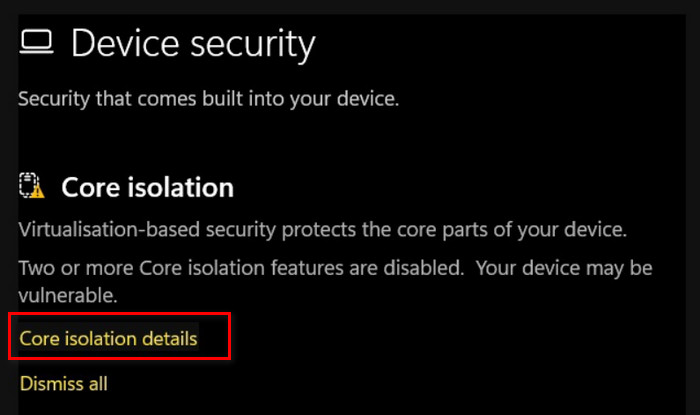
Step 2. Go to Device security, then select Core isolation details.
Step 3. Find Memory integrity and toggle it off.
Solution 2: Uninstall the Latest Update
In some cases, a recently installed update (such as a faulty nse.sys file) may cause the a driver cannot load on this device error. Removing the problematic update can help fix the issue.
Here is how to do:
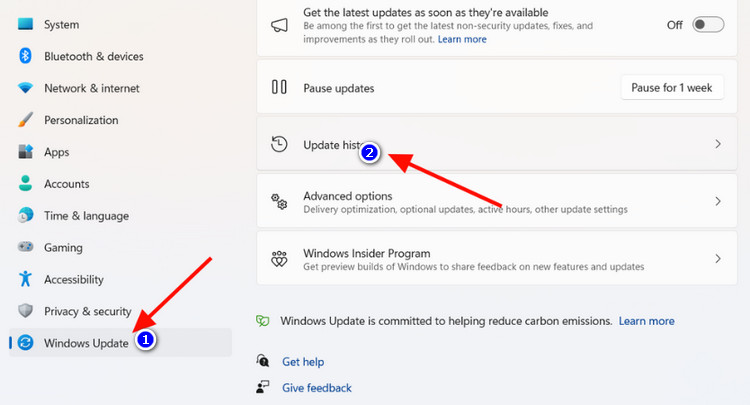
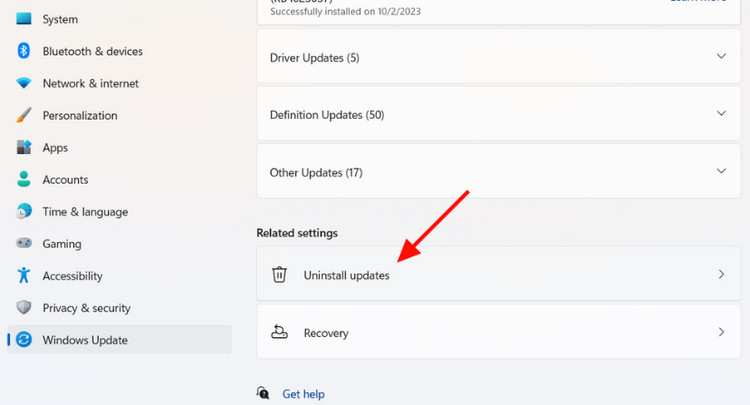
Step 1. Open Settings in Windows, then go to Windows Update > Update history.
Step 2. Scroll down and find Related settings > Uninstall updates.
Step 3. In the new window, locate the recently installed update causing the issue, then click Uninstall next to it.
Solution 3: Run the Device Troubleshooter
Windows includes a built-in tool that can detect and fix hardware issues—the Hardware and Devices Troubleshooter. Running it may help identify the problem and provide a solution.
Here is how to do:
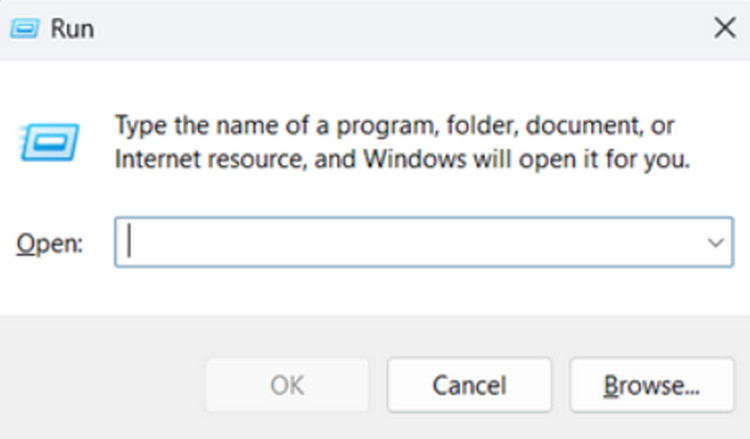
Step 1. Press Win + R on your keyboard to open the Run dialog box. Type msdt.exe -id DeviceDiagnostic and click OK.
Step 2. The Hardware and Devices window will appear. Click Next to start troubleshooting.
Solution 4: System Restore
If the issue appeared after a recent driver installation or system update, using System Restore can help revert your system to a previous working state.
Here is how to do:
Step 1. Type Create a restore point in the search box and open it.
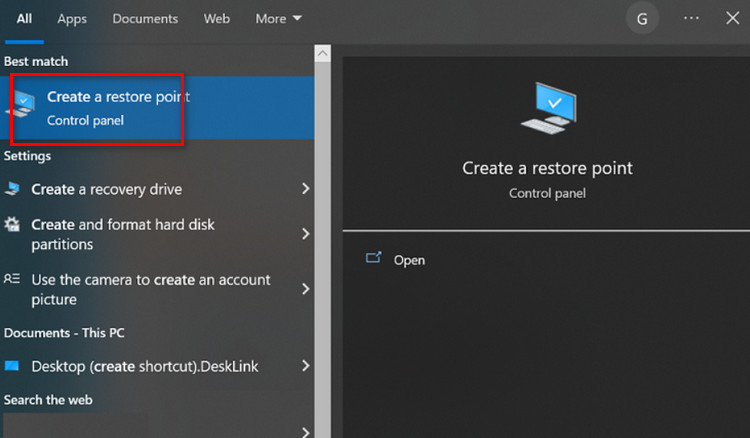
Step 2. In the System Properties window, click the System Restore button.
Step 3. In the System Restore wizard, click Next, then select a restore point created before the issue occurred.
Step 4. Confirm the restore point details and click Finish to start the process.
Step 5. Wait for your computer to restart and complete the restoration. Once finished, your system should return to its previous state, and the driver issue may be resolved.
Tip: System Restore does not affect personal files, but it may remove recently installed programs or drivers.
FAQs of Solving the Driver Cannot Load on This Device Issue
What does it mean when my PC says a driver cannot load on this device?
It usually means Windows is blocking or failing to load a driver needed for a hardware device to work properly. This can happen due to outdated, corrupted, or incompatible drivers.
How often should driver updates be checked?
It's a good idea to check every 1–2 months, or whenever you notice device issues or after a major Windows update.
How can driver issues caused by updates be resolved?
You can roll back the driver, uninstall the recent update, or reinstall a stable version from Windows Update or the manufacturer.
Why does the computer run slowly after updating drivers?
Sometimes a new driver isn't fully compatible or stable yet, which can cause performance issues until it's updated again or rolled back.
The Bottom Line
The a driver cannot load on this device error can be frustrating. In most cases, it is caused by outdated, missing, or incompatible drivers - and it can be fixed with the right approach. But manual fixes can often feel time-consuming and complicated. That's where a dedicated tool like Driver Booster comes in. It helps automatically scan, update, and repair all your drivers in just one click, saving time while ensuring system stability.
Driver Booster Free
- Automatically scan and update drivers.
- Update game ready drivers for peak gaming performance.
- Identify and fix various common of hardware issues.
- Boost 30% of system performance for fast & smooth running.