Here's a fact: the reason you can enjoy smooth visuals and realistic sound while gaming is largely thanks to Microsoft DirectX working behind the scenes. This essential component enables games to interact efficiently with your system's audio and graphics hardware.
But think about it - when was the last time you updated it?
You shouldn't overlook the impact of version updates. An outdated version may lead to laggy gameplay or blurry visuals, while performing a DirectX update can unlock improved performance and more advanced graphical effects - definitely worth trying.
Everything you need is right here: this guide will walk you through how to check your current version and explain how to update DirectX safely and quickly, helping you achieve a more stable and immersive gaming experience.
What is DirectX
You might feel confused when you first see this name - after all, most people rarely think about checking it.
To show you why regularly checking the version and performing a DirectX update matters, this guide will first explain what it is:
DirectX is a set of core components in Windows. Its main function is to allow games and other software to interact with your PC's audio and graphics hardware, enabling programs to take advantage of hardware acceleration for better visual clarity, smoother performance, and improved sound quality.
If DirectX on your device is not kept up to date, you may encounter issues such as game lag, graphical glitches, or audio desynchronization - problems that can seriously affect normal program performance.
How to Check Your Current DirectX Version
How do you know whether your device's DirectX needs an update?
First, you need to check which version you are currently using.
Note: In some cases, DirectX may have already been updated along with your system updates.
This section will show you how to check your DirectX version on Windows:
Step 1. Click the Start button, type dxdiag in the search box, and press Enter.
Step 2. From the results, select dxdiag.
Step 3. You will see a full report, where you can confirm whether your DirectX version is up to date.
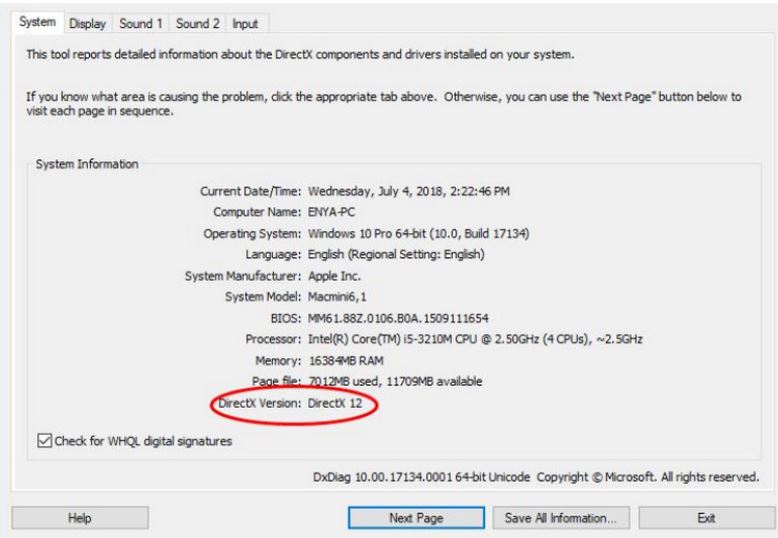
The latest version is currently DirectX 12 (pre-installed on Windows 11). If you find that you are using DirectX 11, 10, 9, or 8, follow the how to update the DirectX guides below to update it.
How to Update DirectX on Windows 11 and Windows 10
Yes - I've checked, and I need to update my DirectX right away! Then, how to update driver on my Windows?
Let's get started. In this section, you'll find the most comprehensive and efficient methods for how to update the DirectX.
Method 1: Update via the System
First, let's look at the most basic approach - updating through your system.
DirectX does not have a standalone installer, so you'll need to manually check for updates through Windows. If an update is available, the system will handle the installation for you.
Keep in mind that the steps for how to update DirectX driver in Windows 10 or 11 are slightly different, so this guide will cover them separately below:
Here is how to update DirectX drivers on a Windows 11 system.
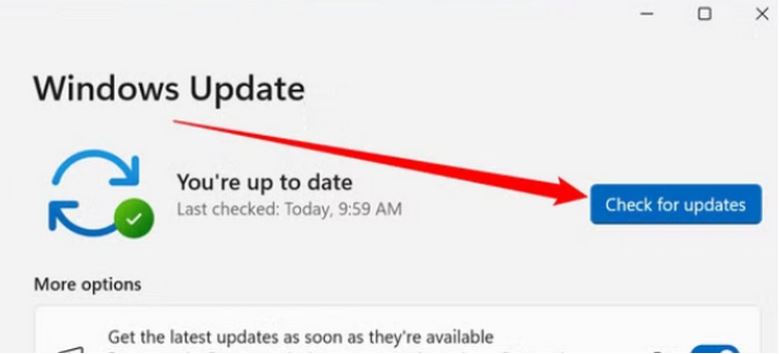
Step 1. Click the Start button, type check for updates in the search box, and select the result.
Step 2. In the Windows Update window, click Check for updates. The system will automatically scan for available updates.
If updates are found, they will be downloaded automatically. You only need to confirm the installation and restart your device.
Here is how to update my DirectX drivers on a Windows 10 device.
Step 1. Press the Windows key to open the Start menu.
Step 2. Type Check for updates in the search box and open the result.
Step 3. Click Check for updates at the top and follow the on-screen instructions to complete the DirectX update.
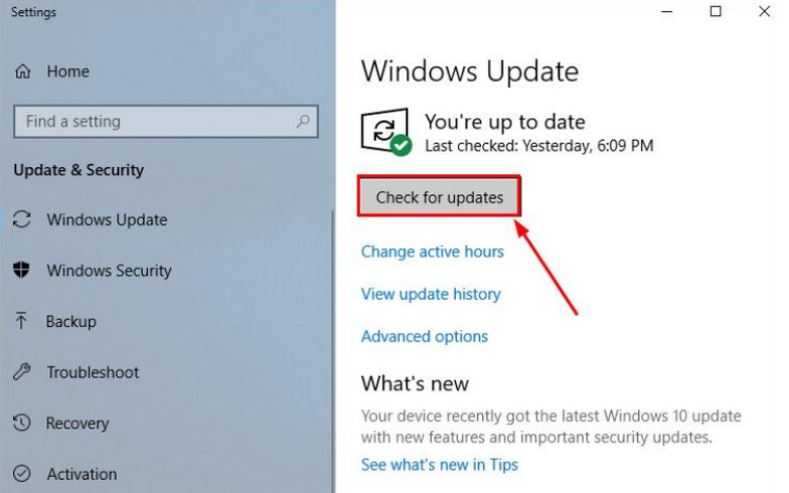
If your system is already on the latest version, you will see a message saying You're up to date. After completing the update, remember to restart your computer to ensure the changes take effect.
Method 2: Smart One-Click Tool: Automatic Scan and Driver Installation
You'll find that if you follow the traditional how to update DirectX method described above, you need to: confirm your Windows version, manually check for available updates, open the Windows Update panel, and restart your PC after installation.
In addition, even if your DirectX version is already up to date, you may still miss other important updates - such as sound card or graphics drivers - that can improve your gaming experience. Completing all these checks requires considerable effort and time.
This is where smart update tools come in. They combine all these checks into one process, allowing you to view and update all outdated drivers and hardware with just a few clicks.
This guide recommends a powerful solution for how to update DirectX automatically: Driver Booster. It is a professional tool that supports one-click scanning, updating, and repairing drivers.
Driver Booster Free
- Automatically scan and update drivers.
- Update game ready drivers for peak gaming performance.
- Identify and fix various common of hardware issues.
- Boost 30% of system performance for fast & smooth running.

It covers over 1200+ major hardware brands with manufacturer-certified drivers, all verified through dual security checks. In addition, Driver Booster offers system optimization features designed to enhance gaming performance.
To give you a clearer idea of what it can do, here are its key features:
Efficient driver detection and updates: With a single click, Driver Booster scans your system and identifies the best available versions for all drivers. You can select multiple items and update them at once.
Large and secure database: It supports drivers from 1200+ brands, including NVIDIA and Intel. Each driver is verified through Microsoft WHQL certification and IObit security checks before installation.
Optimized gaming performance: Built-in game optimization tools help free up system resources, reducing lag, crashes, and graphical issues.
Fix common device errors: Includes a repair toolkit for issues like no sound on PC, unstable network connections, blue screen errors, and unrecognized USB devices.
By now, you can see how Driver Booster offers clear advantages for how to update DirectX and overall PC maintenance.
Next, let's look at how to use it.
How to Update DirectX Using Driver Booster Free:
Step 1. Download and install Driver Booster from its official website.
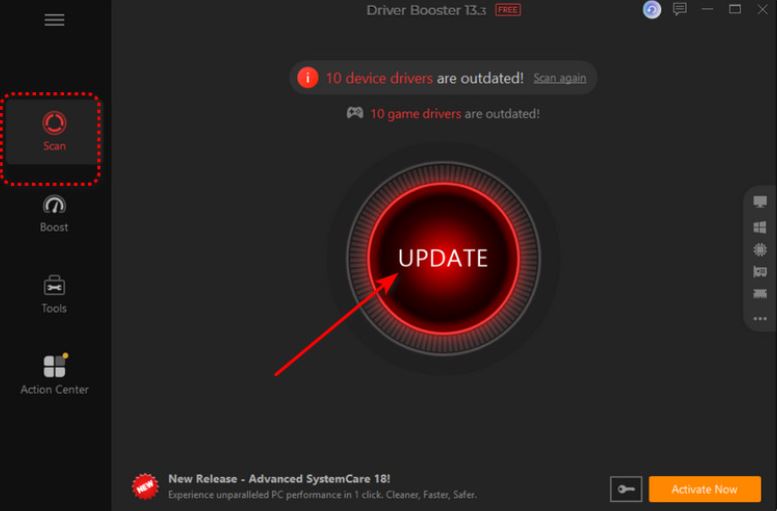
Step 2. Launch the program and click Scan to detect outdated drivers on your device.
Step 3. Once the results appear, click Update on the main interface to update everything at once.
Common DirectX Update Issues and Fixes
When performing how to update DirectX on your system, you may occasionally run into some tricky issues. Don't worry - most of them have straightforward solutions. This guide has gathered some common scenarios, along with their causes and fixes.
1. DirectX cannot be updated
Cause: Windows Update service is not enabled.
Solution: Go to system settings, make sure Windows Update is turned on, and check that the update service is running properly.
2. Errors still appear after updating
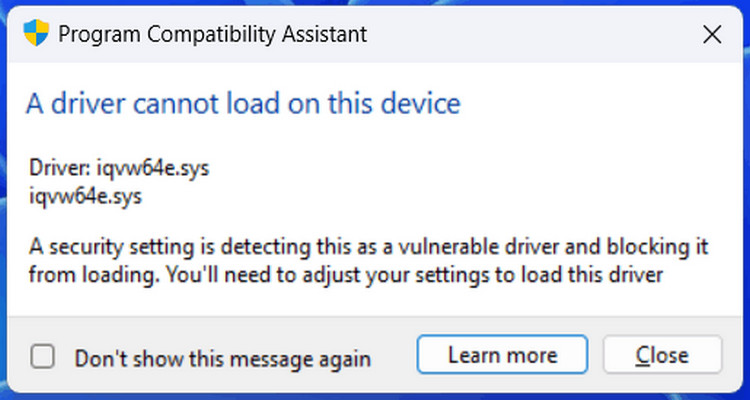
Cause: Related hardware drivers (especially graphics drivers) are not updated simultaneously.
Solution: Check and update your graphics driver to ensure compatibility with the latest DirectX version.
3. Game prompts missing DirectX components
Cause: Some runtime components are not properly installed.
Solution: Install the DirectX End-User Runtime to restore missing components.
4. Windows 10/11 update fails
Cause: System version incompatibility or interrupted updates.
Solution: Run Windows Update again, and restart your device if necessary before retrying.
If you find manual troubleshooting too time-consuming, it's recommended to try the automatic tool Driver Booster provided in this guide to complete updates and fixes more easily.
Conclusion
This guide explains how to check the DirectX version and covers how to update DirectX on Windows using both manual and automatic methods.
While manual steps can resolve issues, they are often time-consuming and may overlook important updates. An automatic solution is more efficient and comprehensive. For a quicker and more reliable experience, using a tool like Driver Booster is a practical option to keep the system optimized and up to date.