If your monitor is flickering, displaying the wrong resolution, showing color issues, or failing to support refresh rates properly, it may be time to update driver for monitor. Monitor drivers allow Windows to communicate efficiently with your display hardware, ensuring optimal performance, compatibility, and visual quality.
Whether you're using Windows 10 or Windows 11, there are multiple ways to update driver for monitor safely and efficiently. In this guide, we’ll explore five proven methods, including a fast and automatic solution with Driver Booster, to ensure your display runs smoothly.
Why You Should Update Driver for Monitor
Keeping your monitor driver updated is more than a technical chore—it ensures your system delivers the sharpest images, smoothest performance, and avoids glitches. Outdated drivers can cause flickering, incorrect resolutions, and even limit certain display features.
What Does a Monitor Driver Do?
Enables proper communication between Windows and your monitor
Supports native screen resolution and refresh rates
Ensures accurate color profiles
Helps Windows recognize monitor capabilities
Improves compatibility after Windows updates
Signs You Need to Update Driver for Monitor
Screen flickering or flashing
Incorrect resolution options
Missing refresh rate settings
Monitor detected as "Generic PnP Monitor"
Display issues after a Windows update
Multiple-monitor setup problems
Updating your monitor driver promptly can prevent these issues and ensure your PC delivers the best visual experience. If you're new to driver maintenance, this guide on how to update driver explains the most effective ways to keep your PC drivers current.
Method 1: Update Driver for Monitor via Device Manager
Device Manager is a built-in Windows tool that lets you manage all hardware drivers, including monitors. While it may not always find the newest drivers, it’s quick, reliable, and perfect for most users.
Steps to Update Driver for Monitor Using Device Manager
Step 1. Press Win + X and select Device M anager from the menu.
Step 2. In the Device Manager window, expand the Monitors category to see your connected displays.
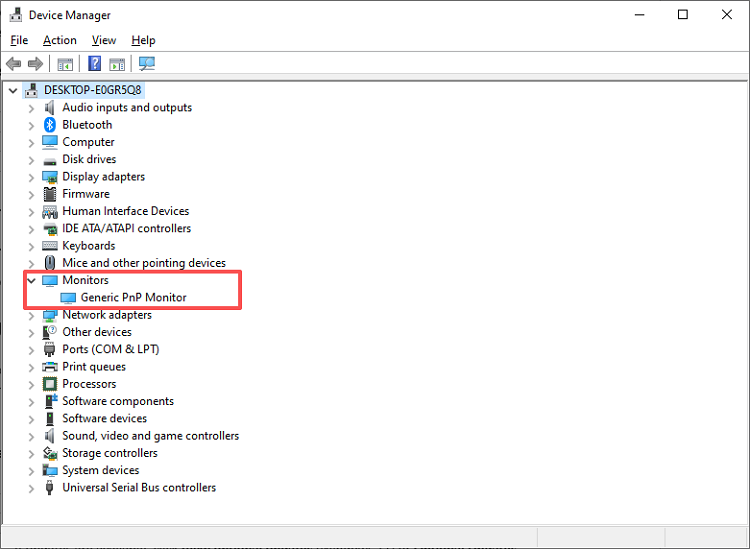
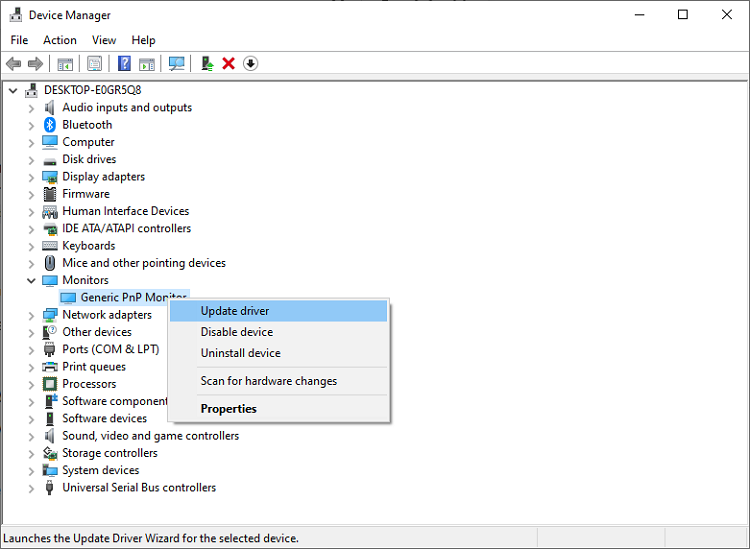
Step 3. Right-click on your monitor (usually listed as "Generic PnP Monitor") and select Update driver.
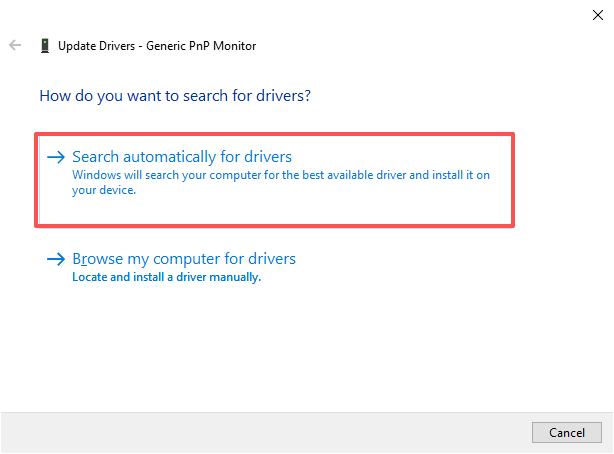
 Step 4. In the pop-up window, choose Search automatically for drivers. Windows will search online for the latest driver.
Step 5. Wait for the search and installation to complete. Windows will notify you if your driver is up to date or if it installed a newer version.
Step 6. Restart your PC to ensure the new driver is fully applied.
Device Manager is ideal if you want a straightforward, built-in solution without installing extra software to learn how to update monitor driver in Windows 10. For more Windows-specific driver update methods, see our guide on how to update Windows drivers.
Method 2: Update Driver for Monitor Through Windows Update
Windows Update doesn’t just deliver system patches; it also provides optional updates for hardware drivers. This method is simple and safe, ensuring you receive verified drivers approved by Microsoft.
How to Update Monitor Driver in Windows 10 and Windows 11 Using Windows Update
Step 1. Press Win + I to open Settings.
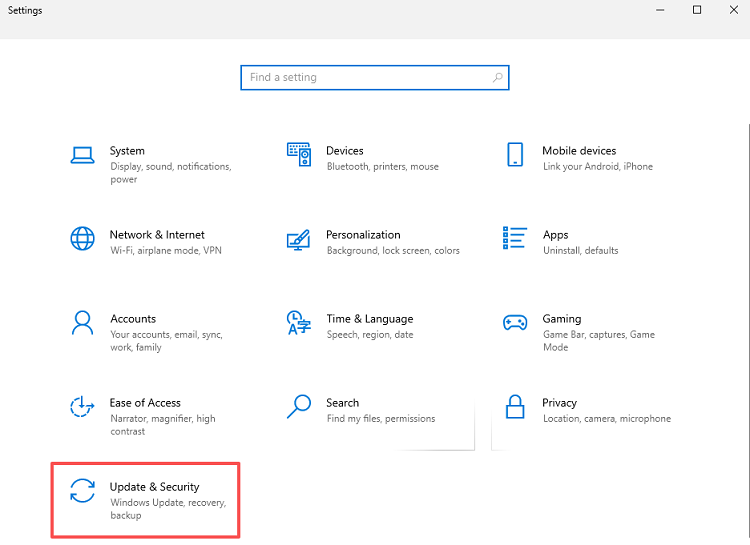
Step 2. Click Update & Security on Windows 10. Click Windows Update on the sidebar if you are using Windows 11.
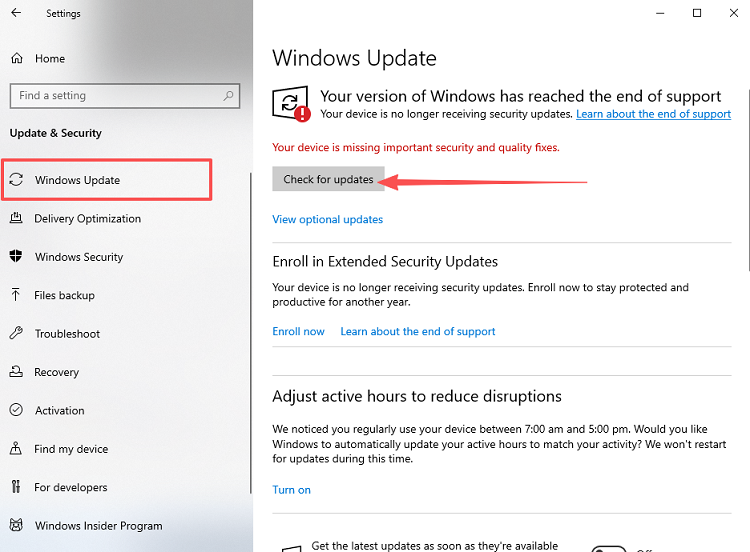
Step 3. Select Check for updates to allow Windows to scan for system and driver updates.
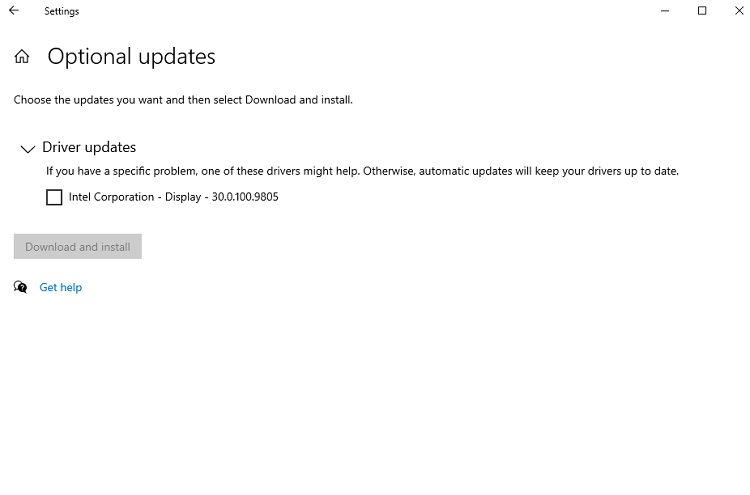
Step 4. If updates are available, click View optional updates (Windows 11) or Optional Updates (Windows 10). Expand the Driver updates section, locate your monitor, and click Download and install.
 Step 5. Wait for the update to complete, then restart your computer to apply the changes.
This method is excellent for users who prefer official updates without manually hunting for drivers.
Method 3: Download the Latest Monitor Driver from the Manufacturer
Manufacturer drivers often include advanced features such as improved color calibration, higher refresh rates, or compatibility fixes. Using official drivers ensures your monitor performs at its best.
Steps to Update Monitor Driver from Manufacturer
Step 1. Identify your monitor model by checking the label on the back or using Device Manager/System Information.
Step 2. Visit the official support website of your monitor manufacturer (e.g., Dell, ASUS, LG, Samsung, Acer).
Step 3. Navigate to Drivers & Downloads and search for your monitor model.
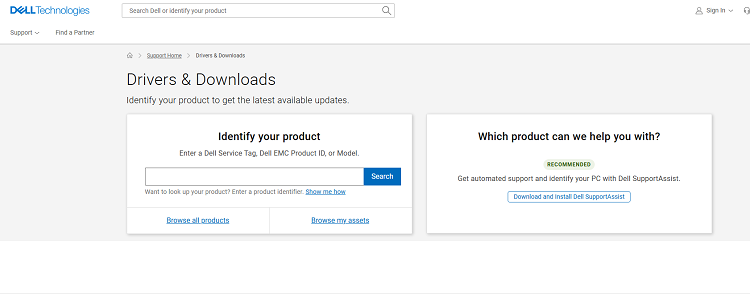 Step 4. Download the latest driver package compatible with your version of Windows (10 or 11).
Step 5. If the download is a ZIP file, extract it to a folder. Open Device Manager, expand Monitors, right-click your monitor, and select Update driver.
Step 6. Choose Browse my computer for drivers, then select the folder containing the extracted driver files.
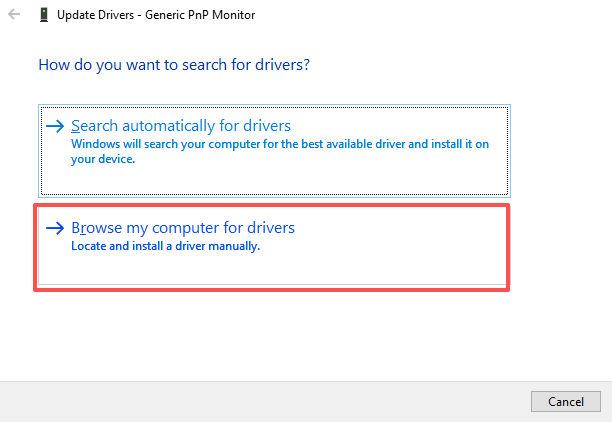 Step 7. Click Next and follow the on-screen instructions to complete the installation.
Step 8. Restart your PC to ensure the new driver is applied.
Using manufacturer drivers is especially useful if your monitor supports advanced features such as HDR, high refresh rates, or custom color profiles.
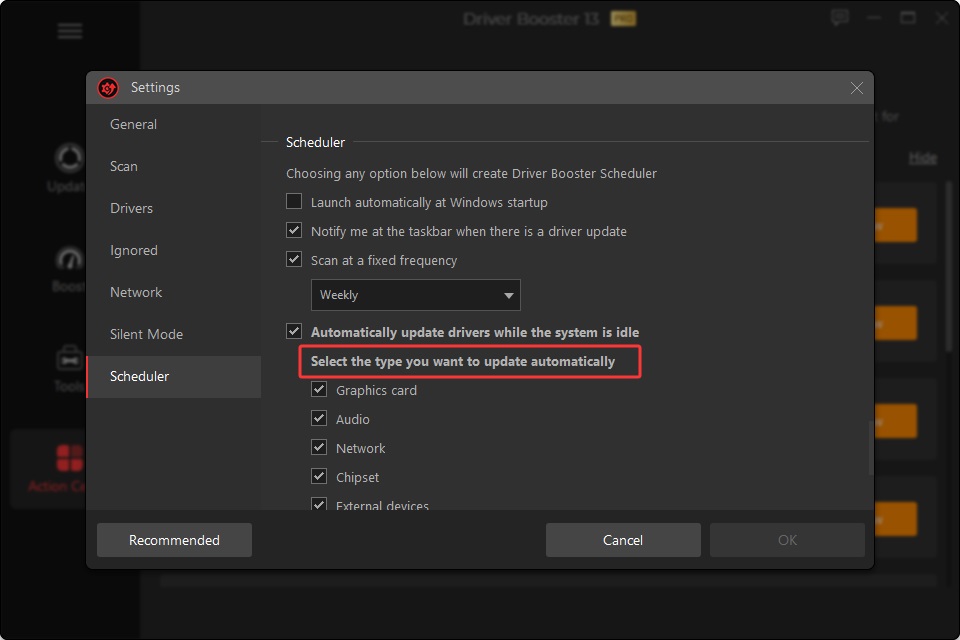
Method 4: Automatically Update Driver for Monitor with Driver Booster
Driver Booster simplifies the driver update process by automatically detecting outdated drivers, including monitor drivers. It’s perfect for users who want a fast, one-click solution without manually searching for drivers.
Driver Booster Free
- Automatically scan and update drivers.
- Update game ready drivers for peak gaming performance.
- Identify and fix various common of hardware issues.
- Boost 30% of system performance for fast & smooth running.

Steps to Update Driver for Monitor Using Driver Booster
Step 1. Click the button below to download and install Driver Booster.
Step 2. Launch the program and click the Scan button. Driver Booster will analyze your PC for outdated, missing, or faulty drivers.
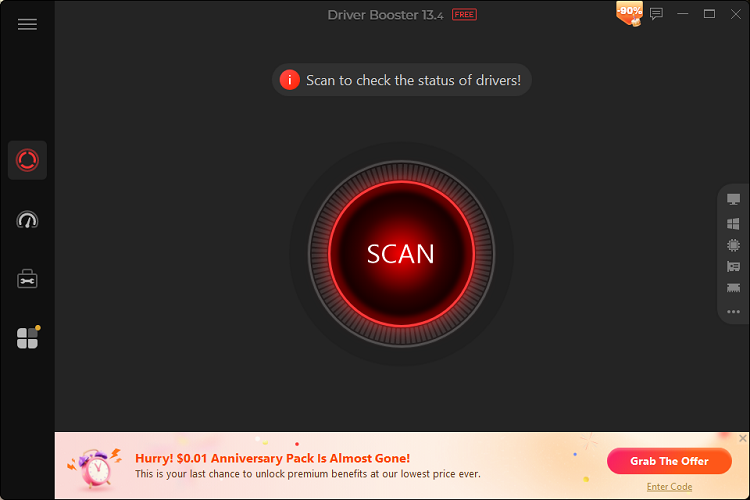 Step 3. Locate monitor-related drivers in the scan results. These may be listed under Monitors or Display.
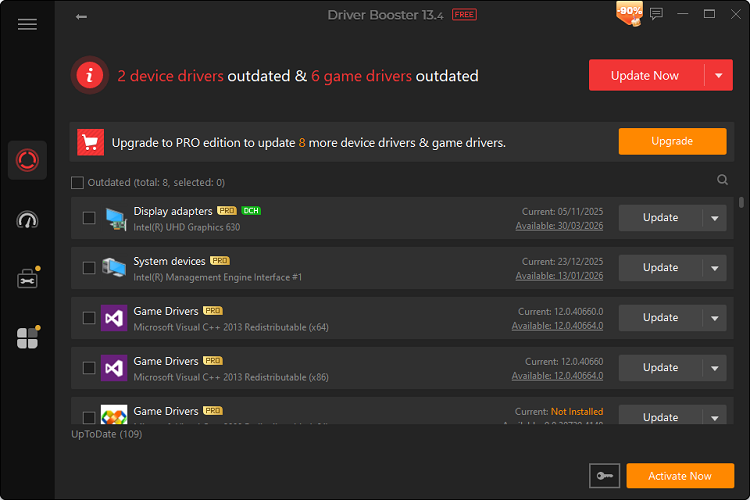 Step 4. Click Update next to the monitor driver, or select Update Now to update all outdated drivers at once.
Step 5. Driver Booster will automatically download, install, and back up the driver.
Steo 6. Restart your computer to ensure all updates are applied correctly.
Driver Booster is ideal for beginners, gamers, and anyone managing multiple devices. It ensures your drivers are always up to date without the hassle of manual installation. If you prefer a fully automated approach, an automatic driver updater can help keep all drivers updated with minimal effort.
Method 5: Reinstall the Monitor Driver
Reinstalling the monitor driver is useful when the existing driver is corrupted or causing persistent display issues. This method allows Windows to install a clean version of the driver.
Steps to Reinstall a Monitor Driver
Step 1. Open Device Manager by pressing Win + X and selecting it.
Step 2. Expand Monitors, right-click your monitor, and choose Uninstall device.
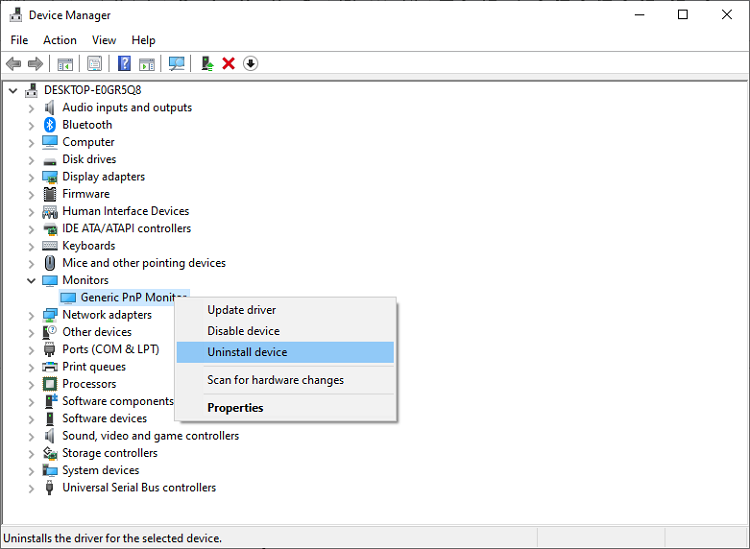 Step 3. In the pop-up window, check Delete the driver software for this device if available, and click Uninstall.
Step 4. Disconnect your monitor cable, wait a few seconds, and reconnect it.
Step 5. Restart your PC. Windows will detect the monitor and automatically reinstall a compatible driver.
Step 6. Check Device Manager > Monitors to confirm the driver is installed correctly.
Reinstalling ensures a fresh driver setup, which can solve flickering, resolution, or detection issues.
Monitor Driver vs Graphics Driver: What's the Difference?
Understanding the difference between monitor and graphics drivers is key for achieving the best display performance. Monitor drivers control identification, resolutions, and refresh rates, while graphics drivers handle rendering, GPU performance, and advanced visual effects.
How to Update Graphics Driver for Monitor Performance
Download the latest GPU driver from NVIDIA, AMD, or Intel. If you're using an NVIDIA graphics card, follow this guide to update nvidia driver and ensure compatibility with your monitor.
Use a driver updater tool like Driver Booster for automatic installation.
Updating both monitor and graphics drivers ensures full compatibility and optimal display performance.
Keeping both drivers up to date eliminates conflicts, improves display quality, and prevents common issues like flickering or missing resolution options. You can also learn how to update graphics driver to maximize overall display performance.
Conclusion
Knowing how to update driver for monitor is essential for maintaining smooth display performance, correct resolutions, and optimal compatibility on Windows 10 and Windows 11. Whether you use Device Manager, Windows Update, manufacturer downloads, or an automated solution, regularly updating drivers prevents many common display problems.
For the easiest and fastest way for how to update driver for monitor, try Driver Booster. It automatically detects outdated drivers and installs the latest versions, keeping your PC running smoothly with minimal effort.