If your Brother printer shortcut cannot be found on Windows, or your printing stop respondinga system update, a driver problem is often the reason. Brother Printer has many series; a driver update isn’t a trump card, you need to make the compatibility right. The tutorial below explains how to update driver for a Brother Printer, identify the right driver for your model, and resolve common printing issues caused by outdated or incompatible drivers.
What Driver Do You Need to Update Brother Printer?
If a Brother device worked normally before the update but suddenly cannot print or scan, the problem may be a driver compatibility issue rather than a hardware failure. The right driver depends on your Brother model and the function that is no longer working.
What Drivers Need to Be Updated for a Brother Printer?
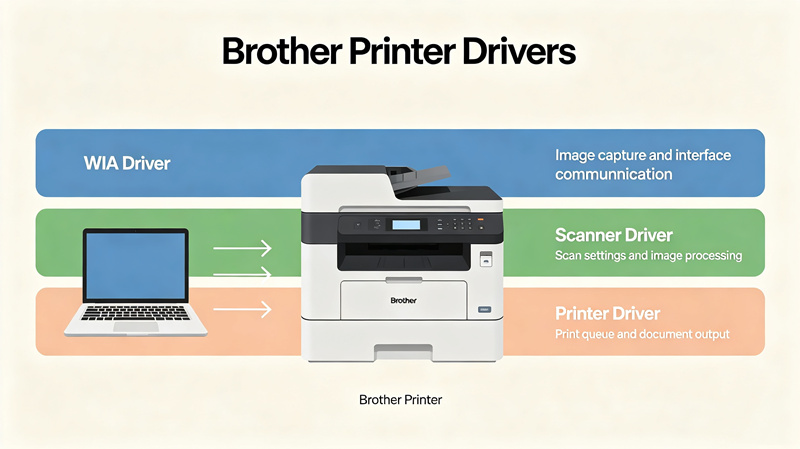
Different Brother printers and all-in-one devices use different driver packages. Check your exact model before installing anything, then look for the latest compatible versions of the following drivers.
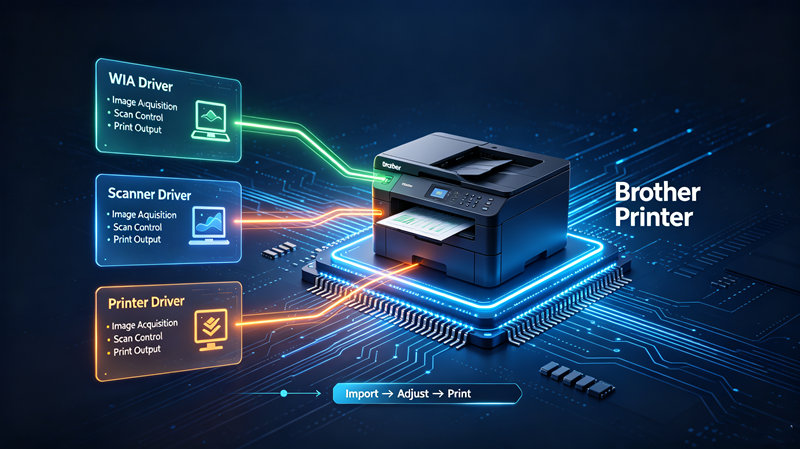
#1. Printer Driver
If documents remain stuck in the queue, the printer appears offline, or Windows detects the device but cannot print, updating the printer driver is a good place to start.
#2. Scanner Driver
For Brother all-in-one printers, scanning relies on a separate scanner driver. When printing still works, but Brother printer or Windows Scan cannot find the scanner, the scanner driver may need to be updated.
#3. TWAIN / WIA Driver
A TWAIN/WIA problem can prevent third-party programs such as image editors or document-management software from detecting the scanner even when the printer itself is recognized.
Windows Default Driver vs. Brother Full Driver & Software Package
How to update Brother printer driver Windows 11/10? Windows may automatically install a basic or class driver when you connect a Brother printer. This may not provide the full set of features supported by your specific model. For Windows drivers, refer to how to update Windows drivers.
Brother's full driver and software package is model-specific and can include the printer and scanner drivers, scanning utilities, device-management tools, and additional functions. In short, use the Windows driver for basic operation, but install Brother's latest model-specific package when you need reliable printing, scanning, or access to the device's complete feature set.
How to Update Driver for Brother Printer
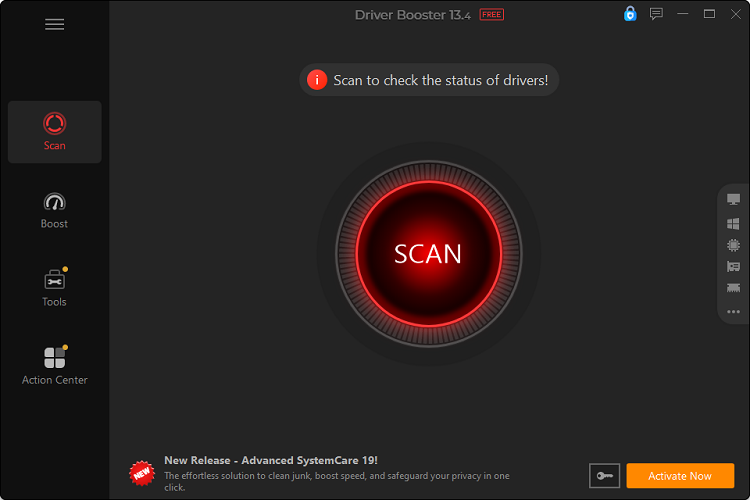
Brother printer suddenly stops printing or scanning? Checking every driver manually can take time. IObit Driver Booster offers a simpler approach: it scans the system for missing, outdated, or faulty drivers and lets you update supported drivers from one place.
How to Update Driver for Brother Printer?
Step 1. Download and install IObit Driver Booster for Brother printer driver updates.
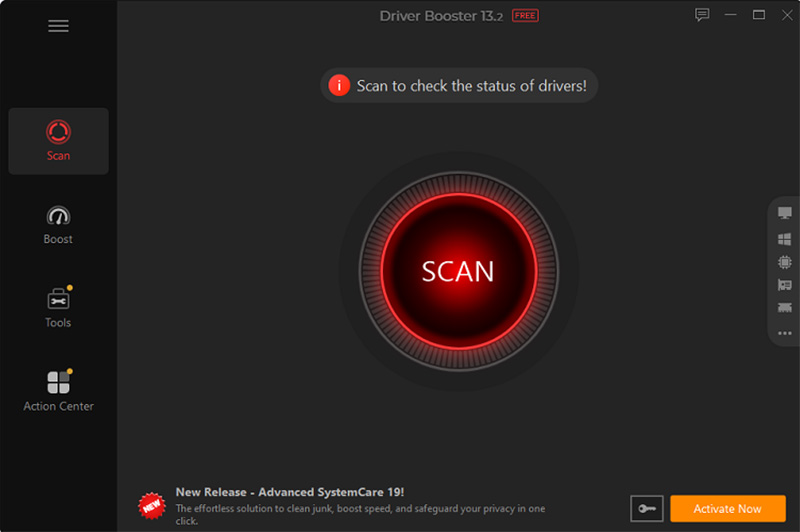
Step 2. Launch the program and click Scan to check your system for outdated or missing drivers.
Step 3. After the scan finishes, review the results for an outdated printer or related driver.
Step 4. Click Update next to the relevant driver. Driver Booster will download and install the available driver automatically, reducing the need to search for the correct package manually.
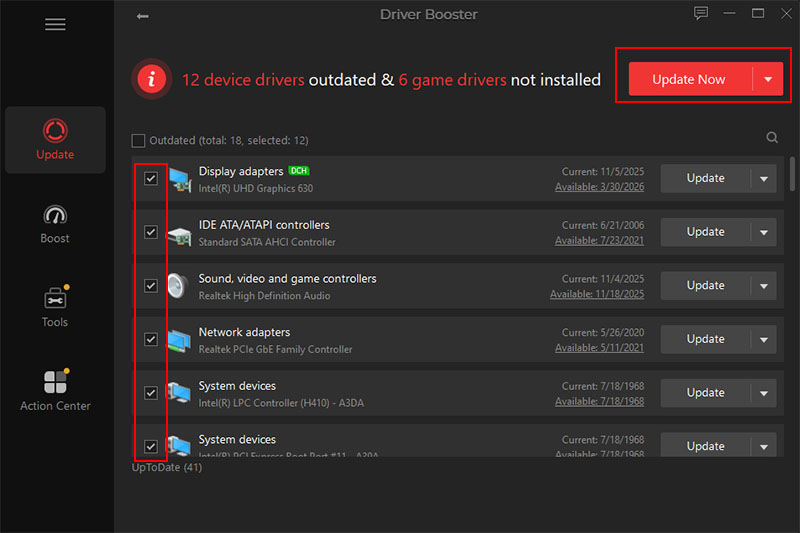
Tips: For users trying to Update Brother printer driver Windows 11, select a driver compatible with Windows 11 and your specific Brother model.
What IObit Driver Booster Can Do?
Automatic Driver Scan: The automatic driver updater detects outdated or missing printer-related drivers without manually checking drivers, making it easier to identify driver problems after Windows updates or hardware changes.
One-Click Driver Update: Updates detected drivers with a single click, so you do not have to search for each compatible driver and update individually.
Large Driver Database: Covers a broad range of hardware drivers, for example, USB drivers, Printer drivers, Bluetooth drivers, and network-related components used by connected Brother devices.
Hardware Compatibility Support: Helps maintain compatibility between Brother Printer and Windows systems when outdated drivers cause connection, printing, or scanning problems.
Different Brother Printer Models Require Different Driver Updates
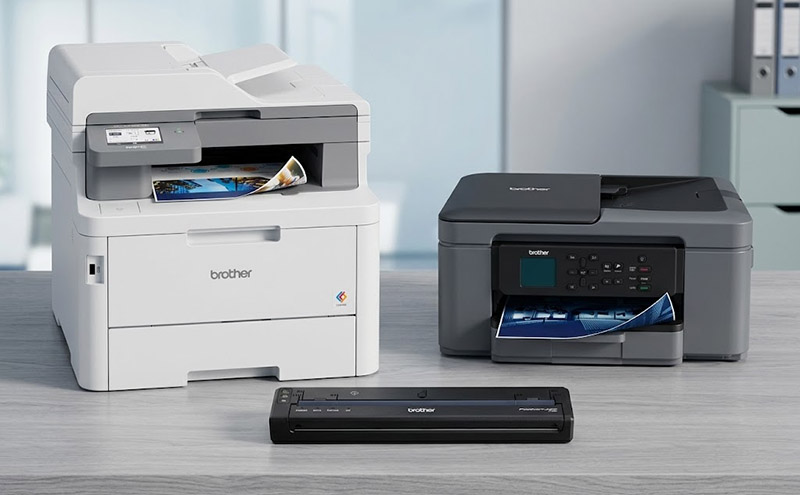
Not every Brother printer uses the same driver setup. Before you update driver for Brother printer, identify the model and the function that is failing. The five common types below have different requirements.
Laser Printer (HL Series)
HL-series laser printers are mainly designed for printing, so the printer driver is usually the only driver that needs attention.
Driver to update: Printer driver (IObit Driver Booster can update this driver).
Inkjet Printer (DCP/MFC-J Series)
DCP and MFC-J inkjet models commonly support both printing and scanning. If printing works but scanning does not, updating only the printer driver will not be enough.
Drivers to update: Printer driver + scanner driver (IObit Driver Booster can update these drivers).
All-in-One Printer (MFC Series)
MFC models combine several functions, including printing and scanning. For these devices, the Full Driver & Software Package from Brother is the better choice because it is built for the exact model.
Software to update: Brother Full Driver & Software Package (IObit Driver Booster cannot update this firmware).
Label Printer (P-touch Series)
P-touch label printers use a dedicated printer driver to communicate with Windows. When labels fail to print or the device is not recognized correctly, checking for a newer driver is a sensible first step.
Driver to update: P-touch printer driver (IObit Driver Booster can update this driver).
Mobile/Portable Printer
Brother mobile and portable printers may use different drivers depending on whether the connection is through USB, Bluetooth, or Wi-Fi.
Drivers to update: Mobile printer + Bluetooth/Wi-Fi drivers (IObit Driver Booster cannot update mobile drivers).
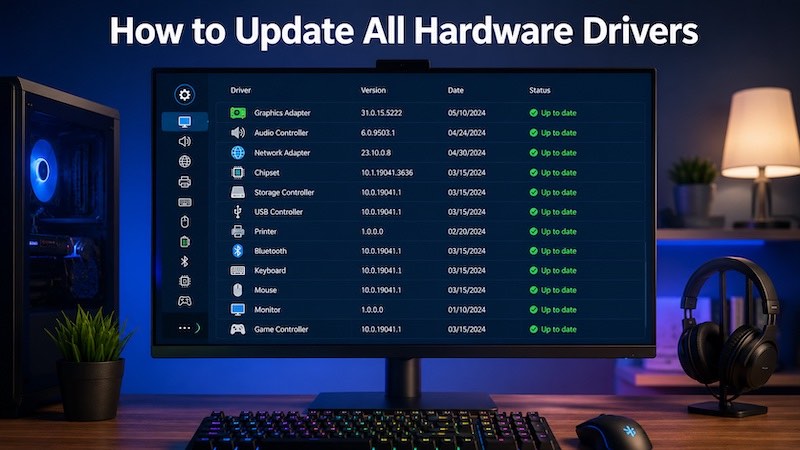
Tips: Driver Booster can simplify the process by detecting and updating all drivers in one scan instead of requiring you to check each component manually.
Read more: A Driver Cannot Load on This Device [Fixed] >>
Bonus Tip: Brother Firmware Update Tool Cannot Update Drivers
It is easy to confuse a firmware update with a driver update, but they affect different parts of the printer setup. The Brother Firmware Update Tool updates the firmware stored inside the printer. It does not replace the Windows printer or scanner driver, so it cannot be used to update driver for Brother Printer.
What Is the Brother Firmware Update Tool?
Brother Firmware Update Tool is a utility provided by Brother for updating the firmware on compatible printers and all-in-one devices. Firmware controls the printer's internal operation, while a Windows driver handles communication between the printer and your PC. Updating firmware can fix device-level bugs, improve stability, and address compatibility issues with newer software or operating systems.
Should I Update Brother Printer Firmware?
Not necessarily. When your Brother printer is working normally, you don't always need to update its firmware. Consider updating when Brother releases a firmware update for your model that improves compatibility, fixes known issues, or adds important functionality.
How to Update Brother Printer Firmware?
Before starting, make sure the printer is powered on and connected to the computer or network reliably.
Step 1. Print a test page to confirm your Brother printer works correctly before updating.
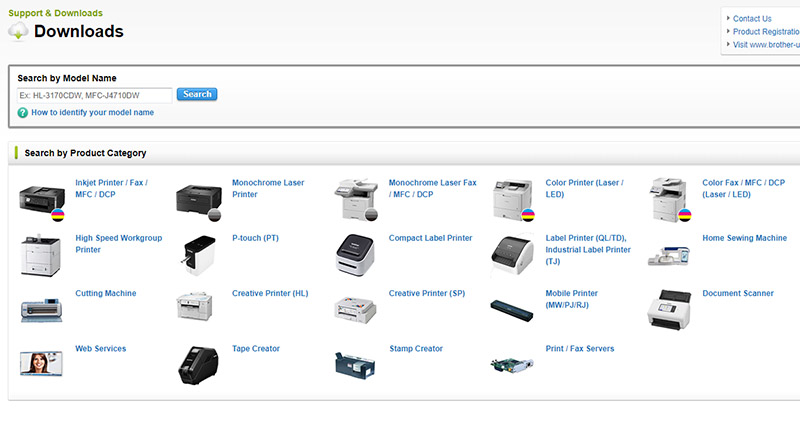
Step 2. Download the Firmware Update Tool for your model from the official Brother Support website.
Step 3. Run the downloaded tool and select your printer from the device list.
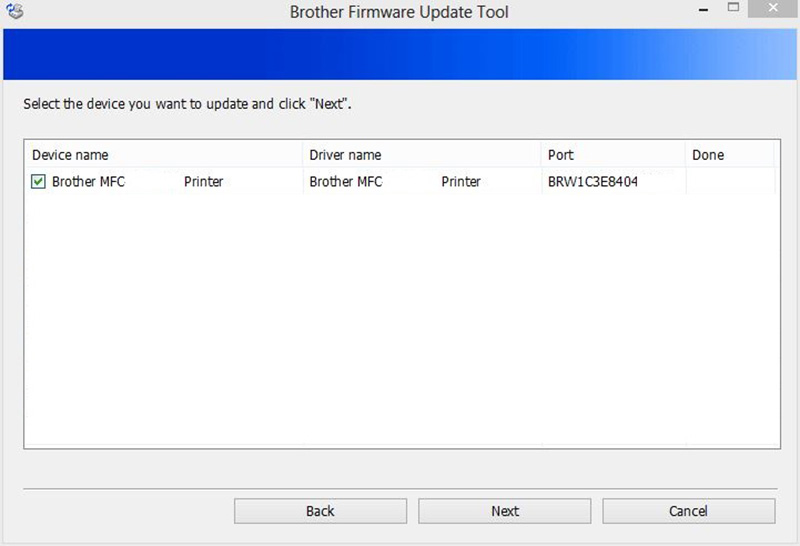
Step 4. Follow the on-screen instructions and enter the printer password if prompted.
Step 5. Wait for the update to finish without turning off or disconnecting the printer.
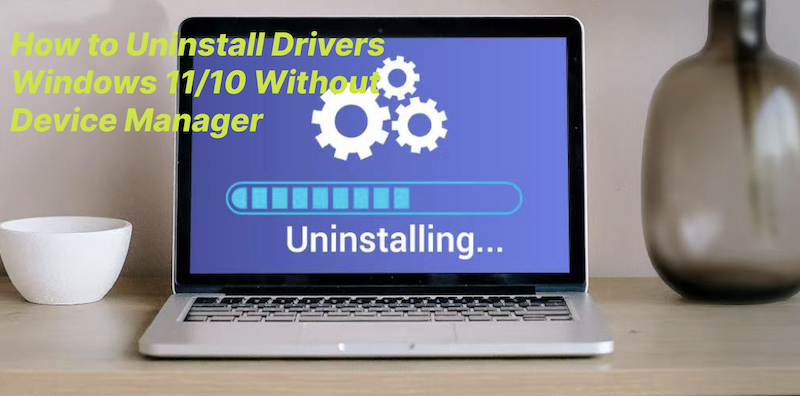
Read more: How to uninstall driver on Windows 11/10 before updating a Brother printer >>
Update Driver for Brother Printer: FAQs
1. How often should I update Brother Printer's drivers?
There is no fixed schedule. Check for a newer driver when Windows receives a major update, you install a new Brother printer, or printing and scanning suddenly stop working. When everything works normally, there is usually no need to update the driver simply because a newer version exists.
2. How to download Brother Printer drivers?
Go to Brother's official support website and search for your exact printer model. Select your operating system, then download the recommended printer, scanner, or full driver package.
3. When should you update driver for Brother Printer?
Consider updating when a major Windows upgrade causes compatibility issues, scanning or copying stops working, you install a new Brother printer, or Brother releases driver or firmware improvements.
4. Can you update Brother printer firmware from an iPhone?
Yes. How to update Brother printer firmware from iPhone? Brother printer firmware can be updated from an iPhone through the Brother iPrint&Scan app, which redirects you to the printer’s web interface in Safari to finish the update over the same Wi-Fi network.
5. Does Brother printer firmware update require a password? Where can you find it?
Yes. A Brother firmware update may require an administrator password. Check the printer’s rear or bottom label for “Pwd,” or print the Network Configuration Report to find it. If changed, use your custom password.
Conclusion
It’s not always about installing the newest driver to update driver for Brother Printer. The right package depends on your printer model and the problem you are trying to fix. If manual updates become time-consuming, try Driver Booster and get a convenient way to check and update supported drivers without further ado.
Driver Booster Free
- Automatically scan and update drivers.
- Update game ready drivers for peak gaming performance.
- Identify and fix various common of hardware issues.
- Boost 30% of system performance for fast & smooth running.