A Windows security message saying “driver ene.sys cannot load on this device” usually appears after a system update, driver installation, or security setting change. This issue is commonly related to the ENE.sys driver, which is often used by RGB lighting software, keyboard utilities, and hardware control applications.
When Windows blocks this driver, you may experience problems with RGB controls, keyboard features, motherboard utilities, or other hardware-related functions. In this guide, we will explain why the driver ene sys cannot load on this device error happens and we show you effective solutions to solve it quickly, including how to perform a driver ene sys update to restore compatibility.
What Causes Driver Ene.sys Cannot Load on This Device Error?
This problem is basically a driver compatibility issue. The driver conflicts with the ENE driver and your current Windows environment.
The following are the most common causes of the driver ene sys cannot load on this device error.
#1. Outdated ENE.sys Driver
Older ENE drivers may not support newer Windows security requirements. This is especially common after upgrading to Windows 11, where Microsoft has introduced stricter driver protection features.
Quick solution: Update Older ENE drivers.
#2. Windows Security Blocking the Driver
Windows Core Isolation and Memory Integrity features prevent certain drivers from loading if they are considered incompatible or potentially unsafe.
Quick solution: Turn off Memory Integrity.
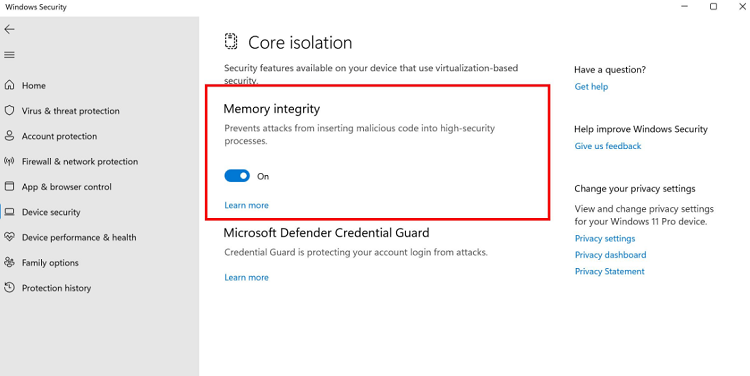
Follow the steps: Windows Security > Device security > Core isolation > Memory integrity > Off. But note this action is risky for it adds up the vulnerability of your PC from malicious drivers.
#3. Corrupted Driver Installation
If the ENE driver files become damaged due to failed updates, incomplete software removal, or system changes, Windows may fail to load the driver correctly.
Quick solution: Uninstall and Reinstall the Related Software from the Official Site.
#4. Outdated Hardware Control Software
Many RGB control tools, motherboard utilities, and gaming accessory applications install ENE.sys drivers. When these programs are outdated, the driver may conflict with your current Windows version.
Quick solution: Update or Reinstall the Hardware Control Software.
Understanding the cause makes troubleshooting easier. Next, let’s explore effective ways to fix the ENE.sys loading problem.
How to Fix a Driver Cannot Load on This Device Ene Sys Error
Driver ene sys cannot load on this device Windows 10 or Windows 11 actually is not a difficult tech wizard problem. Easy fixes like updating drivers, reinstalling related software can quickly address this issue. And also, you can change the Windows settings that block incompatible drivers to solve this problem as well. Let’s read on to see the step-by-step tutorials.
Method 1. Update ENE.sys Driver Using Driver Booster
The most common reason behind the ENE.sys error is an outdated or incompatible driver. Driver updating demands dedicated driver updaters. It is not recommended for you to manually locate, uninstall, or update drivers since wrong actions lead to system crushes. Using a one-click driver updater like IObit Driver Booster saves time and energy. It quickly scans, uninstalls, and downloads the right version of drivers, requiring no PC skills.
Steps to Update ENE.sys Driver with Driver Booster:
Step 1. Download and install Driver Booster on your Windows computer.
Step 2. Launch Driver Booster and click Scan to check all installed drivers.
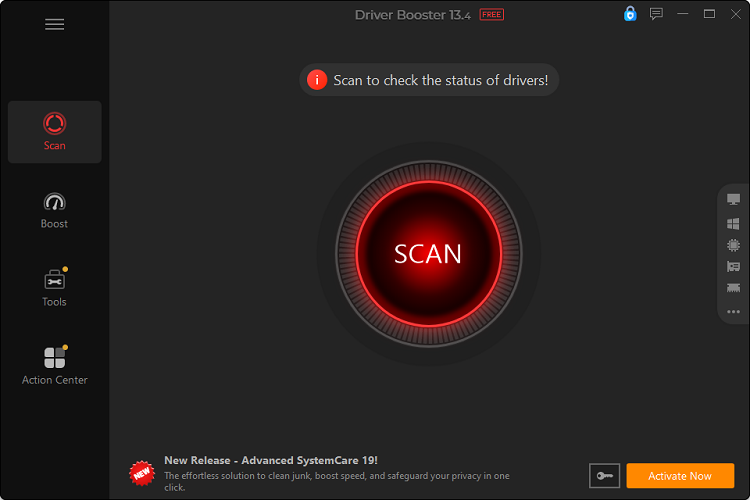
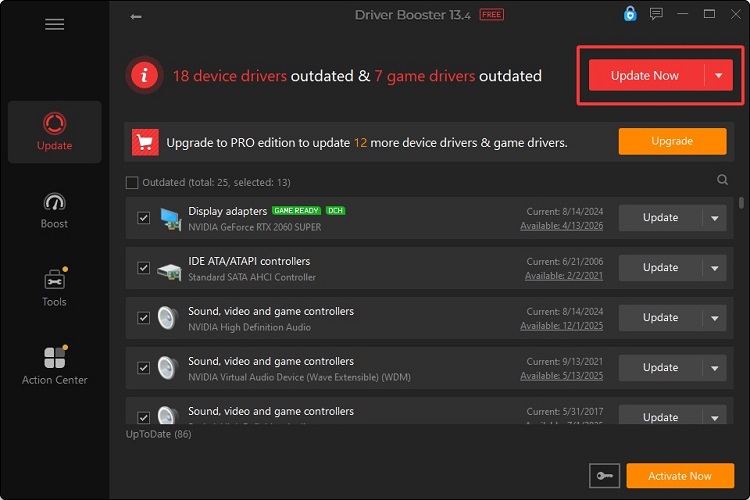
Step 3. Find outdated ENE-related drivers from the scan results. Click Update to update a specific driver. Or you can click Update Now to update all drivers with one click.
Why Choose Driver Booster for ENE.sys Driver Update?
Automatic Driver Detection - Driver Booster scans your computer and detects outdated, missing, or incompatible drivers that may prevent ENE.sys from loading.
One-Click Driver Updates - Instead of searching different manufacturer websites, you can update required drivers quickly with a single click. This is great for Lenovo driver update.
Extensive Driver Database - It supports millions of hardware drivers, helping users find compatible drivers for different PC brands and devices.
Driver Backup and Restore - Driver Booster creates driver backups before updates, allowing you to restore previous versions when necessary.
Windows 10/11 Driver Compatibility - It helps maintain updated drivers for modern Windows systems and reduces compatibility problems after system upgrades.
Method 2. Disable Memory Integrity in Windows Security
Windows may block ENE.sys because the Memory Integrity feature detects the driver as incompatible. Temporarily disabling this security option can allow the driver to load again.
However, this should only be used as a temporary workaround. Disabling Memory Integrity puts your system in a dangerous environment. And updating the driver is still recommended for long-term system security.
Steps to Disable Memory Integrity:
Step 1. Press Windows + S and search for Windows Security.
Step 2. Open the app and select Device security from the left panel.
Step 3. Under Core isolation, click Core isolation details.
Step 4. Find the Memory integrity option.
Step 5. Switch Memory integrity to Off.
Step 6. If Windows displays a User Account Control or confirmation prompt, follow the instructions.
Step 7. Restart your computer. After restarting, check whether the ENE.sys warning disappears.
Method 3. Check for Windows Updates
Windows updates often include driver compatibility improvements and security fixes. If your system is outdated, certain drivers may fail to load correctly.
Steps to Update Windows:
Step 1. Open Settings by pressing Windows + I.
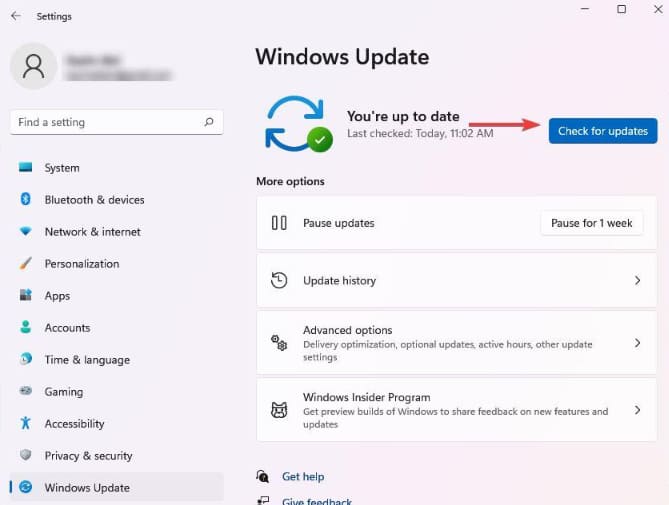
Step 2. Select Windows Update from the left sidebar.
Step 3. Click Check for updates.
Step 4. Install available updates and restart your PC.
Method 4. Reinstall the ENE.sys Driver
If the ENE driver is corrupted, reinstalling it can remove damaged files and install a clean driver version.
Steps to Reinstall ENE Driver:
Step 1. Press Windows + X and select Device Manager.
Step 2. Look for a device with a yellow warning icon.
Step 3. Expand categories such as System devices, Software components, or Human Interface Devices.
Step 4. Right-click the suspected device and select Uninstall device. Follow the on-screen prompts to finish the steps.
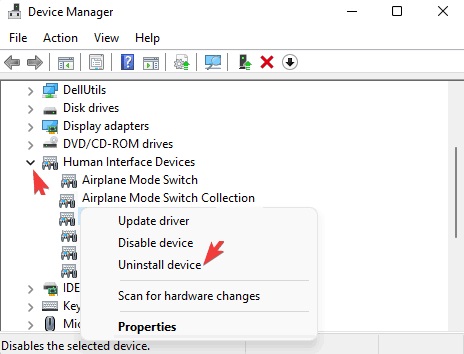
Step 5. Restart your computer and check whether the ENE.sys error, blue screen, or driver compatibility warning has disappeared.
Tip 1: If Windows does not find the driver, download the latest version from your laptop, motherboard, or hardware manufacturer.
Where to find your manufacturer’s official driver website?
Dell: https://www.dell.com/support/home/en-us?app=drivers&msockid=32698684293a67fa0b009186289d6637&
HP: https://www.dell.com/support/home
ASUS: https://www.asus.com/global/support/download-center/helpdesk_download/
Lenovo: https://pcsupport.lenovo.com
MSI: https://www.msi.com/support/download
Tip 2: Microsoft Update Catalog: An alternative source for compatible ENE drivers. Microsoft Update Catalog is mainly for manually finding an ENE driver when Windows Update or your PC manufacturer's website can't provide the right one.
https://www.catalog.update.microsoft.com/Search.aspx?q=ENE%20Technology
Method 5. Update or Remove Related Hardware Software
Because ENE.sys is usually installed by third-party utilities, outdated applications may continue causing the problem. Removing outdated utilities can prevent Windows from repeatedly blocking the ENE.sys driver.
Steps to Update or Remove Related Hardware Software:
Step 1. Press Windows + R.
Step 2. Type appwiz.cpl and press Enter.
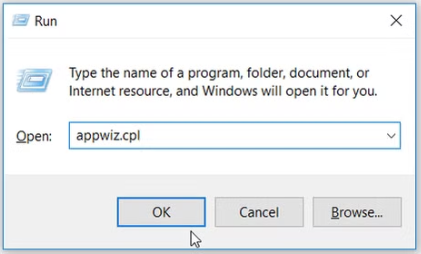
Step 3. Find the related software. Common programs related to ENE.sys include:
RGB lighting control software
Motherboard management tools
Gaming keyboard applications
Hardware monitoring utilities
Step 4. Select Uninstall.
Step 5. Restart your computer and install the latest version if needed.
How to Prevent Driver Ene.sys Errors in the Future?
After fixing the ENE.sys issue, maintaining updated drivers can help prevent similar problems. Driver conflicts often occur when old drivers remain installed after Windows updates or hardware changes.
Follow these practices:
Keep Windows updated.
Update hardware drivers regularly.
Remove unused hardware control software.
Download drivers from official sources.
Back up drivers before major changes.
Regular driver maintenance improves system stability and ensures your hardware continues working properly.
Final Words
The driver ene sys cannot load on this device error is often caused by outdated drivers, Windows security restrictions, or incompatible hardware and software. Updating ENE.sys with Driver Booster, reinstalling related drivers, and adjusting Windows settings can help resolve the issue. Also, you can use the best driver updater to simplify driver maintenance and help prevent future compatibility problems.
If the problem still exists after trying the solutions introduced above, then you can search for a driver ene sys cannot load on this device reddit to find additional solutions and troubleshooting experiences shared by other users.
Driver Booster Free
- Automatically scan and update drivers.
- Update game ready drivers for peak gaming performance.
- Identify and fix various common of hardware issues.
- Boost 30% of system performance for fast & smooth running.