



Kevin Hart
Kevin is an experienced editor focused on tech blog writing. Familiar with all kinds of PC software on the market. All the topics he chooses are aimed at bringing more benefits to users.
Expert in
PC Health Solution

All-in-one PC health solution: clean, optimize and secure

Comprehensive PC cleaning, optimization and protection

Keep drivers always up-to-date

More stable performance with less system crashes

Protect millions of computers against malware

Top computer security with full-round protection

Protect against viruses & boost PC performance
Complete forced uninstallation for stubborn programs.
Uninstall a batch of programs at once.
Scan and remove leftover files, folders, and registry entries.
Support the management of Universal Windows Platform apps.

Need to uninstall Cold Turkey completely? Learn how to uninstall Cold Turkey Blocker on Windows and Mac, delete leftovers, and fix uninstall issues.

Kevin Hart


Cold Turkey Blocker is one of the most effective productivity apps for blocking distracting websites and applications. However, when you no longer need it or want to switch to another focus tool, removing it isn't always straightforward. Many users discover that the blocker continues running, uninstall options are unavailable, or leftover files remain on the computer.
This guide explains uninstall Cold Turkey using several proven methods. You'll also learn how to uninstall Cold Turkey and how to force uninstall Cold Turkey Blocker on both Windows and Mac without leaving unnecessary files behind.
Before removing the software, it’s necessary to understand why uninstalling might not work as expected.
Cold Turkey Blocker is designed to maintain focus sessions, which can sometimes limit certain actions while a block is active. Depending on your settings, the uninstall option may be unavailable until the current session ends. In addition, administrator permissions, background processes, or startup services can occasionally interfere with the removal process.
If the standard uninstall method doesn’t work, there are still other options available. The methods below include both basic and more advanced ways to remove the program.
The easiest way to uninstall Cold Turkey Windows is through the Windows Settings app, which offers a straightforward, user-friendly interface for managing installed programs. This method works best when no active block session is running and the uninstall option is available, ensuring a smooth and hassle-free removal process without interruptions.
Step 1. Press Win + I to open Settings.
Step 2. Select Apps, then click Installed apps (Windows 11) or Apps & features (Windows 10).
Step 3. In the search box, type Cold Turkey.
Step 4. Wait for Cold Turkey Blocker to appear in the application list.
Step 5. Click the three-dot icon next to Cold Turkey Blocker (Windows 11). On Windows 10, simply click the app.
Step 6. Select Uninstall.
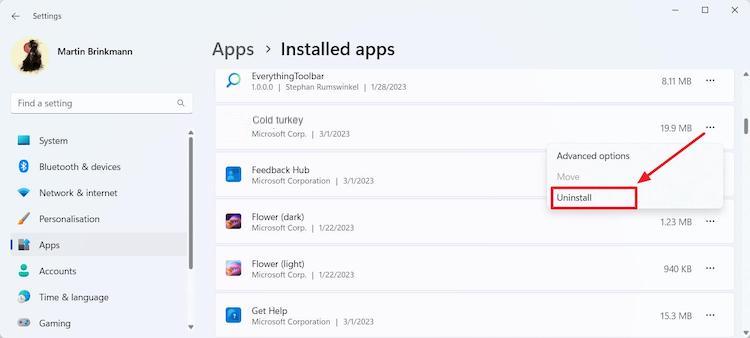
Step 7. Click Uninstall again to confirm.
Control Panel still offers another reliable way to remove traditional desktop applications, especially for users who prefer a classic interface. It provides a straightforward list of installed programs, making it easy to locate and uninstall software like Cold Turkey Blocker without navigating newer settings menus. Here are the steps.
Step 1. Open the Control Panel by right-clicking the Start button.
Step 2. Locate the Program section. Click Uninstall a program.
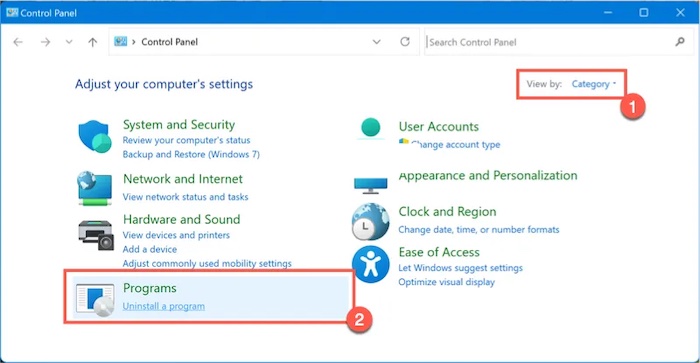
Step 3. Scroll through the list until you find Cold Turkey Blocker.
Step 4. Right-click it and select Uninstall.
Step 5. Complete the uninstall wizard.
Step 6. Restart your PC.
If the uninstall button is unavailable or the application refuses to close, you'll need to force uninstall Cold Turkey Blocker using Task Manager and administrator privileges. This approach helps terminate background processes, disable startup services, and ensure the program can be removed without interference from active restrictions or locked system files.
Step 1. Press Ctrl + Shift + Esc to open Task Manager.
Step 2. Click More details if Task Manager opens in the compact view.
Step 3. Open the Processes or Details tab.
Step 4. Look for entries whose names clearly contain Cold Turkey or Cold Turkey Blocker.
Step 5. Select each matching process and click End task.
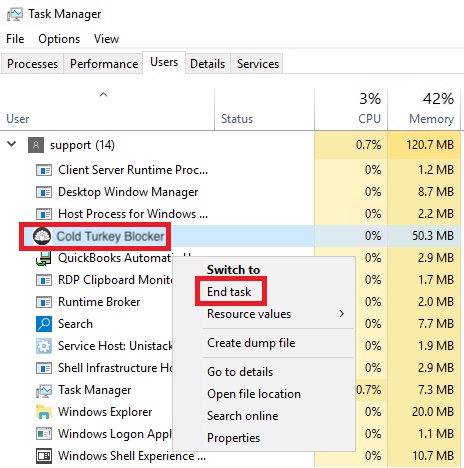
Step 6. Go back to the homepage of Task Manager, select Startup apps.
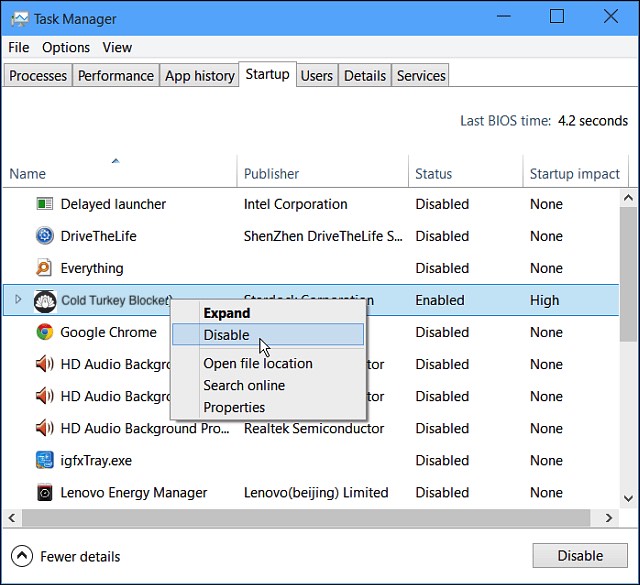
Step 7. Find Cold Turkey Blocker.
Step 8. Right-click it and select Disable.
Step 9. Close Task Manager.
Tips: If the application still cannot be removed, boot Windows into Safe Mode and repeat the steps.
Even after uninstalling, configuration files, cached data, and hidden system entries may still remain on your computer, taking up space and potentially affecting performance or future installations. You can manually delete Cold Turkey leftovers by checking these locations.
Step 1. Delete Cold Turkey Program Files
1. Open File Explorer. Navigate to:
C:\Program Files\Cold Turkey\
C:\Program Files (x86)\Cold Turkey\ (if it exists)
2. Right-click the Cold Turkey folder.
3. Select Delete.
Step 2. Remove AppData Files
1. Press Win + R and type %AppData% and press Enter.
2. Delete any folders named:
Cold Turkey
ColdTurkey
3. Repeat the process with:
%LocalAppData%
%ProgramData%
4. Look for any remaining Cold Turkey folders and delete them.
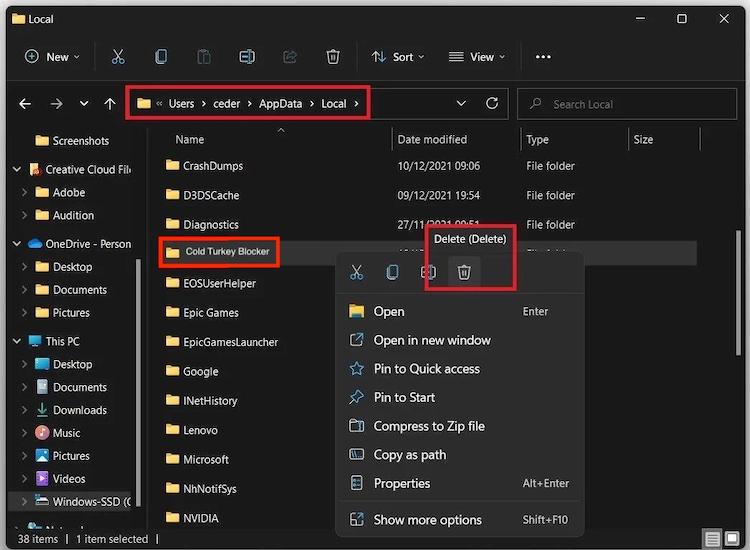
Step 3. Remove Temporary Files
Press Win + R.
Type %Temp% and press Enter.
Delete any files or folders related to Cold Turkey.
Repeat with the temp command (without %).
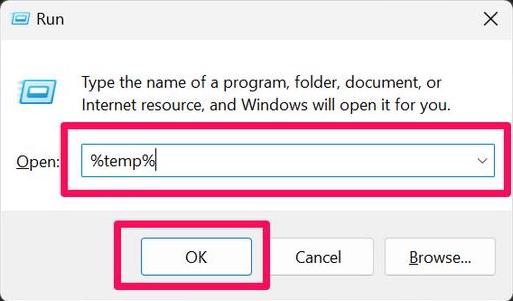
Step 4. Remove Registry Entries (Advanced)
Warning: Editing the Windows Registry incorrectly may cause system issues. Consider backing up the registry first.
1. Press Win + R and type regedit. Press Enter to proceed.
2. Navigate to:
HKEY_CURRENT_USER\Software
HKEY_LOCAL_MACHINE\SOFTWARE
HKEY_LOCAL_MACHINE\SOFTWARE\WOW6432Node (64-bit Windows)
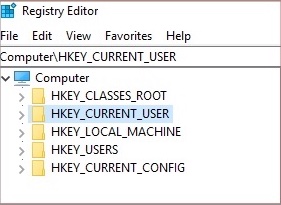
3. Delete any Cold Turkey keys if they exist.
4. Press Ctrl + F, search for Cold Turkey, and carefully remove any remaining entries that clearly belong to the application.
Sometimes Windows removes only the main application while leaving services, scheduled tasks, startup items, registry entries, and configuration files behind. Use a dedicated tool like IObit Uninstaller can make force uninstall program Windows 11 easier and more effective.
IObit Uninstaller is a popular uninstall utility designed to remove stubborn programs completely. It not only uninstalls applications but also performs a deep scan to eliminate leftover files, registry entries, and hidden components that standard uninstallers often miss.

Force Remove Stubborn Programs Easily
IObit Uninstaller can force uninstall Cold Turkey Blocker that refuse to be removed through normal methods by terminating related processes and deleting locked files. Also, it serves as a Norton removal tool Windows 11 that can delete Norton thoroughly.
Deep Scan for Leftover Files
After Cold Turkey uninstallation, it scans your system for residual files, folders, and registry entries to ensure nothing is left behind.
Remove Cold Turkey Blocker Related Services and Processes
It detects and removes startup items, background services, and scheduled tasks associated with Cold Turkey Blocker.
Batch Uninstall Multiple Apps
You can uninstall multiple applications at once, making it ideal for cleaning up your system quickly.
Keep Windows Clean and Optimized
By removing unnecessary files and leftover data, IObit Uninstaller helps maintain system performance and stability.
Step 1. Download IObit Uninstaller from its official site and install it on your computer.
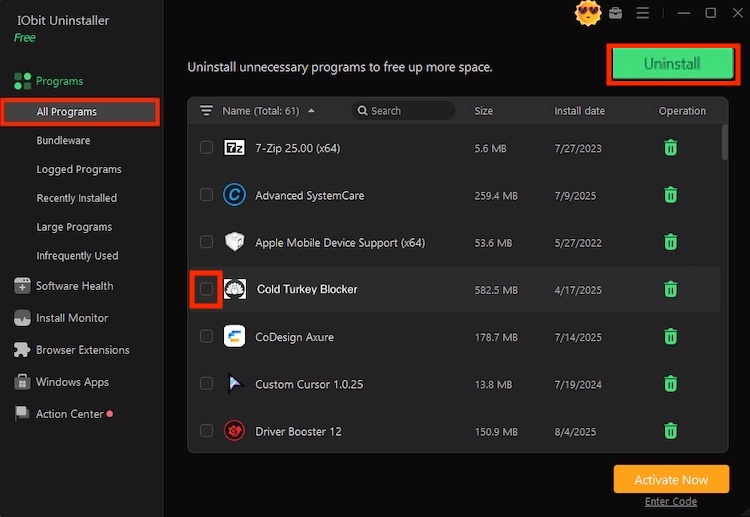
Step 2. Click Programs > All Programs from the left sidebar. Or you can use the search bar at the top right to find Cold Turkey Blocker. Check the box next to it and click Uninstall.
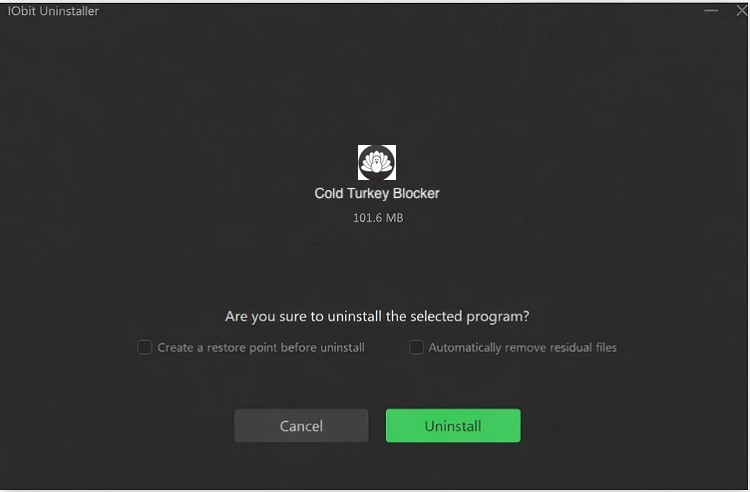
Step 3. Next, confirm your uninstall option by clicking Uninstall on the new page.
Tip: This best uninstaller is especially useful if you're searching for how to deep uninstall apps on Windows 11 because it removes much more than the default Windows uninstaller.
If you've installed the browser companion extension, removing the desktop app alone may not be enough, as the extension can continue blocking websites or syncing settings independently. To ensure a complete removal, you should also uninstall the extension from your browser and verify that no related permissions or background processes remain active.
Follow steps below to see how to remove extension in Chrome:
Step 1. Open Google Chrome.
Step 2. Click the three-dot menu in the upper-right corner.
Step 3. Select Extensions > Manage Extensions. Alternatively, enter chrome://extensions in the address bar.
Step 4. Find Cold Turkey Blocker and click Remove.
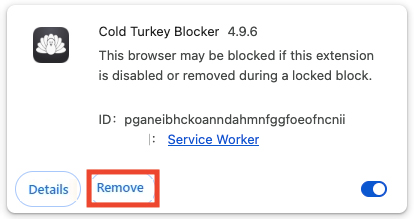
Step 5. Click Remove again when Chrome asks for confirmation.
Mac users can remove Cold Turkey using Finder and Library folders by first quitting the app completely, then deleting it from the Applications folder and clearing related files stored in system Library directories to ensure no leftover data remains.
Step 1. Quit Cold Turkey completely.
Step 2. Open Applications.
Step 3. Drag Cold Turkey into the Trash.
Step 4. Open Finder.
Step 5. Press Shift + Command + G. Visit these folders:
~/Library/Application Support/
~/Library/Caches/
~/Library/Preferences/
~/Library/LaunchAgents/
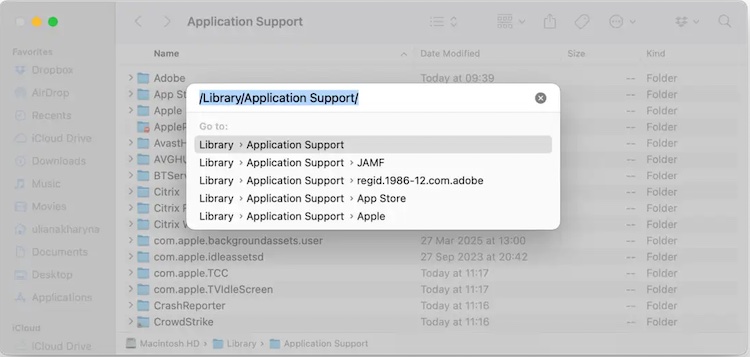
Step 6. Delete folders related to Cold Turkey.
Step 7. Empty Trash and restart your Mac.
If you're still unable to uninstall Cold Turkey, one of these reasons is usually responsible.
A focus session is still active.
Background processes are running.
Administrator permission is required.
Startup services reload the application.
Files are locked by Windows.
Security software prevents removal.
Ending the active block or restarting in Safe Mode usually resolves the issue.
1. Can I uninstall Cold Turkey during an active block?
Usually no. Depending on your settings, Cold Turkey prevents removal until the scheduled block has finished.
2. How do I completely uninstall Cold Turkey Blocker?
Use the built-in uninstaller first, then remove leftover files manually or use a professional uninstall tool to perform a deep scan.
3. Does uninstalling Cold Turkey remove all settings?
Not always. Some configuration files and registry entries may remain unless they're manually deleted or removed using deep uninstall software.
4. Is it safe to delete Cold Turkey folders manually?
Yes, provided the program has already been uninstalled and no background services are still running.
Knowing how to uninstall Cold Turkey can save time when the normal uninstall process doesn't work. Whether you choose Windows Settings, Control Panel, Safe Mode, or a professional uninstall utility, remember to remove leftover files and browser extensions for a complete cleanup. If you're dealing with stubborn software, a deep uninstall tool offers the easiest way to fully uninstall Cold Turkey and keep your system organized.

Remove unwanted software easily.
Free Download