




Kevin Hart
Kevin is an experienced editor focused on tech blog writing. Familiar with all kinds of PC software on the market. All the topics he chooses are aimed at bringing more benefits to users.
Expert in
PC Health Solution

All-in-one PC health solution: clean, optimize and secure

Comprehensive PC cleaning, optimization and protection

Keep drivers always up-to-date

More stable performance with less system crashes

Protect millions of computers against malware

Top computer security with full-round protection

Protect against viruses & boost PC performance
Complete forced uninstallation for stubborn programs.
Uninstall a batch of programs at once.
Scan and remove leftover files, folders, and registry entries.
Support the management of Universal Windows Platform apps.

Is Discord refusing to leave your system? Discover how to uninstall Discord or remove it instantly with a free one-click uninstaller.

Kevin Hart


Discord is one of the most popular communication apps for gamers, communities, and professionals. However, there are times when you might need to uninstall it. Simply dragging the app to the trash or clicking "Uninstall" through your default system settings often isn't enough. It leaves behind a trail of temporary files, cache data, and registry entries that can clutter your operating system.

In this comprehensive guide, we will walk you through the manual steps on how to uninstall Discord from both Windows and macOS, prepare your system properly beforehand, and introduce a seamless, one-click solution using a third-party application.
Before diving into the uninstallation process, taking a few preparatory steps will ensure that the process goes smoothly, prevents any background conflicts, and stops the application from locking files that you are trying to delete.
Close Discord Fully: Make sure Discord is completely shut down. Simply closing the window does not close the app; it usually continues to run quietly in your system tray or menu bar.
End Background Processes: Sometimes hidden background processes will block a clean uninstallation. It is best to verify that no Discord tasks are active in your system diagnostics.
Keep Your Account Info Safe: Uninstalling the Discord client from your computer will not delete your account, friend lists, or server memberships. All your personal data is stored securely on Discord’s cloud servers. Once you reinstall or log in via a web browser, everything will be exactly as you left it.
For Windows 10 and Windows 11 users, the standard uninstallation via the settings menu is the first line of defense. However, to permanently clear it out, you must manually dig out the leftover hidden app folders. Here’s a guide on how to uninstall Discord on PC:
Step 1: Quit Discord completely
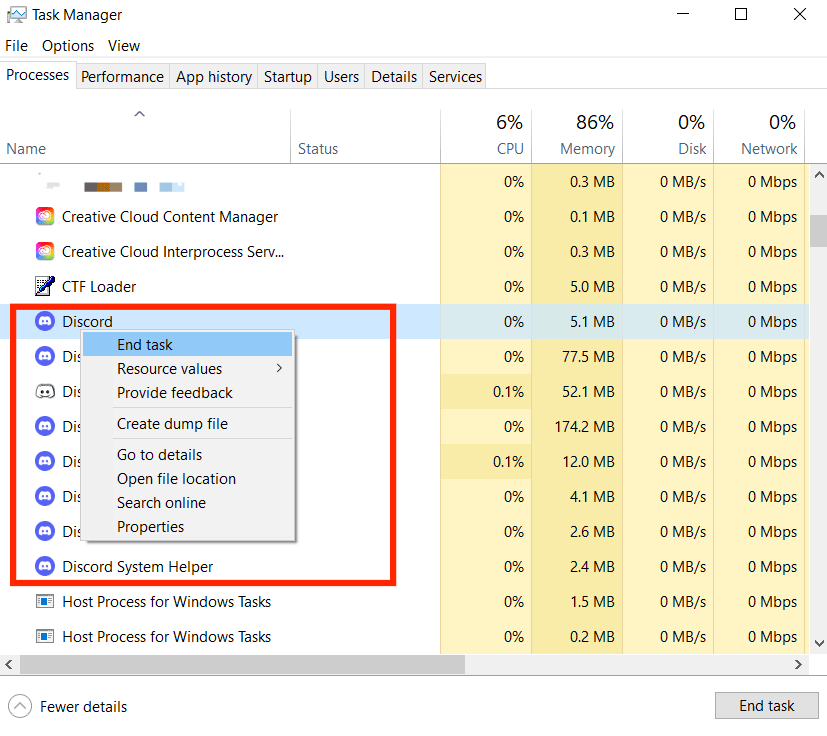
Look at your taskbar in the bottom-right corner of your screen. If you see the Discord icon, right-click it and select Quit Discord. To ensure no lingering processes are running, press Ctrl + Shift + Esc to open the Task Manager. Locate any remaining Discord tasks, right-click them, and select End Task.
Step 2: Uninstall from Settings
Press the Windows Key + I simultaneously to open your system Settings.
Click on Apps in the left sidebar, then select Installed Apps (or Apps & features on Windows 10).
Scroll down or use the search bar to locate Discord.
Click the three dots (...) next to Discord and select Uninstall, then confirm the choice.
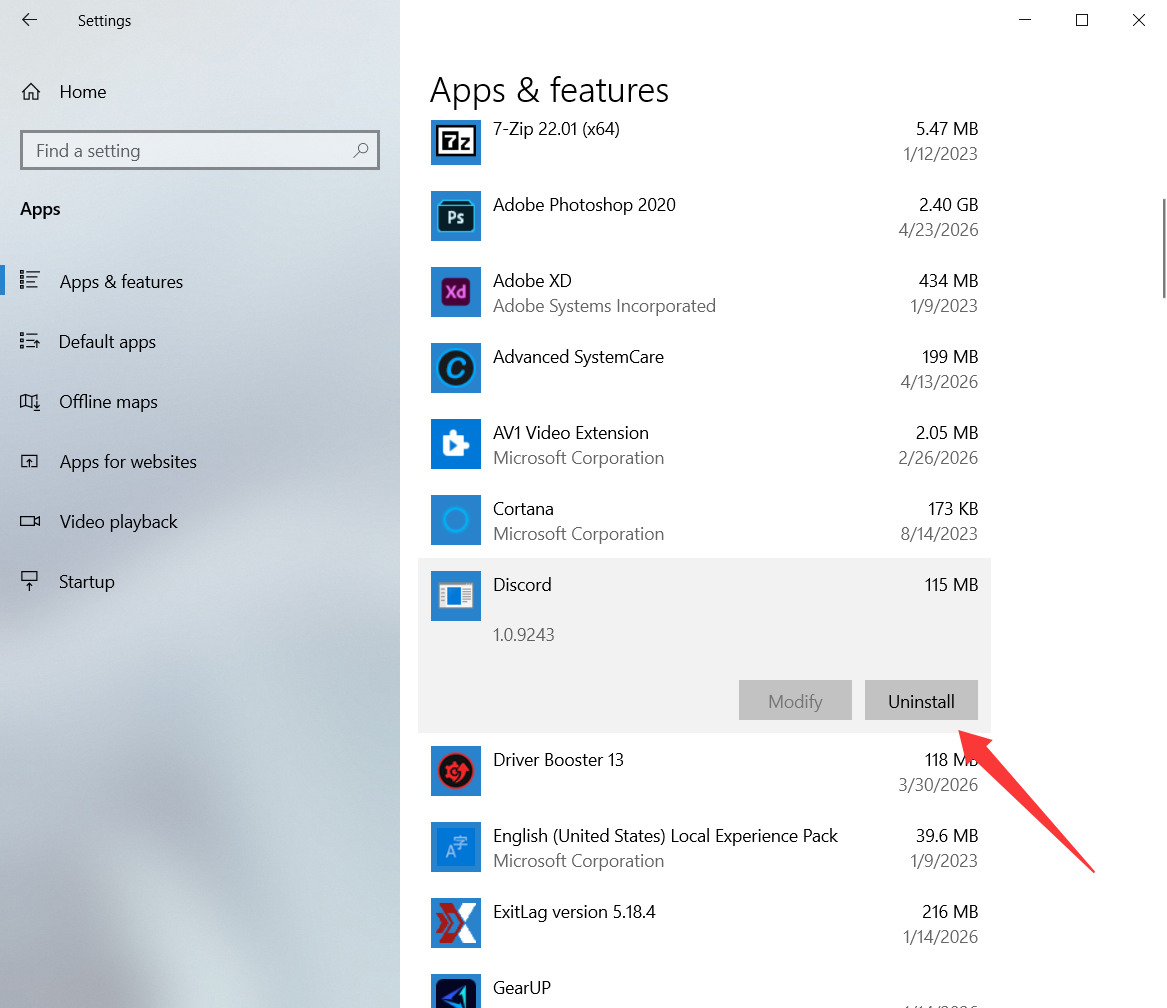
Step 3: Remove Hidden Leftover Files
The default Windows uninstaller often leaves behind configuration data. To wipe these out completely:
1. Press the Windows Key + R to trigger the Run dialog box.
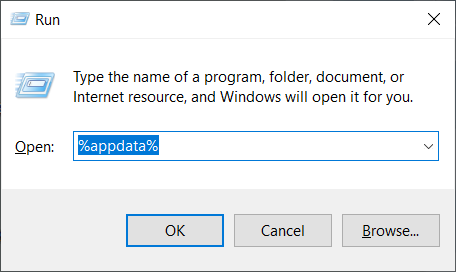
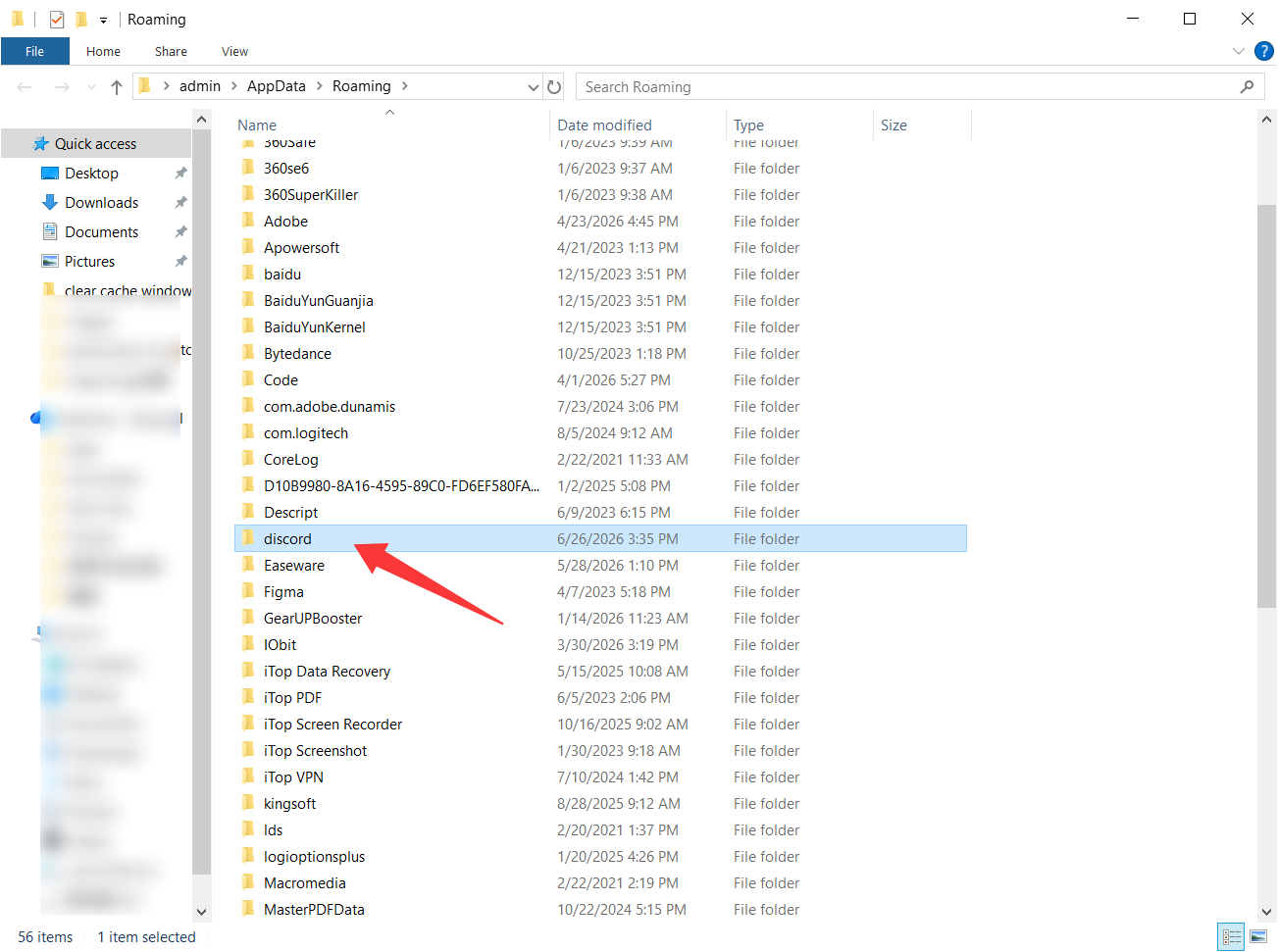
2. Type %appdata% into the field and press Enter. This opens the Roaming folder. Find the Discord folder, right-click it, and select Delete.
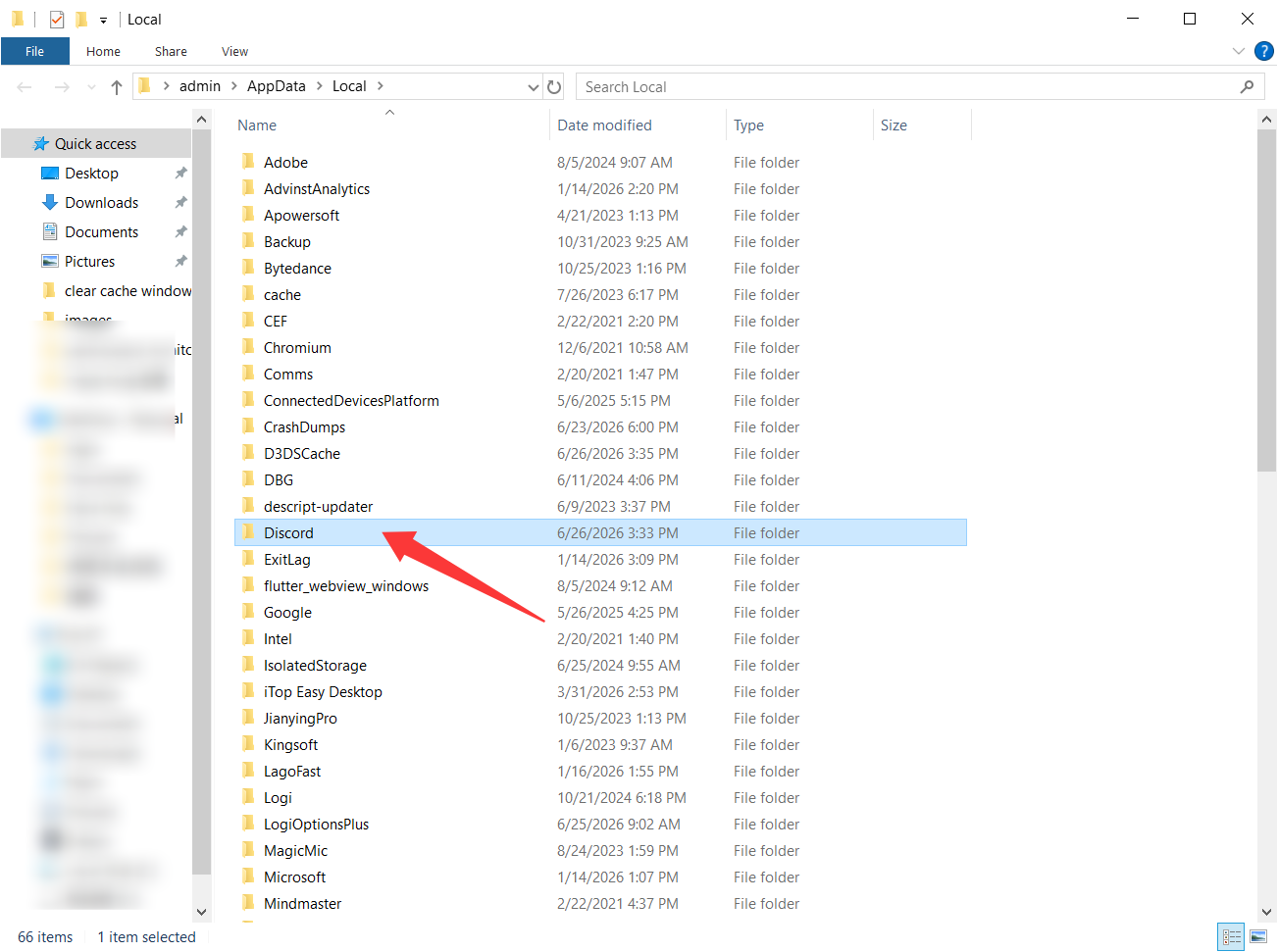
3. Open the Run box again (Win + R), type %localappdata%, and hit Enter. Locate the Discord folder here as well and delete it.
4. Empty your Recycle Bin and restart your PC.
macOS handles applications differently than Windows, but dragging the Discord icon out of your Applications folder still leaves behind hidden library caches. Here is how to uninstall Discord on Mac.
Step 1: Force Quit the Application
If Discord is open, look at your top menu bar, click on Discord, and select Quit Discord. To make sure it is completely inactive, open Finder, go to Applications > Utilities, and launch the Activity Monitor. If you see Discord in the list of active processes, click it and select the "X" button at the top left to force quit it.
Step 2: Remove the Discord App
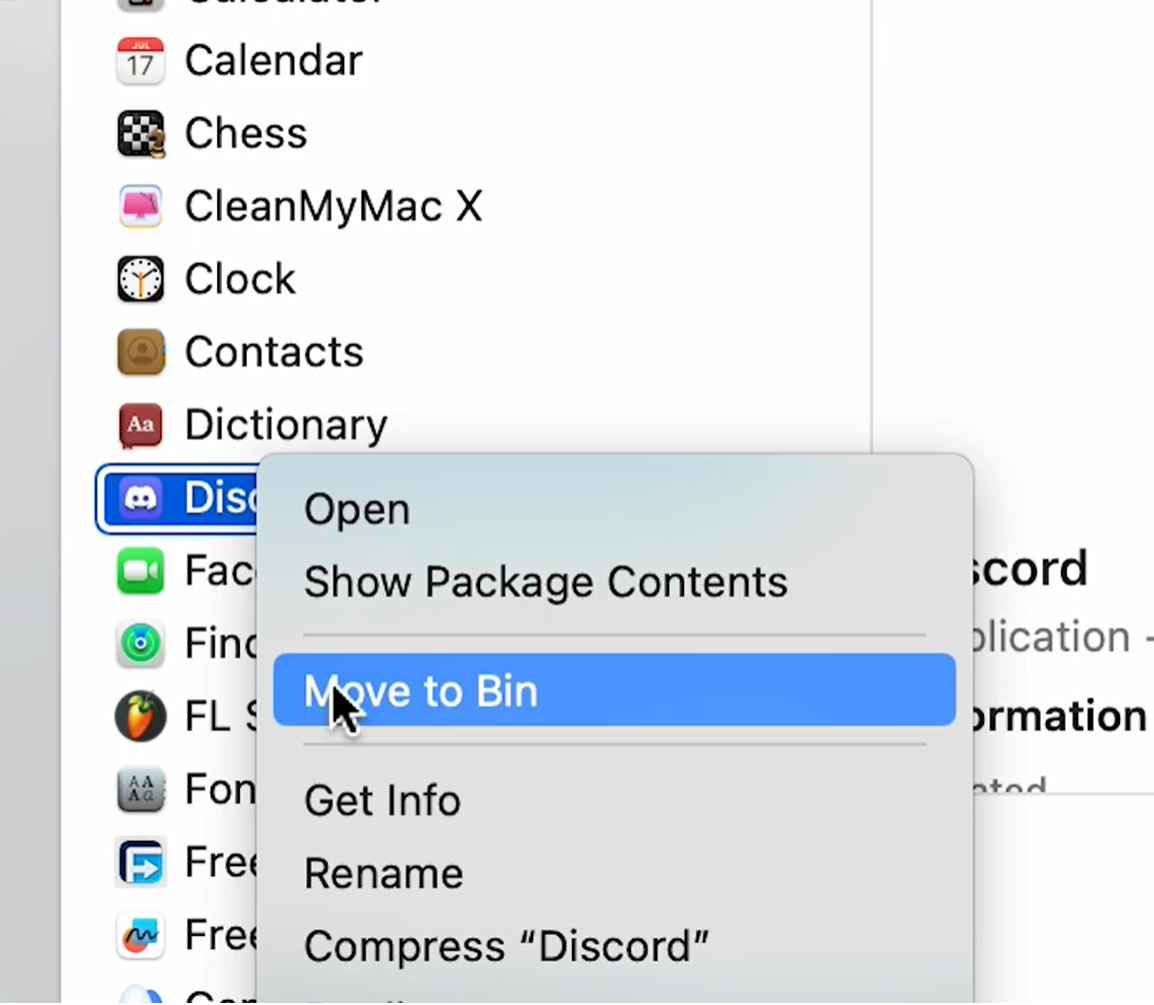
Open Finder and click on your Applications folder. Scroll down until you find the Discord icon. Click and drag the icon directly to your Bin, or right-click it and select Move to Bin.
Step 3: Delete Residual Caches and Application Support Files
Your Mac stores user configuration data in hidden directories. To clear these:
Open Finder. From the top menu bar, click Go, then select Go to Folder...
Type ~/Library into the search field and hit Enter.
Inside the Library folder, use the search bar to look for "Discord". Make sure to filter the search by the "Library" directory rather than your whole Mac.
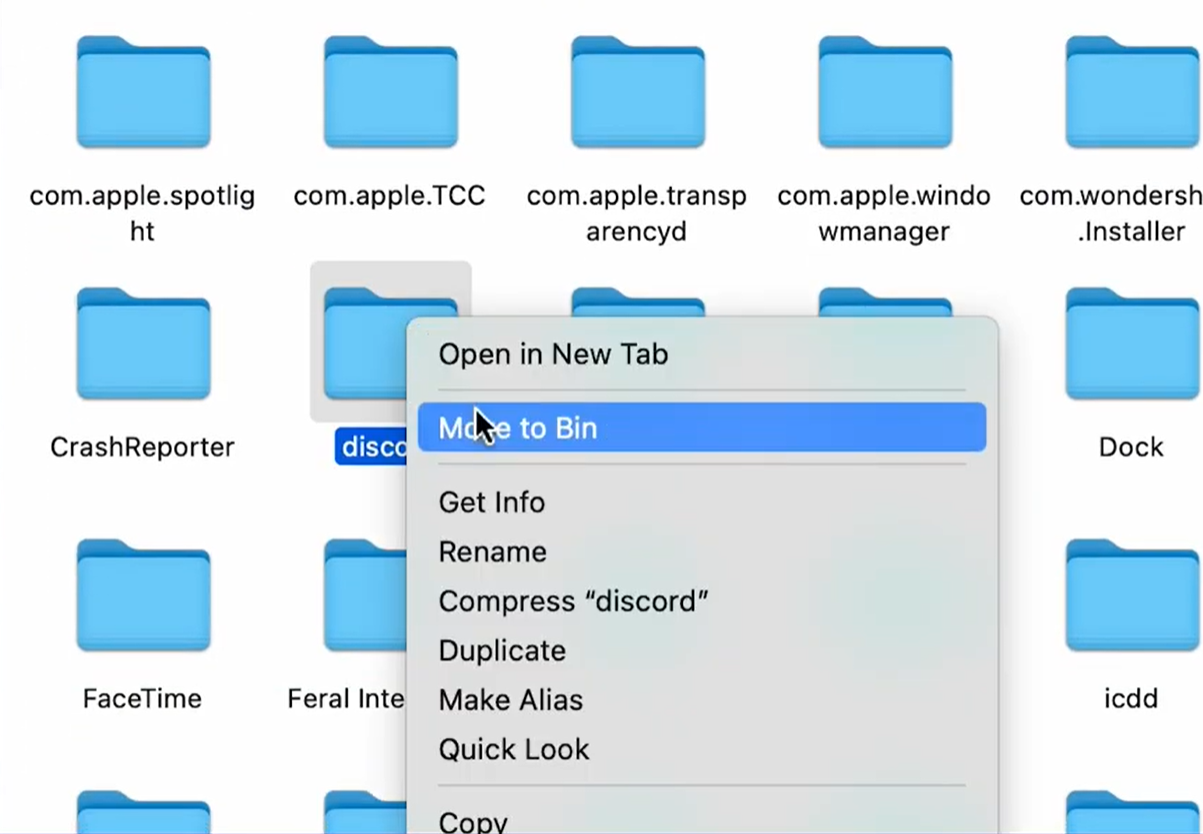
Check inside the following specific sub-folders for folders named com.huddledmasses.discord or simply Discord, and move them to the Trash:
~/Library/Application Support
~/Library/Caches
~/Library/Preferences
~/Library/Logs
Right-click your Trash can icon on the dock and select Empty Trash. Restart your Mac to ensure all system paths are refreshed.
Manual uninstallation works, but tracking down hidden registry files, LocalAppData caches, and deep-seated library folders can be tedious, time-consuming, and prone to user error. Missing just one file can cause future installation issues.
If you want a safer, faster, and completely automated solution, using IObit Uninstaller is highly recommended.
IObit Uninstaller is designed to target every removal need. It bypasses the limitations of default Windows uninstallation methods, dealing with everything from routine app cleanups to stubborn programs that refuse to leave your system. Here is why it makes the process effortless:
Unseen Files Scan: Standard uninstallers leave junk behind. IObit Uninstaller accurately detects and removes deep-seated registry files and leftover traces, keeping your operating system lightweight and well-organized.
Force Removal: If your Discord installation has become corrupted and throws error messages like "Cannot delete file" or "An error occurred while trying to uninstall," IObit's Force Uninstall feature can break through and scrub it without a hitch.
Batch Uninstall: If you are doing a deep computer cleanup to free up disk space, you can select Discord alongside multiple other unwanted applications and remove them all at once with a single click, skipping endless "Are you sure?" confirmation pop-ups.
How to use IObit Uninstaller to remove Discord:
1. Download and Install: Download the latest version of IObit Uninstaller from the official website and follow the setup instructions.
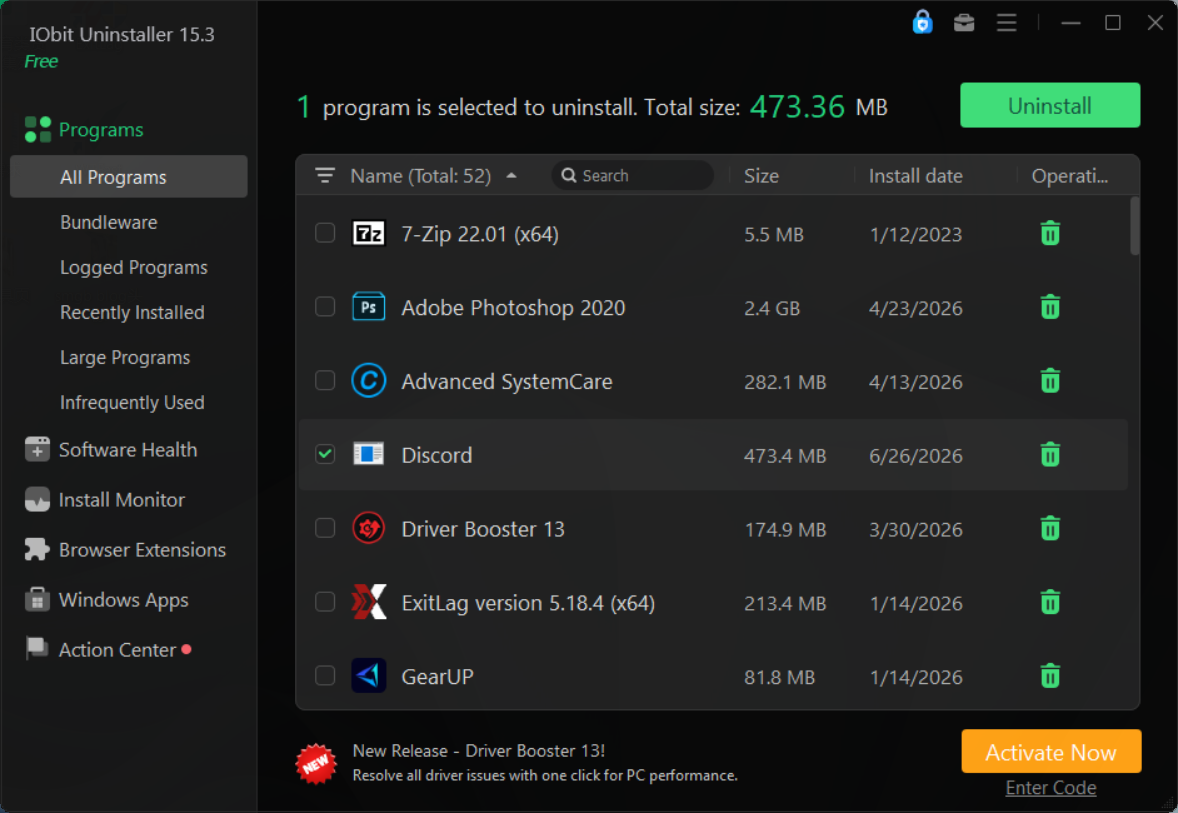
2. Locate the Program: Launch the program. On the main dashboard, click on All Programs and use the search bar at the top right to type "Discord".
3. Trigger Uninstallation: Check the box next to Discord and click the green Uninstall button in the upper-right corner.
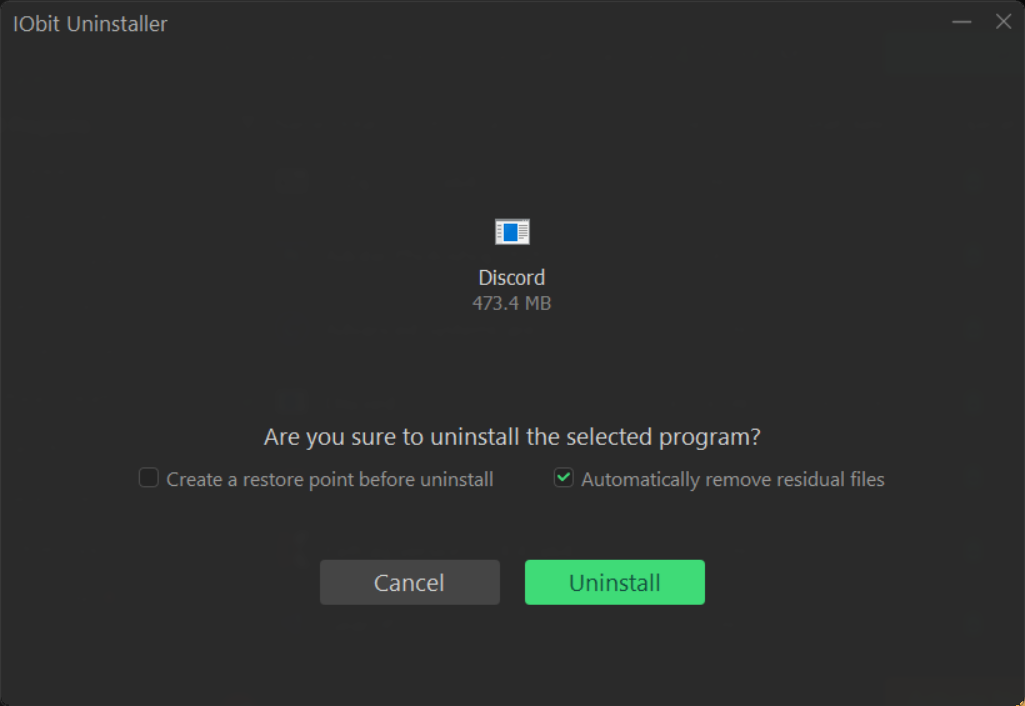
4. Clean Residual Data: A pop-up window will appear. Make sure to check the option that says "Automatically remove residual files". You can also choose to create a restore point for added safety. Click Uninstall again.
5. Wipe Clean: IObit Uninstaller will automatically run Discord's built-in uninstall process, immediately followed by a deep system scan to delete all leftover files and registry keys.
Once the notification pops up confirming the successful cleanup, your system will be completely free of Discord traces, leaving your computer cleaner, faster, and ready for a fresh reinstall if needed. Other apps like Epic Games Launcher can also be uninstalled by IObit Uninstaller effortlessly.

All about how to uninstall Discord has been presented to you above. It requires a bit of patience to dig through hidden system folders like AppData or the macOS Library, but it is necessary if you want to avoid corrupted files interfering with your system performance. For those who want to skip the technical steps and ensure a thorough wipe with zero leftover data, a dedicated solution like IObit Uninstaller streamlines the entire process into a few simple clicks. Keeping your operating system clean from old software clutter is one of the best ways to keep your PC running like new.

Remove unwanted software easily.
Free Download