Apex Legends frequently ranks as a top-tier battle royale in gaming outlets and communities since it release. It sets itself apart with face-paced gameplay, revolutionary ping system and distinct character abilities. The game is offered free-to-play across multiple platforms, making it highly accessible to gamers worldwide.
However, there may come a time when you no longer need Apex Legends. While installing the game is a universal breeze, the uninstallation process varies from where you play. In this article, you’ll learn how to uninstall Apex Legends on different platforms, covering step-by-step tutorials for Window PCs and major game consoles.

Why Do People Uninstall Apex Legends
Although Apex Legends remains one of the most popular bottle royale games in the market, some players still decide to quit the game for a mix of gameplay fatigue and technical issues.
Gaming frustrations: Apex Legends loss its appeal when players feel the experience is unfair or lacks of meaningful innovation. There are several factors that can let gamers down, from unbalanced matchmaking to cheaters and hackers. They may uninstall the game and switch to other battle royale games.
Reduce distractions: Competitive games can be time-consuming. Uninstalling Apex Legends helps break the habit of playing it immediately and reclaim your focus on work or study.
Free up disk storage: Apex Legends is a storage hog. Over years of seasonal updates, the game file size has ballooned to 70-100 GB. Simply uninstall Apex Legends and you can recover a large amount of space for more valuable data.
Fix game issues: Players who are experiencing performance issues, like launch failures, game crashes, lags and FPS drop, update error etc., may need to uninstall and reinstall Apex Legends for troubleshooting.
Improve system performance: New updates of Apex Legend continuously raise the minimum specifications for richer features and smoother gameplay. Some players choose to remove Apex Legends when their devices are suddenly running slow after the latest updates for system optimization without upgrading hardware.
Regardless of the reasons, it is a straightforward workflow to uninstall Apex Legends from your device. Also, you can download and reinstall it again at any time.
How to Uninstall Apex Legends on Windows
While Windows offers built-in features to uninstall programs and games from your PC, third-party uninstaller delivers a more efficient solution to remove a game completely without leftovers.
Uninstall Apex Legends with Control Panel
Control Panel includes the “Programs and Features” function that lets you view, modify and uninstall programs on your computer natively.
Step 1. Search Control Panel and open it.
Step 2. Navigate to Programs and Features.
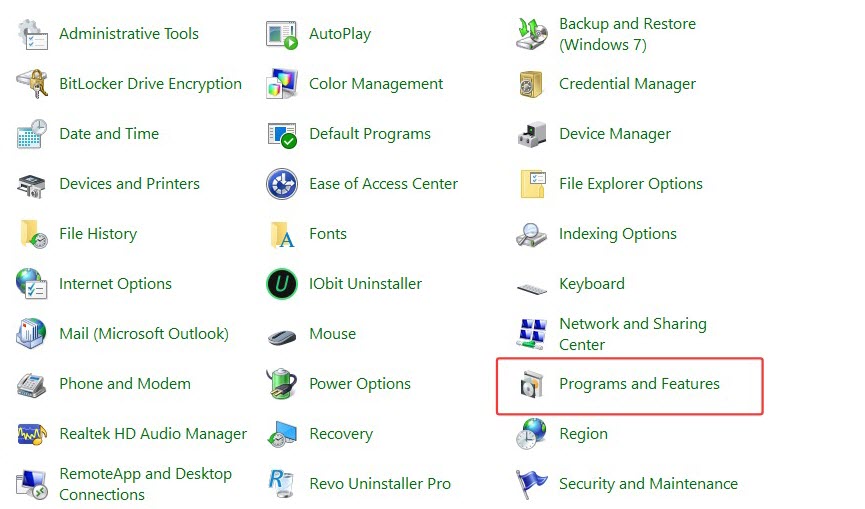
Step 3. Select Apex Legends and click Uninstall.
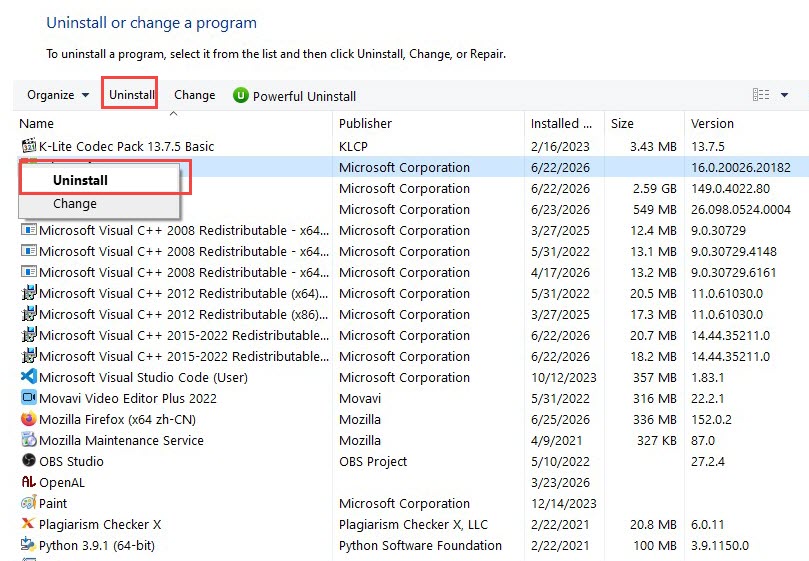 Step 4. Follow on-screen instructions to remove the game.
Uninstall Apex Legends from Windows Settings
Compared with Control Panel, Windows Settings is a more modern system management interface for Windows 10 and 11. The App section within Windows Settings provides a easier way to uninstall Apex Legends.
Step 1. Search Settings and open it.
Step 2. Navigate to Apps.
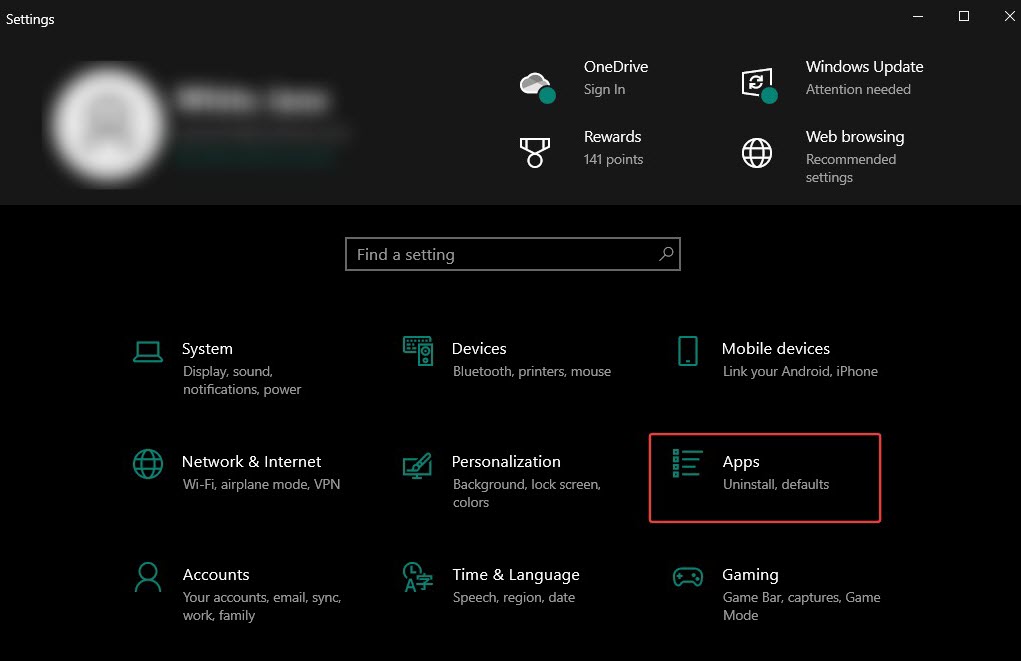
Step 3. Scroll to find Apex Legends from the app list.
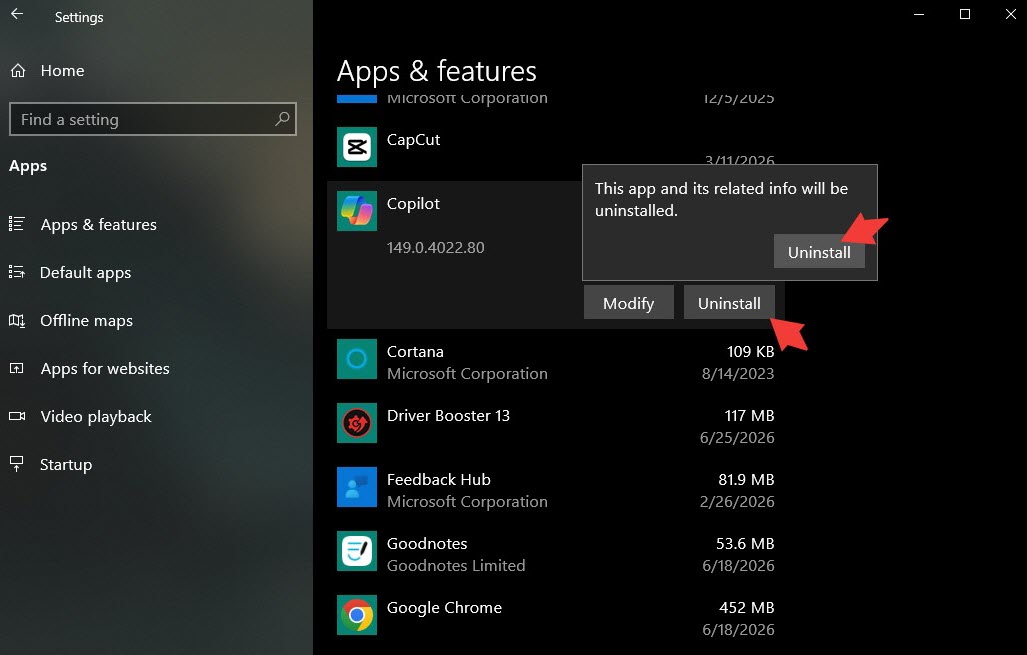
Step 4. Select it and click Uninstall.
Step 5. A pop-up appears warning you that the app and related info will be installed. Click Uninstall and follow the on-screen instructions to remove Apex Legends.
Completely Uninstall Apex Legends with IObit Uninstaller
Both Windows built-in features help uninstall Apex Legends with high convenience. But sometimes, they may fail to detect hidden directories and remove leftovers. If you need a complete cleanup, the innovative program uninstaller - IObit Uninstaller - can simply remove Apex Legends and sweep all residual and hidden data.
IObit Uninstaller Free
- Complete forced uninstallation for stubborn programs.
- Uninstall a batch of programs at once.
- Scan and remove leftover files, folders, and registry entries.
- Support the management of Universal Windows Platform apps.

IObit Uninstaller boasts one-click uninstallation, perfect for beginners. It deeply scans the system and detects all desktop applications, Windows apps, browser extensions and bundleware. You can simply uninstall chosen programs at the touch of a button. After uninstallation, it automatically identifies leftovers, including registry, temp files and allows you to remove them for a cleaner PC. Moreover, the best uninstaller for Windows supports multiple removal, letting you uninstall Apex Legends and other unwanted games or apps at one stop.
IObit Uninstaller has an modern yet easy-to-navigate design, helping you remove a program with no guesswork.
Next, follow the guide to uninstall Apex Legends completely from Windows.
Step 1. Download and install IObit Uninstaller on your PC.
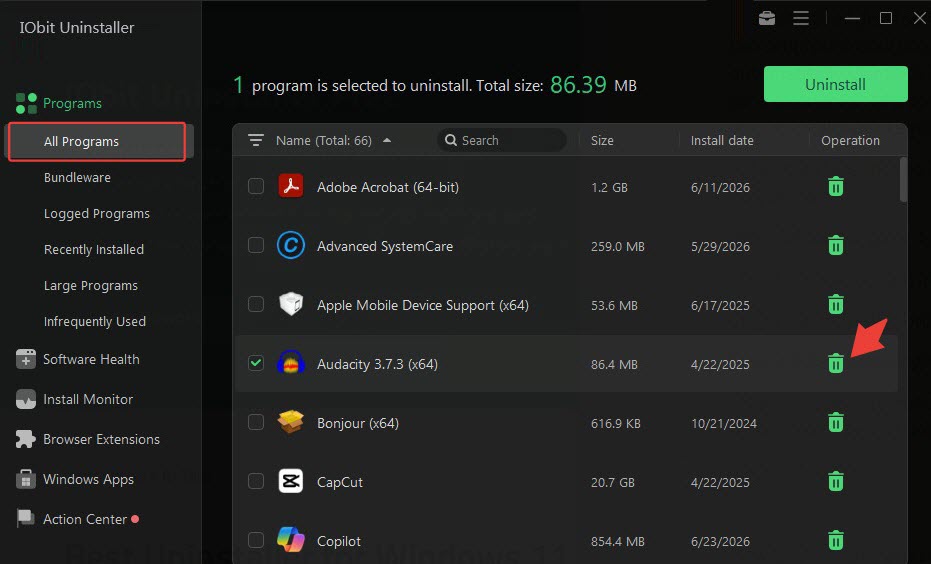
Step 2. Launch IObit Uninstaller and go to All Programs.
Step 3. Select Apex Legends and click the Uninstall button.
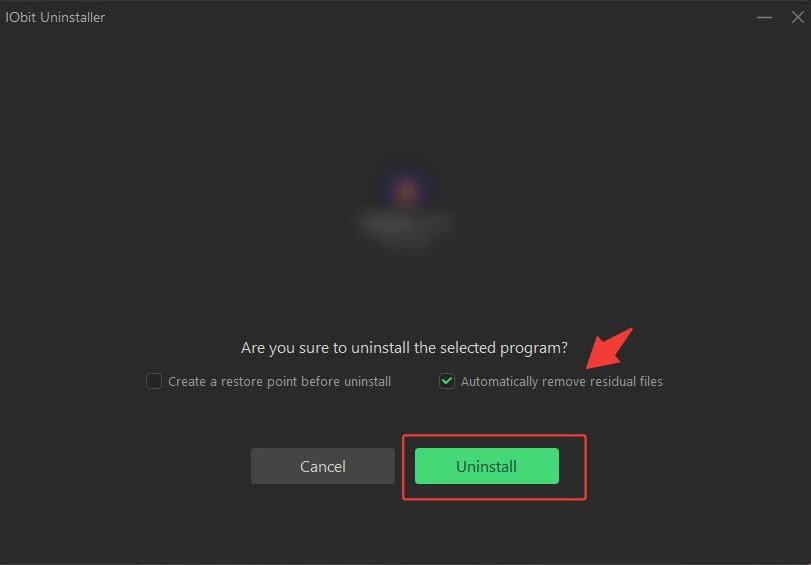
Step 4. Check “Automatically remove residual files” to let IObit Uninstaller delete leftovers after uninstallation. Now, confirm the removal and hit Uninstall.
Tip: You can create a restore point in case unexpected issues happen after uinstallation.
Step 5. After a while, the game will be fully removed from your PC.
Notice: Whether you use Windows built-in features or IObit Uninstaller, restart your PC to ensure all game files and related date are removed properly.
How to Uninstall Apex Legends on Online Game Platforms
Online game platforms act as the single digital hub to download, update and organize your video games. They usually build in the feature to uninstall a game quickly. In the following, let’s get how to uninstall Apex Legends from Steam and EA App.
Uninstall Apex Legends on Steam
Step 1. Open Steam app and log in your account.
Step 2. Go to Library and find Apex Legends in the game list.
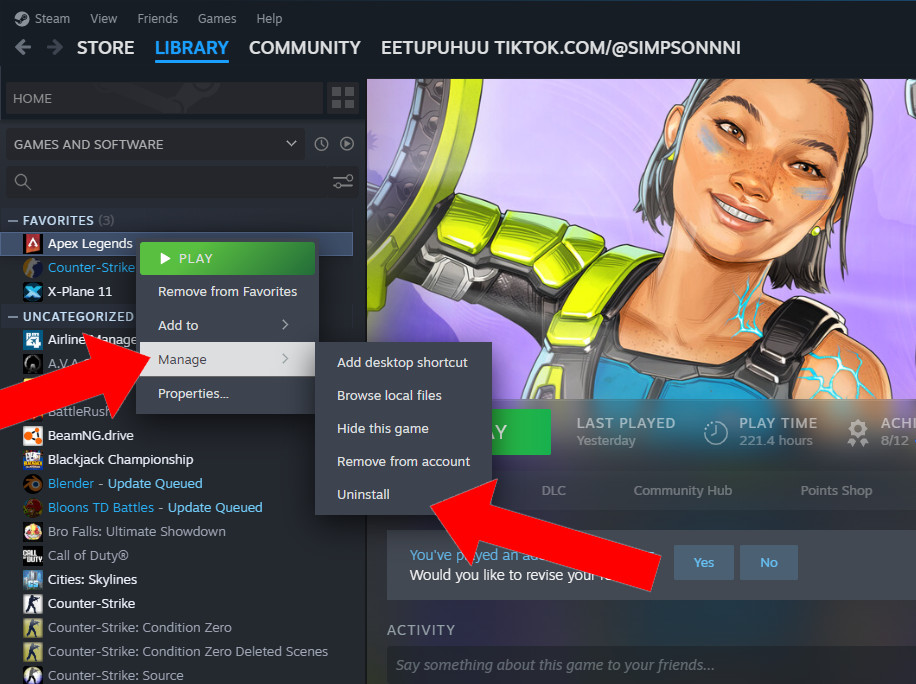
Step 3. Right-click Apex Legends > Manage > Uninstall.
Step 4. Click Uninstall again to confirm the removal.
Also Read: How to Uninstall Steam Game >>
Uninstall Apex Legends from EA App
Step 1. Open EA app and sign in your account.
Step 2. Go to Library and select Apex Legends.
Step 3. Click the three dots and select Uninstall.
Step 4. If prompted, select Yes to confirm the removal.
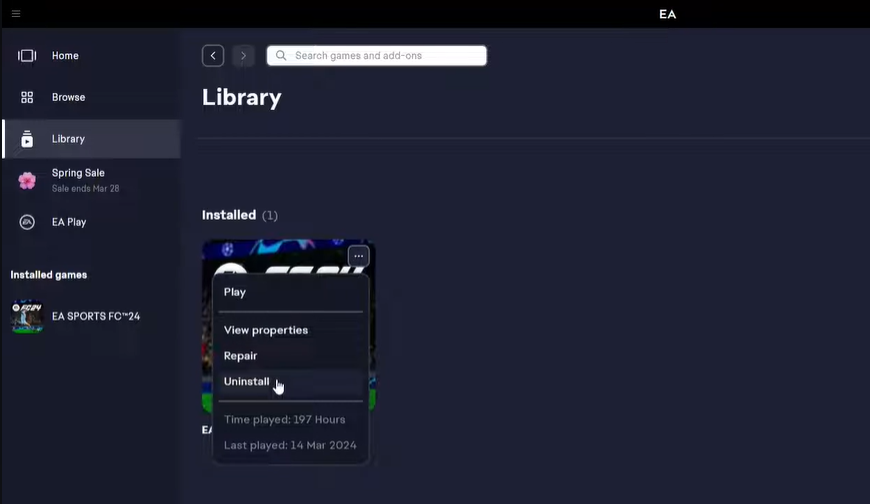
Notice: EA app enables you to remove Apex Legends from your computer but will keep it in your game library for reinstalling whenever you want. If you encounter “can’t uninstall Apex Legends through EA app”, use Control Panel or third-party program uninstaller instead.
How to Uninstall Apex Legends on Game Consoles
If you are used to play Apex Legends on game consoles and decide to uninstall it now, the following tutorials are helpful.
Uninstall Apex Legends on Xbox
Step 1. Press the Xbox button on your controller to open the guide.
Step 2. Select My games & apps > See all.
Step 3. Highlight Apex Legends and press Menu button on your controller.
Step 4. click Manage game and add-ons.
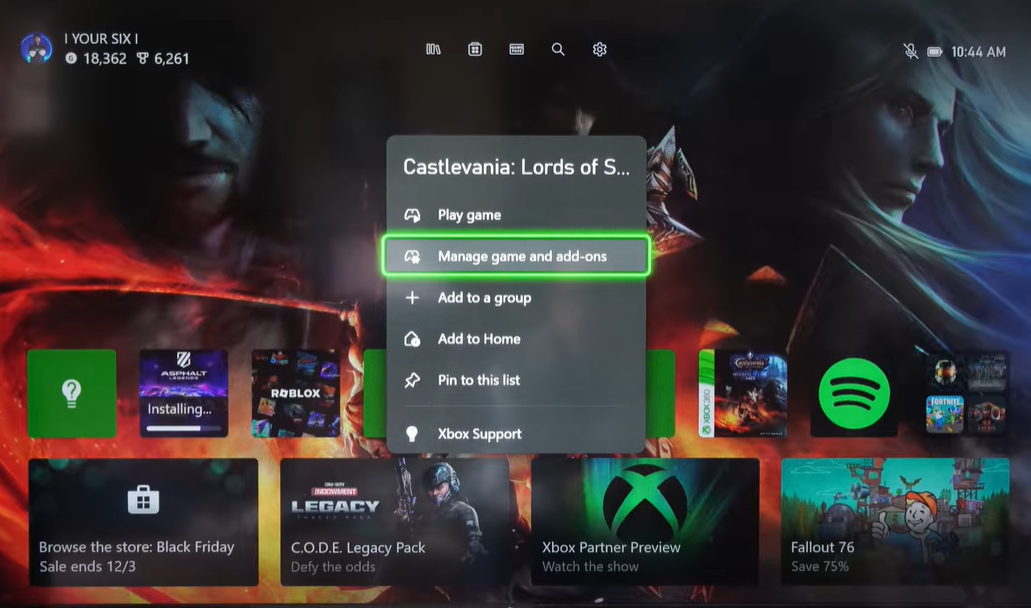
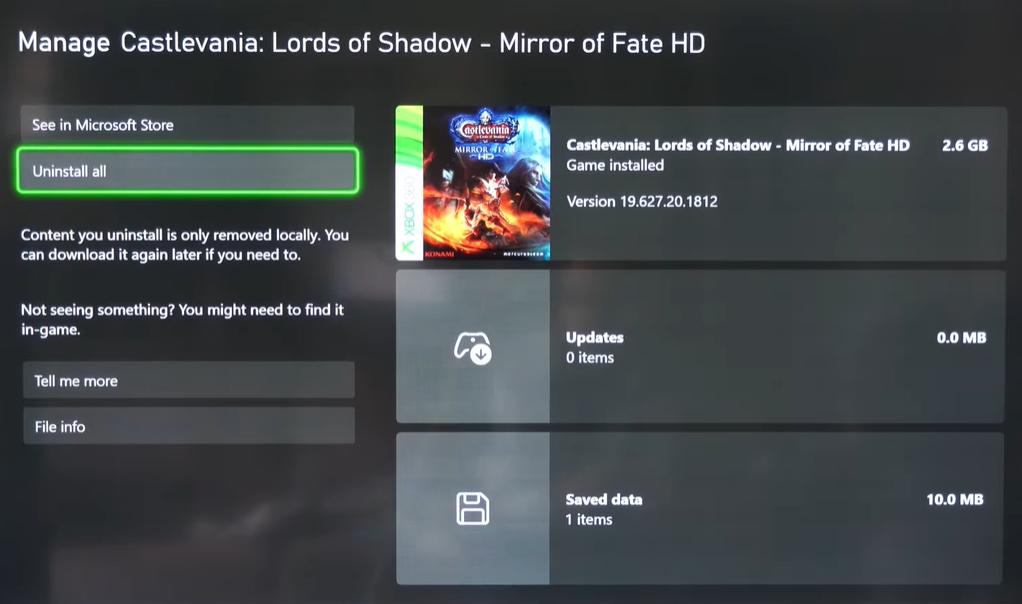
Step 5. Choose Uninstall all.
Step 6. If prompted, click Uninstall all to confirm the removal.
Uninstall Apex Legends on PlayStation
Step 1. Open Settings > Storage.
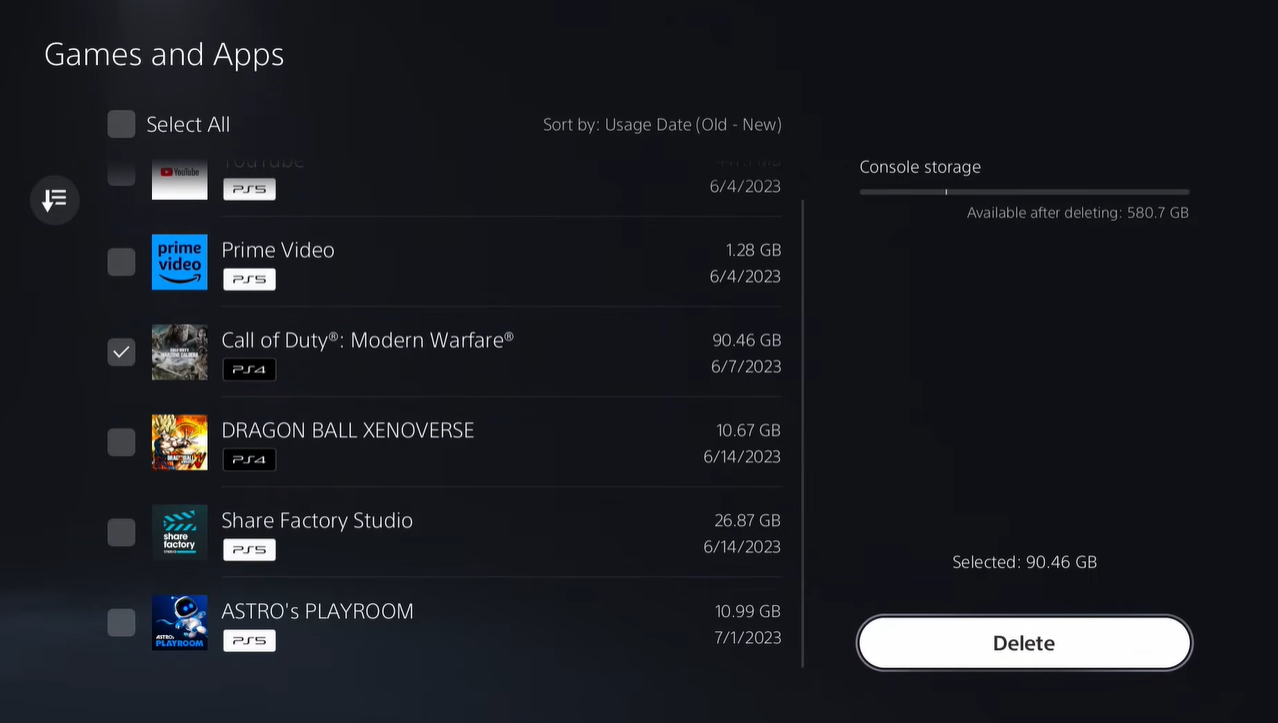
Step 2. Select Console Storage > Games and App.
Step 3. Find and select Apex Legends.
Step 4. Choose Delete and confirm the deletion.
Also Read: How to Uninstall Games on PS5 >>
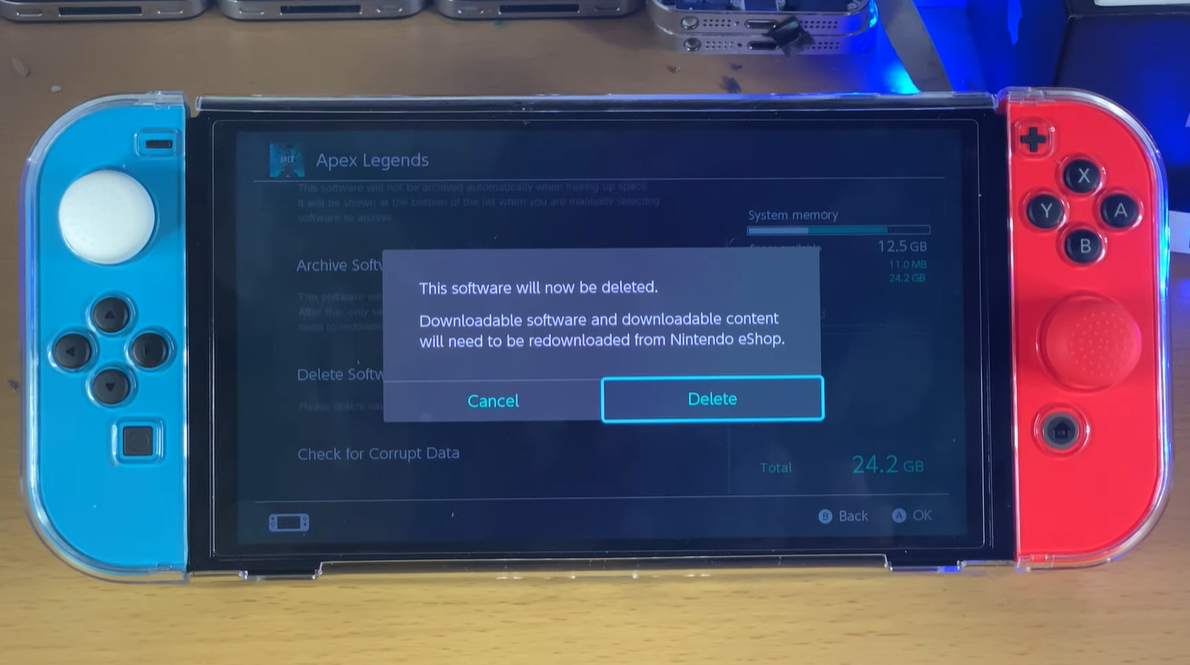
Uninstall Apex Legends on Nintendo Switch
Step 1. Open System Settings from the HOME Menu.
Step 2. Scroll down and select Data Management.
Step 3. Hit Manage software and select Apex Legends.
Step 4. Choose Delete Software and click Delete again to confirm.
What Happens If You Uninstall Apex Legends
“Will I lose everything if I uninstall Apex Legends?”
The question is answered for many times before players decide to hit “Uninstall” for that they may reinstall and play the game someday. The short answer is nothing happens to your progress although while the game is removed from your device.
Here are what exactly occurs when you uninstall Apex Legends from your system.
What You Lose: All of the installation files (games assets, updates) are deleted from your device. And local in-game settings, like graphic settings, audio preference, keybindings or controller layouts, cached game data, will be erased.
What You Keep: Your process is safe. All of your account data is tied to your EA account. Your account level/rank/badges, unlocked legends, skins and cosmetics are securely stored on the server. And your Apex coins, Legends Tokens, and any other purchases content remain untouched in your digital wallet.
You can reinstall Apex Legends anytime. Just download it again through Steam/EA app on PC or your platform’s store. Reinstall and log into the same account to ensure that your online progress and purchases items will be restored automatically.
Conclusion
It is a fairly simple to uninstall Apex Legends. Every available platform provides a native method to remove the game from your device. But if you want a complete uninstallation to free up your disk space on PC, IObit Uninstaller is the best recommendation. While one-click removal makes the program uninstaller stand out, automatic leftover cleanup meets advanced needs. It also features force uninstallation to remove stubborn program for system stabilization. No matter which game or app you try to uninstall, IObit Uninstaller can perform perfectly.
IObit Uninstaller Free
- Complete forced uninstallation for stubborn programs.
- Uninstall a batch of programs at once.
- Scan and remove leftover files, folders, and registry entries.
- Support the management of Universal Windows Platform apps.