





Kevin Hart
Kevin is an experienced editor focused on tech blog writing. Familiar with all kinds of PC software on the market. All the topics he chooses are aimed at bringing more benefits to users.
Expert in
PC Health Solution

All-in-one PC health solution: clean, optimize and secure

Comprehensive PC cleaning, optimization and protection

Keep drivers always up-to-date

More stable performance with less system crashes

Protect millions of computers against malware

Top computer security with full-round protection

Protect against viruses & boost PC performance
Clean: 420 billion traces removed & 85 EB junk files cleaned
Protect: 80 million unauthorized access blocked & 20 million bugs fixed
Speed Up: 6 million hours of startup time saved & Turbo boost
Optimize: Auto clean and auto care your PC with AI mode

Need to delete files with PowerShell? Find PowerShell delete file commands for hidden, read-only, and multiple files, plus tips to avoid accidental deletion.

Kevin Hart


PowerShell is a built-in Windows command-line shell and scripting environment that offers more control over file management than File Explorer. With the right commands, you can delete individual files, remove groups of files by name or extension, clear files from subfolders, and handle common permission-related issues. This guide covers ways to use PowerShell delete file commands, from basic file removal to wildcard and recursive deletion, along with safer methods for checking what will be deleted first.

PowerShell is useful when ordinary File Explorer deletion feels too slow or limited when dealing with 100 disk usage Windows 11 issues. Its command-based approach lets you target exactly what needs to be removed and automate repetitive cleanup tasks.
Faster bulk deletion: PowerShell removes dozens or thousands of files that match a name, extension, date, or other criteria without selecting them manually.
Better automation: File cleanup commands can be added to scripts or scheduled tasks, so recurring jobs do not require the same manual steps.
More precise control: PowerShell targets specific folders, file types, hidden items, or files within nested directories using filters and wildcards.
Useful for stubborn files: Options such as -Force remove hidden or read-only items when standard deletion does not work. This is often what users mean by PowerShell delete file force.
Safer testing: PowerShell provides built-in options such as -WhatIf and security controls to test and execute scripts more safely.
A basic file deletion is straightforward, but PowerShell becomes much more handy when you need to remove multiple files, target specific file types, or clean up nested folders. The examples below cover the most common ways to use a PowerShell command to delete files.
To remove a specific file, provide its full path with Remove-Item:
Remove-Item -Path "C:\Users\Public\Documents\app.log"
This is the simplest PowerShell delete empty files or a specific file command. You can also remove an empty directory by specifying its path instead of a file.
Some files may not be removed normally because they have hidden or read-only attributes. PowerShell delete file force command tells PowerShell to override these attributes when possible:
Remove-Item -Path "C:\Users\Public\Documents\test.txt" -Force
Wildcards are helpful when several files share a naming pattern or extension. For example, this PowerShell command to delete file removes all .tmp files from a specific folder:
Remove-Item -Path "C:\Users\Public\Documents\*.tmp"
You can also use a broader pattern, such as "C:\Logs\app-*.log", to target files with a common prefix.
Add -Recurse when the target includes files inside nested directories:
Remove-Item -Path "C:\Users\Public\Documents\*" -Recurse
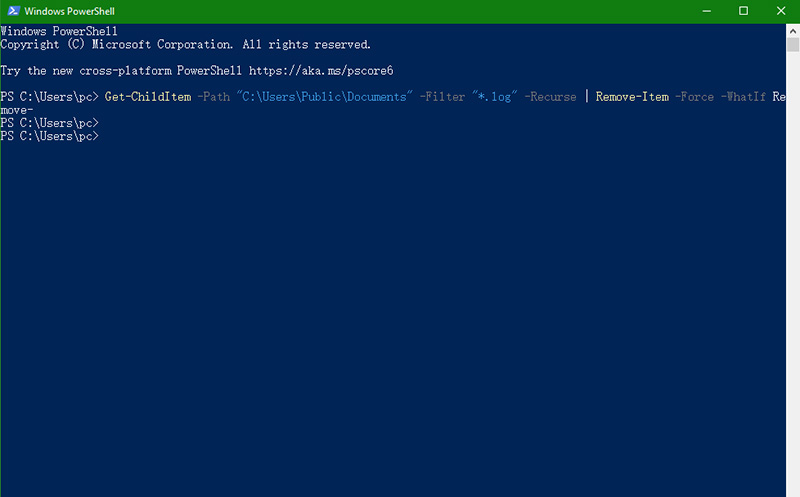
For more precise PowerShell delete file cleanup, Get-ChildItem can find matching files first and then pass them to Remove-Item. For example, the following removes .log files from a folder and its subfolders:
Get-ChildItem -Path "C:\Users\Public\Documents" -Filter "*.log" -Recurse | Remove-Item -Force -WhatIf Remove-Item –
The biggest risk with command-line deletion is not the command itself but targeting the wrong path or matching more files than intended. A few built-in PowerShell options can make a PowerShell delete file operation much safer when working with wildcards or -Recurse.
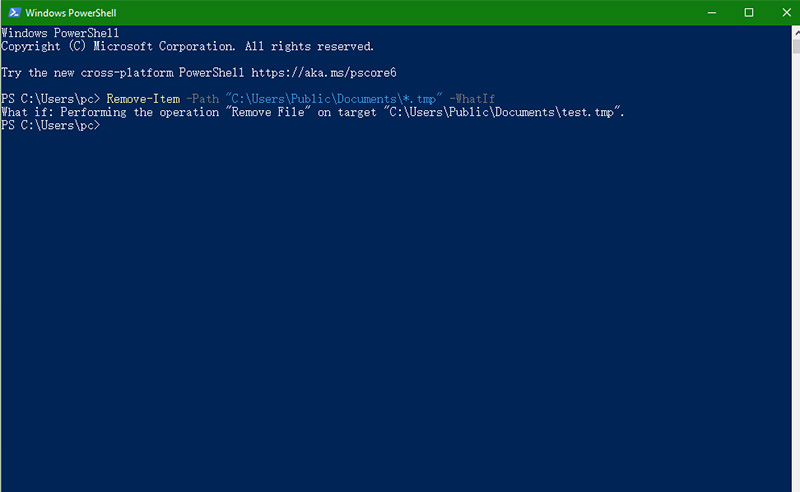
The Dry Run (-WhatIf): Add -WhatIf to a deletion command to see what PowerShell would remove without actually deleting anything. For example:
Remove-Item -Path "C:\Users\Public\Documents\*.tmp" -WhatIf
Review the output carefully before running the command without this switch.
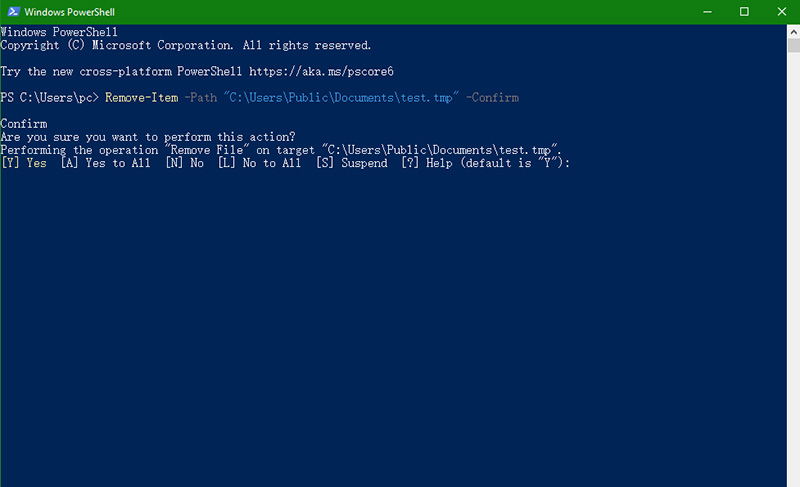
Double-Checking (-Confirm): Add -Confirm when you want PowerShell to ask for approval before carrying out the deletion.
Remove-Item -Path "C:\Users\Public\Documents\test.tmp" –Confirm
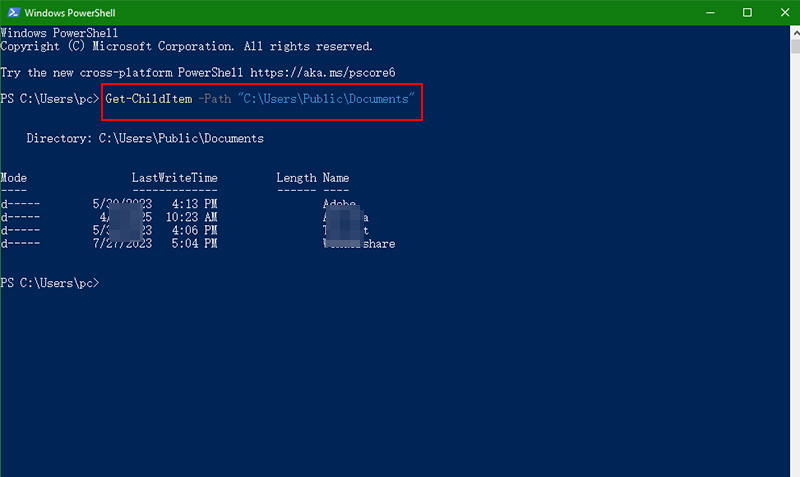
Check the Path First (-ChildItem): Before running Remove-Item, check the target path and see which files match. Get-ChildItem lets you preview the results without making any changes.
Get-ChildItem -Path "C:\Users\Public\Documents"
Be Careful with Administrative Locations: Avoid experimenting with deletion commands in Windows system directories, program folders, or other locations you do not fully understand. Administrator privileges do not make an incorrect deletion reversible.
For important data, keep a backup before running bulk deletion commands or using hard disk cleaner tools. PowerShell does not provide a normal Recycle Bin safety net for every Remove-Item operation, so checking the target beforehand is worth the extra few seconds.
PowerShell gives you precise control over file deletion, but that flexibility comes with a learning curve. You need to know the right path, parameters, and filters before running a command, and one incorrect wildcard can target more files than intended.
For a simpler way to clear junk and unnecessary files without working through the command line, IObit Advanced SystemCare provides a more visual approach. Advanced SystemCare is a Windows PC cleanup and optimization tool rather than a direct replacement for every Remove-Item task. The RAM optimizer Windows 11 tool focuses on temporary files, caches, logs, leftovers, and other unnecessary data.
Step 1. Download Advanced SystemCare from IObit's official website and complete the installation. Launch the program after installation to access its main cleaning interface.
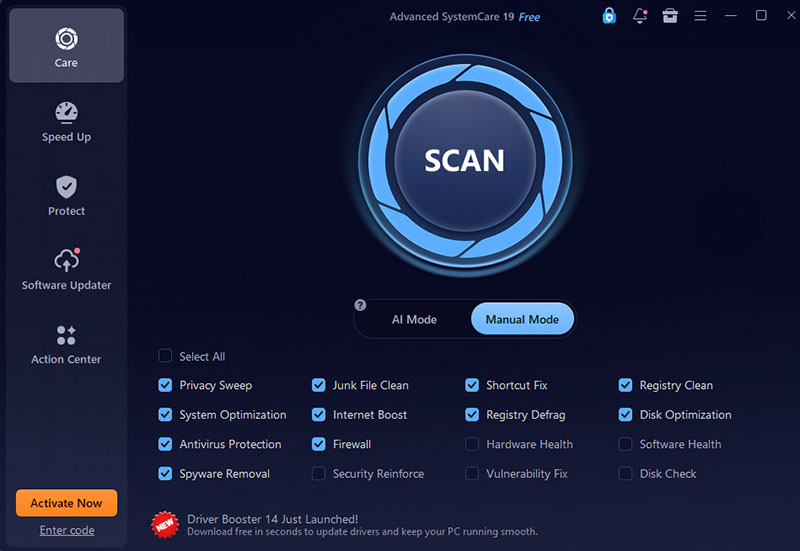
Step 2. Open the Care tab and click SCAN. Advanced SystemCare can scan the PC for junk files and other items that can be cleaned.
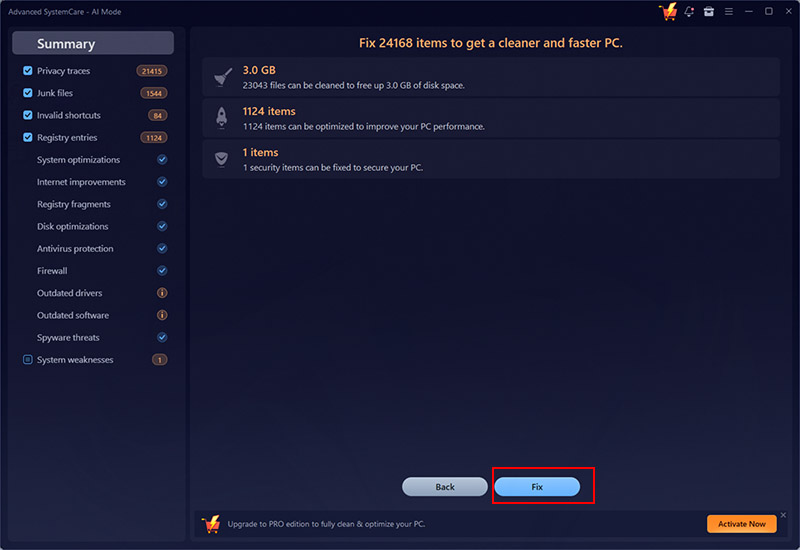
Step 3. After the scan, review the detected items and click Fix to clean supported junk files and address the selected system issues.
Clear PC clutter with less effort: Advanced SystemCare finds and clears temporary data, browser caches, logs, Recycle Bin items, broken shortcuts, and other digital clutter through AI-assisted or customizable cleanup.
Uninstall apps & delete unwanted extensions: Quickly remove programs and browser add-ons you no longer need, helping clear unnecessary software and keep your PC organized.
Permanently shred sensitive files: The File Shredder feature is valuable when simply deleting a file or emptying the Recycle Bin is not enough. It securely removes selected files or folders to make them harder to recover, providing an extra option for sensitive or unwanted data.
Boost PC performance with smarter optimization: The Windows optimizer manages background processes, CPU and RAM usage, startup tasks, and browser settings to make your PC run more smoothly during gaming, work, and everyday browsing.

PowerShell delete file commands remain a powerful option for precise file management, but it can be unnecessarily complicated for routine cleanup. Advanced SystemCare simplifies tasks such as finding junk, clearing caches, and freeing disk space through a graphical interface and automated scanning. For less command-line work, grab Advanced SystemCare and make everyday PC maintenance more efficient.

All-in-one PC health solution.
Free Download