




Kevin Hart
Kevin is an experienced editor focused on tech blog writing. Familiar with all kinds of PC software on the market. All the topics he chooses are aimed at bringing more benefits to users.
Expert in
PC Health Solution

All-in-one PC health solution: clean, optimize and secure

Comprehensive PC cleaning, optimization and protection

Keep drivers always up-to-date

More stable performance with less system crashes

Protect millions of computers against malware

Top computer security with full-round protection

Protect against viruses & boost PC performance
Clean: 420 billion traces removed & 85 EB junk files cleaned
Protect: 80 million unauthorized access blocked & 20 million bugs fixed
Speed Up: 6 million hours of startup time saved & Turbo boost
Optimize: Auto clean and auto care your PC with AI mode

Computer running slow, limited C drive space, etc. All these things mean that your PC needs a thorough clean. Follow this guide to see how to clean up PC.

Kevin Hart


Is your computer feeling a bit sluggish lately? Over time, every PC gathers digital clutter—from temporary files and unused apps to hidden system junk that quietly eats away at your resources. This buildup doesn't just take up space; it slows down your daily tasks and can even lead to frustrating system crashes.
In this guide, you can walk through simple, effective steps to refresh your machine. By learning how to clean up PC, you can reclaim your storage, boost your system’s speed, and enjoy a much smoother, more reliable computing experience.
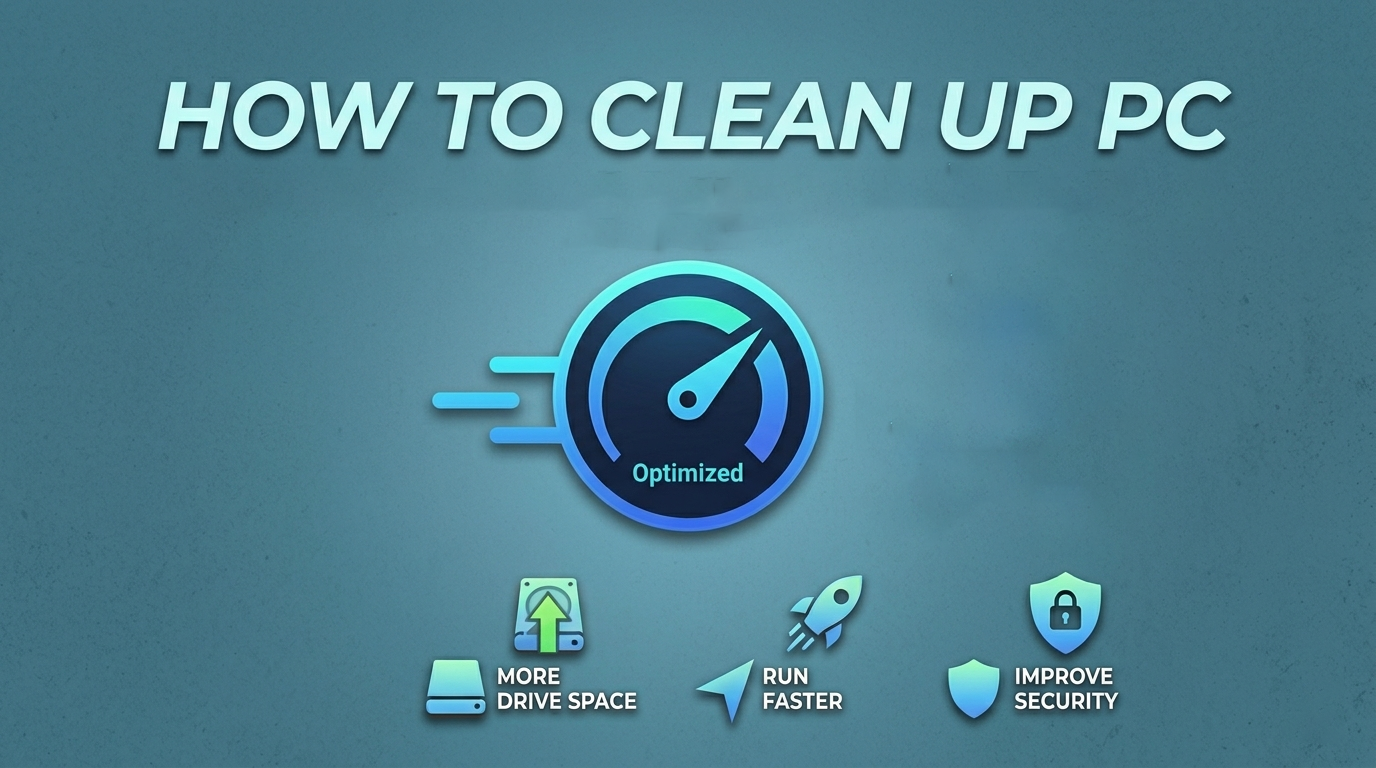
How to clean up your PC is a vital maintenance task that yields immediate performance gains and extends the lifespan of your hardware. Here are the 3 main benefits just after cleaning.
One of the most significant benefits is gaining more C drive space. By removing temporary files, system logs, and redundant caches, you prevent the "disk full" warnings that often stall system updates and prevent new software installations.
Furthermore, a tidy system results in your computer running faster. When you clear out background startup processes and fragmented data, the CPU and RAM can manage active tasks more efficiently, significantly reducing lag and boot times.
Beyond performance, a thorough cleanup enhances your digital security. Deleting old downloads and clearing browser cookies removes sensitive data that could be exploited if your system were ever compromised. By maintaining a lean environment, you ensure that your PC remains a responsive, secure, and reliable tool for your daily needs. This proactive approach transforms a sluggish machine into a streamlined powerhouse.
Maintaining a clean computer involves both hardware and software upkeep. Upcoming are five effective methods about how to clean up your PC.
5 ways that have already proven to be effective and free ways to clean up your device are listed below. Follow them step by step now!
This built-in tool identifies and removes unnecessary files that the system no longer needs.
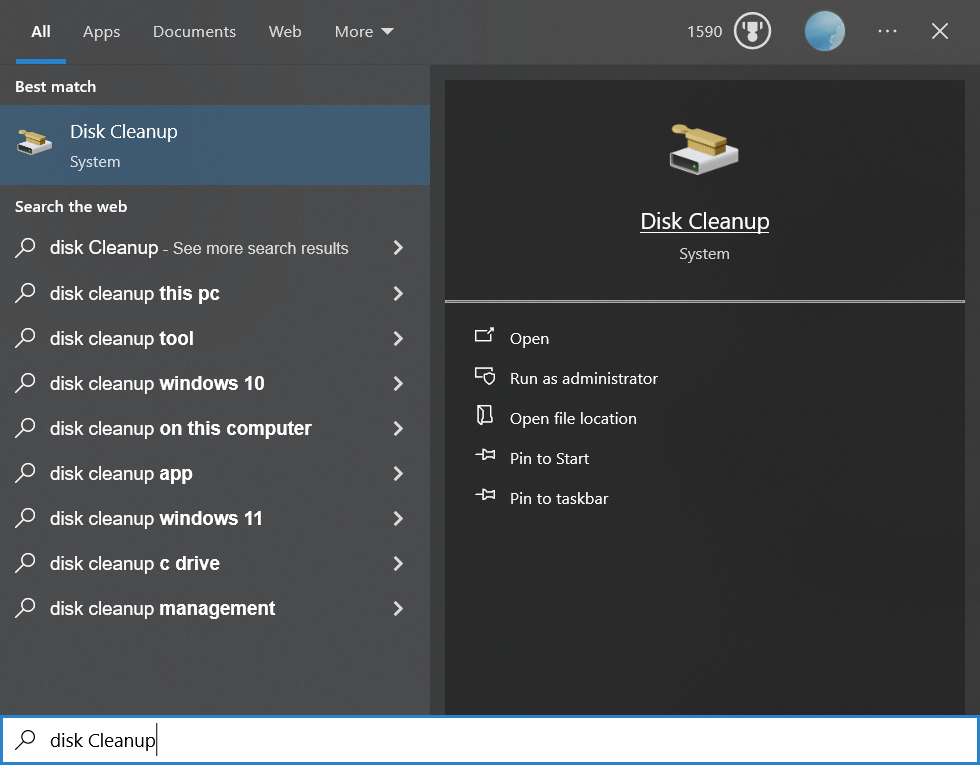
Step 1. Type "Disk Cleanup" in the Windows search bar and press Enter.
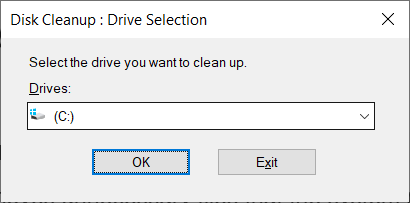
Step 2. Select your primary drive (usually C:) and click OK.
Step 3. Check the boxes for files you want to delete (e.g., Temporary Files, Recycle Bin, and Thumbnails).
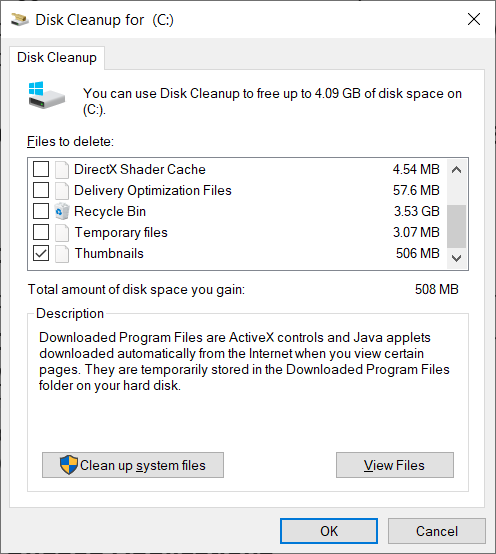
Last, Just click OK, then Delete Files to confirm.
Large programs you no longer use take up significant drive space and may have background processes running.
Step 1. Open Settings and go to Apps > Installed apps.
Step 2. Sort the list by Size to see which programs occupy the most space.
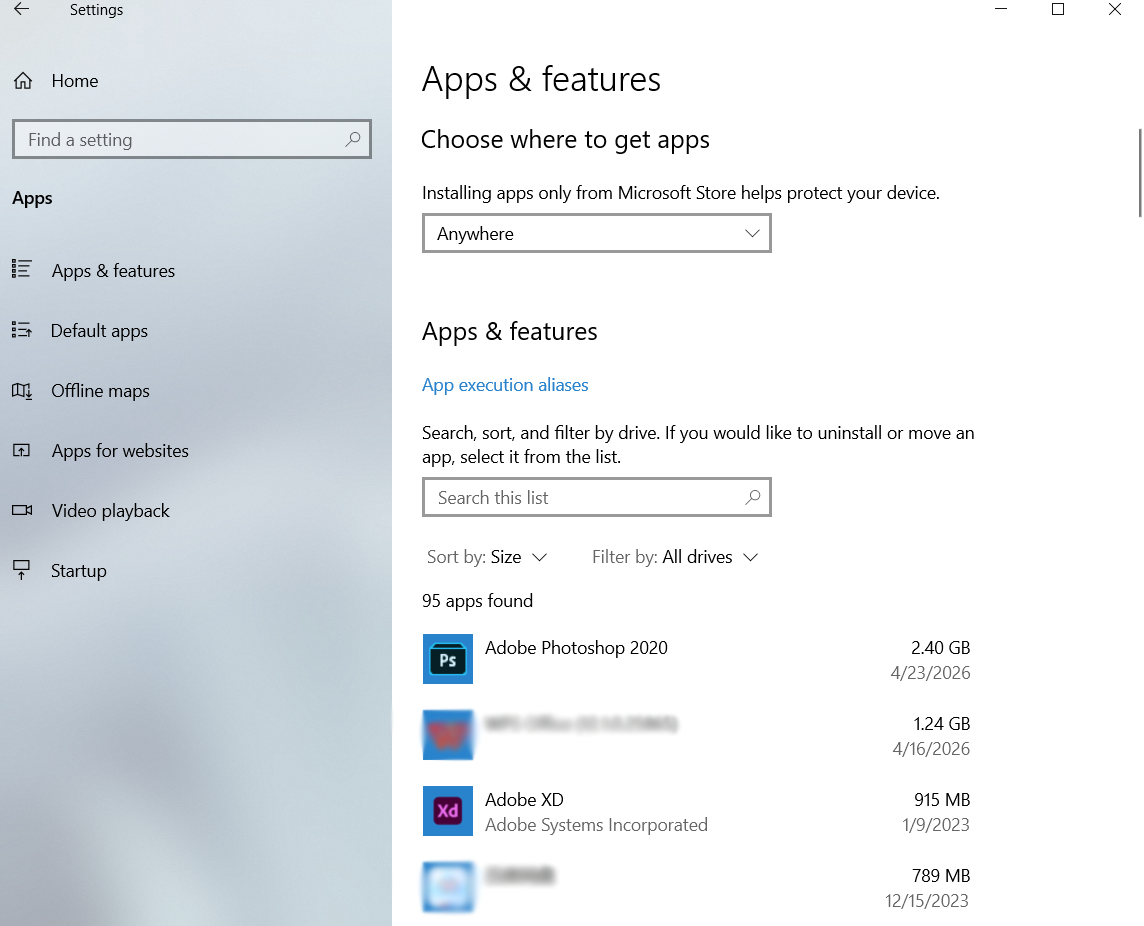
Step 3. Click the program you don't need to uninstall.
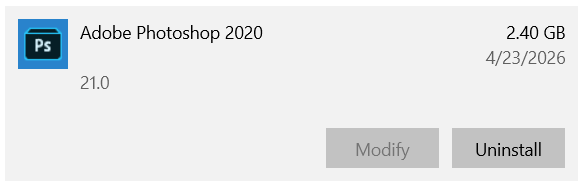
Step 4. Follow the on-screen prompts to remove the software completely.
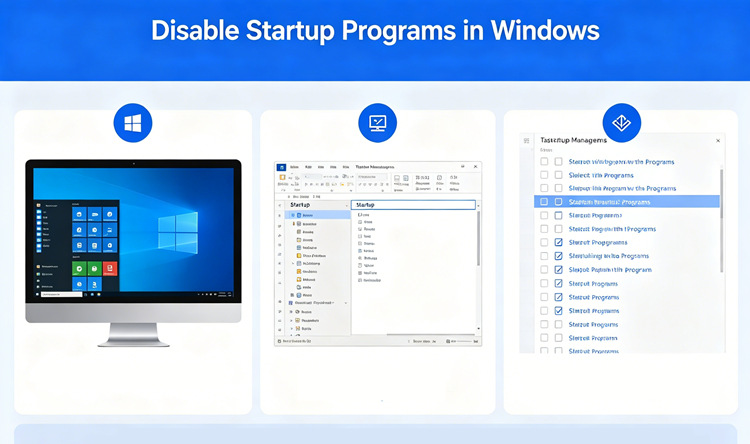
Many apps set themselves to launch the moment you turn on your PC, which significantly slows down boot times.
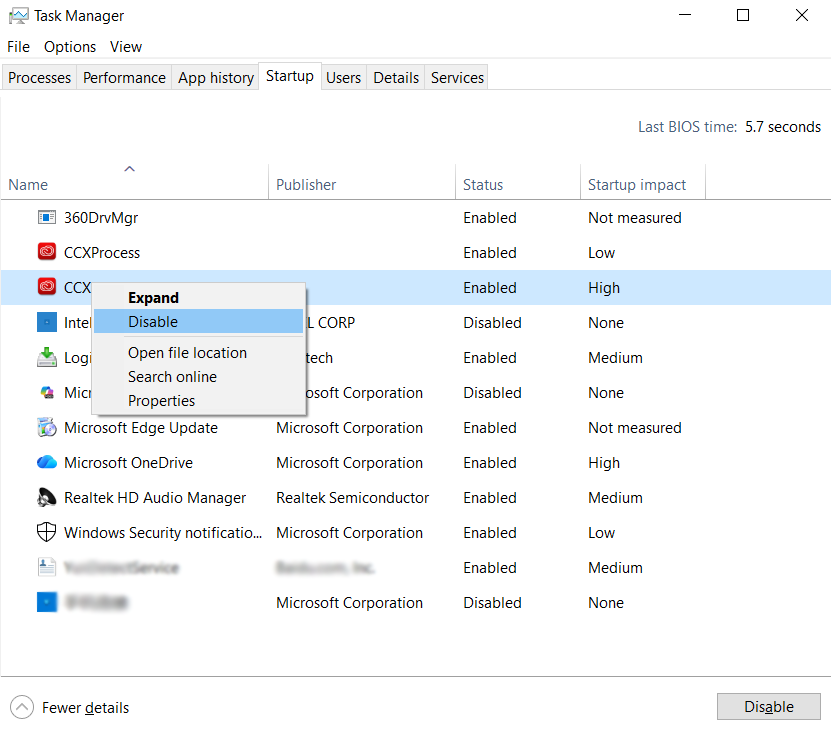
Step 1. Press Ctrl + Shift + Esc to open the Task Manager.
Step 2. Click the Startup tab.
Step 3. Look at the Startup impact column; identify apps labeled "High."
Step 4. Right-click the unnecessary apps and select Disable.
Windows can automatically delete temporary files and empty your Recycle Bin on a schedule.
Step 1. Go to Settings > System > Storage.
Step 2. Toggle the Storage Sense switch to On.
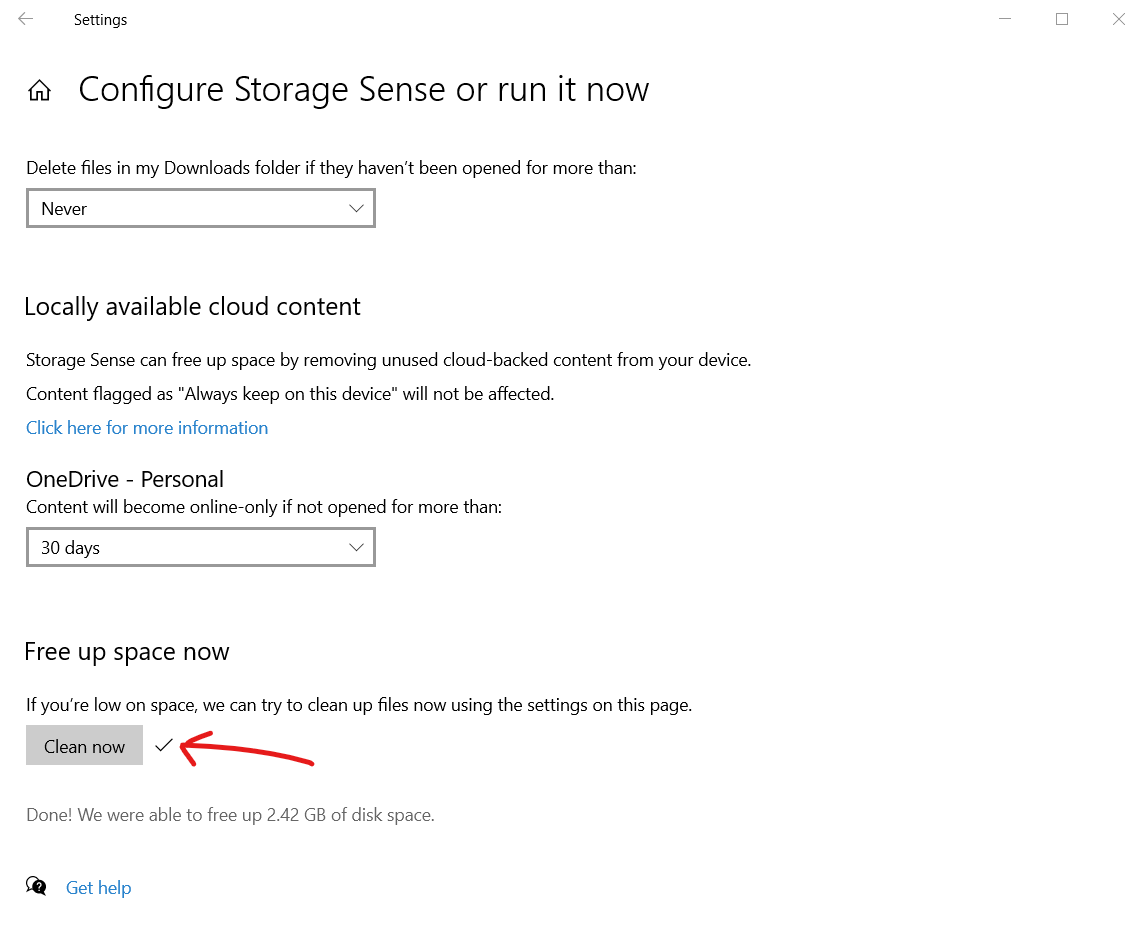
Step 3. Click on Storage Sense to configure how often it runs (e.g., weekly or monthly).
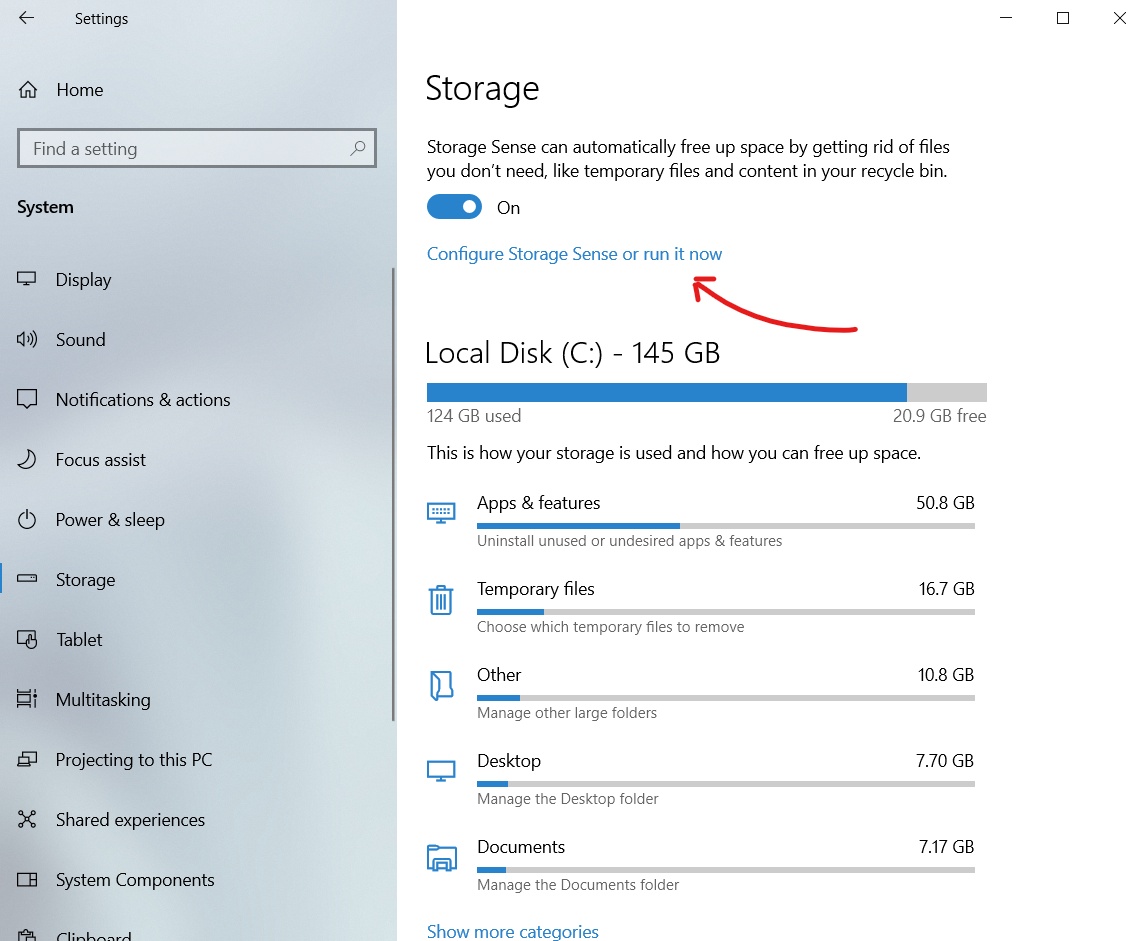
Step 4. Click Run Storage Sense now at the bottom to perform an immediate cleanup.
Dust buildup inside your PC case can cause components to overheat, leading to thermal throttling and hardware damage.
Step 1. Shut down your PC and unplug all power cables.
Step 2. Open the side panel of your desktop case (or use a pressurized air can for laptop vents).
Step 3. Use compressed air to blow dust out of the fans, heatsinks, and vents.
Step 4. Wipe the exterior with a microfiber cloth and reassemble the unit.
After checking 5 methods above on how to clean up PC. Your device must be refreshed and ready to work. But methods mentioned above may not help old devices and users who need a thorough clean of PC, or users who just prefer a one-stop solution rather than following complicated ways, a free tool called Advanced SystemCare is available. It is an all-in-one PC optimization utility designed to clean, speed up, and protect your computer with a user-friendly, one-click interface. It is particularly effective for users who want an automated way to handle system maintenance without manually digging through Windows settings.
How to Use It:
Step 1. Get the software from the button below.
Step 2. Click the large "SCAN" button in the center of the "Care" tab.
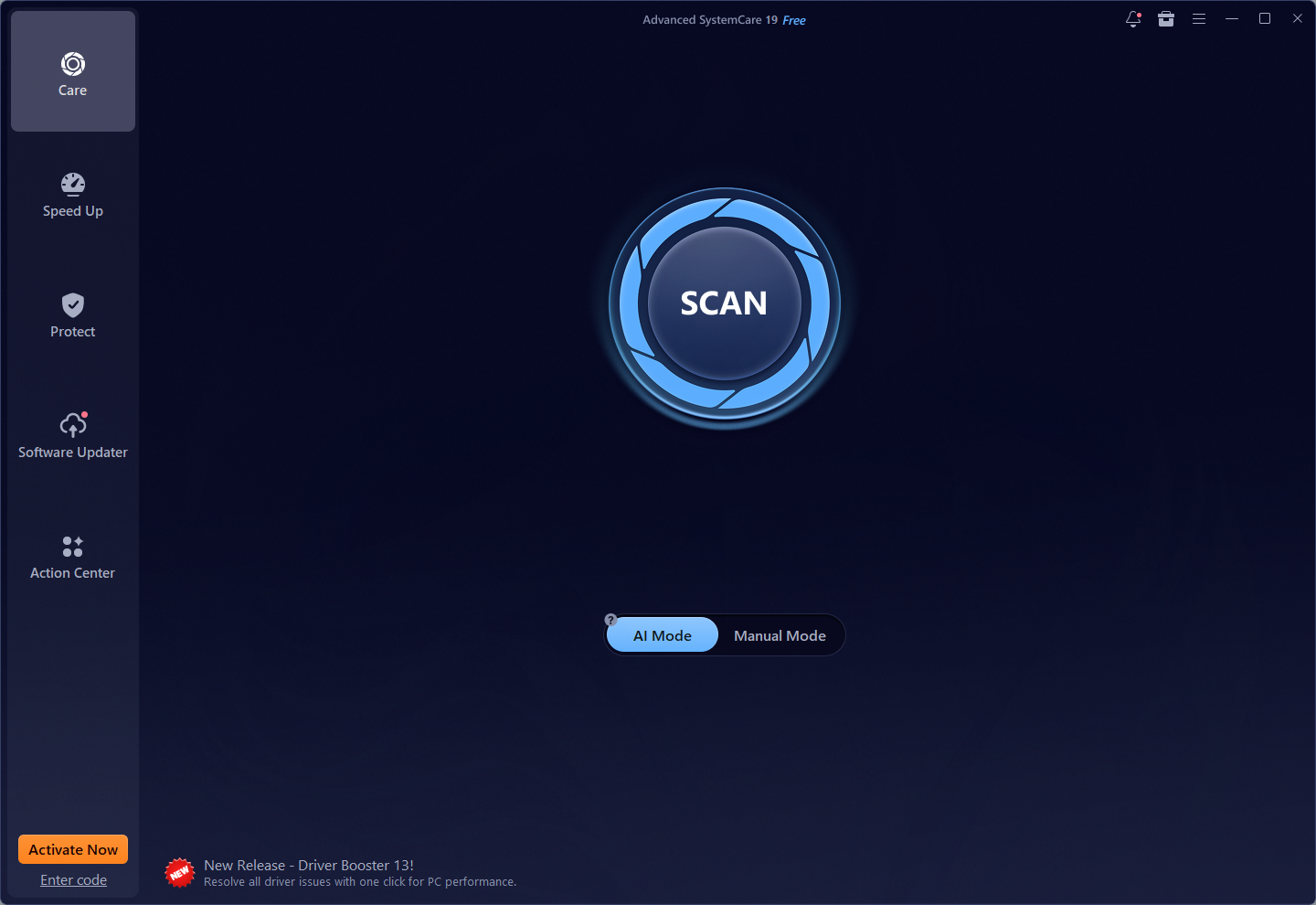
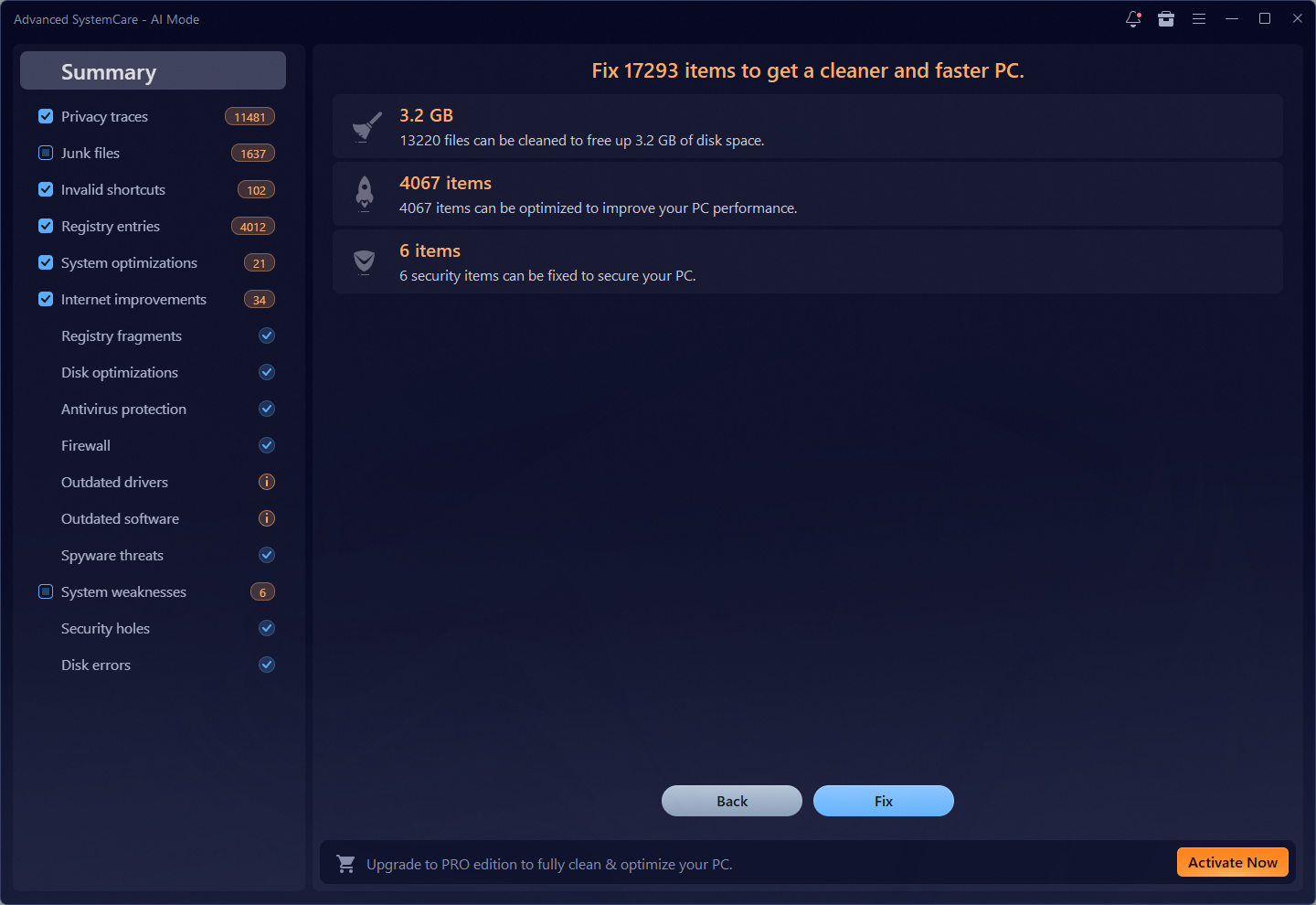
Step 3. Once the scan is complete, review the found issues and click "Fix" to remove the junk and optimize your settings instantly.
Key Features for Cleaning and Speed:
AI-Powered Scanning: The tool features an "AI Mode" that creates a personalized plan to scan for and remove junk files, logs, caches, and leftover data from third-party apps and browsers.
More C Drive Space: It includes a dedicated Disk Cleaner and Junk File Clean module that targets unnecessary files, invalid shortcuts, and broken registry entries to reclaim valuable storage.
Computer Running Faster: The Startup Optimizer and Turbo Boost features help your PC boot quicker and run smoother by disabling unnecessary background services and startup programs that hog RAM and CPU resources.
Privacy & Security: Beyond cleaning, it offers a "Privacy Sweep" to clear online traces like saved passwords and browsing history, alongside a "Spyware Removal" tool to detect hidden threats.

That’s all about how to clean up PC. Maintaining a clean and optimized PC doesn’t have to be a chore. By clearing out digital clutter and managing your startup apps, you can enjoy a machine that feels brand new, with more storage space and significantly faster speeds. Regular maintenance is the secret to extending your computer’s life and keeping your personal data secure.
Advanced SystemCare as the easiest way to get the job done is highly recommended. Its powerful AI-driven tools handle the hard work for you with just one click. Download Advanced SystemCare today to reclaim your PC’s peak performance and enjoy a smoother computing experience!

All-in-one PC health solution.
Free Download