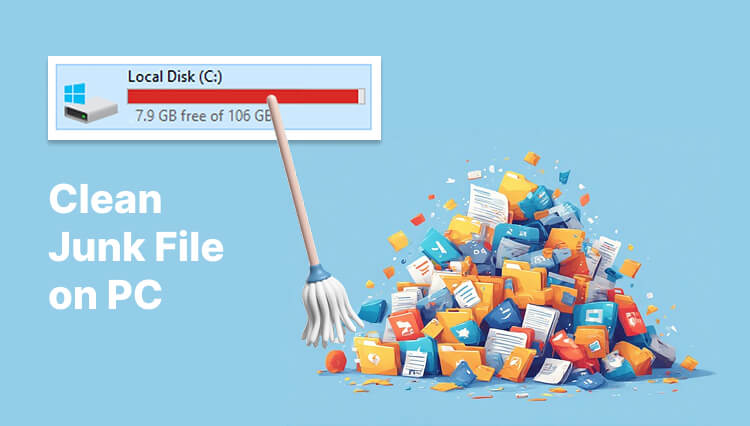
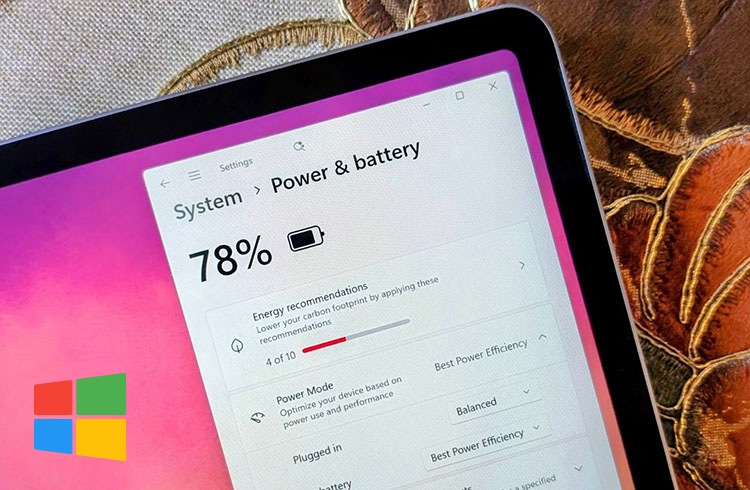
Over time, Windows 11 can become slower, cluttered, and filled with unnecessary files. Temporary files, startup apps, browser cache, and old updates all take up storage and may affect system performance. The good news is that you do not need to spend money to clean your PC.
So, how to clean Windows 11 for free? Windows 11 built in cleaners are effective enough, and there are also free third-party programs that can help remove junk files, optimize startup items, and free up disk space safely. In this guide, you will learn what can be cleaned in Windows 11, what should be avoided, and how to improve your PC performance step by step for free.
Clean Windows 11 for Free: What Can You Clean on PC?
Normally, people don’t clean up Windows system very often until the running speed becomes really slow. The six major reasons behind a PC running slowly are listed below:
#1. Storage junk
This category of junk includes system temporary files, recycle bin files, and download leftovers. Usually, it is hard to manually remove these files (except for recycle bin files), and people need a professional system scanner to sift out all the junkies.
#2. Startup & background apps
As one of the most neglected categories among all the optimization options, auto-startups and background programs actually drastically slow down PC's running speed. And some of them are stubborn to get rid of.
#3. High RAM consumption
Dedicated software is needed to clean real-time RAM consumption. If your games are losing FPS, then you should consider downloading a RAM cleaner.
#4. Browser cookies and cache
When you use your PC for years, your browsers tend to be super slow in responding; that’s because the cookies and caches are piling up. No worries, you can go to the browser settings to manually delete these files.
#5. Large personal files
Some of you may download videos/games to the system disk, and this action makes the PC laggy. Cleaning these files is not easy since the piling up of documents cannot be distinguished unless you have a good habit of intentional storage.
#6. GPU temporary files and old game recordings/screenshots
Your games take screen recordings or screenshots when you are not aware of it. And these files are most likely to be stored on the C disk.
The next parts will guide you to clean your Windows 11 PCs for free. Please check which methods suit you the best.
How to Clean System Junk Windows 11? Use 3 Free PC Cleaners
Windows prepares a slew of PC optimization tools for you to clean up unwanted files. With 3 free PC cleaner for Windows 11, you can easily delete old apps, leftovers, and system junk. Let’s take a quick glance at how to use the 3 default tools.
#1. Storage Sense
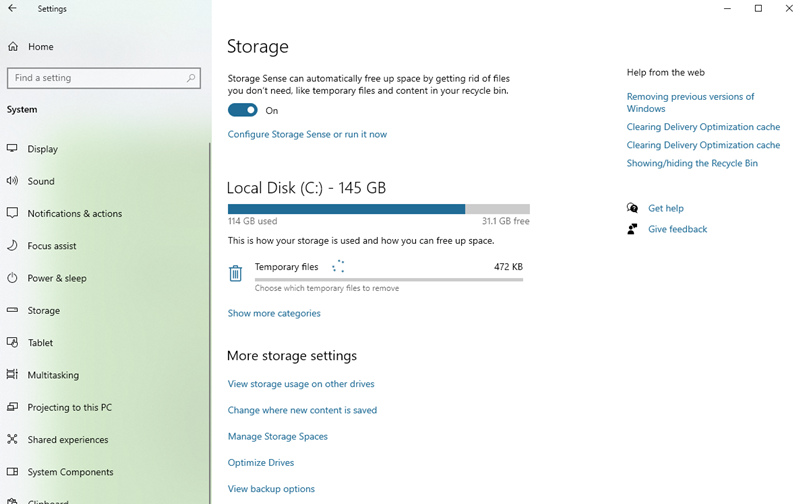
Windows 11 Storage Sense can automatically remove temporary files, Recycle Bin data, and other unnecessary system files. It is easy, safe, and suitable for basic Windows 11 cleanup, but its cleaning ability is more limited than that of dedicated cleaning software. So how to clean system junks Windows 11?
Follow the steps below to clean your system:
Settings > System > Storage > Turn on “Storage Sense” > Configure cleanup options > Delete temporary files > Empty Recycle Bin > Remove old Downloads > Run Storage Sense Now > Click “Run Storage Sense now” to start cleaning immediately
#2. Disk Cleanup
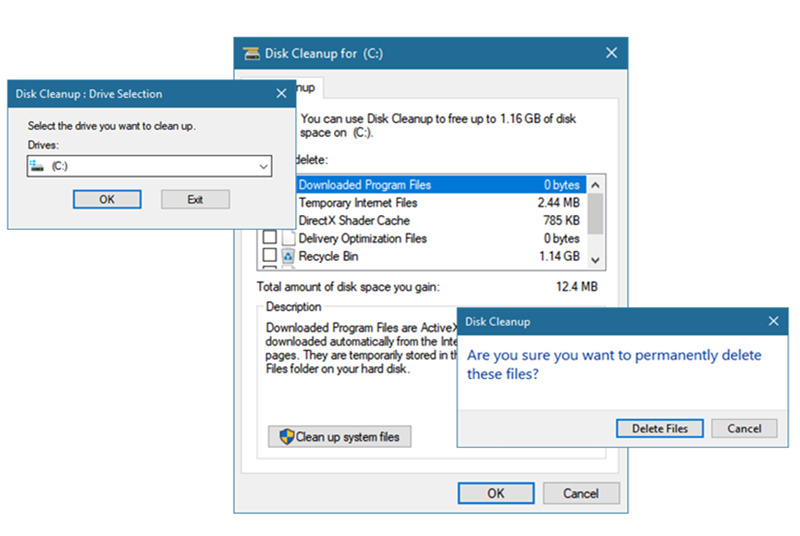
Windows 11 Disk Cleanup helps remove temporary files, Windows update cache, thumbnails, and other unnecessary system files. It offers deeper cleaning than Storage Sense and can free up noticeable disk space, especially on older PCs. However, the interface is more traditional and less automated.
Follow the steps below to clean your system:
Start Menu > Search “Disk Cleanup” > Open the tool > Select the system drive (usually C:)
Files to Delete > Check temporary files, thumbnails, Recycle Bin, and Windows update cache
OK > Delete Files > Start cleanup process
#3. Task Manager Startup Tab
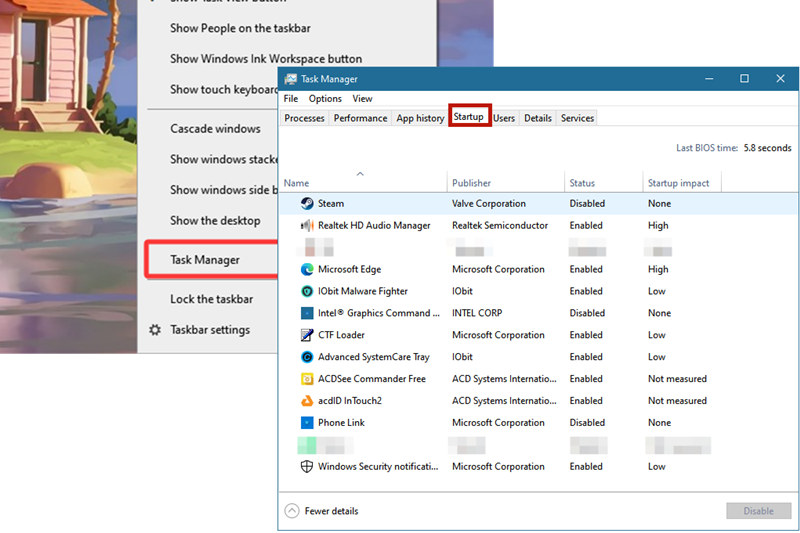
The Startup tab in Windows Task Manager helps reduce unnecessary background apps that automatically launch with Windows 11. Disabling unwanted startup programs can lower RAM consumption, shorten boot time, and improve overall system responsiveness. This method is simple and effective for performance optimization, although it does not remove junk files or deeply clean the system.
Follow the steps below to clean your system:
Ctrl + Shift + Esc > Open Task Manager > Startup Apps tab > Right-click unnecessary programs > Disable > Restart PC > Check for faster startup and lower RAM consumption
Conclusion: From the tutorials above, you may successfully take a round of PC cleaning. But that’s the superficial system cleanup. If you want an overall scan and roll back the original Windows 11 system, you need to do a deep clean. How to deeply clean uninstall apps and programs? IObit uninstaller can help you.
Use IObit Uninstaller Pro Free to Deep Clean Windows 11 for Free
Keeping your PC clean is one of the easiest ways to improve the performance of Windows 11. IObit Advanced SystemCare provides more than one effective solution to remove junk files, clean invalid registry entries, optimize startup items, and reduce unnecessary RAM consumption. This free Windows 11 cleaner can also clear browser cache, delete privacy traces, and fix common system slowdowns with just a few clicks.
Whether your computer suffers from lag, high disk usage, or slow boot times, Advanced SystemCare offers a simple and beginner-friendly way to free up space and maintain smoother overall system performance without complicated manual steps.
What can this PC optimizer do?
Junk File Clean
Registry Clean
Privacy Sweep
Startup Optimization
RAM / Memory Cleaning
Deep System Optimization
How to do a deep clean on Windows 11?
Step 1. Download IObit Advanced SystemCare.
Step 2. Press the ‘Scan’ button to do an overall scan for your system.
Step 3. In minutes you can get an analysis and all the items that need to be cleaned will be presented to you.
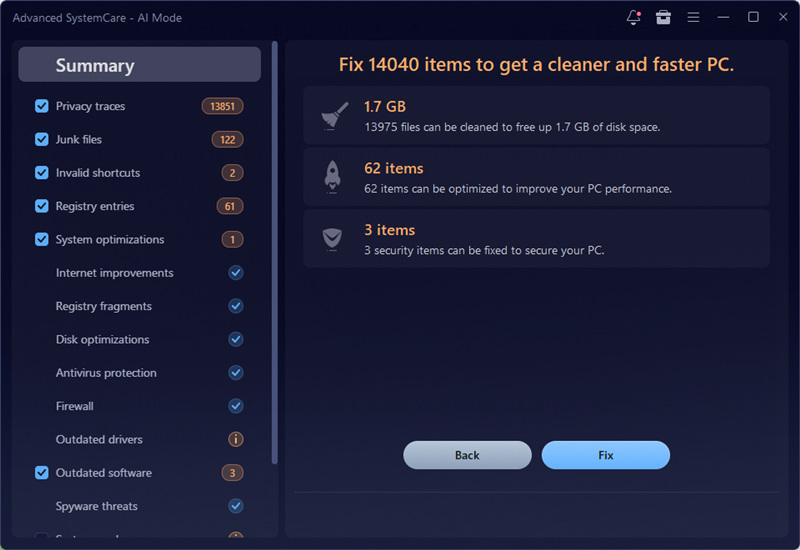
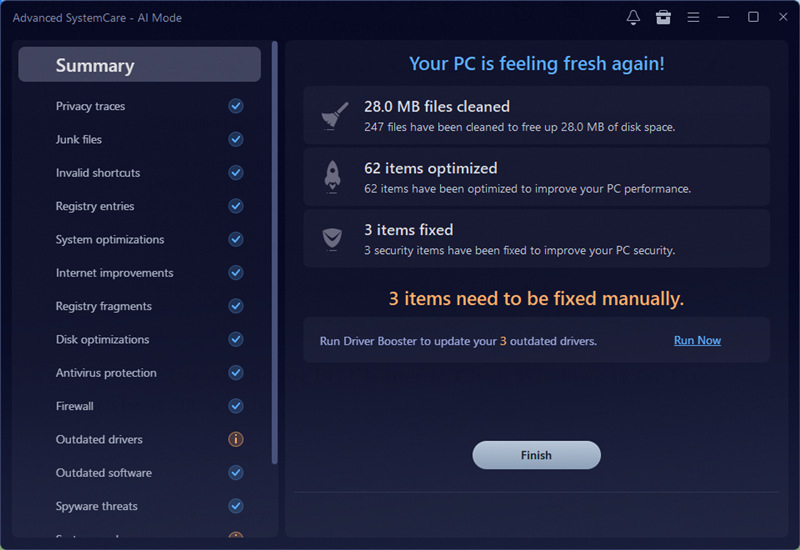
Step 4. Click on ‘Fix’ to remove the redundant files.
Read Also: How to Completely Uninstall Microsoft Edge Windows 11?>>
How to Clean Windows 11 Unnecessary Files? Use File Explorer
Using File Explorer’s built-in search feature to remove your personal large files hidden on local disks. This method helps users quickly locate large, old, or unnecessary files that take up valuable storage space. By searching terms like “size”, “*.tmp”, or sorting files by date and size, you can identify downloads, temporary files, duplicate media, and forgotten folders that are no longer needed.
The biggest advantage of this Windows 11 built in cleaner is that it requires no extra software and gives users full control over what gets deleted. However, it can be time-consuming and may not clean hidden system junk automatically.
How to use File Explorer to clean Windows 11?
Step 1. Open File Explorer by pressing Win + E on your keyboard.
Step 2. Go to “This PC” so Windows can search your entire computer.
Step 3. Use the search bar in the top-right corner to find large or unnecessary files. Try searches like:
1. size:large
2. .tmp
3. .log
4. .old
Step 4. Sort the results by “Size” or “Date Modified” to quickly identify files you no longer need.
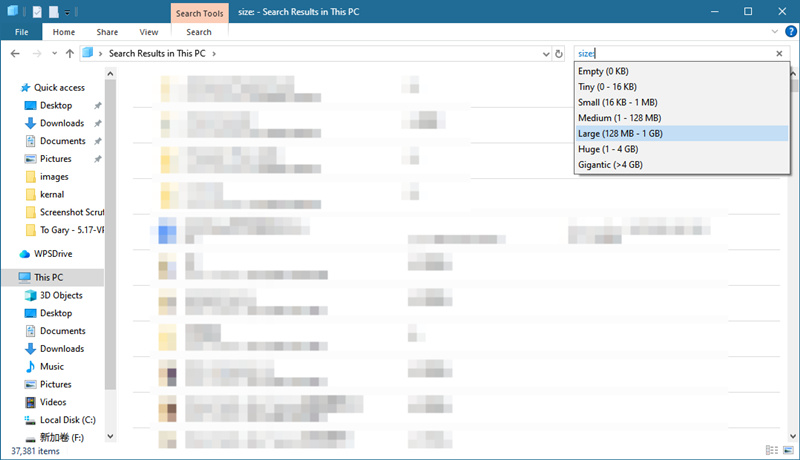
Step 5. Review the files carefully and delete unnecessary downloads, temporary files, old videos, or duplicate documents.
Step 6. Empty the Recycle Bin afterward to free up the storage space completely.
Use Mem Reduct to Clean Windows 11 RAM Usage for Free
Mem Reduct is a lightweight, free tool designed to reduce unnecessary RAM consumption on Windows 11. It works by clearing unused memory cache, system working sets, and standby memory that may continue occupying RAM even when applications are no longer actively used.
With just one click, users can free up memory and potentially improve system responsiveness, especially on PCs with limited RAM. The biggest advantage of this RAM optimizer is its simplicity and low resource usage.
How to use Mem Reduct to clean RAM consumption?
Step 1. Download Mem Reduct.
Step 2. From the main interface, click the downside arrow to select what you want to clean. Mem Reduct can clean system file cache, registry cache, and others.
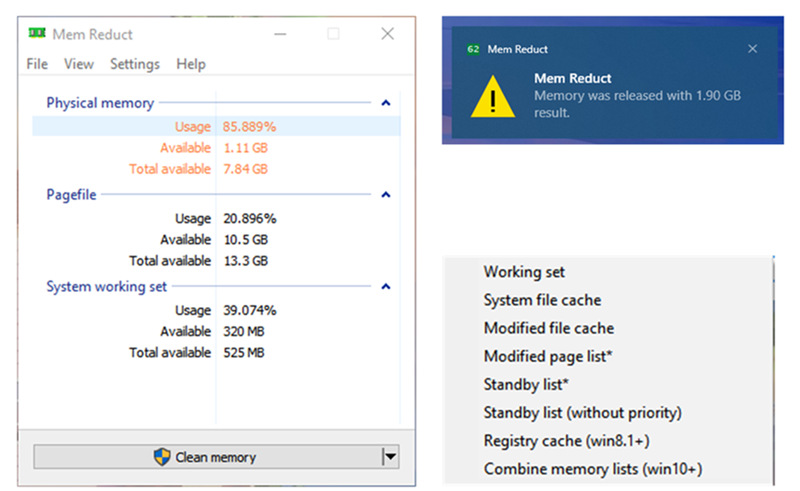
Step 3. Hit the 'Clean memory' button to release your RAM.
Conclusion
Cleaning Windows 11 regularly can help your computer run faster, free up storage space, and reduce unnecessary background activity. From temporary files and browser cache to startup apps and unused software, there are many things you can safely clean without paying for expensive tools.
How to clean Windows 11 for free? Windows 11 built in cleaners like Storage Sense and Disk Cleanup are good starting points, while free optimization tools can make the process easier and more automatic. If your PC feels slow or cluttered, a proper cleanup may quickly improve overall performance and responsiveness.
Advanced SystemCare Free
- Clean: 420 billion traces removed & 85 EB junk files cleaned
- Protect: 80 million unauthorized access blocked & 20 million bugs fixed
- Speed Up: 6 million hours of startup time saved & Turbo boost
- Optimize: Auto clean and auto care your PC with AI mode