PC getting slower? Apps always process sluggishly, or is there a delay between interactivity? A lagging computer is always more annoying than ever, especially when you have urgent tasks. It’s time to seek some fixes if your PC performance is slow.
This blog has rounded up several feasible solutions to help you troubleshoot a slow PC with different PC features and proper tools. Stay tuned!
What Does It Mean by “PC Performance Is Slow”
Knowing your enemy makes the very first step to defeating it. Prior to all, what do you mean by “slow” here? “PC slow performance”, generally, means your computer takes too much time to respond, process tasks, or complete actions. Specifically, you can run into several types of pc slow performance:
Slow system response: Delayed clicks, menus, and window switching.
Sluggish application performance: Apps launch slowly or take longer to finish tasks.
Slow startup/loading: PC takes too long to boot up and load the desktop.
Poor multitasking performance: The PC struggles when running multiple programs or games.
Low frame rate: Choppy gameplay, freezes, long loading screens, etc.
Why PC Performance Is Slow
Have you located where you are when facing the pc getting slower problem?
Insufficient resources: resource-draining apps can exhaust your RAM, CPU, or GPU, leaving few for active tasks.
Storage limits: a full, fragmented disk heavily affects boot time and app processing speed.
Background processes: startup/background/scheduled apps/tasks consume resources like memory and CPU as well, slowing down your PC.
Software issues: outdated/corrupted/missing drivers and software bugs may bring incompatible issues and affect PC performance.
Hardware limitations: aging hardware, CPU, GPU, and limited RAM fall behind modern apps and games.
Malware & viruses: malware will secretly eat up your resources, causing high disk usage and overall sluggishness.
1-Stop PC Performance Booster to Fix PC Slow Performance
How to make pc performance faster? Within Windows, you can utilize a bunch of features and tools to fix different lag/slow-related problems, adjusting Windows settings, updating drivers, and more. But what if you can fix everything with only 1 app in simple clicks?
Advanced SystemCare is what you are looking for. This PC performance boost tool helps maintain and manage your device smartly, release RAM, optimize startup apps, and scan and clean up your PC securely with AutoCare, improving overall performance.
Advanced SystemCare Free
- Clean: 420 billion traces removed & 85 EB junk files cleaned
- Protect: 80 million unauthorized access blocked & 20 million bugs fixed
- Speed Up: 6 million hours of startup time saved & Turbo boost
- Optimize: Auto clean and auto care your PC with AI mode

Various features to improve slow PC performance:
● Turbo Boost and Auto RAM Clean to stop unnecessary apps and release RAM;
● Startup Optimizer to manage startup items and boot PC faster; and more optimization tools to help improve computer speed.
● AutoCare to delete junk files in Windows 11/10 and more, removing invalid registry keys/shortcuts, privacy traces, and more, freeing up more space.
● AI Mode and Manual Mode to perform PC care, file clean, disk defrag, and more PC optimization, smartly or customizably.
● System Protection to guard against threats like malware and spyware, reducing risks and stopping malware from slowing down your PC.
How to fix slow pc performance efficiently?
Step 1. Download and install Advanced SystemCare on your Windows device.
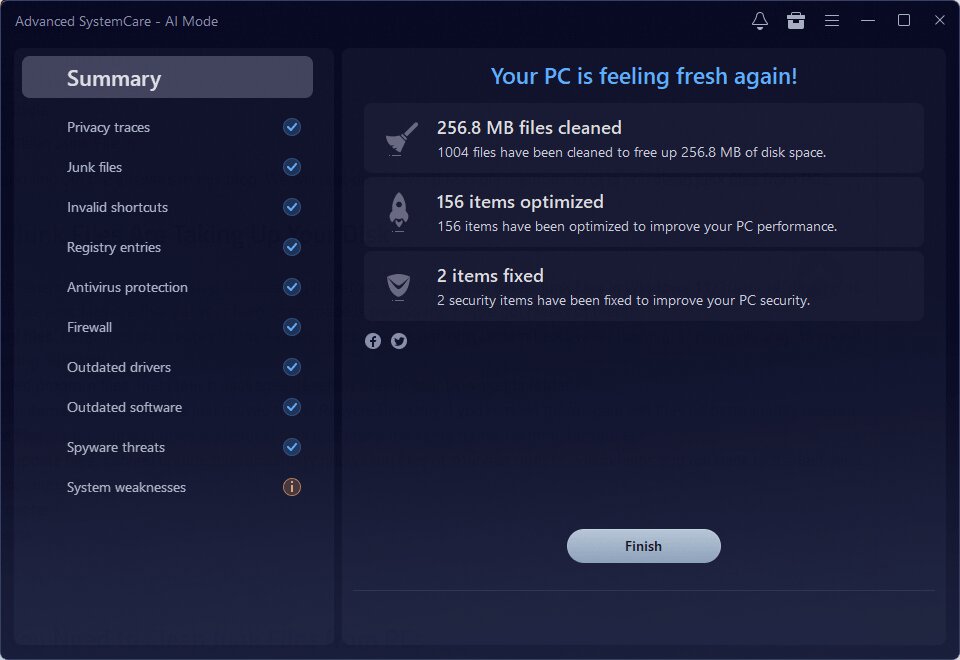
Step 2. First, you might as well try the AI Mode to let it detect and fix possible improvements: wipe junk files, check driver status, fix system issues, etc.
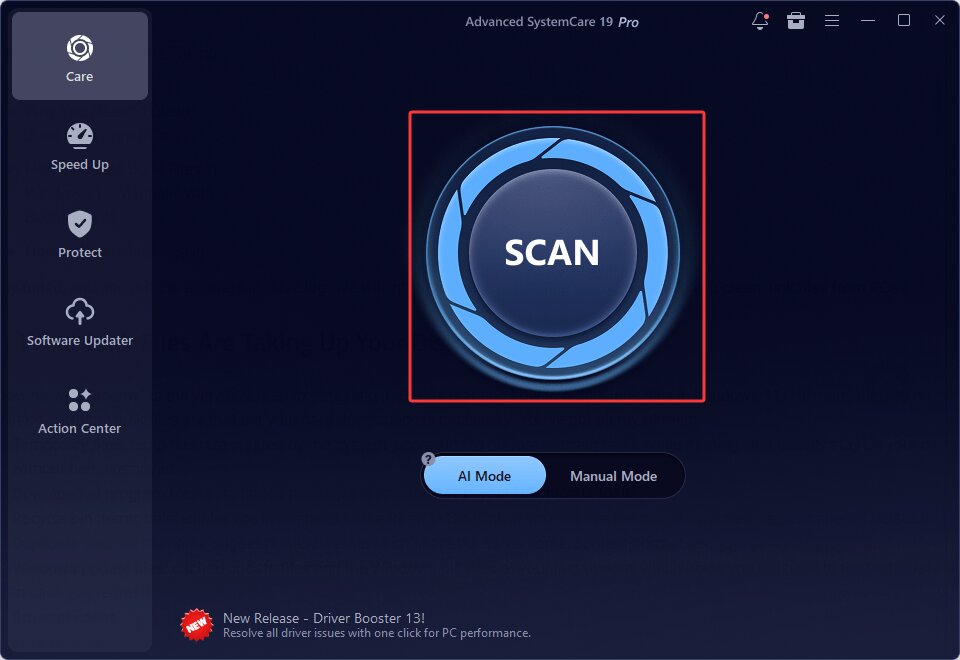
Toggle “Auto Fix”, it will automatically finish all potential improvements.
Step 3. This is not the end. Move on to the Speed Up panel, find Turbo Boost > Choose the mode you need: Work/Game/Economy Mode > Turn on > let this RAM optimizer close unnecessary apps/services and release RAM to boost your PC.
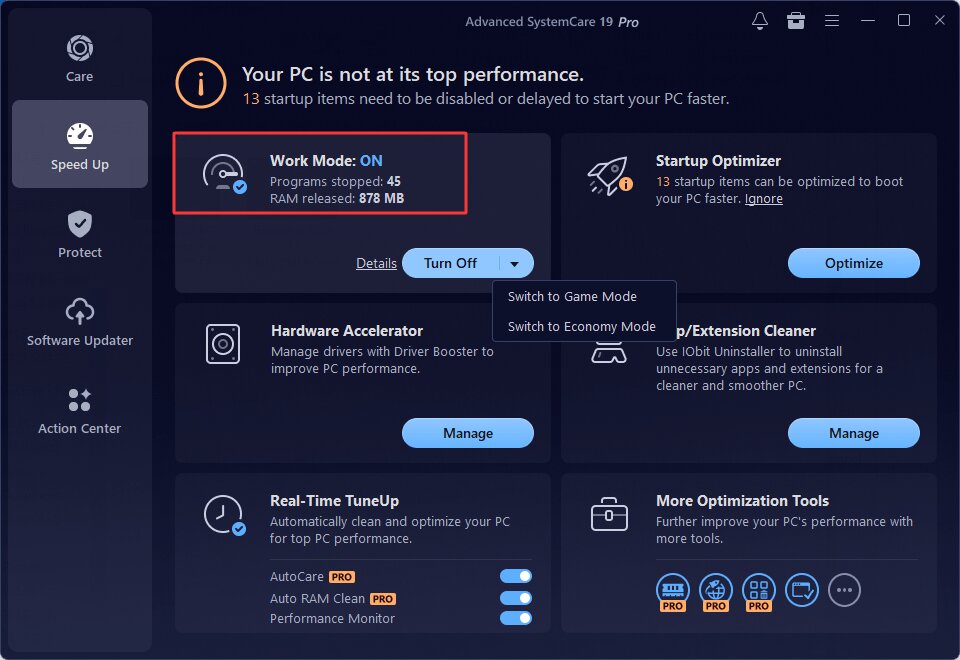
Don’t forget to check the Startup Optimizer to help improve PC bootup speed.
Manual Fixes When PC Performance Is Slow
As aforementioned, Windows has provided a series of features that help maintain and optimize computers. So, without software, you can also fix PC performance issues manually; the only thing is that some solutions might be complex and burdensome.
Fix 1. Restart
When noticing the computer performance is slow, the very first action you should try is restarting your computer. It wipes out all short-term memory to clear the RAM, kills background apps and all tasks, sometimes terminates broken program tasks(if any), and refreshes your system.
Several ways to reboot your computer:
Method 1. Press Alt+F4 and choose Restart.
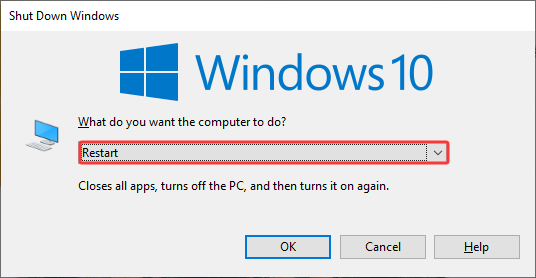
Method 2. Start Menu > Power > Restart.
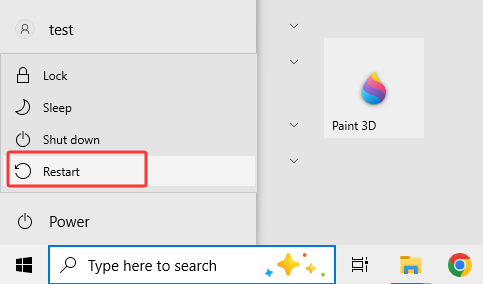
Method 3. Press your Restart button on the case. Or hold the Power button for 5-15 seconds to force restart.
*It is not always recommended to do so, especially when there are still programs running on your desktop. It should be used as a last resort when everything is frozen.
Fix 2. End Task When PC Getting Slower
If you find PC slow when opening programs, then the culprit could be the software in use. All you need to do is end it, or end other background apps to free up more resources for the app you need it to run.
Step 1. To figure out exactly which app is eating up your resources, right-click on the taskbar > choose Task Manager.
Step 2. Under the Processes tab, check the CPU/Memory/Disk/GPU columns > see which is running exhaustively. Press Ctrl to freeze the window, unless the apps may jump up and down, which makes it difficult to click on the exact one you need.
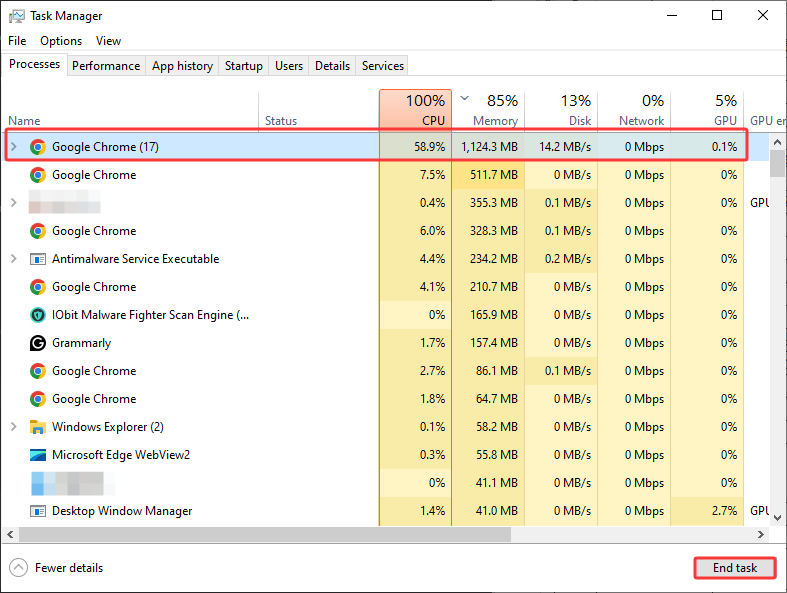
Step 3. Choose the correct one > End Task. Remember to save your work before force-ending it.
As you can see in the screenshot, too many Google tabs can consume your resources heavily, but this might not be the only one culprits that slow down your page loading. Check the tutorial here to help boost internet speed.
Fix 3. Manage Startup Apps Manually
Another feasible fix you can give a try is stopping programs from launching automatically when the PC turns on. This helps save system memory as well. Plus, it reduces high CPU usage during the critical boot phase and speeds up boot time.
Step 1. Press Win+I to access Windows Settings > Apps.
Step 2. Startup > sort the apps by Startup Impact.
Step 3. Turn off those apps that have high impact.
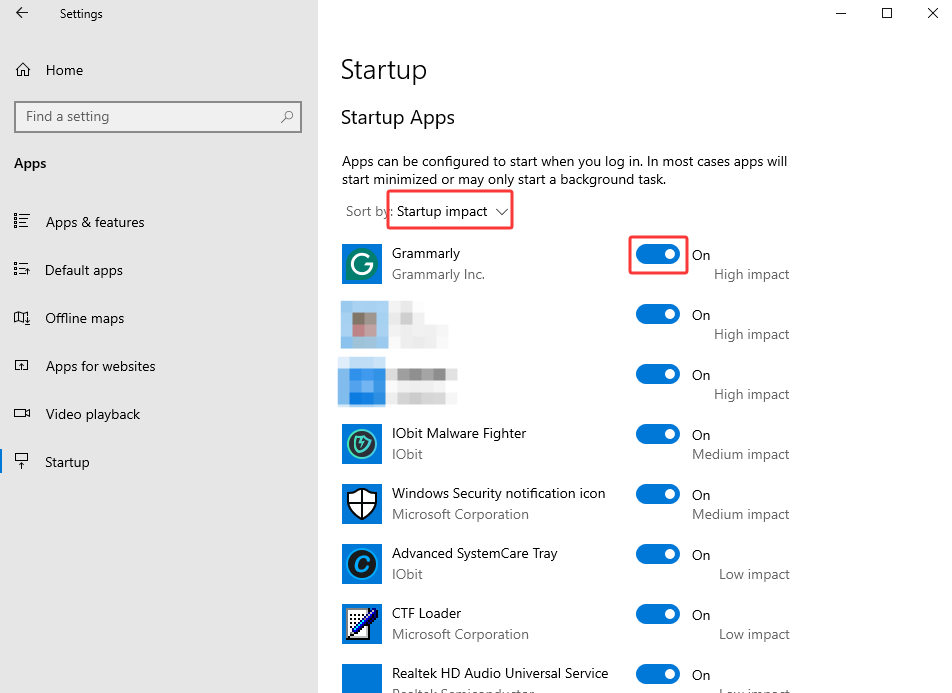
After that, you might take a PC performance test and see if disabling startup items helps.
Fix 4. Free Up Disk Space to Fix PC Performance Is Slow
When a hard disk gets full, there will be little space for temp files, virtual memory page files, and file organization. Freeing up disk space helps free up essential room for apps to generate temporary files, prevent file fragmentation, etc., thus helping boost computer performance when you find the PC getting slower.
To do disk cleanup thoroughly, using hard drive cleaner software is also a wise choice. Without using any software, you have ways to clear space using the built-in tools:
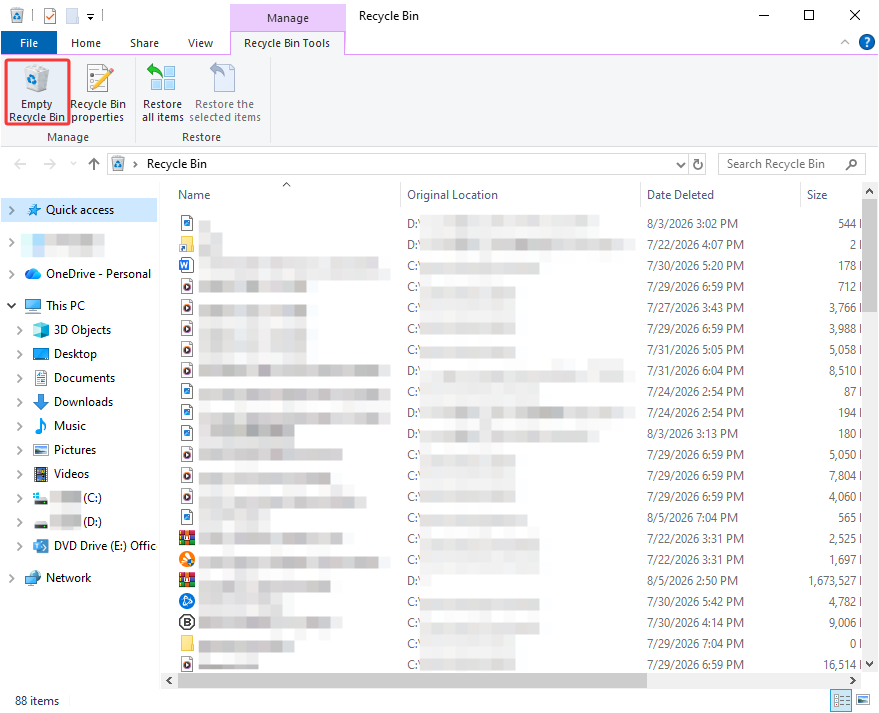
Solution 1. Empty your trash can.
Go to the Recycle Bin and click Empty Recycle Bin to permanently delete unwanted files. Please make sure to double-check if there is something still needed to be restored.
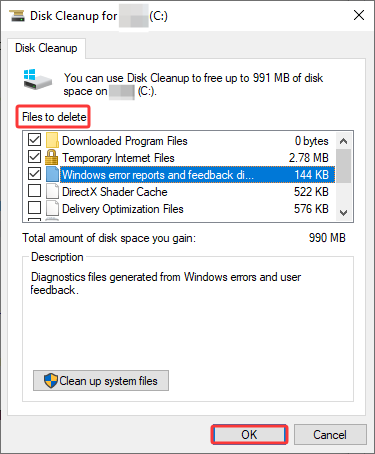
Solution 2. Run the built-in Disk Cleanup feature.
Search for Disk Cleanup in the Windows Search Bar > open it > choose the hard drive to clean > choose the unwanted content > click OK.
Solution 3. Uninstall unused apps.
Right-click on the Start Menu > Settings > Apps > Apps & features > search for the app name, or sort them by size > choose and uninstall.
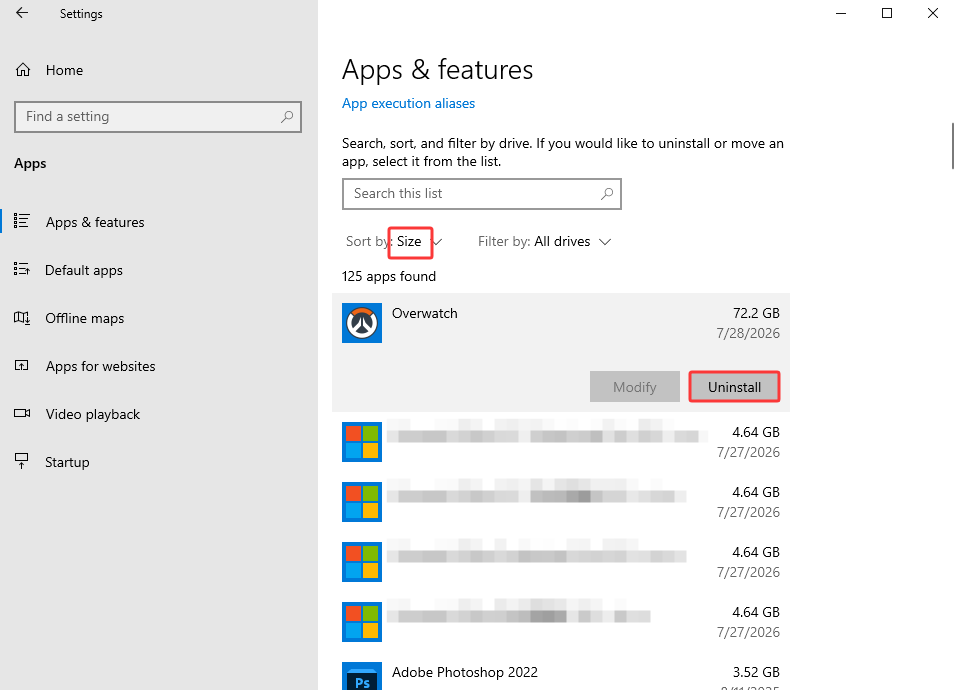 To uninstall programs in batch, rather than 1 by 1, try a professional software uninstaller like IObit Uninstaller, which identifies and lists programs as large programs, bundleware, and infrequently used apps, allowing you to uninstall multiple apps at once.
IObit Uninstaller Free
- Complete forced uninstallation for stubborn programs.
- Uninstall a batch of programs at once.
- Scan and remove leftover files, folders, and registry entries.
- Support the management of Universal Windows Platform apps.

Fix 5. Adjust PC Power Mode
PC power plan is a set of system configurations that controls how your computer uses electrical energy: screen brightness, sleep timers, how much power is sent to the processor, etc., helping your PC balance power usage and system speed.
It provides 3 modes:
Balanced: default setting. It allocates full speed when heavy apps run and slows down to save energy when idle.
High Performance: It locks the CPU at high speed for max responsiveness. *But notice that it brings high heat and consumes more electricity.
Power Saver: It lowers settings like screen brightness, downgrades performance, and saves power to help it last longer.
Step 1. Go to Control Panel > Hardware and Sound.
Step 2. Click Power Options > switch the power plan from Balanced (default status) to High Performance.
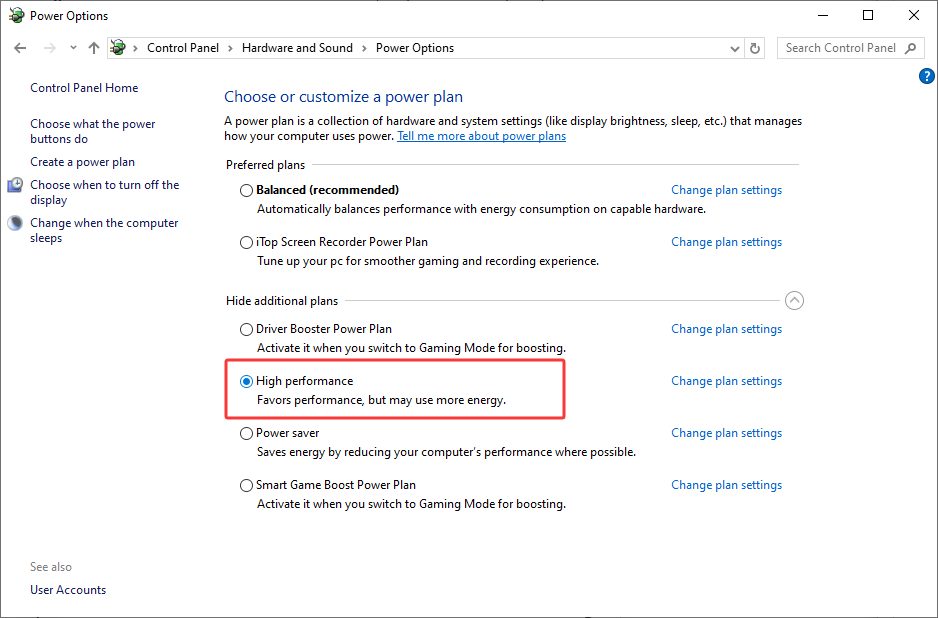
To configure the specific settings, click Edit Plan Settings.
Fix 6. Update Windows & Drivers
Windows and driver updates bring software bug fixes, memory leak fixes, enhanced features, clean maintenance, and improve how your system cooperates with hardware. Plus, updating graphics drivers adds speed enhancements for new games.
Check how you can update Windows first.
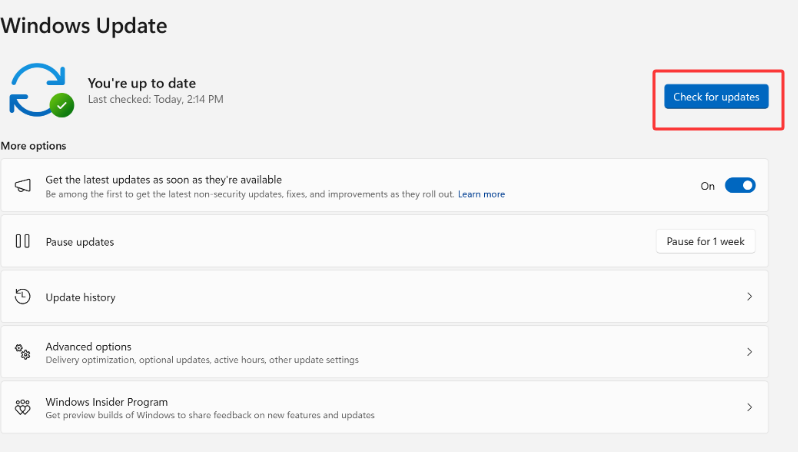
Step 1. Click on Start Menu > Settings.
Step 2. Find Update & Security > Windows Update.
Step 3. Click Check for Updates. You can also go to View optional updates and see if there are more driver updates for you.
How to update drivers?
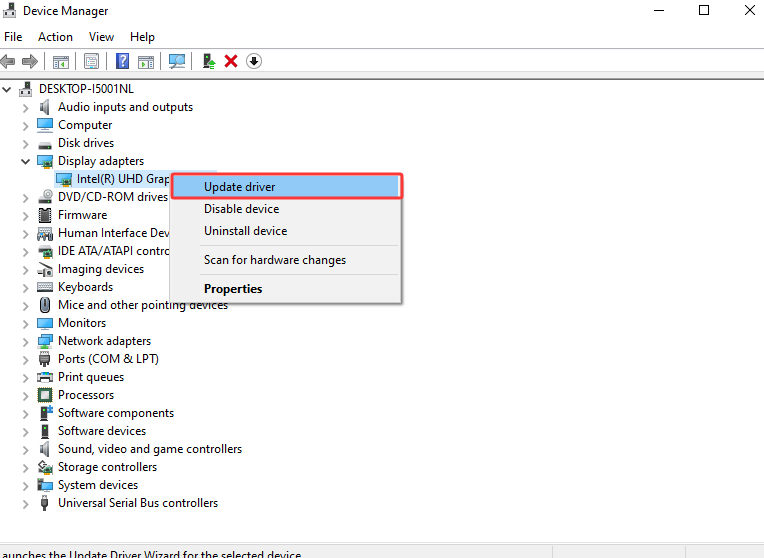
Step 1. Right-click on the Start Menu > Device Manager.
Step 2. Choose a device, e.g., the Display adapters, to update the graphics driver.
Step 3. Right-click on it and click Update Driver.
 If you don’t know what drivers to update and are worried about system security, turn to a reliable driver updater, IObit Driver Booster, which collects a 12M+ driver database covering a wide range of devices and manufacturers, scans and helps keep drivers up-to-date easily, quickly, and securely.
Driver Booster Free
- Automatically scan and update drivers.
- Update game ready drivers for peak gaming performance.
- Identify and fix various common of hardware issues.
- Boost 30% of system performance for fast & smooth running.

The Bottom Line
When you notice PC performance is slow, simply turn to a professional PC optimizer and let it clean junk files, manage startup apps, release RAM, and solve all problems for you in 1 go. Without installing any software, you might as well utilize the Windows built-in features and tools one by one.