Monster Hunter Wilds throws you into a vast, living world that feels intense enough. From tracking massive beasts to surviving chaotic weather shifts, the game delivers a true next-gen hunting experience. But as stunning as it looks, that experience comes at a cost, that is, your PC performance.
Today, many players run into frustrating issues like low FPS, stuttering during combat, random crashes, and high CPU/GPU usage that break immersion right when the action peaks. But worry not, this complete guide offers all Monster Hunter Wilds PC optimization tips. You can find official solutions, community fixes, and a powerful optimization tool to get your hunts running the way they should!
Why Monster Hunter Wilds Runs Poorly on PC?
Since its launch, Monster Hunter Wilds has faced well-documented PC performance issues across a wide range of systems. We have concluded the main causes as follows:
CPU bottlenecks and inefficient processing: The game heavily relies on the CPU to handle complex AI, monster behaviors, and large-scale environmental simulations. This can overwhelm even modern processors.
Heavy GPU load and rendering inefficiencies: Dense foliage, volumetric lighting, and dynamic weather effects place a significant strain on the GPU, leading to unstable frame rates.
VRAM and texture streaming issues: Limited VRAM and poor texture streaming can cause stuttering. This is quite common during fast camera movements or when transitioning between areas.
✨Tips: Want to improve performance? Try Advanced SystemCare to monitor CPU and RAM usage in real time, so you can quickly spot and fix bottlenecks during gameplay.
Developer Capcom has acknowledged these issues and released multiple updates to improve performance and stability. However, results still vary depending on your hardware; hence, most players need a mix of official fixes and manual optimization for the best experience. Let’s check them out in the next part!
Manual Solutions for Monster Hunter Wilds PC Optimization
How to make Monster Hunter Wilds run better? These official and community-validated Monster Hunter Wilds optimization fixes are based on Capcom updates and real user testing. You can apply them step-by-step for noticeable gains in MH Wilds PC optimization.
Solution 1. Update Drivers & Fix System-Level Issues
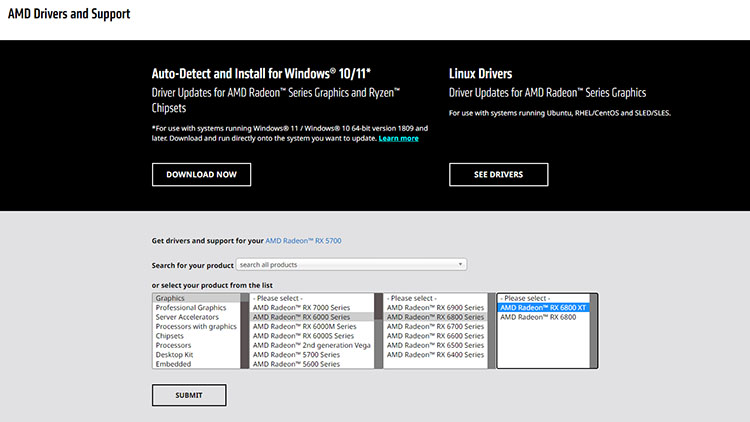
Outdated GPU, chipset, or DirectStorage drivers can significantly hinder performance. You can update NVIDIA or AMD graphics drivers, which can usually resolve stuttering. Windows updates, on the other hand, can fix DirectStorage decompression issues. In addition, Driver Booster is a quicker approach, offering one-click update drivers to ensure your system stays stable and fully compatible.
Solution 2. Optimize Windows Settings for Gaming
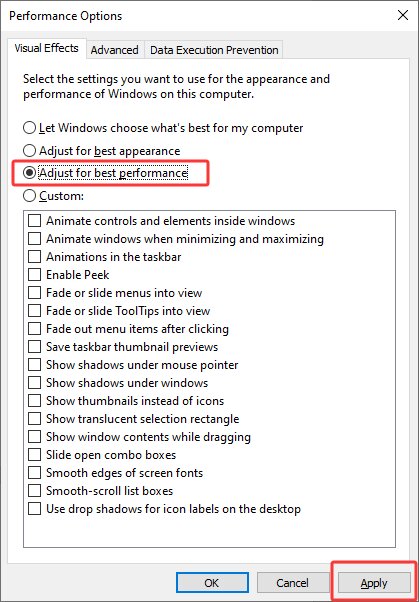
A crucial part of effective PC gaming optimization is fine-tuning your Windows environment. For instance, search "adjust the appearance" in the Windows search box beside the Start menu > Open "Adjust the appearance and performance of Windows" > Performance Options > Visual Effects. Choose the “Adjust for best performance” here. This will free up valuable system resources that would otherwise be spent on unnecessary visual enhancements.
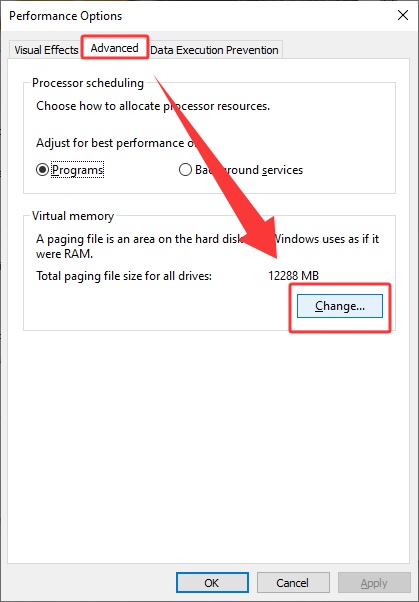
In addition, increase your virtual memory to at least 32GB(better 64-128 GB) to prevent stuttering and crashes during demanding gameplay moments. You can follow the steps as follows to perform MH Wilds optimization:
Step 1. Search "adjust the appearance" > Open "Adjust the appearance and performance of Windows" > Performance Options > choose the Advanced tab > click Change under Virtual memory.
Step 2. Untoggle "Automatically ..." and click Custom size for the drive you want to change > input the value (at least 32GB, 64-128GB will be preferable)
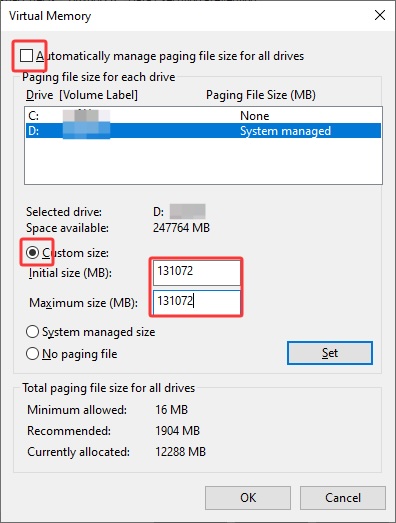 Make sure to set both the initial and maximum pagefile size to the same value to improve system stability.
Solution 3. Improve CPU Performance & Background Processing
One important part of Monster Hunter Wilds optimization is reducing unnecessary CPU load. If CPU usage stays unusually high, start by closing resource-heavy background programs and setting a realistic in-game frame rate limit instead of leaving FPS unlimited. A very high frame rate target can increase CPU workload, so limiting FPS to a stable level that matches your hardware may improve consistency. You can also open Task Manager before playing to identify other programs consuming significant CPU or memory resources.
>> You can use this Bottleneck Calculator to detect CPU and GPU performance issues.
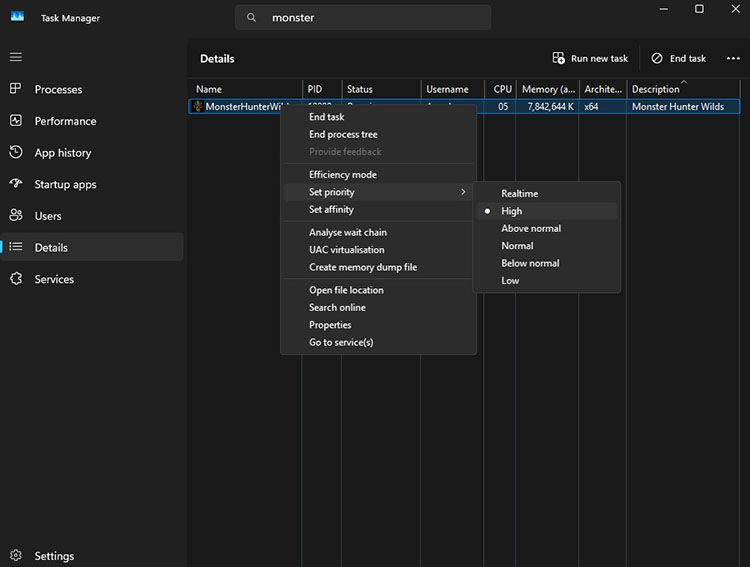
At the same time, you can use tools like Microsoft Autoruns to identify and disable resource-heavy background programs(some of which you may not even realize are running). For a more user-friendly solution, IObit Advanced SystemCare is also a great choice, which can reduce idle CPU and optimize RAM, offer automated cleanup and startup optimization to boost overall system performance.
Advanced SystemCare Free
- Clean: 420 billion traces removed & 85 EB junk files cleaned
- Protect: 80 million unauthorized access blocked & 20 million bugs fixed
- Speed Up: 6 million hours of startup time saved & Turbo boost
- Optimize: Auto clean and auto care your PC with AI mode

Solution 4. Optimize GPU & Shader Cache
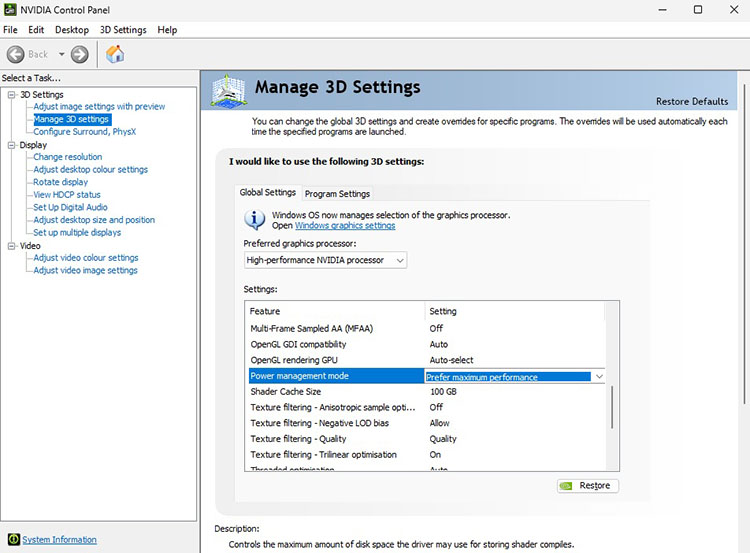
Your GPU plays a vital role in Monster Hunter Wilds PC performance improvements. Set your Power Management Mode to “Prefer Maximum Performance” in the NVIDIA Control Panel or AMD Software. This prevents your GPU from downclocking during gameplay, resulting in more stable frame rates and fewer sudden drops.
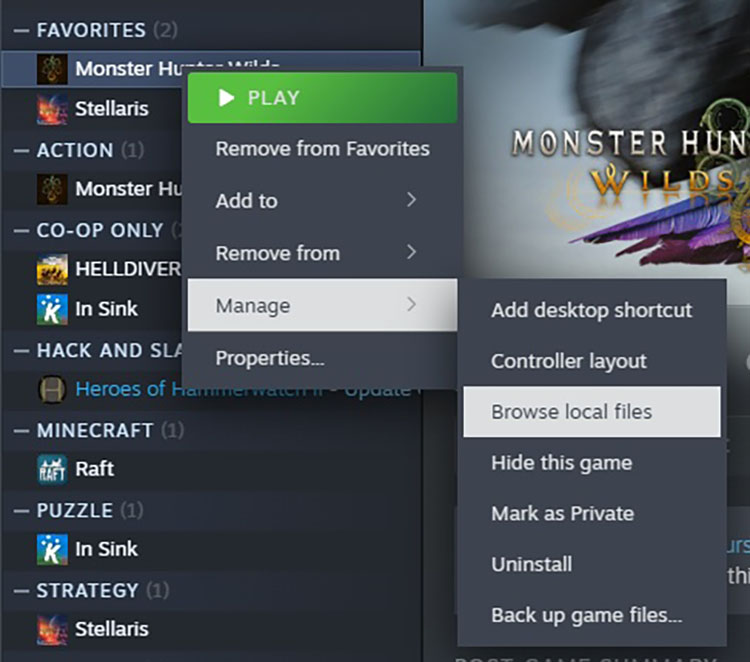
Additionally, clearing the shader cache can eliminate compilation-related stutters. Simply navigate to Steam Library > Manage > Browse local files, delete the shader cache files, and relaunch the game to rebuild them properly.
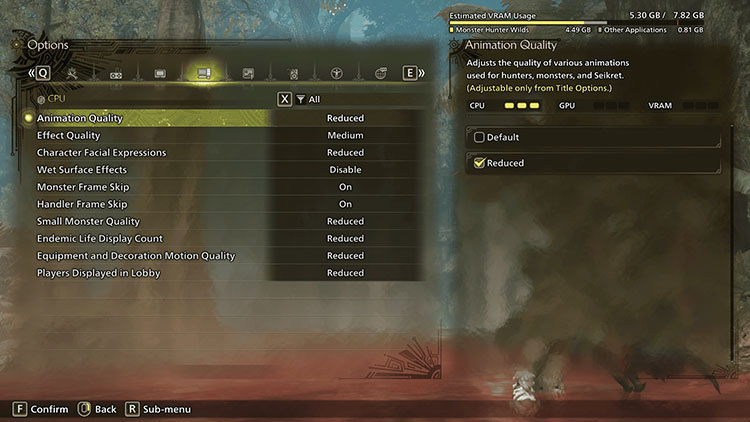
Solution 5. Use the Best Monster Hunter Wilds Optimized Settings
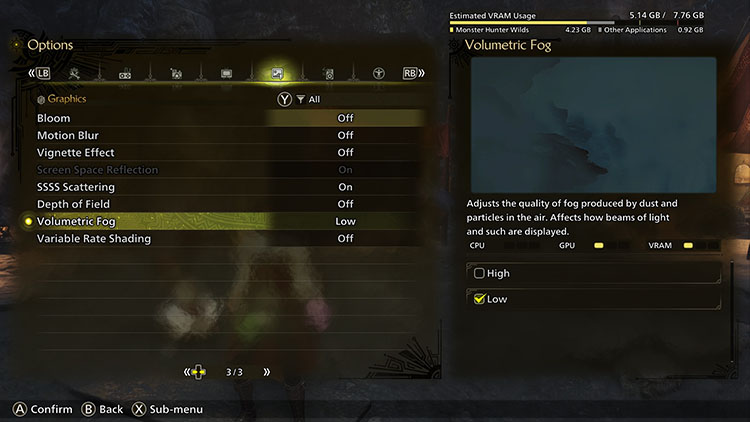
In-game graphics settings have one of the biggest impacts on Monster Hunter Wilds PC performance. There is no single configuration that works best for every PC, but the settings below provide a practical performance-first starting point. If you experience low FPS or stuttering, reduce demanding visual effects first while keeping textures and image quality as high as your hardware can handle.
| Setting |
Performance-Oriented Setting |
| Graphics Preset |
Medium |
| Upscaling |
DLSS / FSR / XeSS Quality or Balanced |
| Frame Generation |
On if supported |
| Volumetric Fog |
Low or Medium |
| Motion Blur |
Off |
| Vignette Effect |
Off |
| Frame Rate Limit |
Set a stable target for your hardware |
If performance is still unstable, lower the most demanding settings gradually instead of reducing everything to Low at once. This helps balance smoother FPS with acceptable visual quality.
Capcom has also released major performance updates for Monster Hunter Wilds. The 2026 Ver. 1.041 update reduced CPU and GPU processing load, optimized rendering and monster-related processing, and added other performance improvements. Before applying additional tweaks, make sure your game and graphics drivers are updated, as official optimizations should always be the first step when troubleshooting Monster Hunter Wilds performance issues.
Solution 6. Use Resolution Scaling & Upscaling
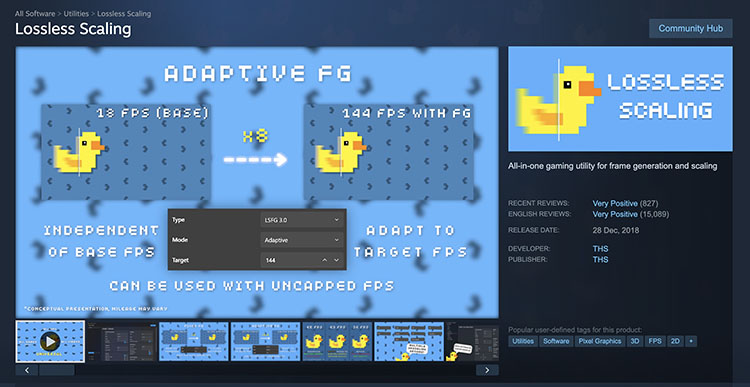
Resolution scaling and upscaling technologies remain the most effective Monster Hunter Wilds optimization. Lossless Scaling is a lightweight solution that renders the game at a lower internal resolution and upscales it in real time with minimal visual loss. You can achieve a noticeable FPS boost while maintaining sharp, clear image quality.
>> You may also need this free PFS calculator to perform a FPS test of your PC.
Solution 7. Manage VRAM & Texture Usage
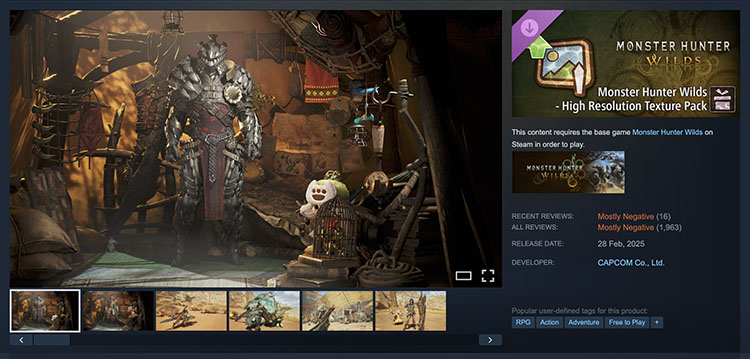
Efficient VRAM and texture management are essential when it comes to Monster Hunter Wilds PC optimization. Capcom has stated that it will continue refining VRAM usage, improving high-resolution texture implementation, and optimizing texture streaming performance. Meanwhile, the High-Res Texture Pack is one great Monster Hunter Wilds optimization patch. However, it still requires around 16 GB of VRAM to run properly, particularly at 4K resolution, making it unsuitable for many systems.
Solution 8. Maintain System Stability
Your system stability is a critical yet often overlooked aspect of MH Wilds optimization. For instance, you can use maintenance tools like IObit Advanced SystemCare. It can regularly clean temporary files, remove junk data, and optimize system resources, which helps prevent long-term performance degradation. In addition, it’s important to keep your Windows up to date, ensure proper cooling, and avoid unstable memory overclocks, which can significantly reduce crashes and unexpected stuttering.
Advanced SystemCare Free
- Clean: 420 billion traces removed & 85 EB junk files cleaned
- Protect: 80 million unauthorized access blocked & 20 million bugs fixed
- Speed Up: 6 million hours of startup time saved & Turbo boost
- Optimize: Auto clean and auto care your PC with AI mode
Solution 9. Apply Advanced Tweaks
For some of the Monster Hunter Wilds PC performance issues, there are some advanced tweaks you can do. One useful method is adjusting launch parameters in Steam, such as -nofriendsui -udp or -nofriendsui -tcp, which can help resolve rare multiplayer desync or connection issues caused by large friends lists. Meanwhile, you can go for Windows Pro, use the REFramework, or adopt the resizable Base Address Register (rBAR) on modern motherboards to enable supported CPUs to access supported GPUs faster.
With these Monster Hunter Wilds PC optimization strategies, you should be able to significantly improve overall performance. However, due to the game’s demanding nature and hardware limitations, these fixes may not eliminate all performance issues on every system.
Better Solution: Free Optimize Your PC for Better Performance in Monster Hunter Wilds
In the previous sections, we have covered various manual tweaks based on the official Monster Hunter Wilds PC optimization update page and trusted community advice. However, not every player has the time or technical skills to apply all these settings manually.
For those looking for a simpler method, Advanced SystemCare Free offers an excellent automated solution for Monster Hunter Wilds optimization. This popular all-in-one PC optimization tool can boost your system performance, which helps you reduce lag, stuttering, and high resource usage while playing Monster Hunter Wilds.
Advanced SystemCare Free
- Clean: 420 billion traces removed & 85 EB junk files cleaned
- Protect: 80 million unauthorized access blocked & 20 million bugs fixed
- Speed Up: 6 million hours of startup time saved & Turbo boost
- Optimize: Auto clean and auto care your PC with AI mode
Key Features of Advanced SystemCare
AI Mode Optimization: This intelligent feature automatically analyzes your system and applies the best settings for Monster Hunter Wilds, delivering instant performance improvements with just one click.
Deep System Clean: It thoroughly removes junk files, temporary caches, registry errors, etc., freeing up valuable disk space and RAM for Monster Hunter Wilds PC optimization.
Startup Optimization: Advanced SystemCare disables unnecessary startup programs, which can reduce boot time and ensure more CPU and memory resources are available for gaming.
Real-Time RAM Boost: It intelligently frees up unused RAM on demand in real time, preventing slowdown and maintaining stable frame rates during intense Monster Hunter Wilds gameplay.
Internet Booster: This tool optimizes your network connection and popular browsers’ settings (Firefox, Edge, Opera). The feature is super helpful for faster download speeds and lower latency.
Privacy Protection: It prevents unauthorized access to your personal files and data and erases your privacy traces. You can enjoy a more secure environment while playing Monster Hunter Wilds.
How to Use Advanced SystemCare to Optimize PC for Monster Hunter Wilds
Advanced SystemCare is definitely the simplest approach for Monster Hunter Wilds PC optimization. In this part, let’s see how to use it step by step to clean your system and boost gaming performance.
Step 1: Download and install Advanced SystemCare Free from the official website. There are two modes provided in Care: AI Mode and Manual Mode.
Step 2: Here, we choose the Manual Mode for Monster Hunter Wilds PC performance optimization. You can select these modules to optimize your gaming experience.
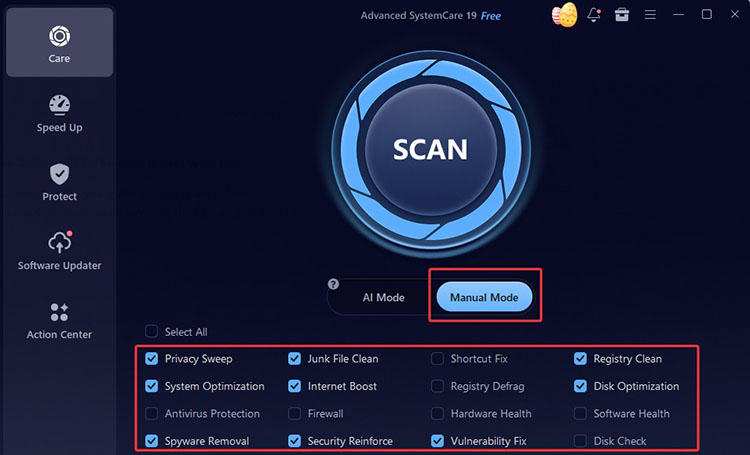
Step 3: Click on the blue icon to perform a scan. Advanced SystemCare will provide the items to be fixed later.
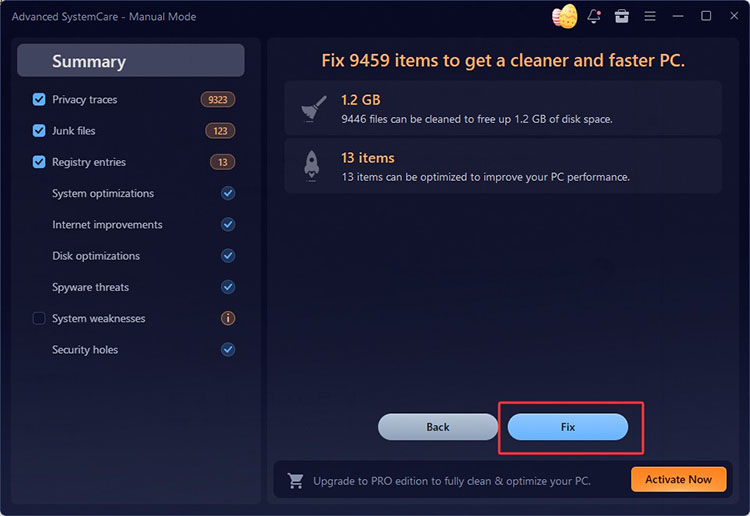
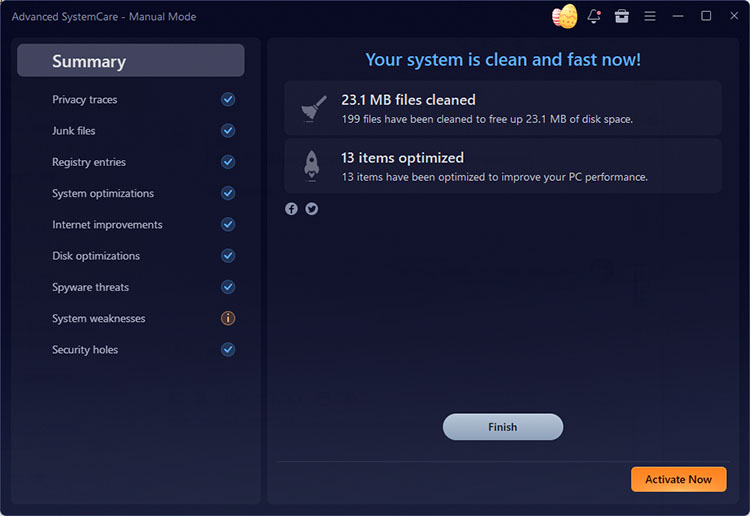
Step 4: Click on the Fix button for Monster Hunter Wilds PC optimization. Now your PC will be running faster for browsing, gaming, and anything!
Final Words
As you can see, Monster Hunter Wilds PC optimization is not just about tweaking a single setting. It’s a combination of in-game adjustments and system-level improvements working together, which can take a bit of technical know-how and patience. While the official fixes from Capcom remain the most fundamental solution, tools like Advanced SystemCare can speed up the process and handle the heavy lifting for you. It’s a much faster, more convenient approach that helps optimize your PC and boost performance in just a few clicks. So you can enjoy smoother hunts, higher FPS, and fewer interruptions from now on. Try it for free now!