



Kevin Hart
Kevin is an experienced editor focused on tech blog writing. Familiar with all kinds of PC software on the market. All the topics he chooses are aimed at bringing more benefits to users.
Expert in
PC Health Solution

All-in-one PC health solution: clean, optimize and secure

Comprehensive PC cleaning, optimization and protection

Keep drivers always up-to-date

More stable performance with less system crashes

Protect millions of computers against malware

Top computer security with full-round protection

Protect against viruses & boost PC performance
Automatically scan and update drivers.
Update game ready drivers for peak gaming performance.
Identify and fix various common of hardware issues.
Boost 30% of system performance for fast & smooth running.

Learn how to increase FPS and fix low frame rate on PC, Windows 11 laptops, PS5, and Xbox One S for smoother, faster gaming performance. 9 fast and easy ways.

Kevin Hart


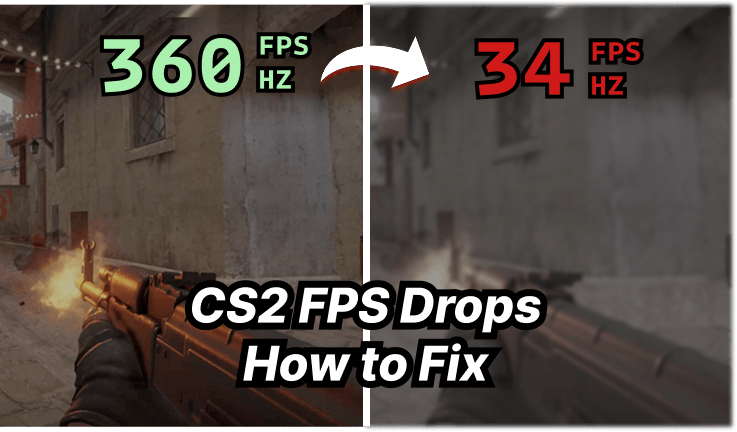
Low FPS can make games feel choppy, increase perceived input delay, and cause frustrating stutters during gameplay. If you are wondering how to increase FPS, start by optimizing graphics settings, reducing background resource usage, and keeping gaming drivers up to date. Below, we'll explain how to boost FPS on PC and Windows 11 laptops, plus what you can do on PS5 and Xbox One S.
Before learning how to fix low frame rate, it helps to identify what is limiting performance. FPS depends mainly on your CPU, GPU, RAM, game settings, drivers, and system workload. Consoles are more restricted because their hardware and individual games determine which frame rates are supported.
Common causes of low FPS include:
Graphics settings that are too demanding
Outdated or faulty graphics drivers
Too many background programs
Insufficient RAM or VRAM
CPU or GPU overheating
Power-saving settings on laptops
Games using integrated graphics
Hardware that cannot meet the game's requirements
There are many methods available for increasing FPS on PC. In the following part, we will introduce 7 methods for you to try. Now, let’s start exploring.
The easiest place to start when figuring out how to increase your FPS is inside the game itself. Modern visual effects can put substantial pressure on the GPU, especially at high resolutions. Reducing a few demanding settings can significantly lower GPU workload while keeping the game visually appealing.
Try these adjustments:
Step 1. Open the game's Settings and enter Graphics, Video, or Display.
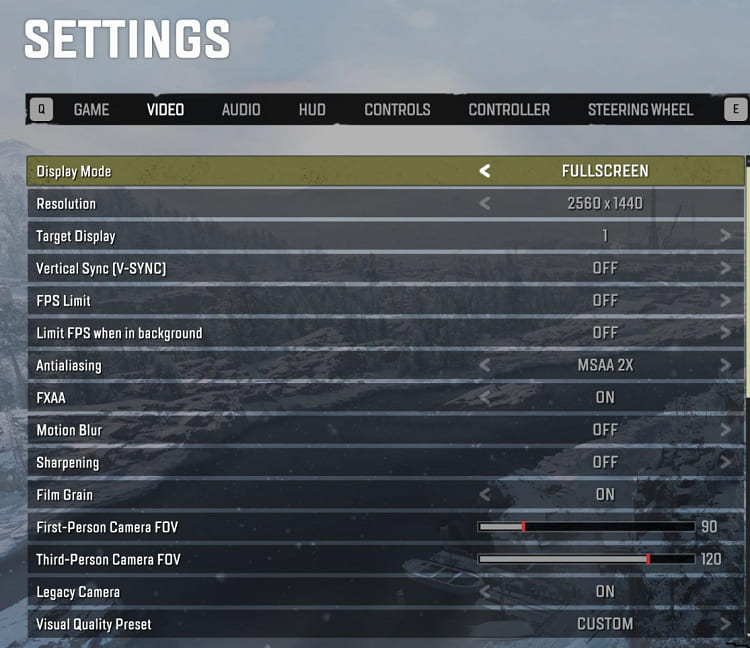
Step 2. Find Graphics Quality, Quality Preset, or a similar option.
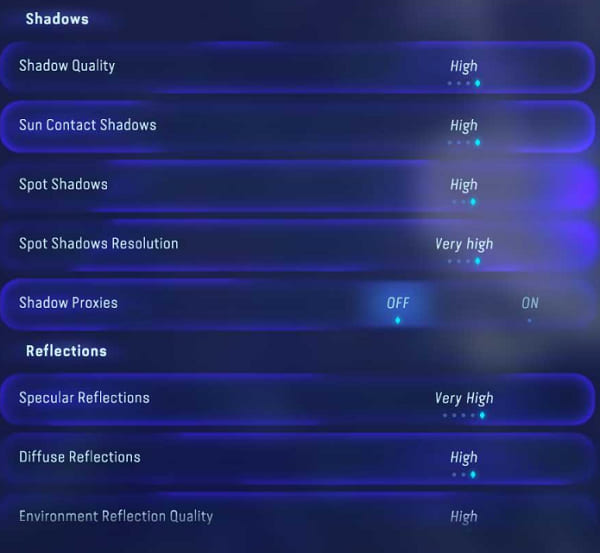
Step 3. Change it from Ultra or High to Medium first. Lower Shadow Quality, Reflections, Volumetric Effects, Ambient Occlusion, and similar effects.
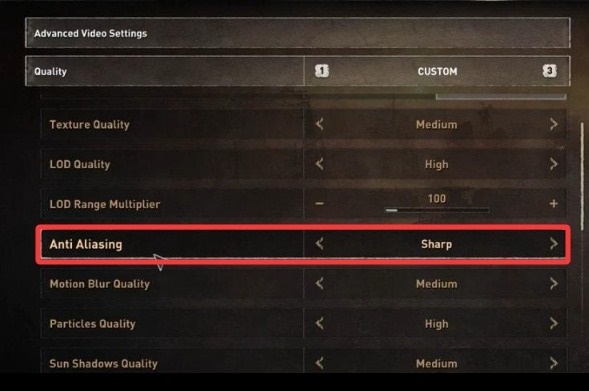
Step 4. Set Anti-Aliasing to a lower level and reduce Texture Quality if your graphics card has limited VRAM.
Step 5. Enable DLSS, FSR, or XeSS if the game and GPU support them.
Step 6. Click Apply or Save Changes, return to the game, and test performance in a demanding area.
If FPS is still low, try lowering the rendering resolution. Competitive players can often gain more consistent frame rates by prioritizing performance over maximum visual quality.
Graphics drivers play an important role in communication between Windows, your GPU, and games. An outdated or faulty driver can contribute to FPS drops, stuttering, crashes, or poor compatibility with newer titles. Therefore, updating your GPU driver is an important step when learning how to fix low frame rate on a PC.
Driver Booster provides an easier way to scan for and update outdated graphics and gaming-related drivers. Instead of checking different devices individually, it can detect available driver updates and install them from one interface.
How Driver Booster Helps with Gaming Performance
Gaming Component Updates: Checks and updates gaming-related drivers and components for better compatibility and optimization with newer PC games, providing a practical option when troubleshooting how to fix Roblox lag and similar gaming performance issues.
Graphics Driver Updates: Detects outdated NVIDIA, AMD, and Intel graphics drivers that may affect FPS, stuttering, and overall game performance.
Driver Problem Detection: Identifies missing, outdated, or problematic drivers that can contribute to FPS drops, stuttering, crashes, and other performance problems.
Driver Backup: Creates driver backups before updates, giving you a recovery option if a newer driver causes compatibility or performance issues.
One-Click Updating: Works as an automatic driver updater to detect and update outdated drivers without requiring you to search for and install each driver manually.
How to Use Driver Booster to Update Graphics Drivers
Step 1. Download and install Driver Booster on your PC, then launch the program.
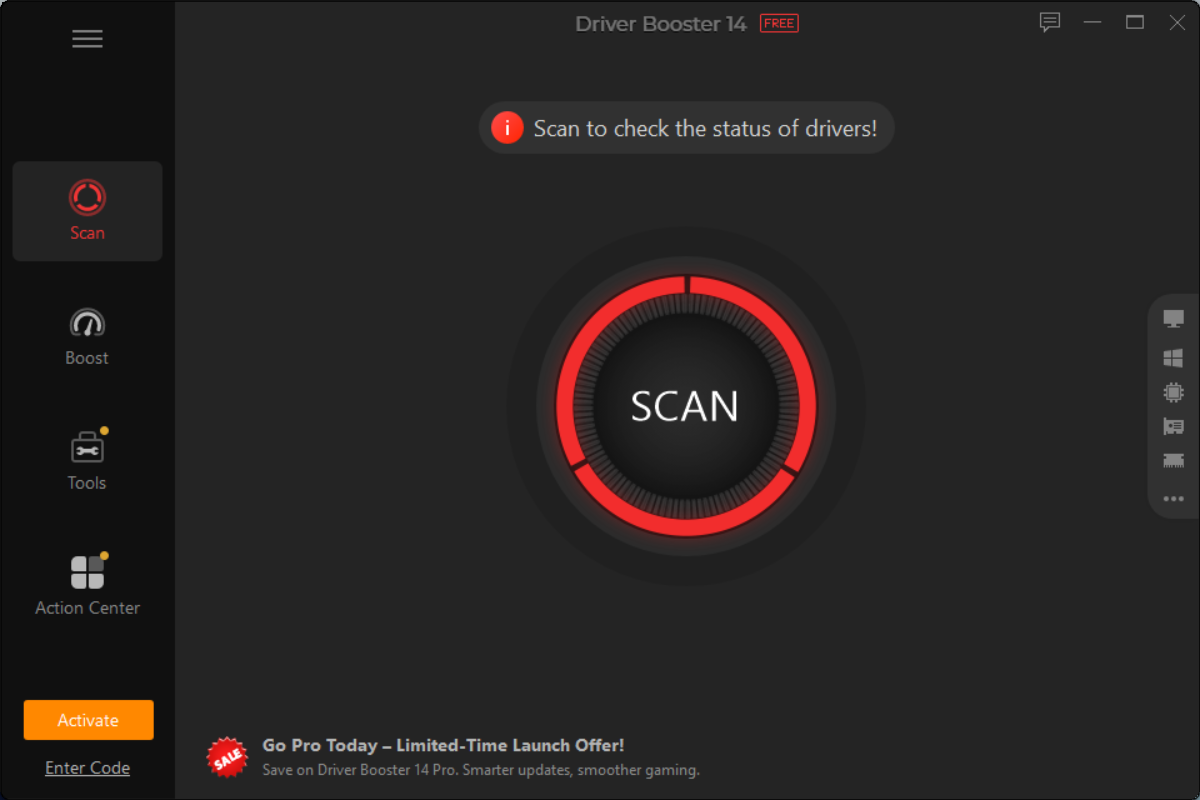
Step 2. Click Scan and wait while Driver Booster checks your PC for outdated, missing, or problematic drivers.
Step 3. Locate the Display adapters/graphics driver in the scan results and click Update next to it.
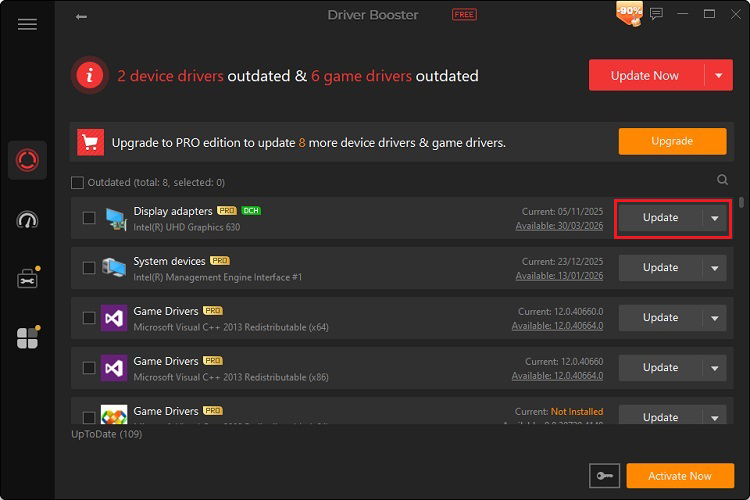
Step 4. Wait for the driver update to complete, then restart your computer to apply the changes.
Updating a driver does not guarantee higher FPS in every game. However, it can resolve driver-related performance problems and provide optimizations or compatibility improvements for supported games.

If your hardware is already working hard to run a game, background software can leave fewer CPU and memory resources available for gaming. Browsers, launchers, cloud-sync applications, recording programs, and other software may consume resources even when you are not actively using them, making this an important optimization for lower-spec systems.
To close unnecessary programs on Windows 11:
Step 1. Press Ctrl + Shift + Esc to open Task Manager.
Step 2. Select the Processes tab.
Step 3. Check the CPU, Memory, and GPU columns.
Step 4. Find unnecessary applications using significant resources.
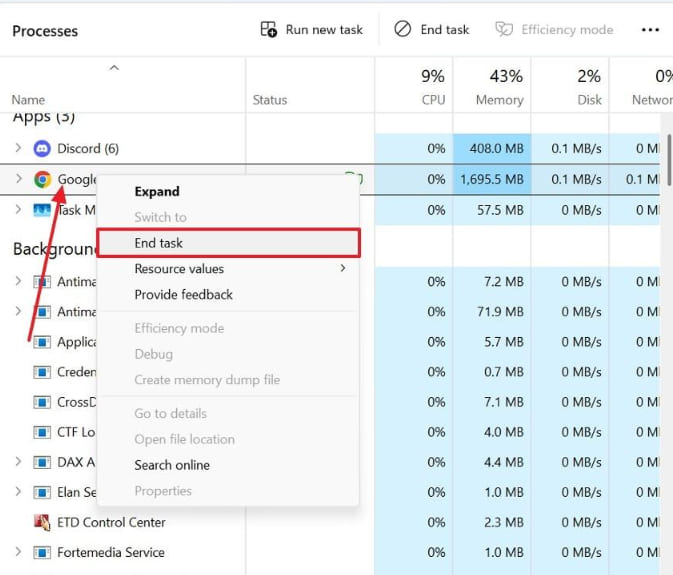
Step 5. Right-click the program and choose End task.
Avoid stopping Windows processes or services you do not recognize.
For anyone searching for how to increase FPS on laptop Windows 11, Game Mode is worth enabling. It is designed to prioritize the gaming experience and reduce certain background activities while a game is running. Results vary depending on your hardware, but the feature is built directly into Windows and takes only seconds to enable.
Follow these steps:
Step 1. Press Windows + I to open Settings.
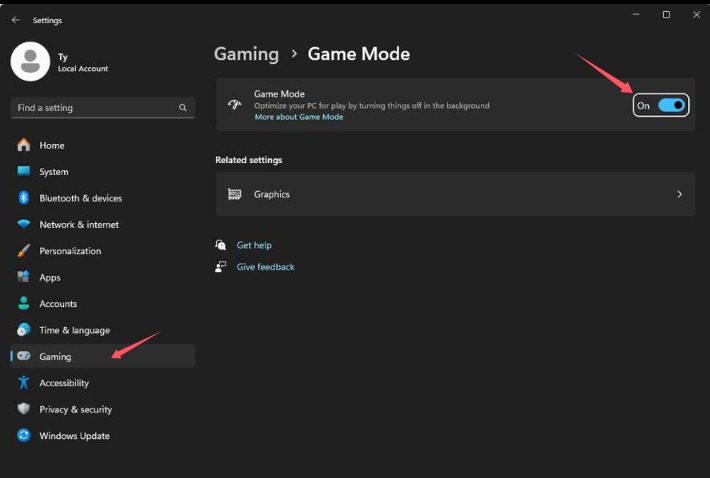
Step 2. Select Gaming.
Step 3. Click Game Mode.
Step 4. Turn Game Mode on.
Laptop users should also consider gaming while connected to AC power. Battery-saving modes can restrict processor and graphics performance, which may result in lower FPS.
Many Windows laptops include both integrated graphics and a more powerful dedicated GPU. If a demanding game is assigned to integrated graphics, its frame rate may be significantly lower. Checking the graphics preference is therefore particularly useful when you want to boost FPS on a gaming laptop without changing hardware.
On Windows 11:
Step 1. Press Windows + I to open Settings > System > Display.
Step 2. Scroll down and select Graphics.
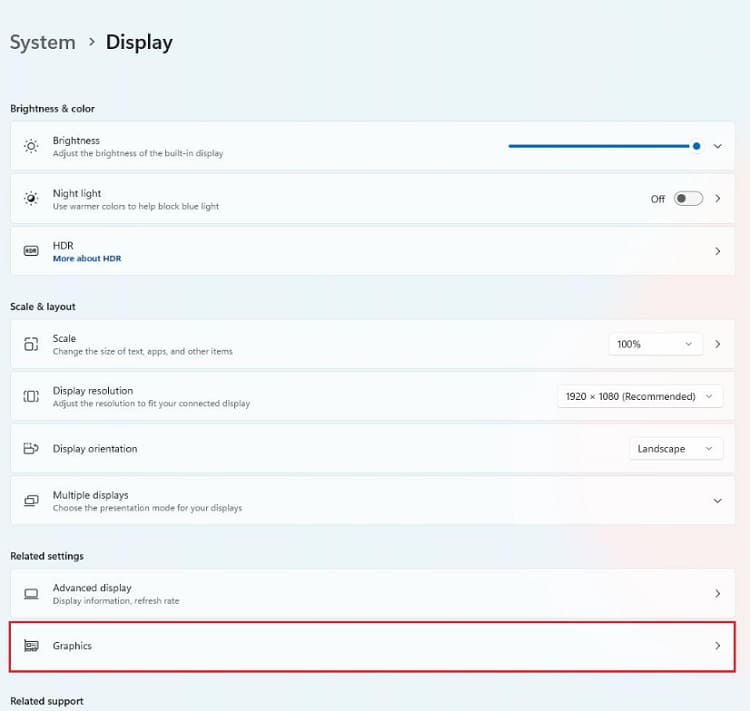
Step 3. Find your game in the application list or add it manually.
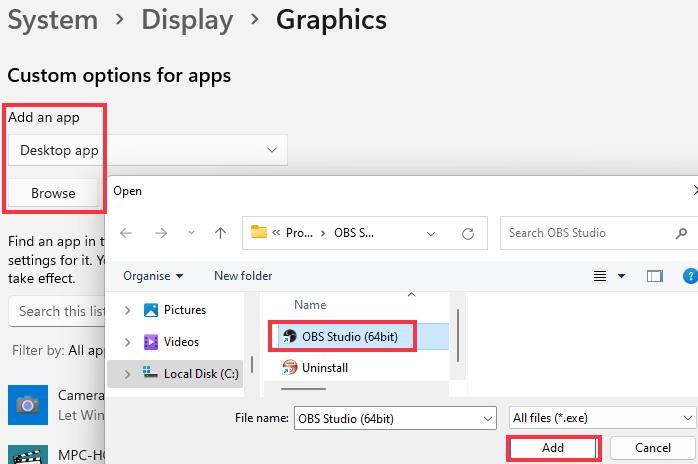
Step 4. Select the game and open its graphics options.
Step 5. Choose High performance. Then, save the change and restart the game.
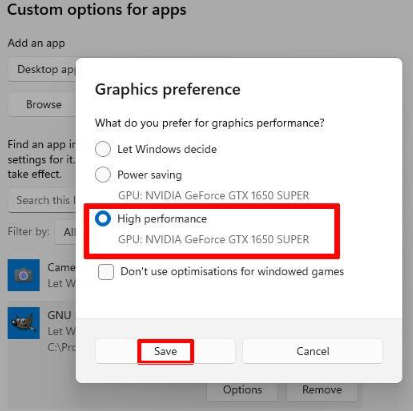
This allows Windows to prioritize the high-performance GPU for the selected game when your system provides multiple graphics processors.
Power-saving settings can restrict hardware performance to reduce battery consumption and heat. While useful during everyday laptop use, they are not always ideal for demanding games. If you are researching how to increase your FPS, changing the Windows power mode can remove some power-saving restrictions that may otherwise limit gaming performance.
On Windows 11:
Step 1. Press Windows + I to open Settings.
Step 2. Select System > Power & battery.
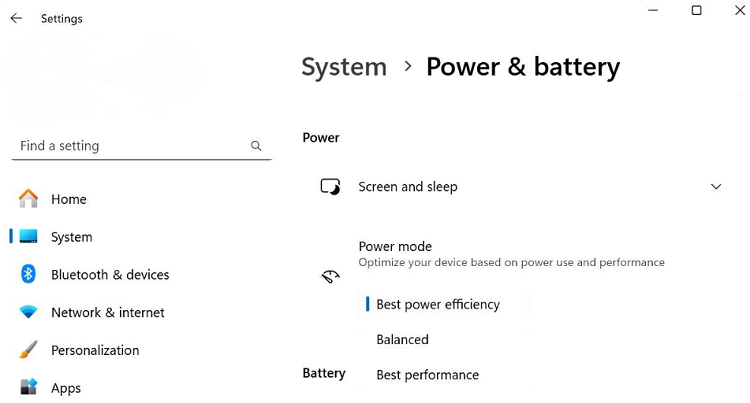
Step 3. Locate Power mode and choose Best Performance if available.
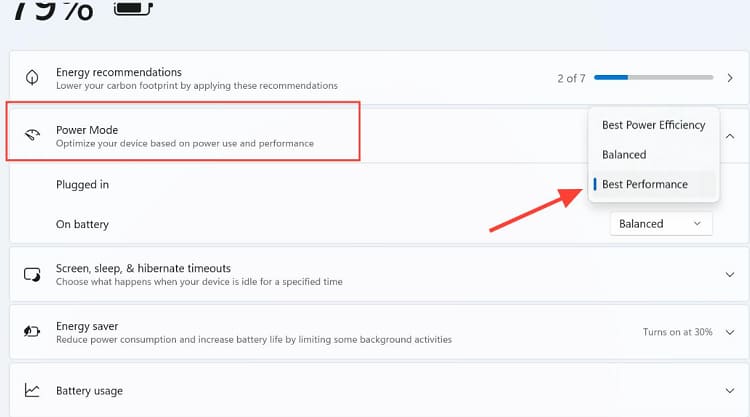
You can also open Control Panel > Hardware and Sound > Power Options and select High performance if your PC provides that power plan.
If none of the software adjustments provide enough improvement, the problem may be related to temperatures or hardware capability. CPUs and GPUs can reduce their operating performance when temperatures become excessive. Older hardware may also struggle with newer games regardless of optimization, so identifying the actual bottleneck is important before spending money on upgrades.
To improve hardware conditions:
Clean dust from PC fans and ventilation openings.
Avoid blocking laptop air vents.
Monitor CPU and GPU temperatures during gaming.
Make sure desktop cooling fans operate correctly.
Consider adding RAM if memory is regularly exhausted.
Consider a GPU upgrade if GPU usage stays near maximum even at reduced settings.
Check CPU usage if FPS remains low while GPU utilization is relatively low.
Laptop CPU and GPU upgrades are usually limited, making cooling, graphics settings, RAM, and software optimization more practical solutions.
Unlike a PC, the PS5 does not allow you to freely adjust hardware performance. However, many supported games provide performance-focused graphics modes. If you're searching for how to increase FPS on PS5, choosing Performance Mode is one of the most useful options because it prioritizes smoother frame rates over maximum image quality.
To prioritize performance:
Step 1. Open Settings from the PS5 home screen.
Step 2. Select Saved Data and Game/App Settings.
Step 3. Go to Game Presets.
Step 4. Select Performance Mode or Resolution Mode.
Step 5. Choose Performance Mode.
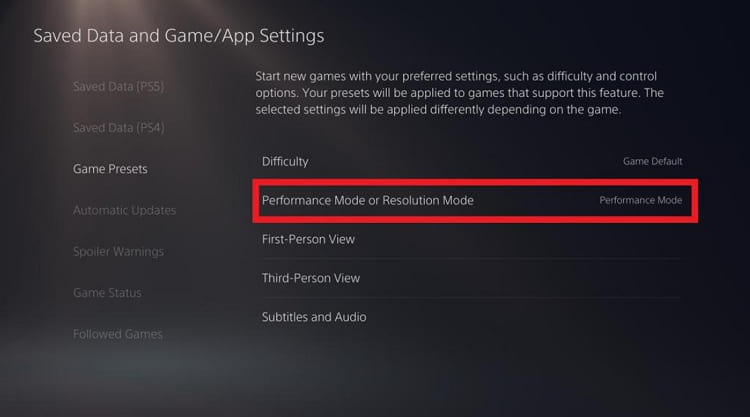
You should also check the game's own graphics menu. Supported titles may offer settings such as Performance Mode, High Frame Rate Mode, or 120 Hz Mode.
For 120 Hz gameplay, you also need a compatible game and display.
When researching how to increase FPS on Xbox One S, remember that the console cannot simply unlock higher FPS in every game. Frame-rate targets are largely determined by the game and the console's hardware. Still, basic maintenance and game-specific performance settings can help reduce avoidable slowdowns and provide more consistent gameplay.
Try the following:
Keep Xbox system software updated.
Install the latest updates for your games.
Restart games that develop persistent performance problems.
Maintain sufficient free storage space.
Check individual games for performance-oriented graphics options.
Keep the console's ventilation areas unobstructed.
Restart the console if performance becomes unusually unstable.
If an Xbox One S version of a game is designed to run at 30 FPS, changing system settings cannot automatically make it run at 60 FPS.
How do I fix low frame rate suddenly?
Close unnecessary background programs, restart the game, check CPU and GPU temperatures, update graphics drivers, and review recent Windows or game updates that may have changed performance.
How to increase FPS without upgrading hardware?
Lower graphics settings, close background programs, enable Game Mode, use the dedicated GPU, select a performance-focused power mode, and keep graphics drivers updated. These methods can boost FPS without replacing PC hardware.
Does more RAM increase FPS?
More RAM can help if insufficient memory is causing performance problems. However, adding RAM usually provides little FPS improvement when your system already has enough memory and the GPU or CPU is the main bottleneck.
Knowing how to increase FPS is mainly about finding and reducing the bottleneck affecting your game. Start with graphics settings, background programs, Windows gaming options, and graphics drivers. Driver Booster can make driver maintenance easier, while PS5 and Xbox One S players should prioritize supported performance modes. If FPS remains low afterward, hardware performance or cooling may be the limiting factor.

Keep drivers always up-to-date.
Free Download