A working microphone is essential for working, gaming, and staying connected. Mid-video call, no sound? Trying to record yourself, but nothing happens? Microphone problems are always frustrating, which can instantly derail your entire day. Here are some solutions if your microphone isn't working.
Method 1. Perform a Basic Check of the Microphone
The first step in resolving the "microphone not working" problem is to check the physical connection. Make sure your microphone is properly plugged into your computer. If you are using a USB microphone, try connecting it to a different USB port to rule out a faulty port.
Next, check that the microphone volume is not muted and that it is sufficiently high. To do this, go to your operating system's sound settings and ensure that the microphone input volume is set to an appropriate level.
If your headset or microphone has a mute button, make sure it's not activated. This button is often located on the headset cable or on the microphone itself. Turn it off to allow sound to be picked up.
Make sure the microphone is positioned correctly to capture your voice. Place it at an appropriate distance from your mouth, generally between 5 and 0 centimeters, and avoid any obstacles that could block the sound.
Finally, perform a basic test by speaking into the microphone and checking if the sound is picked up by the computer. You can use online microphone testing tools to quickly check if your microphone is working properly.
Method 2. Check Your Microphone's Privacy Settings
To ensure apps have microphone access, press Win+I to open Windows Settings. Go to the Privacy section, then select Microphone. Here, verify that microphone access is enabled for apps.
Next, enable the "Allow apps to access your microphone" option. This step is crucial to allow apps to capture audio through your device's microphone. Without this permission, apps won't be able to use the microphone, even if they are configured correctly.
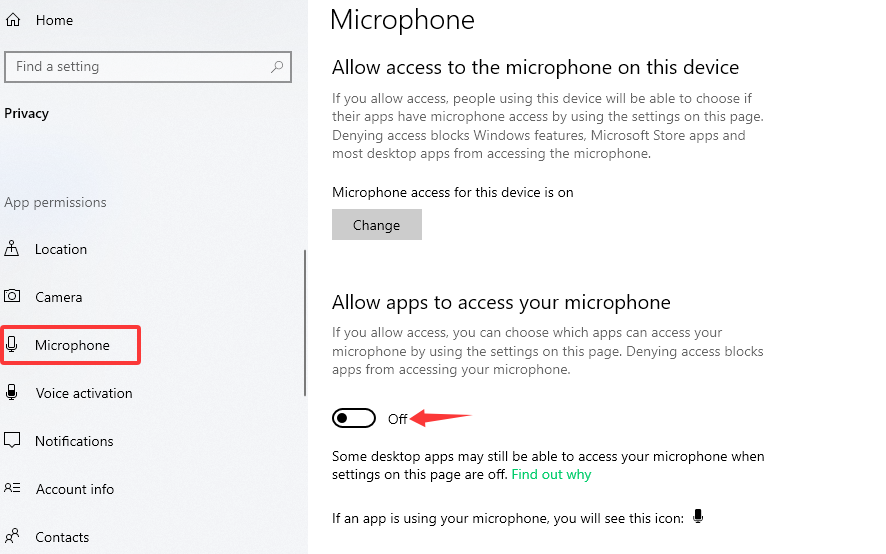
After enabling general microphone access, it's important to check the permissions for each specific application. In Microphone settings, you can choose which Microsoft applications can access your microphone. Make sure the applications you want to use are enabled.
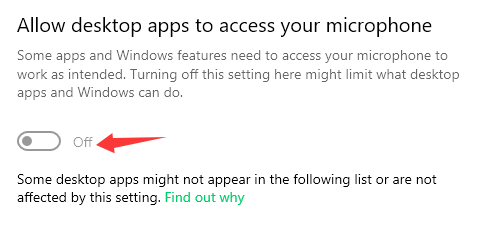
For desktop apps, an additional step is required. In Microphone settings, ensure that the "Allow desktop apps to access your microphone" option is enabled. This option allows non-Microsoft Store apps to use the microphone.
Method 3. Update Drivers to Fix the Microphone Not Working Issue
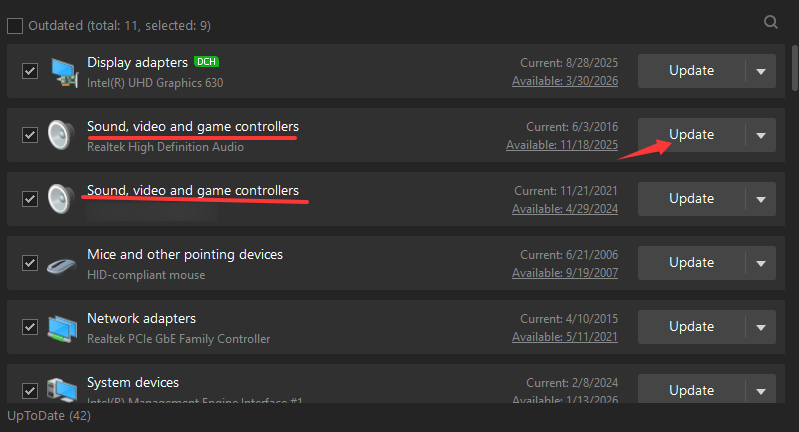
One of the quickest ways to fix a broken microphone is to update an audio driver by using a free driver updater like Driver Booster. This option allows you to search for and update all available drivers for your device. Driver Booster scans your entire system and updates the Intel, AMD, Realtek, or NVIDIA audio drivers all at once.
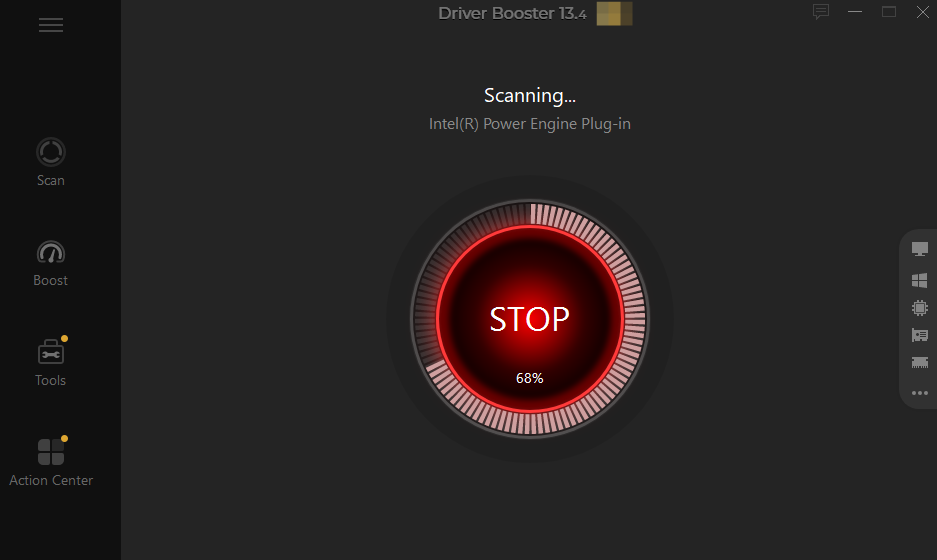
The software will detect all outdated drivers on your PC. Select the drivers labeled “Sound, video and game controllers” and click the Update button. Follow the on-screen instructions, and after a moment, the driver will be updated.
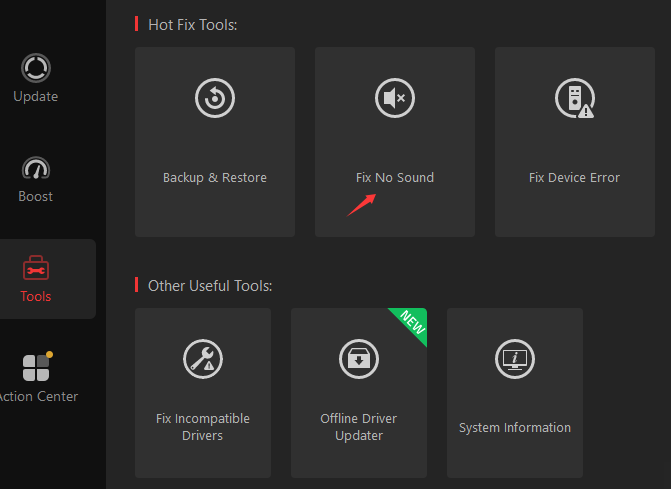
Except for driver updates, you can use Driver Booster to fix simple issues including no sound.
Method 4. Check the Sound Device Configuration
To configure sound settings, first go to Windows Settings, then select System, and finally Sound. This section allows you to manage all audio aspects of your device, including input and output devices.
Under the Input section, you will find a list of microphones connected to your device. Select the one you want to use for recording. This ensures that the correct device is active and ready to capture sound.
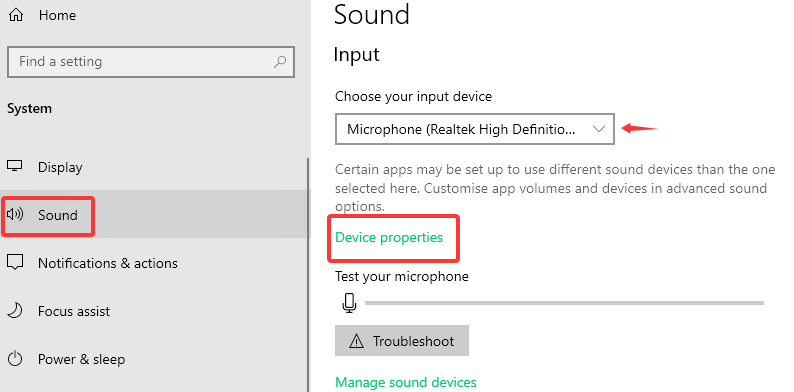
To access your microphone's advanced settings, click device properties. Here, you can adjust settings like volume levels. For advanced settings, click Additional device properties.
It is crucial to set your microphone as the default recording device. This ensures that all applications use the same microphone for recording, thus avoiding conflicts and detection problems.
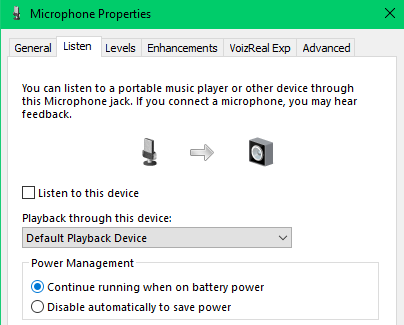
Finally, adjust the microphone levels to ensure optimal sound capture. You can do this by accessing the device properties and adjusting the volume slider. Make sure the level is neither too low nor too high to avoid distortion.
Also Read: How to Fix Audio Drivers on Windows 11 >>
Method 5. Use the Troubleshooter to Resolve the Microphone Not Working
To begin, also open Windows Settings on your computer. Once in Settings, navigate to the Update & Security section, and then select Troubleshooting. This section contains various tools designed to identify and resolve common problems with your system.
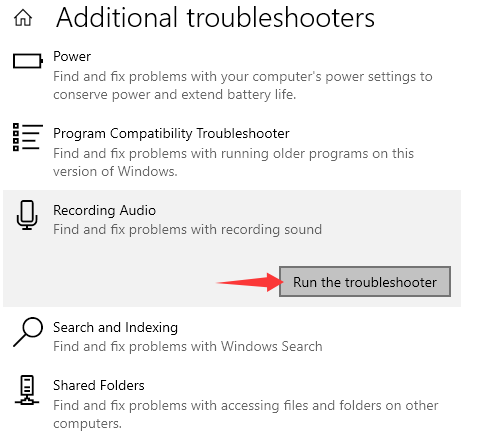
In the Troubleshooting section, you'll find an option called Additional Troubleshooter. Click this option to access a list of additional tools. From these tools, select Record Audio to begin diagnosing problems with your microphone.
Next, click Run the troubleshooter. This tool will automatically scan your system for potential microphone problems and suggest solutions. Carefully follow the steps provided by the troubleshooter.
Once the scan is complete, the troubleshooter will provide on-screen instructions for resolving any detected issues. It is crucial to follow these instructions precisely to ensure that the fixes are applied correctly.
Finally, if the troubleshooter recommends it, restart your computer. This restart will apply the fixes and verify that your microphone is now working correctly.
Method 6. Check Hardware Problems
To begin, connect your microphone to another computer or device. This will help determine whether the problem lies with the microphone itself or the original computer. If the microphone works on another device, the problem is likely with your computer.
Next, check your microphone cables. Make sure they are not damaged and are properly connected. A damaged cable can prevent the microphone from working correctly, even if it is plugged in.
If the cables are in good condition, try plugging the microphone into a different USB port. Sometimes a faulty USB or a faulty port could be the cause of the problem. Try changing the port to see if the problem persists.
If possible, test with a different microphone. This will help determine whether the problem lies with the original microphone or the computer. If the second microphone works, the first one is likely faulty.
Finally, if the microphone still doesn't work after these checks, it may need to be repaired or replaced. Consult a professional for a more thorough evaluation.
Conclusion
Microphone not working issues can seem complicated, but by following the steps above, you can often resolve them yourself. Whether it's simple hardware checks or parameter adjustments, the solution is often readily available. Update drivers with Driver Booster and fix no sound problem.