Picture this: you are exploring a vast Minecraft world and building your dream base. Yet suddenly, the game stutters, frames drop, and everything feels sluggish. This frustrating experience is all too familiar for players dealing with lag on Minecraft. In most cases, the issue is caused by limited RAM, outdated drivers, and other factors. So, how to fix lag on Minecraft? This guide will introduce 8 effective methods. Just read on to discover the fixes that can boost FPS and eliminate lag!
What is Lag on Minecraft?
Lag on Minecraft is a common issue that refers to stuttering or slow performance that disrupts gameplay. More often than not, you might see frame drops, delayed actions, or frozen entities. Before diving into how to reduce lag on Minecraft, let’s take a look at the basic lag types.
Different Types of Minecraft Lag:
FPS Lag: It occurs when your PC can not render frames quickly enough, leading to choppy visuals.
TPS Lag: It’s a server-side performance drop in games, resulting in delayed block breaking, frozen mobs, and delayed item movement.
Latency/Internet Lag: This lag is usually caused by high ping or unstable internet, which is common on multiplayer servers.
Why is My Minecraft So Laggy?
Why is Minecraft so laggy? Several common causes may be responsible, and they are:
Outdated graphics drivers reduce performance and cause frequent frame drops.
Insufficient RAM allocation could limit Minecraft performance within large worlds.
Too many background applications are consuming CPU and memory resources simultaneously.
High in-game settings can greatly overload system hardware capacity.
Slow or fragmented storage causes delayed loading and stuttering gameplay issues.
A poor internet connection can also cause latency and a laggy Minecraft server experience.
An overheating CPU/GPU will reduce performance and trigger thermal throttling issues and lag on Minecraft.
When Java is not prioritized, it might allow other processes to reduce Minecraft's performance efficiency.
How to Fix Lag on Minecraft (8 Fixes)
Regardless of the reason behind it, it’s crucial to reduce lag on Minecraft for a smoother experience. In this part, we have concluded the 8 effective fixes. Just check them out!
Fix 1. Lower In-Game Video Settings
The first and simplest step is to reduce demanding graphics settings that may be causing performance issues. Here’s how to fix lag on Minecraft via the video settings.
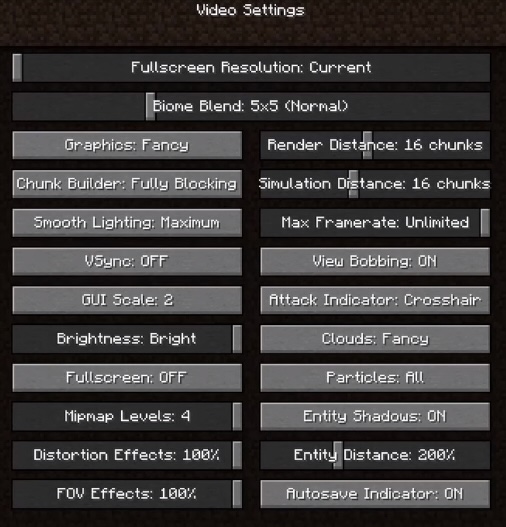
First off, launch Minecraft and open the Options menu from the main screen. Select Video Settings and adjust it as follows:
Fullscreen Resolution: Lower it to 1280×720 for better FPS with acceptable image quality.
Biome Blend: Set it to 0 blocks/Off to reduce unnecessary rendering load.
Graphics: Choose Fast to disable demanding visual effects and improve FPS.
Chunk Builder: Select Threaded for smoother chunk loading and better performance.
VSync: Turn off to avoid FPS limits and reduce input delay.
Distortion and FOV Effects: Disable them to reduce extra visual processing.
Render Distance: Lower it to 8-12 chunks to improve FPS.
Simulation Distance: Reduce it to 5-8 chunks to decrease CPU usage.
Clouds and Particles: Turn them off or set them to minimal to reduce graphical load.
Entity Distance: Lower it to reduce the number of rendered mobs and players.
Fix 2. Allocate More RAM to Minecraft
Minecraft often needs more memory than the default allocation. That means you can prioritize RAM for smoother gameplay. Here’s how to fix the lag on Minecraft via RAM allocation.
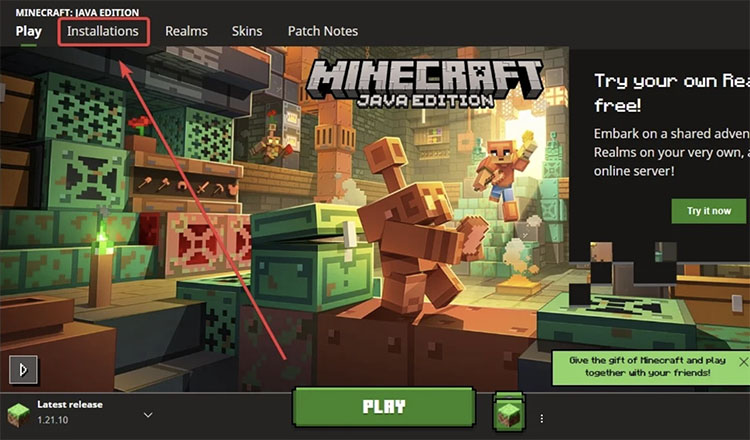
Step 1. Open the Minecraft Launcher, then click the Installations tab at the top.
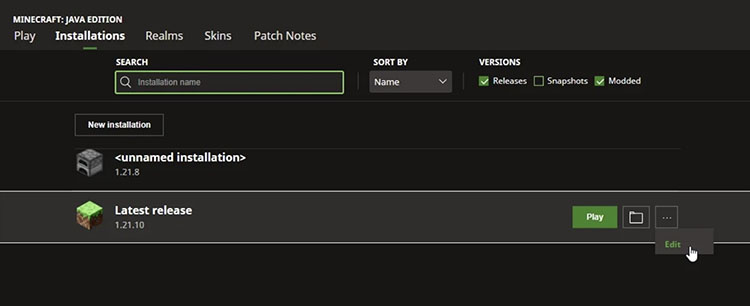
Step 2. Hover over the installation you normally use, click the three dots, and select Edit to enter the editing window.
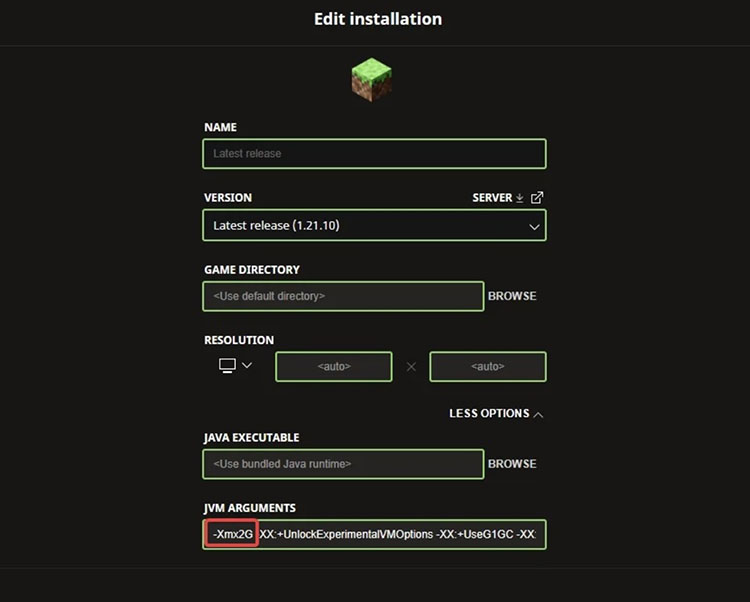
Step 3. In the JVM Arguments box, locate the value that looks like -Xmx2G (the number shows the current maximum RAM in gigabytes). Change it to the amount you want, for example, -Xmx4G for 4 GB, -Xmx6G for 6 GB, or -Xmx8G for 8 GB. Leave the rest of the arguments unchanged. Click Save, and restart the game.
Fix 3. Update Graphic Drivers
Outdated drivers are a major cause of lag on Minecraft because they can prevent your graphics card from delivering optimal performance. This is the time you might want to update your driver, and IObit Driver Booster is the best tool that comes in handy. This dedicated software allows you to update your graphics drivers on PC with just 1 click. The entire process is super easy and highly efficient.
Driver Booster Free
- Automatically scan and update drivers.
- Update game ready drivers for peak gaming performance.
- Identify and fix various common of hardware issues.
- Boost 30% of system performance for fast & smooth running.

Now let’s see how to fix lag on Minecraft with driver updates.
Step 1. Download from the official site and install Driver Booster on your Windows PC.
Step 2. Launch the program and click the Scan button in the middle. It will detect outdated graphics and other drivers quickly.
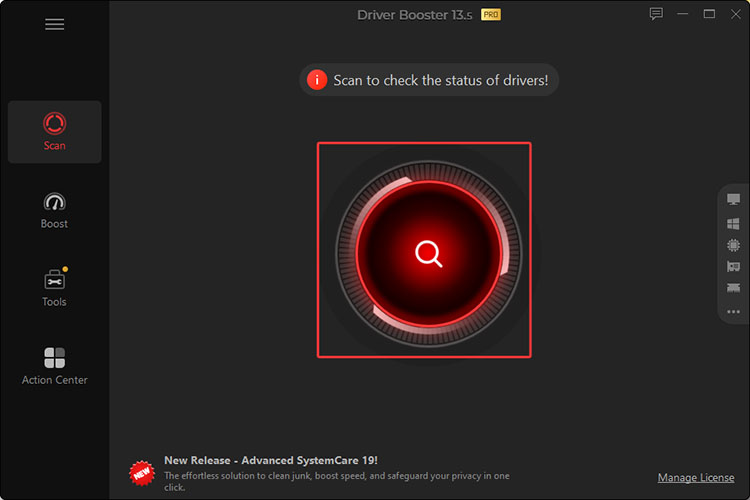
Step 3. Select the graphics driver updates and click the Update button next to it.
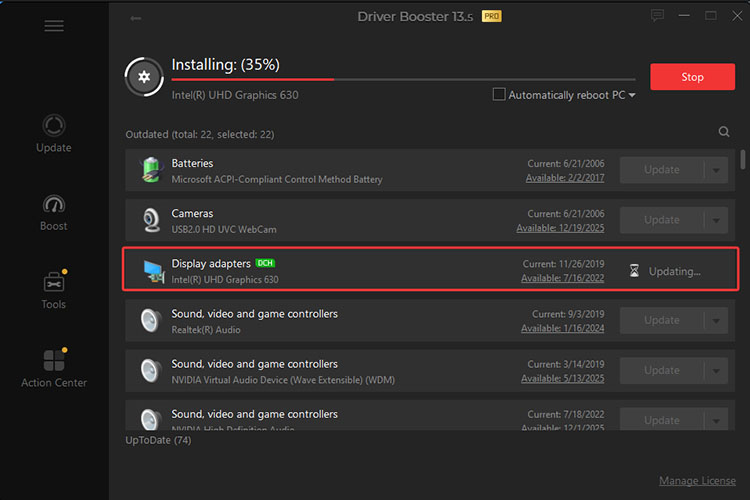
Step 4. After a while, your graphics driver will be updated to the latest version.
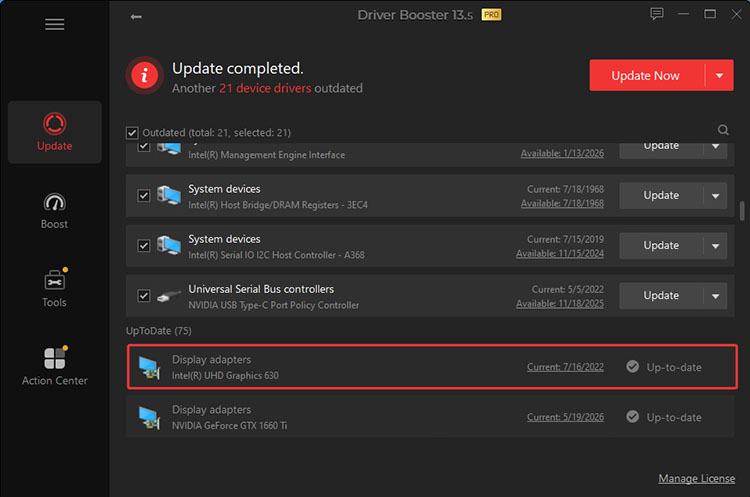
That’s it! IObit Driver Booster supports a wide range of games and can help keep your drivers optimized for smoother gameplay. You can also use it to update drivers for other popular games like Roblox. Want to discover more? Check out the guide on how to fix Roblox lag.
Key Features of Driver Booster
Update Minecraft Graphic Drivers with 1 Click
The driver updater can quickly scan and update outdated Minecraft graphic drivers, which allows you to improve Minecraft performance and reduce FPS issues in one click.
Automatic Device/Game Drivers Updates
It automatically updates graphics drivers and other device or game-related drivers(audio, network, etc.). You can update them in batches for better system stability hassle-free. Just check out how to fix audio drivers on Windows 11 to learn more!
Game Boost for Smoother Minecraft
The best driver updater also comes with a Game Boost mode, which stops unnecessary background apps and services to free up resources for a smoother gaming experience.
System Backup & Restore in Emergency
It can create restore points before updates, allowing you to quickly return your system to a normal state if needed.
More Useful Troubleshooting Tools
It can fix incompatible drivers offline and maintain hardware compatibility. You can also easily make an ASUS/MSI/Lenovo driver update for better system stability.
Fix 4. Close Unnecessary Background Apps
Background programs consume CPU, RAM, and disk resources that Minecraft needs to run smoothly. Therefore, you need to close unnecessary apps to free up system resources and reduce lag on Minecraft. Here’s how.
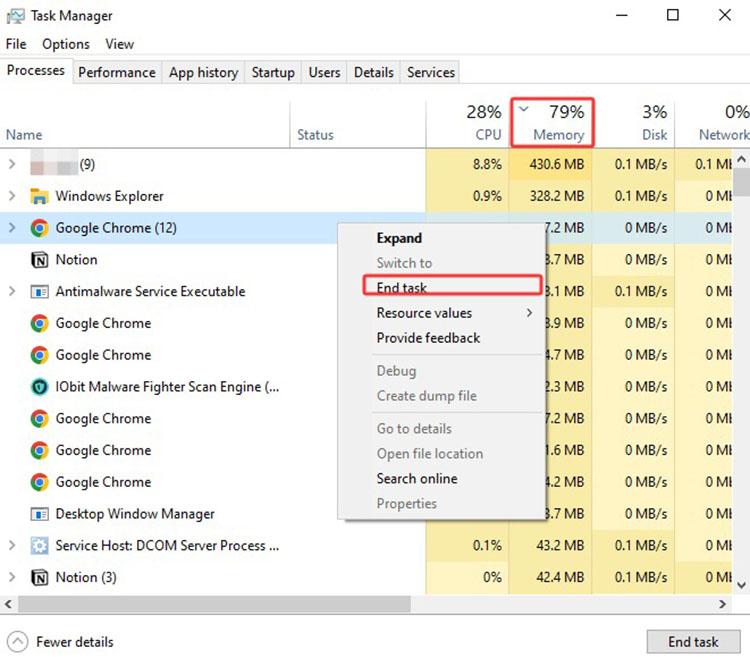
Step 1. Search for Task Manager on Windows and open it.
Step 2. Under the Processes tab, sort apps by CPU or Memory usage. Close unnecessary programs. For instance, browsers with too many tabs, Discord overlays, cloud sync tools, and unused applications.
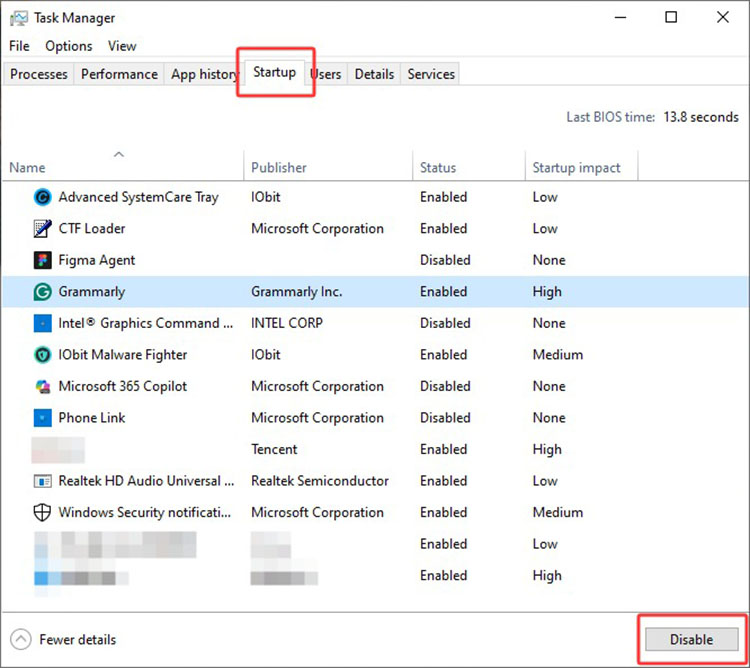
Step 3. You can also disable unnecessary startup programs from the Startup tab to prevent them from running automatically. This helps improve gaming performance as well.
Fix 5. Clean up Your Disk Space
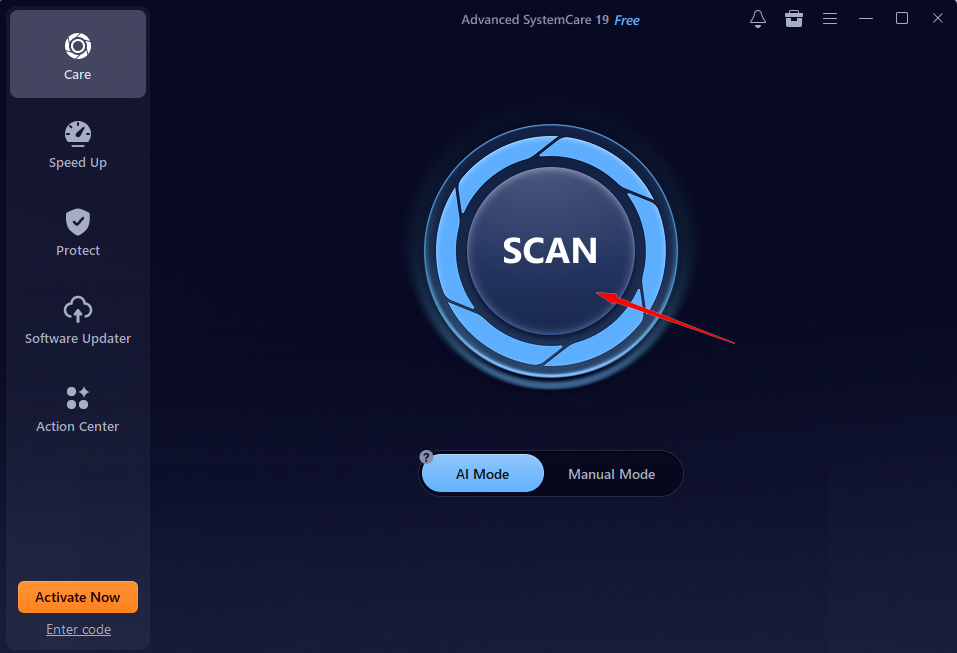
When you have a full or cluttered drive, it can slow down loading times and cause game stuttering. If you want to clean up your disk space, Advanced SystemCare is your go-to choice. It’s a powerful PC optimization tool that can perform deep disk cleaning for improved system performance. Here’s how it works.
Step 1. Free download and open Advanced SystemCare.
Step 2. Go to Care > AI Mode (or Manual Mode to select the cleanup options you need), then click on “SCAN”.
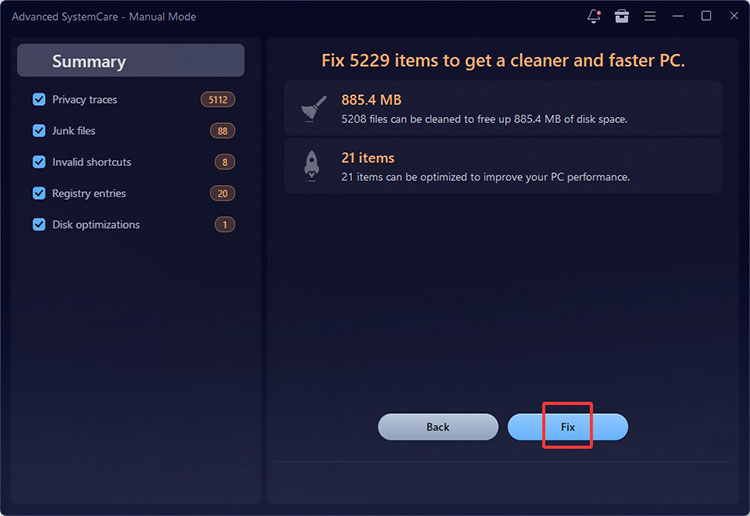
Step 3. After scanning, Advanced SystemCare will display detected junk files, invalid shortcuts, and registry issues. Click Fix to remove these unnecessary items.
Fix 6. Prioritize Java
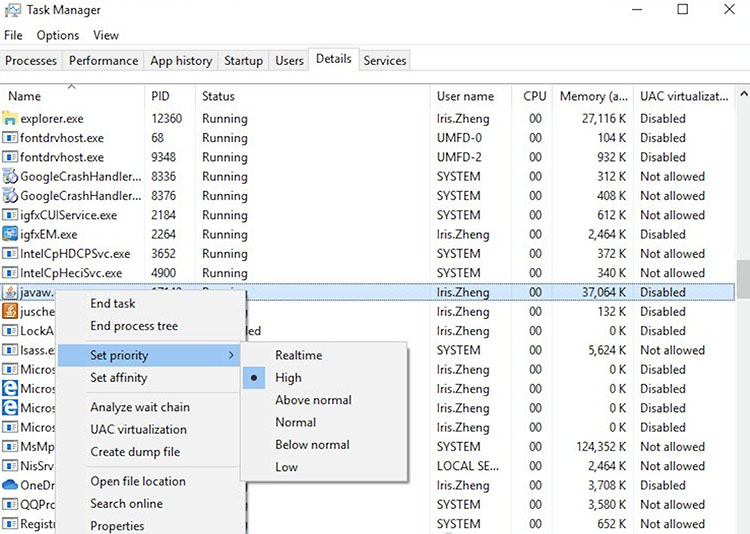
Minecraft relies on Java to run, and it’s recommended to increase its priority so the game receives more CPU resources for smoother performance. Here’s how to reduce lag on Minecraft by prioritizing Java.
Step 1. Launch Minecraft and make sure the Java process is running. Search for Task Manager on Windows and open it.
Step 2. Find javaw.exe or the Minecraft process, right-click it, and select Set Priority.
Step 3. Choose High to give Minecraft a higher CPU priority and improve performance.
Fix 7. Use an FPS Booster (Trusted)
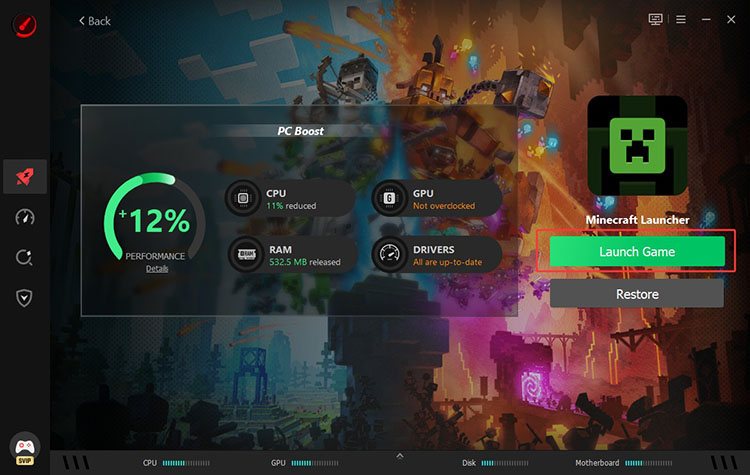
In many cases, a dedicated FPS booster can optimize system resources and improve gaming performance. Of all the options out there, Smart Game Booster is an excellent tool that can fix Minecraft lag on high end PC or regular devices. Designed specifically for gamers, this professional tool can automatically optimize system settings, close unnecessary background processes, and improve resource allocation before gameplay. Meanwhile, its Super Boost feature safely overclocks your GPU and VRAM, delivering up to a 30% performance improvement.
Fix 8. Reinstall Your Minecraft
Sometimes, corrupted game files or installation issues might cause persistent lag that settings and driver updates can not solve. In this case, you can try reinstalling Minecraft to give the game a fresh start. Here’s how.
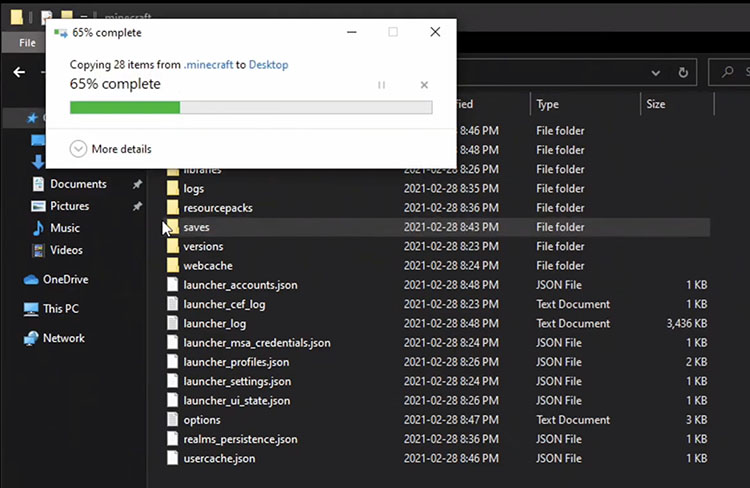
Step 1. Press Windows Key + R to open the Run dialog, type %appdata%, and click OK. Open the .Minecraft folder, copy the saves folder, and store it in a safe location.
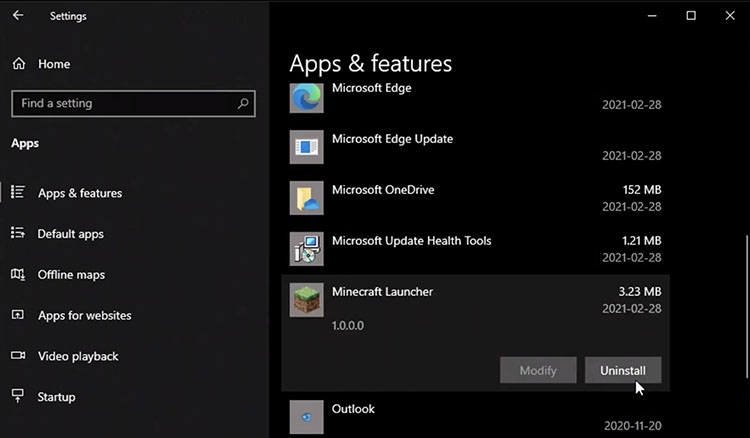
Step 2. Open Windows Settings > Apps > Installed Apps, find Minecraft Launcher, and select Uninstall. After that, return to the %appdata% folder, and delete the remaining.Minecraft folder, and empty the Recycle Bin.
Step 3. Download the latest Minecraft Launcher from the official website and install it. Move your saved saves folder back into the new %appdata%\.Minecraft directory to recover your worlds.
Know More About How to Reduce Lag on Minecraft
Can I Reduce Lag on Minecraft with a VPN?
Yes, a VPN may help reduce network-related lag in Minecraft. You can choose a faster connection route to avoid congested servers. However, it can not improve FPS lag caused by hardware limitations, graphics settings, or outdated drivers. It is mainly useful for reducing high ping and connection issues on multiplayer servers.
Is My GPU Causing Minecraft Lag?
Your GPU can be one of the reasons behind Minecraft lag when it is outdated or unable to handle high graphics settings. Sometimes, even powerful GPUs may experience lag if drivers are outdated or the hardware is being throttled. At this point, you can update graphics drivers, lower video settings, and keep your PC properly cooled to improve performance.
How to Get Rid of Lag on Minecraft?
The best way to eliminate lag is to combine multiple optimization methods. First off, you can lower demanding graphics settings, allocate enough RAM, and update outdated drivers. Meanwhile, close unnecessary background apps, clean up storage, and prioritize Java. In addition, a powerful FPS game booster is a strong help to keep Minecraft running smoothly.
The Bottom Line
How to reduce lag on Minecraft? This guide has introduced 8 effective methods. As you can see, IObit Driver Booster is the best free driver updater, which helps keep your drivers optimized with one-click scanning and updating. You can effortlessly detect outdated drivers, install the latest versions, and maintain a smoother gaming experience. Download it today and keep lag on Minecraft under control from now on!
Driver Booster Free
- Automatically scan and update drivers.
- Update game ready drivers for peak gaming performance.
- Identify and fix various common of hardware issues.
- Boost 30% of system performance for fast & smooth running.