Microsoft Office - now a part of Microsoft 365 - is the biggest name of office suite packed with a set of innovative apps including Word, Excel, PowerPoint, Outlook, etc., and excellent features to boost productivity. However, some users find it too bloated and need a solution to remove Microsoft Office from Windows. Well, this article will walk you through how to uninstall Microsoft Office completely, available for both new Microsoft 365 and older versions.

Common Reasons to Uninstall Microsoft Office
Reasons of uninstalling Office vary from individual needs. Whether for upgrading to new version or switching to an alternative, it is necessary to remove the current suite. And here are some top reasons.
Resolve software conflicts: Compatibility issues possibly happen if you have multiple Office versions installed. The leftover files of older versions may also conflict with newer installation. Therefore, you’d better completely uninstall the old Office for upgrading to Microsoft 365.
Fix corrupted errors: Corrupted Office installation often lead to constant crashes, freezes and other unexpected errors. A full removal can fix corrupted files and performance issues before reinstalling.
Free up space: Office apps accumulate massive caches, temporary files, and user data over time - which can occupy several gigabytes of disk space. Uninstalling unused versions helps free up storage.
Save cost: Microsoft Office is regarded as a pricey suite for casual users. Using a free and streamlined alternative, for example Google Workplace, can perfectly meet everyday needs and escape recurring subscription fee.
Thing to Do Before Uninstalling Microsoft Office
If you have determined to uninstall Microsoft Office from Windows, take a few important precautions to secure your data.
1. Make a backup of important files.
Although your documents are not deleted when uninstalling Office, it is still recommended to back up important files and Outlook data on external drive or cloud storage in case sudden loss.
2. Locate your Microsoft account.
If you plan to reinstall new Microsoft 365 later, make sure you know the Microsoft Account linked to your license or subscription.
3. Save and close all files.
Ensure all active Word documents, Excel sheets, and PowerPoint presentations are saved and closed.
How to Uninstall Microsoft Office - Basic Solutions
Microsoft offers several native ways to uninstall applications on Windows without extra tools. The steps to remove Office are different from the installation type. Check your installation type and follow the tutorial to uninstall Microsoft Office/365.
How to Ensure Installation Type
There are 3 common types, Click-to-Run, Microsoft Windows Installer (MSI) and from Microsoft Store. Generally, the type is Click-to-Run or MSI if you download and install Microsoft Office/365 from official page. But if you are not ensure the type, there is a check way.
Open an existing Office file and go to File > Account.
Find About under Product information.
The information of Click-to-Run and Microsoft Store installation includes a version, Build number and type name, while there is no Version or Build number of an MSI installation.
How to Uninstall Microsoft Office for Click-to-Run or MSI Installation
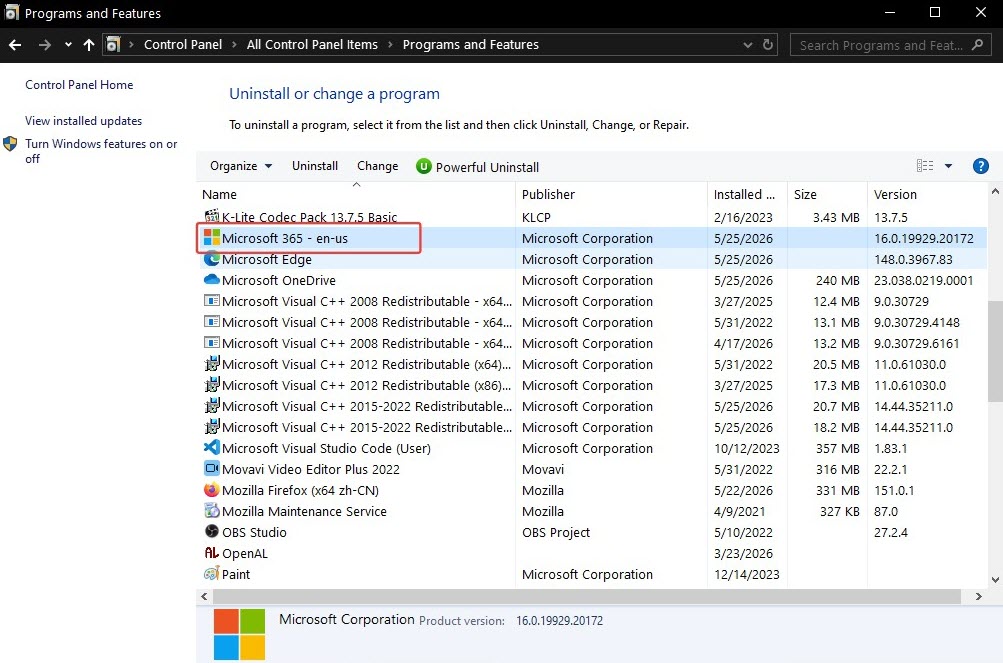
Way 1. Uninstall with Control Panel
Search Control Panel and open it.
Click Program and Features.
Right-click Microsoft Office/365 and choose Uninstall.
Follow the on-screen instructions to remove Office in Windows.
Way 2. Uninstall with Uninstall Troubleshooter
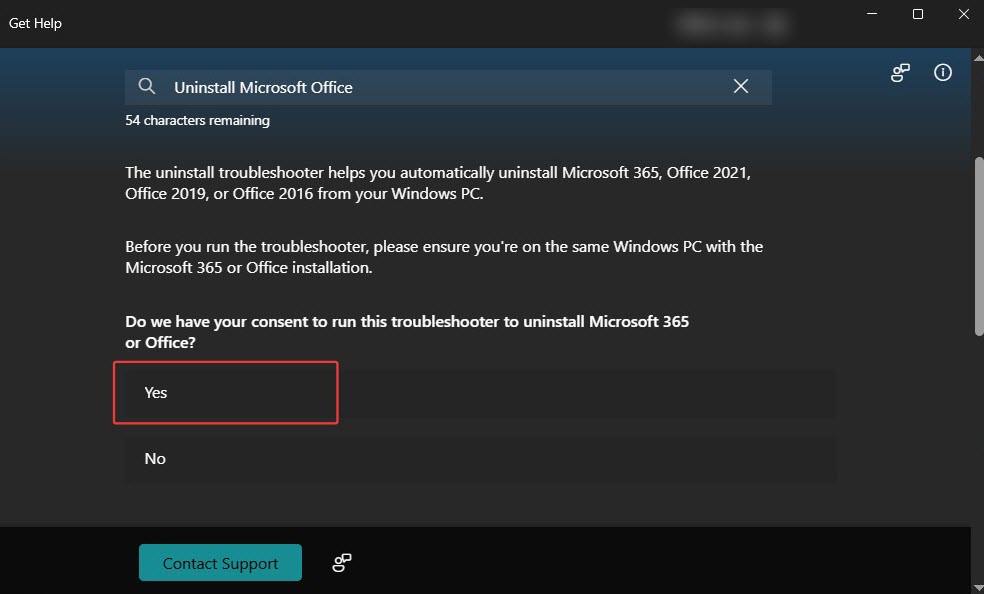
Microsoft also provides a troubleshooter to uninstall Microsoft 365, Office 2021/2019/2016 from your PC automatically.
Search Get Help and open the troubleshooter.
Enter "Uninstall Microsoft Office" in the search box.
Click Yes and let the troubleshooter implement uninstallation.
How to Uninstall Microsoft Office for Microsoft Store Installation
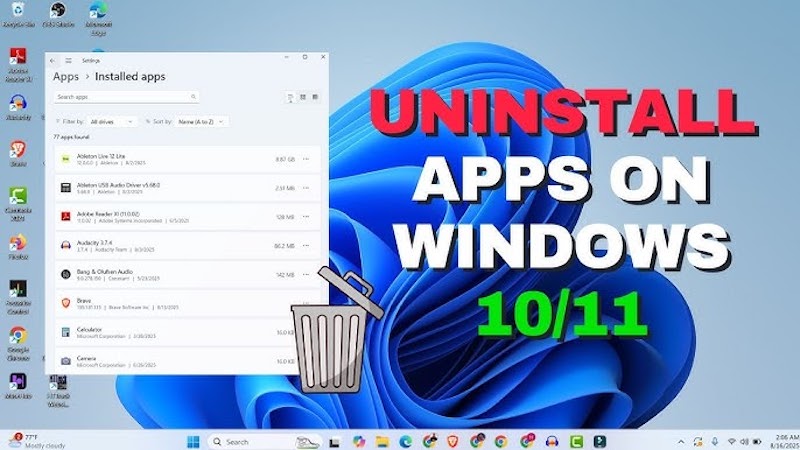
All Microsoft Store applications are accessible through system settings. From here, you can also uninstall unwanted apps easily.
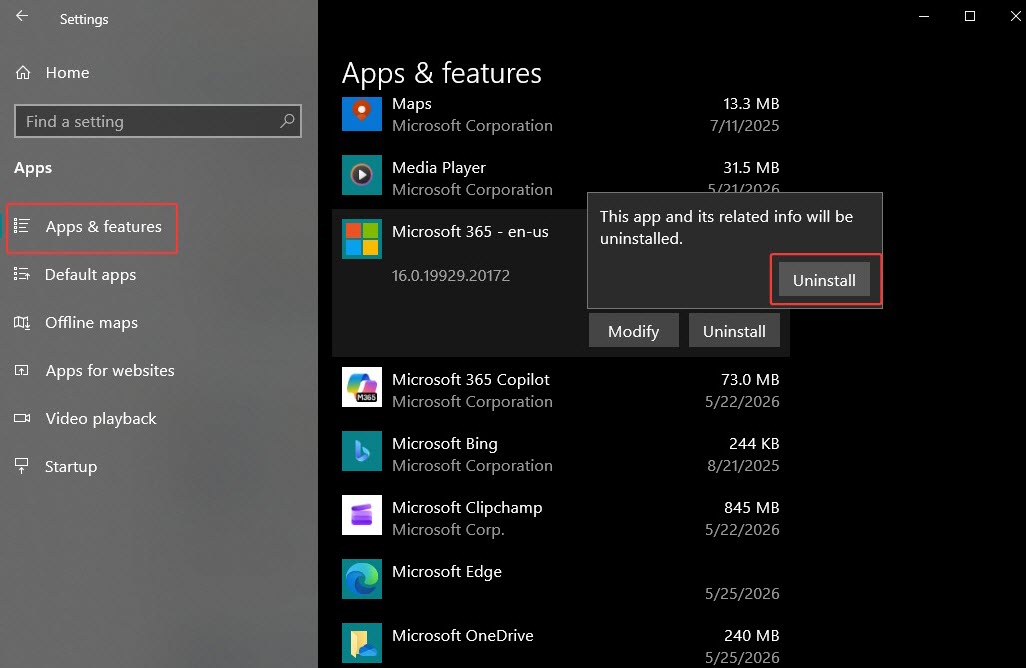
Open Settings > Apps and features.
Find and Expand Microsoft Office/365 and click Uninstall.
The pop-up says that this app and its related info will be uninstalled.
Confirm that and click Uninstall.
How to Completely Uninstall Microsoft Office - Advanced Choices
The standard methods usually can't deliver in-depth uninstallation, leaving behind caches, registry entries, configuration settings and even corrupted data that cause performance issues. Uninstalling Microsoft Office completely can eliminate stubborn installation errors and keep your system healthy.
Remove Microsoft Office Completely with IObit Uninstaller
A reliable third-party uninstaller acts as the best alternative to Windows' native utilities that ensures thorough and automatic uninstallation. IObit Uninstaller is a highly-regarded program uninstaller for Windows, specially designed to remove stubborn software and clear leftovers. It streamlines the uninstallation process, just at the touch of a button. The smart scan engine analyzes your software and find out leftovers and redundant files for an absolute cleanup. If you have uninstalled Microsoft Office but encounter conflicts when reinstalling, use the stubborn program remover to easily delete hidden or corrupted data and make everything fixed.
The best uninstaller for Windows has a straightforward interface, allowing you to quickly get started with uninstallation. Next, let's learn how to completely uninstall Microsoft Office/365 using it.
Step 1. Download and install it on your computer. It is available for Windows XP-11.
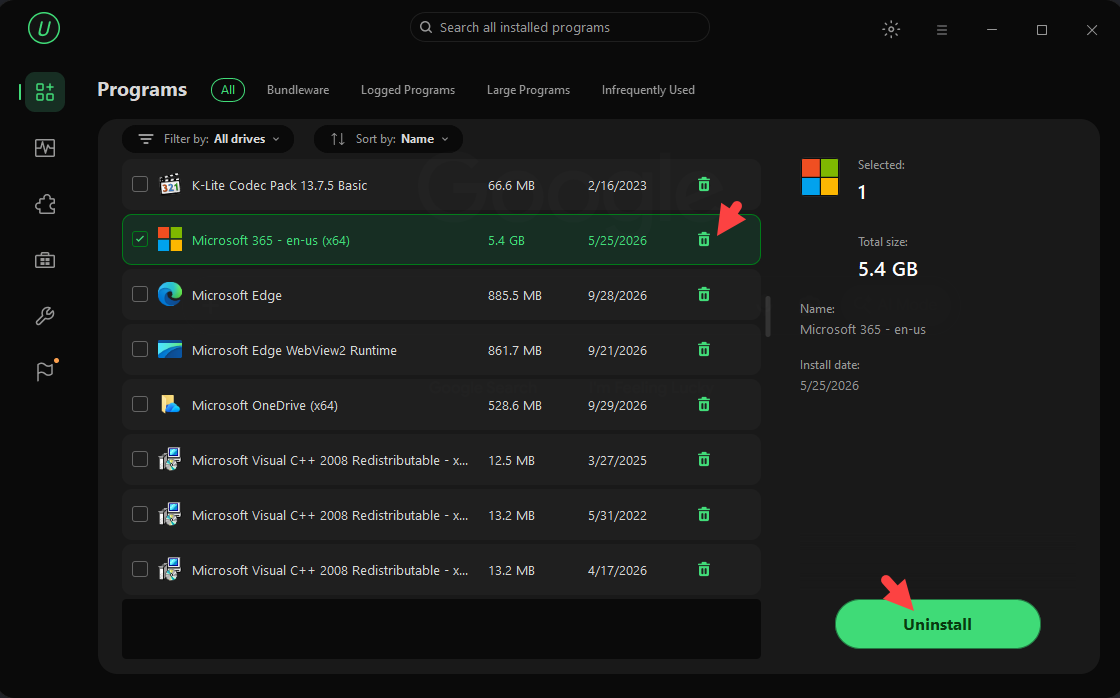
Step 2. Launch it and click on Programs.
Step 3. Find and select Microsoft Office/365.
Step 4. Click Uninstall to remove it.
 Step 5. Check "Automatically remove residual files" and click Uninstall. You can also create a restore point before uninstall.
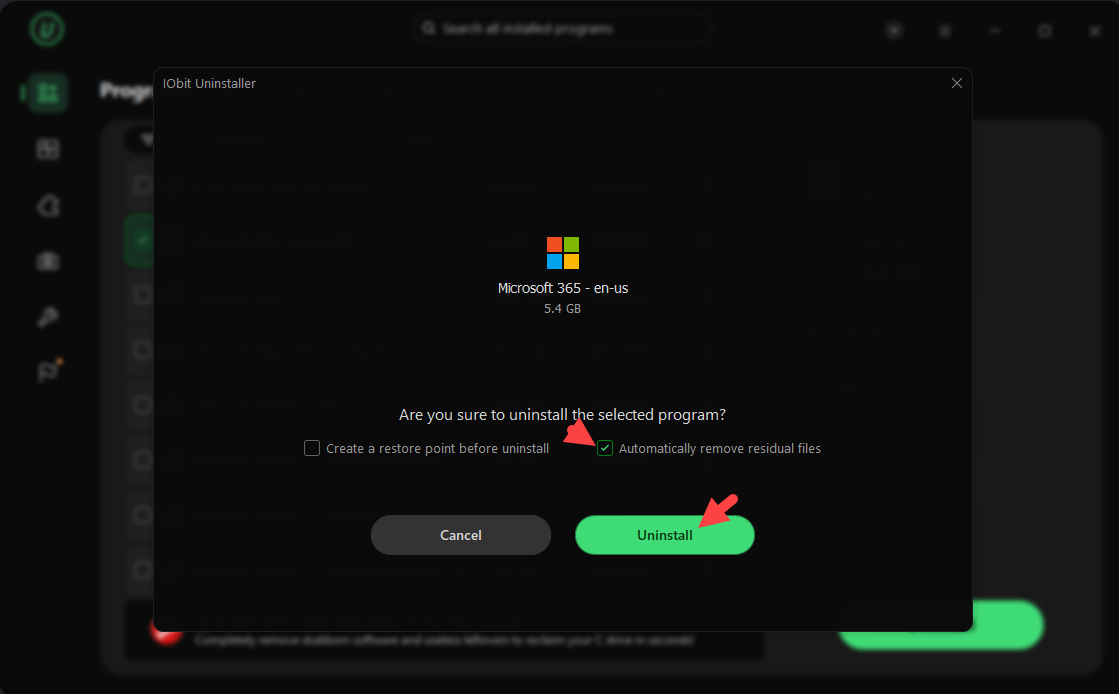
Step 6. Follow the on-screen instructions to uninstall Microsoft Office.
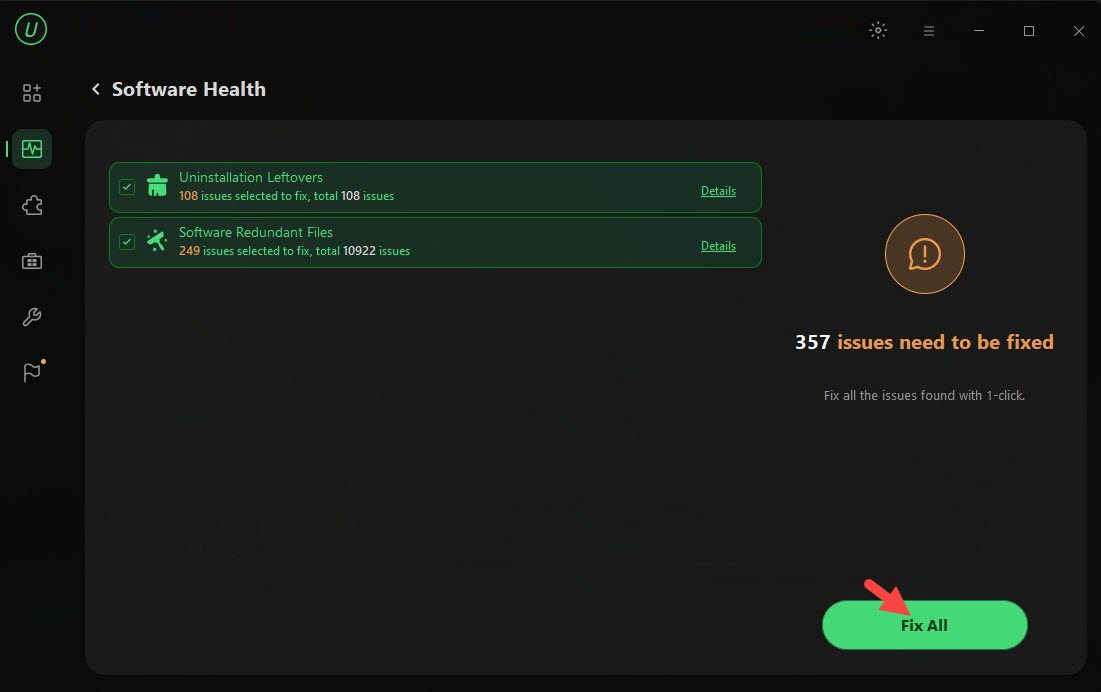
To further delete leftovers, temp files and privacy tracks after uninstallation:
1. Navigate to Software Health.
2. Check Uninstallation Leftovers and Software Redundant Files. Then let the uninstaller scan leftovers.
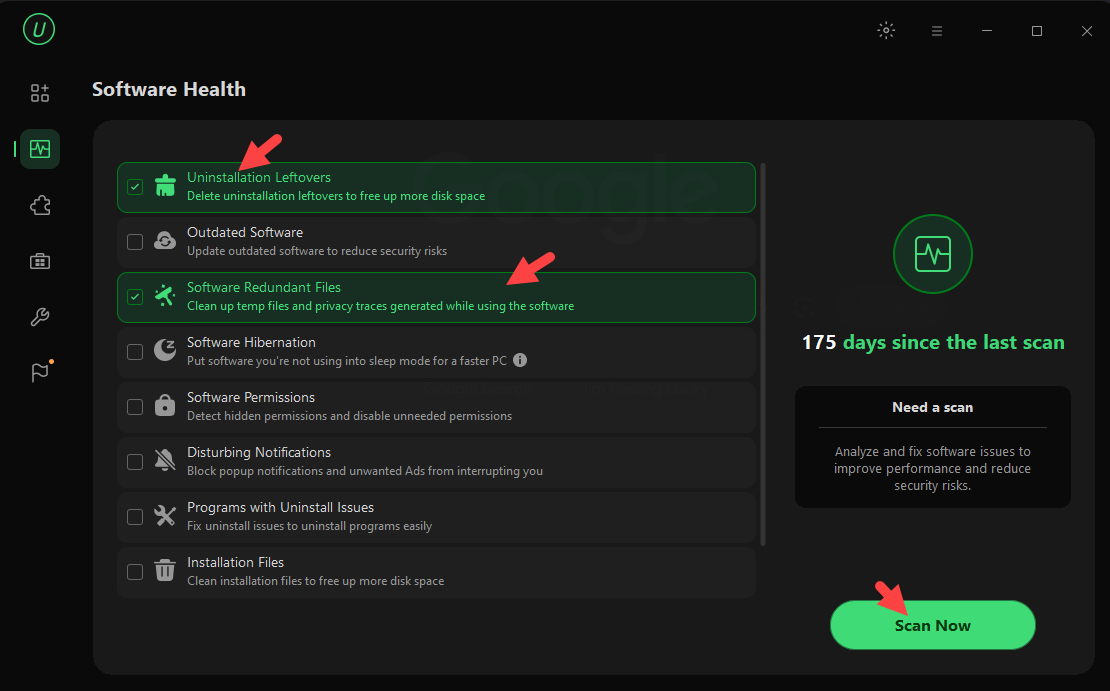
3. Click Fix All to delete those data for better cleanup.
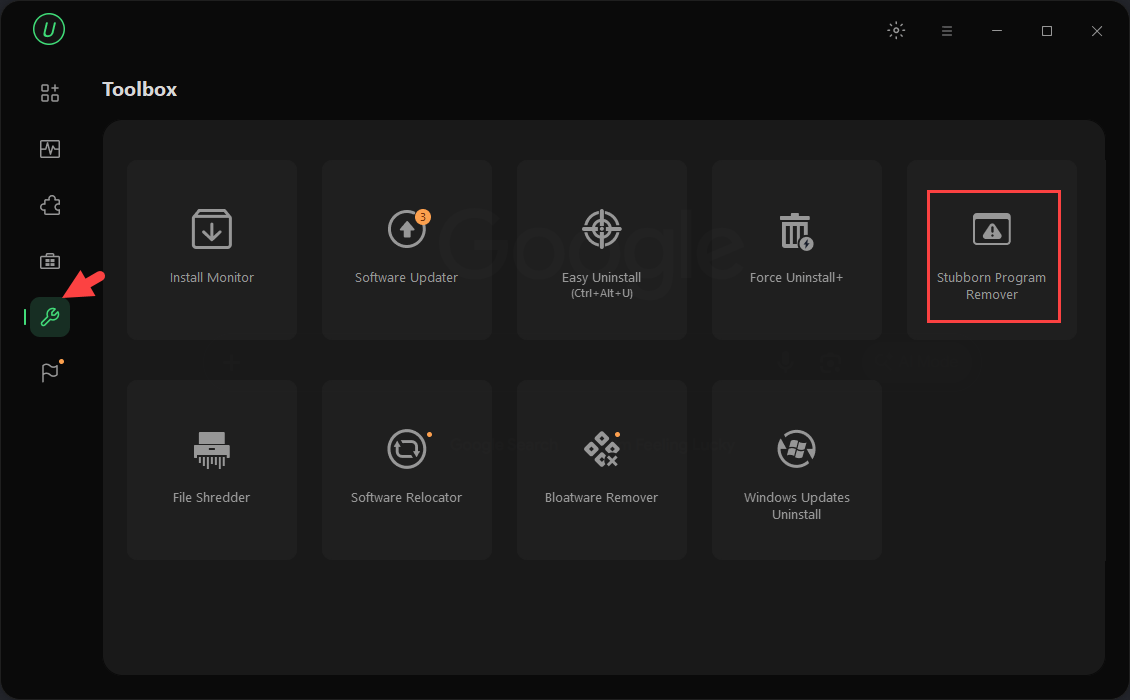
If "can't uninstall Microsoft Office" issue happens:
1. Go to Toolbox and select Stubborn Program Remover.
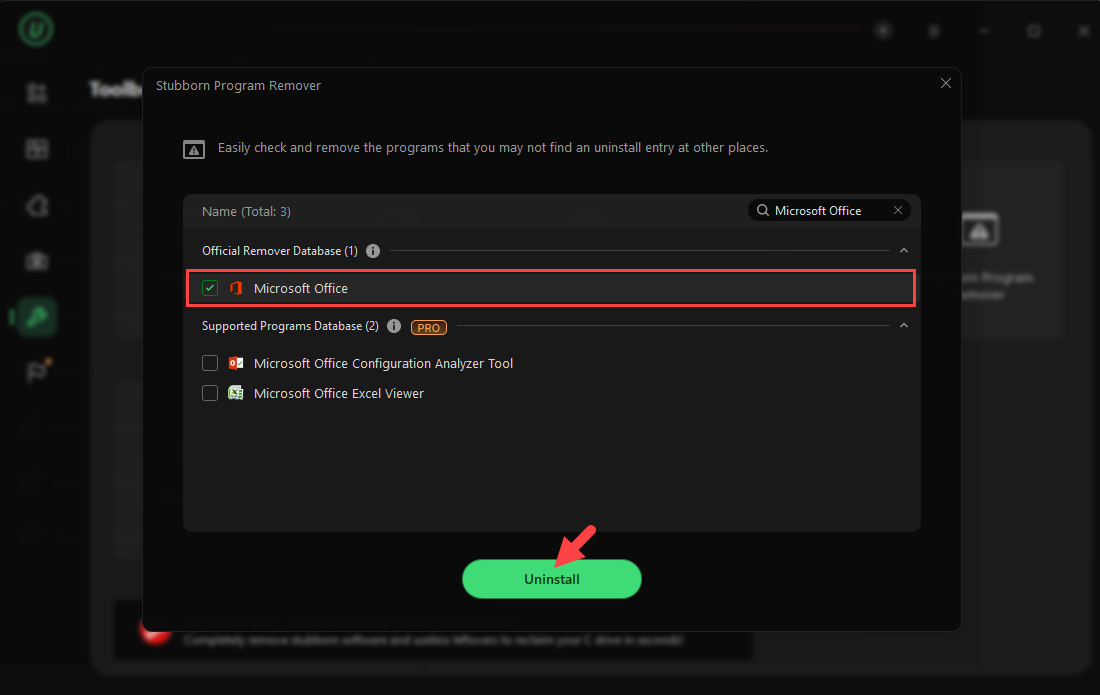
2. Search Microsoft Office and select it.
3. Click Uninstall to remove Office completely.
Remove Microsoft Office Leftover Files Manually
If you are a tech-skilled user and want absolute control, you can perform complete Office removal manually.
Step 1. Remove leftover folders
Open File Explorer and delete the Microsoft Office folders from the following directories (you may need to check both Program Files and Program Files (x86)):
C:\Program Files\Microsoft Office
C:\Program Files (x86)\Microsoft Office
C:\ProgramData\Microsoft
C:\Users\YourName\AppData\Local\Microsoft
C:\Users\YourName\AppData\Roaming\Microsoft
Step 2. Remove temporary files
Press Windows key + R > Type %temp% > Delete unnecessary temporary files.
Step 3. Clean registry entries
1. Press Windows Key + R, type regedit, and hit Enter.
2. Navigate to the following keys and delete them if they remain:
HKEY_CURRENT_USER\Software\Microsoft\Office
HKEY_LOCAL_MACHINE\SOFTWARE\Microsoft\Office
3. Close the Registry Editor and restart your computer.
Warning: It may damage your operating system if modifying the registry entries incorrectly. Be cautious to make change.
A Quick Summary for Microsoft Office Uninstall
Method |
Best For |
Leftovers |
Control Panel/Windows Settings |
Basic and quick removal |
Yes. Some registry and cache files. |
IObit Uninstaller |
Automated deep clean and stubborn installation |
No |
Manual Uninstall |
Full control for advanced users |
No |
Final Thoughts
How to uninstall Microsoft Office? Windows empowers you to remove Office through Control Panel or Settings while IObit Uninstaller and manual removal guarantee that you can completely uninstall Microsoft Office/365 with zero leftover. If you want to achieve a clutter-free and optimized system that is ready for whatever software (a new Office version or an alternative) you choose to install next, IObit Uninstaller ensures a seamless workflow and perfect result.
IObit Uninstaller Free
- Complete forced uninstallation for stubborn programs.
- Uninstall a batch of programs at once.
- Scan and remove leftover files, folders, and registry entries.
- Support the management of Universal Windows Platform apps.