Want to take a break from the endless block-building, free up some storage space on your hard drive, or simply clean reinstallation to fix a stubborn glitch, learning how to properly uninstall Minecraft is a straightforward process.
In this guide, we will walk you through the step-by-step guide of completely removing Minecraft from your system, in an automatic or manual way. Before that, we will show you how to safely back up your personal game data first to make sure you can see your favorite worlds when you return to the sandbox.
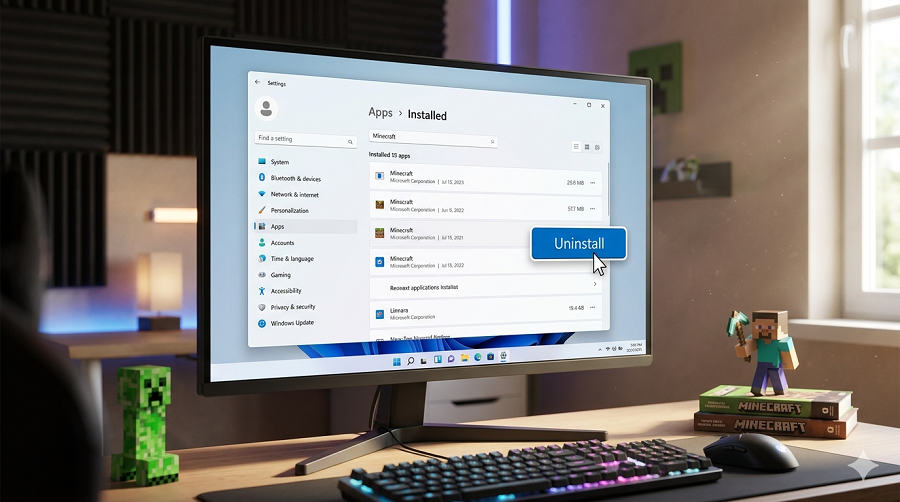
Before Uninstalling: Back Up Minecraft Data First
If you aren't sure yet whether you'll want to play Minecraft again later, we strongly recommend backing up your data first. That way, if you decide to play again after uninstalling, you can jump straight back into your world where you’ve spent hundreds of hours creating creative masterpieces without having to start completely from scratch.
To backup data, open the Run dialog by pressing Windows key + R.
-
Type %appdata% into the box and press Enter.
For Java version: Open the .minecraft folder > saves folder.
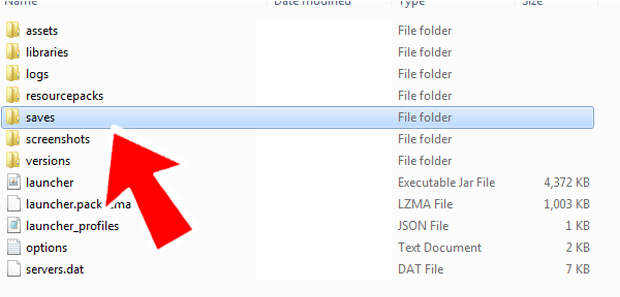
For Bedrock version: LocalPackages\Microsoft.MinecraftUWP_...\LocalState\games\com.mojang\minecraftWorlds
How to Uninstall Minecraft Completely with Third-Party Uninstaller?
To uninstall Minecraft (Java or Bedrock version) completely from your PC, IObit Uninstaller is definitely one professional software uninstaller. It forces stubborn programs out and scrubs away these leftovers to reclaim storage space and prevent system decay.
IObit Uninstaller Free
- Complete forced uninstallation for stubborn programs.
- Uninstall a batch of programs at once.
- Scan and remove leftover files, folders, and registry entries.
- Support the management of Universal Windows Platform apps.

How to uninstall Minecraft with IObit Uninstaller?
Step 1. Free download and install IObit Uninstaller on your Windows computer.
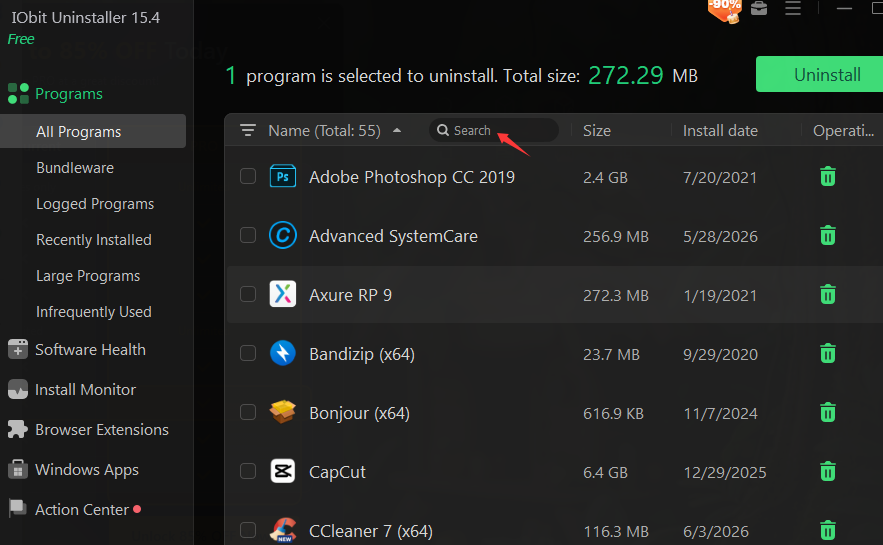
Step 2. Search Minecraft in the software list. Click the Delete button on the right.
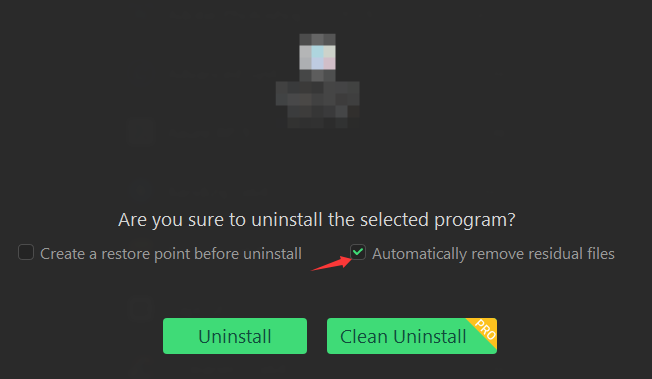
Step 3. In the pop up window, tick the box that says “Automatically remove residual files”. Click Uninstall to uninstall it if you are a free user. Click Clean Uninstall if you are a paid user.
(If you want to uninstall Minecraft Launcher at the same time, follow the same steps as above.)
Why choose IObit Uninstaller?
Powerful residual scan
Once the app is uninstalled, the Windows uninstaller scans deep into the registry and hard drive directories about the app to find hidden, leftover data and delete it automatically at the same time.
Force uninstall
Some applications cannot be uninstalled in a routine way because of missing uninstall registries or built-in uninstaller errors. Don't worry. Drag or drop file or folder to delete its related program.
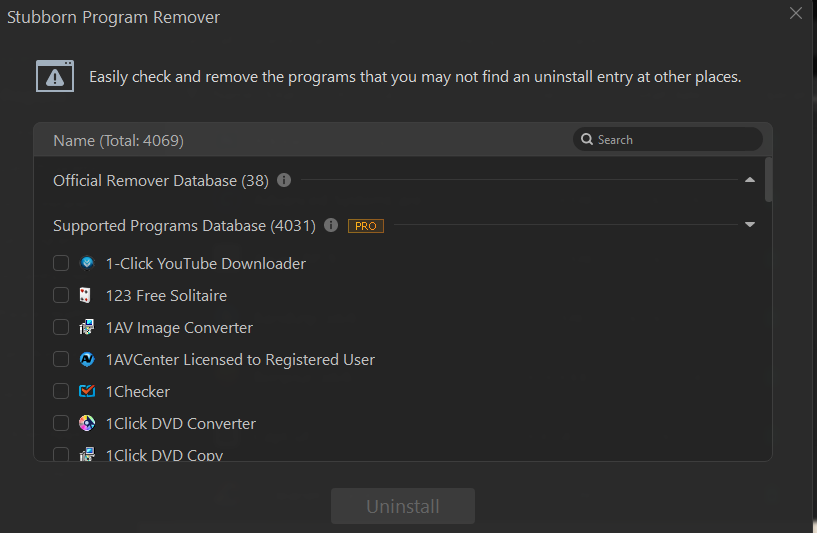
Stubborn program removal
IObit Uninstaller has a database with over 4,000 stubborn applications like Adware Antivirus, 7-Zip. Find one you want to uninstall from the database and uninstall it easily. It is a worthy paid version.
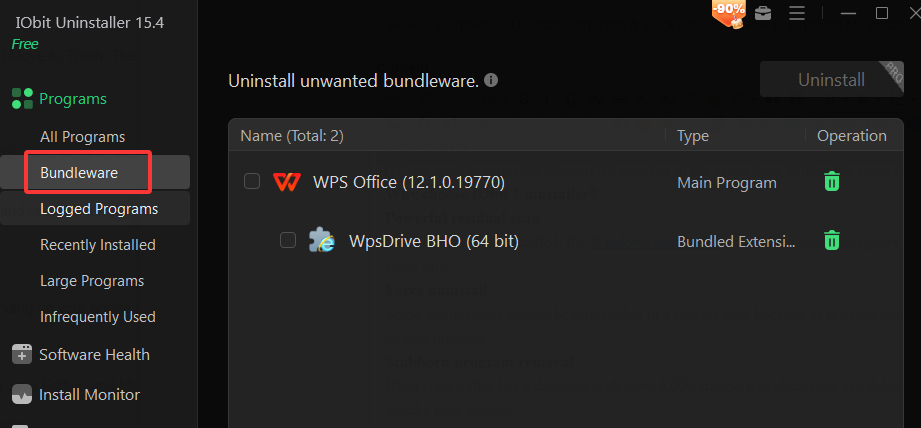
Bundleware detection
Didn't notice the bundled software? Don't worry. IObit Uninstaller has an item to monitor bundleware, which shows the software and its bundleware. You can delete the bundleware instantly or uninstall both easily.
How to Manually Uninstall Minecraft on Windows?
If you don’t want to install any third-party app, go to the Windows Control Panel to delete Minecraft or Minecraft Launcher. But it’s important to note that this may leave behind some residual files unless you locate and delete them manually.
Type Control Panel in the search bar and press Enter.
Choose Programs > Uninstall a program.
Find Minecraft and right-click it. Click Uninstall to uninstall the software.
Also Read: How to Uninstall Valorant on PC >>
How to Uninstall Minecraft on Mac, iOS & Android?
To uninstall Minecraft on Mac:
OPen Finder > Applications > right-click on Minecraft > select Move to Trash. Then the Minecraft app will be removed from your computer.
Don’t forget to delete residual files related to the program.
To uninstall Minecraft on iOS:
Minecraft: Bedrock Edition can also be run on Android and iOS. Here we give steps for the devices one by one.
Press and hold the Minecraft icon on your iPhone.
Select the Remove icon (-) on the left corner of the app icon and uninstall it from your device.
To uninstall Minecraft on Android:
-
Press and hold the Minecraft icon on your Android.
Choose Uninstall from the options.
(The steps may not be suitable for all Android devices, depending on your phone model.)
FAQs about Minecraft and Minecraft Uninstallation
Minecraft edition and their compatible devices?
When mentioning Minecraft, people always refer to Minecraft Java Edition and Minecraft Bedrock Edition.
Minecraft Java Edition: cross-play with Windows, Mac, and Linux.
Minecraft Bedrock Edition: cross-play with Windows, Xbox, Nintendo Switch, PS5, and mobile.
If I uninstall Minecraft will I lose everything?
Yes, if you uninstall Minecraft using IObit Uninstaller or other uninstaller apps. Don’t worry. If you want to keep your game data, copy your data folder to another place before uninstalling Minecraft, as what is included in the first part.
How to uninstall Minecraft mod?
Some may want to uninstall Minecraft mods to solve crashes, free up space, or give up playing the mod’s items. It’s easy to uninstall Minecraft mod.
Press Windows key + R to open the Run dialog.
Then enter %appdata%, and click OK.
Open the .minecraft folder, open the mods folder and find the mod file you want to remove.
At last, remove the mod file.
What is Minecraft Launcher?
The Minecraft Launcher, working on Windows, macOS, Linux, is the official application for logging in, downloading, and managing various games within the Minecraft universe (Minecraft: Java Edition, Minecraft Bedrock Edition, Minecraft Dungeons, and Minecraft Legends.)
Can I launch Minecraft without using Minecraft Launcher? The answer is yes, according to the Support page of Minecraft.
How to uninstall Minecraft Launcher?
You can uninstall Minecraft Launcher with IObit Uninstaller, without leaving residual files.
Find Minecraft Launcher and click the Uninstall icon.
Here appears a pop-up window, click the Uninstall button to remove it completely.
How to remove a version of Minecraft with Minecraft Launcher?
Open your Minecraft Launcher.
Select Java Edition from the menu on the left.
Click the Installations tab at the top of the screen.
Then choose the installation you want to remove and click the three dots.
Click Delete to remove the Java Edition.
It only deletes the game’s executable files for the version, generally to free up space. Resource packs and mod settings will not be deleted.
Conclusion
To uninstall Minecraft completely, IObit Uninstaller is definitely a good choice. As a professional uninstaller, it enables you to uninstall third-party apps, Windows built-in apps, browser extensions, as well as some stubborn apps easily. To save your worlds all the time, remember to copy and paste data to another place. In this way, you can reinstall Minecraft after uninstalling and return to your well-built world as before.
IObit Uninstaller Free
- Complete forced uninstallation for stubborn programs.
- Uninstall a batch of programs at once.
- Scan and remove leftover files, folders, and registry entries.
- Support the management of Universal Windows Platform apps.