Fortnite remains one of the most popular battle royale games in the world, but not every player keeps it installed forever. Many users uninstall Fortnite to free up storage space, fix game crashes, improve system performance, or perform a clean reinstall after encountering bugs and update issues. Since the game receives frequent updates and stores large amounts of cache data, it can consume significant disk space over time. If you’re looking for ways on how to uninstall Fortnite, this guide will show you some feasible methods.
Can You Uninstall Fortnite Safely?
Yes, uninstalling Fortnite is completely safe. Removing the game from your computer or console does not delete your Epic Games account, purchased skins, V-Bucks balance, or saved progress. All gameplay data is stored online through Epic Games cloud synchronization, meaning you can reinstall Fortnite later and continue playing with the same account.
Many users worry that uninstalling Fortnite may permanently erase their cosmetic items or competitive progress. Fortunately, everything tied to your Epic Games account remains intact even after deleting the local installation files. You can see them once you log back into the same account.
Things to Do Before Uninstalling Fortnite
Before you uninstall Fortnite, it’s worth taking a few minutes to prepare. While removing the game is usually straightforward, checking a few important details beforehand can help you avoid losing saved data, ensure a smoother reinstallation later, and free up more storage space on your PC. Here are some things to consider before uninstalling.
Prepare your system properly.
Back up important clips and recordings.
Close Fortnite completely and stop any background Epic Games Launcher processes.
Check your internet connection and ensure you remember your Epic Games login information.
Once prepared, follow the next part to learn how to uninstall Fortnite.
How to Uninstall Fortnite on Windows
Windows users have multiple ways to uninstall Fortnite, including removing it through system settings or using the Epic Games Launcher directly. Both methods can successfully delete the main game files, but they often leave residual data behind.
Using the built-in Windows uninstall feature is convenient because it does not require additional software. It allows users to remove Fortnite like any other installed application. However, standard Windows uninstall methods rarely remove leftover folders, registry entries, or cached launcher data.
Over time, these remaining files may continue consuming storage space and cluttering the system. Some users also report reinstall problems caused by corrupted leftover Fortnite data after incomplete removals.
Because of these limitations, many gamers prefer dedicated uninstall software for a cleaner and more complete removal process.
Whichever way you prefer, here are the methods on how to remove Fortnite from PC.
Method 1. How to Uninstall Fortnite PC Through System Settings
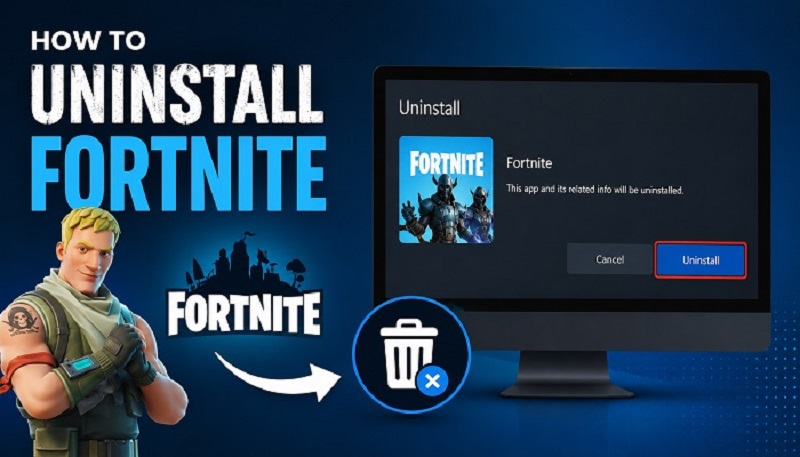
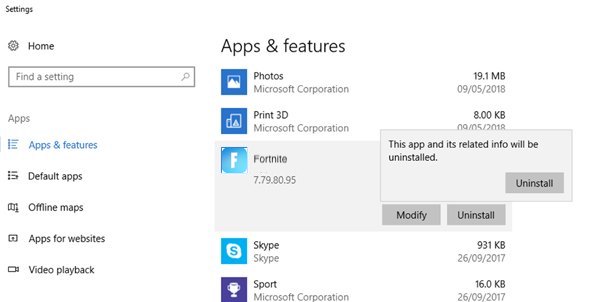
How to uninstall Fortnite PC? The easiest way to uninstall Fortnite is through Windows Settings. This built-in method allows you to remove the game without installing any additional software and is suitable for most users. Follow the steps below to locate Fortnite in the installed apps list and uninstall it from your system.
Step 1. Press Win + I on your keyboard to open the Settings app.
Step 2. Navigate to Installed Apps.
In Windows 11, select Apps > Installed apps.
In Windows 10, go to Apps > Apps & features.
Step 3. Scroll through the list of installed programs or use the search bar to find Fortnite.
Step 4. Click the three-dot menu next to Fortnite (Windows 11) or select Fortnite from the list (Windows 10), then click Uninstall.
Step 5. Click Uninstall again when prompted to confirm that you want to remove the game.
Method 2. How to Uninstall Fortnite Using the Epic Games Launcher
How to uninstall Fortnite PC? The Epic Games Launcher also provides its own uninstall feature for Fortnite on a PC. This method is commonly used because it is integrated directly into the game management system.
While uninstalling Fortnite through the launcher removes the main game installation, it does not always clean up hidden data stored elsewhere on the computer. Temporary files, shader caches, update leftovers, and launcher-related folders can remain on the system even after the game disappears from the library. That’s why you may need a more thorough uninstallation method. If you want to know how to uninstall Epic Games Launcher, check our previous guide.
Step 1. Open and launch Epic Games Launcher on your computer.
Step 2. Click Library from the left menu bar.
Step 3. Click the three-dot menu (...) next to Fortnite to open additional options.
Step 4. Choose Uninstall from the menu and confirm your choice when prompted.
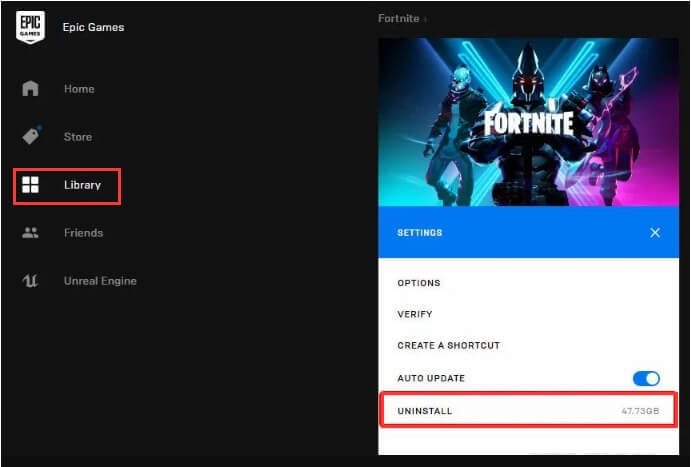
How to uninstall Fortnite without Epic Games Launcher? If you want to thoroughly remove Fortnite but don’t want to use Epic Games Launcher, then you can try IObit Uninstaller.
Method 3. Completely Uninstall Fortnite with IObit Uninstaller
For users who want to remove Fortnite entirely without leaving behind unnecessary files, IObit Uninstaller offers a more comprehensive solution. Unlike traditional uninstall methods, it performs a deep cleanup that targets leftover folders, registry entries, temporary data, and hidden launcher files.
IObit Uninstaller Free
- Complete forced uninstallation for stubborn programs.
- Uninstall a batch of programs at once.
- Scan and remove leftover files, folders, and registry entries.
- Support the management of Universal Windows Platform apps.

One of the biggest advantages of using IObit Uninstaller is its ability to detect residual files automatically. Many uninstall methods only delete the visible game application, but hidden traces remain scattered across the system. These files may include cached updates, temporary configuration files, or broken registry paths. Besides, there are many benefits of using IObit Uninstaller.
Complete Fortnite Removal – Uninstalls Fortnite along with its associated files, folders, and registry entries that Windows' default uninstaller may leave behind.
Leftover File Cleanup – Automatically scans for and deletes residual game data, cache files, and installation remnants after the main uninstallation process.
One-Click Uninstall – Provides a simple and user-friendly interface that lets you remove Fortnite in just a few clicks.
Deep Scan Technology – Thoroughly scan your system to locate hidden leftovers related to Fortnite and the Epic Games Launcher.
Bulk Uninstall Support – Allows you to uninstall Fortnite alongside other unwanted games or applications at the same time.
Stubborn Program Removal – Can force-remove Fortnite if the standard uninstall process fails or the game becomes corrupted.
Faster Storage Recovery – Frees up more disk space by removing leftover files that would otherwise remain on your PC.
Clean and Organized System – Helps prevent registry clutter and unnecessary files from accumulating over time, thus freeing up disk space for newly downloaded apps.
If you’re interested in this software, just follow these steps to remove Fortnite with it.
Step 1. Download and install IObit Uninstaller on your computer.
Step 2. Open and launch the program. Find Fortnite in the list and click the Trash icon next to it to uninstall it.
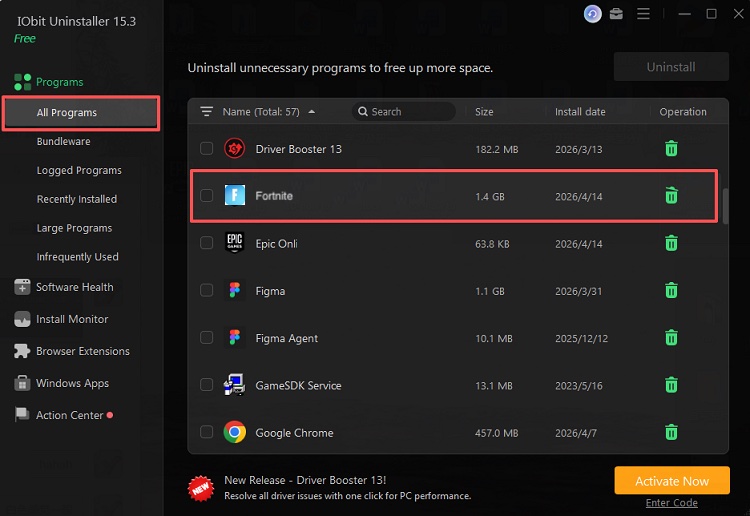
Step 3. A new window will pop up to list two options: create a restore point before uninstall, or automatically remove residual files to uninstall Fortnite. Just choose the latter option to proceed.
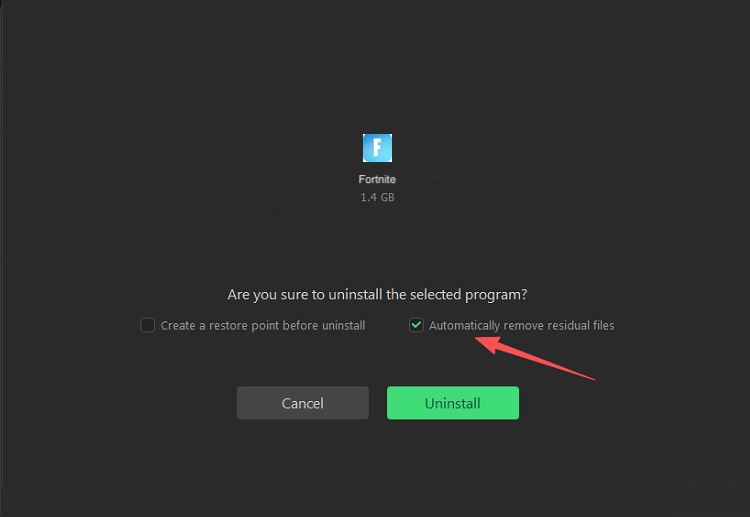
Step 4. Wait for the uninstall process to finish, and you’ll see all programs and the leftovers were all deleted by IObit Uninstaller.
How to Uninstall Fortnite on Mac
Mac users can also uninstall Fortnite, but the process differs slightly from Windows systems. Simply dragging Fortnite into the Trash may remove the main application, but additional support files and cached data often remain hidden within the macOS library folders.
Step 1. Quit Fortnite and the Epic Games Launcher before uninstalling.
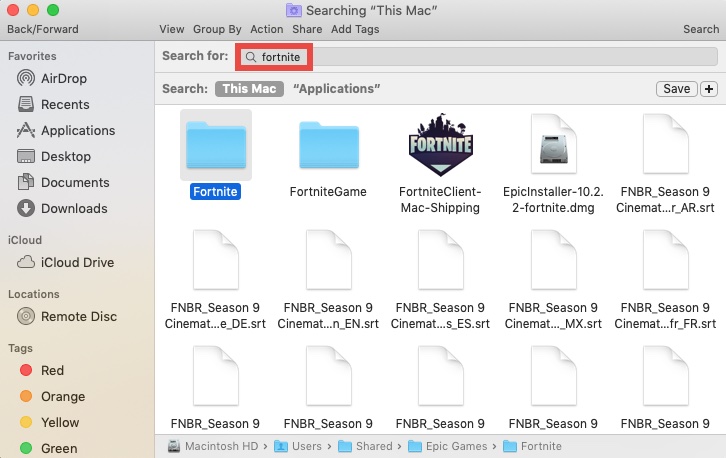
Step 2. Open Finder and select Applications from the sidebar.
Step 3. Find Fortnite in your Applications folder or in the Epic Games installation directory.
Step 4. Drag Fortnite to the Trash, or right-click the game and select Move to Trash.
Step 5. In Finder, click Go > Go to Folder, then check and delete Fortnite-related files from locations such as:
Look for folders associated with Fortnite or Epic Games.
Step 6. Right-click the Trash icon in the Dock and select Empty Trash to permanently remove Fortnite from your Mac.
Note: Uninstalling Fortnite from your Mac only removes local game files. Your account progress, skins, V-Bucks, and purchased content remain linked to your Epic Games account and will be available if you reinstall the game later.
Also Read: [Full Guide] How to Uninstall Valorant on PC >>
How to Uninstall Fortnite on PS5 and PS4
PlayStation users may uninstall Fortnite for various reasons, including freeing up console storage or troubleshooting performance issues. Since modern console games require large installations, removing unused titles can create space for new downloads and updates.
Deleting Fortnite from a PlayStation console removes the local game installation, but account progress and cosmetics remain linked to Epic Games servers. This means players can reinstall the game later without losing skins, achievements, or purchased content.
Step 1. From your PlayStation home screen or Game Library, find and highlight Fortnite.
Step 2. Press the Options button on your controller to open the game management menu.
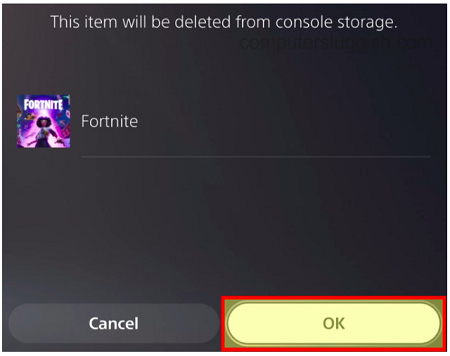
Step 3. From the menu that appears, choose Delete to remove Fortnite from your console.
Step 4. Select OK or Delete again when prompted to confirm your choice.
Step 5. Your PlayStation will uninstall Fortnite and remove its game files. The time required depends on the size of the installation and your console's performance.
Note: Uninstalling Fortnite on PS4 or PS5 does not delete your account data. When you reinstall the game and sign in to the same Epic Games account, your progress and purchased content will be restored automatically.
How to Uninstall Fortnite on Xbox Series X/S and Xbox One
Xbox users can remove Fortnite through the console’s storage management features. Similar to PlayStation systems, uninstalling the game only removes local files while preserving account-linked progress online.
Step 1. Press the Xbox button on your controller to open the menu.
Step 2. Select My games & apps and choose See all.
Step 3. Highlight Fortnite in your game library.
Step 4. Press the Menu button (three lines) on your controller.
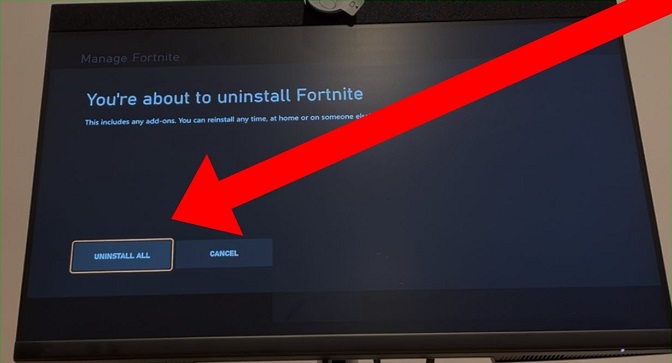
Step 5. Select Manage game and add-ons.
Step 6. Choose Uninstall all (or Uninstall if that is the option shown).
Step 7. Confirm the removal when prompted.
How to Uninstall Fortnite on Nintendo Switch
Nintendo Switch users often uninstall Fortnite to free up valuable storage space on the console or microSD card. Since the Switch has more limited internal storage than many other gaming platforms, large multiplayer games can quickly fill available capacity.
Fortunately, deleting Fortnite does not erase player progress because account information remains associated with Epic Games servers. Players can reinstall the game later and continue using the same cosmetics and saved data.
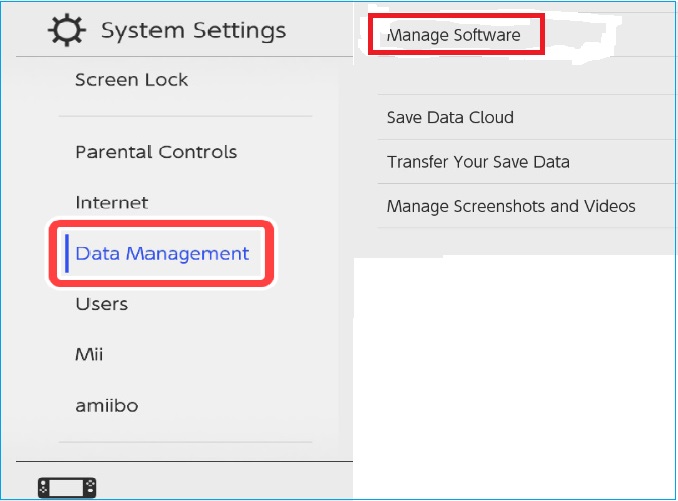
Step 1. From the HOME Menu, select System Settings.
Step 2. Scroll down and choose Data Management.
Step 3. Select Manage Software.
Step 4. Find and select Fortnite from the list of installed software.
Step 5. Choose Delete Software.
Step 6. Confirm your choice when prompted.
Conclusion
How to uninstall Fortnite PC? Uninstalling Fortnite is easy on any device, whether you play on PC, Mac, Xbox, PlayStation, or Nintendo Switch. While built-in uninstall options can remove the game, they may leave behind leftover files that take up storage space. For a cleaner and more complete removal, try IObit Uninstaller. It can help you uninstall Fortnite along with any remaining files and folders, keeping your device organized and freeing up valuable space. Download IObit Uninstaller today for a faster and more thorough uninstallation experience.