





Annie
Annie Cooper is a 7-year PC software and IT writer focused on security, workflow, and efficiency. Following EEAT principles, she delivers accurate, experience-backed advice to help users work smarter and stay safer.
Expert in
PC Health Solution

All-in-one PC health solution: clean, optimize and secure

Comprehensive PC cleaning, optimization and protection

Keep drivers always up-to-date

More stable performance with less system crashes

Protect millions of computers against malware

Top computer security with full-round protection

Protect against viruses & boost PC performance
Clean: 420 billion traces removed & 85 EB junk files cleaned
Protect: 80 million unauthorized access blocked & 20 million bugs fixed
Speed Up: 6 million hours of startup time saved & Turbo boost
Optimize: Auto clean and auto care your PC with AI mode

Learn how to password protect a folder on Windows using built-in tools, compression software, and Advanced SystemCare for secure long-term file protection.

Annie


Imagine connecting your laptop to public Wi-Fi at a café, only to later discover that your confidential work documents, personal photos, or saved passwords were exposed. Incidents like these are more common than most users realize, especially on shared networks and public computers. This is exactly why knowing how to password protect a folder is essential for anyone who values privacy and data security.
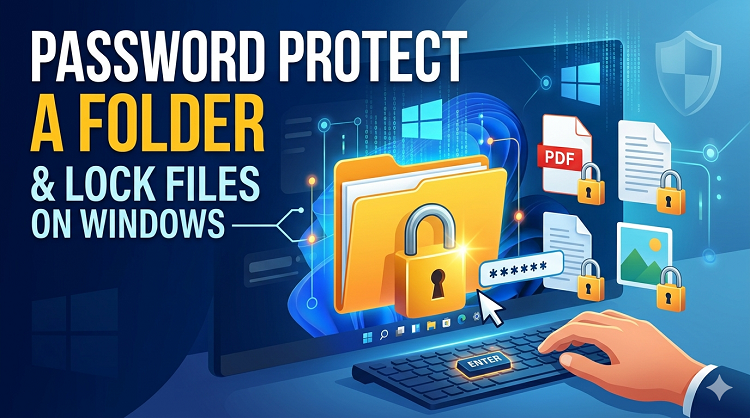
Whether you are safeguarding business files, personal documents, or sensitive media, protecting folders adds an important extra layer of defense. While Windows offers several built-in security options, it does not provide a straightforward default “password protected folder” button. Thankfully, there are multiple reliable workarounds. In this guide, we’ll walk you through the best methods, from alternative compression tools to advanced privacy software.
If you’re thinking, “How do you protect a folder with a password?” One of the most common ways is by using compression software such as WinRAR and 7-Zip. These tools allow you to archive a folder and assign a password before saving it.
This method is best for files you don’t need to edit frequently, such as archived records, backups, and documents sent over email.
WinRAR is widely used for compressing and encrypting folders.
Quick Guide
Step 1: Right-click the folder you want to protect.
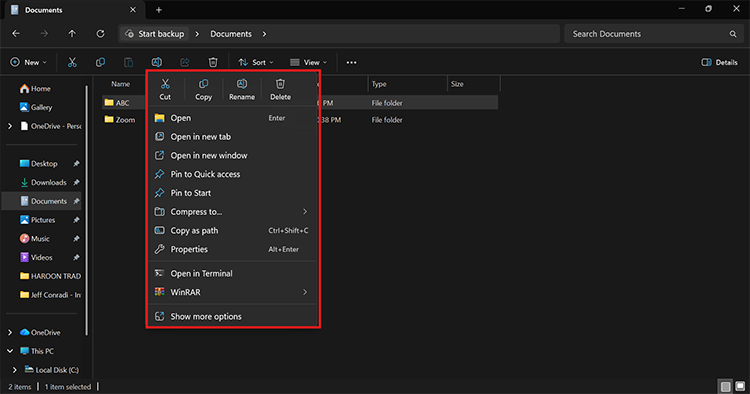
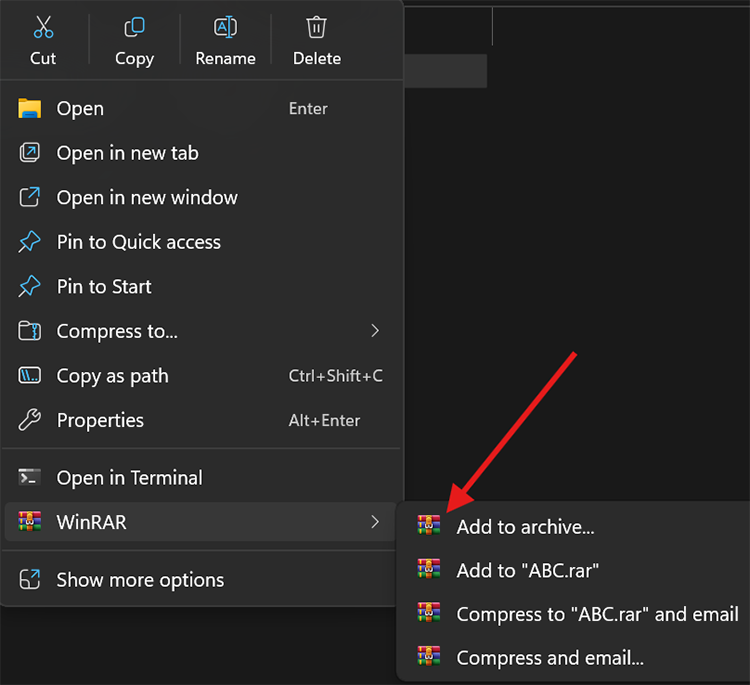
Step 2: Select Add to archive.
Step 3: Click Set password.
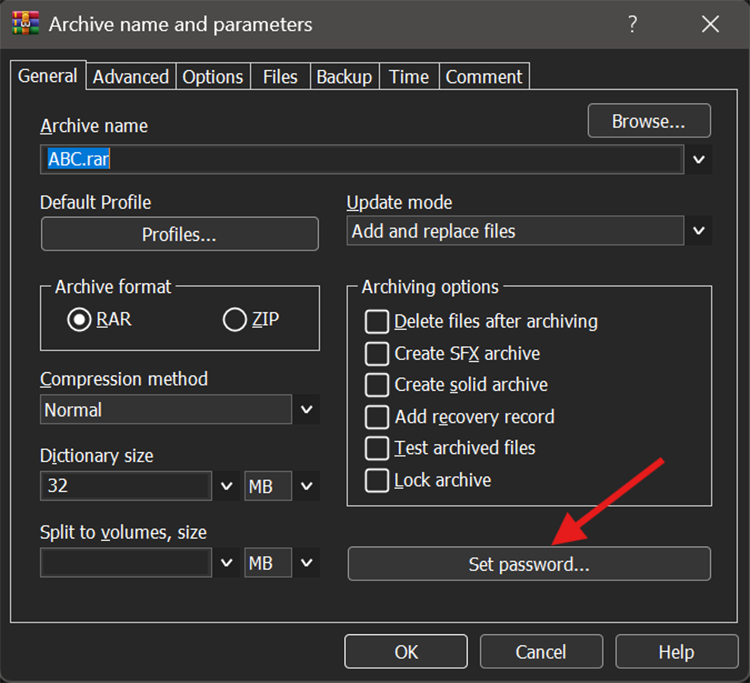
Step 4: Enter your password and confirm it.
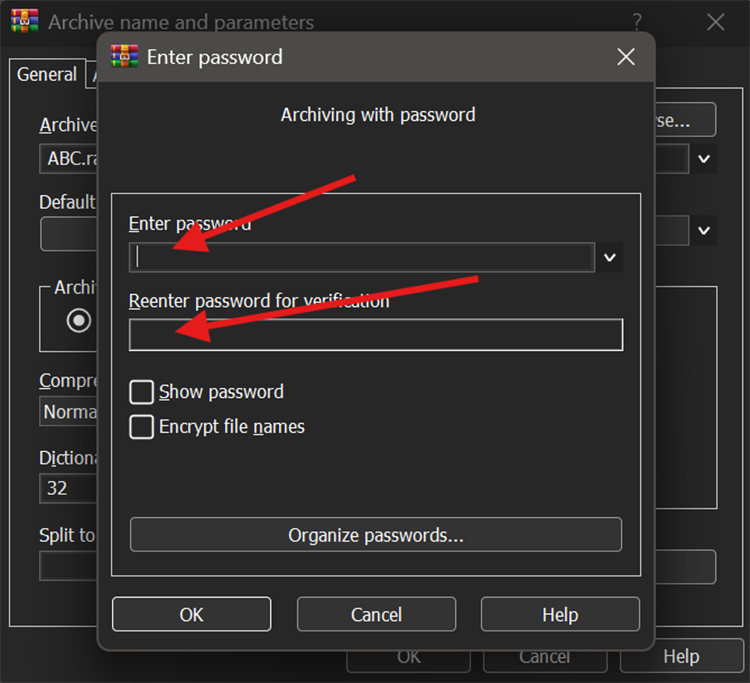
Step 5: Click OK and create the archive.
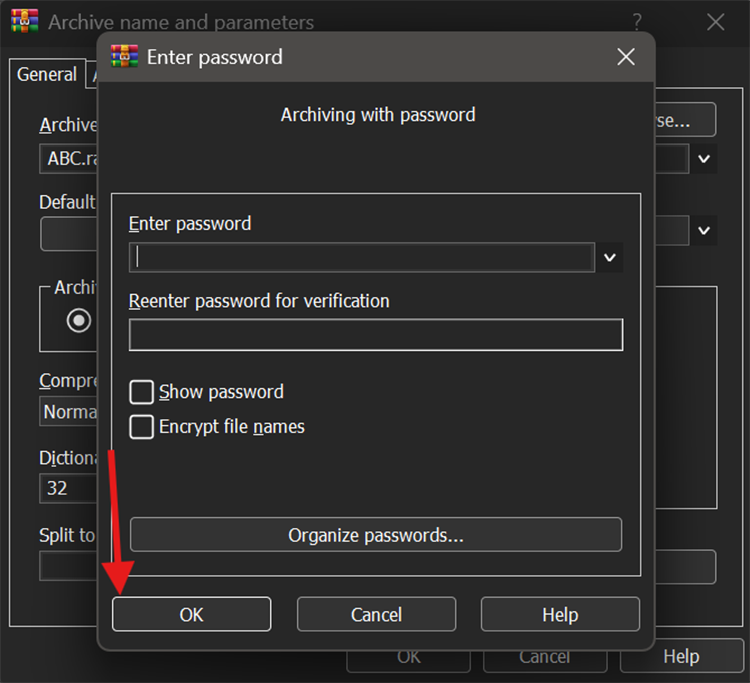
Once done, the folder can only be opened after password verification.
7-Zip is a free alternative and excellent for users asking how to add a password to a folder without paying.
Quick Guide
Step 1: Right-click the folder.
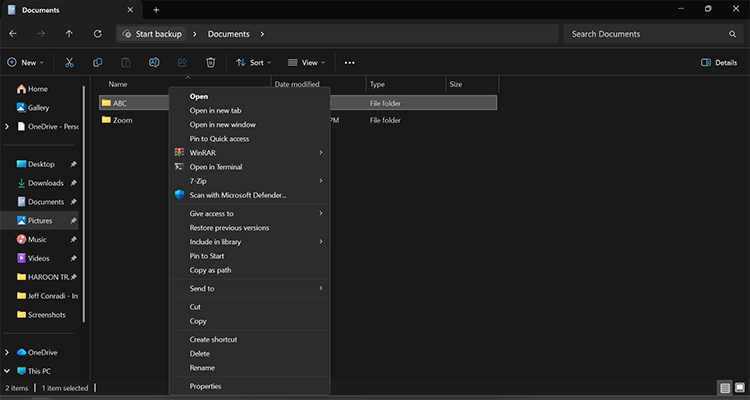
Step 2: Select 7-Zip > Add to archive.
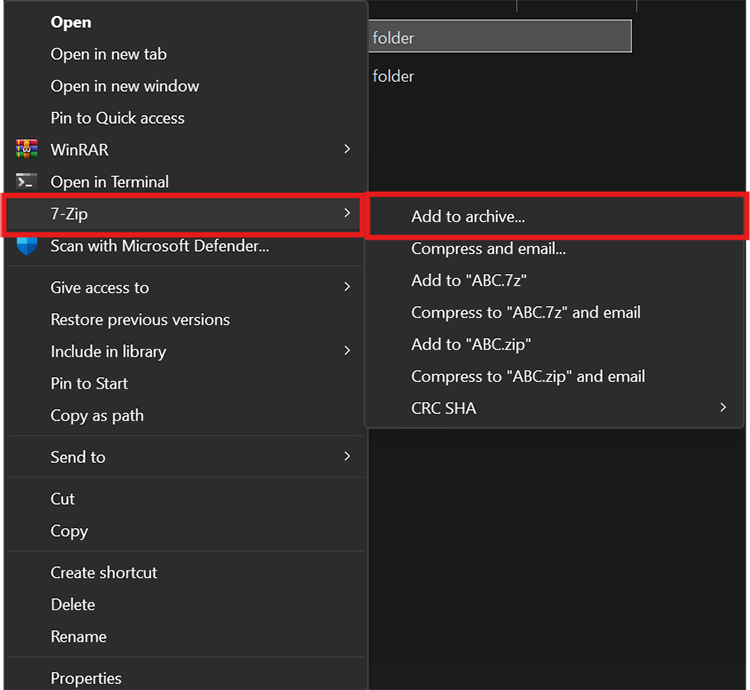
Step 3: Under the Encryption section, enter a password.
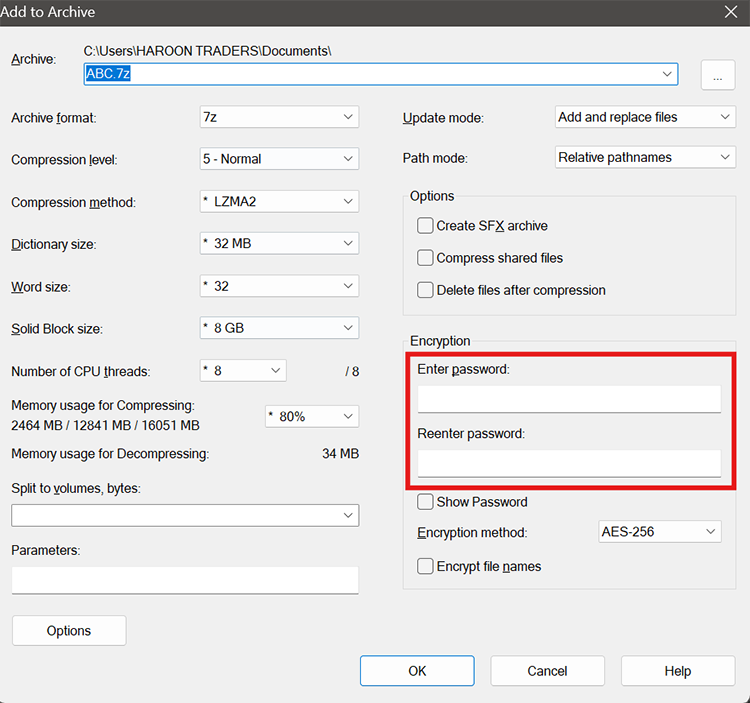
Step 4: Choose AES-256 encryption.
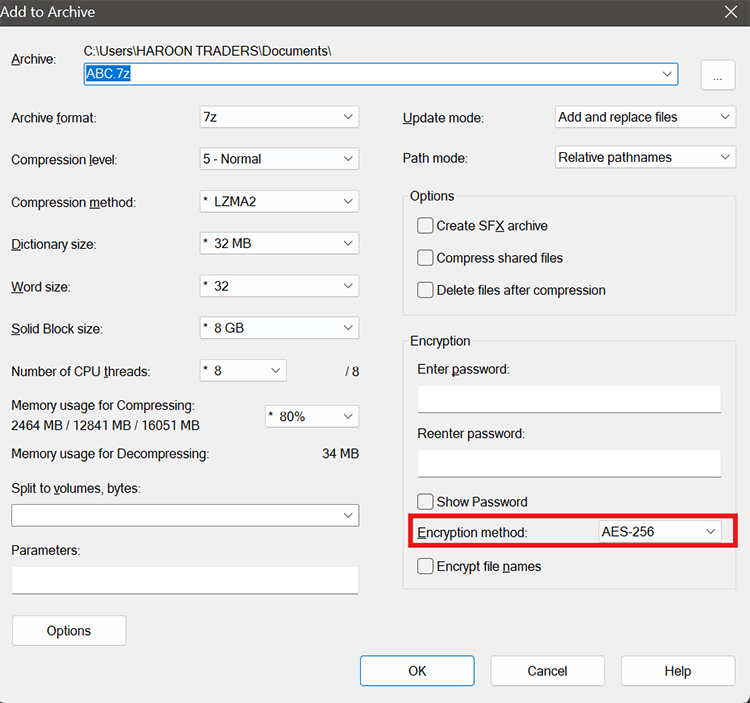
Step 5: Click OK.
Drawback: The biggest downside is inconvenience. Every time you need to update files, you must extract and recompress the folder, making real-time editing frustratingly slow.
If you’re looking for a faster and more user-friendly answer to how to lock a folder with password on Windows, IObit’s Protected Folder is one of the most convenient tools available. Unlike manual workarounds that rely on file compression or limited built-in Windows permissions, this dedicated privacy tool is specifically designed to help users secure important files in just a few clicks.
Beyond basic password locking, it also adds an extra layer of defense against accidental deletion, unauthorized access from other users on shared computers, and even threats such as spyware, malware, and ransomware.
For users who want a cleaner, faster, and more reliable way to protect work documents, financial records, personal photos, or confidential client files without constantly recompressing folders, IObit Protected Folder is an excellent everyday solution.
Protected Folder is designed to:
Prevent accidental deletion of important files
Lock private folders with a password
Defend against malware, spyware, and ransomware
Restrict unauthorized access
This makes it especially useful for family PCs, office systems, and shared workstations.
Quick Guide
Step 1: Install Protected Folder from its official URL. Launch the software successfully. Drag and drop your important files and folders into the protection panel.
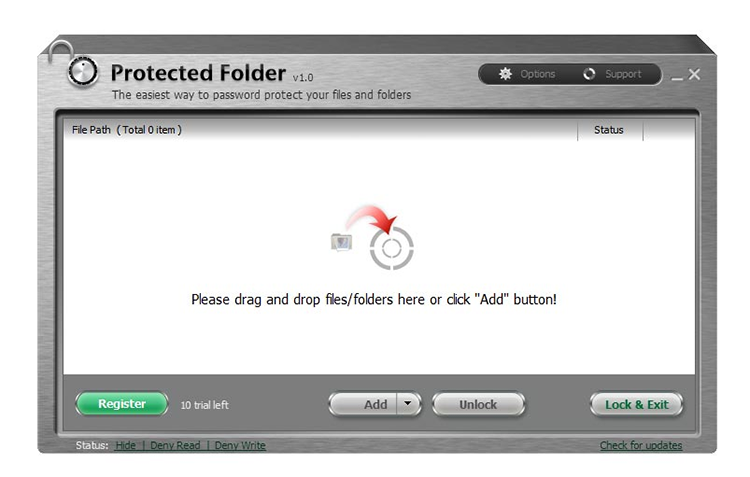
Step 2: Click on the Options and set your master password. The password hint is quite useful in case you forget your password.
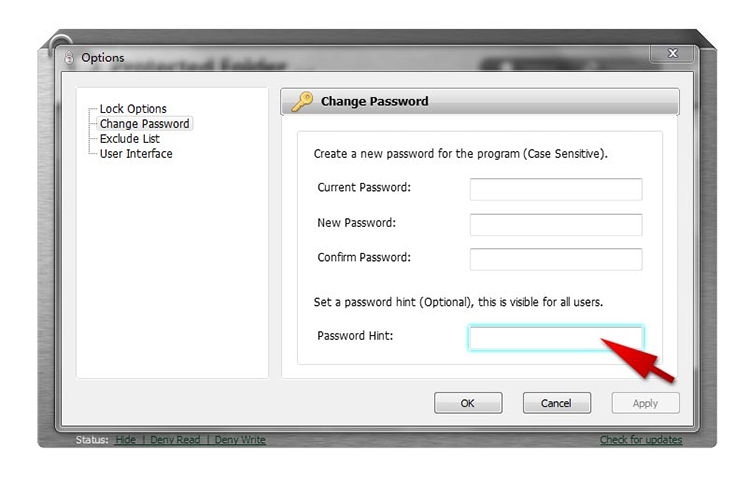
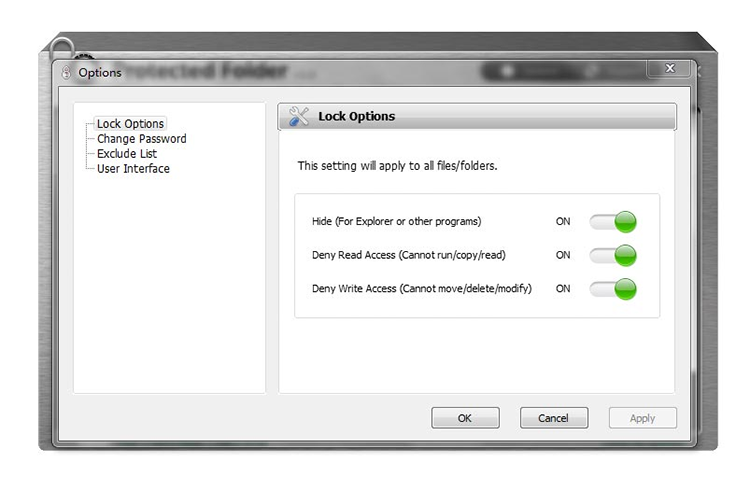
Step 3: Customize Lock Options. Surely, you can manage an exclude list if it is needed. And voila. You’re done.
Tip: Sometimes, dragging a folder into the protection window may fail. In that case, renaming the folder and trying again usually resolves the issue.
Many users ask, "Can you password protect a folder in Windows?” without installing third-party software. While Windows does not offer direct password folder locking, it does include several useful alternatives.
This simply hides the folder from plain view.
Quick Guide
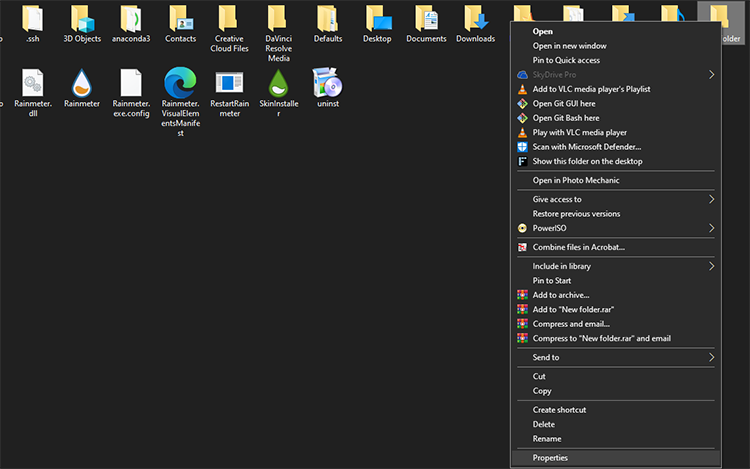
Step 1: Right-click the folder and click Properties.
Step 2: Check Hidden.
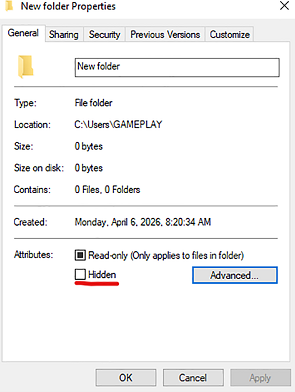
Step 3: Click Apply.
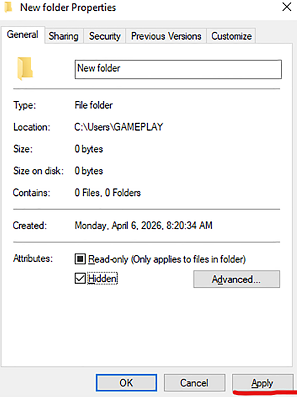
Cons: This is not true protection. Anyone can enable “Show hidden files” and access it.
This method helps users who are asking, “How do you password protect a folder in Windows 10?” for multiple accounts.
It allows you to define which Windows users can read, edit, or delete files.
Quick Guide
Step 1: Right-click folder > Properties.
Step 2: Go to Security tab > Click Edit > Adjust user permissions > and finally apply changes.
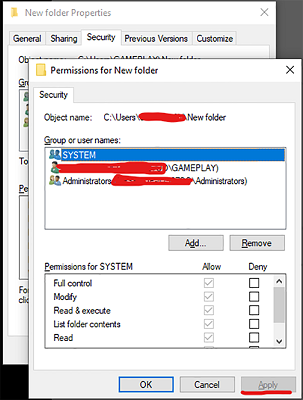
Cons: This only works effectively on multi-user systems and requires separate Windows user accounts.
This is one of the best built-in answers for “How do I password protect a folder?” EFS encrypts files so that only your Windows account can access them.
Quick Guide
Step 1: Right-click folder and click Properties > Advanced.
Step 2: Enable Encrypt contents to secure data.
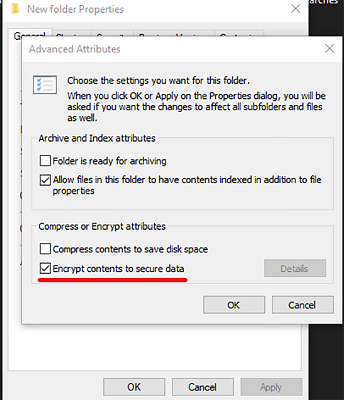
Step 3: Apply changes.
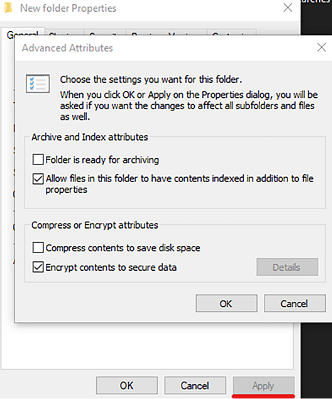
Cons: If Windows is reinstalled and recovery keys are not backed up, the files may become inaccessible.
For long-term, highly secure, and convenient protection, The Safe Folder of IObit Advanced SystemCare is one of the best solutions available.
This is ideal for users searching for how to protect a folder using password in a permanent, set-it-and-forget-it way.

Unlike temporary archive methods, Safe Folder offers real-time protection.
Best Use Cases
Office computers
Shared family PCs
Personal privacy
Client documents
Ransomware defense
Backup protection
This is especially valuable if you frequently use public networks. Using a **** alongside folder protection adds another layer of privacy.
Quick Guide
Step 1: Download and install Advanced SystemCare.
Open the software.
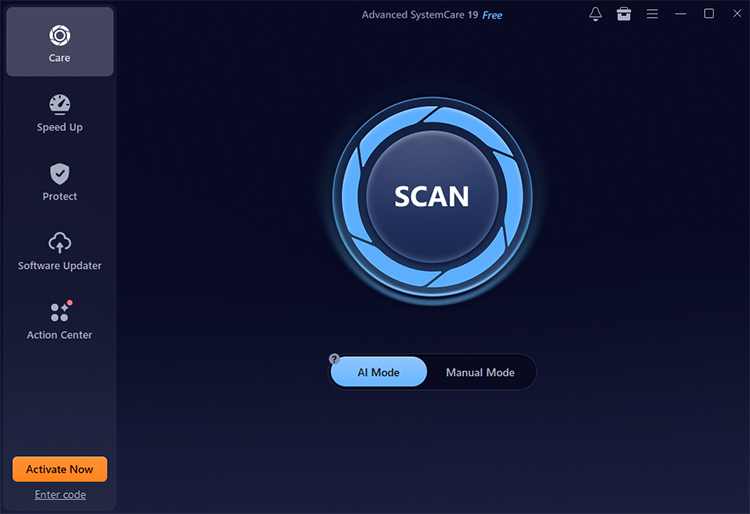
Step 2: Navigate to the Protect section. Here are lots of protection tools to help fully safeguard your privacy, files, and data, from system to browser.
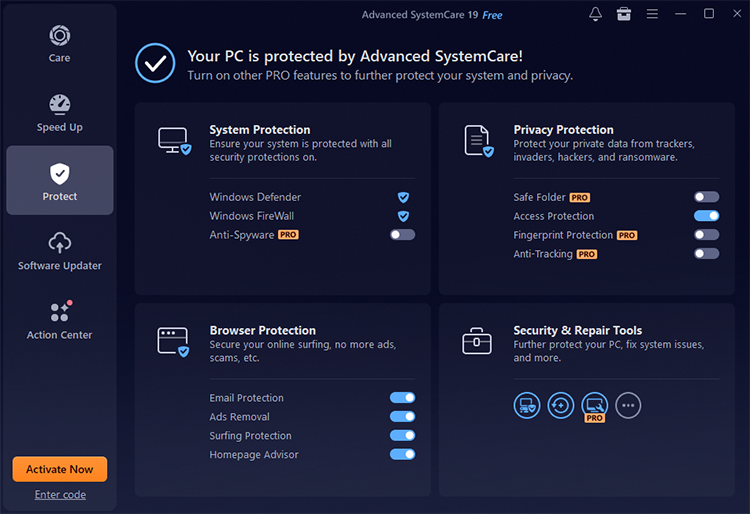
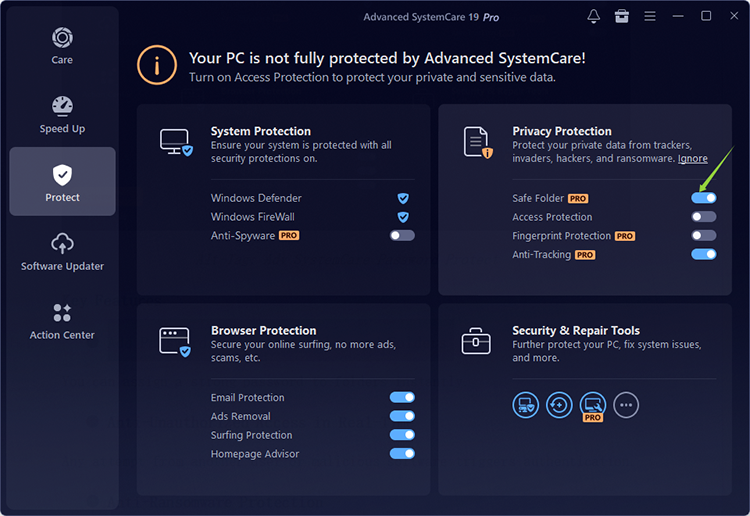
Step 3: What you need most is the Safe Folder. Toggle it under the Privacy Protection tool.
Step 4: Add the folder or directly drag and drop it to the panel.
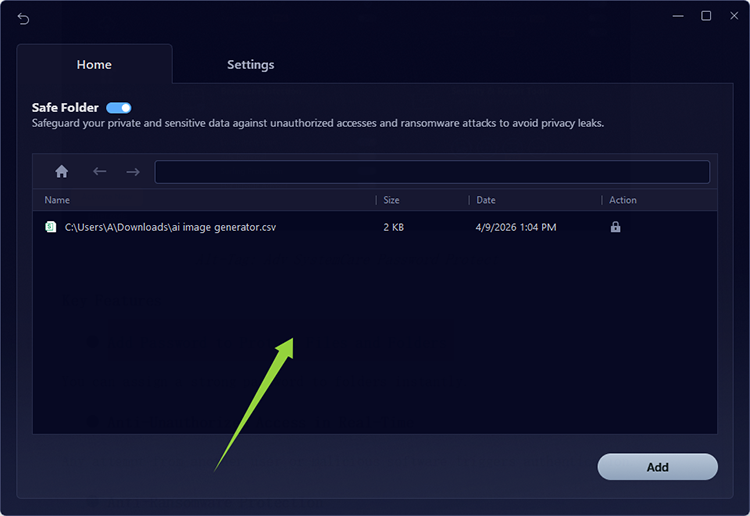
Then, set password protection to it.
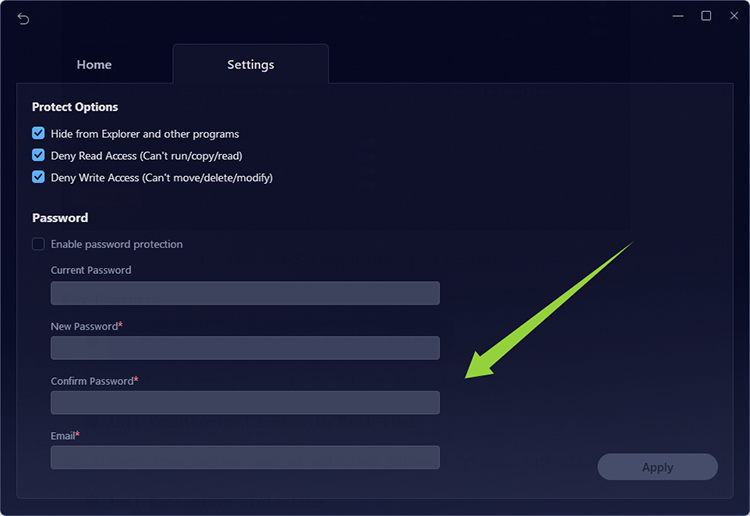
Key Features
Add Password to Protect Files and Folders: You can assign a strong password to folders instantly.
Anti-Unauthorized Access in Real-Time: Any attempt from another user or malicious software triggers authentication.
Anti-Ransomware Protection: Files inside the protected folder cannot be encrypted or altered by ransomware.
Privacy Data Isolation: Sensitive files remain locked until manually unlocked.
This is excellent for payroll files, legal documents, personal records, and confidential projects.
One-time setup
Permanent protection
Ransomware defense
User-friendly interface
Ideal for long-term use
Requires installation
Some premium features may require a paid version
/
/
/
Bonus Tips
Advanced SystemCare also includes:
Browser privacy cleanup
startup optimization
malware protection
system performance tools
This makes it more than just a folder-locking tool.
A: BitLocker is generally limited to Home editions unless specific device encryption support is available.
A: Only if you back up recovery keys and encryption certificates.
A: Yes, Advanced SystemCare, 7-Zip, and Protected Folder all offer practical solutions.
Conclusion
Learning how to password protect a folder is one of the smartest ways to prevent unauthorized access, privacy leaks, and malware threats. While Windows built-in tools can help, the safest and most convenient long-term solution is Advanced SystemCare’s Safe Folder. If you need reliable privacy protection with real-time defense, it’s an excellent tool to start with today.

All-in-one PC health solution.
Free Download