Easy Anti-Cheat software can cause various issues, for instance, stubborn error codes, sudden game crashes, etc. While the service is essential for fair play, it can become problematic when it conflicts with your system. Hence, many gamers want to know how to uninstall Easy Anti Cheat. This comprehensive guide will present you with step-by-step instructions. You can discover how to remove Easy Anti-Cheat with 3 useful methods, plus additional tips for a clean removal. Just read on to learn more!
What is Easy Anti Cheat and Why You Uninstall It?
Easy Anti-Cheat (EAC) is a popular software developed by Epic Games, which is used to prevent cheating in online multiplayer games. It runs at a low level, monitoring your system processes to ensure fair gameplay.
So, why do many users want to know how to uninstall Easy Anti-Cheat? This is because the software can sometimes cause issues. For instance, game launch errors, compatibility problems, high background resource usage, or conflicts with other software. Some players may also want to remove it if they no longer play those titles.
How to Uninstall Easy Anti Cheat with the Game Setup File
Easy Anti-Cheat (EAC) is not a standalone application that you download by itself. It’s a service integrated into many multiplayer games on Steam and Epic Games. In this part, we will show you how to uninstall Easy Anti-Cheat on both.
For Steam:
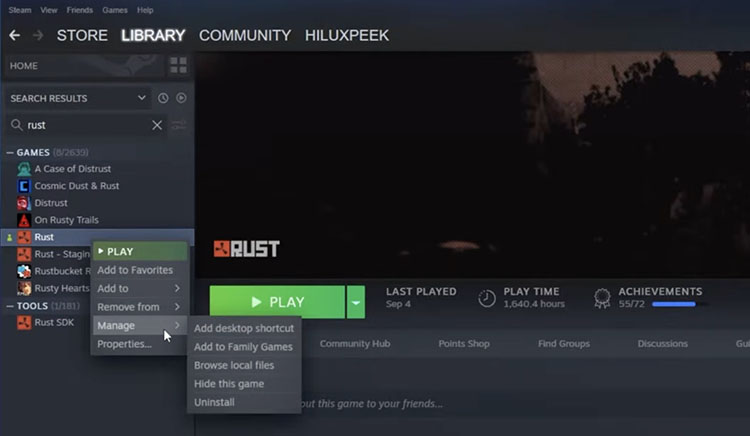
Step 1. Navigate to your Steam Game Library, right-click the game, for instance, Rust, hover over "Manage," and select Browse local files.
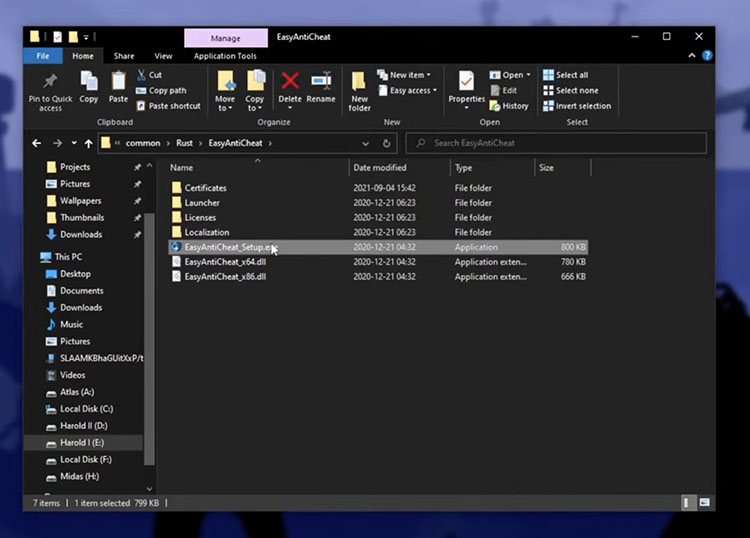
Step 2. Search for the "EasyAntiCheat" folder. If it is not visible, use the file explorer search bar. Open the folder and run the EasyAntiCheat_Setup.exe file as an administrator.
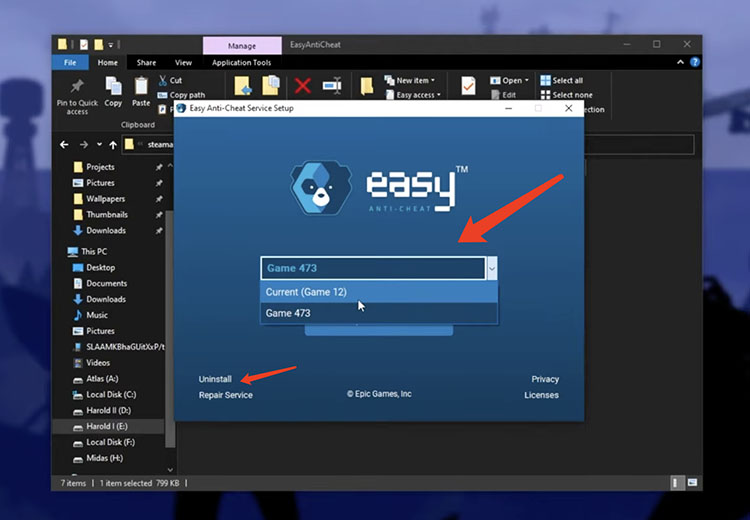
Step 3. Select the game on top. Click Uninstall in the bottom-left corner of the window to remove it.
Tips: Want to remove unwanted games from Steam as well? Check out how to uninstall steam game easily.
For Epic Games:
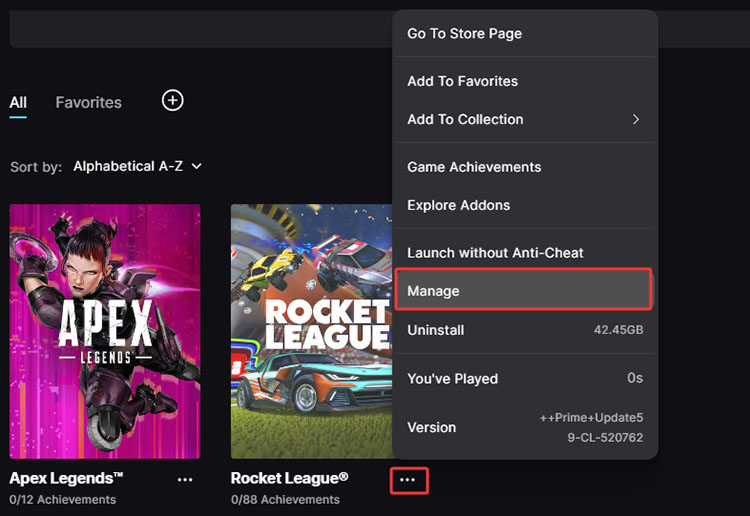
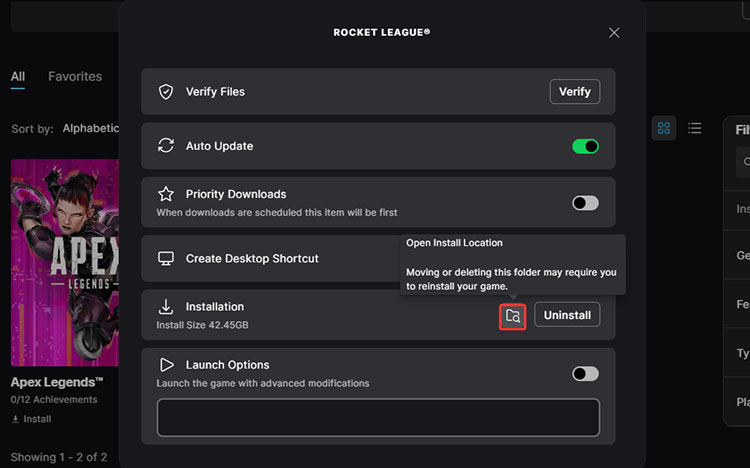
Step 1. Select the three-dot icon next to the game title and go to Manage.
Step 2. Click the Open Install Location icon next to the Installation title.
Step 3. You will be redirected to the game folder. Locate the EasyAntiCheat_EOS_Setup.
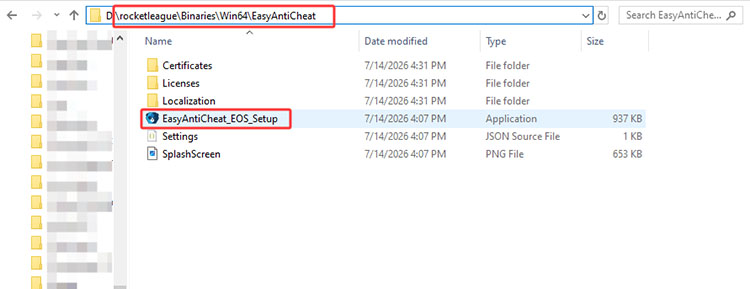
Step 4. Similarly, run the EasyAntiCheat_Setup.exe file as an administrator as you did with Steam. Click Uninstall to remove EAC.
Tips: How to uninstall Epic Games Launcher completely on Windows and Mac.
How to Uninstall Easy Anti Cheat via Command Prompt (Force Removal)
Alternatively, you can use the Command Prompt to force the removal of EAC services. The process is rather technical, which might be a bit complicated for beginners. But worry not. We will show you how to disable Easy Anti Cheat using CMD.
Step 1. Open the Start menu, search for cmd, right-click Command Prompt, and choose Run as administrator.
Step 2. Enter the following path command and press Enter to navigate to the Easy Anti-Cheat folder: cd C:\Program Files (x86)\EasyAntiCheat_EOS.
Step 3. Run the reset command below to remove the Easy Anti-Cheat service:
EasyAntiCheat_EOS.exe qa-factory-reset.
Step 4. To check whether the reset was completed successfully, enter: echo %ERRORLEVEL%. If the result shows 0, the Easy Anti-Cheat reset process was completed successfully.
How to Uninstall Easy Anti Cheat Fully & Safely (Easiest Way)
Sometimes, manual removal can leave behind residual files. If you are looking for a thorough clean, iObit Uninstaller is the best choice. This powerful tool can help you completely uninstall Easy Anti-Cheat on Windows with just one click. First off, let’s see how to delete Easy Anti Cheat with it.
IObit Uninstaller Free
- Complete forced uninstallation for stubborn programs.
- Uninstall a batch of programs at once.
- Scan and remove leftover files, folders, and registry entries.
- Support the management of Universal Windows Platform apps.

Notice: You must have at least one game that utilizes Easy Anti-Cheat installed on your PC to access the uninstallation utility via this tool.
Step 1. Free download & install iObit Uninstaller for your Windows PC.
Step 2. On the main dashboard, find the game that utilizes EAC, like Apex Legends. Click the Trash icon next to it.
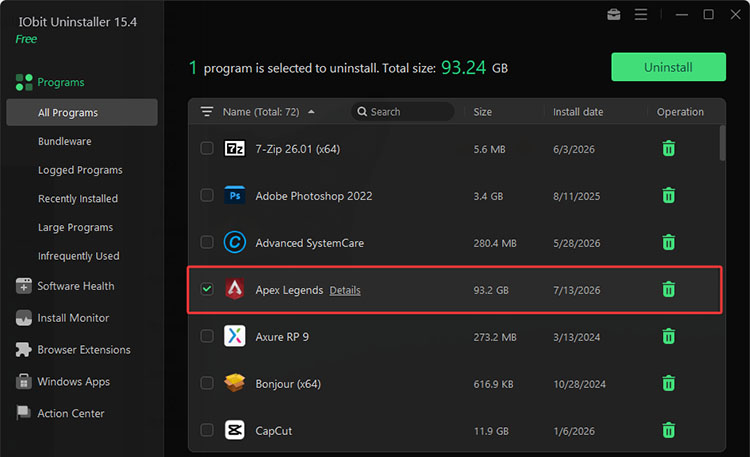
Step 3. Customize the removal. For instance, you can choose to remove residue files at the same time.
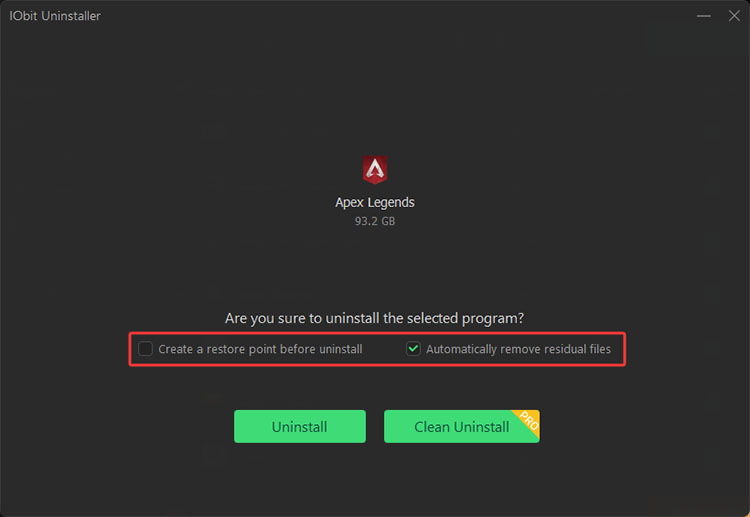
Step 4. Click Uninstall, and you have removed EAC successfully.
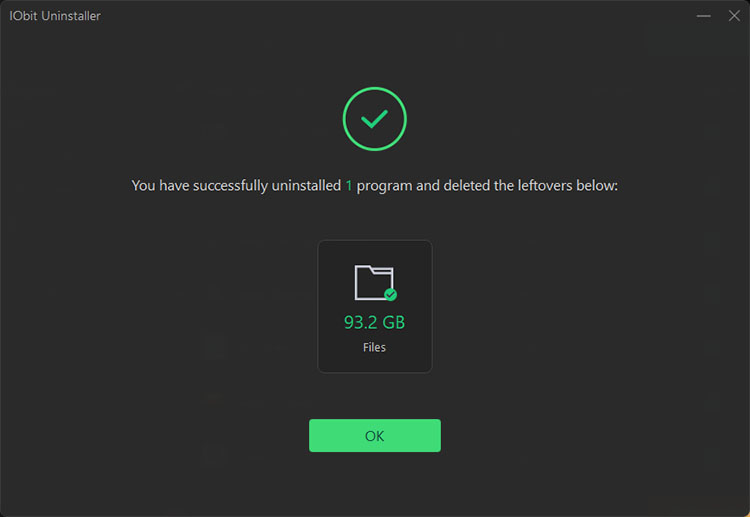
Recommended: Use Force Uninstall on Leftover Folders
If EAC files are still lingering on your computer, you can use the Force Uninstall to further remove them. Here’s how to completely uninstall Easy Anti Cheat using the feature.
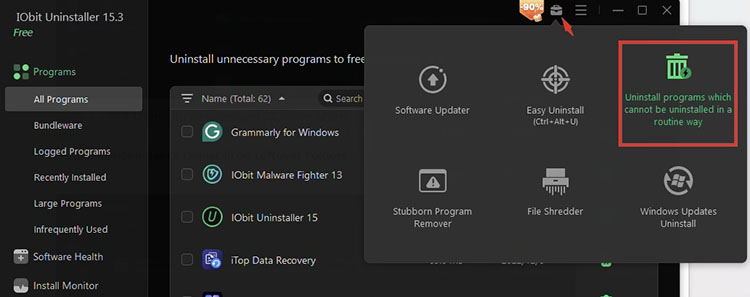
Step 1. Navigate to Tools in the top right > Force Uninstall in the interface.
Step 2. Enter the name and click Browse to locate the leftover Easy Anti-Cheat folders on your computer.
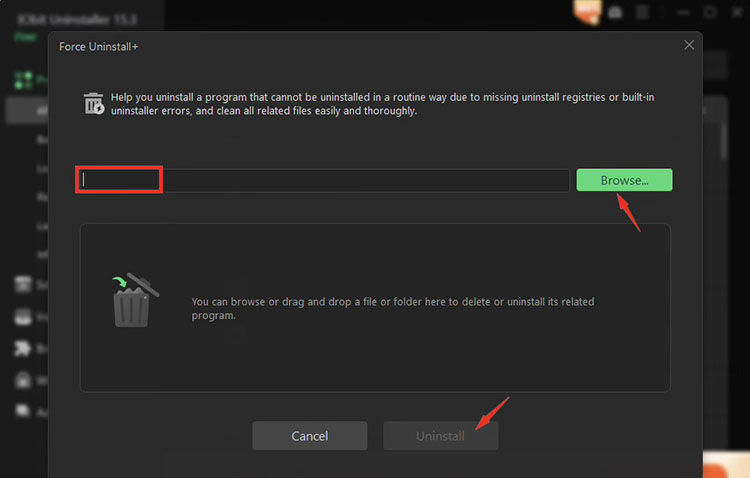
Step 3. Click Uninstall to wipe the selected Easy Anti-Cheat folders and remaining files.
Why IObit Uninstaller Stands Out?
How to uninstall Easy Anti Cheat for free? Besides the manual methods, IObit Uninstaller is the one to go. You can easily clean related files and leftovers in one click at no cost.
When normal uninstall methods fail, the Force Uninstall feature removes stubborn EAC files and folders that can not be deleted easily. How to force uninstall programs with it? Simply locate the leftover directories and let the tool remove them completely.
IObit Uninstaller is a comprehensive tool designed for the uninstallation of all kinds of software. You can use it to remove Chrome extensions, Media Player, Calendar, and other unwanted apps.
The tool automatically detects and tracks the changes Steam or Epic Game installations make to your system, with the detailed logs provided. You can stay informed and manage game-related software with it more easily.
IObit Uninstaller also offers useful features: Easy Uninstall for batch removals, Software Updater to update apps, and File Shredder for secure deletion. You can easily free up disk space and maintain an optimized PC.
How to Reinstall Easy Anti Cheat (If Necessary)
If you accidentally removed EAC, you might not be able to launch the game that is bound with it. But worry not, here’s how to uninstall Easy Anti Cheat and reinstall it in simple steps.
Step 1. Launch your game via Epic Games. If a prompt pops up and asks you to install Easy Anti-Cheat, click Yes to let it auto-install.
Step 2. If not. Navigate to your game folder. Find EasyAntiCheat_EOS_Setup.exe, right-click it, and select the option to create a desktop shortcut. Right-click your new desktop shortcut and select Properties.
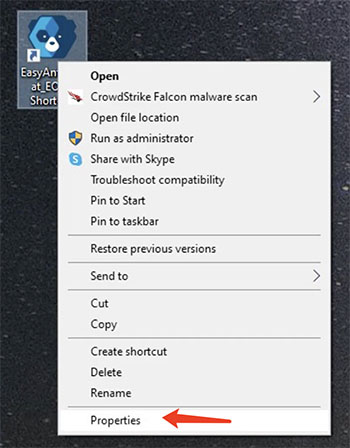
Step 3. Inside the Target text box, scroll to the end of the path, add “install product-fn. ”Click Apply and then OK.
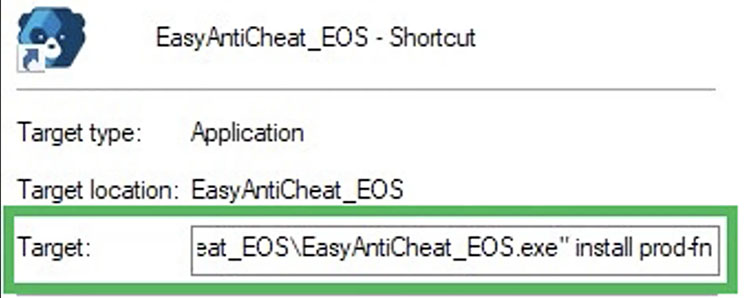
Step 4. Double-click your modified desktop shortcut, and the installation runs silently in the background. After that, launch your game from the launcher, and it should run smoothly.
Troubleshooting Common Easy Anti Cheat Errors
Now you know how to uninstall Easy Anti Cheat. However, you may encounter some common errors after that. Here are the common ones and fixes.
1. Error 30005 (CreateFile Failed with 32)
Explanation: This error usually occurs due to file or service conflicts. It’s usually caused by permission issues or antivirus software blocking Easy Anti-Cheat.
Fix: Delete the EasyAntiCheat.sys file, and add Easy Anti-Cheat as an exception in your antivirus settings. Then run the Easy Anti-Cheat setup as an administrator, and restart your PC.
2. "Game Security Violation Detected"
Explanation: This message often appears when third-party software(overlays, monitoring tools, or background applications) conflicts with Easy Anti-Cheat.
Fix: Open Task Manager, close suspicious or unnecessary processes, then restart the game to check if the issue is resolved.
3. "Easy Anti-Cheat is Not Installed"
Explanation: This error indicates that Easy Anti-Cheat files are missing, corrupted, or not properly installed.
Fix: Verify the game files through your game launcher. If the file is missing, reinstall Easy Anti-Cheat.
4. "Untrusted System File"
Explanation: This error is commonly caused by outdated drivers, corrupted system files, or damaged game components.
Fix: Update Windows or run SFC/DISM system scans to fix corrupted files. You can also uninstall EAC and reinstall it to see if that helps.
FAQs About Easy Anti Cheat Uninstallation
1. Is It OK to Uninstall Easy Anti-Cheat?
Yes. It is safe to uninstall Easy Anti-Cheat if you no longer play games that require it. EAC removal will not affect games or applications that do not use the anti-cheat service.
2. Why is It So Hard to Uninstall Easy Anti-Cheat?
Easy Anti-Cheat can be difficult to remove because it installs system-level drivers and services to protect online games from cheating. But you can make a clean removal with dedicated uninstall tools like IObit Uninstaller.
3. How to Disable Easy Anti Cheat on PC?
It depends on the game. While some games might allow you to simply disable it through their launcher, others might require completely uninstalling the service(along with the game). In most cases, you can not simply “disable” it because it’s meant to protect online games from cheating.
4. How to Remove the EasyAntiCheat Driver?
To remove the EasyAntiCheat driver, you can locate it via the game folder and remove it manually. Alternatively, you can use IObit Uninstaller’s Force Uninstall feature to remove leftover drivers and files.
Final Thoughts
How to uninstall Easy Anti Cheat? You can remove it through the official setup tool, Command Prompt, or with a dedicated uninstaller. As you can see, IObit Uninstaller is the best free method, which lets you completely uninstall Easy Anti-Cheat in one click. It’s a super powerful uninstaller that can eliminate stubborn software that normal methods can not achieve. Just download IObit Uninstaller and enjoy a cleaner Windows experience from now on!
IObit Uninstaller Free
- Complete forced uninstallation for stubborn programs.
- Uninstall a batch of programs at once.
- Scan and remove leftover files, folders, and registry entries.
- Support the management of Universal Windows Platform apps.