Trusted by millions, Avast is one of the most popular antivirus solutions that can offer real-time protection against cyber threats. However, despite its security features, Avast is known for being particularly stubborn during the removal process. This can be rather frustrating, especially when you need to switch to another software or optimize your system performance.
So, how to uninstall Avast successfully? This blog is deemed the most comprehensive guide. You can find several reliable methods to uninstall Avast utility from Windows and Mac devices completely. Just make sure to continue reading!
Can't Uninstall Avast? Why is Avast so Hard to Uninstall?
You might be eager to know how to remove Avast antivirus, but before getting started, it helps to understand why Avast can be difficult to uninstall. Unlike regular applications, Avast is an antivirus program that integrates deeply with the operating system for real-time protection. Several factors contribute to its stubborn removal process, and they are:
Self-Defense Protection: Avast protects its files and services to prevent unauthorized changes, which can block standard uninstall attempts and modifications.
Deep Registry Ties: Avast creates numerous Windows registry entries to manage settings, services, and security features. It can be complicated to remove them all at the same time.
Deep System Integration: Avast installs drivers and startup components that connect deeply with Windows system operations.
Permission Restrictions: Administrator privileges and active Avast services may prevent removal unless you use them with permissions.
Corrupted Installation Issues: When you encounter the Avast won't uninstall issue, it can be those damaged files or incomplete installations that cause uninstall errors.
Method 1: Standard Way to Uninstall Avast via Windows Settings
Avast can be hard to remove for various reasons, and the most direct way to delete it is to use the built-in Windows uninstall feature. However, it might only remove the main application and could leave behind temporary files and other components.
Now, let’s see how to uninstall Avast antivirus software with the built-in settings.
Step 1. Press the Windows key + I to open Settings, then navigate to Apps > Apps & features.
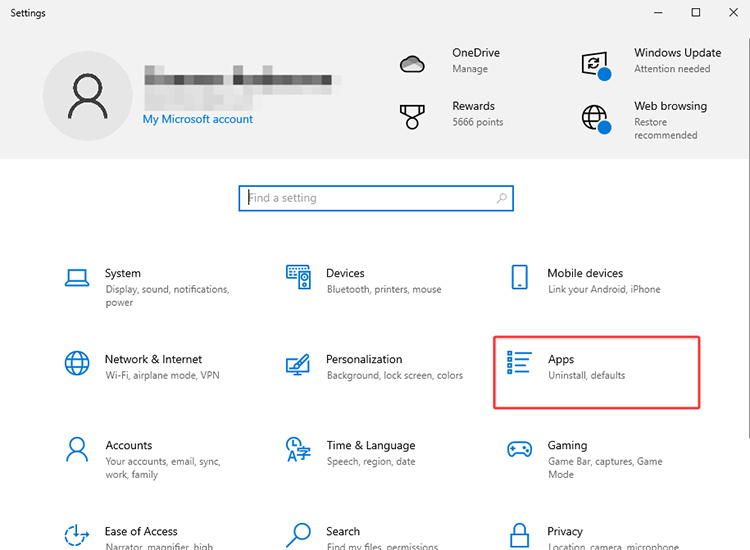
Step 2. Scroll through the list and locate Avast Antivirus or Avast Security. Click on it to reveal the Uninstall button.
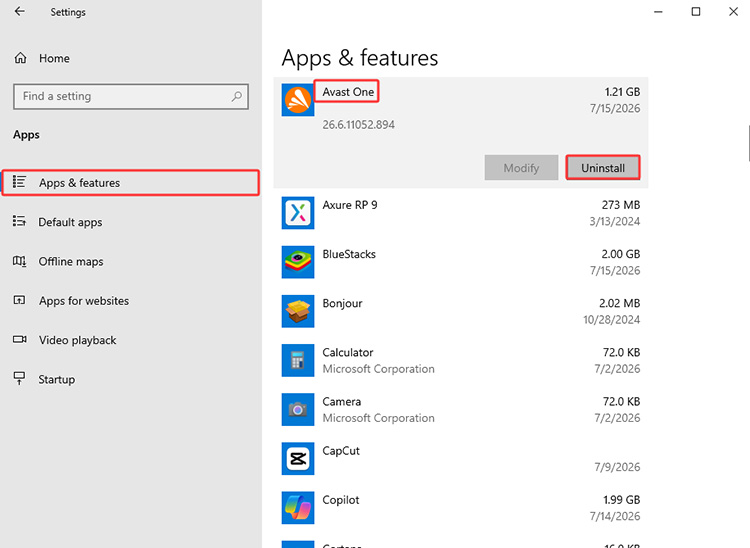
Step 3. Click Uninstall and follow the on-screen prompts. Complete the process and restart your PC to ensure all Avast services are removed.
Method 2: Use a Powerful Avast Removal Tool to Uninstall Avast
Now you know how to remove Avast antivirus with built-in Windows Settings. As you can see, you need to manually clean remaining files and cache files yourself. So if you want to perform a thorough cleanup without the hassles, it’s best to go with a dedicated tool, and IObit Uninstaller is the best choice.
With advanced scanning technology, IObit Uninstaller can detect and remove leftover files, folders, and registry entries automatically. It also helps handle stubborn installations when the standard uninstall method fails. It’s the best uninstaller for Windows 11 that lets you remove Avast for free with it in one click!
IObit Uninstaller Free
- Complete forced uninstallation for stubborn programs.
- Uninstall a batch of programs at once.
- Scan and remove leftover files, folders, and registry entries.
- Support the management of Universal Windows Platform apps.

Powerful Features of IObit Uninstaller:
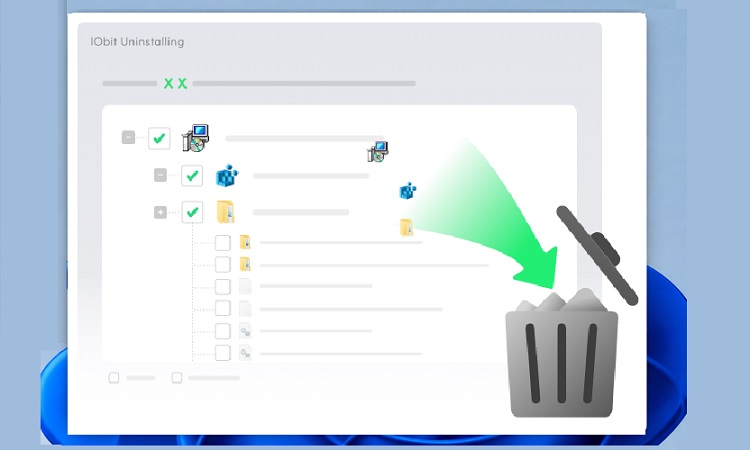
One-click Avast product batch uninstall: There is no need to uninstall programs one by one. IObit Uninstaller allows you to remove multiple software at once, which means you can remove all Avast products with less time and effort.
Deep cleans leftover files and registry entries: IObit Uninstaller scans your system for remaining files and registry entries and removes them for good. It offers ultra-deep cleaning that normal methods can not provide.
Force uninstalls stubborn Avast installations: When Avast can not be removed through normal methods, the Force Uninstall feature comes into play. You can locate associated Avast files and force uninstall programs, removing them completely from your computer.
Automatically scans for residual Avast traces: The tool automatically checks for leftover Avast files after removal and cleans remaining traces. This can greatly free up disk space and effectively improve your PC performance.
How to uninstall Avast via IObit Uninstaller:
Step 1. Download and install this software on the PC.
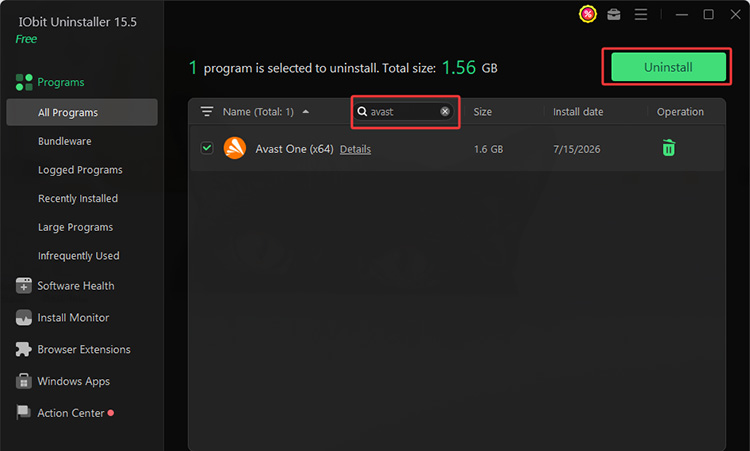
Step 2. Click on All Programs in the left sidebar and find Avast Antivirus in the list. Click the Uninstall button to proceed.
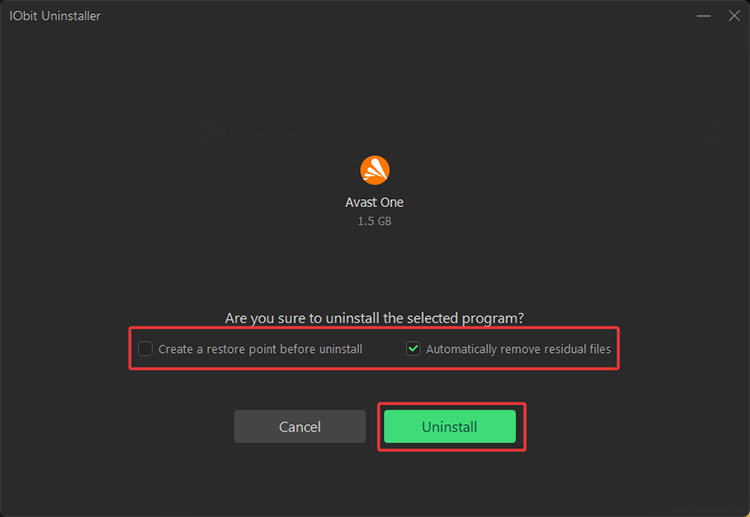
Step 3. A confirmation window will pop up. Be sure to check the "Automatically remove residual files" for a deep clean.
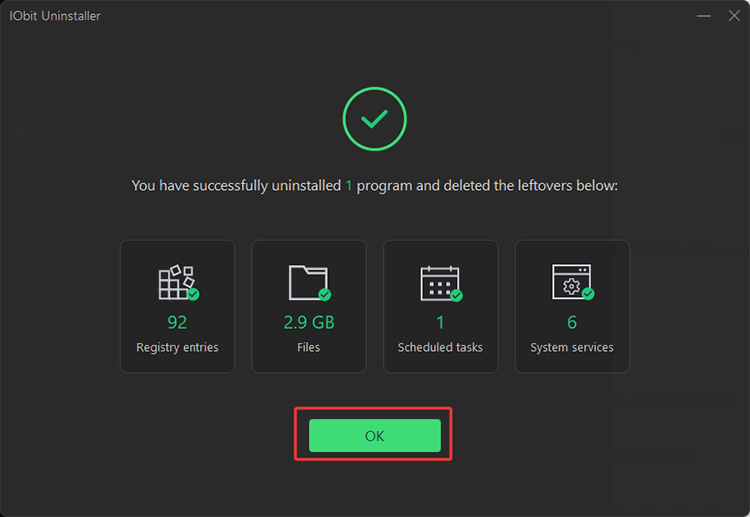
Step 4. After a while, Avast will be quickly removed from your computer for good.
Method 3: Advanced Way Using the Official Avast Clear Utility
IObit Uninstaller is one of the simplest and most powerful ways to uninstall Avast completely. Alternatively, Avast provides a dedicated removal tool—Avast Clear, which is designed to remove Avast products and their associated files from your PC.
Here’s how to uninstall Avast with Avast Clear in simple steps:
Step 1. Download the Avastclear.exe uninstall utility. Right-click the file and choose Run as administrator.
Step 2. When the Avast Clear dialog appears, click Yes to restart your PC in Safe Mode, allowing the tool to remove protected Avast.
Step 3. After restarting, choose the Avast installation folder and select the Avast product you want to remove. Click Uninstall to begin cleanup.
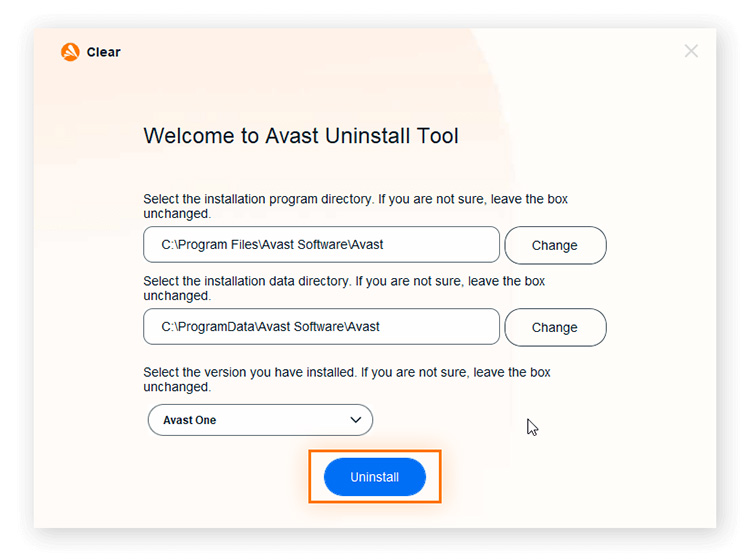
Step 4. Wait for Avast Clear to finish removing all files and services. Restart your PC normally to complete the uninstall process.
How to Uninstall Avast Security Completely from Mac
Avast Antivirus is also available for macOS, and the removal process is relatively straightforward. Unlike Windows, Mac users can uninstall Avast Security directly through the application menu. However, some leftover files may remain after the standard removal process. You might also need to check related folders for a complete cleanup.
Here’s how to uninstall Avast on Mac:
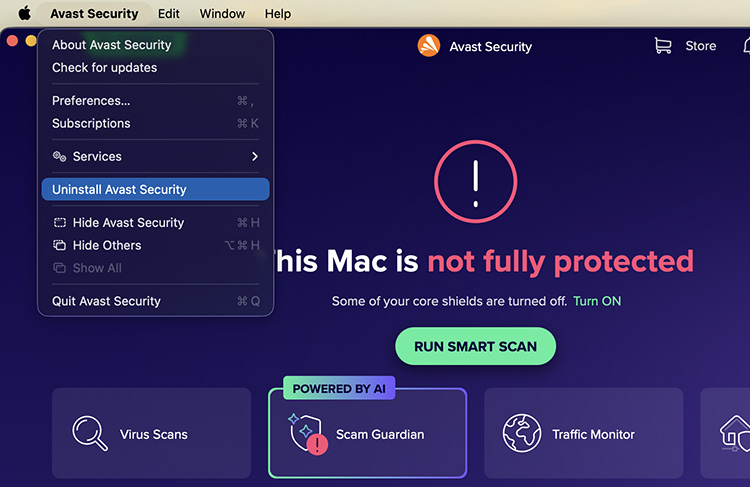
Step 1. Launch Avast on your Mac. Go to Avast Security > Uninstall Avast Security.
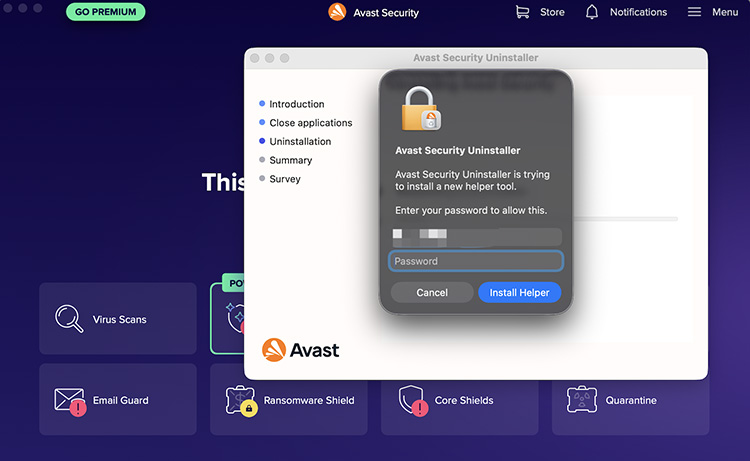
Step 2. In the uninstallation process, input your password for authorization.
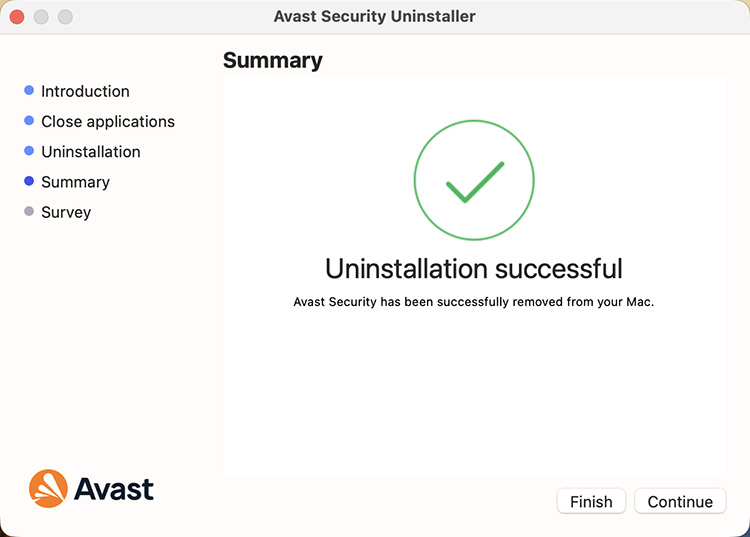
Step 3. After a while, Avast will be removed from your Mac successfully.
Step 4. To remove leftover files, navigate to Go > Go to Folder. Check these paths to clean up temp files and residue folders. Make sure to empty the Trash as well.
FAQs on How to Uninstall Avast Antivirus Software
Still have questions about uninstalling Avast Antivirus? Here are some common concerns and answers to help you remove Avast safely.
1. Is it safe to uninstall Avast?
Yes, it is safe to uninstall Avast if you no longer need it. But doing so might leave your PC vulnerable. Even though Windows Defender will usually take over automatically, it’s best to ensure you have an active alternative security software ready.
2. Why won't Avast uninstall from my computer?
Avast may fail to uninstall because its active self-defense module blocks standard removal tools to prevent unauthorized changes or malware tampering. In some cases, corrupted program files, running background services, or locked registry entries can also interfere with the uninstall process.
3. Do I need to boot into Safe Mode to uninstall Avast?
Safe Mode is not required for a standard Avast uninstallation, but it is highly recommended for stubborn cases. It prevents Avast drivers and background processes from loading, which allows the official Avast Clear utility to remove files without interference.
Conclusion
How to remove Avast antivirus from my computer? It’s not a complicated process. The previous parts have shown how to uninstall Avast via Windows Settings, the official Avast Clear utility, and a dedicated uninstaller. However, when it comes to the most reliable and hassle-free removal experience, IObit Uninstaller is the ideal choice. With powerful scanning technology and automatic residual file cleanup, IObit Uninstaller can remove Avast completely without leftover files and registry entries. Get it to handle your software uninstallation with ease from now on!
IObit Uninstaller Free
- Complete forced uninstallation for stubborn programs.
- Uninstall a batch of programs at once.
- Scan and remove leftover files, folders, and registry entries.
- Support the management of Universal Windows Platform apps.