Did an AMD driver update cause a black screen, crashes, flickering, or lower FPS? Learning how to roll back AMD driver can restore a stable version without reinstalling Windows. If you are wondering how to roll back AMD graphics driver on Windows 11/10, the four methods below cover built-in, manual, and backup-based options.
This guide covers Driver Booster, Device Manager, manual AMD Adrenalin installation, and System Restore, depending on the previous versions available.
Why Should You Roll Back an AMD Driver?
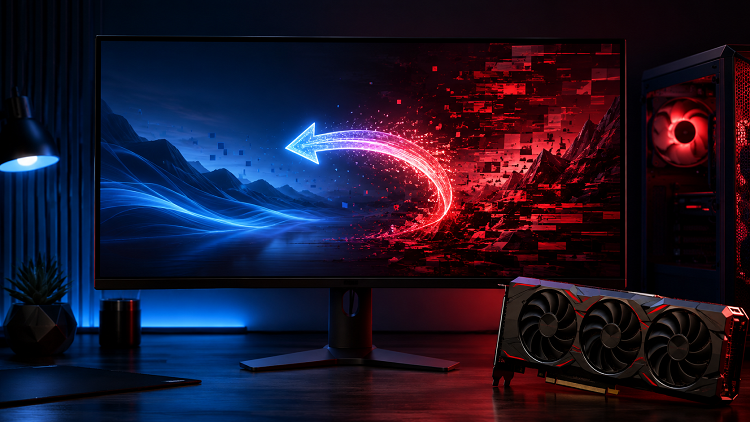
The newest driver is not always the best match for every PC. An AMD release may improve newer games but cause stuttering, timeouts, artifacts, or compatibility problems elsewhere.
Consider a rollback when a problem began immediately after an update. If you are researching how to roll back AMD drivers, record your GPU model and version under Device Manager > Display adapters > AMD Radeon > Properties > Driver.
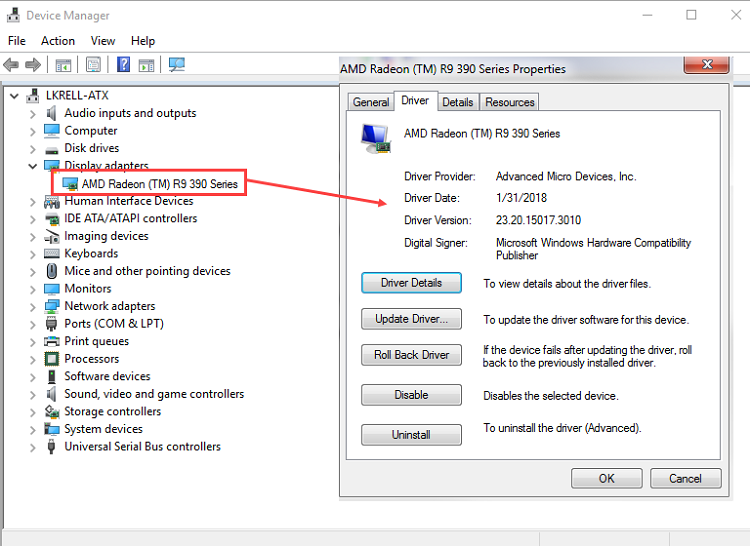
A rollback restores an earlier driver rather than reinstalling or updating the current one. If the problem predates the latest installation, an AMD driver update may be more appropriate.
Before Rolling Back Your AMD Graphics Driver
Save your work, close GPU-intensive programs, confirm your Radeon model and Windows edition, and create a restore point. Use packages from AMD or the PC manufacturer. Laptop drivers may contain device-specific features. Do not confuse graphics and chipset drivers.
How to Roll Back AMD Driver on Windows 11/10: 4 Methods
When choosing how to roll back AMD driver, start with Driver Booster or Device Manager if an earlier version is stored. Use a manual downgrade for a specific release.
Driver Booster Free
- Automatically scan and update drivers.
- Update game ready drivers for peak gaming performance.
- Identify and fix various common of hardware issues.
- Boost 30% of system performance for fast & smooth running.

Method 1: How to Roll Back AMD Driver with Driver Booster
IObit Driver Booster provides a practical Backup & Restore tool. If you backed up the working AMD driver before updating it, Driver Booster can restore that version without requiring a manual package search.
Step 1. Click the download button below to install Driver Booster on your PC.
Step 2. Launch Driver Booster. Open Tools.
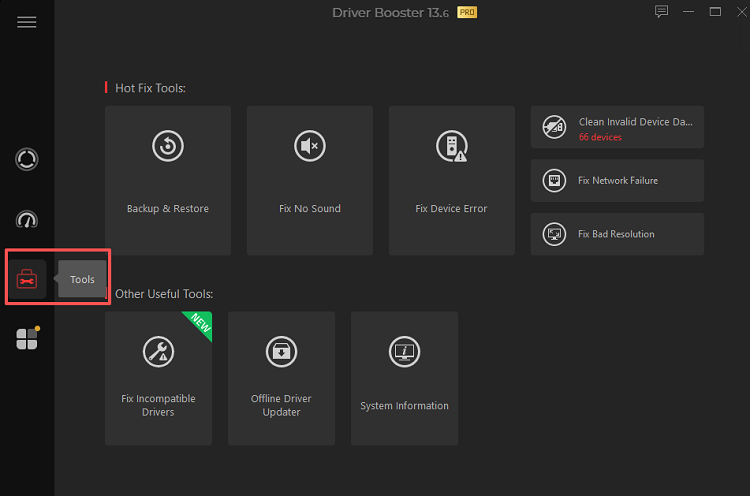
Step 3. Select Backup & Restore. Open the Driver Restore section.
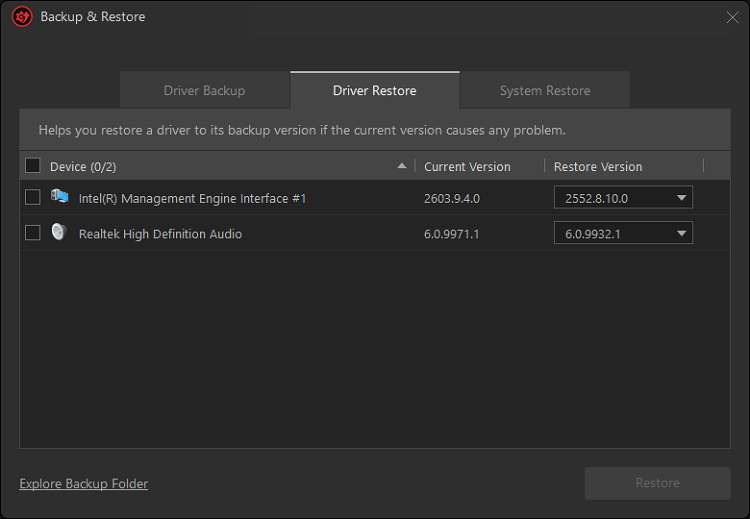
Step 4. Find and select the backed-up AMD graphics driver.
Step 5. Click Restore and wait for the operation to finish.
Step 6. Restart the computer and verify the driver version.
Besides the simple rollback process, Driver Booster offers several practical features:
Driver Backup: Saves working driver versions before changes, giving users a reliable copy for later recovery when needed.
One-Click Restore: Reinstalls a selected backup without requiring users to search for or download driver packages manually.
Automatic Driver Scan: Detects outdated, missing, and faulty drivers, making it a practical best driver updater for routine maintenance.
Verified Driver Database: Covers major hardware brands and checks driver packages to improve compatibility and installation security on Windows.
Note that Driver Booster can restore only a version that was previously backed up. Otherwise, continue with the methods below.
Method 2: Use Device Manager to Restore the Previous AMD Driver
Device Manager is the quickest built-in answer to how to roll back AMD driver when Windows has kept the previous package.
Step 1. Right-click Start and select Device Manager. Expand Display adapters.
Step 2. Right-click your AMD Radeon device and select Properties.
Step 3. Open the Driver tab. Select Roll Back Driver.
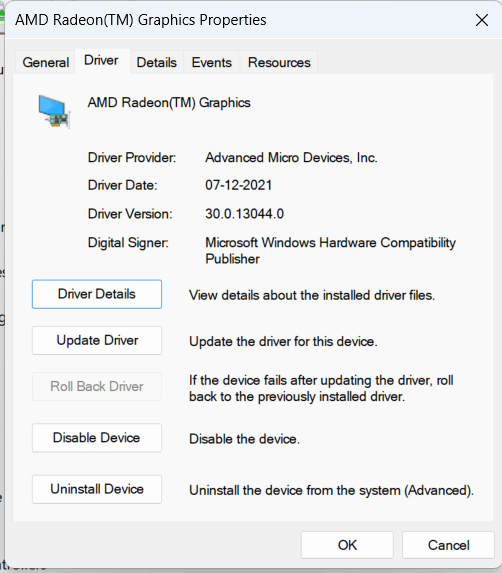
Step 4. Choose a reason, confirm the change, and restart Windows.
Microsoft notes that rollback is available only when a previous version exists. Users asking how to roll back AMD drivers when the button is greyed out should check for a Driver Booster backup or use the manual method.
Method 3: How to Roll Back AMD Drivers Adrenalin Manually
Readers searching for how to roll back AMD drivers Adrenalin usually need a specific release. How to revert AMD graphics driver manually involves replacing the current software with the correct older package.
Step 1. Identify your exact AMD Radeon model and Windows version.
Step 2. Visit the AMD Drivers and Support page. Find your graphics product and open its previous-drivers page.
Step 3. Download the required Adrenalin version and review its release notes.
Step 4. Run the official AMD Cleanup Utility to remove the existing AMD graphics and audio driver software.
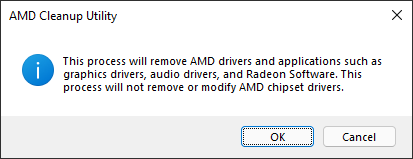
Step 5. Restart the PC when prompted. Run the older Adrenalin installer and complete the setup. Restart again and verify the installed version.
The safest answer to how to downgrade AMD drivers Adrenalin is to match the package to the GPU and Windows version. AMD recommends its Cleanup Utility, which removes graphics and audio software but not chipset drivers. Laptop users should prefer the manufacturer's driver when available.
For general Windows removal options, see how to uninstall driver packages through Device Manager or other methods.
Method 4: Revert the AMD Driver with System Restore
System Restore is a fallback when an AMD update caused wider problems. It also reverses system files, settings, drivers, and recently installed applications.
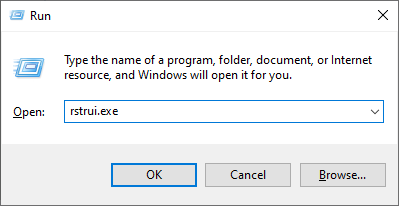
Step 1. Press Windows + R. Enter rstrui.exe and press Enter.
Step 2. Select Next and choose a restore point created before the AMD update.
Step 3. Select Scan for affected programs to review what will change.
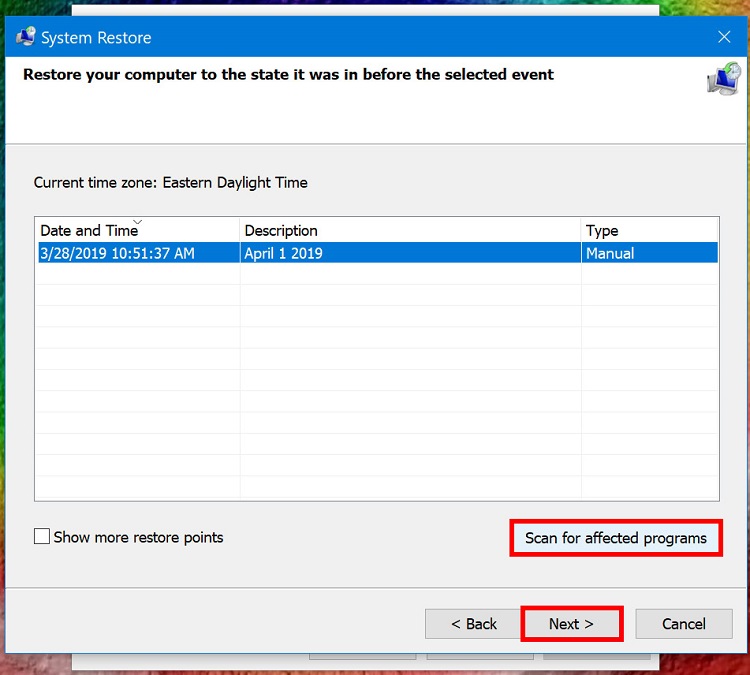 Step 4. Confirm the restore and let Windows restart.
Personal files normally remain untouched, but recently installed programs may be removed. Use it only when targeted restoration is unavailable.
Which AMD Driver Rollback Method Should You Choose?
Method |
Best for |
What it requires |
Driver Booster |
Restoring a selected AMD driver easily |
An existing Driver Booster backup |
Device Manager |
Undoing a recent update quickly |
A previous driver stored by Windows |
Manual Adrenalin downgrade |
Installing a particular AMD version |
The correct older installation package |
System Restore |
Reversing broader problems after an update |
A restore point from before the problem |
Use Driver Booster for an existing backup or manual installation for a specific release.
What If the AMD Driver Rollback Fails?
If Device Manager is greyed out, use a backup or previous package. If installation fails, reconfirm compatibility and run AMD Cleanup Utility before retrying.
Windows Update may reinstall a newer driver, so pause updates temporarily while testing. Laptop users should choose the manufacturer's package if a reference driver causes problems. Brief flickering during installation is normal.
For a separate Windows 11 audio driver not working issue, troubleshoot the sound driver rather than the AMD graphics package.
Frequently Asked Questions About AMD Driver Rollback
The methods above are specific to AMD Radeon hardware. If your PC uses a GeForce GPU, follow this guide on how to roll back NVIDIA drivers; the answers below address common AMD rollback questions.
How to Roll Back AMD Graphics Driver on Windows 11?
Open Device Manager > Display adapters, right-click AMD Radeon, and select Properties > Driver > Roll Back Driver. Otherwise, use a backup or older official package.
How to Roll Back AMD Drivers If the Rollback Button Is Greyed Out?
A greyed-out button means Windows has no previous package. Restore a backup or install a compatible previous Adrenalin release manually.
Can I Roll Back a Driver Directly in AMD Adrenalin?
Adrenalin primarily handles updates and graphics settings. To return to an older release, download its package, clean up the current version, and install it.
Is It Safe to Downgrade an AMD Driver?
Yes, when the driver supports your GPU and Windows version. Create a backup or restore point and avoid unofficial download sites.
Will an AMD Driver Rollback Delete My Games?
No. Driver restoration does not remove games or personal files. System Restore may remove programs installed after the chosen point.
How Do I Confirm That the Rollback Worked?
Check the date and version under the AMD device's Properties > Driver tab, then test the affected game or application.
Conclusion
Knowing how to roll back AMD driver can resolve crashes, black screens, stuttering, and performance loss after an incompatible update. Built-in and manual options work, but a prepared backup makes recovery easier.
Do not wait for another problematic update. Download IObit Driver Booster, back up stable drivers, and use Tools > Backup & Restore to return to a reliable AMD driver version safely.