


Kevin Hart
Kevin is an experienced editor focused on tech blog writing. Familiar with all kinds of PC software on the market. All the topics he chooses are aimed at bringing more benefits to users.
Expert in
PC Health Solution

All-in-one PC health solution: clean, optimize and secure

Comprehensive PC cleaning, optimization and protection

Keep drivers always up-to-date

More stable performance with less system crashes

Protect millions of computers against malware

Top computer security with full-round protection

Protect against viruses & boost PC performance
Automatically scan and update drivers.
Update game ready drivers for peak gaming performance.
Identify and fix various common of hardware issues.
Boost 30% of system performance for fast & smooth running.

Your current driver is not compatible? Please refer to this guide to learn how to roll back NVIDIA drivers. The most basic and easiest methods are prepared.

Kevin Hart


Before playing a newly released game, updating your NVIDIA driver can sometimes bring unexpected issues, with incompatibility being the most common one. This may cause your computer to frequently experience stuttering, freezing, screen flickering, and other errors. In this situation, the safest solution is to roll it back to a previously stable version.
If you are preparing to do this, then this guide on how to roll back NVIDIA drivers is exactly what you need. It provides two of the most basic manual methods, as well as an intelligent update solution that is especially beginner-friendly for users of all skill levels.
Since there are three methods available, how do you decide which method to use for how to roll back graphics drivers NVIDIA? This guide has already taken that into consideration and will clearly list the most suitable scenarios for each method in an easy-to-follow format.
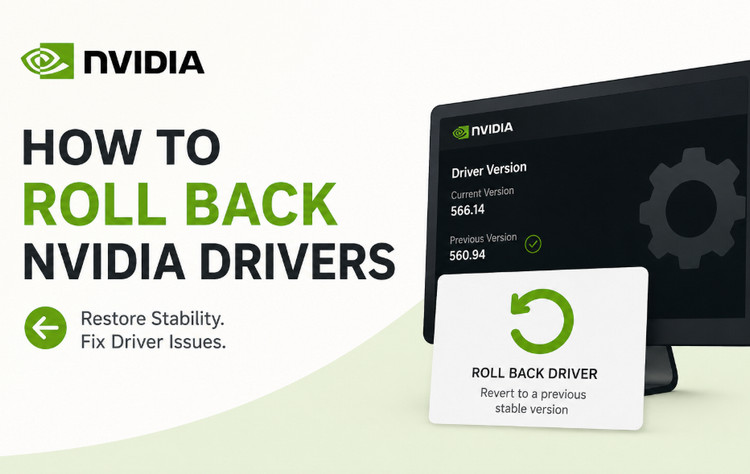
After you have completed downloading and installing the new NVIDIA version locally, you can manage it through Windows' built-in tool, Device Manager. Likewise, rolling it back to an older version is also possible here.
Here is how to roll back NVIDIA drivers NVIDIA app via Windows Device Manager.
Step 1. You can open Device Manager through the Start menu on your computer, then locate the Display adaptors category. Expand it to find the GPU driver version currently being used by your PC.
Step 2. View the properties of the current driver, then under the Driver tab, locate the button named Roll Back Driver. Click it to complete the rollback.
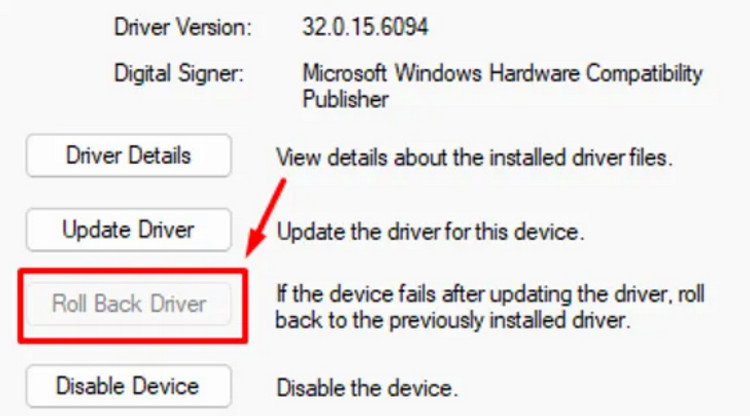
Tips: Please note that if you have already uninstalled the previous driver version, the one-click rollback may no longer work properly. In this case, the standard solution for how to roll back NVIDIA drivers GeForce Experience becomes: first uninstall the new version, then let Windows automatically install a compatible driver version for your system.
Here is how to roll back NVIDIA drivers Windows 10 by reinstalling.
Step 1. Open your Device Manager.
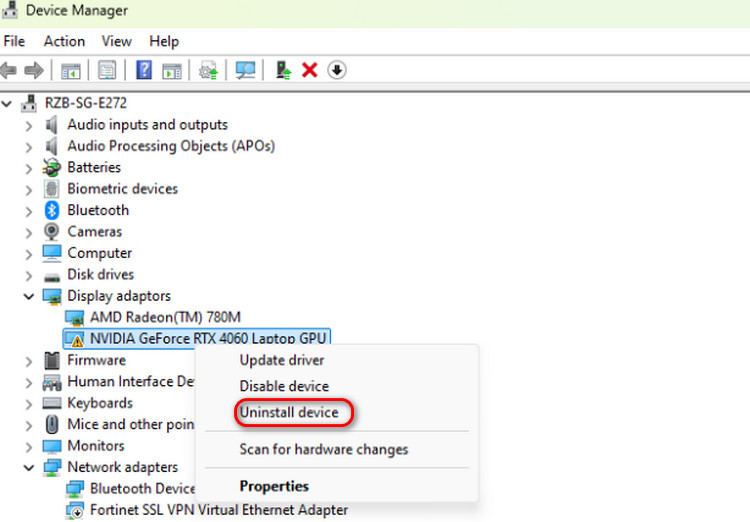
Step 2. Right-click the driver, then select Uninstall device from the menu.
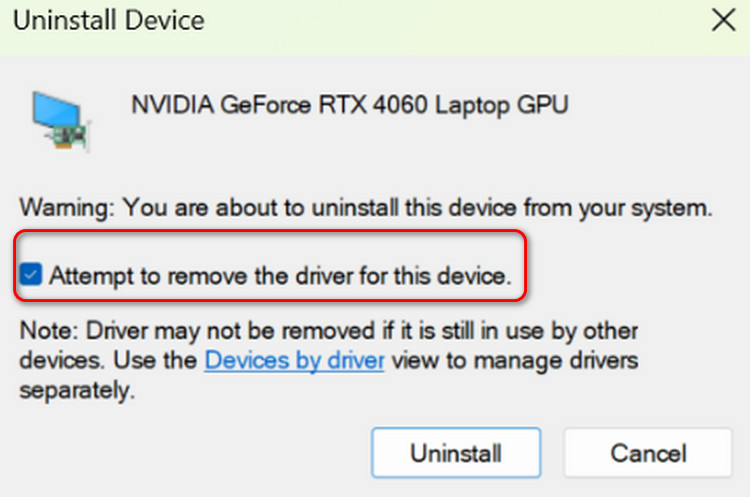
Step 3. A pop-up window named Uninstall Device will appear. You need to check Attempt to remove the driver for this device, then click Uninstall again to confirm the removal.
Step 4. After the uninstallation is complete, open Device Manager again > Action > Scan for hardware changes.
Windows will now automatically search for and install a suitable NVIDIA driver version for your current device.
However, Device Manager may not always solve your problem. Some users may find that the Roll Back Driver button on their computer is grayed out, meaning this method will not work. So, what's next for how to roll back NVIDIA drivers?
You can try getting help directly from the official NVIDIA website. Based on your device model, you can identify the correct driver version you should use and then download it again to your computer.
Here is how to roll back NVIDIA drivers Windows 10/11 with the help of NVIDIA.
Step 1. Use your browser to visit the NVIDIA official website. You will find a search section called Manual Driver Search.
Step 2. In the search box, enter specs of your GPU and OS, then click Find.
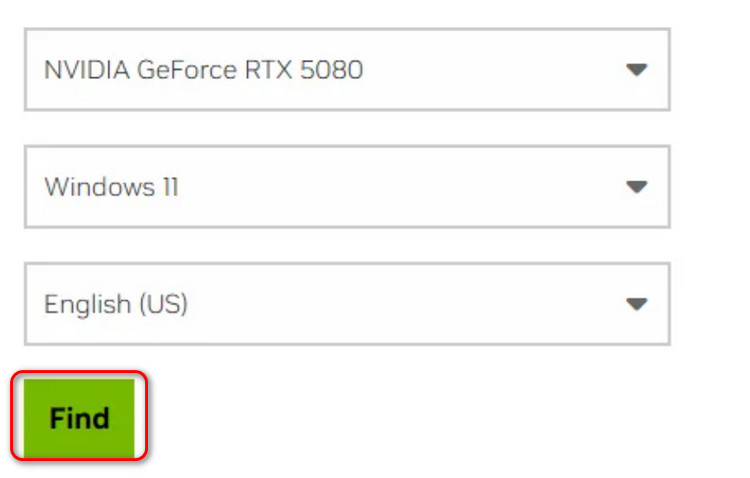
Step 3. You will now see the latest driver version currently provided by the official website.
Bonus: Interestingly, these same steps can also be applied when exploring how to update Windows drivers. If your goal is to update to the newest NVIDIA version instead of rolling back, you can simply proceed with the latest driver shown at this step.
Continue scrolling down the page and click the View More Versions button at the bottom.
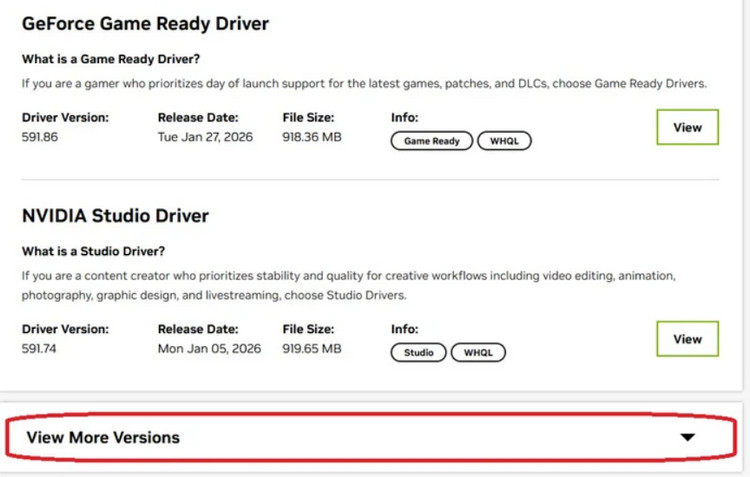
Step 4. Click the View button next to a version to check the details of that driver. Once you confirm it is the correct version, you can begin downloading and installing it.
After reading through the previous two guides on how to roll back NVIDIA drivers, you have probably already noticed the problem: the steps are complicated, the process is time-consuming, and mistakes during operation can easily lead to new issues on your computer.
If you want to avoid these kinds of problems as much as possible, keep reading to learn about a smarter rollback method next.
If you want to solve how to roll back NVIDIA drivers Windows 11/10 as efficiently as possible, then using a tool like Driver Booster, which supports one-click rollback and driver updates, is the most suitable option.
With just one click, it can scan all available driver versions on your computer and display detailed information about the currently installed versions. You can then freely choose whether to update to the latest version or roll back to a previous one. The entire scanning process only takes a few seconds, and the results are presented in a clear list format for easy operation.
It is also worth mentioning that if you are fixing NVIDIA drivers to improve your gaming experience, then this tool is practically made for you. It places great emphasis on game drivers and even includes a game boost feature to free up as many system resources as possible for gaming.
Here is how to roll back NVIDIA drivers Windows 11/10 using Driver Booster.
Step 1. Download and install Driver Booster on your computer.
Step 2. Launch it and click the Scan button on the homepage to begin detection.
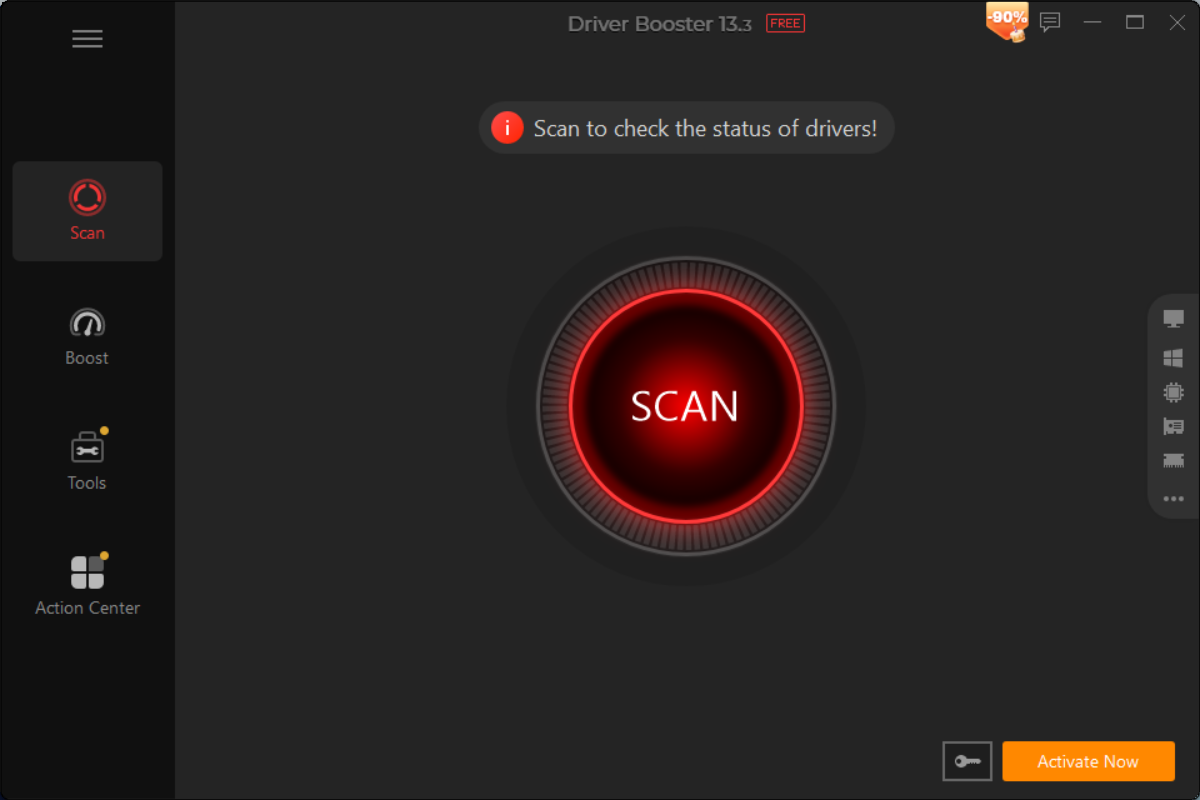
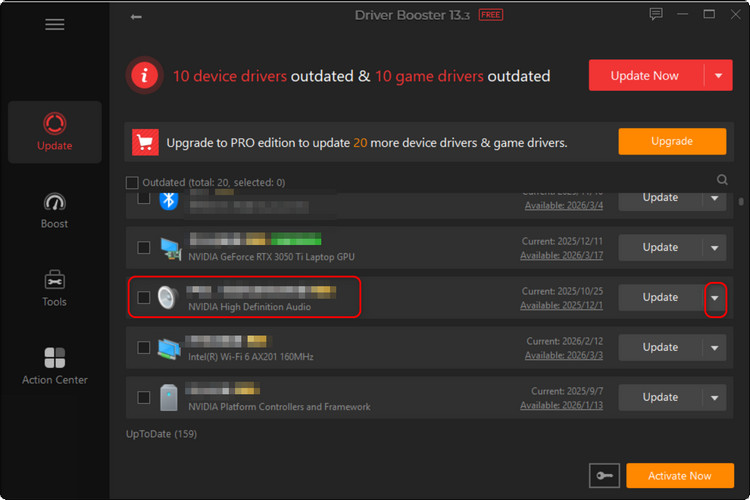
Step 3. After the scan is complete, locate your GPU in the list, where you will see the currently installed NVIDIA version. Do not click the Update button beside it. Instead, expand the adjacent menu and select Details.
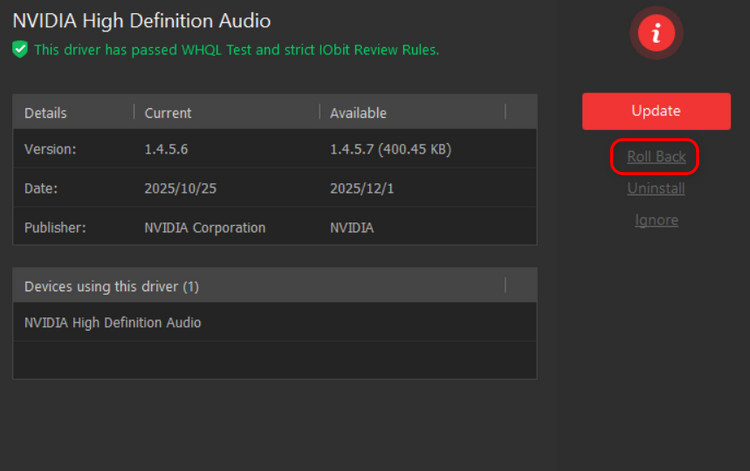
Step 4. In the new Driver Details window, select Roll Back below the Update button on the right side.
Of course, if you are currently looking for a way to update your drivers, then Driver Booster can also become one of the best assistants on your journey to learning how to update NVIDIA driver safely and efficiently.

If you are still unsure which solution is best for your current problem, the table below can help you decide quickly.
Here are the recommended rollback methods for the most common scenarios users encounter when learning how to roll back NVIDIA drivers.
| Scenario | Recommended Method |
| Driver was updated in the last 24–48 hours | Method 1 (Fastest) |
| Rollback button is grayed out | Method 2 (Standard) |
| Constant Blue Screens or "Display Driver Failed" | Method 3 (Most Reliable) |
How to roll back Nvidia drivers in the NVIDIA app?
You need to use Device Manager or manually download an older version from the NVIDIA official website to complete the rollback process.
Will rolling back NVIDIA drivers improve gaming performance?
Yes, sometimes it can. Newly released drivers may contain compatibility problems with certain games or hardware setups. Rolling back to a previously stable version can reduce stuttering, crashes, screen flickering, and FPS drops.
How to update NVIDIA drivers safely?
You can update drivers manually through the NVIDIA website, but many users prefer tools like Driver Booster because they automatically scan compatible versions, reduce installation errors, and simplify the entire how to update driver process.
Driver problems can be incredibly frustrating, especially when a simple graphics driver update suddenly causes game crashes, screen flickering, freezes, or even blue screens. Fortunately, learning how to roll back NVIDIA drivers is usually enough to bring your computer back to a stable condition.
In this guide, you explored several solutions, from Windows Device Manager to manually reinstalling older driver versions from NVIDIA.
However, if you want to avoid complicated operations and reduce the chance of installing the wrong version, Driver Booster offers a much simpler experience. With automatic scanning, one-click rollback, and easy driver management, it helps users handle NVIDIA driver problems much more efficiently.

Keep drivers always up-to-date.
Free Download