Ad blocker is recognized as a great helper to block intrusive ads on browsers. It can improve privacy and reduce distractions when you surf online. However, many users have discovered that ad blocker sometimes prevents pages, videos and interactive features from loading properly, while some websites send the message asking users to disable ad blocker.
Well, it is worth deleting your ad blocker when it does more harm than good. This article will walk you through how to remove ad blocker from your browsers on desktop. Whether you want to simply turn off it and completely uninstall the extension, you can find the right way.
What Is Ad Blocker and How Does It Work
An ad blocker is usually a browser extension designed to prevent advertisements displaying on web pages. By filtering out intrusive banners, auto-playing videos, pop-ups and other promotional content, ad blockers aim to create a cleaner, safer and more private online experience. You can enjoy a faster page loading speed and reduced bandwidth usage.
Ad blocker doesn't wait for a web page to load and then start scrubbing out the ads. Instead, it stops the ads from ever being downloaded in the first place. Every time you visit a website, the browser requests needed resources. Ad blocker compares these requests with databases called filter lists (such as EasyList and EasyPrivacy). When a web page tries to load content that matches one of these rules, the ad blocker intercepts the request and prevents it from being displayed.
Why and When Do You Need to Remove Ad Blocker
Ad blockers are fantastic for cluttering a messy webpage, but there are times when you absolutely have to turn theme off. Here’s a straightforward look at the most common reasons and scenarios to disable or delete an ad blocker.
Websites ask you to disable ad blocker: Sometime websites maintain their revenue streams based on ad views and clicks, meaning that they cannot fund the operations if ads are blocked. Therefore, those websites detect ad blockers and prevent you from accessing the content unless the extension is disabled or removed.
Webpages cannot load properly: Sometimes, ad blockers accidentally block essential elements of a webpage, leading to a failure to display visual content and interactive features. If a reliable site shows broken layouts or missing content, you’d better turn off your ad blocker.
Streaming services don't work: Certain free streaming platforms, like YouTube, Twitch, depend on advertising or embedded scripts to function. Your ad blocker may cause the video to infinitely buffer, error out or display a black screen.
Failed checkouts or logins: Some websites that include payment gateways or login forms - like e-commerce stores, bank portals - use background scripts for verification or authentication. Aggressive ad blockers may mistake these security measures and lock you out of your account or freeze your payment.
Extension or browser conflicts: Ad blockers occasionally conflict with other browser extensions or updates, causing browser crashes or slow performance.
Uninstalling ad blockers is the best solution to fix those issues. While modern browsers contain the feature with native support of blocking intrusive ads, third-party ad blockers can provide deep customization and advanced tracking prevention. You can only turn off built-in ad blockers but disable and remove third-party ad blockers from your browser.
Next, let's get how to disable and remove ad blocker in major browsers. In addition to manual operations, a reliable uninstaller, like IObit Uninstaller, ensure a simplified workflow to completely uninstall the ad blocker.
Driver Booster Free
- Automatically scan and update drivers.
- Update game ready drivers for peak gaming performance.
- Identify and fix various common of hardware issues.
- Boost 30% of system performance for fast & smooth running.

How to Remove Ad Blocker in Chrome
To disable ad blocker built in Chrome:
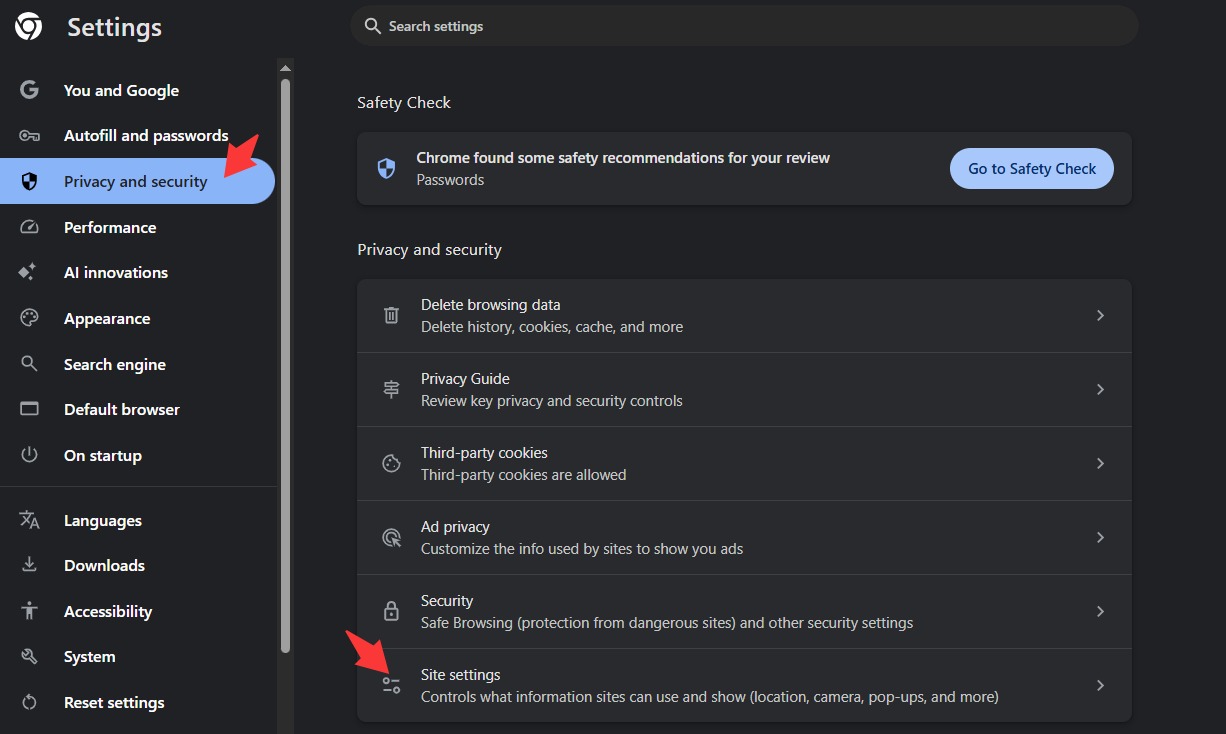
1. Open Chrome and click three-dot button > Settings.
2. Navigate to Privacy and security > Site settings.
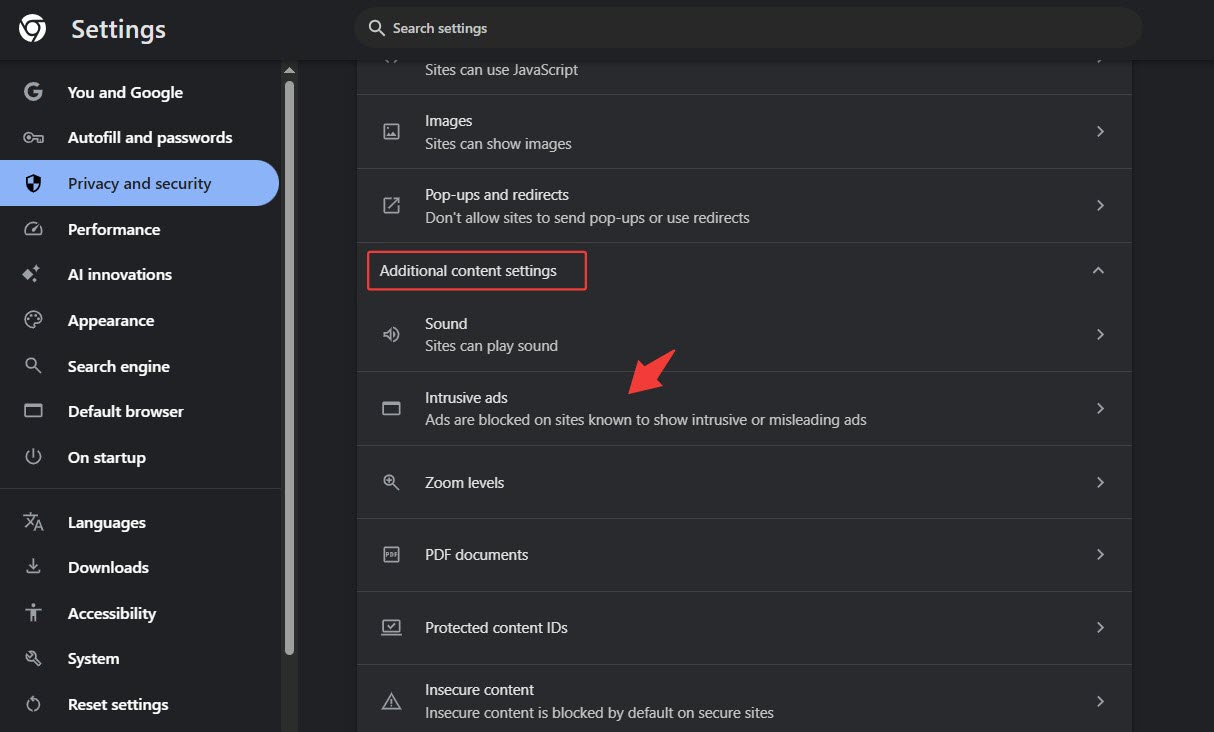
3. Expand Additional content settings and select intrusive ads.
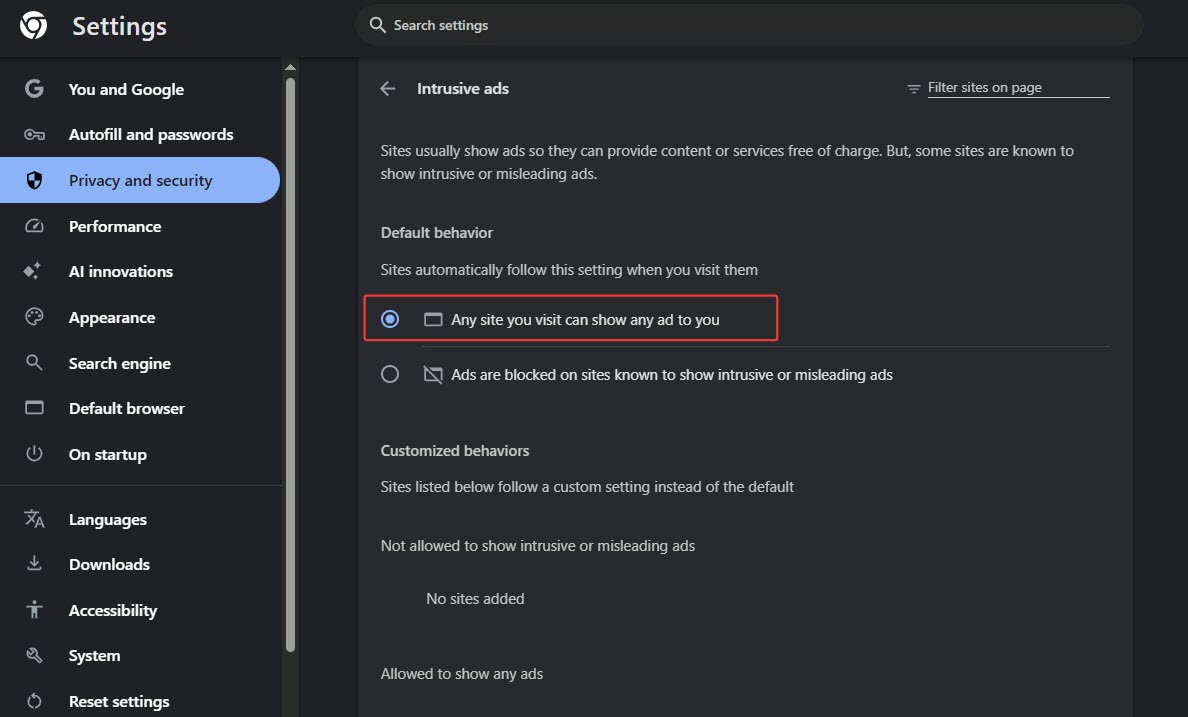
4. Change the Default behavior to Any site you visit can show any ad to you.
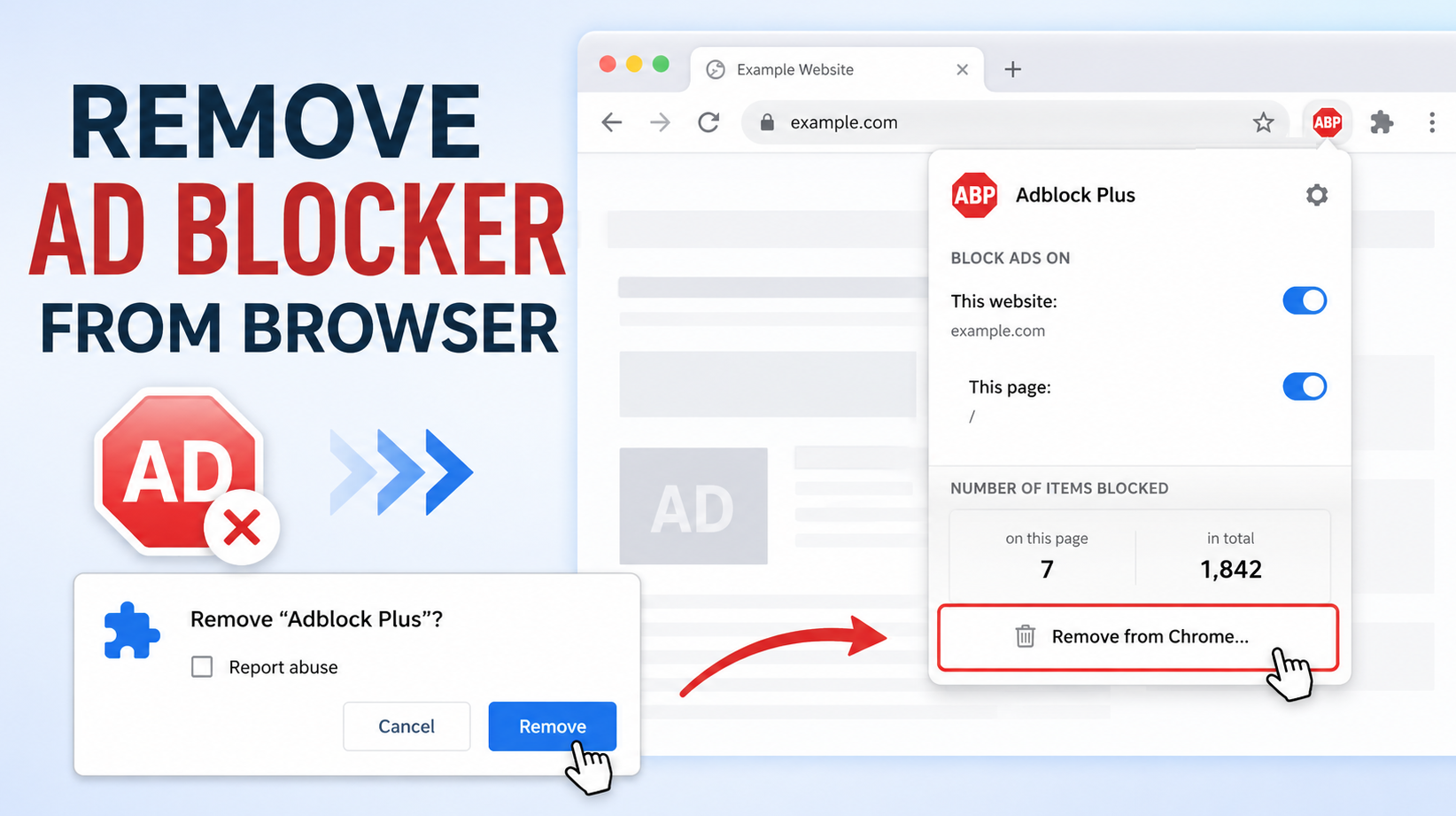
To permanently remove third-party ad blocker in Chrome:
1. Click the extension icon on Chrome.
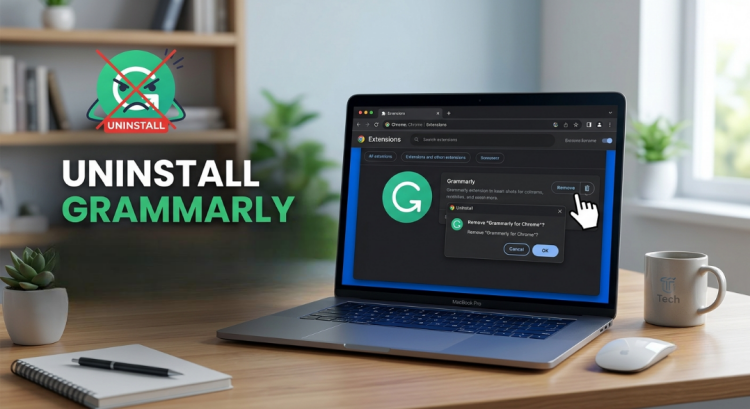
2. Find Ad blocker and click the three-dot button > Remove from Chrome.
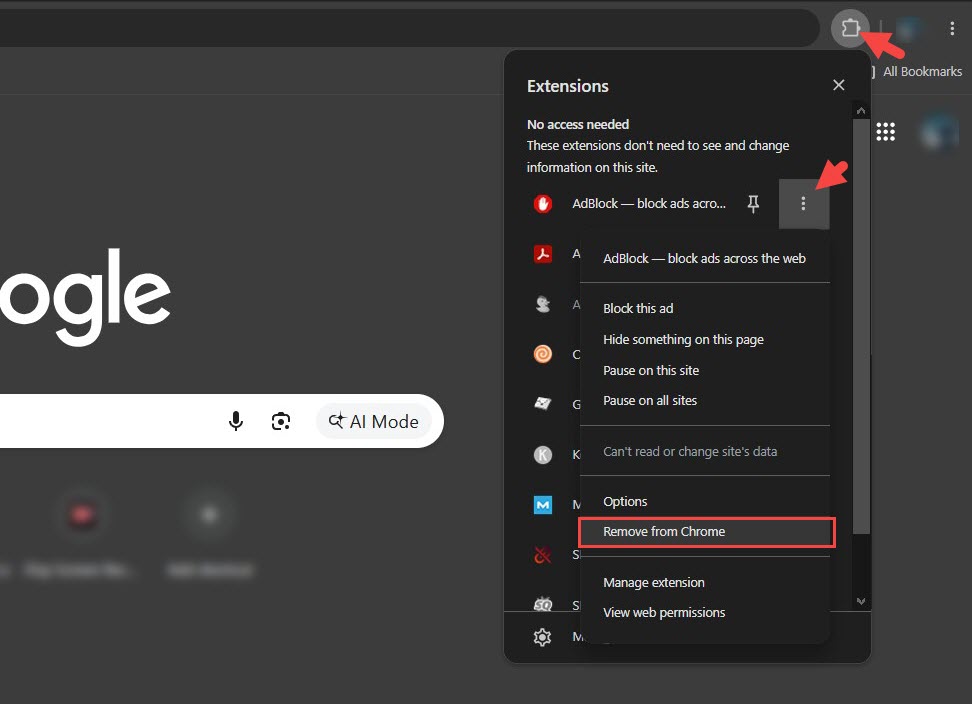
3. Click Remove to confirm the deletion.
To temporary disable third-party ad blocker in Chrome:
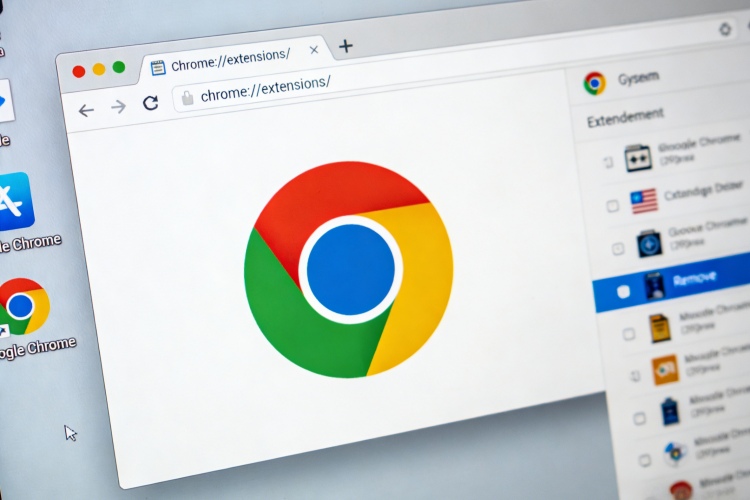
1. Click the three-dot button > Extensions > Manage Extensions.
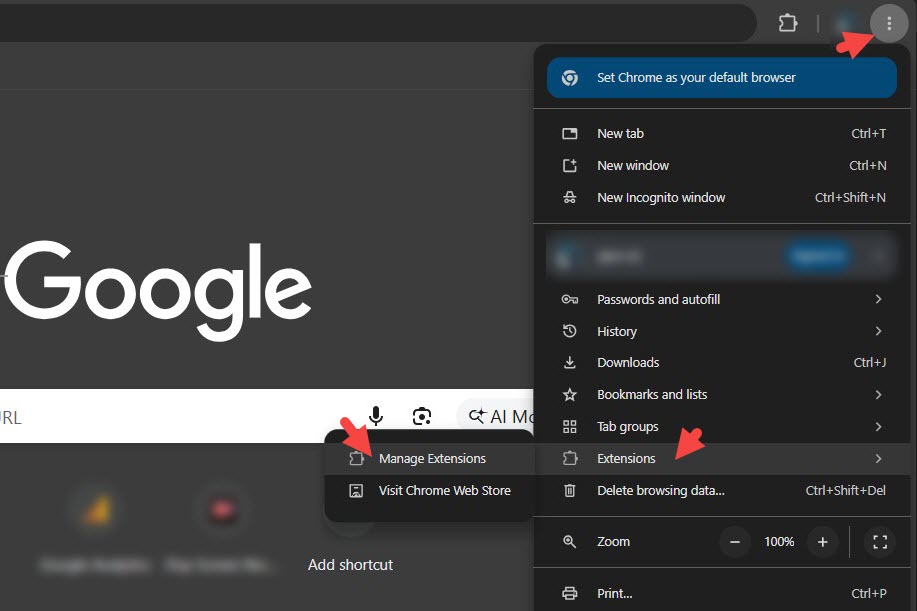
2. Find the ad blocker and toggle it off to disable.
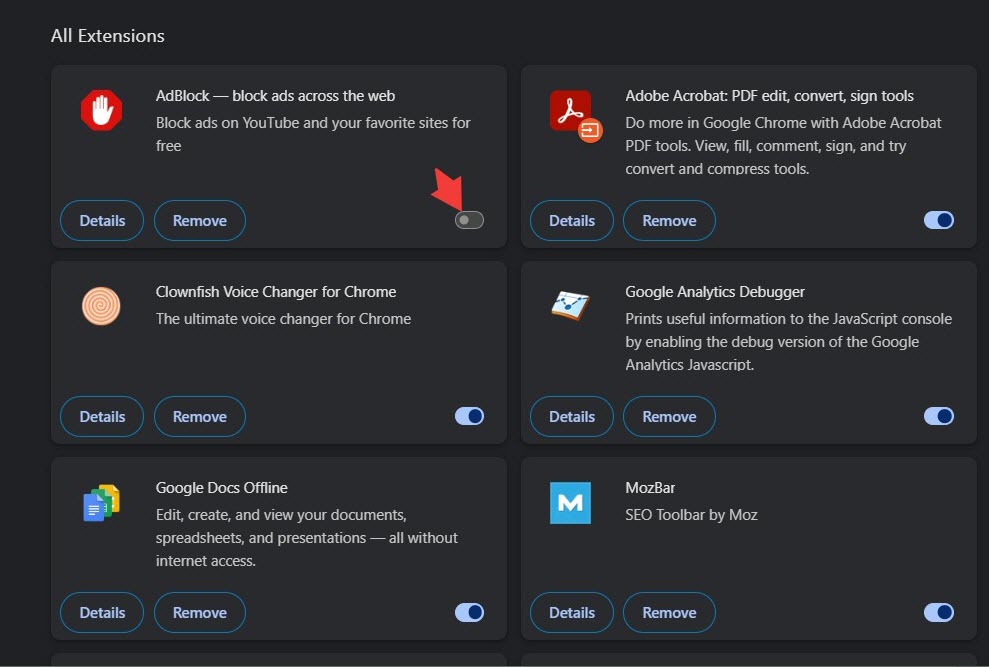
You can also remove browser extensions in Chrome by clicking the Remove button.
How to Remove Ad Blocker in Firefox
To disable native ad blocker:
Firefox employs "Enhanced Tracking Protection" to block trackers and creepy ads when you browse a website. You can’t really turn off the feature. Instead, customize the protection level to avoid webpage not loading issue caused by the ad blocker.
1. Open Firefox and click the three-line button > Settings.
2. Navigate to Privacy and security.
3. Scroll to Advanced settings under Enhanced Tracking Protection section.
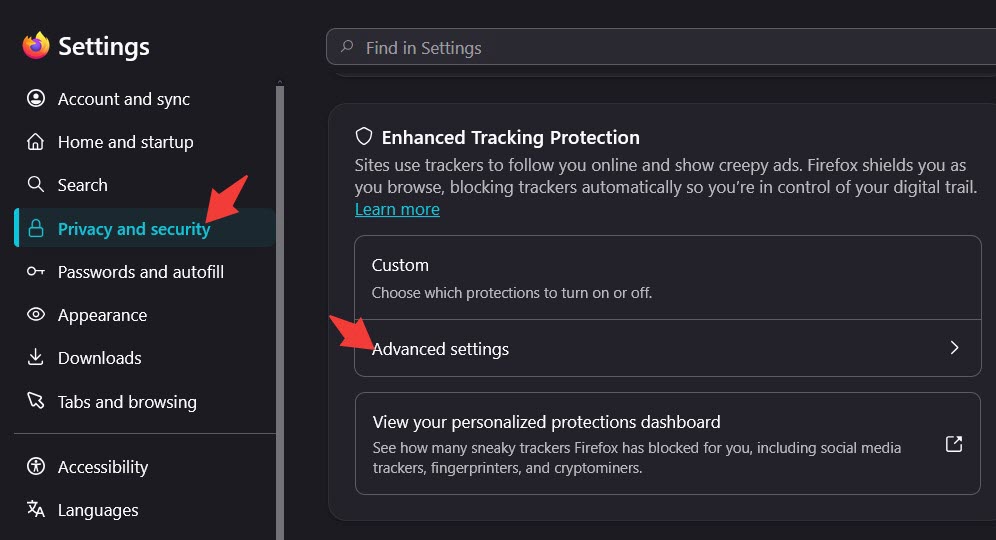
4. Switch the protection level from Strict to Standard. If it is set as Standard before, select Custom and customize tracking protection.
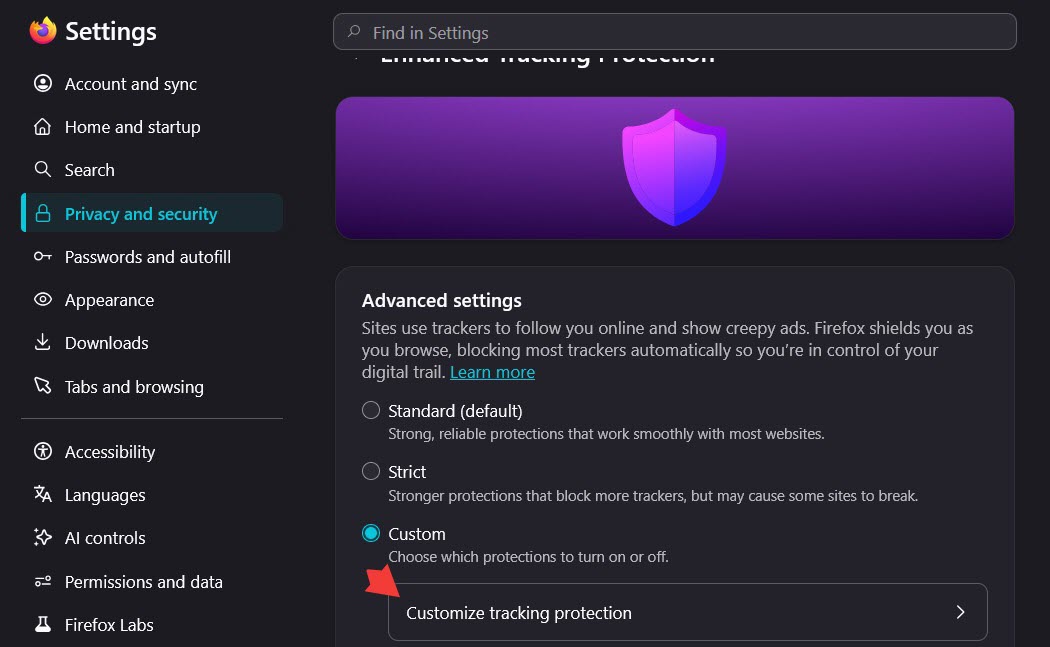
5. Choose which protections to turn on or off depending on your needs.
To remove or disable third-party ad blocker in Firefox:
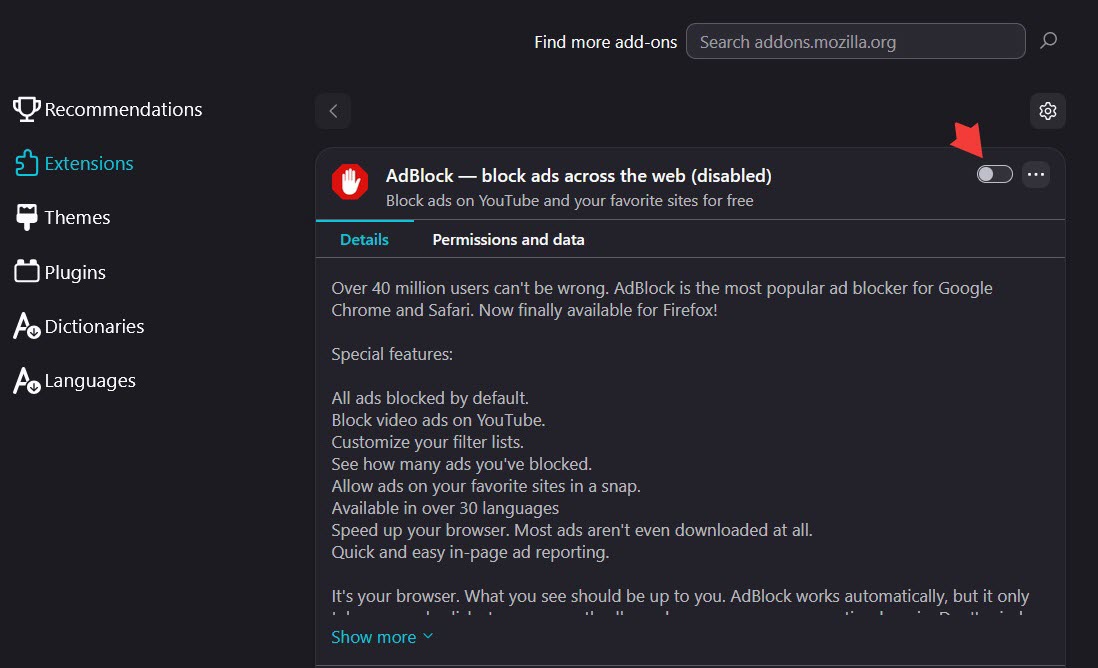
1. Click the three-line button and select Extensions.
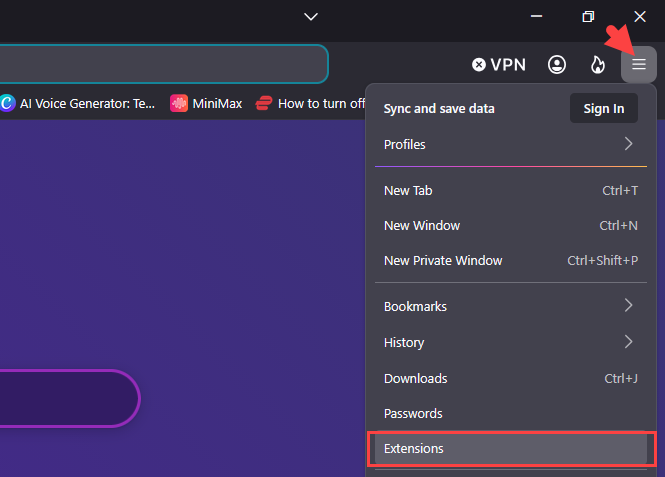
2. Find ad blocker in the extension list.
3. Click the Setting icon next to the ad blocker.
4. If you want to delete ad blocker, select Remove Extension. Click Remove to confirm the deletion if it prompts.
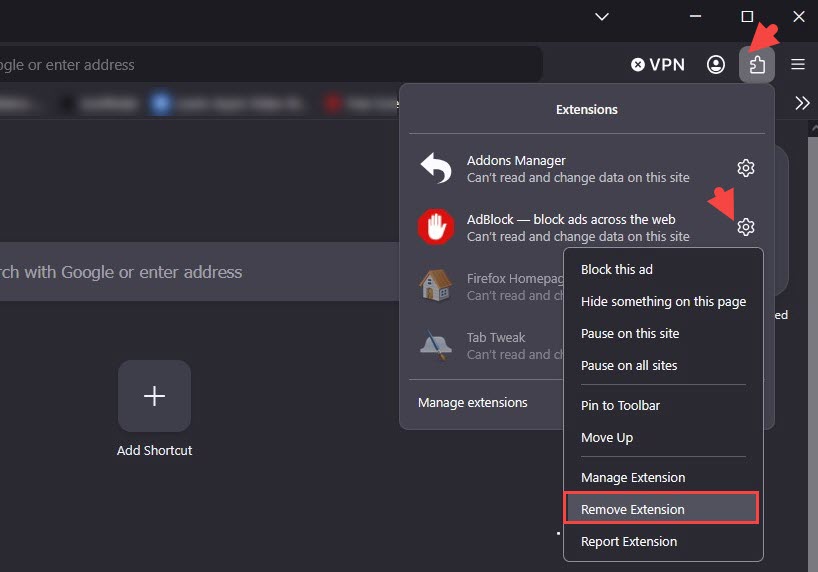
5. If you just want to turn off ad blocker for a while, select Mange Extension and toggle it off.
How to Remove Ad Blocker in Edge
To disable built-in ad blocking feature:
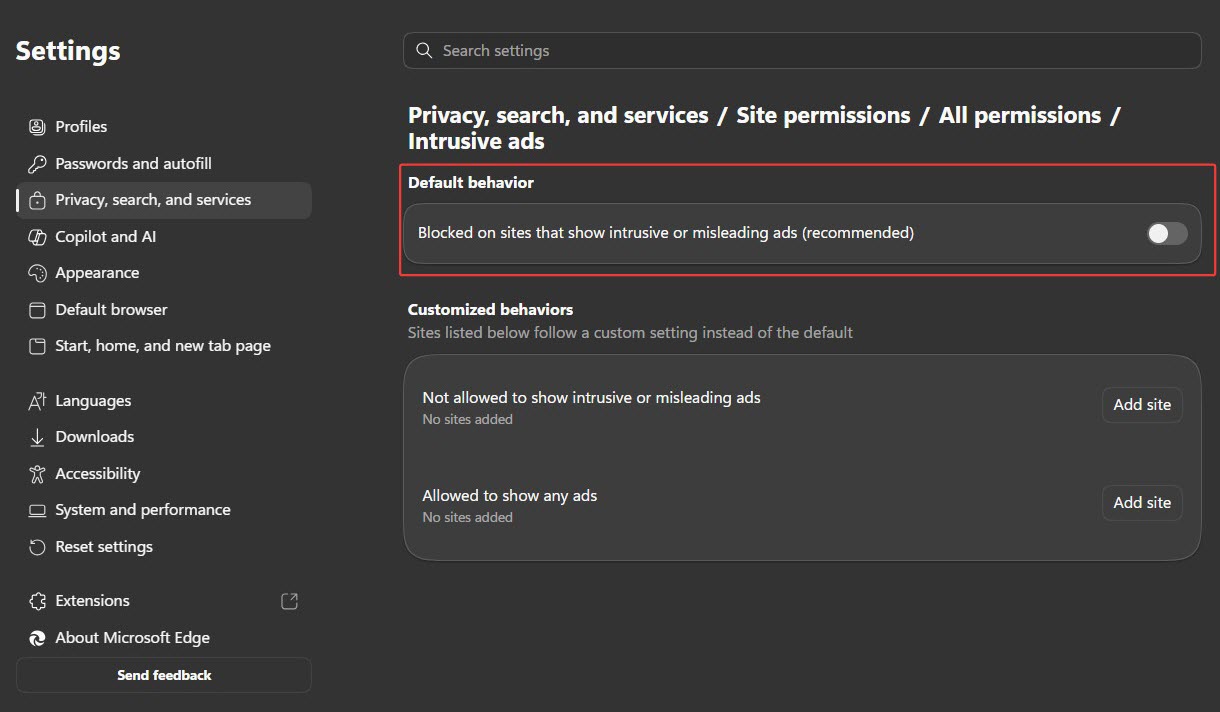
Microsoft Edge automatically blocks ads and pop-ups for privacy protection. You can change the site permissions setting to disable ad blocker.
1. Open Edge and click the three-dot button > Settings.
2. Navigate to Privacy, search and services > Site permissions.
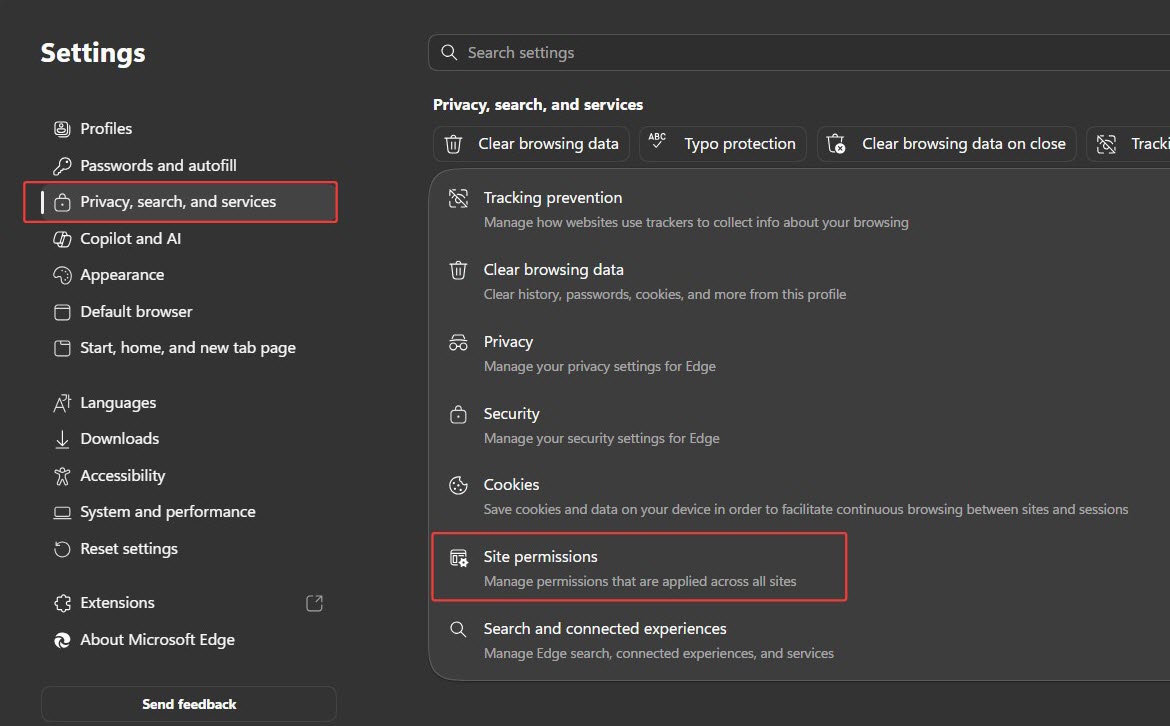
3. Click All permissions > Intrusive ads or Pop-ups and redirects.
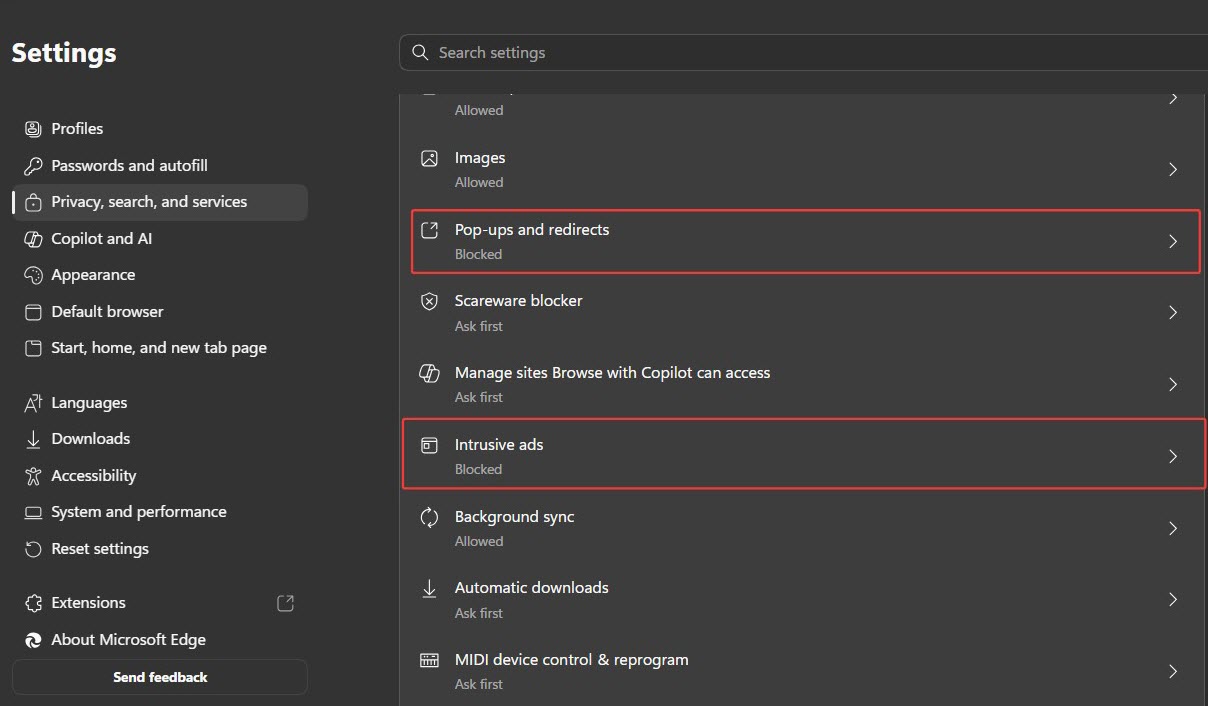
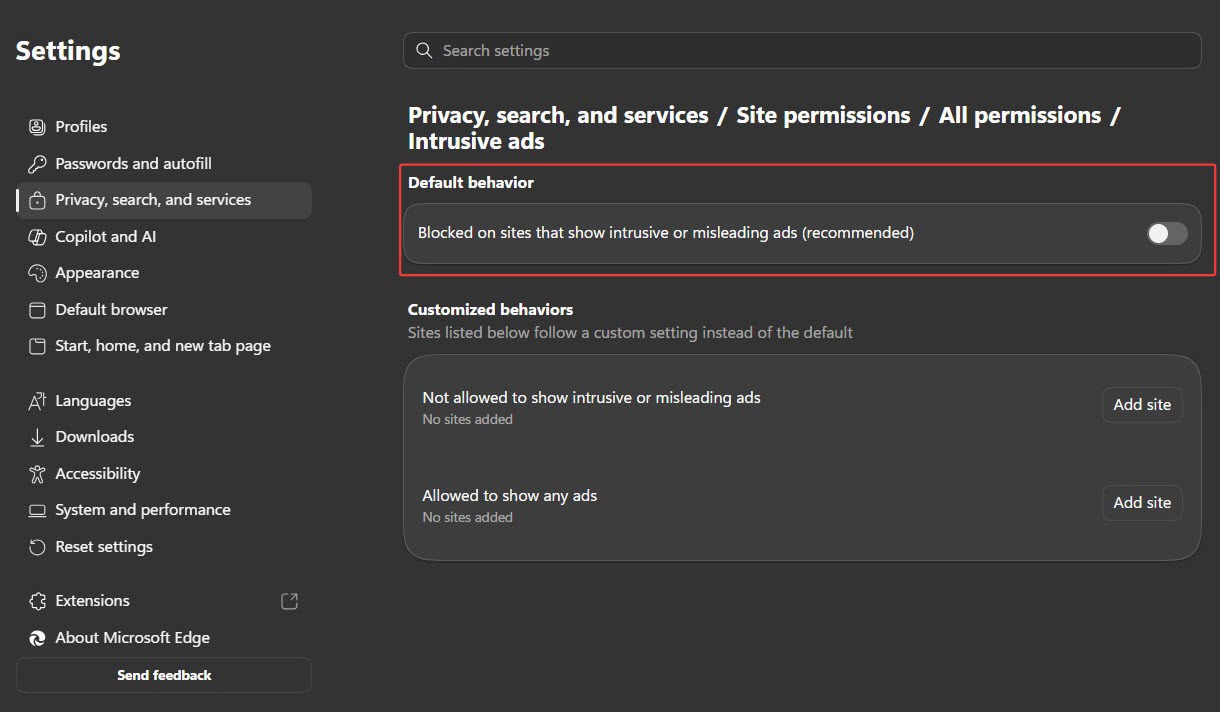
4. Turn off the default behavior. Otherwise, customize the are allowed or not allowed to show adds.
To disable or remove ad blocker extension:
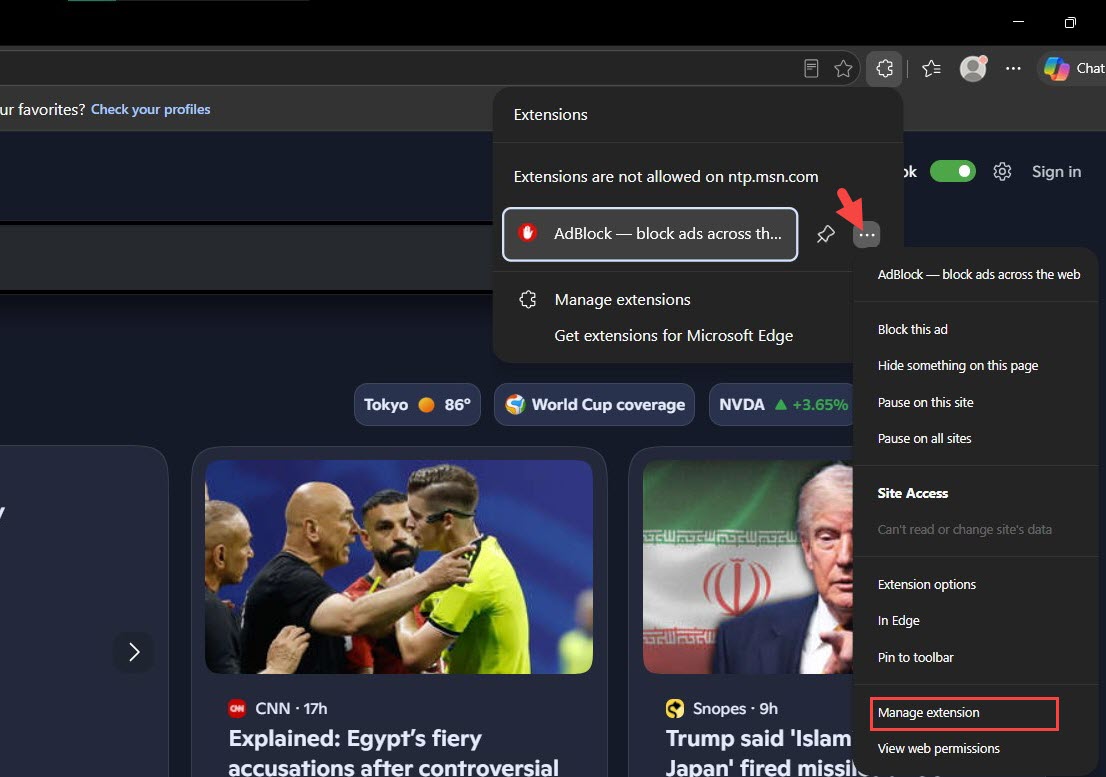
1. Click the extension icon on Edge.
2. Find your ad blocker in the list. Click the three-dot button > Manage extension.
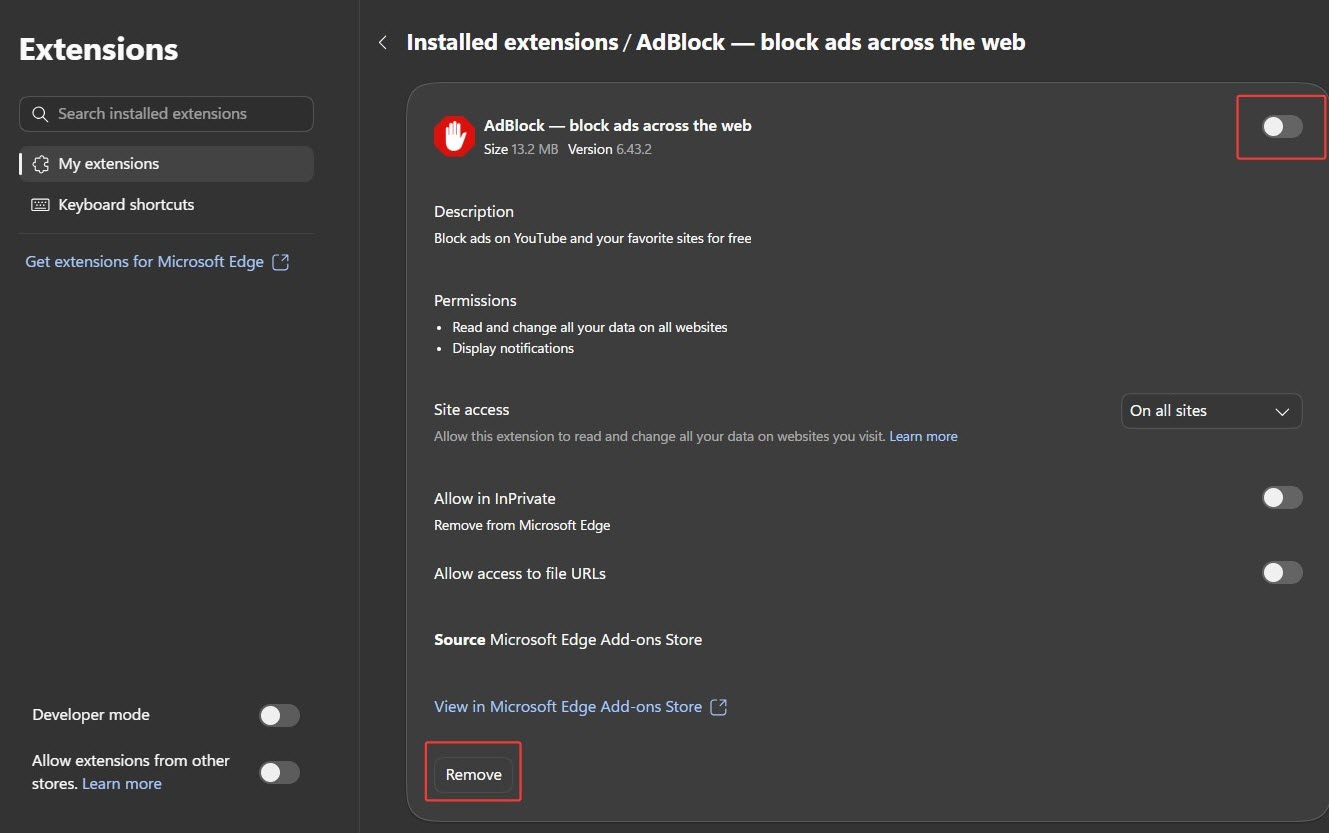
3. Toggle it off to disable it. Otherwise, click Remove to delete it from Edge.
Also Read: How to Uninstall Microsoft Edge >>
How to Uninstall Ad Blocker Completely from Any Browser
Is it possible to remove all ad blockers on different browsers at one time?
IObit Uninstaller is an innovative utility available to uninstall unwanted programs and browser extensions on your PC. It automatically scans and verifies all extensions installed in your browser. Each trusted extension is listed with a brief description and user ratings, helping you determine whether to keep or remove it. With the support of batch removal, the best uninstaller for Windows empowers you to uninstall multiple ad blockers on different browsers in a single click.
Here's how to remove ad blockers in Chrome, Firefox, Edge and more.
1. Download and install IObit Uninstaller on your PC.
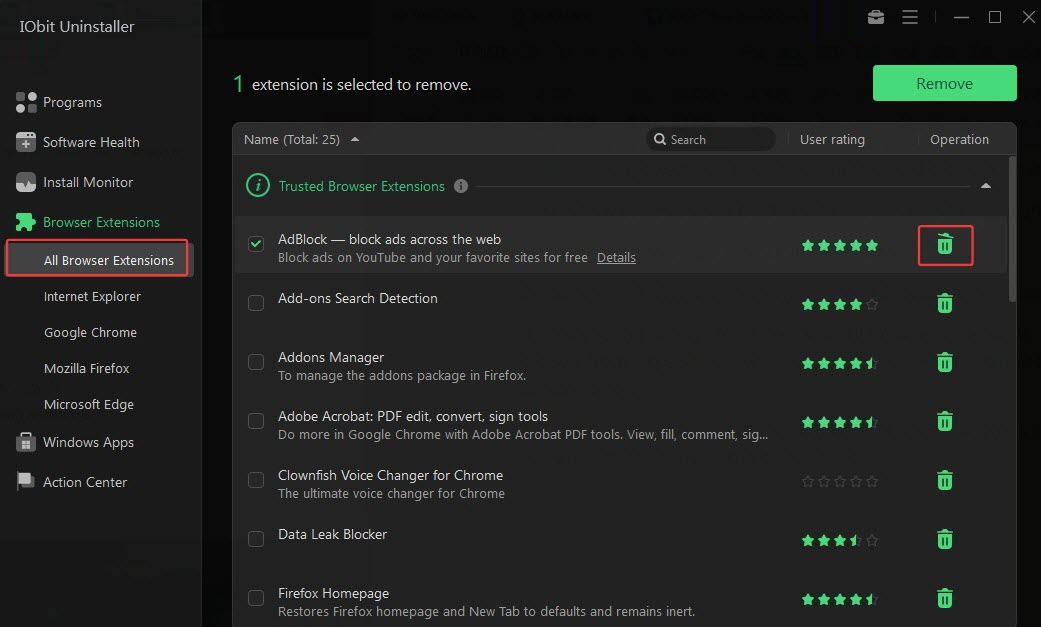
2. Launch IObit Uninstaller and navigate to Browser Extensions.
3. Find your ad blocker from the list of all browser extensions. If you only want to remove ad blocker from a specific browser, choose the browser and find the ad blocker. Then, click the delete button.
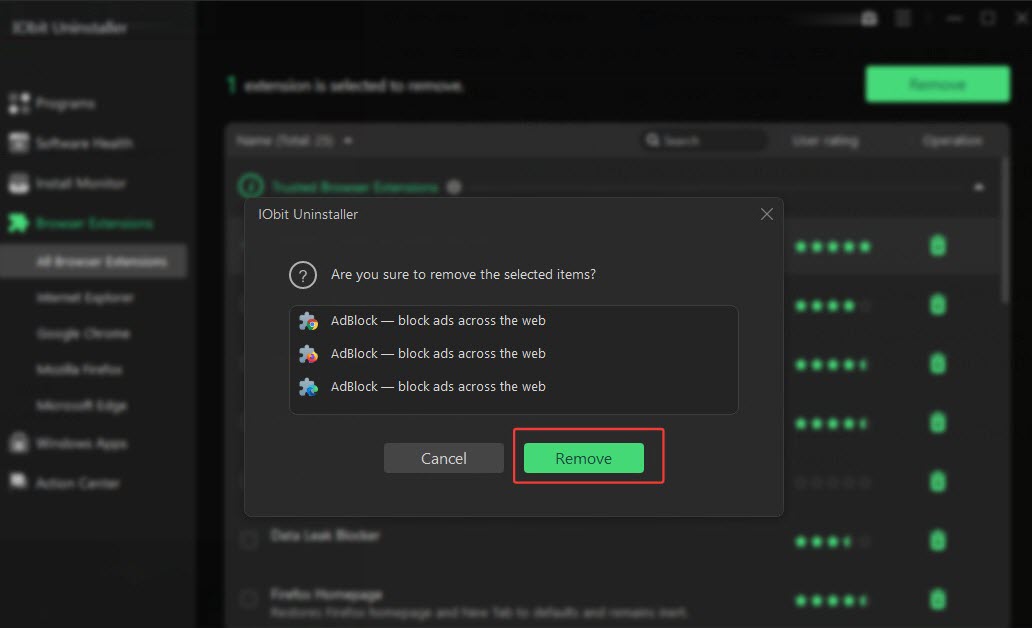
4. The pop-up shows where the ad blocker is installed. Check the information and click Remove if you are sure to uninstall the extension(s).
5. Your browsers will be automatically closed before perform the uninstallation. After the process is completed, open your browser again and you can find that the ad blocker is fully removed.
Ad Blocker Removal FAQs
Is it safe to remove ad blocker?
Yes, it is entirely safe to remove an ad blocker. Your browser will function exactly as it did before and your data - like browser history, bookmarks, saved passwords - remains.
Why can't I remove my ad blocker?
There are several reasons that you might not be able to remove an ad blocker.
The ad blocker is managed by your organization. If you are using a work or school computer, the IT department likely installed the ad blocker centrally.
The ad blocker is corrupted. The extension may out uninstall normally if it is damaged or installed incorrectly. Update your browser or reinstall the ad blocker to fix the issue.
Malware or hijacked browser is preventing removal. Malicious programs may silently install and lock the extension on your browser. Run a malware scan to identify and remove the underlying problem. Also, IObit Uninstaller can completely uninstall the stubborn and malicious programs to keep your computer safe.
Can I reinstall an ad blocker after removal?
Yes. You can reinstall an ad blocker at any time you like. Just search the extension in the official add-on store and add it to your browser whenever you need to block ads.
Is it better to disable or uninstall ad blocker?
If you are just trying to get a specific video to play or a website to load, disabling ad blocker is enough. But, you’d better uninstall the ad blocker if causes persistent performance issues and you no longer want it.
Final Thoughts
On one hand, million of users rely on ad blocker to eliminate ads annoyance and prevent tracking. On the other hand, the extension may cause various issues, from websites not loading properly to browser crashes. It is a good option to disable or remove ad blocker when it is no longer beneficial. It is straightforward to turn off both built-in and third-party ad blockers in your browsers. If you want to completely uninstall ad blocker, IObit Uninstaller offers a one-click solution to remove extensions from any browser safely and quickly. If you want to delete ad blocker and other extensions from your browser hassle-free, IObit Uninstaller is the best recommendation.
Driver Booster Free
- Automatically scan and update drivers.
- Update game ready drivers for peak gaming performance.
- Identify and fix various common of hardware issues.
- Boost 30% of system performance for fast & smooth running.