You downloaded Grammarly or added extension to catch embarrassing typos. But now? It’s flagging every creative metaphor you write, slowing down your browser, and second-guessing your voice. Sound familiar? Let’s fix that.
How do I uninstall Grammarly? This complete guide covers everything. You’ll know how to uninstall Grammarly on Windows, how to remove Grammarly from Chrome, and how to turn off Grammarly in Word. No tech headaches. Just clear, simple steps. And ensure no leftover files remain on your system.

Why You Might Want to Uninstall Grammarly
Why you want to remove Grammarly? There are several reasons:
System performance: Grammarly can sometimes slow down Word, Outlook, or web browsers.
Subscription changes: Perhaps your premium subscription ended.
Privacy concerns: Some users prefer fewer apps tracking typing activity.
Switching tools: You might be moving to Microsoft Editor, Hemingway, or ProWritingAid.
Whatever your reason for knowing how to remove Grammarly from Chrome or Windows, the tutorial below will meet your needs.
How to Uninstall Grammarly – Standard Way
Grammarly can exist as a desktop app and as a browser extension. What is the most common method to remove Grammarly, both the app and extension? If you’re asking how to uninstall Grammarly quickly, the standard way is your first stop.
How to Uninstall Grammarly on Windows (App)
To remove the Grammarly desktop app:
Step 1. Click the Start menu and select Settings.
Step 2. Go to Apps > Apps & Features.
Step 3. Scroll down to find Grammarly in the list. Click the app and select Uninstall.
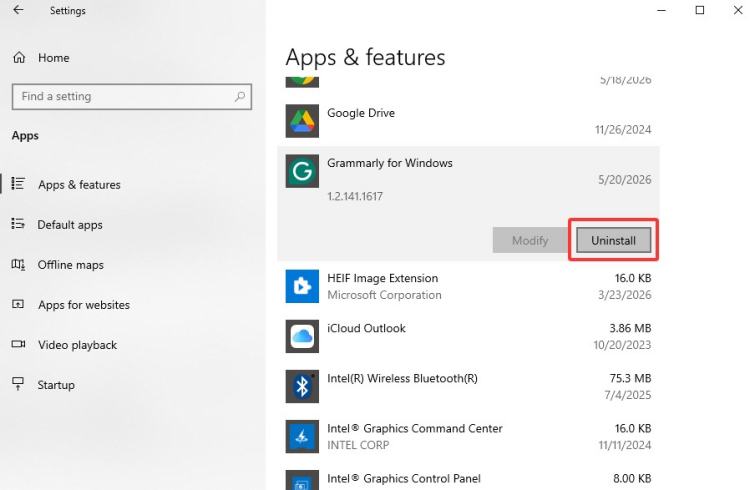 Step 4. Confirm the action and wait for the process to complete.
This method is the standard approach for users wondering how to uninstall Grammarly on Windows. After uninstallation is complete, please restart your computer to ensure that all Grammarly-related files have been deleted.
How to Remove Grammarly from Chrome (Extension)
How do I uninstall Grammarly? In fact, most people asking how to remove Grammarly actually want to remove the browser extension, not the desktop application. Follow the steps.
How to Remove Grammarly Extension from Chrome:
Step 1. In the top-right corner of Chrome, click the puzzle piece icon (Extensions).
Step 2. Find Grammarly in the dropdown list.
Step 3. Click the three dots next to it > Remove.
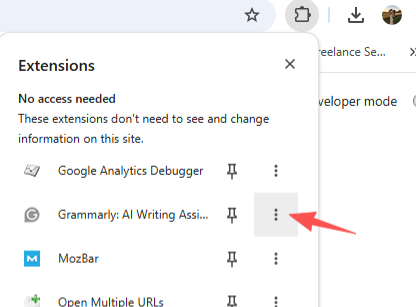
Step 4. Confirm by clicking Remove again.
For a second method on how to remove Grammarly from Chrome, go to chrome://extensions, find Grammarly, and click “Remove.” The same steps work for Microsoft Edge.
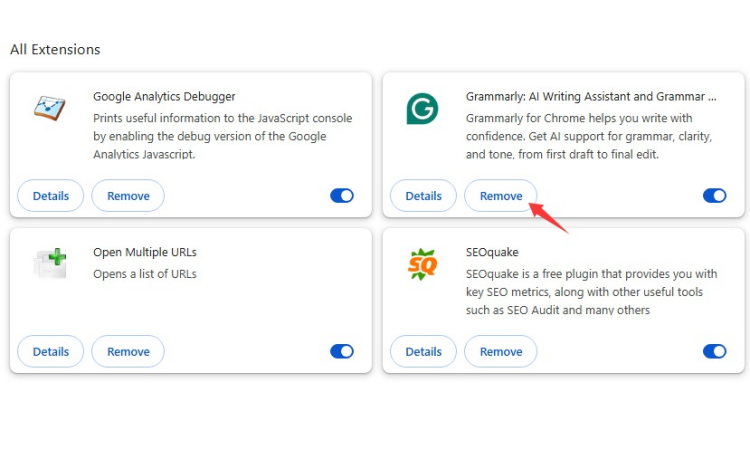
How to Uninstall Grammarly on Windows Using IObit Uninstaller
Standard methods for how to uninstall Grammarly on Windows miss registry keys, temp files, and hidden folders. That’s why months later, you might still see a “GrammarlyUpdateChecker.exe” in Task Manager.
For a thorough cleanup, IObit Uninstaller is an excellent option. It’s beginner-friendly and can remove both apps and browser extensions like Grammarly, including leftover files. It runs a powerful uninstall scan that finds everything—including 20+ registry entries.
IObit Uninstaller Free
- Complete forced uninstallation for stubborn programs.
- Uninstall a batch of programs at once.
- Scan and remove leftover files, folders, and registry entries.
- Support the management of Universal Windows Platform apps.

Why choose IObit Uninstaller:
Here’s why this tool beats manual removal when you need to uninstall Grammarly completely:
One-click uninstallation: Easily remove Chrome extensions or apps without hassle.
Clean leftover files: Automatically deletes residual files for a tidy system.
Batch uninstall: Remove multiple programs at once to save time.
Browser extension management: View and manage all extensions in one place.
Free and effective: The free version handles most uninstallation tasks efficiently.
How to uninstall Grammarly on Windows with this uninstaller for Windows 11:
Step 1. Download and install IObit Uninstaller for free by clicking the button below.
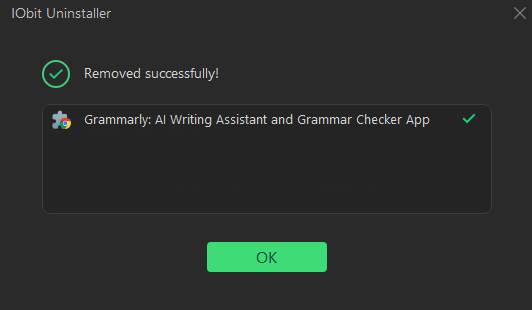
Step 2. Launch the program. Click “All Programs” on the left. Find Grammarly for Windows app.
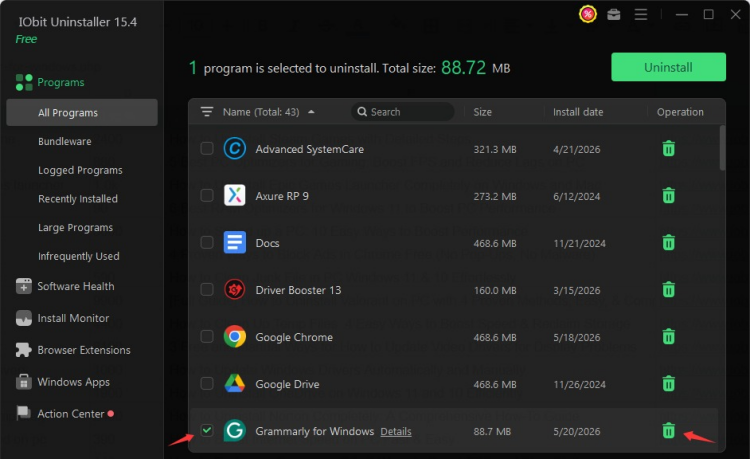
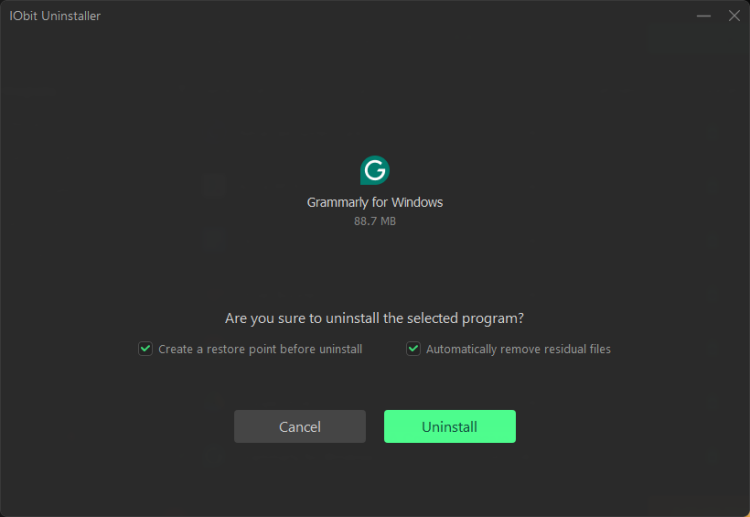
Step 3. Check the box and click the Uninstall button. Wait for the uninstalling process to be done.
For remove Grammarly extension from Chrome:
Go to the Browser Extensions tab and select uninstall Grammarly from Chrome in one click.
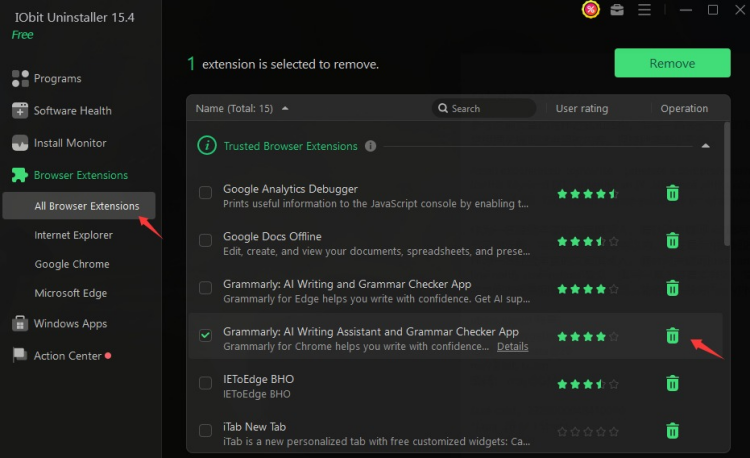
If you are running a browser, the uninstallation will not proceed; you will need to exit all browsers. Then IObit will then remove the extension for you.
How to Remove Grammarly from Windows Manually
Even after uninstalling, Grammarly can leave residual files. To remove them, follow the easy steps.
Step 1. Right click the Windows key from taskbar, open File Explorer.
Step 2. navigate to:
C:\Users\[YourName]\AppData\Local\Grammarly
Step 3. Delete the Grammarly folder. And then Empty the Recycle Bin.
How to Turn Off Grammarly in Word
Sometimes, you may not want to uninstall Grammarly entirely but only disable it in Microsoft Word. Here’s how to turn it off or remove it:
Step 1. Find the Add-ins tool on the Home tab.
Step 2. At the upper left of the dialog window, click More Add-ins > My Add-ins.
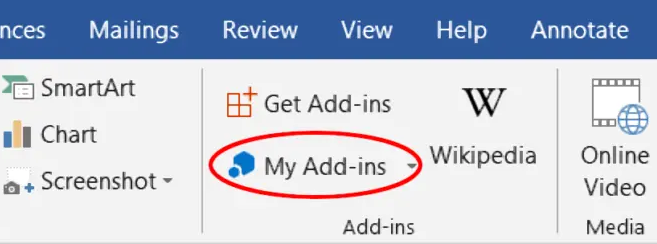
Step 3. Point to the Grammarly icon. Click the three dots in the upper right corner, then select Remove.
Confirm the process. This step is useful if you’re asking how to turn off Grammarly in Word while keeping it in your browser or desktop app.
How to Check If Grammarly is Really Gone
You’ve followed how to uninstall Grammarly, how to remove Grammarly, and even how to uninstall Grammarly on Windows twice. Now let’s verify if it is really gone.
Post-uninstall sanity checklist:
Task Manager (Ctrl+Shift+Esc) – No Grammarly process.
Windows Search – Type Grammarly. No results means success.
Browser extensions – Chrome, Edge, Firefox clean.
Microsoft Word – No Grammarly tab or sidebar.
Restart your PC – Open Gmail, type a typo. No green underline? Free at last.
AppData folder – Check C:\Users\[YourName]\AppData\Local\Grammarly. Delete if still there.
Final Words
Now you know exactly how to uninstall Grammarly on Windows and in browsers. Whether you use Windows Settings, remove extensions manually, or use IObit Uninstaller, the process is safe, fast, and effective. It is recommended to use IObit Uninstaller for one stop uninstallation, without complex settings, you can clean your system fully, including leftover files, free up disk space, and optimize your computer’s performance.
IObit Uninstaller Free
- Complete forced uninstallation for stubborn programs.
- Uninstall a batch of programs at once.
- Scan and remove leftover files, folders, and registry entries.
- Support the management of Universal Windows Platform apps.