How to uninstall Yahoo from Chrome? Many of you must be suffering from Yahoo keeping showing up on your Chrome front page. Some of you tried some configuration resetting, but nothing changed. Well, this blog teaches you how to remove malicious extensions, reset the whole Chrome, and scan for Windows malware to address Yahoo hijacking the front page for good.
But in the very beginning, you need to know what on earth is happening to your Chrome so you make sure you don’t adopt the wrong method. Cuz some method, for example, the Chrome resetting, is going to eliminate all the extensions. Let’s read on, know more, and then take action.
Why Does Yahoo Keep Showing Up?
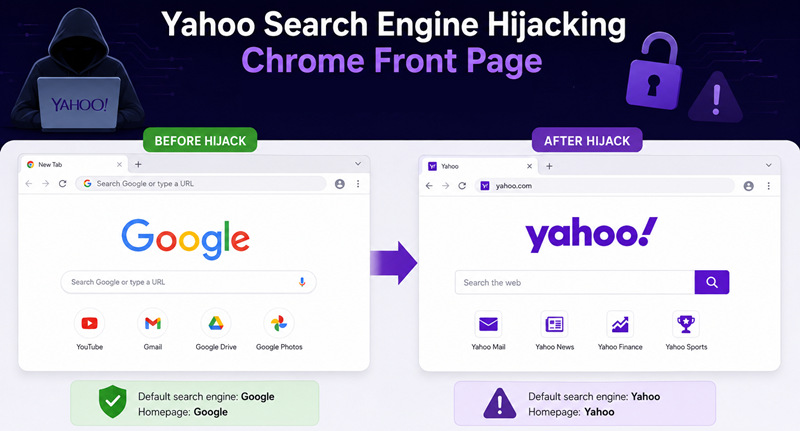
Basically, Yahoo occupying your Chrome front page is a tough question. And it cannot be settled simply via browser settings cuz it is the result of malicious extensions and bundled malware attacks. These things change your startup settings, modify your preferences, and finally take over your browser.
Here are the three major causes of Cannot Remove Yahoo From Chrome:
1. A malicious or unwanted Chrome extension
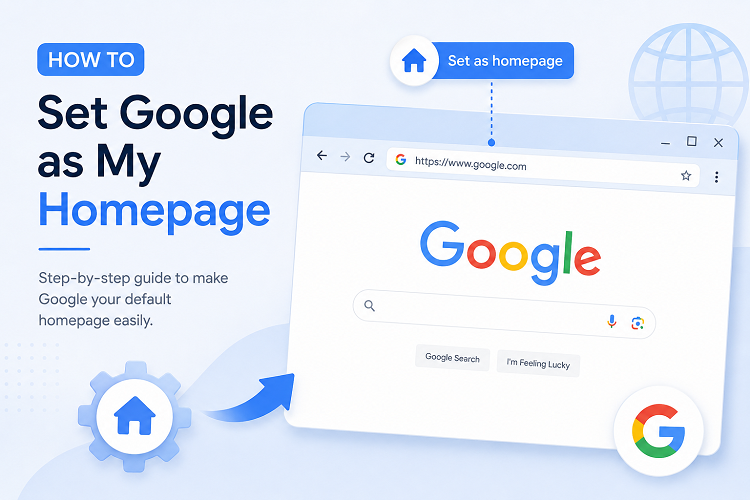
Some free extensions, such as PDF converters, coupon finders, or video downloaders, request permission to modify your browser settings during installation. Once installed, they can change your homepage, startup page, new tab page, or default search engine to Yahoo. The worst part of these extensions is that they disable your manual settings and restore Yahoo as your default front page from time to time. Read also: How to set Google as my front page?>>
2. Adware or a browser hijacker installed on your computer
Adware or a browser hijacker is harder to cope with. This type of front page hijacker runs at the system level, and regular settings cannot help you restore the Chrome home page to the default look. Adware or a browser may create scheduled tasks, registry entries, or background processes that restore Yahoo as your homepage or startup page every time you launch Chrome. You need to scan, detect, and remove the hijackers.
3. Software bundled with free downloads
A software hijacking program is not as commonly seen as an extension hijacking. This problem strikes you only when you install free programs and omit the bundled downloaded files. The additional components inside, such as browser extensions or search managers, that automatically change Chrome's homepage or default search engine to Yahoo. Be aware of the tools below; they are usually the root causes of Yahoo malicious front page redirects.
Search Manager
Browser Assistant
Safe Search
PDF Converter
Weather Extension
How to Uninstall Yahoo From Chrome by Changing Default Homepage?
If you want to permanently remove Yahoo from your front page, the first thing you can do is check your browser settings. This action can help you figure out if the hijacking is from a malicious third party or if it is simply your wrong browser settings.
If Yahoo was set as your homepage by mistake or through a browser setting change, follow the tutorial below to remove Yahoo and restore your default front page. However, if Yahoo keeps reappearing after you save the changes, the issue is likely caused by a browser extension or browser hijacker. Please jump to the next several parts to get solutions accordingly.
How to uninstall Yahoo from Chrome using Browser settings?
Step 1. Open Google Chrome, click the three-dot menu in the top-right corner, and select Settings.
Step 2. Go to the search engine.
Step 3. Select Manage search engines and site search. And find Yahoo Search. Hit the three dots button to delete it.
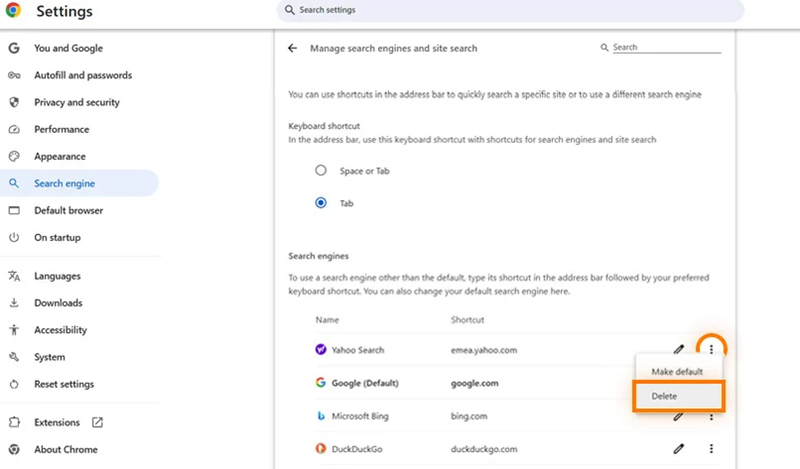
When the settings are applied, close Chrome and open a new tab to see whether Yahoo is removed. If not, then manual changes cannot help you permanently stop Yahoo from showing up. Please read on to see other solutions.
How to Uninstall Yahoo From Chrome: Check Browser Hijackers
Suspicious extensions are a big resource that causes browser front page hijacking. Some free extensions contain vicious hijacking plugins and continuously change your front page to the Yahoo search engine. To solve this type of problem, you need to check all your extensions. If you don’t know which extension should be removed, you can use IObit Uninstaller, a free extension remover that lists all your extensions, providing ratings for you to refer to. And most importantly, the one-click deep uninstallation function.
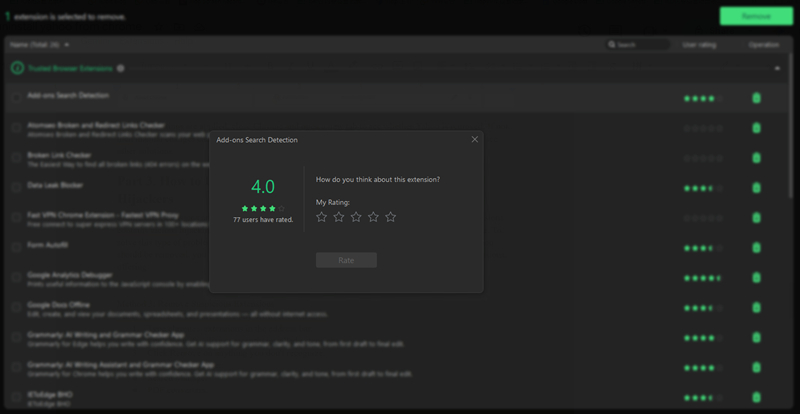
How to uninstall Yahoo from Chrome by removing suspicious extensions?
Step 1. Download IObit Uninstaller for free.
Step 2. Switch to the Browser Extensions tab to preview all the extensions on Google Chrome. Extensions on Internet Explorer, Firefox, and Edge are all collected in the software for you to sift and inspect.
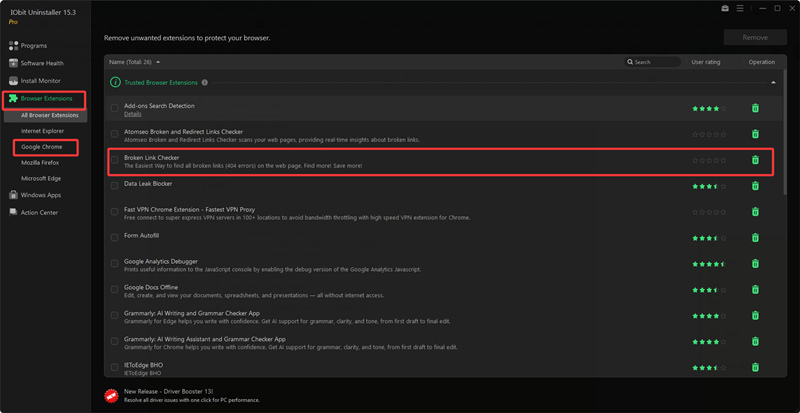
Step 3. Click on the trashcan button to clean uninstall the extensions for good.
Note: Don’t remove all the extensions or uninstall Chrome for overall resets.
The core features of IObit Uninstaller not only address extensions hijacking, but also malware/bundleware hijacking:
Powerful Uninstall
Completely removes stubborn browser extensions and unwanted programs that keep changing your Chrome homepage to Yahoo.
Browser Extension Removal
Detects and removes malicious or unnecessary Chrome extensions that modify your homepage, startup page, or default search engine.
Bundleware Detection & Removal
Identifies bundled software installed with free downloads and safely removes hidden programs responsible for Yahoo homepage hijacking.
Leftover File & Registry Cleanup
Deletes residual files and registry entries after uninstallation to prevent browser hijackers from restoring themselves.
How to Uninstall Yahoo From Chrome When the Methods Above Are Not Working?
If you don’t want to download software to cope with browser hijackings, then you can use one final method to completely bring Chrome to its original version. A Chrome reset restores your browser's default settings, removing unwanted startup pages, search engine changes, and removing all extensions that could be causing the hijack. This method is brutal, yet it helps clean unregistered extensions, which software cannot detect. And restoring Chrome doesn’t change your bookmarks, browsing history, and saved passwords. If this still doesn’t work, your PC is most likely attacked by malware. Please jump to the last section of the blog to find relevant solutions.
How to uninstall Yahoo from Chrome by utterly resetting Chrome?
Step 1. Go to Settings → Reset settings.
Step 2. Click Restore settings to their original defaults.
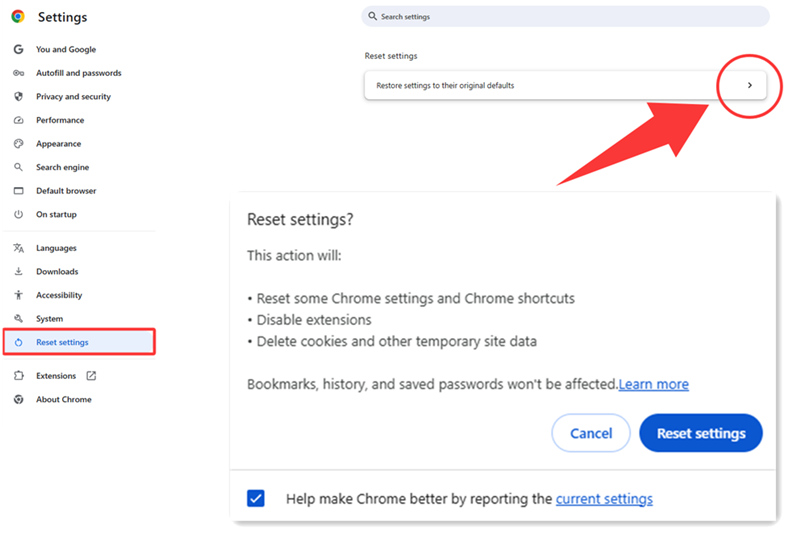
Step 3. Confirm by clicking Reset settings.
Note that the consequences of resetting Chrome are listed below. If you cannot accept the results, please don’t reset Chrome.
Resetting Chrome won't delete your bookmarks or saved passwords, but it will disable all extensions and restore browser settings to their defaults.
Bonus Tip: If Yahoo Keeps Coming Back for No Reason, Check Malware
If Yahoo keeps coming back and resetting Chrome doesn’t work, then you need to check for malware hijacking issues. A free antivirus, IObit Advanced SystemCare, does a full scan on a deep scale for you. The mainstream viruses and malware on the Internet are all on its blacklist. Make a quick check and locate the suspicious malware hidden in your system that causes Yahoo hijacking Chrome.
Conclusion
How to uninstall Yahoo from Chrome? In most cases, the problem is caused by a browser hijacker, unwanted extension, or bundled software that has modified your browser settings. By checking your startup pages, removing suspicious extensions, resetting Chrome, and scanning for malware, you can usually remove Yahoo from Chrome and prevent it from coming back. For a more complete cleanup, consider using IObit Uninstaller to uninstall unwanted programs, remove browser extensions, and clear leftover files that may be responsible for the hijack. Download IObit Uninstaller today and take back control of your Chrome browser.
IObit Uninstaller Free
- Complete forced uninstallation for stubborn programs.
- Uninstall a batch of programs at once.
- Scan and remove leftover files, folders, and registry entries.
- Support the management of Universal Windows Platform apps.